
Description
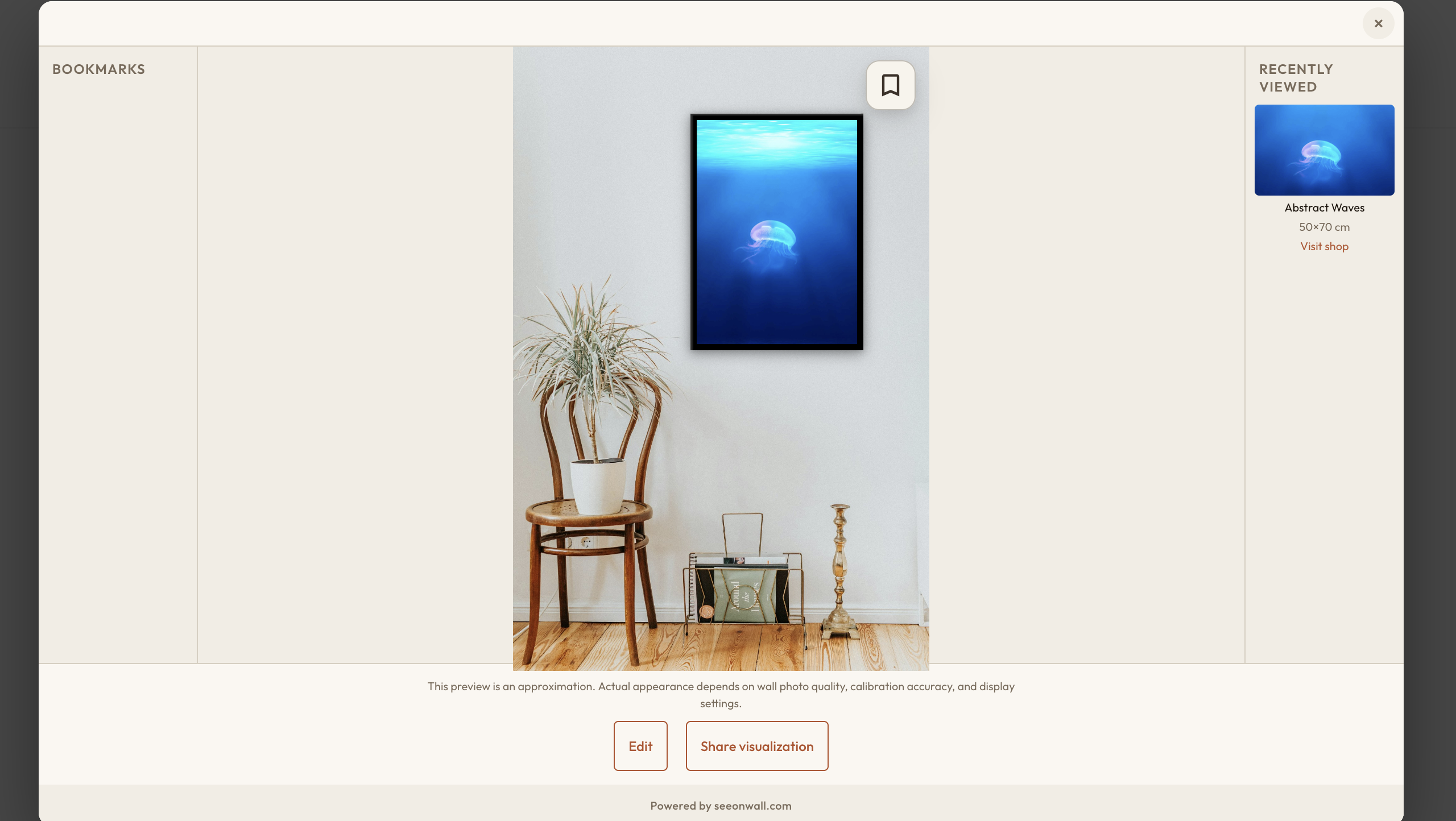
SeeOnWall adds a “See on your wall” button to your poster/art product pages. Shoppers take (or
upload) a photo of their own wall, or pick a stock room scene, and instantly see the poster
placed at true physical scale — reducing purchase hesitation and returns.
Requires WooCommerce (8.0+) to be installed and active — SeeOnWall is a WooCommerce
extension, not a standalone plugin.
How it works
- Install and activate SeeOnWall.
- Go to WooCommerce SeeOnWall and click Connect to SeeOnWall. No account signup, no API
key to copy — the plugin proves it controls your store’s domain and a free account is
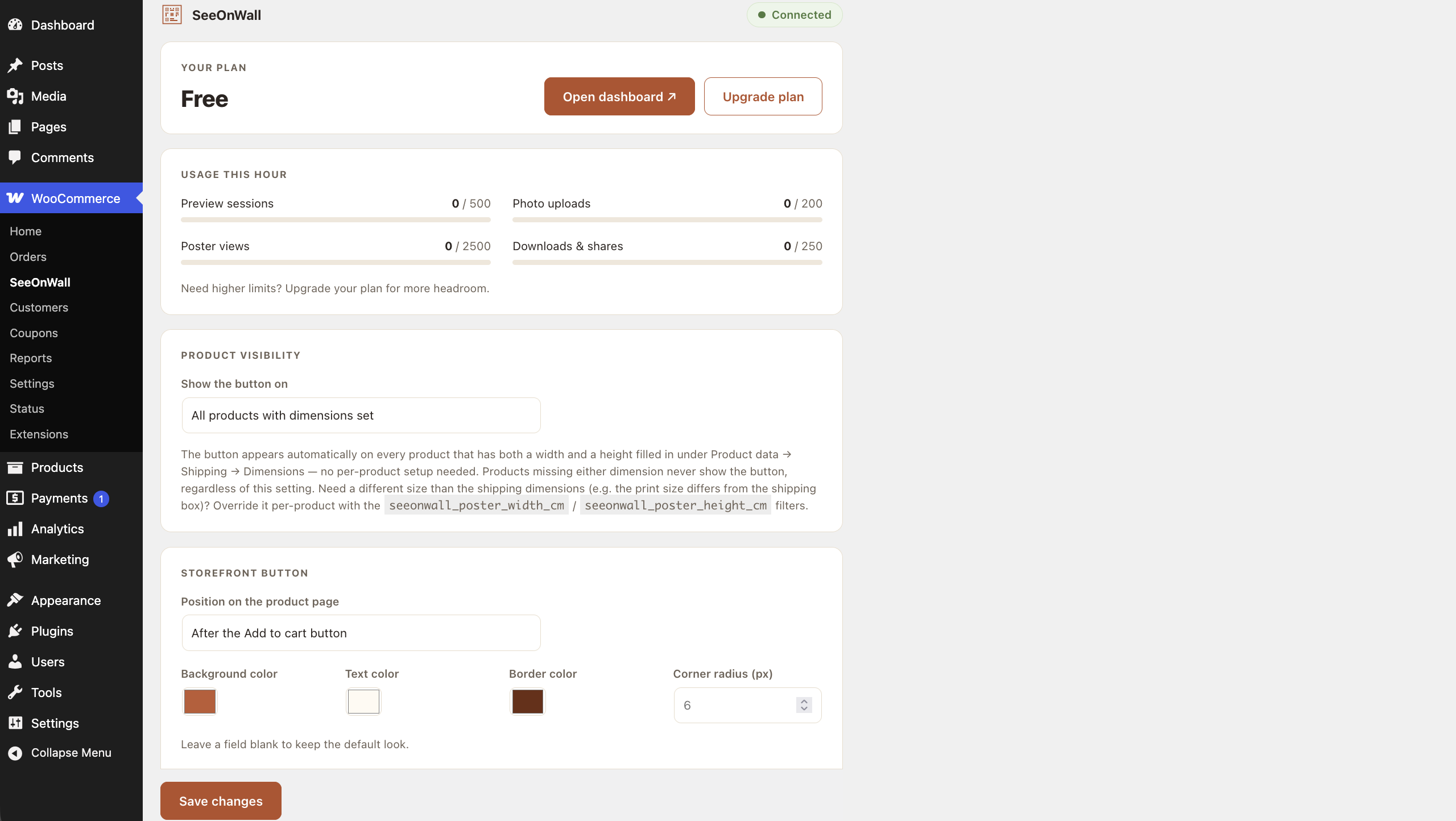
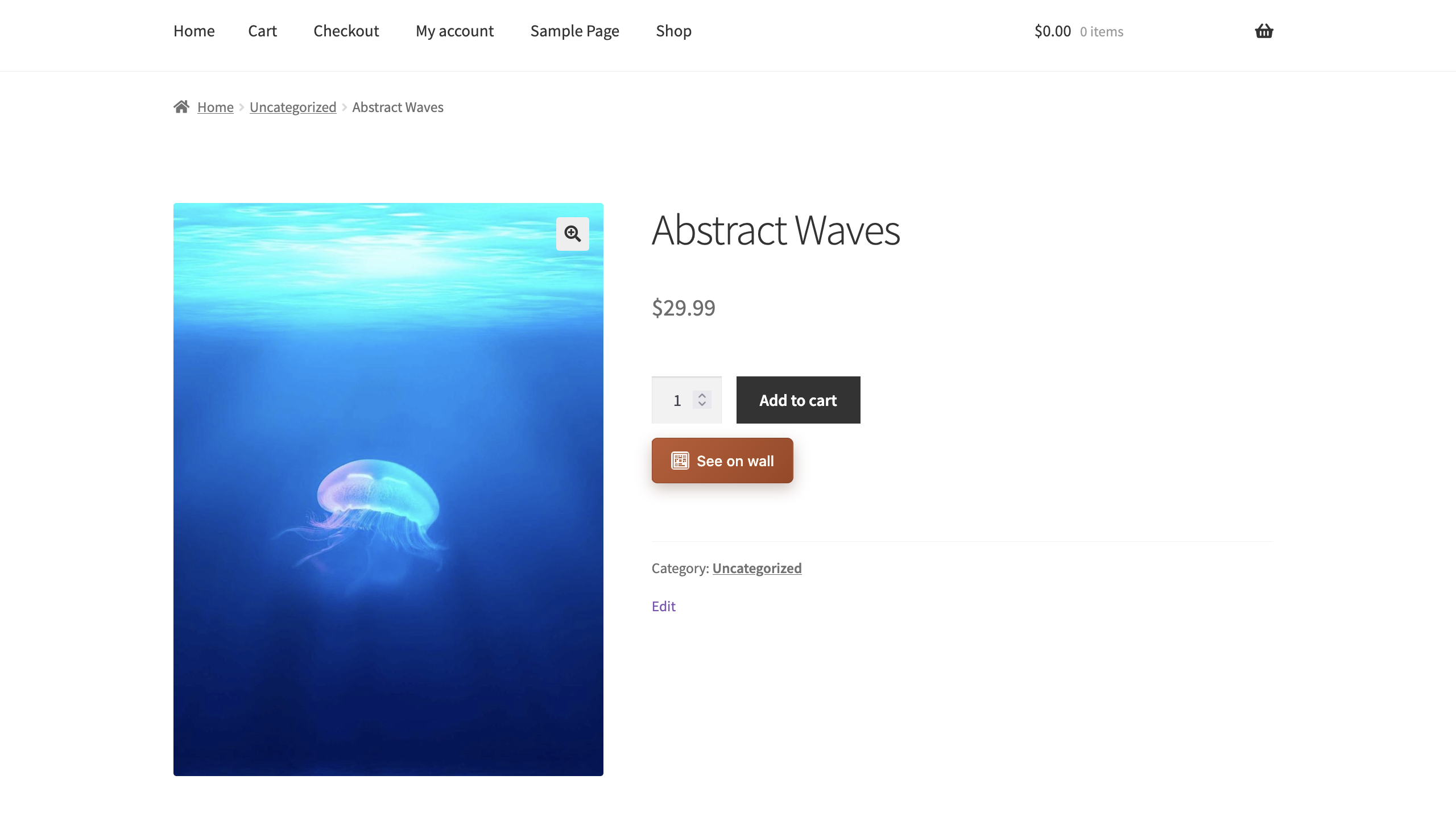
provisioned automatically. - A “See on your wall” button appears on your product pages automatically, sized from your
product’s Dimensions (WooCommerce Product data Shipping). - Upgrade to a paid plan any time from the SeeOnWall settings page for higher usage limits,
session sharing, and white-labelling — billed by SeeOnWall directly (Polar.sh), not through
WooCommerce.
External service: SeeOnWall
This plugin is the client for SeeOnWall, a hosted software-as-a-service that renders the
wall previews. The plugin does not do the visualization itself — it connects your store to the
SeeOnWall service at https://seeonwall.com and loads the service’s viewer on your product pages.
It is not usable without this service, which is operated by the plugin author.
What is sent, and when:
- On connect / reconnect (one-time, triggered by you clicking Connect): your store’s URL
and the connecting WordPress admin’s email address. In return the plugin receives a store token
used to authenticate later requests. The admin email is used only for account notifications
(e.g. usage-limit alerts) and billing — it is never shown to shoppers or used for marketing. - On product pages (for connected stores): a small JavaScript viewer is loaded from
https://seeonwall.com/seeonwall.js, and the product’s image URL and physical dimensions are
passed to it so the shopper can preview the poster. This is loaded from SeeOnWall (not bundled)
because the preview is a live hosted service, kept current server-side. - No customer personal data is collected or sent by this plugin.
Service terms and privacy policy:
- Terms of Use: https://seeonwall.com/terms
- Privacy Policy: https://seeonwall.com/privacy
Source Code
The admin settings page is a small React + TypeScript app. The plugin ships only its compiled,
minified output (assets/js/settings.js, assets/css/settings.css). The complete, human-readable
source those files are built from is included in this plugin under the src/ directory, together
with build instructions (src/README.md). Build tooling: Node.js + Vite (npm install && npm run). React and ReactDOM are not bundled — they resolve at runtime to the copies WordPress
build
ships (the react / react-dom script handles).
Screenshots
Installation
- Upload the plugin files to
/wp-content/plugins/seeonwall-for-woocommerce, or install directly through the WordPress plugins screen. - Activate the plugin through the “Plugins” screen in WordPress.
- Go to WooCommerce SeeOnWall and click Connect to SeeOnWall.
FAQ
-
Does this cost anything?
-
The plugin itself is free. A free tier is provisioned automatically on connect; paid tiers
(higher limits, session sharing, white-labelling) are billed by SeeOnWall directly. -
Which product field sets the poster’s physical size?
-
By default, WooCommerce’s own product Dimensions (Product data Shipping Width/Height),
converted using your store’s configured dimension unit. This can be overridden per-product via
theseeonwall_poster_width_cm/seeonwall_poster_height_cmfilters. -
Configurable from WooCommerce SeeOnWall Product visibility. By default, every product with
both a width and a height set shows the button. Switch to “Only products with the preview
enabled” to opt in per-product instead, via aseeonwall_preview_enabledcustom field/meta set
to a truthy value — dimensions are still required either way. -
Configurable from WooCommerce SeeOnWall Poster image. By default, the product’s first
gallery image is used, unless aseeonwall_image_urlcustom field/meta is set on that product,
which overrides it — useful when the first image isn’t a clean flat shot of the poster (e.g. a
framed mockup or room scene). Switch to “Use image from custom field” to require the custom
field on every product instead; the button won’t show on products missing it. -
What happens if I move my store to a new domain?
-
Open WooCommerce SeeOnWall — a “Reconnect” prompt appears automatically when the plugin
detects the site URL no longer matches the domain it was connected under.
Reviews
There are no reviews for this plugin.
Contributors & Developers
“SeeOnWall for WooCommerce” is open source software. The following people have contributed to this plugin.
Contributors
Translate “SeeOnWall for WooCommerce” into your language.
Interested in development?
Browse the code, check out the SVN repository, or subscribe to the development log by RSS.
Changelog
1.0.0
- Initial release.