

Description
Brute force, Login security & Two Factor Auth (2FA). Limit login. Malware & Vulnerabilities scan. FireWall. Enterprise ready security plugin.
SECURITY PLUGIN BY CLEANTALK (SPBCT)
We focus on eliminating the most common security threats for WordPress. At the same time, we strive to ensure that site performance remains unaffected. To achieve this, each release goes through automated and expert-driven testing pipelines. We also verify performance using Google PageSpeed Insights and GTMetrix. Typically, we release a new version twice a month to keep features up to date and protection strong.
SECURITY FEATURES
- Limit Login Attempts and rate limits for logins.
- Two Factor Authentication (2FA)
- Custom wp-login URL (wp-login.php)
- Hide Login Default Login Page
- Disable or Stop User Enumeration
- Brute force protection for WordPress accounts and passwords
- Security Protection for WordPress login form
- Security FireWall by IP, Networks, or Countries
- Web Application Firewall (WAF)
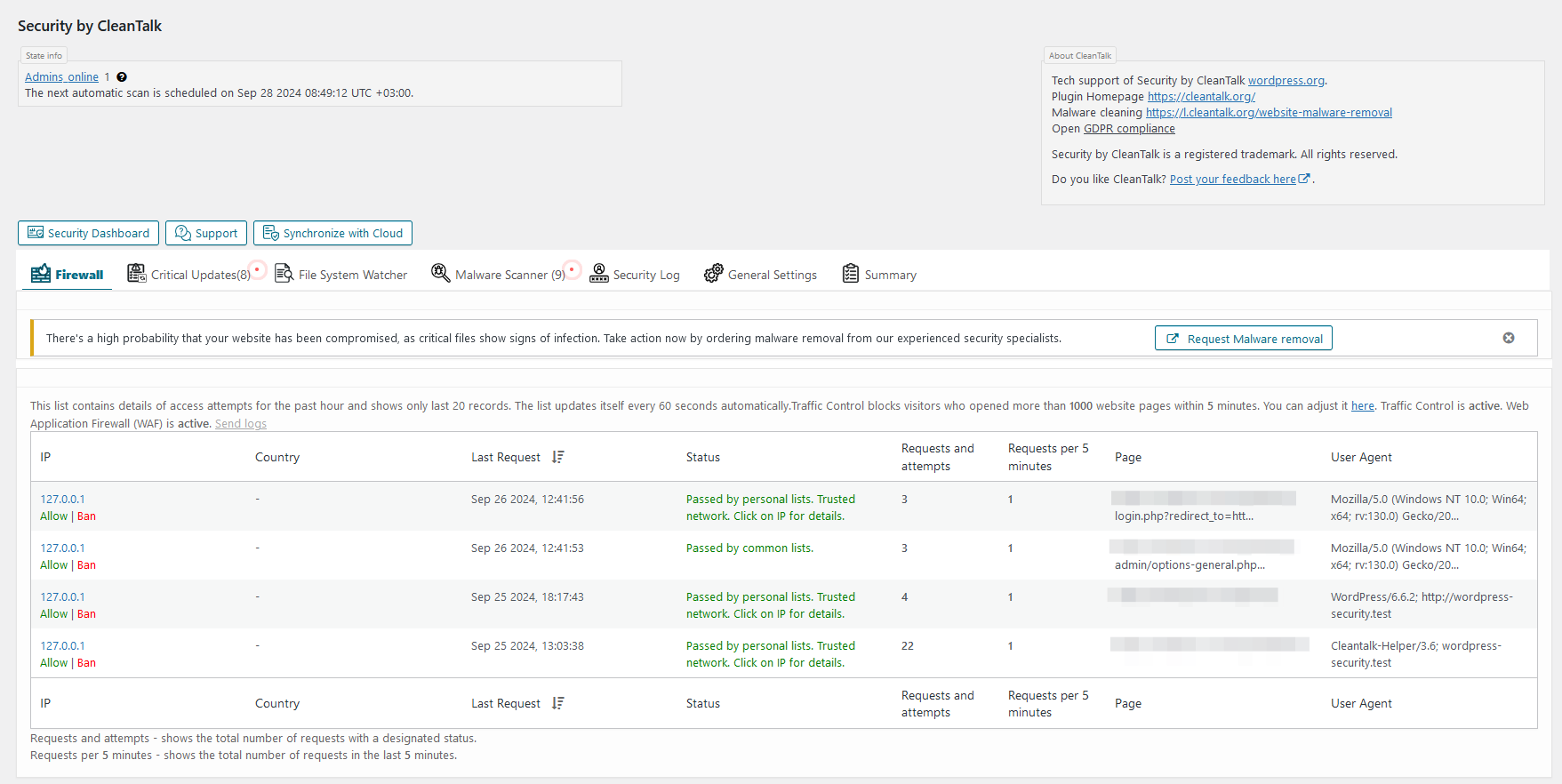
- Real-time traffic monitor (Visitors per pages, IPs, Countires and hits counts per page)
- Malware scanner with auto-cure function
- Daily auto malware scan
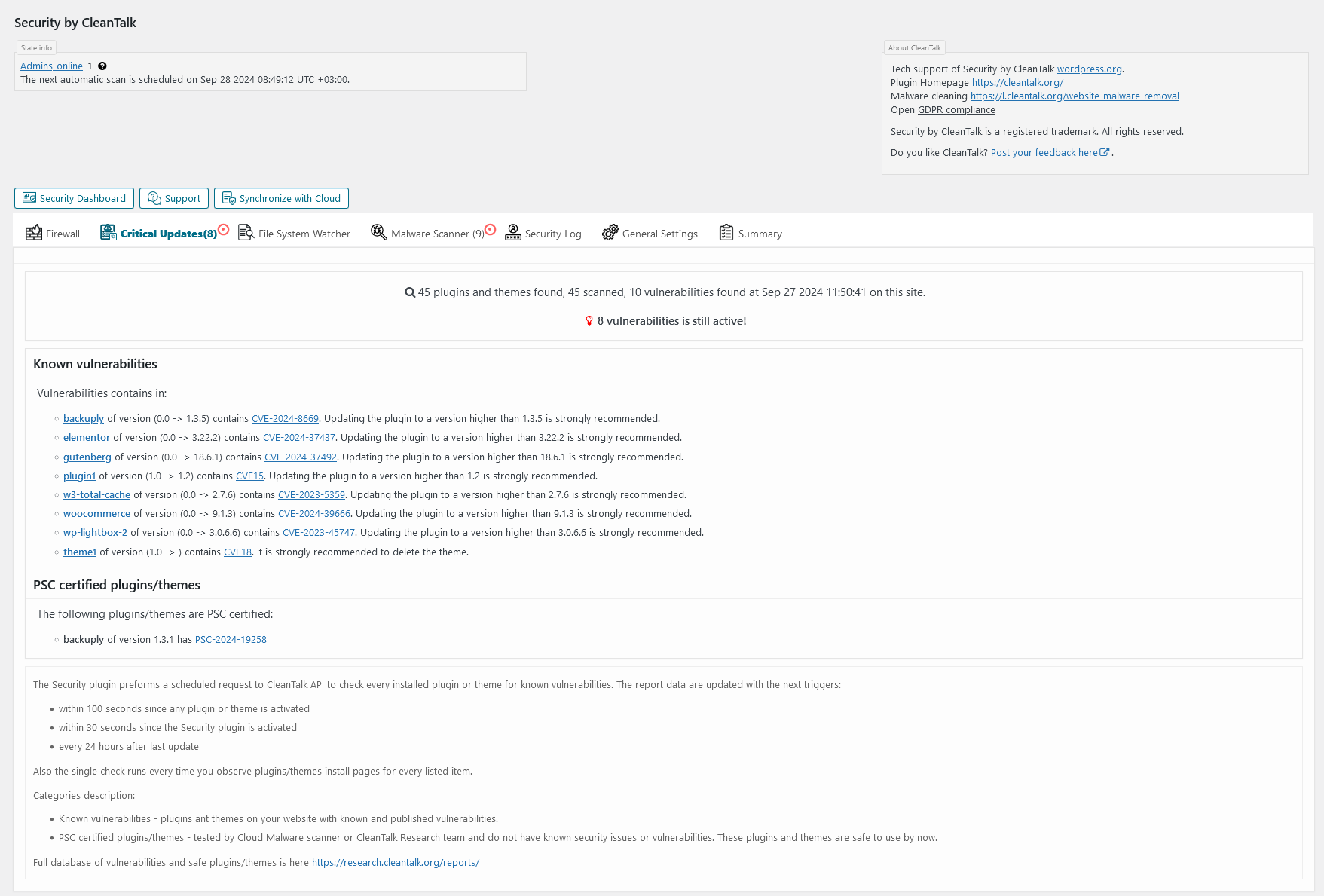
- Vulnerabilities scanner among installed plugins and themes
- Security weekly reports to email
- Notifications of login events to your website
FREE TRIAL THEN $9 PER YEAR
CleanTalk is a Cloud security service that protects your website from online threats and provides you great security instruments to control your website security. We provide detailed security stats for all of our security features to have a full control of security.
We believe the most honest approach is when every user pays a small fee for using the service, rather than relying on a freemium model where some users subsidize others. The fee is as low as price of a good cup of coffee! So, the security plugin does not have a PRO version-it is completely free and works in combination with our premium Cloud security service at cleantalk.org. Every user has full access to all features of both the service and the plugin. Also, please take a note about WordPress.org policy
BRUTE FORCE PROTECTION
Our default anti–brute-force policy works as follows,
- For any failed login attempt to the WordPress admin area, the plugin introduces a brief delay of a few seconds.
- The plugin reviews the security audit log every hour. If any IP address records 10 or more login attempts in that period, it will be blocked for 24 hours.
ALL BRUTE FORCE PROTECTION FUNCTIONS
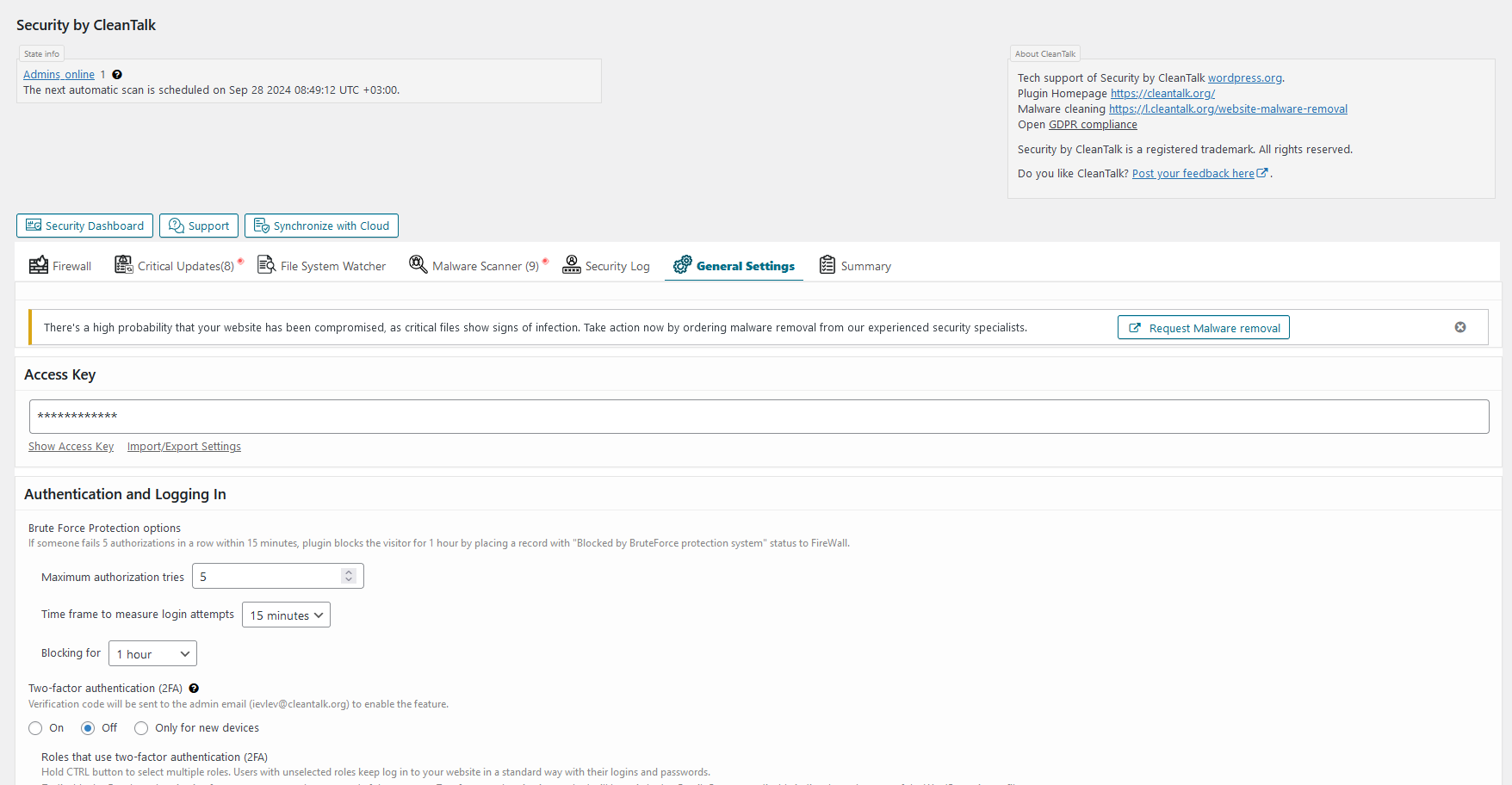
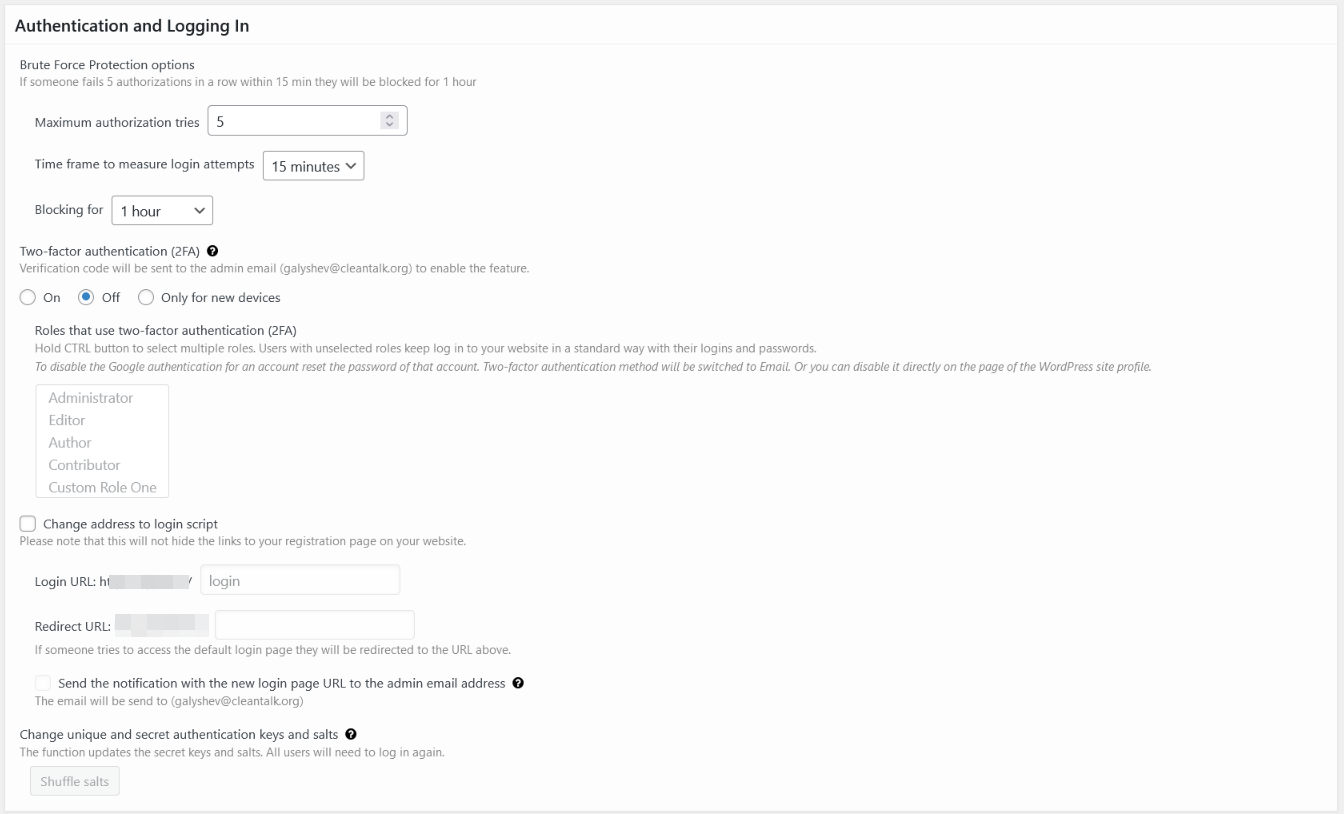
- Maximum failed attemtps to login before ban (default is 5). A failed attempt happens when either the login or password is incorrect.
- Time frame to count login attempts (default is 15 minutes).
- Ban to login time frame from 2 minutes to 24 hours (default is 1 hour).
- Two-factor authentication (2FA) with abillity to apply policy to specific users roles.
- Prevent collecting of login on password reset error. The option exclude the info about the login existing on password change error. Error message will be replaced with followed text: “If the user with the specified credentials exists, check your email for the password reset confirmation link. Then visit login page.”
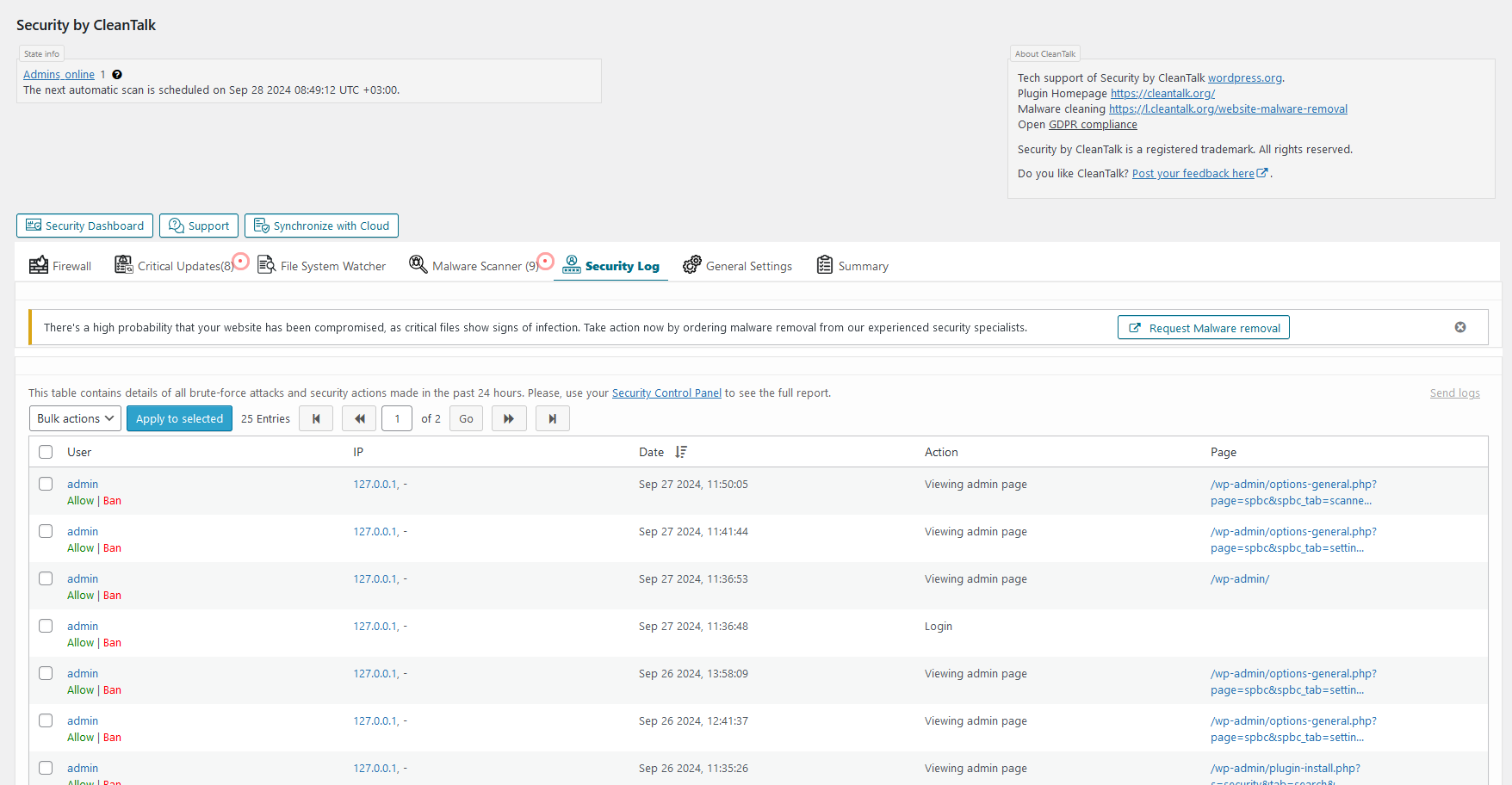
- Security Audit Log. Keeps track of actions in the WP Dashboard to let you know what is happening on your blog. With the Security Audit Log is very easy to see user activity in order to understand what changes have done and who made them. Security Audit Log shows who logged in and when and how much time they spent on each page.
- Two Factor Authentication (2FA). It requires a bit of your time but Two Factor (2 Step) Authentication immediately gives a much higher level of security.With your first authorization, the CleanTalk Security plugin remembers your browser and you won’t have to input your authorization code every time anymore. However, if you started to use a new device or a new browser then you are required to input your security authorization code. CleanTalk security plugin will remember your browser for 30 days.
- Change the URL of the wp-login page. This option helps you change the default wp-login URL (wp-login.php). Hackers use scripts for massive brute-force attacks, and since most sites use a default login page URL, hackers configure scripts for such URLs. When you change the URL of the authorization page, hackers will not have the opportunity to perform brute-force attacks in scripts in automatic mode. This option does not change files and does not rewrite URLs in system files. To return the address of the default authorization page, it is enough to disable the option in the plugin settings or set a new value. If you are using caching plugins, then you need to add a new authorization page in the caching exceptions.
- Leaked password check. This feature enhances your website’s security by continuously monitoring users’ passwords for potential exposure in known data breaches and on the dark web. It works in the background and requires no action from users unless a leak is detected.
SECURITY FIREWALL
To enhance the security of your site, you can use the CleanTalk Security FireWall, which will allow you to block access by HTTP/HTTPS to your website for individual IP addresses, IP networks and block access to users from specific countries. Use personal BlackList to block IP addresses with a suspicious activity to enhance the WordPress security.
Security FireWall may significantly reduce the risk of hacking and reduces the load on your web server. CleanTalk Security is fully compatible with the most popular VPN services. Also, CleanTalk security supports all search engines Google, Bing, Yahoo, Baidu, MSN, Yandex, and etc.
LIST OF FIREWALL FUNCTIONS
- Blocks or bypass visitors by IP, IP Network. Country blocking. It also has option to avoid blocking hits from major search engines like Google, Bing, Yahoo, Baidu, Yandex, and etc.
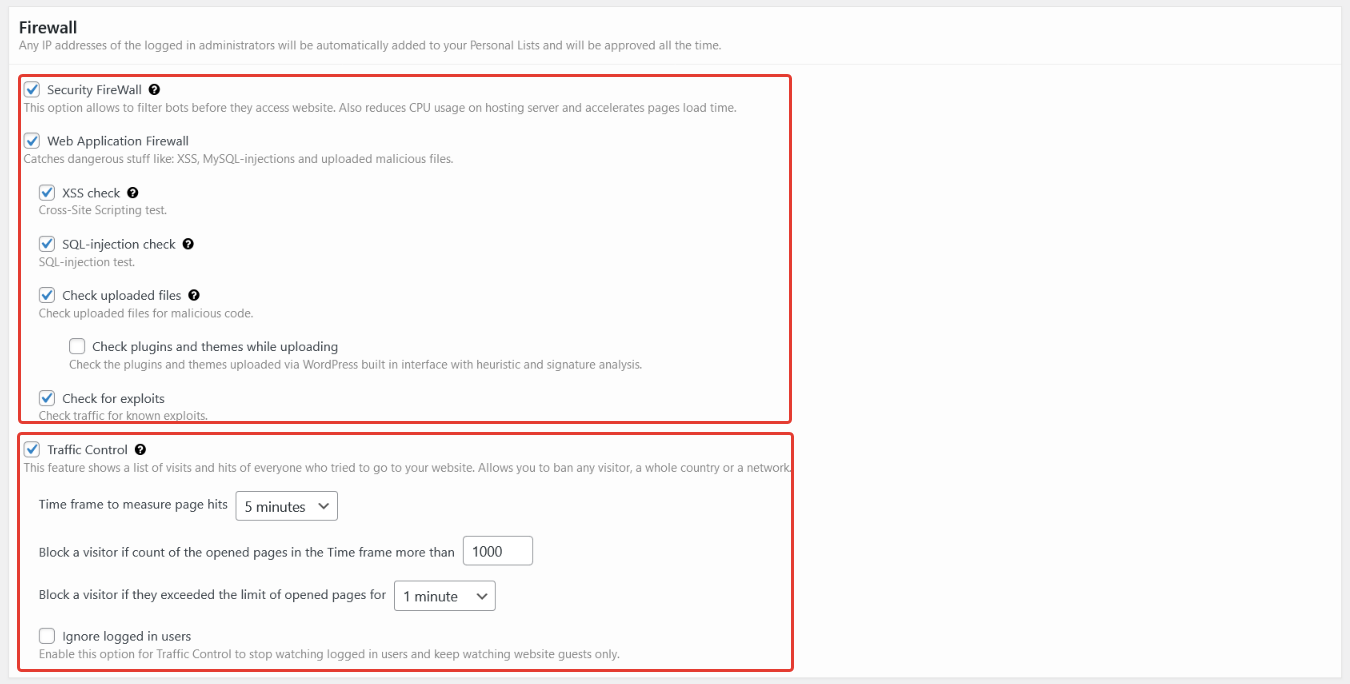
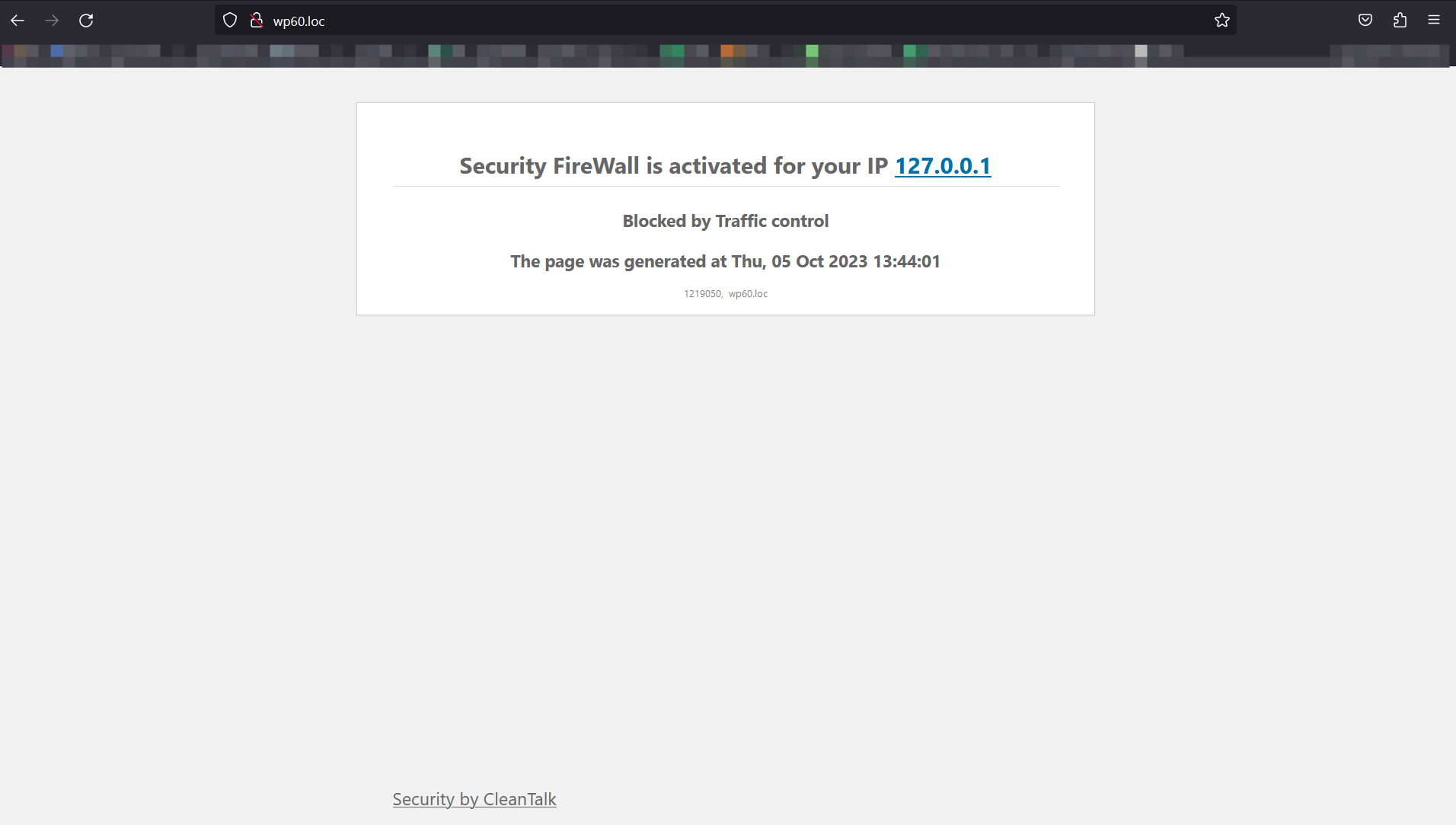
- Traffic control. CleanTalk security Traffic Control will track every single visitor no matter if they are using JavaScript or not and provides many valuable traffic parameters. Another option in Security Traffic Control – “Block user after requests amounts more than” – blocks access to the site for any IP that has exceeded the number of HTTP requests per hour. If this number of requests will be exceeded, this IP will be added to the Security FireWall Black List for 24 hours. Security Firewall has a limit for requests to your website (by default 1000 requests per hour, so you can change it) and if any IP exceed this threshold it will be added to security firewall for next 24 hours. It allows you to break some of the DDoS attacks.
- Limit Login Attempts. Limit Login Attempts – is a part of brute-force protection and security firewall.
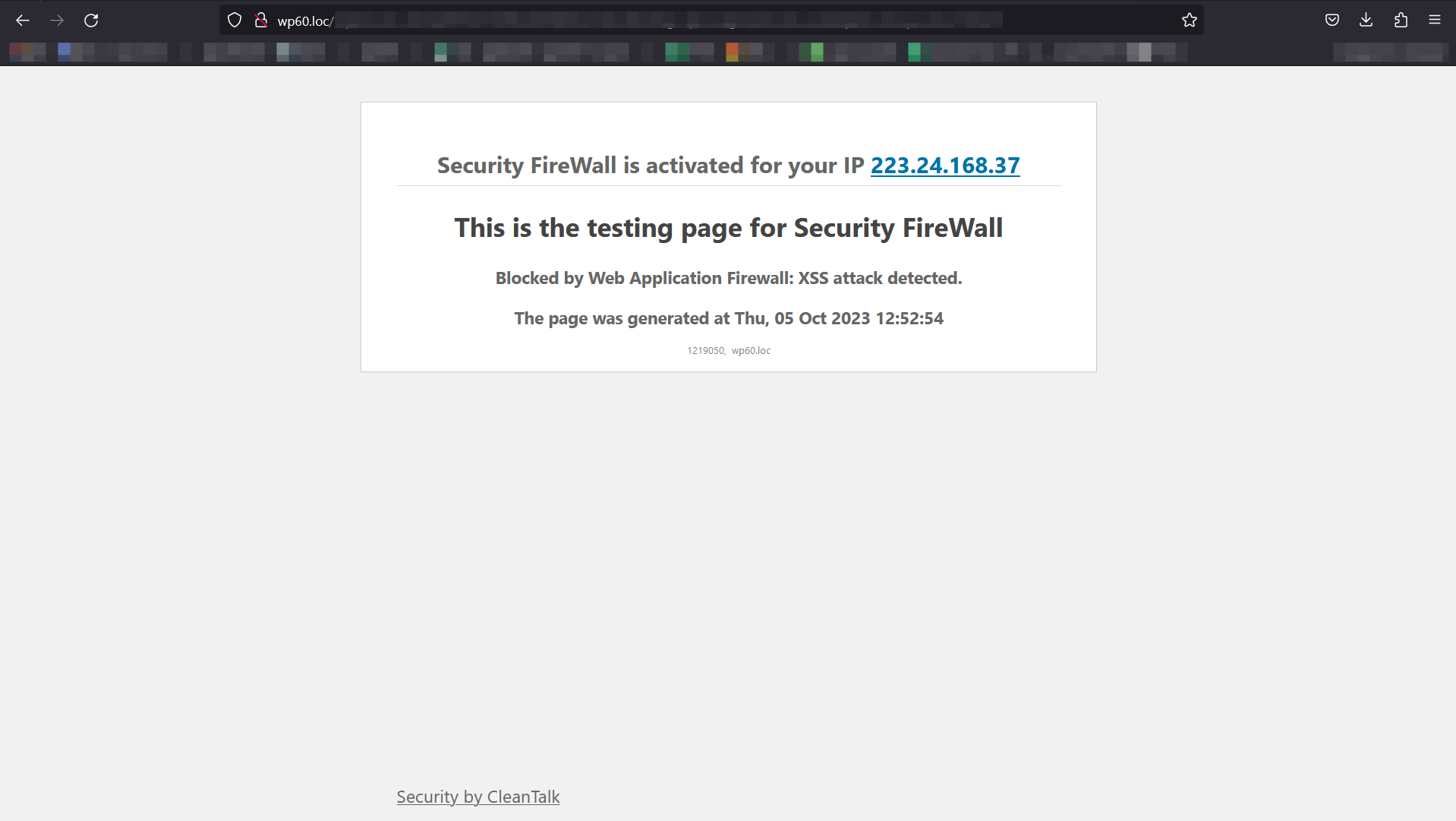
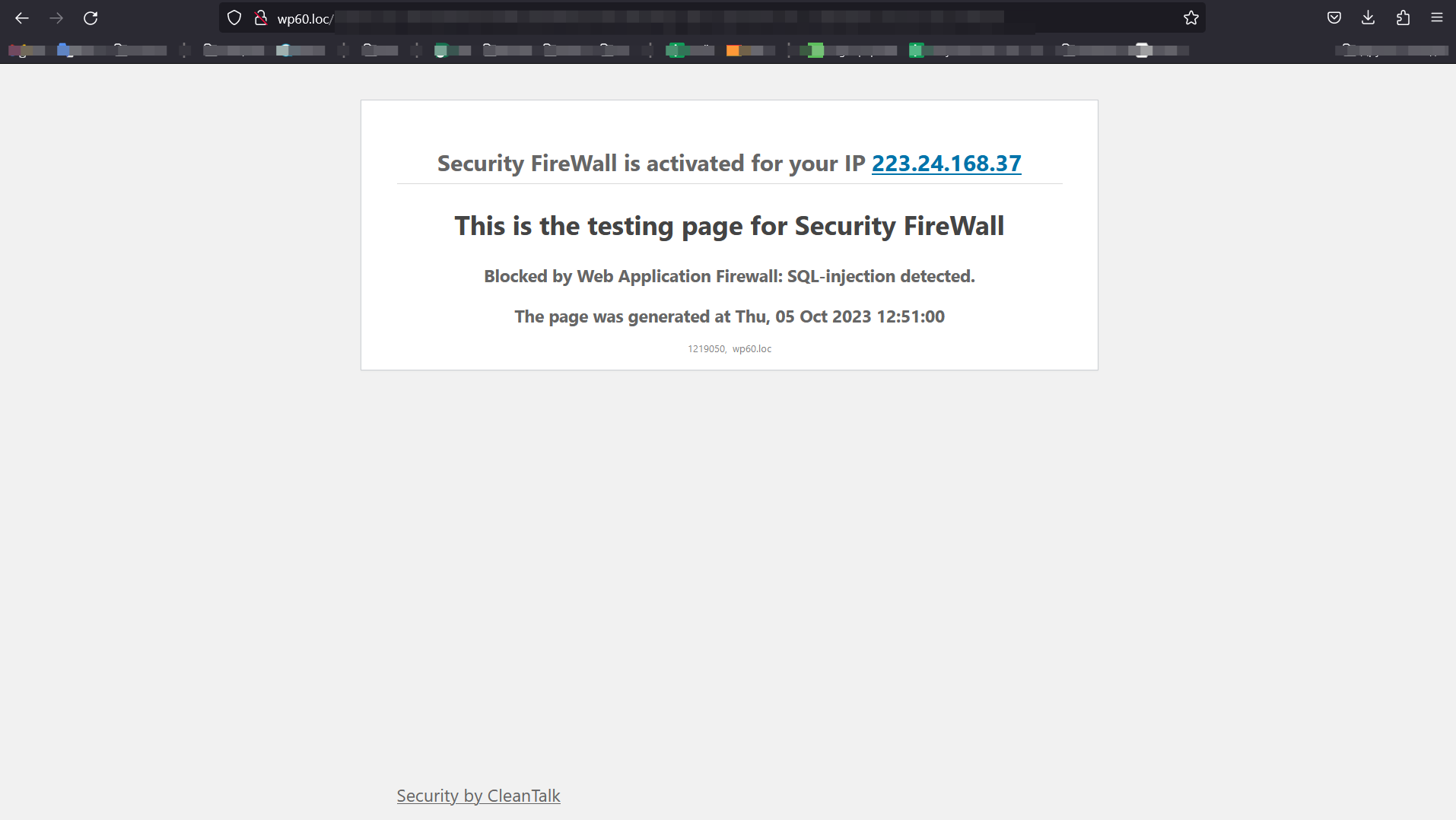
- Web Application FireWall (WAF) for WordPress Security Plugin. The main purpose of Web Application FireWall (WAF) is real-time protection from unauthorized access, even if there are critical known/unknown vulnerabilities. Security Web Application FireWall catches all requests to your website and checks HTTP parameters that include,
- SQL Injection,
- Cross Site Scripting (XSS),
- uploading files from non-authorised users,
- PHP constructions/code,
- the presence of malicious code in the downloaded files.
In addition to effective information security and information security applications are required to know what is quality of protection and CleanTalk Security has logged all blocked requests that allow you to know and analyze accurate information. - You can see your Cleantalk Security Logs in your Dashboard CleanTalk’s research team updates WAF database each time as we find a vulnerability, it means plugin’s users get protection even against unpublished vulnurebilites.
- Learn more how to set up and test About Security Web Application Firewall
- Email Notifications when administrators or users are logged in. We added this option to our security plugin. Now you can receive notifications if you want to know about an unauthorized entrance to your WP Dashboard. Notification will be sent only when a user was able to authorize entering login and password. If you are logged into the admin panel from the saved session, then the alert won’t be sent.
MALWARE SCANNER WITH AUTO-CURE FUNCTION
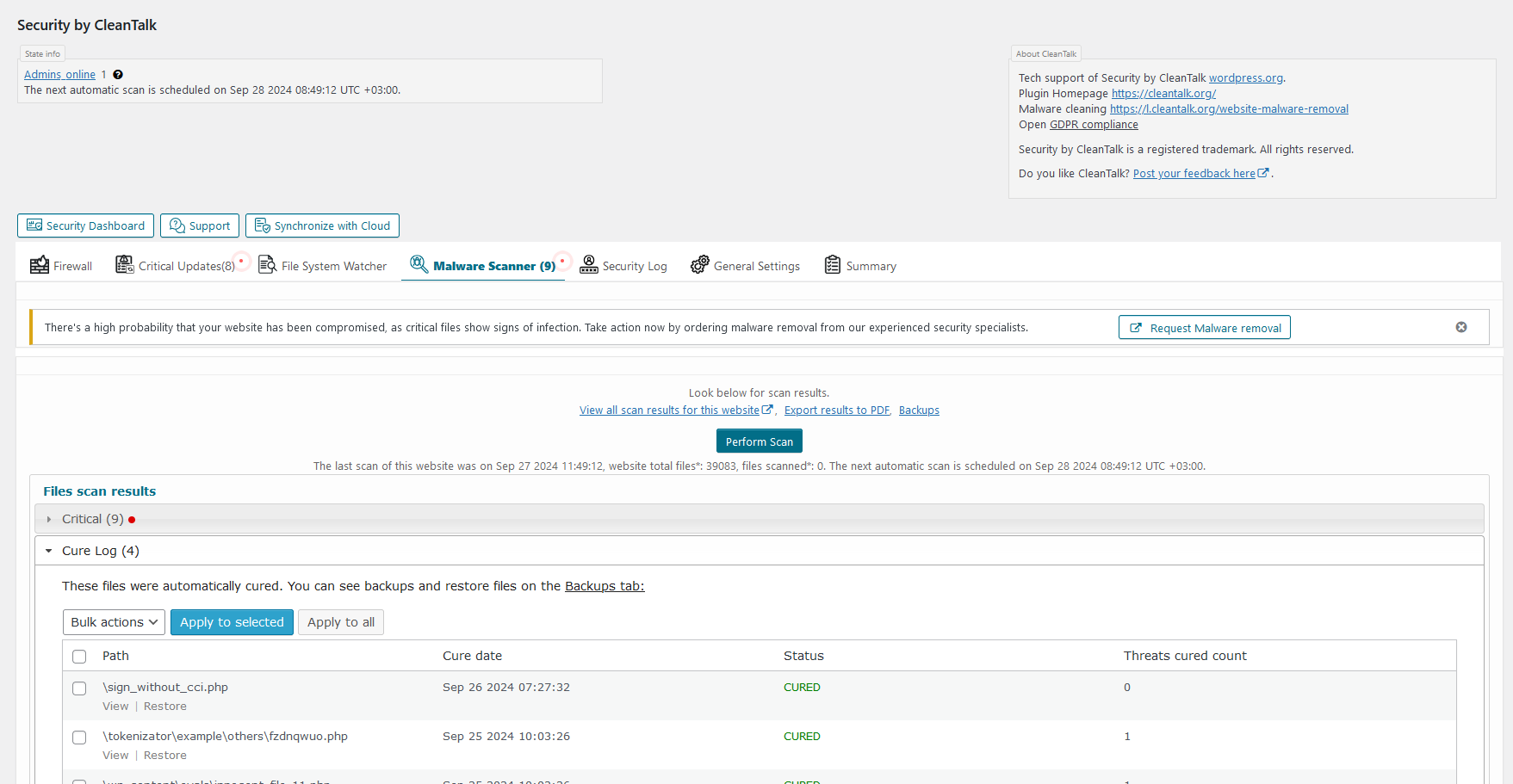
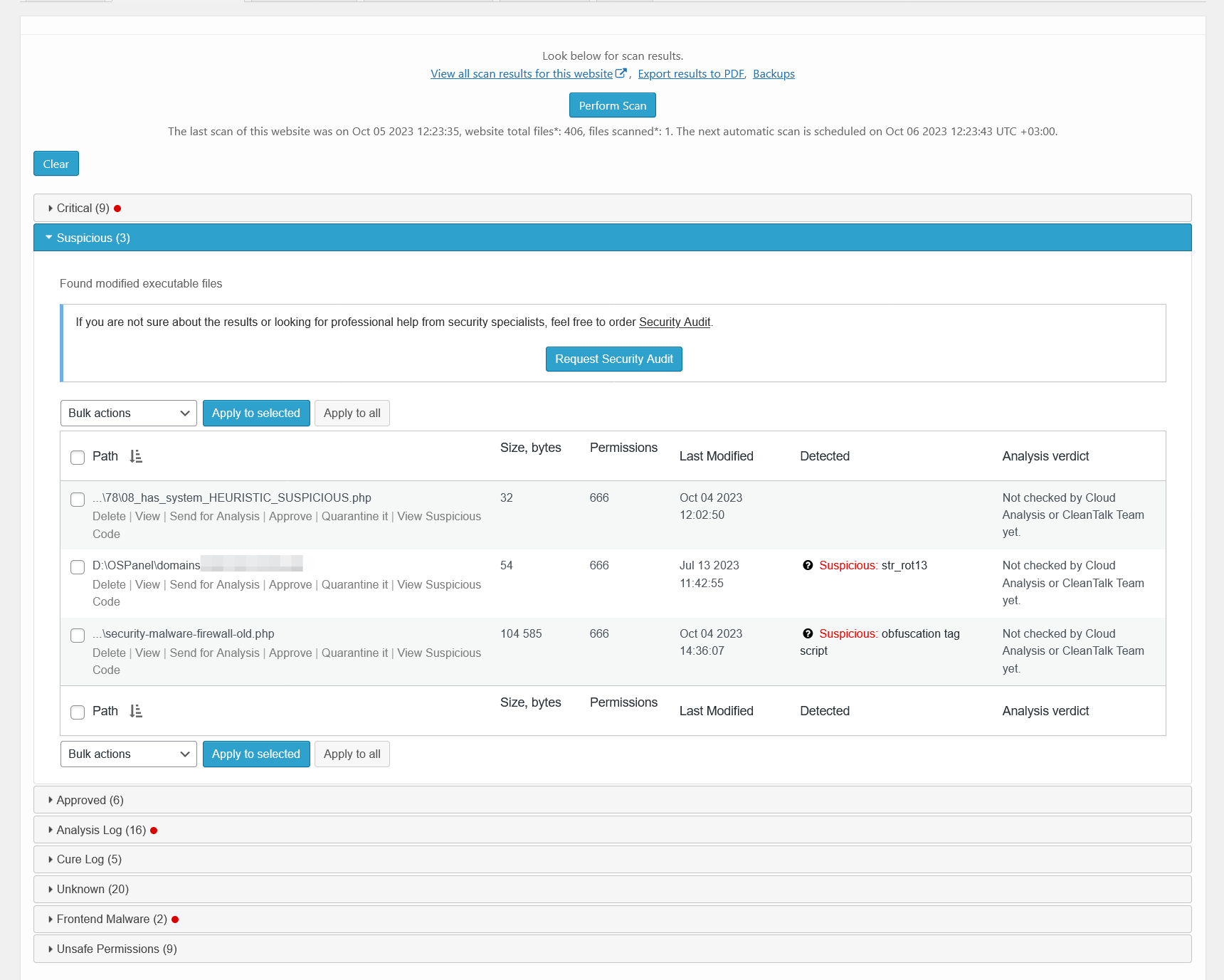
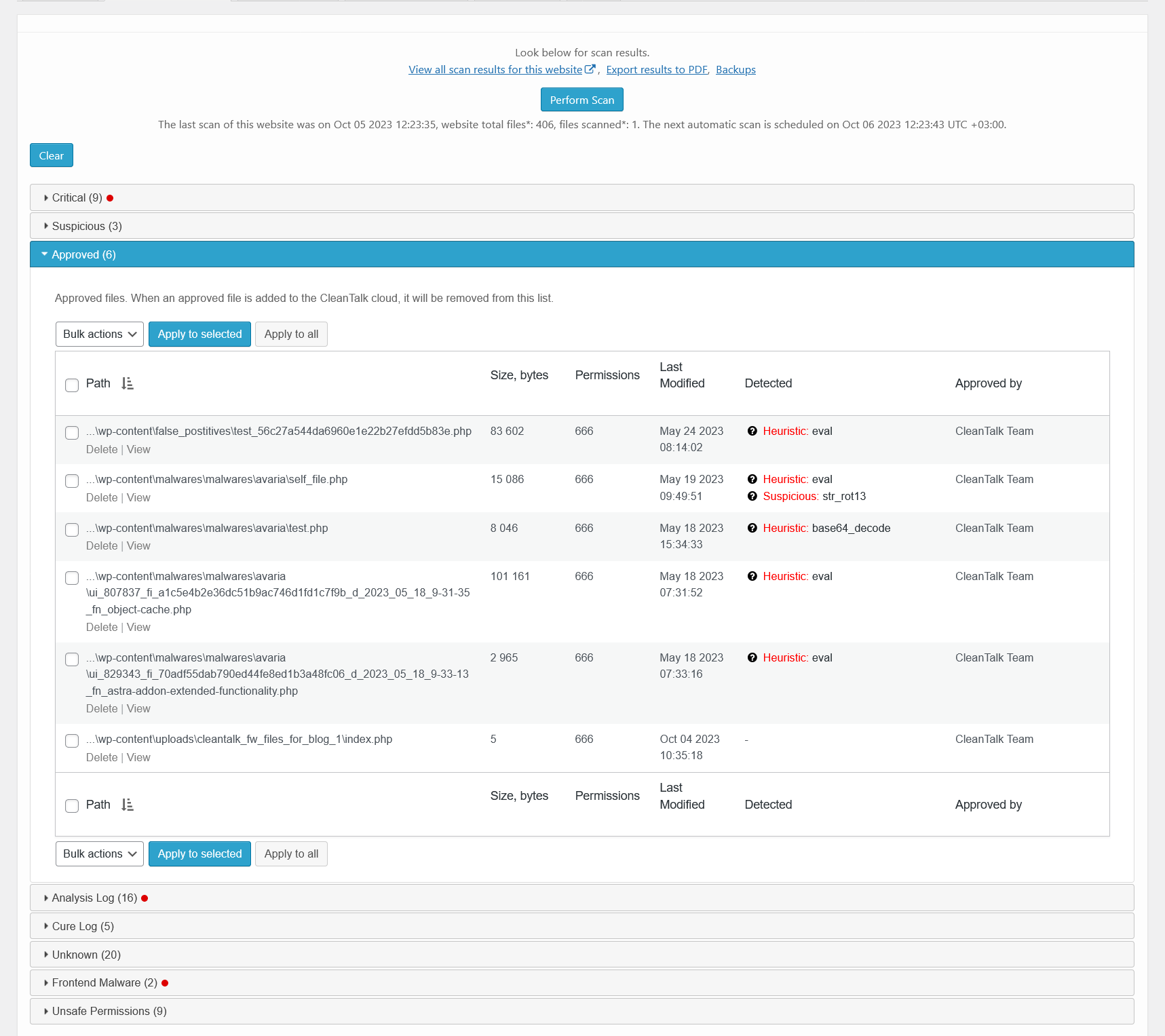
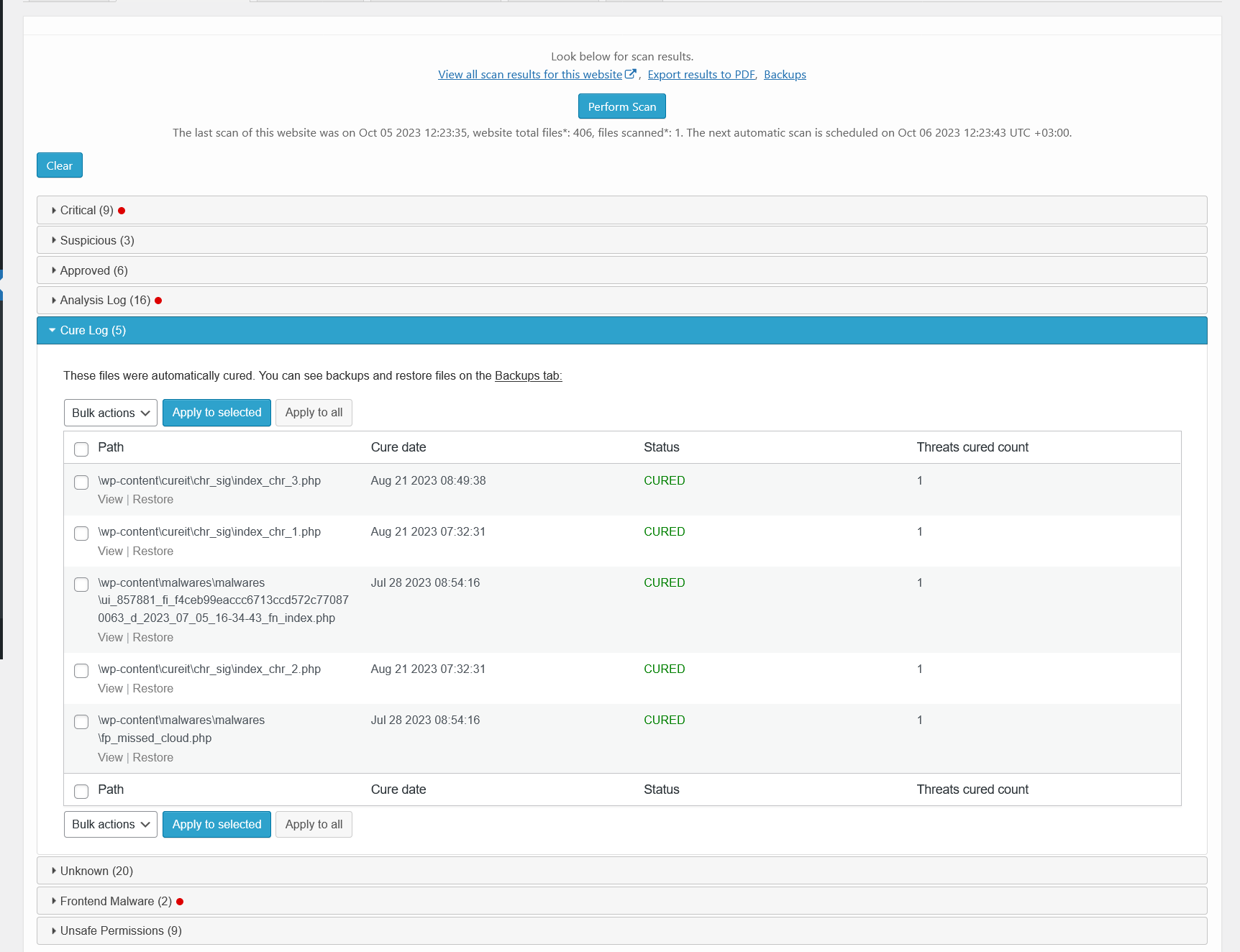
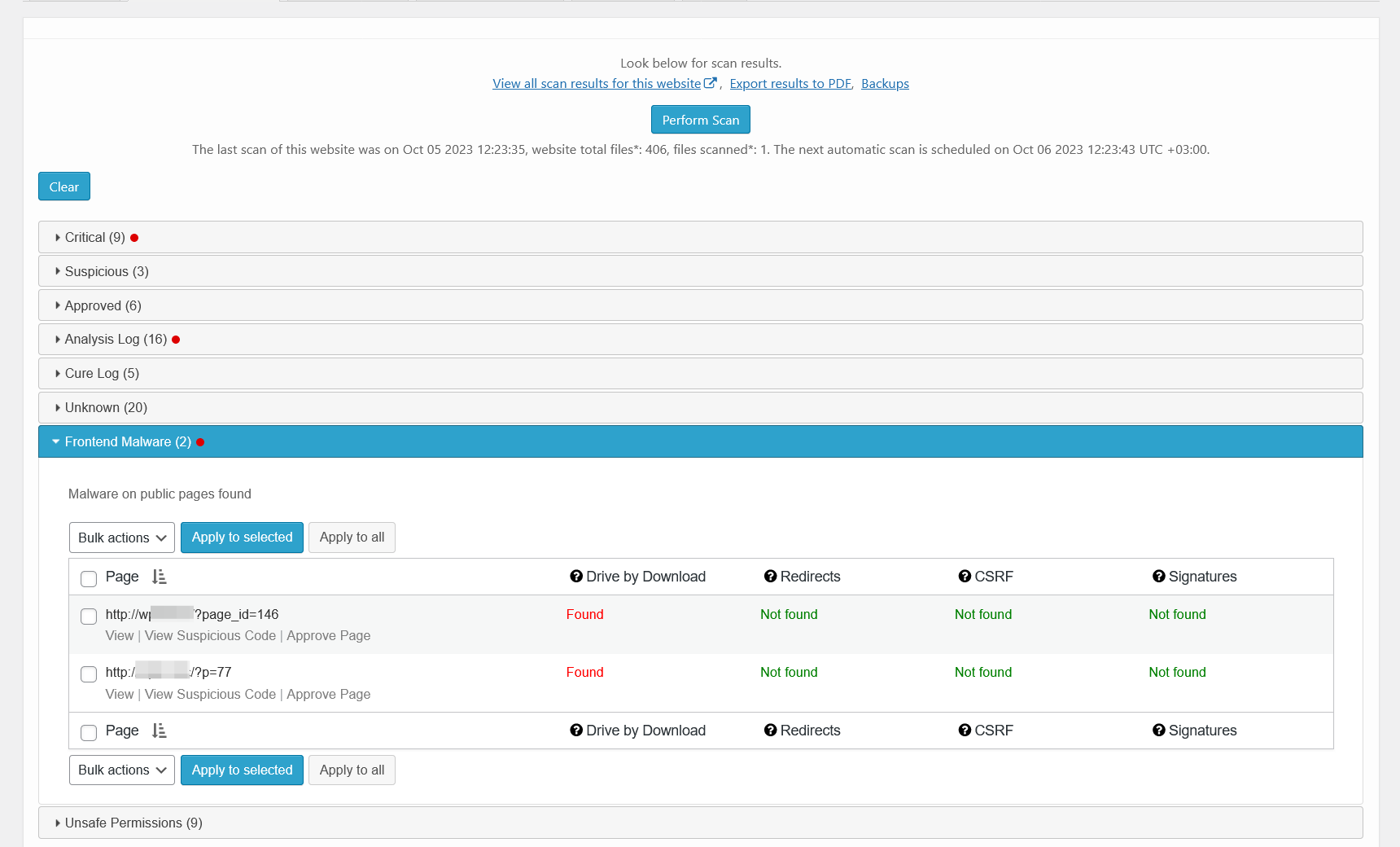
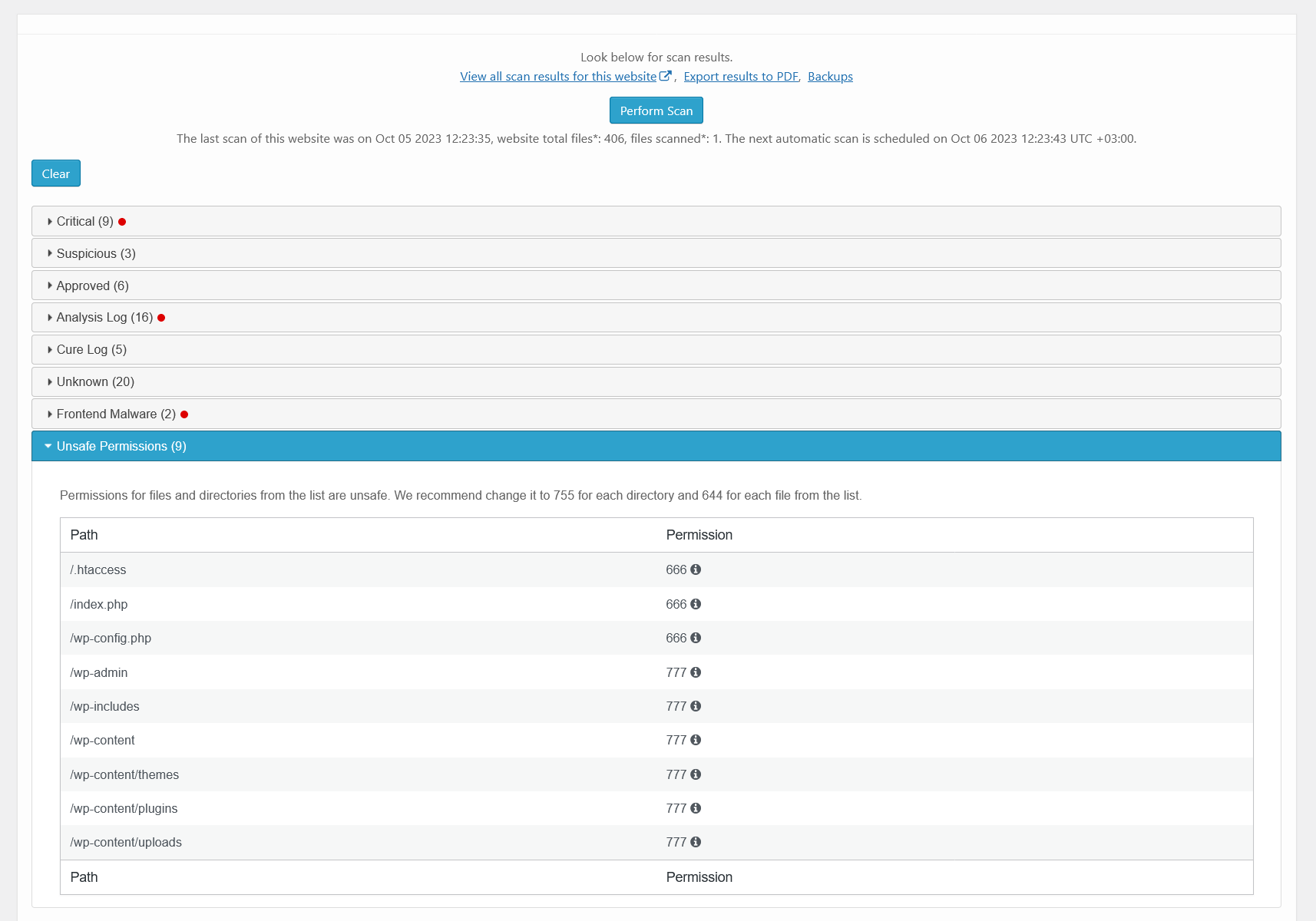
Scans WordPress files for hacker files or code for hacker code. Performs antivirus functions. Security Malware Scanner runs manually by users requests or automaticaly by WordPress cron. All of the results will send in your Security CleanTalk Dashboard with the details and you will be able to investigate them and see if that was a legitimate change or some bad code was injected.
If you are unsure how to identify, remove, or clean malware using the plugin, you can book a malware removal service with our Security & Pentest team.
As an alternative, you can use the Website Malware Scanner for frontend security and malware checks. It scans by URL and requires no plugins.
LIST OF MALWARE SCANNER, ANTIVIRUS FUNCTIONS
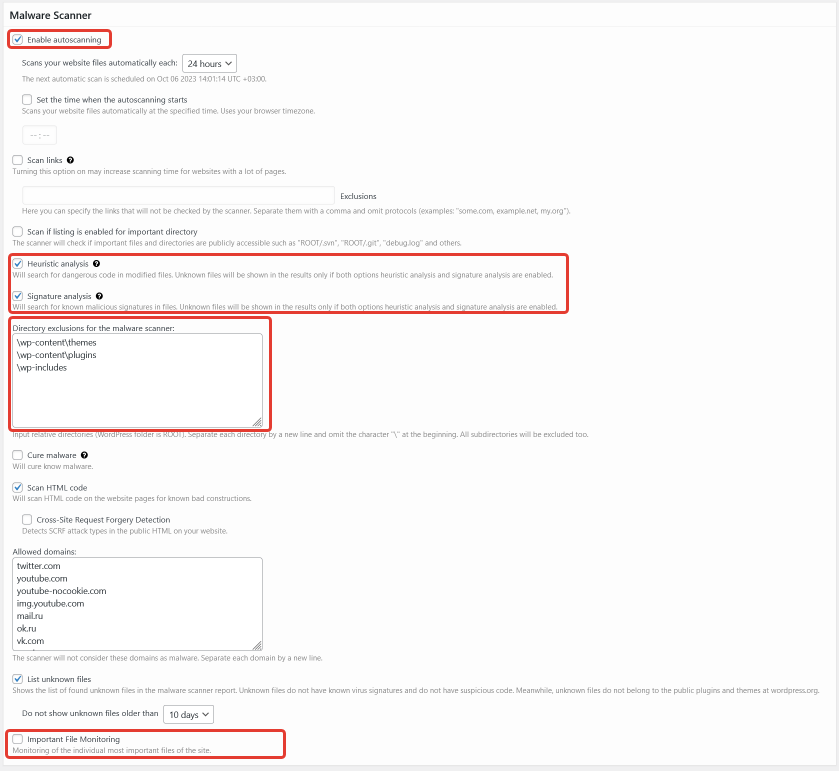
- Malware autoscanning. Scans the website automatically at intervals ranging from once every 12 hours to once every 30 days.
- Cure malware. It cures infected files automatically if the scanner knows cure methods for these specific cases. If the option is disabled then when the scanning process ends you will be presented with several actions you can do to the found files,
- Cure. Malicious code will be removed from the file.
- Replace. The file will be replaced with the original file.
- Delete. The file will be put in quarantine. Do nothing.
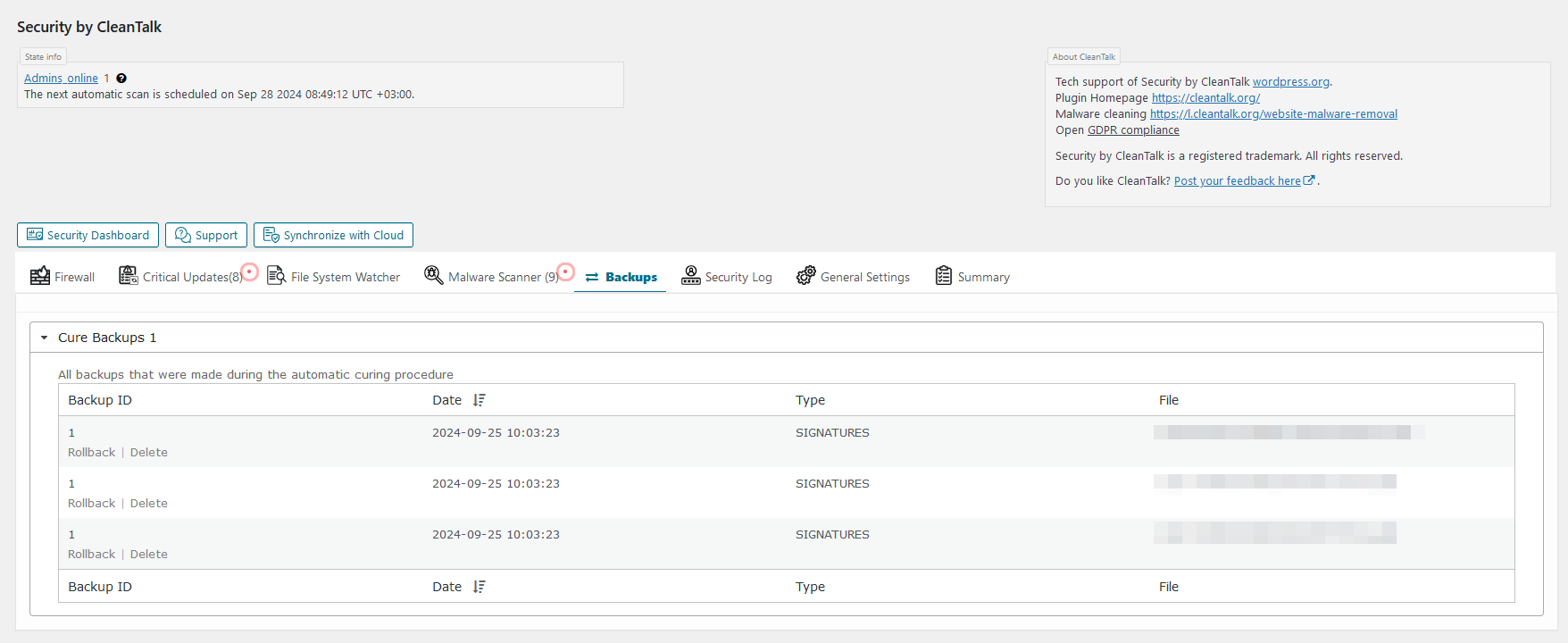
Before any action is chosen, backups of the files will be created and if the cure is unsuccessful it’s possible to restore each file.
- Security Malware Heuristic Check. This option allows you to check files of plugins and themes with heuristic analysis. Probably it will find more than you expect.
- Security Malware scanner to find SQL Injections. The CleanTalk Security Malware Scanner allows you to find code that allows performing SQL injection. It is this problem that the scanner solves.
- Operating system cron tasks analysis. This functional provides an overview of scheduled cron jobs on server that perform automated tasks.
- DB Trigger analysis. Will search for known malicious signatures in database triggers.
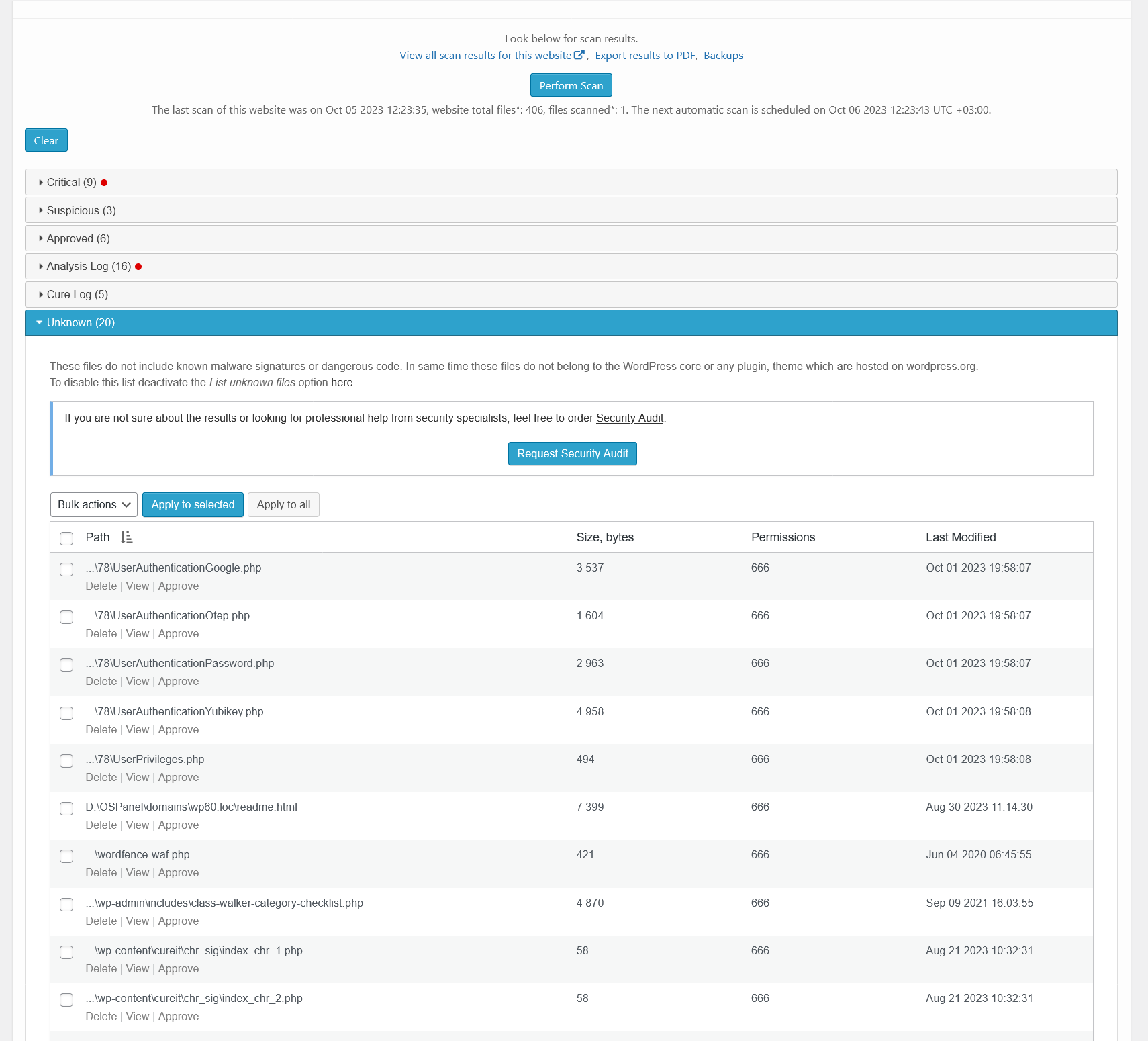
- List unknown files. Shows the list of found unknown files in the malware scanner report. Unknown files do not have known virus signatures and do not have suspicious code. Meanwhile, unknown files do not belong to the public plugins and themes at wordpress.org.
- File System Watcher. File system Watcher monitors changes in the file system. This allows to quickly respond to a site infection by tracking which files were affected. The Watcher makes file system snapshots as often as one hour and show difference up to seven days time frame.
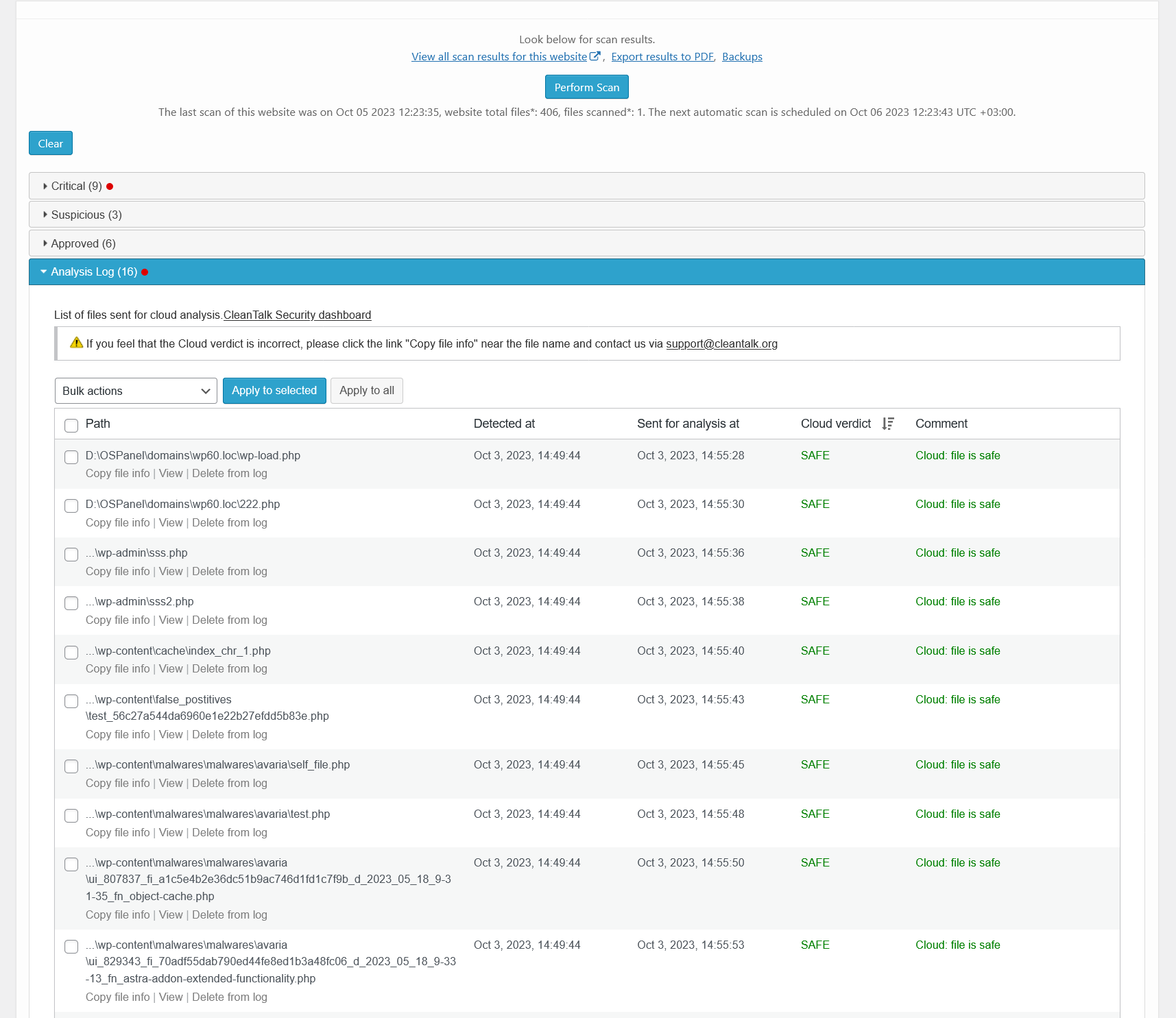
- Feedback System. If you don’t have programming experience and don’t know, is there security issue or not, you send some files to CleanTalk Cloud and we check them for malware code. After checking we send you an email notification with results, is there viruses or not. Please, look at our guide How malware file analysis works About Scanner Feedback System
LIST OF THE MOST ACTIVE MALWARES BY FILENAMES
- radio.php
- admin-ajax.php
- .1235512.css
- 8sjdakSJ3.php
- wso.php
- cmd.php
- shell.php
- reverse_shell.php
- admin.php
The list is actual on July 15th, 2025. The latest data is the article Is my site infected?
VULNERABILITIES SCANNER AMONG INSTALLED PLUGINS AND THEMES
Plugin checks installed plugins and themes for known (published) vulnerabilities. If finds vulnerable plugin/theme, it sends an Email notification and shows data in the Critical updates tab.
List of the most recent vulnerabilities found and published by CleanTalk Research team,
- CVE-2025-5921 – SureForms – Unauthenticated XSS – POC, 200k+ installs.
- CVE-2025-3582 – Newsletter – Stored XSS to JS Backdoor Creation – POC, 300k+ installs.
- CVE-2025-2560 – Ninja Forms – Stored XSS to JS Backdoor Creation – POC, 700k+ installs.
The list is effective on July 18th, 2025. Updates are avaible on https://research.cleantalk.org/.
MISCELLANEOUS SECURITY OPTIONS
- Send additional HTTP headers option. There are several additional http-headers which added to the every http-requests by the plugin if this option is enabled:
- “X-Content-Type-Options” improves the security of your site (and your users) against some types of drive-by-downloads.
- “X-XSS-Protection” header improves the security of your site against some types of XSS (cross-site scripting) attacks.
- “Strict-Transport-Security” response header (often abbreviated as HSTS) informs browsers that the site should only be accessed using HTTPS, and that any future attempts to access it using HTTP should automatically be converted to HTTPS.
- “Referrer-Policy” make the
Refererhttp-header transferring more strictly.
- Collect and send PHP logs. Collect and send PHP error logs to your CleanTalk Dashboard where you can list them.
- Prevent collecting of authors logins. Prevent visitors from collecting logins of the content authors from the website links (like example.com/?author=1). Also this function known as Stop User Enumeration.
- Prevent collecting of user login on password reset. The password reset error will not contain the data about selected username does not exist.
- Disable REST API for non-authenticated users. Turn this on to deny access to WordPress REST API for non-authenticated users. Denied requests will get a 401 HTTP Code (Unauthorized).
- Disable the WordPress endpoint “users” REST API. Disables access to /wp-json/wp/v2/users and /wp-json/wp/v2/users/”id_user”.
- Disable File Editor. By prohibiting file editing, you protect the site from malicious attacks that may try to change the code and gain access to the site or steal confidential information.
TRANSLATE INTO YOUR LANGUAGE
- Thank you for helping translate the plugin!
- 感谢您帮助翻译这个插件! (Gǎnxiè nín bāngzhù fānyì zhège chājìan!)
- प्लगइन का अनुवाद करने में मदद के लिए धन्यवाद! (Plugin ka anuvaad karne mein madad ke liye dhanyavaad!)
- ¡Gracias por ayudar a traducir el complemento!
- Merci d’avoir aidé à traduire le plugin !
- شكرًا لمساعدتك في ترجمة الإضافة! (Shukran limusaa’adatika fi tarjamat al-idafa!)
- প্লাগইন অনুবাদে সাহায্য করার জন্য ধন্যবাদ! (Plug-in onubade shahajjo korar jonno dhonnobad!)
- Спасибо за помощь в переводе плагина! (Spasibo za pomoshch v perevode plagina!)
- Obrigado por ajudar a traduzir o plugin! (Obrigada if female)
- پلگ ان کا ترجمہ کرنے میں مدد کرنے کا شکریہ! (Plug-in ka tarjuma karne mein madad karne ka shukriya!)
- Terima kasih telah membantu menerjemahkan plugin!
- Danke, dass du beim Übersetzen des Plugins geholfen hast!
- プラグインの翻訳を手伝ってくれてありがとうございます! (Puraguin no hon’yaku o tetsudatte kurete arigatou gozaimasu!)
https://translate.wordpress.org/projects/wp-plugins/security-malware-firewall/
Screenshots





Installation
DEFAULT INSTALLATION
Here is a video guide with installation process or you can use the text version down below.
Download, install, and activate ‘Security by CleanTalk’.
Get Access key https://cleantalk.org/wordpress-security-plugin
Enter Access key in the settings WordPress console -> Settings -> Security by CleanTalk -> General settigns. Save Changes.
Go to Malware scanner tab and do the very first scan.
Done! The plugin is ready to use.
INSTALLATION FROM THIRD-PARTY SOURCE
- Download latest version on your computer’s hard drive,
https://downloads.wordpress.org/plugin/security-malware-firewall.zip
Go to your WordPress Dashboard->Plugins->Add New->Upload CleanTalk zip file.
Click Install Now and Activate.
After activated, go to plugin settings. Then you will need to create an API key, this is done automatically for you. Just click on “Get access key automatically”
Installation completed successfully.
Installation from wordpress.org directory
Navigate to Plugins Menu option in your WordPress administration panel and click the button “Add New”.
Type CleanTalk in the Search box, and click Search plugins.
When the results are displayed, click Install Now.
Select Install Now.
Then choose to Activate the plugin.
After activated, go to plugin settings. Then you will need to create an API key, this is done automatically for you. Just click on “Get access key automatically”
Installation completed successfully.
FAQ
-
Why are they attacking me?
-
Hackers want to get access to your website and use it to get backlinks from your site to improve their site’s PageRank or redirect your visitors to malicious sites or use your website to send spam and viruses or other attacks.These attacks can damage your reputation with readers and commentators if you fail to tackle it. It is not uncommon for some WordPress websites to receive hundreds or even thousands of attacks every week. However, by using the Security CleanTalk plugin, all attacks will be stopped on your WordPress website.
-
How to test the security service?
-
Please use the wrong username or password to log-in to your WP admin panel to see how the Security Plugin works. Then you may log-in with your correct account name and see the logs for the last actions in the settings or our plugin. Also, Audit Log will display the last visited URL’s of the current user.
-
Is the plugin compatible with WordPress MultiUser (WPMU or WordPress network)?
-
Yes, the plugin is compatible with WordPress MultiUser.
-
How to control security activities on your website?
-
Go to your CleanTalk account->Log. Use filters to sort data for analyses.
Security logs provide you to receive and keep information for 45 days. You have the following possibilities:
1. Time period for all records you want to see.-
Website for which you want to see security records. Leave the field empty to see security records for all websites.
-
Choose an event you want to see:
- Authorization Login — all successful logins to your website.
- Authorization Logout — all closed sessions.
- Authorization Invalid username — login attempts with not existing username.
- Authorization Auth failed — wrong password login attempts.
- Audit View — records of actions and events of users in your website backend.
-
Searching records by IP address.
-
Searching records by country.
There are date and time of events for each record, username who performed an action and his IP (country) address. How to use Security Log https://cleantalk.org/help/Security-Log
-
-
Is it possible to set custom email for notification?
-
Yes, it is possible. Go to your CleanTalk account->Change email https://cleantalk.org/my/change-email
-
Why do you need an access key?
-
Access Key allows you to keep statistics up to 45 days in the cloud and different additional settings and has more possibilities to sort the data and analyses. Our plugin evolves to Cloud Technology and all its logs are transferred to Cloud. Cloud Service takes data processing and data storage and allows to reduce your webserver load.
-
How to use Security Log
-
- First go to your Security Dashboard. Choose “Site Security” in the “Services” menu.
- Then go to your Security Log.
You have the following possibilities:
- Time period for all records you want to see.
- Website for which you want to see security records. Leave the field empty to see security records for all websites.
Choose an event you want to see:
- Authorization Login — all successful logins to your website.
- Authorization Logout — all closed sessions.
- Authorization Invalid username — login attempts with not existing username.
- Authorization Auth failed — wrong password login attempts.
Audit View — records of actions and events of users in your website backend.
- Searching records by IP address.
- Searching records by username.
- Searching records by country.
List of records. Each record has the following columns:
- Date — when the event happened.
- User Log — who performed actions.
- Event — what did he do.
- Status — was he Passed or Banned.
- IP — his IP address.
- Country — what country that IP belongs to.
- Details — some details if they are available.
Please, read more
https://cleantalk.org/help/Security-LogIf you wish to block some countries from visiting your website, please, use this instruction: https://cleantalk.org/help/Security-Firewall
- First go to your Security Dashboard. Choose “Site Security” in the “Services” menu.
-
How to use Security Firewall
-
First go to your Security Dashboard. Choose “Site Security” in the “Services” menu. Then press the line “Black&White Lists” under the name of your website.
You can add records of different types to your black list or white list:
- IP-Addresses (For example 10.150.20.250, 10.10.10.10)
- Subnets (For example 10.150.20.250/24, 10.10.10.10/8)
- Countries. Click the line “Add a country” to blacklist or whitelist all IP-addresses of the chosen countries.
The records can be added one by one or all at once using separators: comma, semicolon, space, tab, or new line. After filling the field press the button “Whitelist” or “Blacklist”. All added records will be displayed in your list below. Please note, all changes will be applied in 5-10 minutes.
Please, read full instruction here
https://cleantalk.org/help/Security-Firewall -
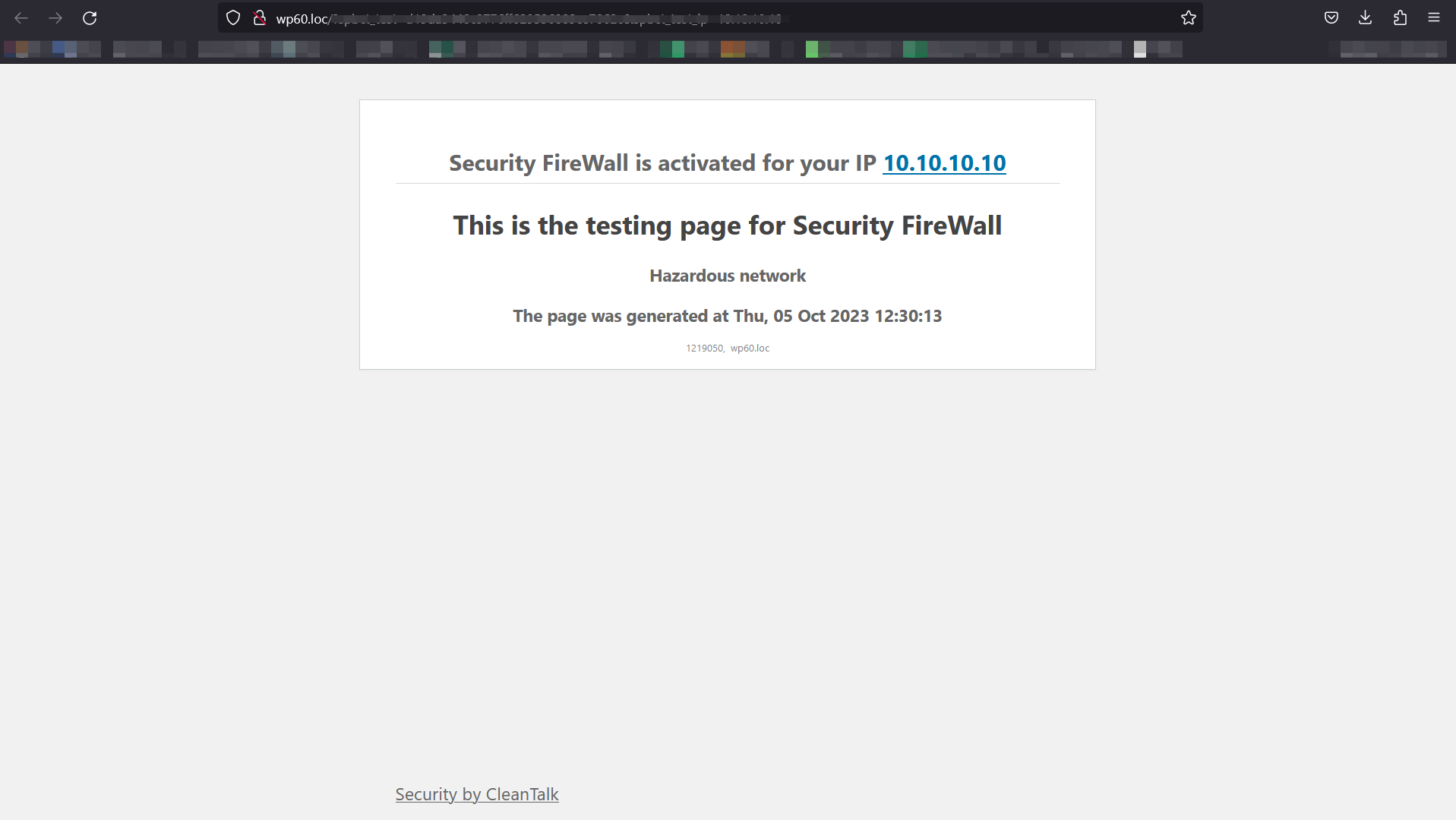
How to test Security Firewall?
-
- Open another browser or enter the incognito mode.
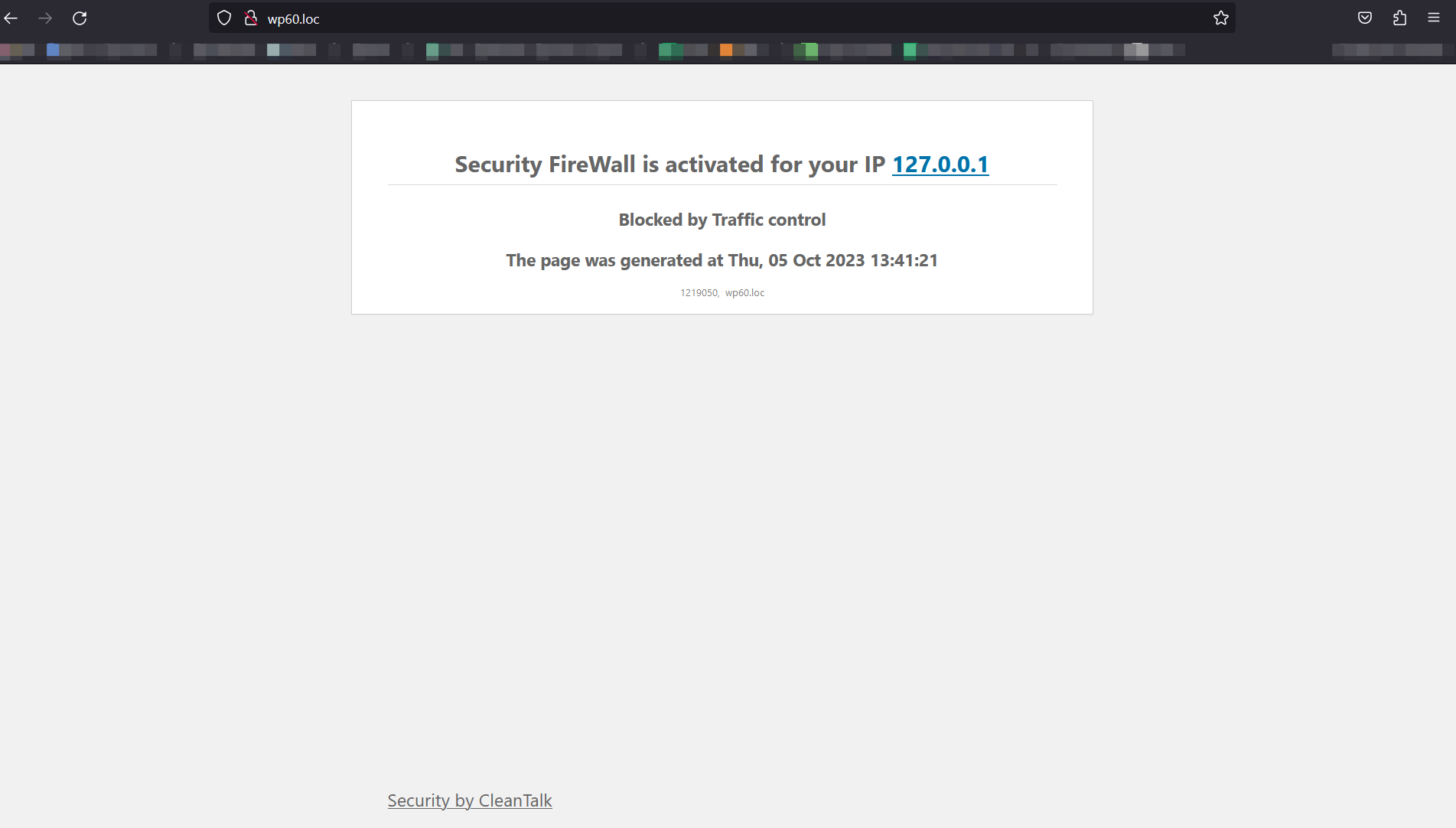
- Type address YOUR_WEBSITE/?security_test_ip=ANY_IP_FROM_BLACK_LIST
2.1 Address 10.10.10.10 is local address and it’s in blacklist constantly. So address YOUR_WEBSITE/?security_test_ip=10.10.10.10 will works everytime. - Make sure that you saw page with the blocking message.
- FireWall works properly, if it is not, see item 4 of the list.
-
How does malware scanner work?
-
Malware scanner will check and compare with the original WP files and show you what files were changed, deleted, or added. Malware scanner could be used to find an added code in WP files. On your Malware Security Log page, you will see the list of all scans that were performed for your website. The CleanTalk Cloud saves the list of the found files for you to know where to look them for.
-
How to start malware scanner?
-
At the moment malware scanner may be started one time per day and manually.
To start malware scanner go to the WordPress Admin Page —> Settings —> Security by CleanTalk —> “Malware Scanner” tab —> Perform Scan.
Give the Malware Scanner some time to check all necessary files on your website. -
Is it free or paid?
-
The plugin is free. But the plugin uses CleanTalk cloud security service. You have to register an account and then you will receive a free trial to test. When the trial (on CleanTalk account) is finished, you can renew the subscription for 1 year or deactivate the Security by CleanTalk plugin.
If you haven’t got access key, the plugin will work and you will have logs only on the plugin settings page for last 20 requests. -
What happens after the end of the trial period?
-
The plugin will fully perform its functions after the end of the trial period and will protect your website from brute force attacks and will keep Action Log in your WP Dashboard, but the number of entries in the log will be limited to the last 20 entries/24 hours. Also, you will receive a short daily security report to your email.
Premium version allows to storage all logs for 45 days in the CleanTalk Dashboard for further analysis.
-
Brute Force security for WordPress
-
Brute force attack is an exhaustive password search to get full access to an Administrator account. Passwords are not the hard part for hackers taking into account the quantity of sent password variants per second and the big amount of IP-addresses.
Brute force attack is one of the most security issues as an intruder gets full access to your website and can change your code. Consequences of these break-ins might be grievous, your website could be added to the [botnet] and it could participate in attacks to other websites, it could be used to keep hidden links or automatic redirection to a suspicious website. Consequences for your website reputation might be very grievous.
-
Why is the CleanTalk Security Plugin Added to the Must Use Section?
-
This is required for the Security FireWall to function properly. Plugins that are placed in this section are being launched first, so it is very important that the Security FireWall is launched before any plugins and hooks. Thus, hacker requests will be stopped before they can get access to any site code.
-
Can I use CleanTalk Security and Wordfence together?
-
CleanTalk is a strong alternative to Wordfence, especially for users of Wordfence Premium. Anyway, you can use CleanTalk Security and Wordfence. Quite often we get question from our customers, will there be a conflict between CleanTalk and Wordfence? We tested CleanTalk Security and Wordfence working together and they work without any conflicts.
-
Can CleanTalk Security protect from DDoS?
-
Security FireWall can mitigate HTTP/HTTPS DDoS attacks. When an intruder makes GET requests to attack your website, Security FireWall blocks all requests from bad IP addresses. If your website under DDoS attack you will be able to add IPs to your personal BlackList to block all Post and GET requests.
Reviews


Contributors & Developers
“Security Plugin, Firewall & Malware Scanner with Auto Removal” is open source software. The following people have contributed to this plugin.
Contributors


“Security Plugin, Firewall & Malware Scanner with Auto Removal” has been translated into 6 locales. Thank you to the translators for their contributions.
Translate “Security Plugin, Firewall & Malware Scanner with Auto Removal” into your language.
Interested in development?
Browse the code, check out the SVN repository, or subscribe to the development log by RSS.
Changelog
= 2.183 July 06, 2026
Upd. Setup Wizard. Validate an AJAX access key via the API method before inserting.
Upd. Banners. Trial banner promo texts fixed.
Upd. Sync flow. Update sync flow.
Fix. Upload checker. Logic fixed, nonce checking fixed.
Fix. Vulnerability alarm. Checking PSC fixed.
Fix. ReviewBanner. Editing the banner closure, changing hiding time.
Fix. BannerReview. Changing hiding time.
Fix. Banners. Editing styles, changing text, removed the text after closing the success banner.
Fix. Scanner. Do not show Files Listing if this option is disabled.
Fix. WP CLI. Getting api key fixed, getting api key fixed #2.
= 2.182.1 June 24, 2026
* Fix. WP market. Auto check notices fixed.
* Fix. WP market. Capabilities check fixed.
= 2.182 June 22 2026
New. AdminBanners. New trial banner design and new large trial banner.
New. Code. New error logger.
Upd. Setup Wizard. Text updates and wizard fixes.
Upd. Settings. Improved counting of Firewall networks.
Upd. Dashboard. Widget UX improvements.
Upd. Firewall. Logging FW update limits from the hosting environment.
Fix. Vulnerability Alarm. Checking installed modules fixed.
Fix. Upload Checker. Added check for the ability to run the checker.
Fix. Scanner. Data preparation in the table is fixed.
Fix. AdminBanners. Banner rendering logic, styles, texts, translations, and React settings visibility fixed.
= 2.181 June 08 2026
New. Settings. Signup wizard implemented.
Upd. Renaming login page. Password-protected pages behavior fixed.
Upd. Vulnerability Alarm Service. Cloud analysis logic implemented.
Upd. Scanner. Minor code optimization.
= 2.180 May 25 2026
* Upd. Logging FW update.
* New. EarlyTranslation. New class implemented to perform translations before init hook.
* Mod. React. Continue switch auth block. (#640)
* Upd. Scan. Improve Surface flow to count files. (#652)
* Mod. Settings. Moving to React for Firewall settings, jest tests, bug fixes.
* Fix. Vulnerability Alarm. Fixed typos in the description.
* Upd. Scan. Improve flow to analyze irrelevant files. (#655)
* Fix. PHP8. Prevent duplicate headers before sending HTTP response code.
* Mod. Backups. Refactoring procedural functions into class methods (#626)
* Fix. TimeLineWidget. Editing the grouping by hour intervals for the Most Active Users chart
* Fix. Settings. Quick nav menu translating implemented.
* Fix. Settings. Api-key validating fixed.
* Fix. Settings. Initial settings render fixed.
* Fix. Settings. Debug tab display fixed.
= 2.179 May 12 2026
Upd. Logging FW update. Auto-tests.
Upd. Scan. Improve Surface flow to count files.
Mod. React. Continue switch auth block.
Mod. Link. Changing the link.
Fix. Code. Github action fixed (xdebug activated).
Fix. Logger. Logs update fixed.
= 2.178 Apr 27 2026
Upd. Vulnerability Alarm. Show badge for PSC safe plugins on the installed plugins list.
Upd. Settings. Removing the link to install Gravity Forms to doBoard extension.
Upd. Exclusion from external file. Updated refresh logic and conditions.
Upd. Code. Unused code removed.
Fix. FileStorage. Editing the use of arguments in fputcsv()
Fix. Strings. Checking the definition of the file path.
Fix. React. Api key get manual link. Fixed construction.
= 2.177 Apr 13 2026
Upd. User pass leak. Updates.
Upd. Pass leaks. New class of limiter used.
Upd. Rate limiter. Logic fixed.
Mod. Auth. Mandatory password change, rate limit
Mod. BFP. Disabling BFP by constant
Fix. Auth. Edits to the Password Leak functionality
Fix. Auth. Accounting for 2FA when setting authorization cookies
Fix. Firewall. Confirm text for allow/ban fixed.
Fix. Plugin uninstall. Remove all traces on WPMS.
Fix. SecFW. Process files during FW update fixed.
Fix. Security logs. Confirm modal for allow/ban actions implemented.
Fix. Scanner. Quarantine action fixed.
Fix. Firewall/Security tab. Data display fixed.
= 2.176 Mar 30 2026
New. RateLimiter. Classes implemented for strict calls frequency.
Upd. 2FA. User with sufficient caps now can disable 2FA app.
Upd. JestTests. Add new tests for settings tab, fix jest run.
Upd. Settings. Update RC flow for license_update.
Upd. Settings. React updates.
Fix. GetModulesHashes. Filtering empty keys and delete cache after saving results.
Fix. ListTable. Editing the display of all external links of the same domain.
Fix. ListTable. Edit when using prepare().
Fix. LoginPageRename. Editing the connection wp-login.php with action = postpass.
Fix. Security log. Loop logs ajax load fixed.
Fix. Security log. Show more logs behavior fixed and updated.
= 2.175 Mar 17 2026
Upd. Links. Editing links Request Malware removal
Fix. Links. Edit domain name
Fix. Settings. Last sync date implementation. (#606)
Fix. Firewall. Firewall logs interface fixed. (#608)
Upd. Settings. Updated RC to init settings update.
Fix. Settings. React – Settings Api key implemented. (#613)
Fix. BFP. Edits to the authorization page definition
Fix. Scanner. Actions description fixed.
Fix. Code. Redirect check
Fix. Pass check. Module working fixes. (#620)
Fix. Settings debug. Debug collection and drop fixed. (#621)
Upd. AdminBanners. Update user notification with detailed security recommendations. (#612)
Fix. Settings. WPMS sync fixed.
Fix. Password leak. Redirect after password change fixed.
Fix. Editor disabler. Disabling plugins/themes editor fixed.
= 2.174 Mar 02 2026
New. Settings. Settings overview implemented.
Upd. Security log. Login with token event added.
Upd. Outbound links. Sanitize data before output.
Upd. Security log. Sanitize data before output.
Upd. Firewall. Sanitize data before output.
Upd. Code. Gulp. CSS minifying updated.
= 2.173 Feb 16 2026
Upd. FileEditorDisable. Updated structure to keep file editor disabled.
Upd. Banners. Improve dismiss statement.
Upd. Scan. Improved sort opportunity.
Fix. Code. Edits ip resolving
Fix. SecFW. Checking request against logged_in fixed.
Fix. Admin bar. Admins counter description fixed.
Fix. Remote Calls. Skip check if no sign of RC action provided in Request.
= 2.172 Feb 02 2026
* Fix. Settings. Display modules list fixed.
* Fix. Settings. check_pass__enable enabled for the new users.
* Fix. Firewall. Changes to the Firewall test page
* Fix. Code. Protects against PTR spoofing
* Fix. Code. Checking the class_exists variable storage