
Description
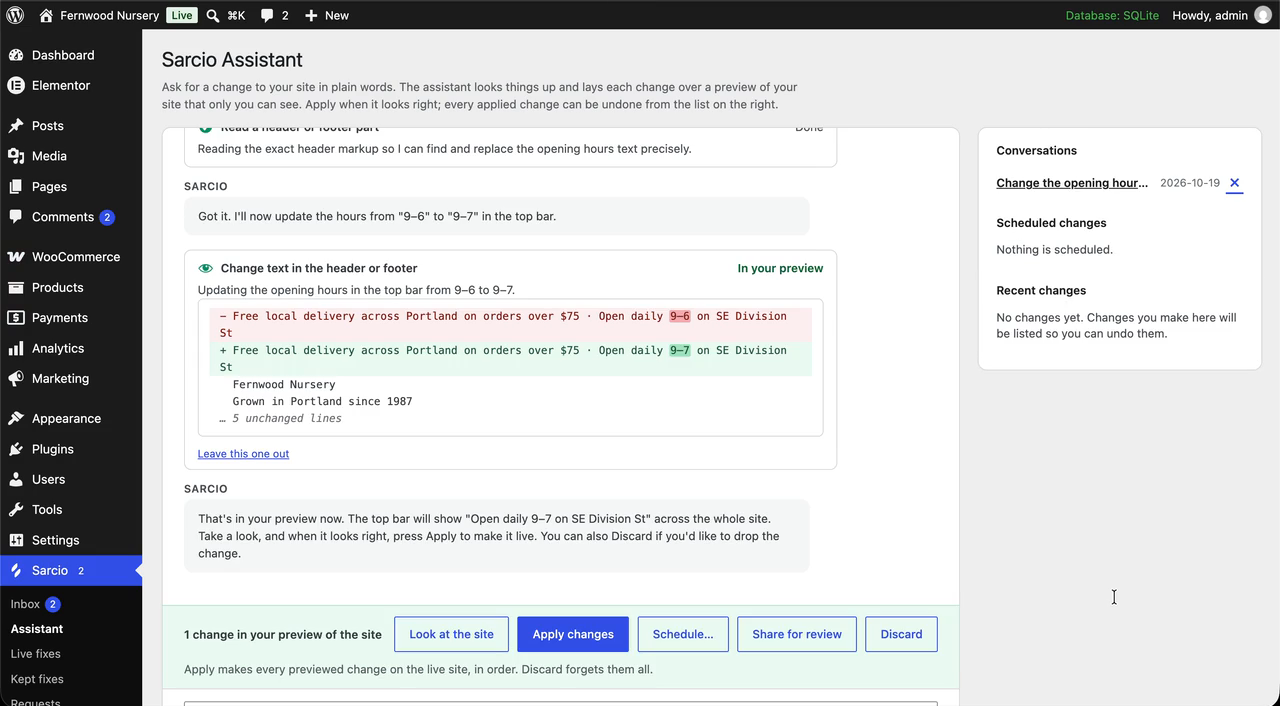
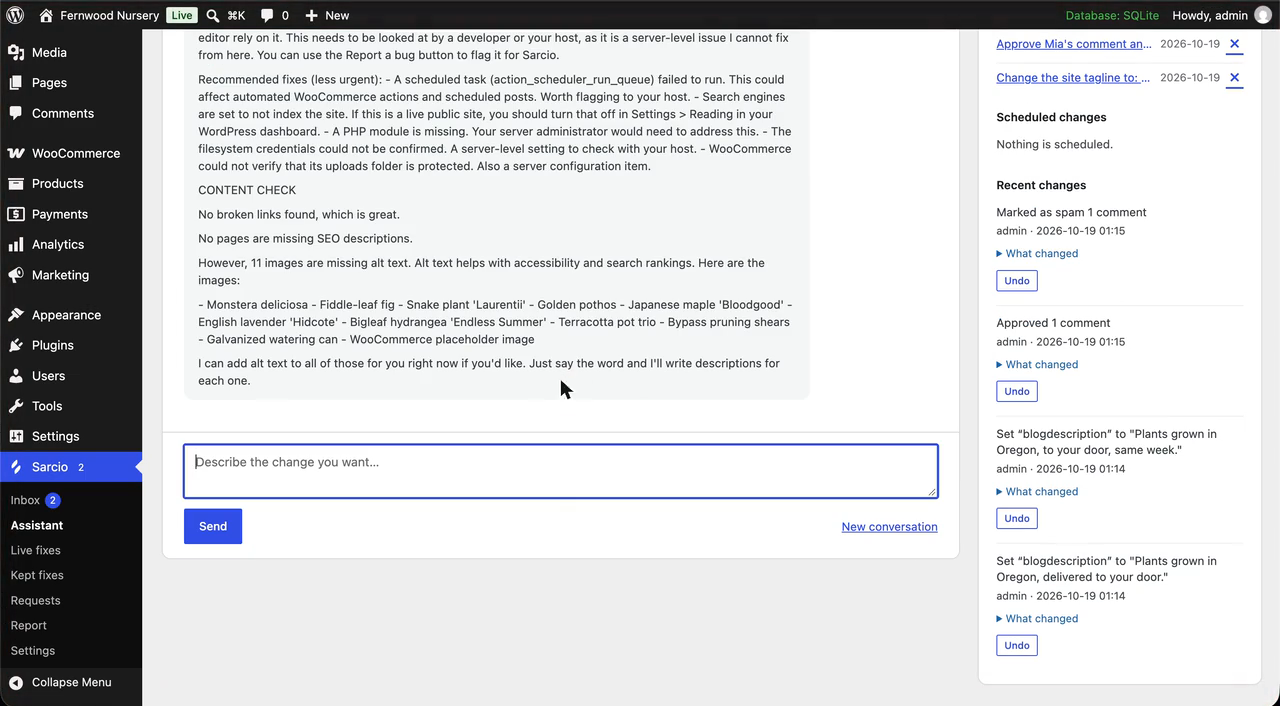
Ask for a change in plain words, such as a new phone number in the footer or a product on sale. Sarcio makes it on a preview of your real site that only you see. Apply it when it looks right; undo it any time.
What you can ask for
- Pages, posts and products, including the words on Elementor and Divi pages
- Menus, header and footer text on block themes, and colours and fonts through the site styles or your theme’s own options
- WooCommerce prices, sales, coupons and orders (never a refund)
- Comments, redirects (with Redirection), alt text, and SEO titles (with Yoast SEO or Rank Math)
- Your other plugins’ settings, through their own checks
Changes you apply are listed under Recent changes with an Undo button. A change can also be scheduled for a time you pick, with an optional time to change it back.
When something breaks
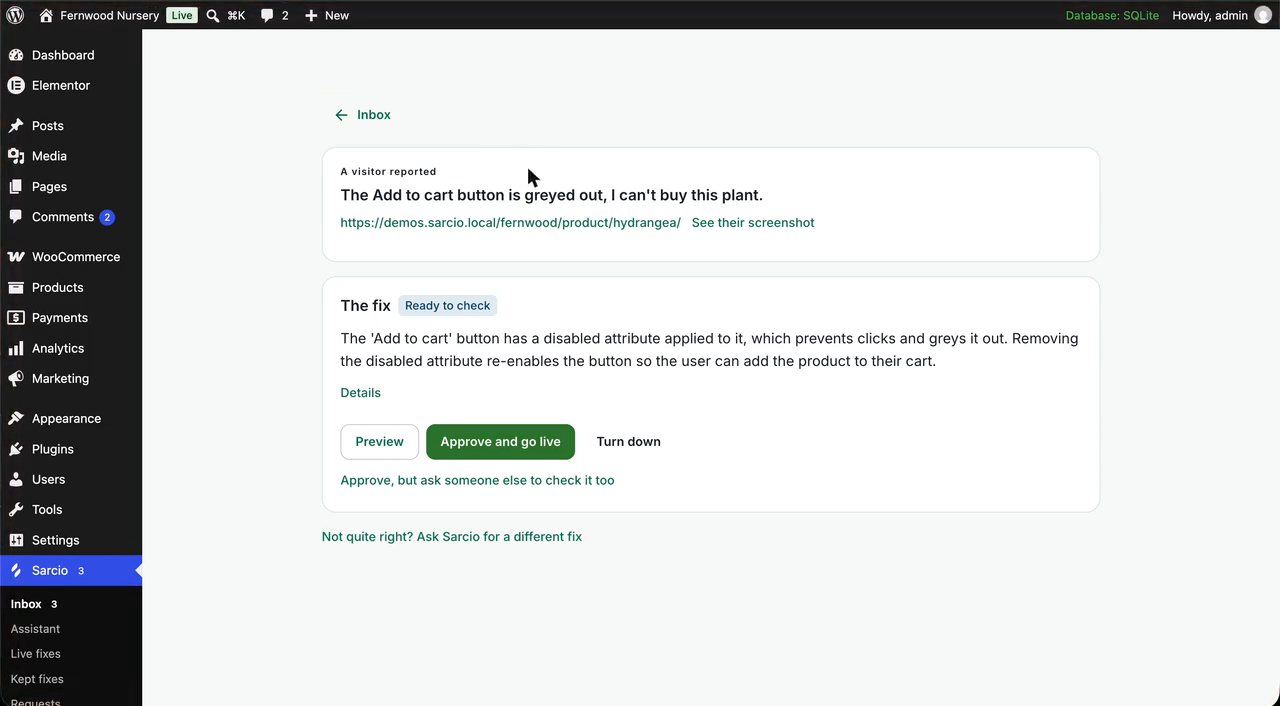
A Report a bug button lets people say what is wrong on the page; you choose who sees it. Sarcio drafts a small fix, explained in plain words, into Sarcio Inbox. Preview it on your site, approve it with your Sarcio password or an authenticator code, and an administrator can keep it: a kept fix works even without Sarcio.
Updates with a way back
Ask the assistant to update a plugin or theme from WordPress.org. It checks your key pages before and after, and puts the earlier version back on its own if something broke. It checks that your pages work, not what an update contains.
What it will not do
It works as you, so it can only do what your WordPress role allows. It never edits theme or plugin files, writes code or changes page-builder layouts, and installs plugins only from WordPress.org, only when you tick the box. Anything it can do can be switched off under Settings Sarcio Assistant.
Looking after client sites?
One Sarcio account covers your client sites. With “Who applies changes” set to administrators, a client’s changes wait under Sarcio Requests for an administrator to apply, and your Sarcio Inbox lists them. Your agency’s name, logo and colour replace ours on the screens a client sees, and each site can email a monthly report. See https://www.sarcio.io/wordpress/agencies
Set up in a minute
Install, open Sarcio in the left-hand menu and click Start free. Plans start at $19 a month for one site, 14 days free with no card: https://www.sarcio.io/wordpress. Developer settings are under Installation and the FAQ.
External services
This plugin connects to the Sarcio service, operated by Sarcio (Dayne Mentier) at sarcio.io: the control plane https://control.sarcio.io, https://www.sarcio.io and your workspace’s https://<workspace>.sarcio.io, built into the plugin. Nothing is sent until you connect the site, enter a site key or send feedback when deactivating.
-
Connecting. When an administrator clicks Start free or a Connect button, or a user who can review patches clicks Connect your Sarcio account, their browser goes to
https://www.sarcio.io/appcarrying the site’s name, its home address, its admin address, the address to return to, which button was clicked and, for an account connection, the site key. After they confirm in Sarcio, the browser returns with a one-time code, and your WordPress server exchanges that code with the control plane for the site key and secret key (site connections only) and a Sarcio sign-in for that WordPress user. -
Loading the reporter widget. On pages where the widget is enabled, the visitor’s browser loads the widget script from
https://control.sarcio.io/sarcio.js, which nothing in the plugin can change. The request carries the usual browser data (IP address, user agent, referring page) and your site key. - Fetching and receiving patches. The widget fetches your site’s active, signed DOM patches and your workspace’s public signing key from the control plane, and keeps a WebSocket open to receive newly approved patches. These requests carry your site key and the page origin, and no personal data.
- Submitting a bug report. Only when a person who can see the reporter presses Send report, the widget sends the report to the control plane: the description they typed, the page URL, the browser’s user agent and viewport size, an optional screenshot of the page, the selector and HTML of an element they picked (if any), and recent console errors and warnings plus metadata of recent network requests on the page (method, URL, status, duration, content type; never request or response bodies or authorization headers).
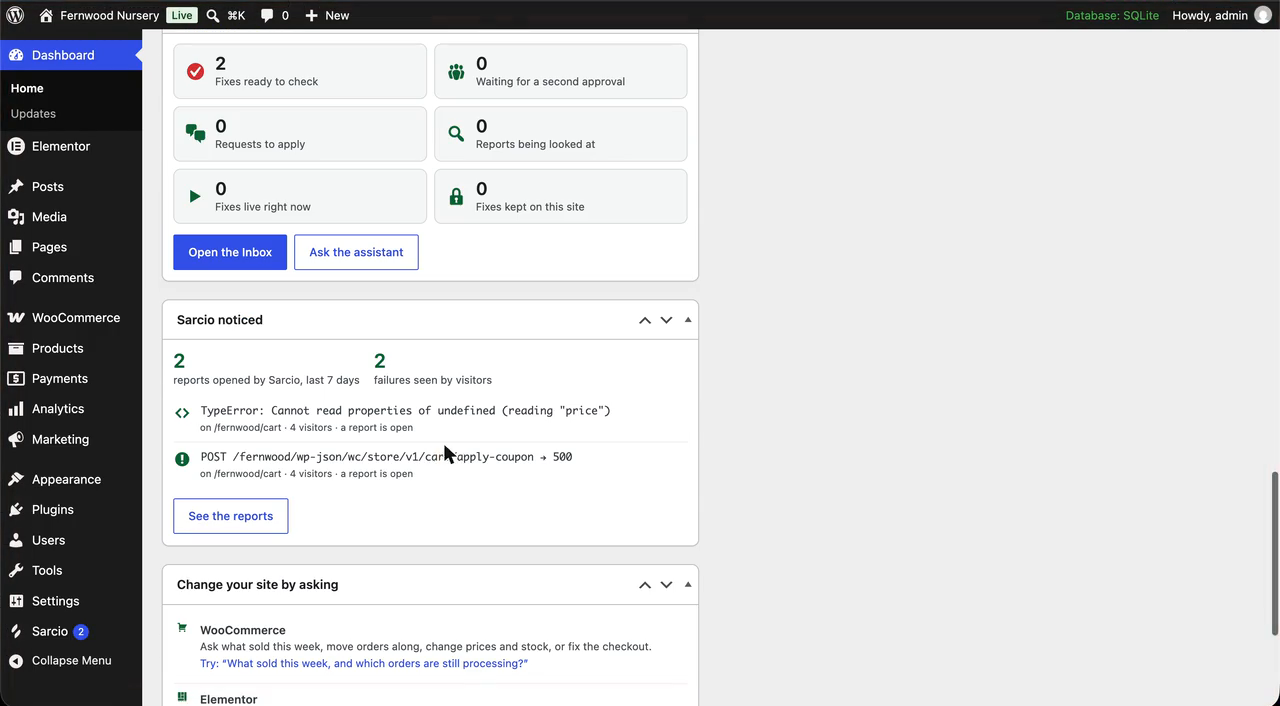
- Sarcio noticed. Only after an administrator turns it on for the site in the Sarcio dashboard (Sites Manage Sarcio noticed), the widget sends the control plane, when a visitor leaves a page on which something failed, one line per failure: the text of an error the page logged, or the method, address (without its query string) and status of a request that came back broken, and on a WooCommerce checkout page whether the checkout form and a way to pay showed. Nothing the visitor typed, no page content, no cookies, no screenshot; the request carries the site key and the usual browser data. Sarcio opens a report once several visitors hit the same failure (sooner, marked urgent, for a broken checkout).
- Fetching server patches. When you enter the site’s secret key, your WordPress server (not the visitor’s browser) requests your site’s active, signed server patches and your workspace’s public signing key from the control plane: on WP-Cron when the cached set is older than the refresh interval (30 seconds by default), after you save the settings, when you press Check for patches now, or on
wp sarcio pull. The requests carry your site key, the secret key as a bearer token (patches only; the signing key request is anonymous) and a user agent naming the plugin’s shim version. No visitor or request data is sent. - Workspace details. Your WordPress server sends the control plane your admin’s address (scheme and host only), with the site key and the secret key, and gets back your workspace’s name, its address and its branding, which the Sarcio pages show and link to.
- Staying signed in. The Sarcio sign-in from connecting is stored for that WordPress user only, encrypted with a key derived from your site’s salts, and renewed when due (a daily WP-Cron task). While that person has the Inbox or Live fixes page open, your server uses it to read this site’s open reports, their fixes and the live fixes (and to look up this site, so nothing from another site shows), and to send what they choose: preview, approve, turn down, turn a live fix off, or ask for a different fix with their note. Approving or turning off asks for their Sarcio password or an authenticator code, passed on for that one request and never stored. Signing out deletes the sign-in and asks the control plane to revoke it; uninstalling deletes every stored sign-in. These requests carry the sign-in and the site key, and no visitor data.
- Update checks. Only when a safe update finds a problem, your WordPress server sends the control plane the update’s name and versions, what changed on each key page it looked at (its name, address and a few words such as “server error 500”) and what it did, then the owner’s choice, with the site key and secret key. The checks themselves only open your own pages from your own server.
- Keeping a fix. Only when an administrator clicks Keep this fix, your WordPress server asks the control plane for that fix’s signed details (site key and secret key) and your workspace’s public signing key, checks the signature, and saves the fix in this site’s database. From then on the fix is applied by the plugin itself, with no request to Sarcio; page fixes are applied by a small script bundled with the plugin and printed into your own pages.
- Asks across sites. Only after an administrator ticks Receive changes your agency writes for several sites under Settings Sarcio (off by default), every five minutes a connected site asks the control plane whether the agency wrote a change for it (site key and secret key). If so the assistant prepares it as a preview (the conversation request above, limited to content and design; never plugins, themes, users or settings) under Sarcio Requests and reports one line per change. No visitor data is sent.
- Review links. Share for review makes a link on your site; anyone opening it gets a cookie for a week, sees the preview served by your own server, and can pin notes (a name they type, the note, the page and the spot). Notes stay in your site’s database and reach the control plane only when the assistant is asked about them.
- Waiting reports. While someone who can review fixes is in wp-admin, your WordPress server reads how many of the site’s reports are waiting, how many fixes are live, and (with Sarcio noticed on) which failures visitors hit this week (site key and secret key), at most once every two minutes, for the count on the Sarcio menu and the Dashboard boxes. No visitor data is sent.
- The assistant. Only when a person who can review fixes sends a message on the Sarcio Assistant page, your WordPress server sends the control plane that conversation (what they typed, the answers, and the results of what it looked up or changed, such as a page’s text), the list of changes that person is allowed to make here, and these site details: name, home and admin addresses, WordPress version, active theme, language, time zone, whether WooCommerce is active, whether plugins may be installed, and the person’s role. The request carries the stored sign-in and the site key. The control plane answers with text and the next change to look up or make; every change runs on your WordPress server, by this plugin, as that person, and never from the control plane. In a long conversation the oldest messages are sent once more to be summarised, and the summary replaces them. Installing a plugin from the assistant downloads it from WordPress.org exactly as Plugins Add New does. Conversations are saved in this site’s own database, per person, never in Sarcio; the preview is held on your site, keyed by a cookie for your browser alone, until you apply or discard it or for two hours. When you ask about them, that context can also include: other plugins’ settings (any setting whose name says it holds a key, token, password or licence is replaced by “(hidden)” before it leaves your site) and the names and descriptions of their abilities; comments (name and words, never email or address); categories, tags, earlier versions of a page and redirects; recent WooCommerce orders (first name, items and total; never addresses, emails or payment details) and what sold; Gravity Forms entries (never kept in a saved conversation); plugins with updates waiting; users (display name, login and role; never an email or password); Site Health results, widget areas, Elementor’s global colours and fonts, and links on your own pages that answered with an error (checked by your WordPress server).
- AI models. To draft fixes and answer the assistant, the control plane (never your server or your visitors’ browsers) sends the report or conversation above to an AI model through OpenRouter (https://openrouter.ai; terms https://openrouter.ai/terms, privacy https://openrouter.ai/privacy), which passes it to the model’s provider (Anthropic’s Claude models by default).
- Usage. While the settings page is open, your WordPress server reads this month’s AI usage for the site from the control plane (site key and secret key), at most once every five minutes.
- Previewing a server patch. When a browser opens the site with a preview link from Sarcio (
?sarcio_preview=), your WordPress server sends that preview token, with the site key and secret key, to fetch the patch being previewed. It applies only to that browser, through a cookie that lasts up to 15 minutes. - Feedback when deactivating. Only when someone deactivating the plugin clicks Send and deactivate, your WordPress server sends
https://control.sarcio.iotheir answer and note, the plugin and WordPress versions, the site’s language and whether it was connected; no address, site key, name or email. - With the optional Sarcio sidecar (a sidecar address is set under Advanced settings), the plugin talks only to that sidecar over a local socket on your host, and the sidecar fetches the patches instead.
The screenshot library, html2canvas 1.4.1 (MIT, https://html2canvas.hertzen.com), is bundled with the plugin and served from your own site; the plugin loads nothing from a third-party CDN.
Terms of service: https://www.sarcio.io/terms
Privacy policy: https://www.sarcio.io/privacy
Screenshots

Installation
- Install and activate the plugin.
- Open Sarcio in the left-hand menu and click Start free, or I have an account: connect if you already use Sarcio.
- Sign in (or finish signing up) and confirm the connection. You return to WordPress with the site connected; the status box at the top says “Connected to Sarcio”. That is the whole setup, on any host.
- Everyone else who reviews fixes opens Sarcio in the left-hand menu and clicks Connect your Sarcio account once. Approving a fix asks for your Sarcio password or an authenticator code.
Prefer to copy the keys yourself? In your Sarcio dashboard, open Sites: copy the site key (pk_…), then Manage Sidecar keys for the secret key (sk_…), and paste both under Settings Sarcio.
Everything else is optional and lives under Advanced settings: who can see the bug reporter, where server patches apply, how often the site checks for patches, and the Sarcio sidecar for developers whose host can run a service (see https://www.sarcio.io/docs), which makes new patches arrive within seconds.
Anything a deployment should own can be pinned in wp-config.php, which makes the matching field read-only:
define('SARCIO_SITE_KEY', 'pk_your_site');
define('SARCIO_SIDECAR_KEY', 'sk_…');
define('SARCIO_SIDECAR_DSN', 'unix:///run/sarcio/sarcio.sock');
define('SARCIO_SHIM_TOKEN', '…');
A developer can point the plugin’s API requests at another sarcio.io address, or a local Sarcio stack (localhost, 127.0.0.1, *.sarcio.local), with define('SARCIO_API_URL', …); any other address is ignored, and the reporter script always loads from https://control.sarcio.io.
FAQ
-
What can the assistant change, and what will it not do?
-
It changes what WordPress itself manages: the text and content of pages, posts and products, menus, the site styles and the theme’s options, WooCommerce store settings, product prices and stock, coupons, and whether plugins are on. Every change is shown to you first and applied only when you press Apply, and every change is listed on the Assistant page with an Undo button. It will not edit theme or plugin files, write code, change Elementor or Divi layouts, or install anything from outside the WordPress.org directory, and it can only do what your own WordPress role allows.
-
Will it break my site?
-
It’s built not to: nothing goes live until you apply it, and its changes can be undone or switched off. A fix is a small, signed change the plugin applies as the page or the request runs, and you see it on your live site before anyone else does. Turn a fix off and the site is exactly as it was.
-
Can I undo a fix?
-
Yes, at any time. Every kept fix has a switch under Sarcio Kept fixes. Turning it off takes effect for every visitor at once, and removing it deletes it. A fix that is not kept can be turned off under Sarcio Live fixes, and stops on its own at its expiry.
-
Does it work with WooCommerce and page builders?
-
Yes. Sarcio works with any theme and any page builder, and the server-side fixes cover WooCommerce carts and checkouts, contact forms and quote forms.
-
What does it cost?
-
Plans start at $19 a month for one site, and agencies looking after client sites start at $79 a month for ten. Your first 14 days are free, with no card needed to start. There is no free tier and no contract. See https://www.sarcio.io/pricing.
-
Yes, with nothing to install on the host. The plugin fetches and verifies your site’s signed fixes itself. The Sarcio sidecar, for hosts that can run a service, is optional and only makes new fixes arrive faster.
-
By default only users with the
edit_postscapability. Change it under Settings Sarcio Advanced settings, or use thesarcio_load_widgetfilter. Fixes apply to every visitor regardless of the audience. -
What happens if the sidecar, or Sarcio itself, is unreachable?
-
Requests run exactly as they would without the plugin. A fix can never be the reason a request fails. Without a sidecar, the plugin keeps serving the last set of fixes it verified until it can reach your account again, and every fix still stops on its own at its expiry.
-
What are server-side fixes?
-
Some problems live in how your site answers a form or a checkout (a postcode wrongly refused, a coupon that will not apply, a field an update started requiring), not in what the page shows. Sarcio fixes those as the request runs, on the REST API,
admin-ajax.phpand page loads, with structured, in-memory operations: default or strip a field, set a header, skip a validation, override a config value, reshape a JSON response, or gate a route. Each is signed and verified against your account’s own key, and nothing on disk changes. They work on any host once the secret key is set; keys can be pinned inwp-config.php(see Installation), and the optional Sarcio sidecar makes new fixes arrive within seconds. -
How do my handlers read a server patch’s context?
-
Use the plugin’s helpers:
sarcio_skips('referral_code_required'),sarcio_config('max_items', 20)andsarcio_context(). -
Is there a WP-CLI command?
-
Yes:
wp sarcio status,wp sarcio routes,wp sarcio pullandwp sarcio flush.
Reviews
There are no reviews for this plugin.
Contributors & Developers
“Sarcio” is open source software. The following people have contributed to this plugin.
Contributors
Translate “Sarcio” into your language.
Interested in development?
Browse the code, check out the SVN repository, or subscribe to the development log by RSS.
Changelog
0.17.0
- Other plugins can now add to what the assistant can do through one small, versioned way in (for developers: the
sarcio_loadedaction). The oldersarcio_assistant_abilitiesfilter still works and is marked deprecated. - When a change under Recent changes was made by another plugin that is switched off now, the list says so and how to undo it, instead of only leaving out the Undo button.
0.16.5
- A new first screen under Sarcio: change your site by asking, see it on a private preview, undo it any time. Start free (14 days, no card needed) or connect an account you already have.
- Until the site is connected, administrators see a short note on the Plugins screen and the Dashboard pointing to Set up Sarcio. Close it once and it stays closed for you.
- When you deactivate Sarcio you can tell us what didn’t work, in one click. It is optional: nothing is sent unless you press Send and deactivate.
0.16.4
- The reporter script always loads from
https://control.sarcio.io/sarcio.js. The Sarcio server address setting is gone, and nothing in the plugin can move the script elsewhere. - Every REST route names its permission check where it is registered.
- WooCommerce’s own product and order abilities that Sarcio already covers are left to Sarcio’s, which preview and undo. No other plugin’s ability may delete something for good or mark an order refunded through the assistant.
0.16.3
- Across sites: a change your agency writes for several sites is only prepared here as a preview and waits under Sarcio Requests, marked as your agency’s, until an administrator presses Apply. It is never applied by the scheduled check, including when the agency asked for it to go live, and an undo the agency asks for waits the same way. These changes are limited to content, menus, media, products, comments, categories, SEO and the site’s look: never plugins, themes, users or site settings.
- The assistant no longer suggests CSS: the hand-off to the Additional CSS editor is gone. It styles through the site styles, the theme’s own options and style rules.
- Content the assistant writes is filtered like an author’s, for everyone, and a theme option it changes must be a plain value from a plain field.
- Live fixes has a Turn off button, after you confirm it is you.
- The preview escapes what it shows, and the Dashboard boxes accept only a real colour.
0.16.2
- The assistant shows your preview in a panel beside the chat: your own site’s pages, with your changes in place, opened by Show beside the chat and on its own after a change is previewed. Show live and Show my changes flip the page in the panel and keep your place on it, without touching the chat. Links move around your site inside the panel. On a narrow screen the panel slides up as a sheet. If your site does not allow itself to be shown inside another page, the panel says so and offers Look at the site in a new tab.
0.16.1
- The preview bar has a Show live switch: flip the page you are on between your changes and the live site, and back, as often as you like. It stays as you left it while you move around the site, only in your browser, and never applies or discards anything.
0.16.0
- Safe updates: the assistant updates a plugin or theme from WordPress.org with checks. First whether it can run here (the PHP and WordPress versions it needs, file changes allowed, disk space, a big update that also changes its data), then a look at your key pages (home, shop, cart, checkout, a product, contact, your menu) before and after. If something breaks (a crash, a server error, the checkout or the way to pay gone), the earlier version is put back by itself; if something only looks different, the update is kept for you to decide. Either way it lands in the Inbox with Keep, Put the earlier version back or Try again.
- The list of waiting updates shows what those checks found for each one.
- Updating a plugin from the assistant keeps it switched on; before, WordPress left it off until the next page load.
- Checkout watch: with Sarcio noticed on, a WooCommerce checkout page that shows no checkout form or no way to pay counts as a failure, and a broken checkout opens a report sooner and marked Urgent. Urgent reports come first in the Inbox.
0.15.0
- The assistant styles one element with style rules (a selector, one property and a value, kept as data and checked by WordPress’s own CSS filter), changes a classic theme’s own Customizer options with the theme’s own checks, and hands anything else to WordPress’s Additional CSS editor as a suggestion you review and publish yourself. It no longer writes Additional CSS, and the site styles refuse CSS text.
- The Inbox and Live fixes pages are drawn by WordPress itself: your server fetches this site’s reports and fixes with your own Sarcio sign-in, instead of showing Sarcio’s screens in a frame.
- The list of the assistant’s changes, the monthly report page and the dashboard box show each person only the changes their own WordPress role would let them make; administrators still see every change. Scheduled changes are listed to the person who scheduled them and to administrators.
- Changes written for several sites (Across sites) are taken only after an administrator turns that on under Settings Sarcio. It is off by default, including on sites that took them before.
- The reporter script always loads from the Sarcio server; the “Reporter script address” setting is gone.
- Data handed to the page’s scripts is escaped for the page, and the response rewrite of a live fix closes its output buffer itself.
0.14.1
- Other plugins’ abilities (MainWP’s among them) are offered on every assistant turn, not only when something else on the page had already asked WordPress for them.
- A change another plugin makes only with your go-ahead (a MainWP update run, for one) shows its tick box on the card, so Apply works.
- The Share for review box counts the notes it has.
0.14.0
- On a MainWP dashboard, the assistant works the whole portfolio through MainWP’s own abilities: a change that MainWP can dry-run is shown first and made only when you tick the box, and one that needs MainWP’s confirmation gets it from that same box.
- Your own preview gets the note bar too: pin a note on anything you would change and ask the assistant what the notes say. A request sent to the agency carries the notes pinned on its preview, shown on Sarcio Requests.
0.13.2
- The review bar sits above the Report a bug button, with Leave a note first.
0.13.1
- WordPress’s own settings (the site title and tagline among them) are available to the assistant when an ask across sites runs from the scheduler, not only from the admin screen.
0.13.0
- Across sites: an agency writes a change once in Sarcio and picks the sites; every few minutes each site’s plugin picks up its task, runs the assistant as the administrator who connected the site, and either leaves the change in Sarcio Requests for a person or applies it and reports back, with undo on every site from Sarcio. Nothing arrives unasked: the plugin pulls with the site’s own key, and only a connected administrator can run anything.
- Share a preview for review: a link that shows the preview as it stands, for a week, to anyone holding it, with a way to pin a note on any spot of any page. No WordPress login needed; the assistant reads the notes back.
- A scheduled change can repeat every day, week or month.
- The assistant reads the site’s recent activity, from Simple History or Stream where installed, and the monthly report shows it.
0.12.0
- The assistant can look at who can sign in (names and roles, never emails or passwords), change a user’s role with undo, invite someone by email and remove a user handing their content to another, each confirmed first.
- It reads WordPress’s Site Health and checks the site for images without alt text, links on its own pages that no longer answer and pages without a search description, then fixes what it can: alt text on several images at once, previewed and undoable.
- It changes the words in a classic text or block widget, Elementor’s global colours (previewed, every element using the colour follows), the text of synced patterns, and schedules a draft to publish at a time you pick.
- It updates themes one at a time with a way back for WordPress.org themes, and asks a backup plugin that offers it (Jetpack Backup and others) for a backup before any plugin or theme update.
- Earlier versions of a block theme’s site styles can be listed and restored.
- The monthly report gains what happened on the site (pages published, comments moderated, updates) and today’s Site Health.
- Settings Sarcio lists the other plugins offering abilities here and the ones never offered because they run code.
0.11.0
- The assistant moderates comments (approve, hold, spam, trash, in bulk, undoable), manages categories, tags and product categories, puts a page back to one of its earlier versions, and shows and changes redirects through the Redirection plugin.
- On a WooCommerce shop it says what sold and moves orders along with a note; it never refunds. With Gravity Forms it lists forms and recent entries and changes where a form’s emails go; entries are read for the question asked and never kept in a saved conversation.
- It updates plugins one at a time after a ticked box, and puts a WordPress.org plugin back to the version it had on undo.
- Page caches (WP Rocket, LiteSpeed, W3 Total Cache, WP Super Cache, Cache Enabler, WP Fastest Cache, Autoptimize, SiteGround, WP Engine, Breeze) are cleared after every applied change, and on request.
- Abilities other plugins register that would run code or read files on the server are never offered to the assistant.
- Three Dashboard boxes: what needs a person, what failed for visitors (Sarcio noticed), and what the assistant can do with the plugins on this site, each with a request to try.
0.10.0
- The assistant can change the settings other plugins register with WordPress, through each plugin’s own checks, previewed and undoable; settings that hold keys, tokens or passwords are hidden and cannot be changed from the assistant.
- Abilities other plugins register with WordPress (the Abilities API) are offered to the assistant beside Sarcio’s own, each switchable off in the settings; one a plugin marks destructive needs a ticked box first.
0.9.9
- The assistant changes the text on pages built with Divi, and drops Divi’s cached styles for the page.
- Sarcio Requests applies, declines and withdraws through plain forms.
0.9.8
- The External services section describes Sarcio noticed, which the Sarcio dashboard can turn on per site: the widget then reports what failed on a page view, and a failure several visitors hit opens a report by itself.
0.9.7
- Requests: with “Who applies changes” set to administrators under Settings Sarcio Assistant, an editor previews a change as usual and sends it to the agency instead of applying it. Administrators apply or decline it under Sarcio Requests, the Sarcio workspace Inbox lists it, and the person who asked is emailed either way. The changes themselves never leave the site.
0.9.6
- White label: an agency sets its name, logo and colour in its Sarcio workspace, and the plugin shows them on the screens a client sees (the menu, the assistant, the preview bar, the Report a bug button, the monthly report).
0.9.5
- Scheduled changes: on the preview, Schedule… makes the changes at a time you pick and, if you like, changes them back at a second time. Scheduled changes are listed beside the chat and can be cancelled until they run.
0.9.4
- Sarcio Report: what changed on the site in a month, the assistant’s changes and the fixes kept, fit to print or save as a PDF. Add email addresses under Settings Sarcio and the report arrives on the first of each month.
0.9.3
- The assistant can set a page’s search title and description through Yoast SEO or Rank Math, set a page’s featured image, and change an image’s alt text.
0.9.2
- The assistant changes the text on pages built with Elementor: it reads the widgets’ text, previews the change on your site and undoes it like any other.
0.9.1
- Applying a previewed change no longer fails when the preview was open in the same browser.
- The preview bar sits below the WordPress admin bar.
0.9.0
- On a block theme, the assistant can change the text in the header, footer and other template parts (a phone number, an opening line), saved as your site’s own copy of the part the way the Site Editor does; the theme’s files are never written, and undo removes the copy.
- Any single previewed change can be left out before you apply the rest.
- Settings Sarcio Assistant lets an administrator turn off any of the things the assistant can do, for everyone on the site.
0.8.0
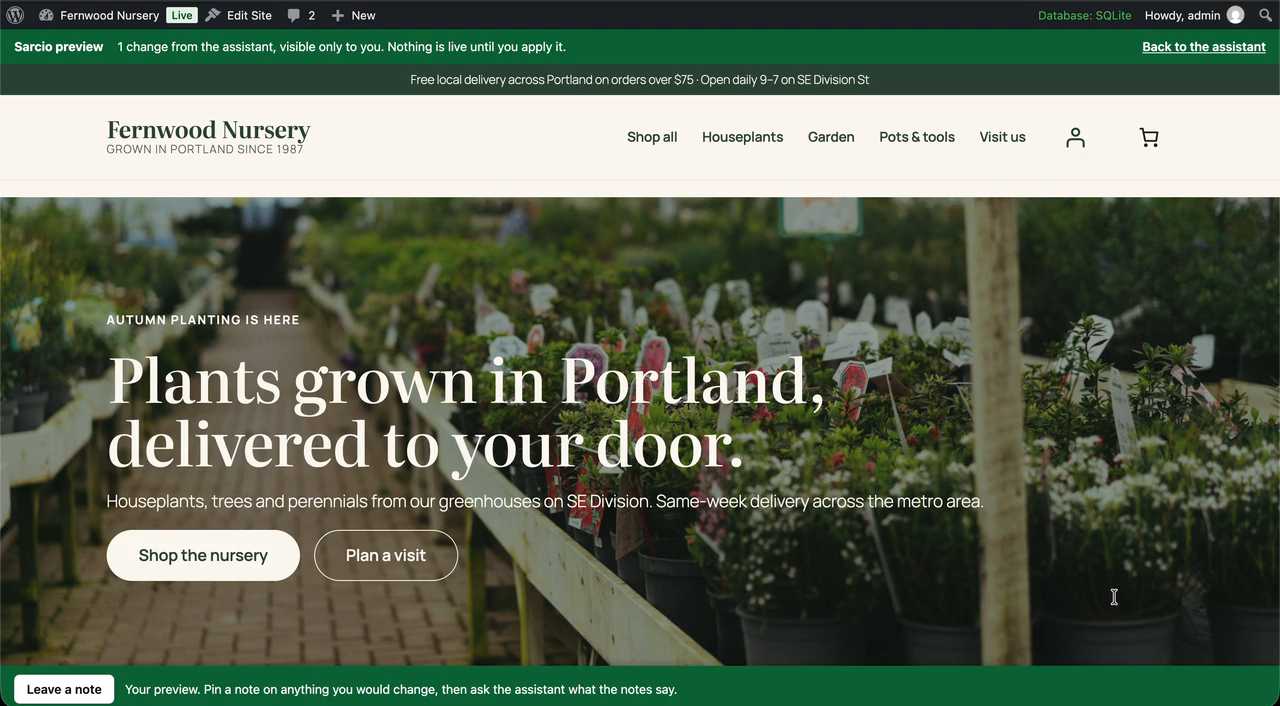
- The assistant lays its changes over a preview of your site that only you can see. Look at the site with the changes in place, keep asking for more, then apply them all at once or discard them. Nothing is live until you apply.
- Conversations are saved on your site, per person, and can be picked up again from the list on the Assistant page.
- A long conversation keeps going: the oldest messages are summarised instead of forgotten.
0.7.2
- Works on every WordPress release the plugin supports (6.0 and later), and the WordPress.org Plugin Check passes clean.
0.7.1
- Every change the assistant proposes, makes or lists under Recent changes shows what changed as a highlighted before-and-after of the page’s text, with the changed words marked.
- Coupons can limit uses per customer.
- The assistant goes straight to the change you asked for instead of asking first; the Apply button is the confirmation.
0.7.0
- Sarcio Assistant: ask for everyday changes to your site in plain words. The assistant shows each change before it is made, applies it only when you press Apply, and lists every change with an Undo button. It covers pages, posts and products, menus, extra styles and site styles, WooCommerce settings and coupons, and turning plugins on and off (installs only from WordPress.org, with your tick for each plugin).
- The same changes are offered to WordPress 6.9’s Abilities API, so an MCP client connected to your site can use them too.
0.6.2
- Kept fixes show code in their description as code.
- The Report a bug button’s default icon is a plain chat bubble, and a picked part of the page is described in plain words.
0.6.1
- Fixed: kept page fixes did not apply when the plugin was installed with Composer. The small script that applies them is now printed into the page from the plugin itself.
0.6.0
- Keep this fix: save a live fix on your site for good. Kept fixes keep working even if the site is no longer connected to Sarcio, and are listed under Sarcio Kept fixes, where you can turn them off or remove them.
- The Sarcio menu shows how many reports are waiting, and a Sarcio box on the WordPress Dashboard sums them up.
- Simpler review screens inside WordPress: what the visitor reported, the fix in plain words, Preview, Approve and go live.
- The preview banner floats over the page instead of pushing it down.
0.5.0
- Sign in once: connecting keeps you signed in to the Sarcio Inbox inside WordPress, with no second sign-in. Approving a patch there still asks for your Sarcio password or an authenticator code.
- Everyone who reviews patches can connect their own Sarcio account from the Sarcio menu, not only the administrator who connected the site.
- Connecting happens in the same tab and brings you straight back to the Inbox.
- A short introduction on the Sarcio page when the site is not connected yet, and a simpler Inbox with no extra header.
- The Sarcio menu shows the Sarcio mark, in your admin colour scheme.
- Fixed: a site name with an ampersand reached Sarcio as “&”.
0.4.1
- Style the reporter button: icon or text, icon, color, position and a dark panel, with a live preview.
- The Sarcio menu now reads Inbox, Live patches and Settings, the same words as the Sarcio dashboard, and the introduction explains what you need before you open the Inbox here. It can be turned off again under Advanced settings.
- Fixed: turning on the Inbox in wp-admin, or connecting with the button, switched the reporter off.
0.4.0
- Connect to Sarcio: one button signs you in (or signs you up) and connects the site, with nothing to copy.
- Optional review screens in wp-admin: reports, plain-language drafted patches, preview, approve, reject and redraft, from your Sarcio workspace, turned on by an administrator.
- Previewing a server patch applies it for your own browser only, so you can try it on the live site before approving.
- The settings page shows this month’s AI drafts and credits against your plan, with a link to add more, and links to the right page of your Sarcio dashboard.
0.3.4
- Setup is now two keys. Settings Sarcio opens with a plain-language status box (connected or not, when the site last checked for patches, how many are active, and a Check for patches now button) and asks only for the site key and the secret key; everything else moved under Advanced settings.
- The Sarcio server address defaults to Sarcio’s own, so a site key alone is enough for the bug reporter and page patches.
- The site checks for new server patches every 30 seconds by default (was 60), and right after the settings are saved.
0.3.3
- Fixed: installed with Composer outside wp-content/plugins, the plugin pointed the screenshot library at a URL that can’t be served. It now uses its bundled copy only when the plugin’s files are web-reachable, and otherwise lets the reporter widget load the library itself.
0.3.2
- Fixed: installed with Composer, the plugin could resolve a shim older than 0.3 and stop every page with a fatal error once a sidecar key was set. It now requires the 0.3.1 shim, and if an older one is present anyway the server tier stays off instead.
0.3.1
- Removed opcache file swaps (signed replacement PHP files). The plugin no longer writes to your site’s files, and the File swaps and State directory settings and
wp sarcio sync-filesare gone. - The screenshot library, html2canvas 1.4.1, is now bundled with the plugin instead of loaded from the unpkg CDN.
- The External services section now describes the direct-mode patch requests.
0.3.0
- Server-side patching without the sidecar: enter the site’s sidecar key and the plugin fetches, verifies and applies your signed server patches itself, on any host. The sidecar remains the fast path where a service can run.
- New settings: Sidecar key and Refresh interval. New command:
wp sarcio pull. The settings screen andwp sarcio statusshow which transport is in use and the last pull. - Requires the bundled shim core 0.3.
0.2.2
- The plugin URI now points at the plugin’s own guide, distinct from the author URI (a WordPress.org submission requirement).
0.2.1
- Passes the WordPress Plugin Check: direct-access guard on the helpers file, no reliance on a WordPress 6.5 polyfill, prefixed uninstall globals, and the reasons for the remaining direct file and socket operations stated in place.
0.2.0
- The plugin, including the bundled PHP shim core, is now licensed GPL-2.0-or-later.
- Adds a WordPress.org readme with the external services disclosure.
- Settings page and request handling tidied for the WordPress coding standards.
0.1.x
- Early releases distributed directly to Sarcio customers.