

Description
Rooster LMS is the free WordPress LMS for training many organisations from one site. One common pool of courses serves every organisation, and every division, hotel, school or department inside it runs its own programmes and people. Without organisations, it is a complete LMS for one school, company or course creator.
Website · Rooster LMS Pro · Rooster Adaptive LMS · Rooster LRS
Free, with nothing to buy
Rooster LMS is complete on its own: unlimited organisations, courses and learners, and no feature waits for a licence. Much of what WordPress LMS plugins usually sell as add-ons is in the free plugin:
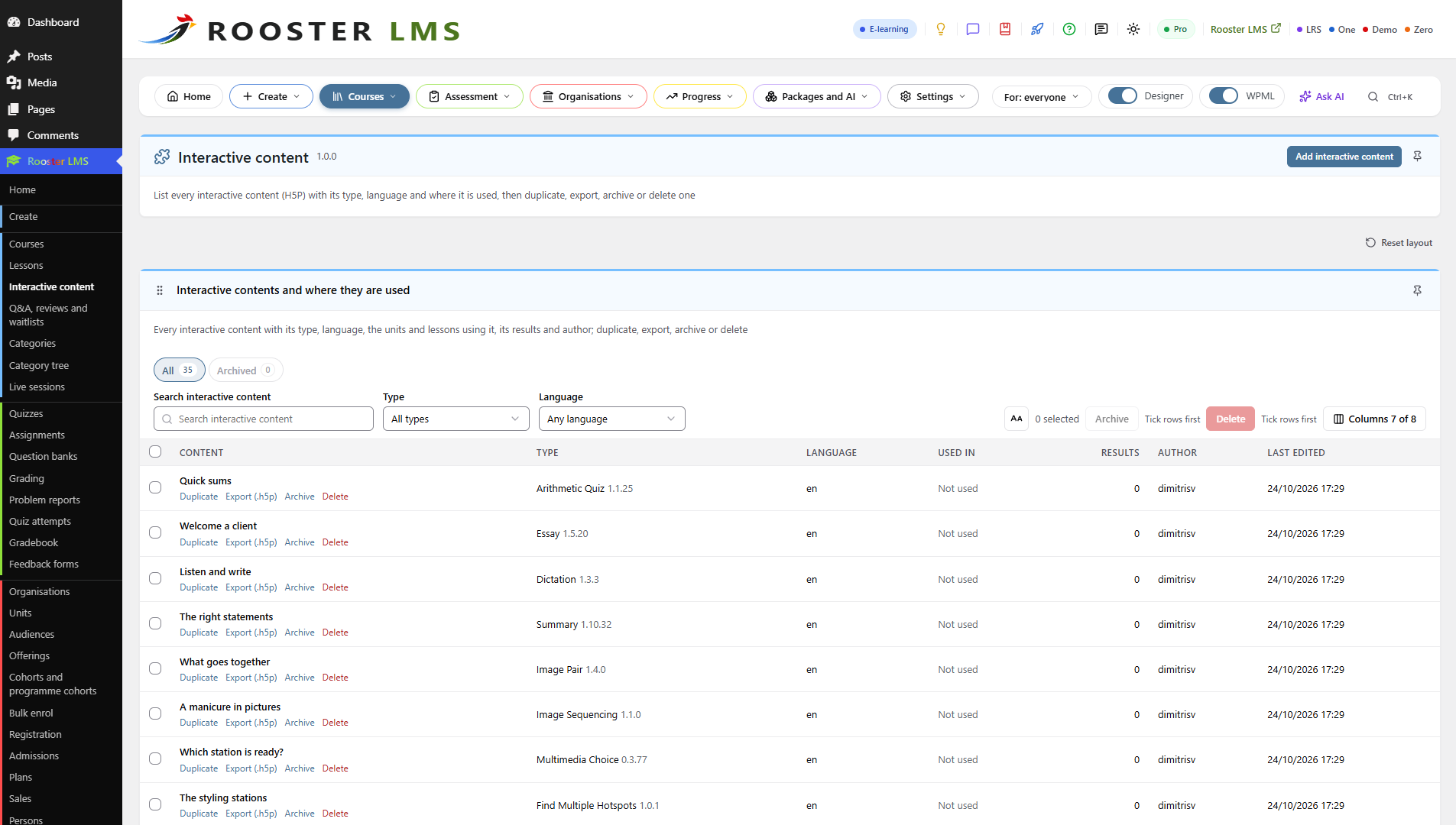
- Interactive content and games from its own H5P engine, with no H5P plugin: memory games, crosswords, flashcards, branching scenarios and interactive video.
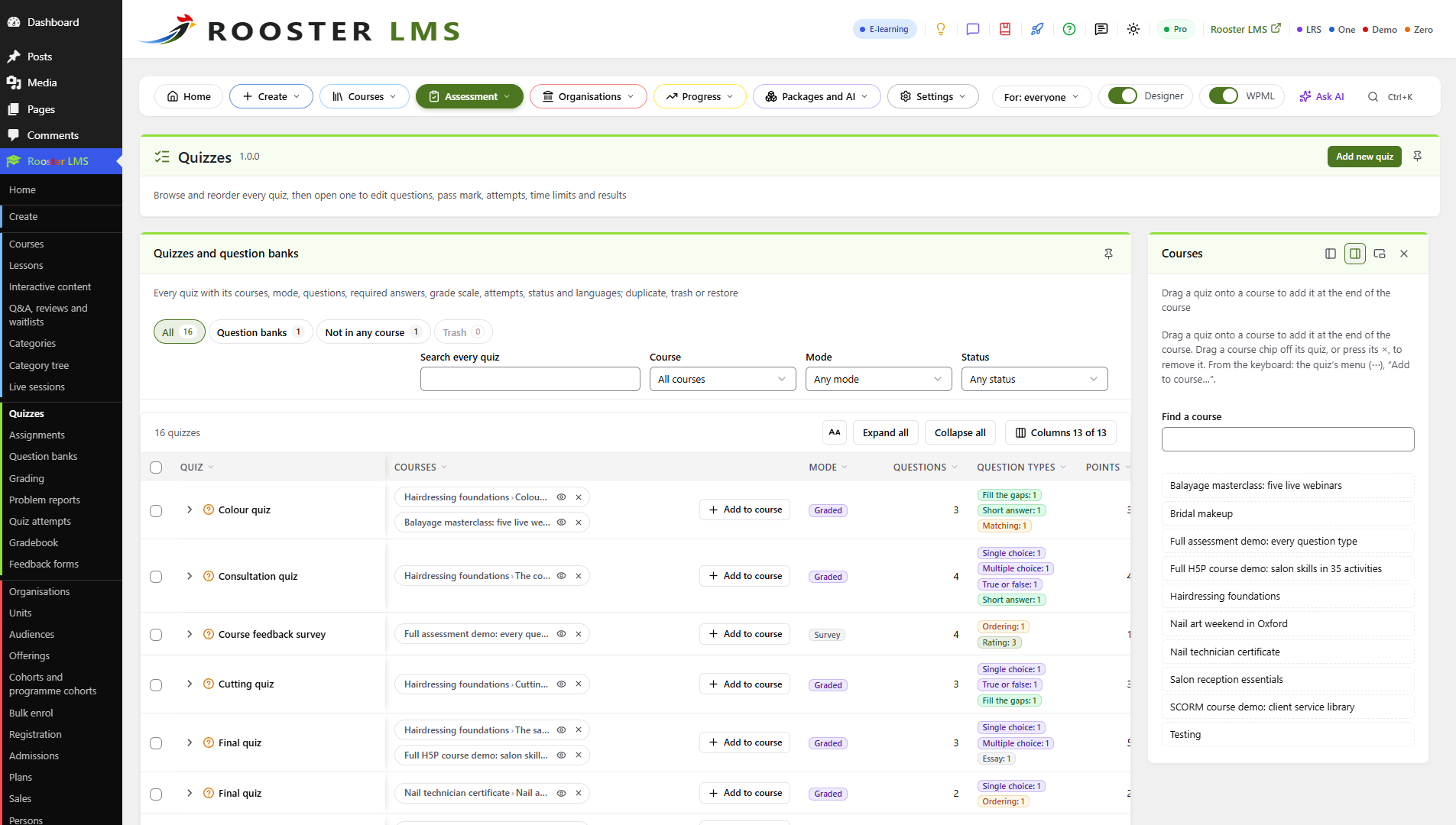
- More than 30 question types: ten native graded types, seventeen interactive H5P types and four survey types.
- Exams you can trust: one question at a time from the server, timers a reload cannot reset, extra time, withheld results, question banks and regrading.
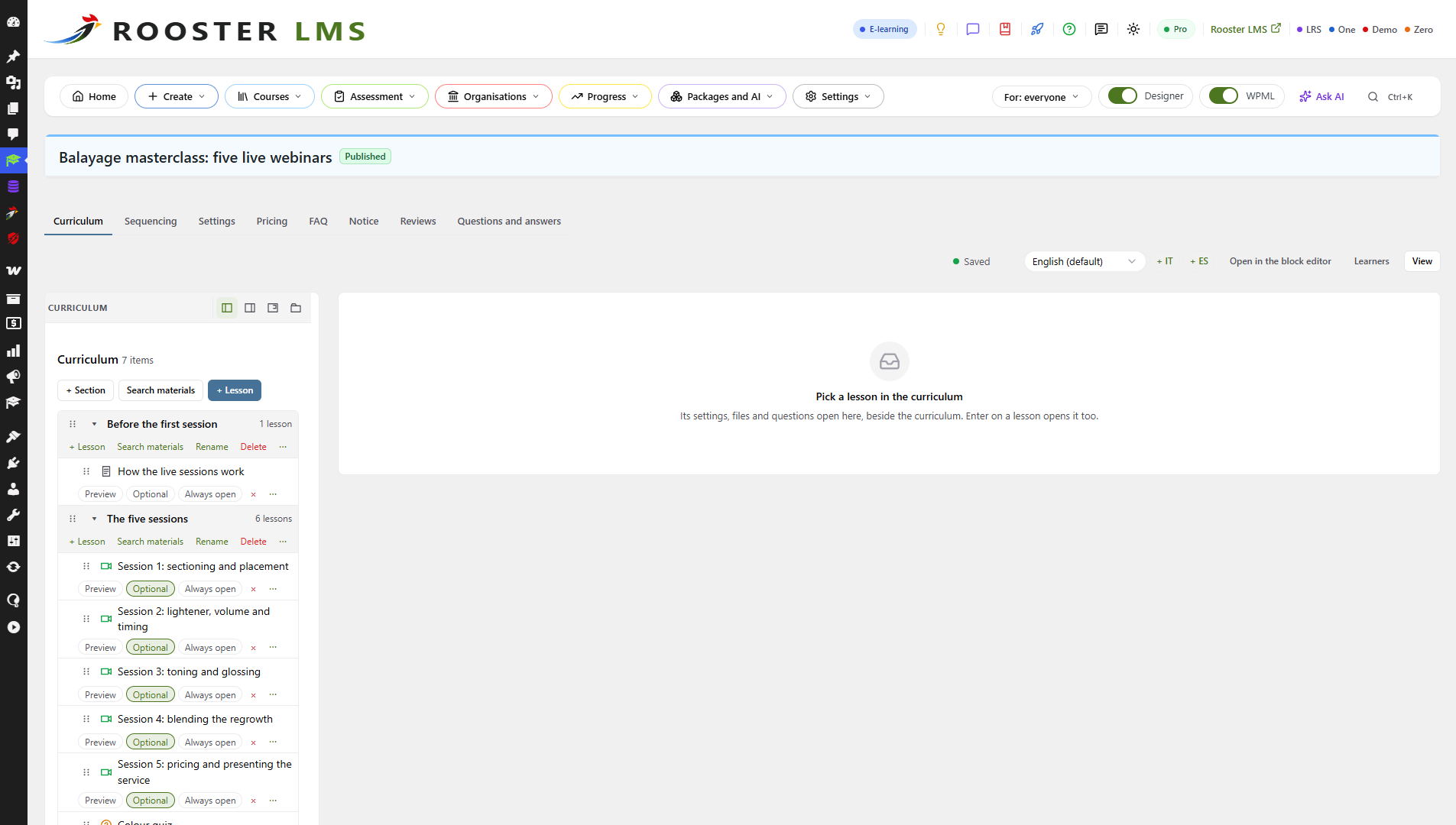
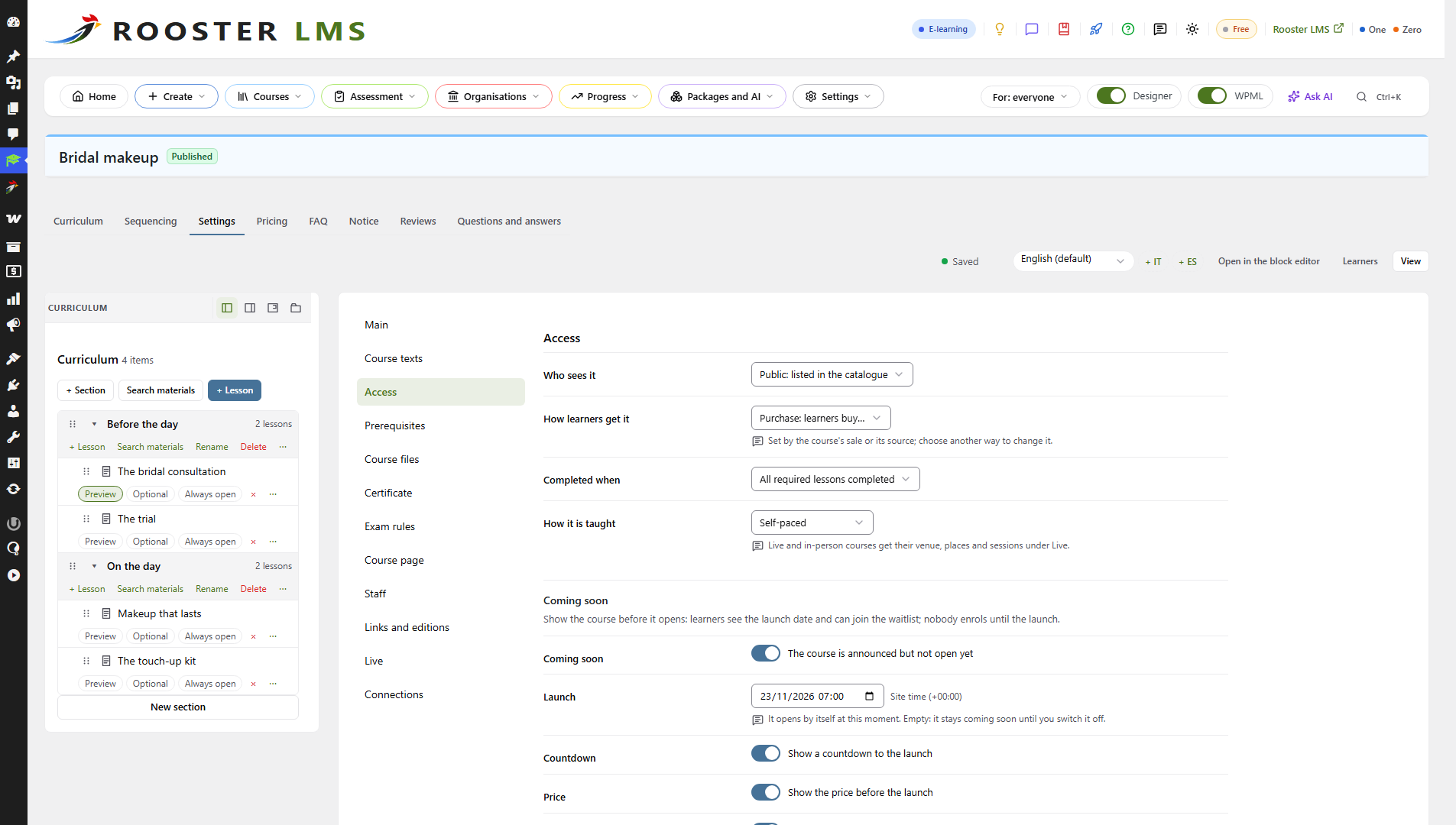
- The Rooster LMS Designer: a whole course on one screen, saved as you type with Undo, beside the block editor.
- Several instructors per course: a principal, instructors who edit, assistants and graders, and public profiles of lecturers and committees.
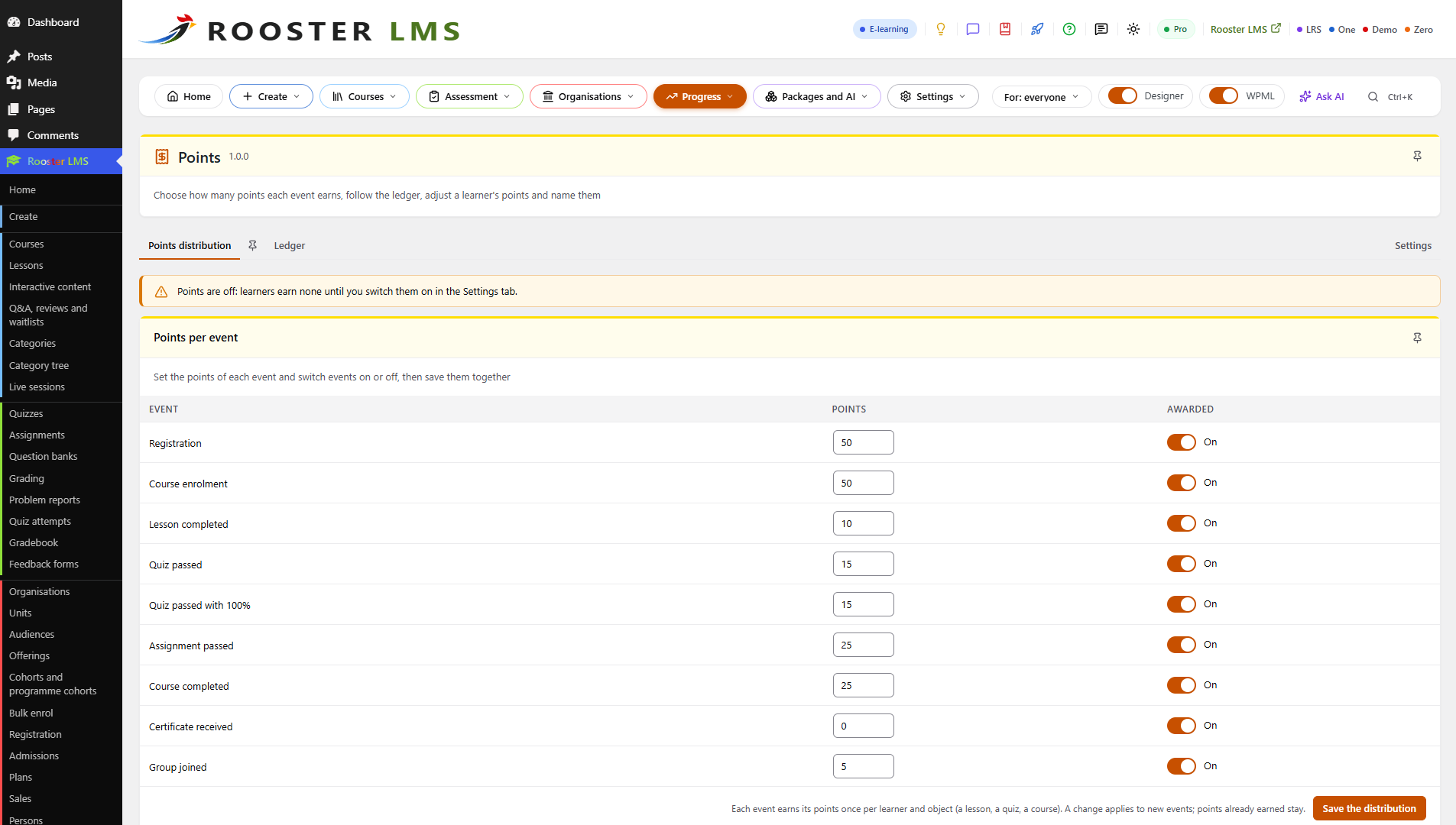
- Points and a leaderboard, star ratings, and certificates anyone can verify.
- Assignments, a grading queue and a gradebook with your own grade scales.
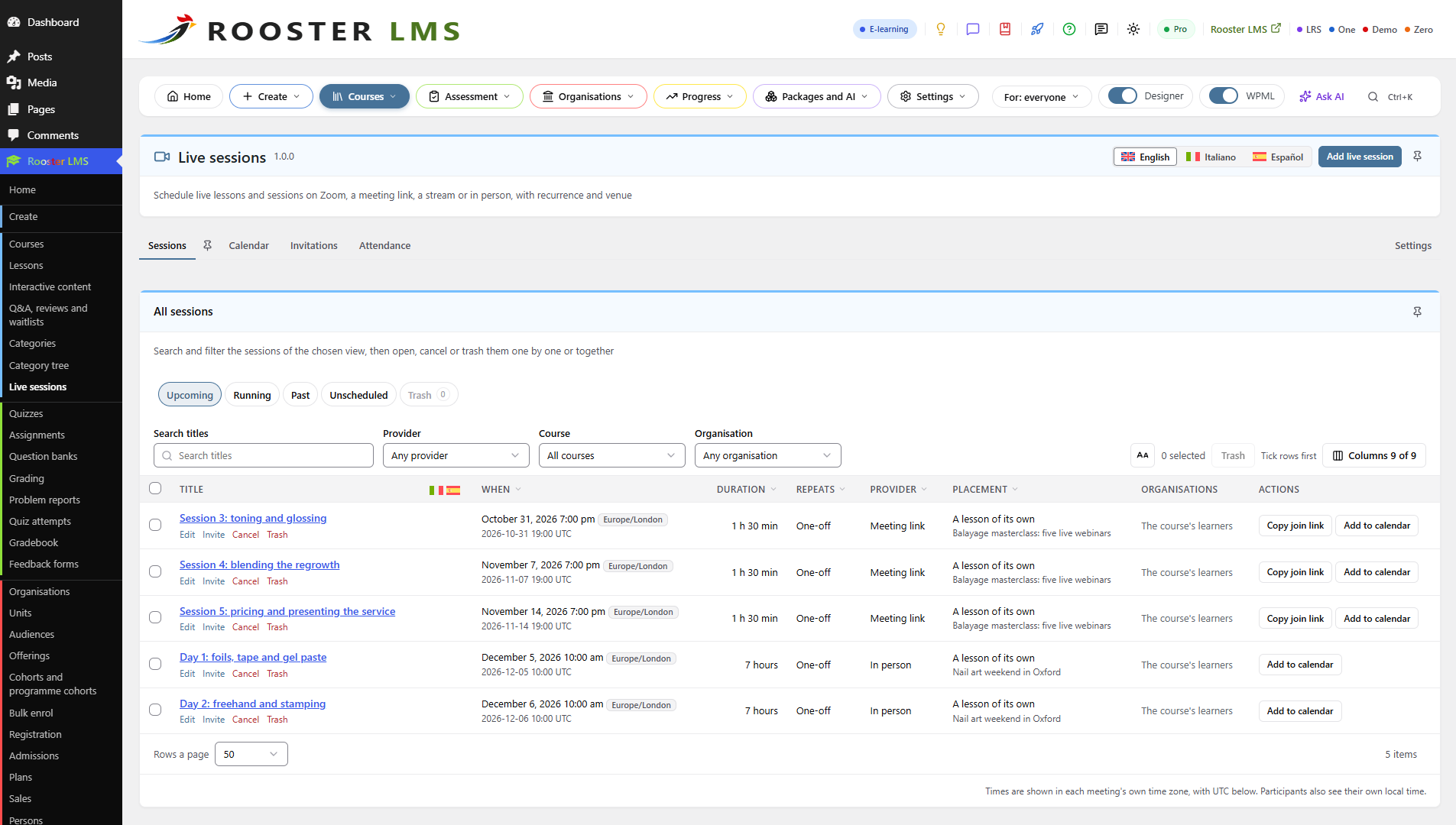
- Live lessons on Zoom, Google Meet, Microsoft Teams or Webex: Zoom meetings created for you, any meeting link, a live stream or a room at a venue, with protected recordings on your server.
- QR codes in class: tickets that staff scan at the door, and a class QR that opens the lesson and its materials on learners’ phones and marks them present.
- New lessons announced to earlier learners, only those who agreed, in their language, and reminders before every live lesson.
- A public events calendar and invitations with one-click RSVP, with a funnel from invited to attended.
- Cohorts and course runs: intakes, and programme cohorts that follow a programme over several courses and years.
- Course packages (plans) for an organisation’s seats or one person: chosen courses or whole categories, for a term, with renewal reminders.
- Course sales with WooCommerce and a front-end registration form.
- Mass registration: one Excel sheet registers hundreds of people at their units, and bulk enrolment by role, unit or category.
- Reports per organisation and unit, rolled up level by level, with Excel and CSV exports.
- One course in every language with WPML or Polylang.
- More than 60 blocks for the block editor, the site editor and Elementor, and WP-CLI commands.
- Fast at scale: learning records in its own database tables, never in post or user meta.
- Importers from MasterStudy LMS (in one click), LearnDash, LearnPress, Tutor LMS, Amelia, eRoom and the H5P plugin, with a preview and Undo.
- An AI Insights chat (optional, with Rooster One Pro): ask about enrolments, progress, quiz results and live sessions in plain words.
Built for many organisations
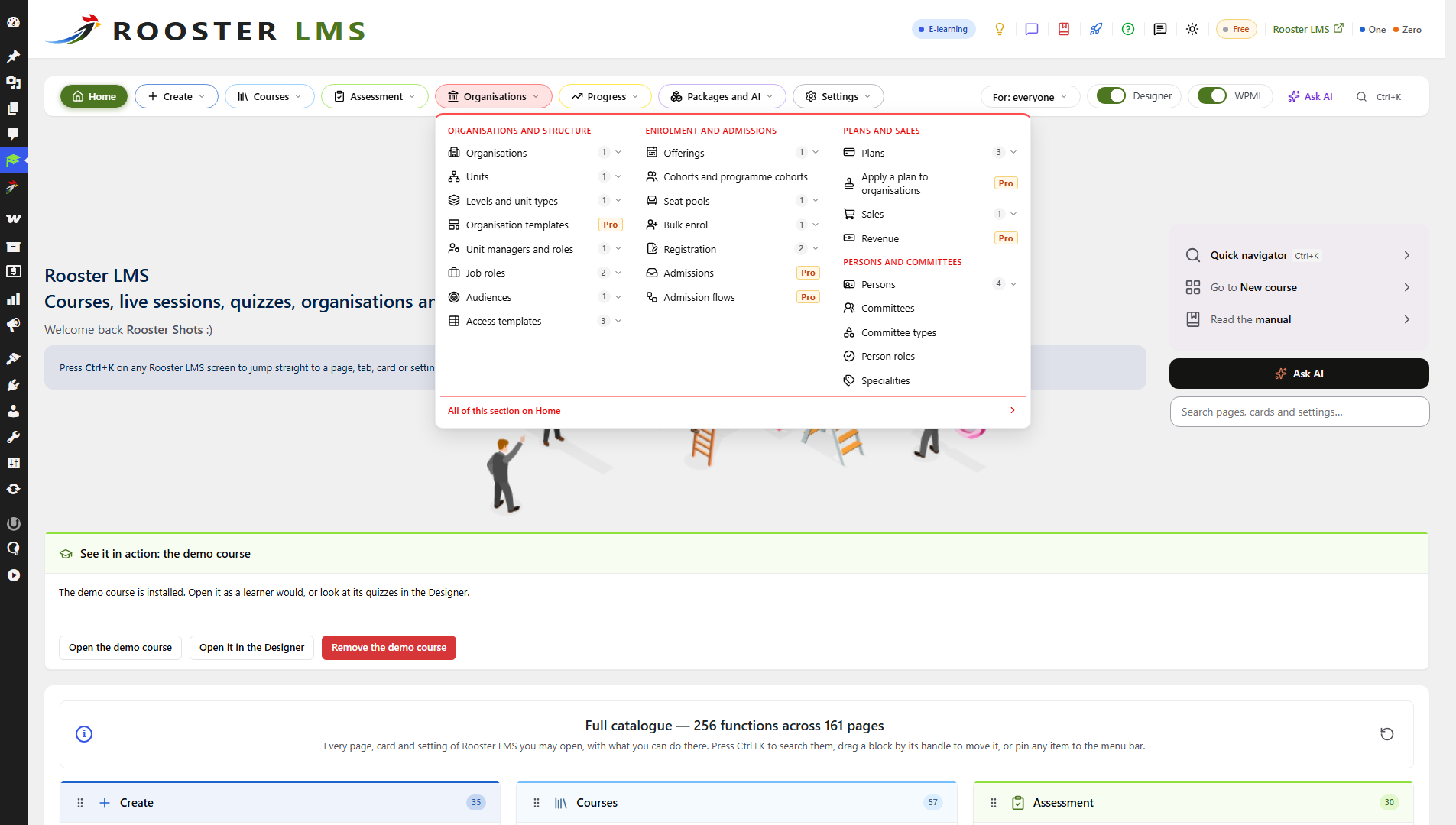
Each organisation is a tree with as many levels as it needs, named your way: group, hotel and department, or university, faculty and class. The courses come from your common pool; managers, instructors and reporters at any level run only their part: its people, programmes, catalogue, front-end portal, branding and reports. A live structure builder shapes the tree with Undo, and people can belong to several organisations.
Rooster LMS Pro
Rooster LMS Pro adds to the free plugin; nothing in the free plugin needs it. It brings SCORM and cmi5 packages with a built-in xAPI learning record store, SCORM to cmi5 conversion, Google Meet and Microsoft Teams meetings created for you, automatic attendance from Zoom, Meet and Teams and recordings from Zoom and Teams, new lessons announced to earlier learners automatically, twenty-two structure templates, single lessons and instalments for sale, plans as subscriptions, admissions, engagement reports, and AI agents through Rooster LTI, included. Try it free for 14 days from the Rooster LMS Home page, then from $99 a year.
Rooster Adaptive LMS
Rooster Adaptive LMS puts every question at the right level for each learner. Rooster LMS Pro picks each next question of an adaptive quiz from the answers so far; the service measures how hard each of your questions really is from your learners’ answers, estimates each learner’s ability per skill, and suggests improvements for your staff to approve. No names, e-mail addresses or user IDs leave your site. From $19 a month.
Rooster LRS
Rooster LRS is a free xAPI Learning Record Store inside WordPress, in a plugin of its own: xAPI 1.0.3 and 2.0 statements from any learning tool, kept in its own database tables, with a credential per client, erasure and retention. Pro carries its own store; Rooster LRS is for any site that needs one.
External services
Rooster LMS works fully without any external service. Your site contacts one only when someone chooses to, as listed below, and never sends anything about learners except the one count named under rooster.systems. Links open in the browser only when someone clicks them; nothing is sent before.
rooster.systems: Rooster account, Pro trial and feedback (optional)
The service of Oxford Metadata Ltd, the makers of Rooster LMS, behind Rooster accounts, the Pro trial and feedback. Terms and conditions · Privacy policy
- Rooster account: when an administrator saves an account key on the Rooster LMS Home page, and when they press “Refresh balance”, the site sends the key (as a request header), its address and host name, an install fingerprint (a hash that reveals nothing about the site) and one number, the learner count of its largest organisation (counted at most once a day), to
https://rooster.systems/wp-json/om-portal/v1/cmi5/status. The answer is the account’s balance, top-up link and plan. The key is stored encrypted; “Disconnect” removes it. - Pro trial: only when an administrator submits the trial form, the e-mail address, names and company entered, the site’s address and host name, the install fingerprint and the Rooster LMS version go to
https://rooster.systems/wp-json/om-portal/v1/rooster-lms-install/signup. Until the e-mailed link is confirmed, the site askshttps://rooster.systems/wp-json/om-portal/v1/rooster-lms-install/signup/pollfor the new key. - Feedback (no account needed): only when a user presses Send in the “Send feedback” window, the message, its category and rating, the reply address (unless “Send anonymously” is ticked), the Rooster LMS screen, the site’s address, the install fingerprint, the language and the Rooster LMS, WordPress and PHP versions go to
https://rooster.systems/wp-json/om-portal/v1/rooster-lms-install/feedback. Before its first message the site enrols once athttps://rooster.systems/wp-json/om-portal/v1/rooster-lms-install/enrol(and.../enrol/complete), and rooster.systems reads/wp-json/rooster-lms/v1/install-echoon the site to confirm its address.
rooster.systems: the H5P quiz set download (optional)
A free file of seven H5P question types that Oxford Metadata Ltd publishes on rooster.systems. Only when an administrator presses “Install the quiz set” under Rooster LMS > Settings > Integrations, or runs wp rooster-lms h5p quiz-set, the site downloads it from https://rooster.systems/wp-content/uploads/rooster-demo-content/rooster-h5p-quiz-set-1.h5p (1.3 MB). No account is needed and nothing is sent but the request itself (the site’s server address and the time, as with any download). The file is checked against the SHA-256 fingerprint built into Rooster LMS before anything is installed. Terms and conditions · Privacy policy
rooster.systems: links (on click only)
The manual (https://rooster.systems/category/<language>/documentation/rooster-lms/), help, feedback, the product pages (Rooster LMS, SCORM to cmi5 converter, rooster.systems) and your account’s downloads. Rooster LMS never downloads, installs or updates plugins itself.
H5P Hub (optional: interactive content types)
Operated by Joubel AS for the H5P Group. Rooster LMS ships its own H5P engine and content types; it contacts the Hub (https://hub-api.h5p.org/) only after an administrator turns the Hub on under Rooster LMS > Settings > Integrations, and then only when an administrator registers the site, refreshes the list of content types or installs one: a random site id, “Rooster LMS” with its version, the H5P core version and, with “Usage statistics” on, how many contents use each type. Installed types are downloaded from the same service. While the Hub screen is open, the administrator’s browser reads the types’ licence texts from https://api.h5p.org/. H5P publishes no separate terms of use; its licensing page states the terms of its software and content types: Licensing · What the Hub collects · Privacy
Zoom (optional: live sessions)
Operated by Zoom Communications, Inc. Rooster LMS calls Zoom only when an administrator has entered Zoom Server-to-Server OAuth credentials under Rooster LMS > Live sessions > Settings and an editor saves, changes, cancels or deletes a Zoom live session. The account ID, client ID and client secret go to https://zoom.us/oauth/token for an access token (about once an hour at most); the meeting’s topic, start, time zone, duration, recurrence, passcode, agenda and settings go to https://api.zoom.us/v2/. No learner data is sent. Learners join through the meeting’s own link (https://zoom.us/j/...) when they click it. The client secret is stored encrypted. Terms · Privacy
Google Meet, Microsoft Teams and Webex meetings are links you paste: the learner’s browser opens them on click, and Rooster LMS sends those services nothing; nor do meetings imported from eRoom. Rooster LMS Pro creates Meet and Teams meetings; its readme lists what it sends.
Video players: YouTube, Vimeo, Bunny Stream, Cloudflare Stream (optional)
When a lesson’s video or a live session’s stream comes from one of these services, its page shows the service’s player in a frame. The visitor’s browser loads it directly from the service, which receives the video’s ID, the page’s address, the visitor’s IP address and browser details, and may set cookies. A live stream loads only while its lesson is live, for the people who may attend. Your server sends nothing to these services. Hosts added with the rooster_lms_live_stream_hosts filter load under their own terms.
- YouTube (
https://www.youtube-nocookie.com/embed/, linkshttps://www.youtube.com/): terms · privacy - Vimeo (
https://player.vimeo.com/video/,https://vimeo.com/event/): terms · privacy - Bunny Stream (
https://iframe.mediadelivery.net/): terms · privacy - Cloudflare Stream (
cloudflarestream.com,videodelivery.net): terms · privacy
“Add to calendar” and “Subscribe” links (on click only)
Live lessons, course pages and the events showcase link to Google Calendar (https://calendar.google.com/calendar/render, https://calendar.google.com/calendar/r), Outlook.com (https://outlook.live.com/calendar/0/deeplink/compose, .../action/compose, .../addfromweb) and Microsoft 365 (https://outlook.office.com/calendar/0/deeplink/compose, .../addfromweb). On click the data travels in the link: the lesson’s title, times, place and public page address, or for “Subscribe” the address of the course’s calendar feed (a visitor’s own signed address for a course that is not public), which the calendar service then reads.
wordpress.org and Viber links (on click only)
The Rooster LMS header links to this plugin’s page and review form on wordpress.org, to the eRoom and Rooster One plugins there, and to the Rooster community’s chat on Viber (https://invite.viber.com/). WordPress.org privacy · Viber terms · Viber privacy
Gravatar (optional, off by default)
Operated by Automattic Inc. Rooster LMS shows a person’s own photo or initials and never asks Gravatar unless an administrator turns on “Show Gravatar pictures” under Rooster LMS > Settings > Appearance; then visitors’ browsers load pictures from gravatar.com, which receives a hash of the person’s e-mail address and the visitor’s IP address. Terms · Privacy
Plugins on your own site
WooCommerce, the Newsletter plugin and the importers’ sources (MasterStudy LMS, Amelia, eRoom) are plugins on your own site: Rooster LMS works with them locally, without any external request. With Rooster One’s chats, Rooster LMS answers their questions on your site (learners pseudonymised in the Insights chat); what Rooster One sends to its AI service is in Rooster One’s readme.
Blocks and shortcodes
Every Rooster LMS block works in the block editor and the site editor (Gutenberg and full site editing), nearly all also as Elementor widgets when Elementor is active, and most have a shortcode for other page builders. The alphabetical list is under Installation.
Screenshots




Blocks
This plugin provides 63 blocks.
- Grading queue Essay answers waiting for a grade, for course staff and organisation managers and instructors.
- Organisation structure The structure of the organisation: its units as a tree, with their seat pools and managers.
- Course details The duration, lectures, quizzes, level and certificate of the course, one row each.
- Plans grid Subscription plans as price cards: badge, price per period with special offers, seats, features and a call to action; columns per device and a switch for every element.
- Category grid Course or lesson categories as tiles with their image, icon, colour and number of courses.
- FAQ Frequently asked questions of this course, a group or chosen questions, as an accordion, a list or sections.
- Lesson media The video, audio or PDF of the current lesson with its progress: resume where the learner stopped, the required percent and the completion.
- Organisation portal The manager portal: tabs for the organisation's dashboard, members, programme, progress and settings.
- Course feedback The feedback questionnaires a learner can answer in a course: after each chapter and at the end of the course.
- Organisation bulk enrolment Enrol or unenrol many learners of the organisation at once.
- My points The learner's points: balance, place and history.
- Question One quiz question with its answer key. It is shown to learners by the quiz, never by itself.
- Account The learner's and instructor's account: dashboard, courses, certificates, quizzes, announcements, students, grading, analytics, the organisation portal and settings.
- Organisation registration fields Which fields are required when members are added.
- Mark complete Lets an enrolled learner complete the current lesson.
- Course text The course's about text, notice, certificate information or access on devices.
- Upcoming events A public showcase of upcoming live lessons: list, grid or month calendar, with filters, places, prices and the right call to action for each visitor.
- Course reviews The course's rating summary with stars and bars, and its reviews.
- Organisation catalogue The organisation's course catalogue: a course tree for site administrators, the assigned courses for managers.
- Person One person as a card or as the full profile: photo, name, headline, specialities, links, memberships, courses, CV and files.
- Points leaderboard The learners with the most points in the viewer's organisations.
- My certificates The viewer's course certificates with their codes, status and print links.
- Organisation quiz results The quiz results of the organisation's learners, with filters by course, quiz and result.
- Persons The persons your learners should know — committee members, lecturers, staff — as a grid or a list: from committees, organisations, units, courses, lessons or categories, with photos, roles and links.
- Course intro video The course's intro video, in place of its image when one is set; else the featured image.
- Certificate verification Lets anyone check a certificate by its code.
- Course wishlist and share Add the course to the wishlist (signed-in visitors) and share it.
- Registration form Lets visitors create an account: the fields of a registration form, the consents and an e-mail confirmation.
- Course grid Courses the visitor can see, optionally from one category, with category filters, sorting and progress.
- Organisation offerings The organisation's offerings (runs of its courses): open, closed and archived, with their learners.
- Online test A quiz taken on any page, outside a course, by logged-in users; attempts and results are kept in their account.
- Course review form Lets a learner who may review the course write or edit their review and see whether it is published.
- Organisation dashboard The organisation's figures: members, course assignments and completions.
- Assignment The learner hands in the assignment of the current lesson: answer, files, audio or video recordings, then the grade and feedback.
- Stimulus A passage, picture, sound or video the questions after it refer to (a case). Shown with those questions, until the next stimulus.
- Coming soon A coming-soon course's message, countdown, price and waitlist button; or a countdown to a date.
- Enrol button Enrol, start, continue or review a course.
- Organisation access matrix Which courses and lessons each job role of the organisation gets.
- Organisation assessments The organisation's quiz settings (timing, results, exam windows, attempts), its cohorts and its members' extra time.
- Live session One live session with its time in the meeting's zone and the viewer's, a countdown and the Join button; or the viewer's next live session.
- Live lesson The live lesson page in its three phases: the countdown and Add to calendar, Join or the embedded stream with the materials shared live, then the recording and all materials; the trainer's Start, End, materials and recording.
- Organisation job roles The job roles of the organisation.
- Course tabs The course sections as tabs: Description, Curriculum, FAQ, Reviews; each tab holds the blocks it shows.
- Course breadcrumbs The path to the current course, lesson or category: home, courses, categories.
- Account menu For the header: "Hey, name" opens the account menu (learning area, instructor area, administration); visitors get Log in.
- Upcoming live sessions The viewer's upcoming live sessions: theirs, a course's or an organisation's, with countdowns and Join buttons; or the next live lesson of a series (a course and its editions, or a category).
- Course outline The sections and lessons of a course, with the learner's state.
- Course files The course's files: public ones for everyone, the others for enrolled learners.
- Course meta The line under the course title: the instructor, the learners enrolled and the rating.
- Category list Course or lesson categories as a nested list, with the current category marked.
- Interactive content (H5P) An interactive content of the Rooster H5P engine: in a lesson, or the content of an interactive-content unit.
- Lesson Q&A Questions and answers about the current lesson for the learners and staff of its course.
- Committees Committees with their members: each committee as a section with its heading, description and member cards, in the committee's own order; filter by committee type and owner.
- Organisation structure (previous block) The previous name of the Organisation structure block, kept so that the pages made with it keep working. New pages use Organisation structure.
- Organisation members The organisation's members, with editing, registration and staff import.
- Organisation branding Logo, colour and footer of the organisation's e-mails.
- Course facts The course's badge, featured mark, level, durations and rating stars.
- My courses The courses the learner is enrolled in, with progress.
- Quiz A quiz inside its course: start, answer and see the result.
- Course progress The learner's progress in a course.
- Course points What you'll learn, the requirements, who the course is for or what it includes.
- Organisation progress The progress report of the organisations the viewer manages.
- Course tab One tab of the course tabs: its name and the blocks it shows.
Installation
- In wp-admin go to Plugins > Add New, search for “Rooster LMS”, install and activate it. Or upload the
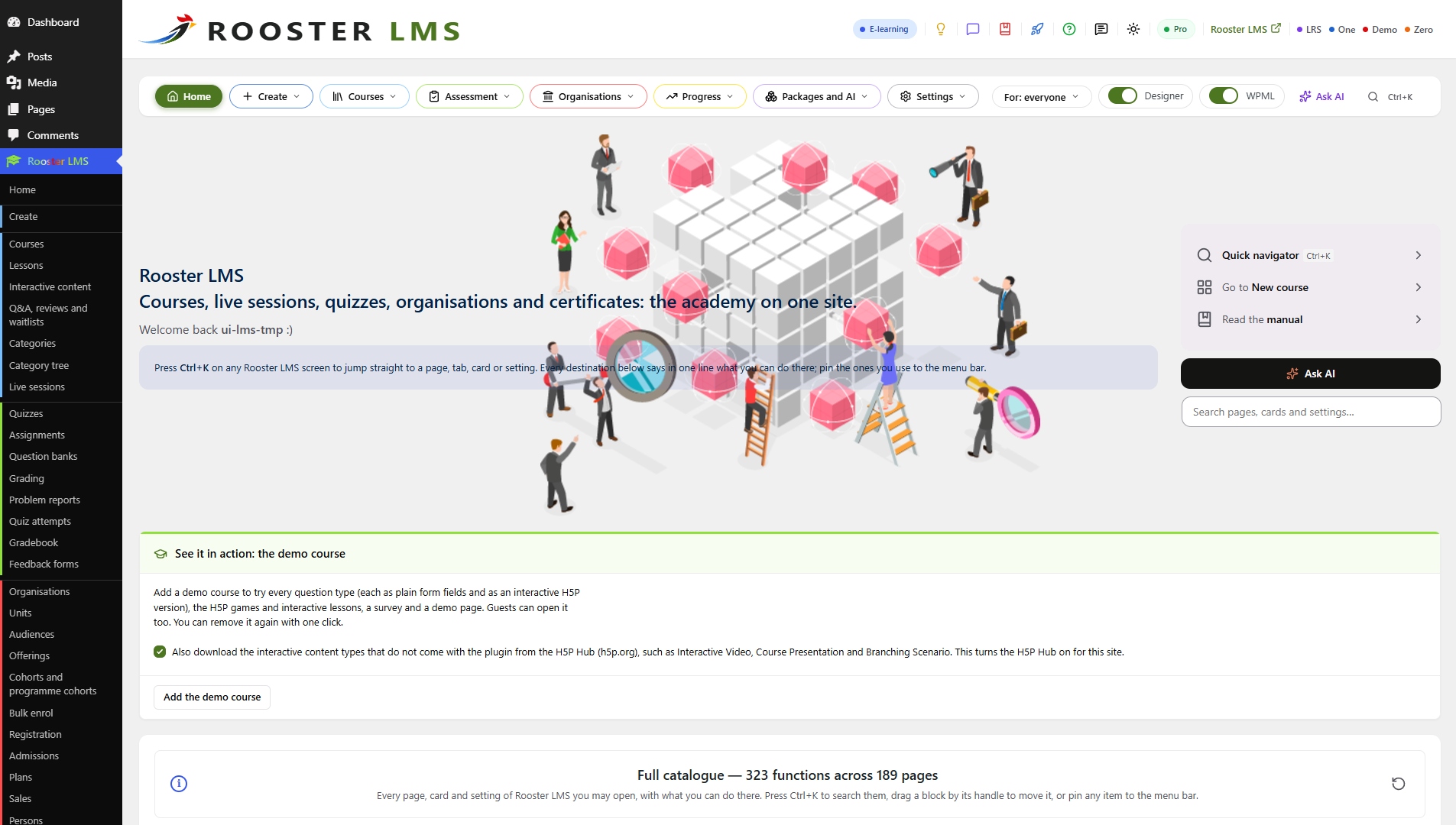
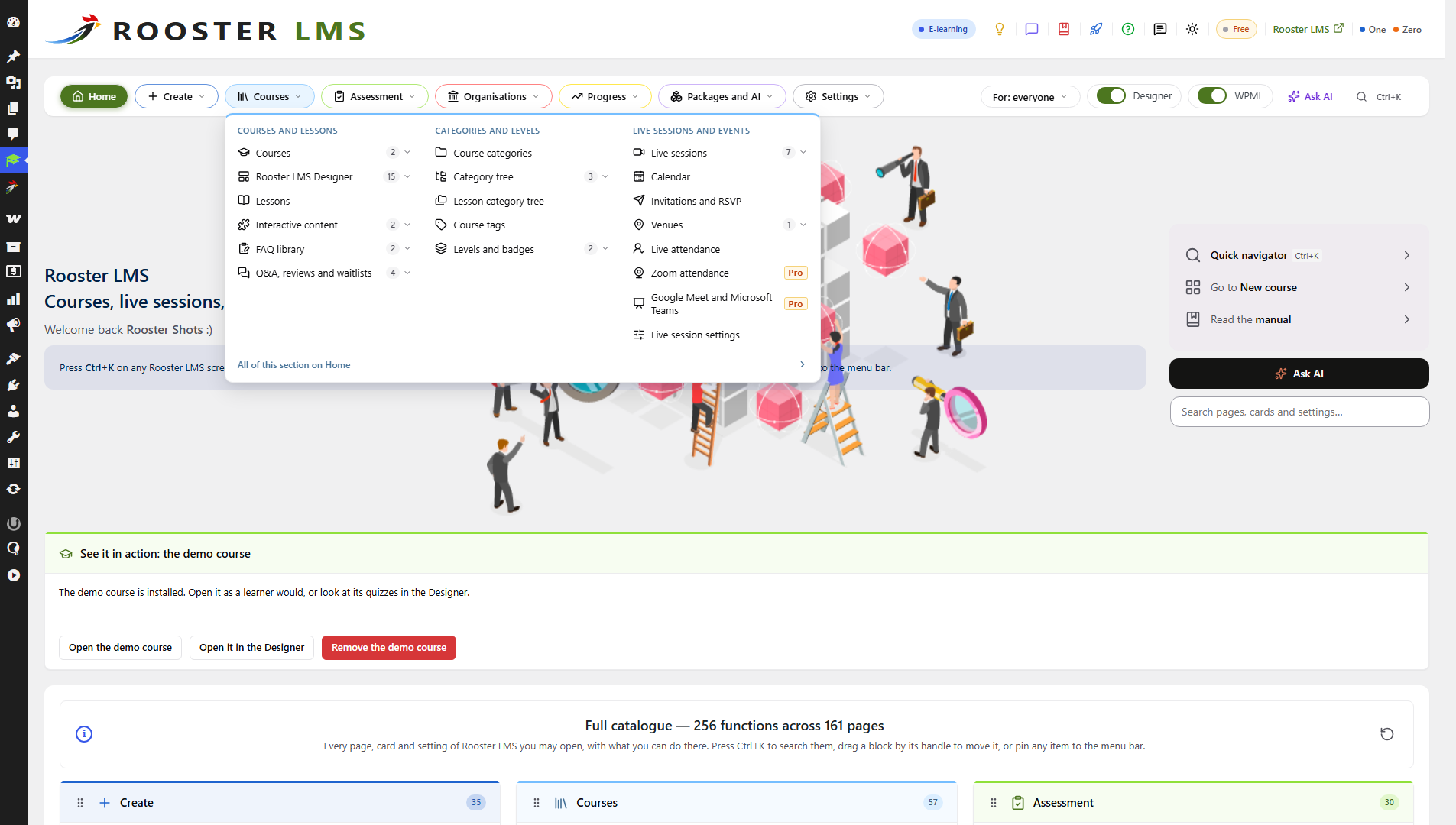
rooster-lmsfolder to/wp-content/plugins/and activate it. - Open Rooster LMS > Home. It lists everything you can do, with a search (Ctrl+K) for every screen. To look around first, choose Add the demo course: a short course with every question type, removed again with one click.
- Create a course with Add new course, add lessons and quizzes in its Curriculum panel, and publish it.
- For organisations: add one under Rooster LMS > Organisations, invite its manager and members, and assign courses. Managers run their organisation from the front-end portal.
- Coming from MasterStudy LMS? Back up first, then open Rooster LMS > Import and press Migrate everything from MasterStudy.
Blocks, Elementor widgets and shortcodes
The blocks are in the Rooster LMS category of the block inserter and, with Elementor, of Elementor’s widget panel (all but Question, Stimulus and Account menu, plus a course field, a course search and account links). In shortcodes, course, lesson and quiz take post IDs and default to the page’s own, and org picks among the organisations the viewer may see. Alphabetically:
- Account
[rooster_lms_account](section) - Account menu
[rooster_lms_account_menu] - Assignment
[rooster_lms_assignment] - Category grid
[rooster_lms_categories] - Category list
[rooster_lms_category_list] - Certificate verification
[rooster_lms_certificate_verify] - Coming soon
[rooster_lms_coming_soon] - Committees
[rooster_lms_person_groups] - Course breadcrumbs
[rooster_lms_breadcrumbs] - Course details
[rooster_lms_course_details] - Course facts
[rooster_lms_course_header] - Course feedback
[rooster_lms_feedback] - Course files
[rooster_lms_course_files] - Course grid
[rooster_lms_courses](category,subcategories,filters,sort,levels,show="saved") - Course intro video
[rooster_lms_course_intro] - Course meta
[rooster_lms_course_meta] - Course outline
[rooster_lms_course_outline] - Course points
[rooster_lms_course_points] - Course progress
[rooster_lms_progress] - Course review form
[rooster_lms_review_form] - Course reviews
[rooster_lms_course_reviews] - Course tabs
[rooster_lms_course_tabs], with a Course tab block per tab - Course text
[rooster_lms_course_text] - Course wishlist and share
[rooster_lms_course_actions] - Enrol button
[rooster_lms_enrol_button] - FAQ
[rooster_lms_faq] - Grading queue
[rooster_lms_grading_queue] - Interactive content (H5P)
[rooster_lms_h5p](content,counts_for_completion) - Lesson media
[rooster_lms_lesson_media] - Lesson Q&A
[rooster_lms_lesson_qa] - Live lesson
[rooster_lms_live_lesson] - Live rosters
[rooster_lms_live_roster](shortcode only) - Live session
[rooster_lms_live_session], and the next live lesson[rooster_lms_live_next] - Mark complete
[rooster_lms_mark_complete] - My certificates
[rooster_lms_my_certificates] - My courses
[rooster_lms_my_courses] - My points
[rooster_lms_my_points] - Online test
[rooster_lms_online_test]: a test outside a course - Organisation access matrix
[rooster_lms_org_matrix] - Organisation assessments
[rooster_lms_org_assessments] - Organisation branding
[rooster_lms_org_branding] - Organisation bulk enrolment
[rooster_lms_org_enroller] - Organisation catalogue
[rooster_lms_org_catalogue] - Organisation dashboard
[rooster_lms_org_dashboard] - Organisation job roles
[rooster_lms_org_job_roles] - Organisation members
[rooster_lms_org_members] - Organisation offerings (block only)
- Organisation portal
[rooster_lms_org_portal](tab), whose tabs are the organisation blocks - Organisation progress
[rooster_lms_org_progress] - Organisation quiz results
[rooster_lms_org_quiz_results] - Organisation registration fields
[rooster_lms_org_registration_fields] - Organisation structure
[rooster_lms_org_structure]; “Organisation structure (previous block)” and[rooster_lms_org_locations]are its former name, kept for existing pages - Person
[rooster_lms_person] - Persons
[rooster_lms_persons] - Plans grid
[rooster_lms_plans] - Points leaderboard
[rooster_lms_leaderboard] - Question: inside a quiz only
- Quiz
[rooster_lms_quiz] - Registration form
[rooster_lms_register](form) - Stimulus: a case that the quiz questions after it refer to (block only)
- Upcoming events
[rooster_lms_events](viewgrid, list or calendar, with Add to calendar and the feed/rooster-lms/events.ics) Upcoming live sessions
[rooster_lms_live_sessions](scope;mode=series, the next lesson of a series)[lms_company_portal],
[om_latest_conference]and eRoom’s[stm_*]shortcodes are compatibility aliases, registered only after migrating from LMS Registration Manager / Student Enroller / eRoom, and never while that plugin is active.
FAQ
-
How can I see it in action?
-
On Rooster LMS Home, choose “Add the demo course”. It creates a short course with every question type (each as plain form fields and as an interactive H5P version), an interactive lesson, a one-question-at-a-time quiz and a survey, in your site’s language. Nothing is created until you ask, and “Remove the demo course” deletes everything it made. On the command line:
wp rooster-lms demo installandwp rooster-lms demo remove. -
Can I use it for a single school or company?
-
Yes. Organisations are optional: without any, Rooster LMS is a complete LMS for one school, company or course creator, with courses, quizzes, exams, certificates and reports. Add organisations whenever you start training others.
-
Can an organisation have hotels, departments or classes, each with its own manager?
-
Yes. Each organisation is a tree of units with levels you name (Group, Hotel, Department; School, Grade, Class; or your own), built in its Structure tab or from a template (Rooster LMS Pro: hotel group, school, university, company). A manager, instructor or reporter of a unit sees only that unit and the ones below it, in the same manager portal. Units can have seat pools, and staff sheets place people at their units and give unit roles. An organisation that never chooses its levels keeps “Organisation” and “Location”, as before.
-
What are offerings and cohorts?
-
An offering is one run of a course for a cohort or a part of an organisation, such as this year’s class. A repeated year starts a new attempt in a new offering while the earlier one, with its results and certificate, stays in the history; a closed offering stays readable for its learners (“Ended, read only”). A cohort is a course intake (one course and its class period) or a programme cohort (a class that follows a study programme over several courses and years).
-
Is it multilingual?
-
Yes. With WPML or Polylang, each translation of a course, lesson or quiz shares one course, one enrolment, one progress record, one certificate and one report. The names of organisations, their units and levels, job roles, audiences, live sessions and course sections, and the organisation branding, are translated in WPML String Translation or Polylang’s strings. E-mails, certificates and organisation branding follow each learner’s language.
-
What does Rooster LMS Pro add, and what does it cost?
-
SCORM 1.2, SCORM 2004 and cmi5 packages with a built-in player, SCORM to cmi5 conversion, an xAPI learning record store and engagement reports; selling course parts and single live or recorded lessons, plans as products with WooCommerce Subscriptions, organisation sign-up through admission flows, revenue reports, Zoom attendance import, and scheduled and automatic invitations. Try it free for 14 days with AI credits included, then from $99 per year for one site, $199 for up to 10 sites or $399 for unlimited sites. See Rooster LMS Pro
-
Does it need another LMS?
-
No. Rooster LMS is a complete LMS on its own.
-
What happens to my data if I delete the plugin?
-
Nothing: deleting the plugin keeps its tables and settings, so a reinstall finds everything. Data removal is opt-in: to remove every Rooster LMS table, option, post and scheduled action when the plugin is deleted, tick “Delete all Rooster LMS data when the plugin is deleted” under Rooster LMS > Settings first, or set the option with WP-CLI:
wp option patch update rooster_lms_settings delete_data_on_uninstall 1Courses, lessons and categories that an import adopted from another LMS are given back to that LMS (their original post types and taxonomy) before the data is removed, never deleted; users who only had the Rooster learner, organisation staff or LMS editor role get the site’s default role.
-
Does it send e-mails?
-
Only the ones you switch on in Rooster LMS > Notifications, the notification centre: every e-mail to learners and to staff has its own switch, its text in each language (WPML or Polylang String Translation), its timing and a “Send a test” button. The e-mails to members are off by default; reminders and changes of booked live lessons are on, and each learner can switch them off. E-mails are queued and sent in the background, in each recipient’s language. Importers never send any.
-
Can I remind people before a live lesson?
-
Yes. The site has two reminders (a day and an hour before); add any number of your own in the notification centre, in a course’s “Reminders” box or on a live lesson’s page, to learners or to trainers, before, after or at a time of day, and switch inherited ones off for one course. A moved lesson’s reminders follow the new time, and nobody gets the same reminder twice.
-
Can I sell courses?
-
Yes, with WooCommerce (a plugin on your own site; Rooster LMS calls no outside service for selling). Set the course’s enrolment to “Purchase”, then in its Sell box create a product or link an existing one (a simple or variable product, or one variation), with access for a number of days or without end. WooCommerce keeps prices, taxes, payments, invoices and stock; Rooster LMS gives the course when the order is Processing or Completed, ends it on a full refund or when the order is cancelled or fails after payment, and keeps the learner’s progress. A course with a capacity keeps its products’ stock equal to the places left. Buyers need an account; an order placed without one is attached only to an account that proved the e-mail address. Rooster LMS > Sales lists what each order line gave. Selling sections (instalments) or single live or recorded lessons, and plans with WooCommerce Subscriptions, need Rooster LMS Pro.
-
What are plans?
-
A plan is what an organisation or a person gets when they get more than one course. An organisation plan sets the organisation’s seats, adds a catalogue of courses and an access template, and runs for a term (account opening); an individual plan gives a person a set of courses and categories for a term. Assign them under Rooster LMS > Plans and in an organisation’s Plan tab. Managers get reminders 30, 7 and 1 days before the end; after a grace period (14 days by default) the plan’s courses are suspended, with progress and certificates kept, and renewing restores them. The plans grid block, shortcode and Elementor widget show the plans as price cards under the heading “Subscription plans” (editable), with a Contact or Learn more button; Apply (organisation sign-up with review) and Subscribe (checkout) need Rooster LMS Pro.
-
Can I run live, in-class and hybrid courses?
-
Yes. A live lesson is a lesson with a date: on Zoom, a meeting link, an embedded live stream, or in a room at a venue (Google Meet and Microsoft Teams meetings created for you: Rooster LMS Pro). Meetings an existing eRoom installation holds move into Rooster with the optional, one-way eRoom importer (Rooster LMS > Import), keeping their Zoom, Meet or Teams meetings; eRoom’s shortcodes keep working through Rooster once eRoom is deactivated. A course is its series: “Add next lesson” adds the next date with the same settings. The lesson page shows the countdown before, Join or the stream during (with the materials the trainer shares live), and the recording and every material after. Recordings are protected files on your server or links. A course has a delivery mode (self-paced, live online, in person, hybrid), a venue and a capacity; the course page shows “When and where” with a map link, and the catalogue filters by format, month and city.
-
How does attendance work?
-
Under Rooster LMS > Live sessions > Attendance, open a lesson’s roster and mark each learner present, late, absent or excused, or show a QR code that learners scan to check in (from 30 minutes before the start to 30 minutes after the end; late after 10 minutes). At in-person events, staff scan the attendees’ tickets at the door on their phones (guests without an account count too), and a class QR projected in the room opens the lesson and its materials on learners’ phones and marks them present. Rosters export to CSV, and organisation managers see their members’ rosters in the portal’s Sessions tab. With “Attendance is required to complete a live lesson” on, attending completes the lesson. Importing attendance from Zoom’s participant report needs Rooster LMS Pro.
-
Can I invite people to a live lesson and see who comes?
-
Yes. On the live lesson’s page (or the course’s “Invitations and RSVP” box), make an invitation, add people from the earlier learners, an organisation, a part of it (a hotel, a department), a cohort, a list of the Newsletter plugin (on your own site) or a CSV file, check, and send. Each person gets personal “Yes, I will be there” / “No, I cannot attend” buttons; opening the link never answers by itself, so mail scanners cannot answer for anyone, and the answer page shows no name. You see the answers, export them as CSV, and a “yes” can offer an account, enrol the person or put them in a cohort (an answer set by staff never makes anyone a member of an organisation). Each invitation shows its funnel: invited, accepted, then attended, enrolled or joined, with the rates. Invitations respect consent, the weekly limit and the one-click unsubscribe.
-
Can I tell earlier learners about a new lesson? Is it consent-based?
-
Yes. “Tell earlier learners” (on the course and on a live lesson’s page) e-mails the learners of the earlier lessons and linked courses, only those who agreed, once per person and lesson, at most a few offer e-mails a week (2 by default), each in their own language. Consent comes from an unticked checkbox at the checkout or on the registration form, or the learner’s switch in Account > Notifications. Every e-mail has a one-click unsubscribe (also the List-Unsubscribe header of mail apps) that needs no login. A “soft opt-in for buyers” setting exists, off by default: turn it on only after legal advice. People who said no stay out, even after their data is erased.
-
Can visitors register on the front end?
-
Yes. Rooster LMS > Registration creates a registration page with the Registration form block (also a shortcode and an Elementor widget), and can send WordPress’s own registration links there. Each form chooses its fields (name, e-mail, password or a link to set it, phone, organisation, job role), the privacy and terms consent and the e-mail confirmation: the account is created only when the visitor confirms. A hidden field and a rate limit stop bots, and a captcha plugin can hook in. WordPress’s “Anyone can register” setting opens or closes the form. With Rooster LMS Pro, visitors choose a registration type (an admission flow) or sign up an organisation for a plan.
-
Can I move from Amelia?
-
Yes, for live classes sold as Amelia events. Rooster LMS does not need or use Amelia; this optional importer only reads an existing Amelia installation once. Rooster LMS > Import shows “Amelia events were found”: choose how events become courses (monthly events as one series course, instalments as sections), preview, import, then replace Amelia’s shortcodes in your pages with the “next lesson of the series” block. Zoom meetings are kept, approved bookings open what was booked, and new accounts get no e-mail until their first message from your site. The import can be undone. Selling a single monthly lesson or an instalment afterwards needs Rooster LMS Pro.
-
Can I build automations on Rooster LMS events?
-
Yes, with Rooster One (Pro). Rooster LMS’s own notifications, reminders, invitations and RSVP work without it. For multi-step automations on Rooster LMS events (enrolled, lesson or course completed, quiz failed, inactive learner, certificate issued, cohort starts, RSVP yes or no):
- Install and activate Rooster One, then start its Pro plan, which runs its workflow engine.
- In Rooster One, open Workflows and create a workflow with a Rooster LMS trigger, such as “Course completed”, “Quiz failed” or “RSVP yes”.
- Add its steps: waits, e-mails, web push, coupons, A/B tests or Rooster LMS actions such as enrol or invite.
The Rooster LMS triggers appear with Rooster One’s Rooster LMS bridge, coming in a Rooster One release; Rooster LMS already sends the events and never calls Rooster One. The Home page’s “What else you can add” card shows these steps. Developers can listen to the same events: see the developer notes, “S1n: notifications, reminders, events”.
-
How do I import from MasterStudy LMS?
-
Back up the database and the uploads folder first. Deactivate MasterStudy LMS and its add-ons, activate Rooster LMS (and Rooster LMS Pro for SCORM packages), then open Rooster LMS > Import and press Migrate everything from MasterStudy. The screen shows what will come over, asks once, and migrates everything in the background with a progress bar, then links to the full report. Courses and lessons keep their IDs, addresses, images, comments and translations, and the newest migration can be undone under “History and undo”.
With WP-CLI:
wp rooster-lms import start --source=masterstudy --until-done -
Who can edit the courses?
-
Administrators, and users with the “Rooster LMS editor” role: they edit every course, lesson, quiz and certificate template (descriptions included), upload media and manage the course and lesson categories and tags, without the plugin settings, organisations, people or any other site administration. Course instructors edit the courses they teach. Rooster LMS Pro lets LMS editors also rename the sections of SCORM packages.
-
Who sees which courses?
-
Catalogue settings (Rooster LMS > Settings):
- Private catalogue: visitors who are not logged in see no course titles anywhere: course grids, archives, search, feeds, sitemaps, comment lists and the REST API. Category names and links stay visible, without counts. A direct link to a public or link-only course still opens.
- Organisation catalogues: off by default, an organisation-only course is listed only to the learners it is assigned to; any member of the organisation can still open it. On, members see every course of their organisation’s catalogue in lists.
- Learners’ course lists: off by default. On, logged-in learners see only their own courses (the ones they are enrolled in, and with organisation catalogues their catalogue) in course grids, category counts, search and feeds; visitors who are not logged in still see every public course, and administrators, course editors and the managers and instructors of organisations see the full list. Course pages open as before. The MasterStudy importer turns it on when LMS Registration Manager’s course visibility was on.
What the visibility rule cannot cover: code that lists posts with
get_posts()(which skips WordPress’s query filters by default) or with direct SQL, search plugins that answer from their own index (such as Relevanssi, SearchWP or ElasticPress), and background tasks (WP-Cron, WP-CLI, Action Scheduler), where no visitor exists. Sitemaps list public courses only. A site can exempt a query of its own, or include a background one, with therooster_lms_listing_guard_appliesfilter. -
What personal data does Rooster LMS store?
-
Rooster LMS stores learning records in its own database tables, keyed by user ID: organisation memberships, course assignments, enrolments, course and lesson progress, quiz attempts (the answers given, essay texts included, the scores and verdicts, and the feedback and user ID of whoever graded an essay), interactive content results and saved states (H5P: scores, completion and the answers in progress), the regrade and re-evaluation history, certificates, course staff roles, the notification history and an event log. It never sends learning records to an external service (External services lists what is sent, and when). Certificate codes and question identifiers are generated on the site.
For organisations, the plugin also stores each member’s job role, unit (location), staff status and “active until” date; the roles a member holds over units of the organisation (manager, instructor or reporter, their days, who gave them and when they ended); the offerings (runs of a course) each learner took part in, with the course’s cycle and the joining and leaving dates; the programme cohorts a learner belongs or belonged to, with the dates; and, after a MasterStudy import, an archive of records that could not be attached to a course (kept so nothing is lost; the site owner deletes it when it is no longer needed). Staff spreadsheets are read from the upload and never stored; a large import keeps its rows only until its background run ends. Export download links carry a signed token that expires after ten minutes. Organisation logos are ordinary media attachments.
Timed exams: for quizzes shown one question at a time, the plugin stores when each question was shown and answered and the response time of every answer (measured on the server), and whether the question timed out. Results withheld until the end of an exam window are stored at once; the personal-data export of such an attempt leaves out its score, result and verdicts until they are released to the learner.
Extra time (accommodations): a learner’s time factor (for example +50 % or no time limit) is stored with the person. It can reveal a disability (special-category data), so it is set by the organisation’s managers or a site administrator without any reason, shown only to them, never sent to xAPI or any other service, and included in the export and erased with the person.
Feedback questionnaires: responses are stored with the learner’s user ID, so each learner answers once and the export and erasure tools cover them. Forms are confidential by default: managers and administrators see only combined results of groups of at least five people (
feedback_min_group) and comments without names. On an attributed form, which the learner is told about, the managers of the learner’s organisation see who answered what. Cohorts store which learners belong to which intake, with the course assignment.Selling, live lessons and e-mails: what each paid order line gave (order and offer IDs, state, access end; prices stay in WooCommerce), plan assignments, attendance marks, the notification log (which e-mail was queued or sent to which user ID, when, for which courses, opened or clicked when tracking is on; never the text or the address), each person’s consent to offer e-mails with every change and its source, the phone and the time the privacy and terms boxes were ticked on the registration form, and invitations with their answers and outcomes (whether the person then attended, enrolled or joined a cohort, and when; a guest’s address and name only until erased). A registration waiting for its e-mail confirmation is deleted after 48 hours. When a person who said no to offer e-mails is erased or deleted, a one-way hash of the address is kept, with its source and date, so they are never e-mailed offers again (GDPR art. 17(3)(b) and 21(3)); the suggested privacy policy text says so. The export and erasure tools cover these records; the eraser reports that hash as kept.
Anyone who has a certificate’s code can verify it. The verification shows only the fields chosen under Rooster LMS > Settings (by default the learner’s display name, the course title and the completion date) and whether the certificate is valid, revoked or expired, never an e-mail address. The printable certificate is shown only to its owner, site administrators and the managers of the learner’s organisation.
Personal data tools: the plugin registers exporters with Tools > Export Personal Data (one group per kind of record: organisation memberships, roles in organisation units, offerings, cohort memberships, course assignments, enrolments, progress, lesson progress, quiz attempts with answers, verdicts and feedback, feedback responses, certificates, invitations with their answers and outcomes, notifications, learning events, course staff, imported records and language) and an eraser with Tools > Erase Personal Data, which ends the user’s memberships, unit roles and course access and deletes every Rooster LMS record of that user ID, offerings and cohort memberships included; invitation answers and outcomes stay only as anonymous counts. The account itself is left to WordPress. Suggested privacy policy text is added under Settings > Privacy.
When a user account is deleted, its records are deleted from every Rooster LMS table: at once for up to two seconds, the rest by a background clean-up. When a user is removed from a site of a network, that site’s records are deleted after a short delay, unless the user was added back in the meantime. Rooster LMS > Privacy,
wp rooster-lms users statusandwp rooster-lms users cleanshow and remove the records of accounts deleted while the plugin was inactive.What stays: the user IDs recorded as the actor of a change (who assigned a course, who graded an essay, who saved a question version, who started an import) are kept after that account is deleted, as IDs of an account that no longer exists, without a name or e-mail address.
-
Can I fix a quiz after learners have answered it?
-
Yes, at any time. Fixing the wording of a question, an option, an explanation or a translation never creates a new version and never changes a result; reviews show the corrected wording. Changing the correct answers, the points, the set of options or the question’s type creates a new version: earlier answers keep their grades and their reviews show the question exactly as the learner saw it. The editor says before saving which questions will get a new version and how many learners answered them; Rooster LMS > Question versions lists every version. Regrade the earlier answers when you are ready (Rooster LMS > Regrade): conversions that lose nothing (single to multiple choice, a short answer to a one-gap question, true/false to single choice with the same two options) are regraded, the others keep their grades unless you award them full points. A change of the pass mark, the quiz mode or the completion rule applies to new attempts; Rooster LMS > Re-evaluate previews and applies it to earlier ones, and only ever upgrades: nobody loses a pass or a completion, and certificates already issued stay as they are.
-
Why is a course or a lesson locked?
-
A locked course lists everything a learner must complete first, at any depth: its prerequisites, their prerequisites and so on, each course once and in the order to take them, with the learner’s status, the rule (completed, or at least a percentage) and a “Start here” mark on the next course they can start. A locked lesson says what opens it: the previous lesson or quiz (and whether the quiz must be passed), a number of days after enrolment, or a date, shown in the site’s time zone. Course pages, the course outline, a lesson opened directly, My courses and the course cards all show this. Courses the learner cannot see are never named: they read “a course you don’t have access to yet”. Guests are asked to log in. If prerequisites require each other (a cycle), learners see the course as unavailable and Tools > Site Health lists the cycle for administrators.
-
Can learners cheat in a timed exam?
-
Rooster LMS makes it hard. Timers run on the server, so reloading the page, a second tab or a changed device clock never restarts a question. With one question at a time, later questions never reach the browser before their turn. Questions and options can be shuffled per attempt, and results can be withheld until the exam window closes for the whole class, so a learner who finishes early cannot pass the answers on. Late answers are refused and recorded as timed out. What no web LMS can prevent: screenshots, a second device used to look things up, or someone sitting next to the learner.
-
Does it work with Elementor?
-
Yes, and Elementor stays optional. When Elementor is active, a “Rooster LMS” widget category offers a widget for every Rooster LMS block plus a course field, a course search and account links; they render the same server code as the blocks. The MasterStudy importer converts the MasterStudy widgets it finds on pages, Elementor templates and headers or footers: each becomes a Rooster LMS widget, a core Elementor widget, or an invisible note where nothing matches. The preview lists the counts per widget type first, and undo restores each page exactly.
-
Why do Rooster LMS pages use the full width?
-
Course, lesson, quiz, catalogue, category, My courses, certificate and portal pages span the width of the theme’s header. On block themes the templates use the theme’s wide size; on the MasterStudy starter theme the pages use the theme’s own container; other classic themes get a container of their own, which the
rooster_lms_classic_wrapperfilter can replace. Settings > Appearance can cap the width. -
Are lesson recordings and materials protected?
-
Yes. Recordings a trainer uploads to a live lesson, and files added from the live lesson page, are kept in
wp-content/uploads/rooster-lms-protected/and served only through Rooster LMS to learners with access (with HTTP range requests, so videos seek), never by their file address. On Apache and LiteSpeed the folder’s.htaccessdenies direct access. On nginx, add this rule to the site’s server block (Tools > Site Health shows it with your site’s path):location ^~ /wp-content/uploads/rooster-lms-protected/ { deny all; return 403; } -
How are the figures of large organisations kept fast?
-
Each organisation’s member and progress figures are stored per unit and updated in the same step as every change, so reports and portals stay fast with 100,000 members. After an update that adds this storage, existing organisations show the same figures, read directly, until a background task fills their stored figures, usually within minutes (Tools > Site Health lists the organisations not filled yet;
wp rooster-lms stats rebuild --allfills them at once). A nightly check compares the stored figures with a full count and repairs any difference (after a direct change to the tables, say);wp rooster-lms stats verify --repairdoes it at once. -
Can I change the addresses of courses and categories?
-
Yes, under Rooster LMS > Settings. Changing a base changes every existing link to your courses, lessons and categories; old links are not redirected yet.
-
Third-party code
-
Rooster LMS ships its own H5P engine: the H5P core library (GPL-3.0) and the H5P editor library (MIT) under
vendor/h5p/, with CKEditor 4 (GPL-2.0-or-later) and a set of H5P content types under their own licences (eachlibrary.jsonnames it). The PHP libraries are the official H5P plugin’s, unmodified. H5P runs on the jQuery and jQuery UI bundled with WordPress, and H5P Audio’s old Flash fallback (Flowplayer) is replaced by a stub. The combination is distributed under the GPL version 3 terms; the full notice with every folder, licence file and the ported code isdesign/THIRD-PARTY.mdin the source repository.The admin icons are Lucide icons (copyright Lucide Icons and Contributors), used under the ISC licence, which is GPL-compatible; the licence ships in
assets/icons/LICENSE-lucide.txt. Only the icons used are bundled, as inline SVG.The calendars use FullCalendar 7.1.3 with its bundled Preact 10.29.8 and temporal-polyfill 1.0.6, all MIT licensed (GPL-compatible); their licence texts ship in
THIRD-PARTY-LICENSES.txt. A calendar loads only on pages that show one and makes no remote calls. -
Can developers extend it?
-
Rooster LMS is built to be extended. Its records live in its own tables; every change fires an action (for example
rooster_lms_attempt_graded,rooster_lms_certificate_issuedorrooster_lms_member_updated), and filters such asrooster_lms_report_columns,rooster_lms_data_tablesandrooster_lms_portal_tabschange what the screens show. The WP-CLI commands are underwp rooster-lms. The developer notes in the development repository describe every hook with its arguments, and the public data-table API.The JavaScript and styles are built from the readable sources in
src/(withsrc/calendar/) by@wordpress/scripts:npm install && npm run build. The JavaScript unit tests (npm run test:js) live in the development repository only. The same build makes the admin stylesheetassets/dist/admin.bundle.min.css, the minified concatenation of the readable sheets inassets/ui/andassets/admin/(its stepbin/build-assets.jsships with the plugin).A block theme that publishes the Rooster contracts in its style.css header (our own Rooster Zero theme) gets the plugin’s colours mapped to its presets, template slots for the course pages and a content-changed action for its page cache.
Reviews
There are no reviews for this plugin.
Contributors & Developers
“Rooster LMS” is open source software. The following people have contributed to this plugin.
Contributors
Translate “Rooster LMS” into your language.
Interested in development?
Browse the code, check out the SVN repository, or subscribe to the development log by RSS.
Changelog
1.0.0
- Initial release.