

Description
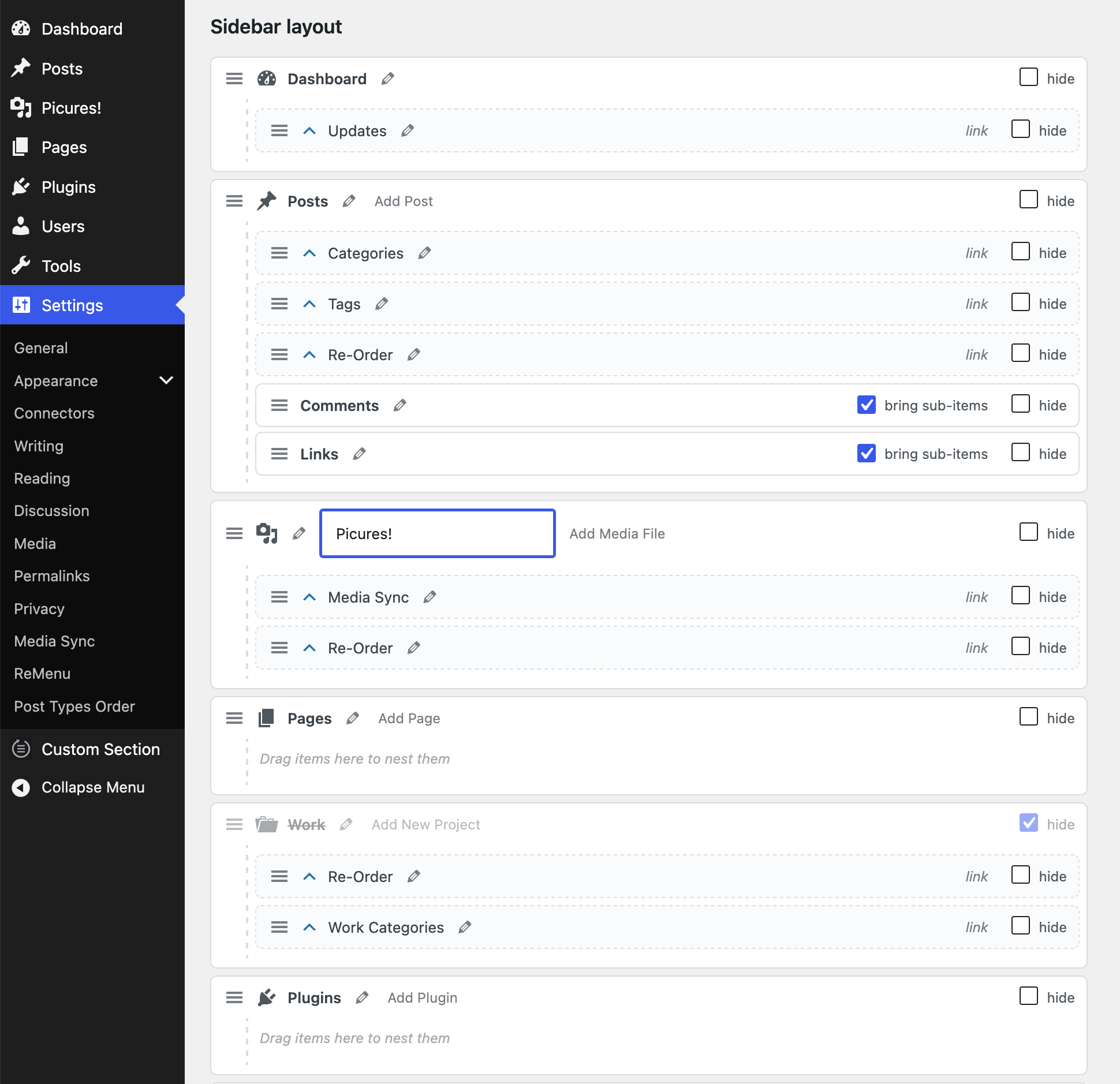
ReMenu gives you full drag-and-drop control over the WordPress admin sidebar. Tame a cluttered menu by putting the things you use most where you want them, grouping related screens together, collapsing the rest, and hiding what you never touch — all from one visual editor at Settings ReMenu.
Nothing is written into WordPress permanently: ReMenu rearranges the menu as it renders, so deactivating the plugin instantly restores the original menu exactly as it was.
What you can do
- Reorder anything — drag top-level items and sub-pages into the order you want.
- Rename items — give any menu item or sub-item a custom label right in the editor; leave the field blank to keep its original name. Count badges (the Plugins update count, pending Comments, available Updates, and so on) are preserved on renamed items.
- Nest items — drop one item onto another to tuck it underneath. Tick “bring sub-items” to carry its sub-pages along (flattened to one level, since WordPress menus are only two levels deep).
- Promote or relocate sub-pages — pull a sub-page up to the top level, or move it under a different parent. This works for plugin screens and core pages like Writing, Reading, Discussion, Permalinks, Categories and Tags.
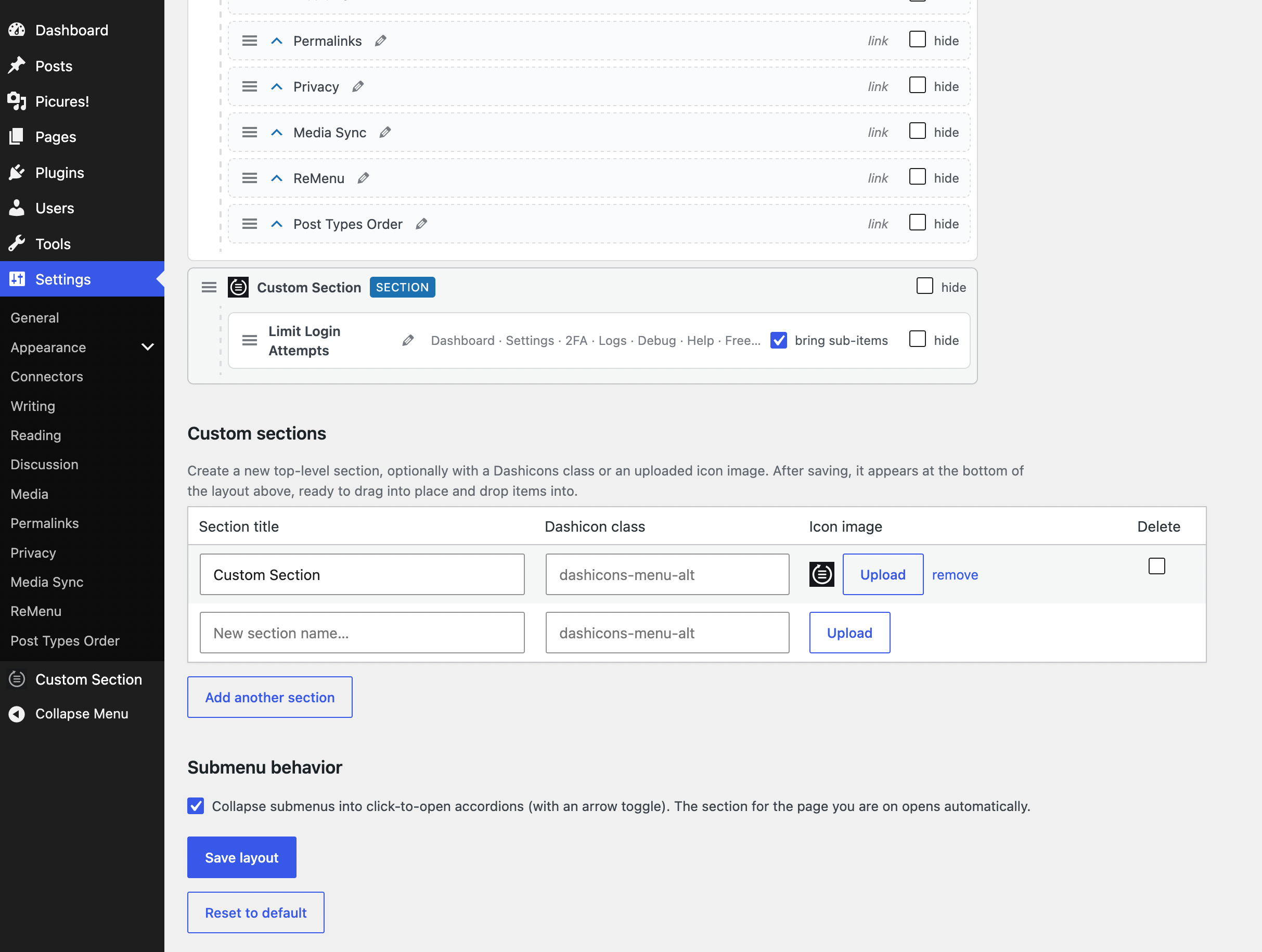
- Build custom sections — create your own top-level groups and give each one a Dashicon class or an uploaded icon image, then drag items into them.
- Collapse submenus into accordions — turn long submenus into click-to-open sections with an arrow toggle. The section for the page you’re on opens automatically, and brought-in groups get their own independent toggle.
- Hide items entirely — tick “hide” on any row to remove it from the live menu. Hidden items stay in the editor so you can bring them back anytime.
Built to behave
- No third-party JavaScript libraries — the drag-and-drop editor and the menu enhancements are plain, dependency-free code.
- No external requests and no tracking.
- Only users who can manage options (administrators) can change the layout, and saving is nonce-protected.
- Highlighting of the current screen is preserved even after you move or promote a page.
Screenshots
Installation
- Upload the
remenufolder to the/wp-content/plugins/directory, or install the plugin through Plugins Add New in your dashboard. - Activate the plugin through the Plugins screen.
- Go to Settings ReMenu and arrange your admin menu by dragging items, creating sections, and ticking the options you want.
- Click Save layout. Reload any admin page to see the result.
To revert everything, either click Reset to default on the settings screen or deactivate the plugin.
FAQ
-
No. ReMenu stores your chosen layout in a single option and reorganizes the menu each time it renders. It never edits other plugins, core files, or the menus those plugins register.
-
What happens if I deactivate the plugin?
-
The admin menu returns to its original, default state immediately. Your saved layout is kept, so reactivating restores your arrangement.
-
Will moving or promoting a plugin’s page break its link?
-
No. Promoted and relocated pages keep their original URLs, so they continue to load normally, and the matching menu item still highlights when you’re on that screen.
-
Can I reorder the core Settings pages, like Writing or Reading?
-
Yes. Core sub-pages appear as draggable “link” rows and can be reordered, promoted to the top level, or moved under another parent. The only sub-pages that stay put are a section’s own landing page (for example “General” under Settings, which is the Settings page) and “Add New” style actions.
-
Yes. Every item and sub-item in the editor has a rename field — type the label you want and click Save, or leave it blank to keep the default (the original name shows as the placeholder). To undo a rename, clear the field and save again. Count badges such as the Plugins update count or pending Comments stay on the renamed item. Custom sections are renamed via their own title field in the Custom sections table.
-
Who can change the layout?
-
Only users with the
manage_optionscapability (typically administrators). The layout applies to the whole site’s admin. -
Does it load any external libraries, fonts, or scripts?
-
No. There are no third-party libraries, no external requests, and no tracking.
Reviews
There are no reviews for this plugin.
Contributors & Developers
“ReMenu” is open source software. The following people have contributed to this plugin.
Contributors
Translate “ReMenu” into your language.
Interested in development?
Browse the code, check out the SVN repository, or subscribe to the development log by RSS.
Changelog
1.7.0
- New: rename a menu item or sub-item inline — click the pencil next to its label in the editor, type a new name, and press Enter. Clear the field to restore the original. Notification/count badges are preserved on renamed items.
- Fix: saving now updates the sidebar on the same reload instead of requiring a second refresh, and refreshing the settings page no longer re-submits the form.
1.6.1
- Internal: admin CSS and JavaScript are now loaded with wp_enqueue_style()/wp_enqueue_script() and wp_add_inline_style()/wp_add_inline_script() instead of being printed inline. No functional changes.
1.6.0
- New: rename any menu item or sub-item — type a custom label in the editor, or leave it blank to keep the default. Update/notification count badges (Plugins, Updates, Comments, …) are preserved on renamed items.
- Fix: a moved, nested, flattened, or hidden plugin sub-page (for example Contact Form 7’s Integration screen) could fail to open with “Sorry, you are not allowed to access this page” or “Cannot load …”. ReMenu now re-binds such a page’s render callback to its new location so it loads correctly. Capability checks are unchanged — this never grants access a user didn’t already have.
1.5.6
- Initial public release.
- Drag-and-drop reordering of top-level items and sub-pages.
- Nest items under others, with optional “bring sub-items” flattening.
- Promote or relocate sub-pages, including core settings pages.
- Custom sections with Dashicon classes or uploaded icon images.
- Collapsible submenu accordions, including independent per-group toggles.
- Hide any menu item from the live menu while keeping it in the editor.