

Description
PTD GTFS Schedules turns the GTFS feed of a transport operator or authority into timetables on their WordPress site. Import the feed once, add a block to a page, and the timetables stay current as the feed is updated.
What it shows
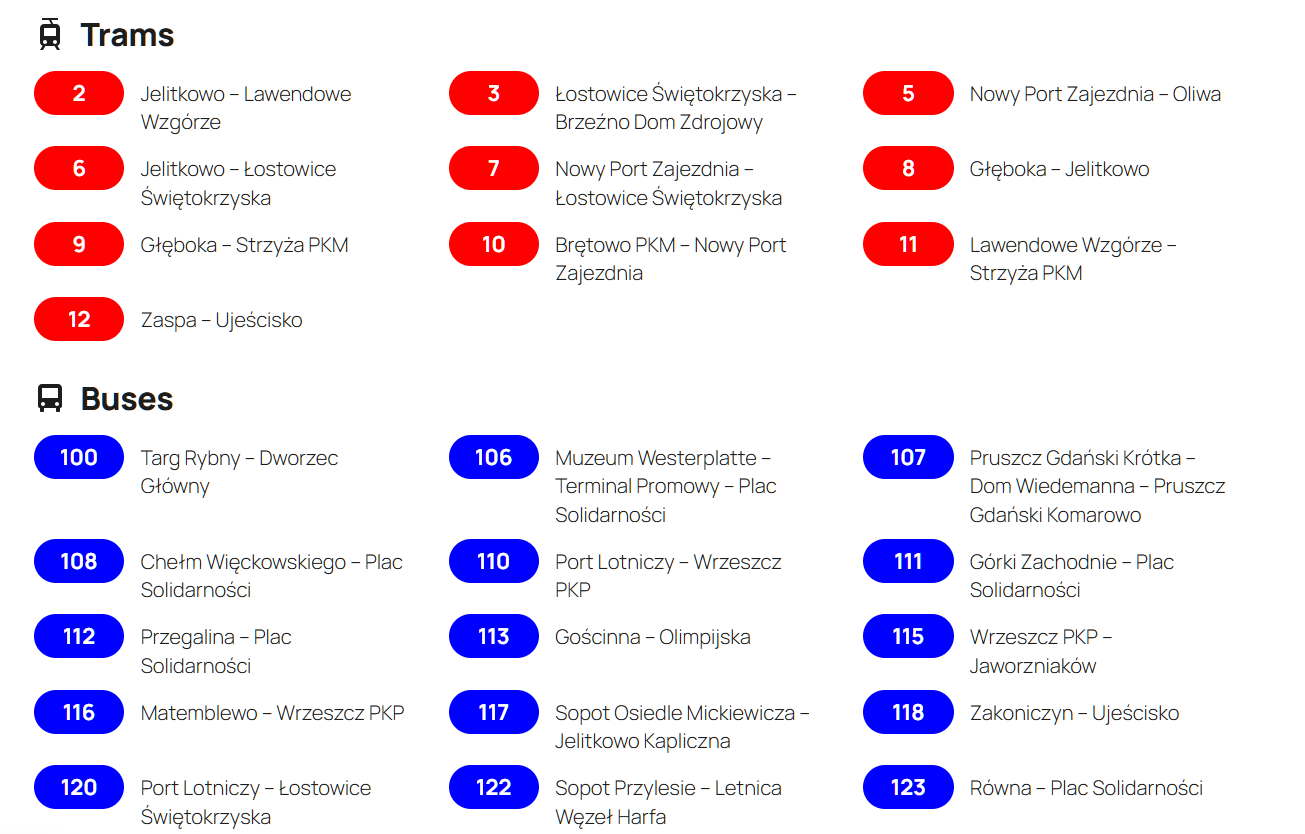
- Lines: every line of the network, grouped by transport mode (trams, buses, night lines etc.), optionally in tabs. Each line links to its own page.
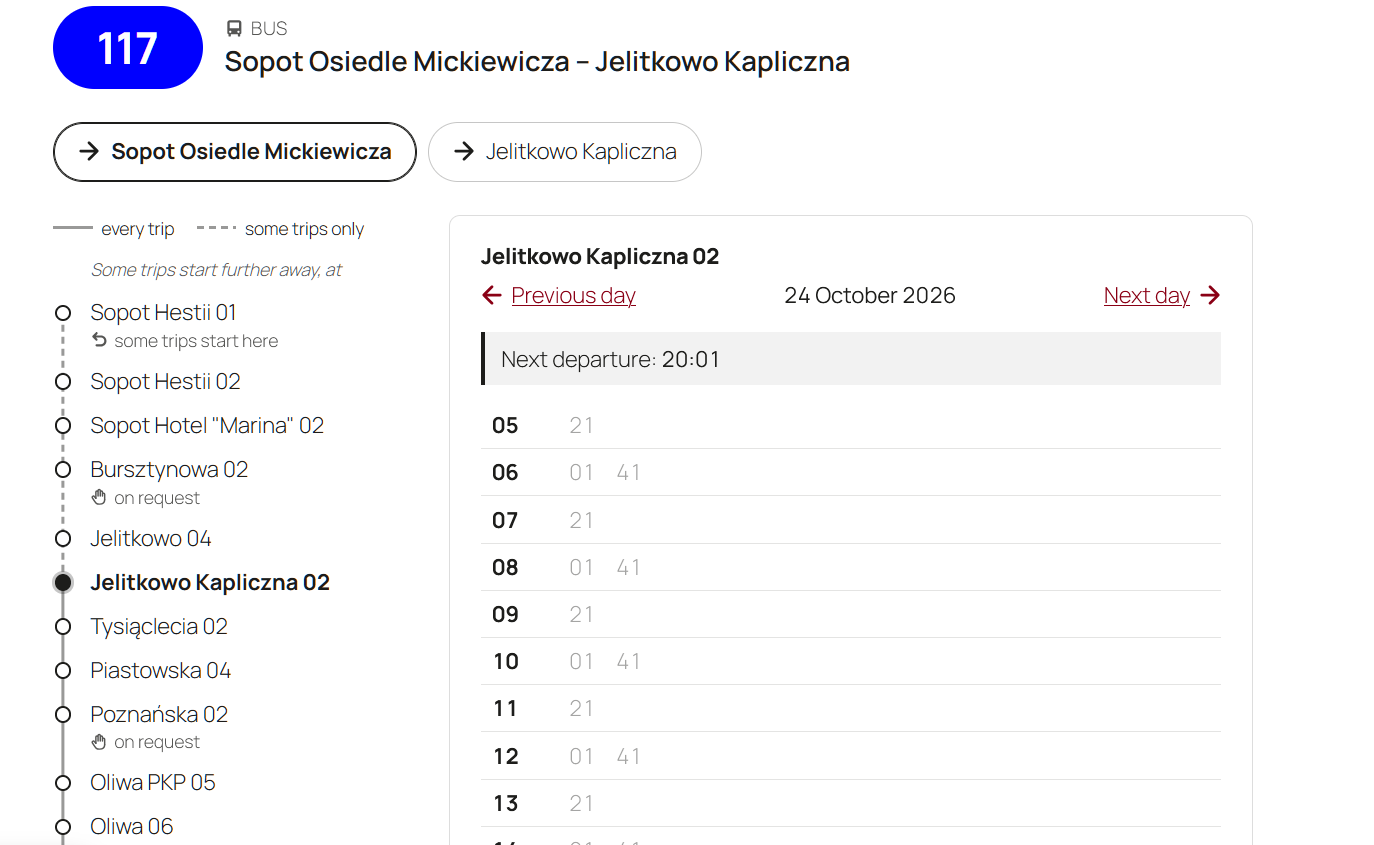
- Line pages: the directions of a line, a diagram of its route with the stops and the variants some trips take (detours, short workings, trips starting or ending elsewhere), and the timetable of the chosen stop. Departures that have left are greyed out and the next one is highlighted.
- Stop timetables: all departures from a stop on a given day, for every line or for one.
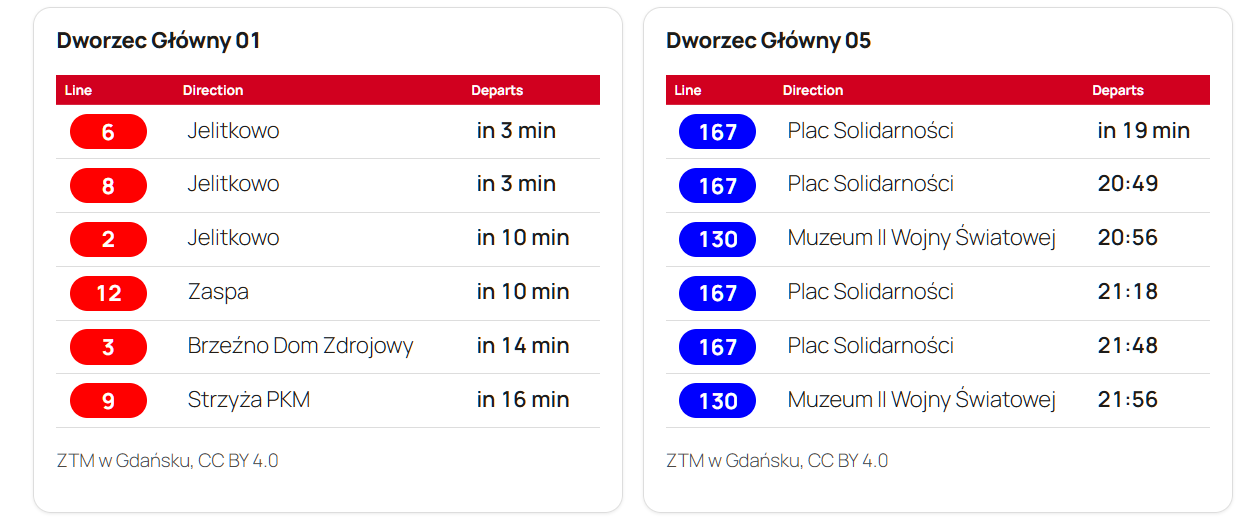
- Departure boards: the next departures from a stop, updating themselves while the page is open.
For riders
- The next departure at a glance: departures that have left are greyed out and the next one is highlighted, and both move on as time passes.
- No surprises about where a trip goes: trips that end early or take another way are marked with a letter, explained under the timetable: “a – to City Stadium A”.
- Only the stops they can use: stops where nobody can get on or off are left out, and riders see where to signal the driver (stops on request) and where they can only get on or only get off.
- A clear picture of the route: the diagram shows where branches leave the route, where they come back and where some trips end.
- For everyone: every icon and diagram has a text equivalent for screen readers, and the pages work without JavaScript.
- Language support: English, Ukrainian and Polish.
For editors and admins
- Blocks for the block editor and shortcodes for any page.
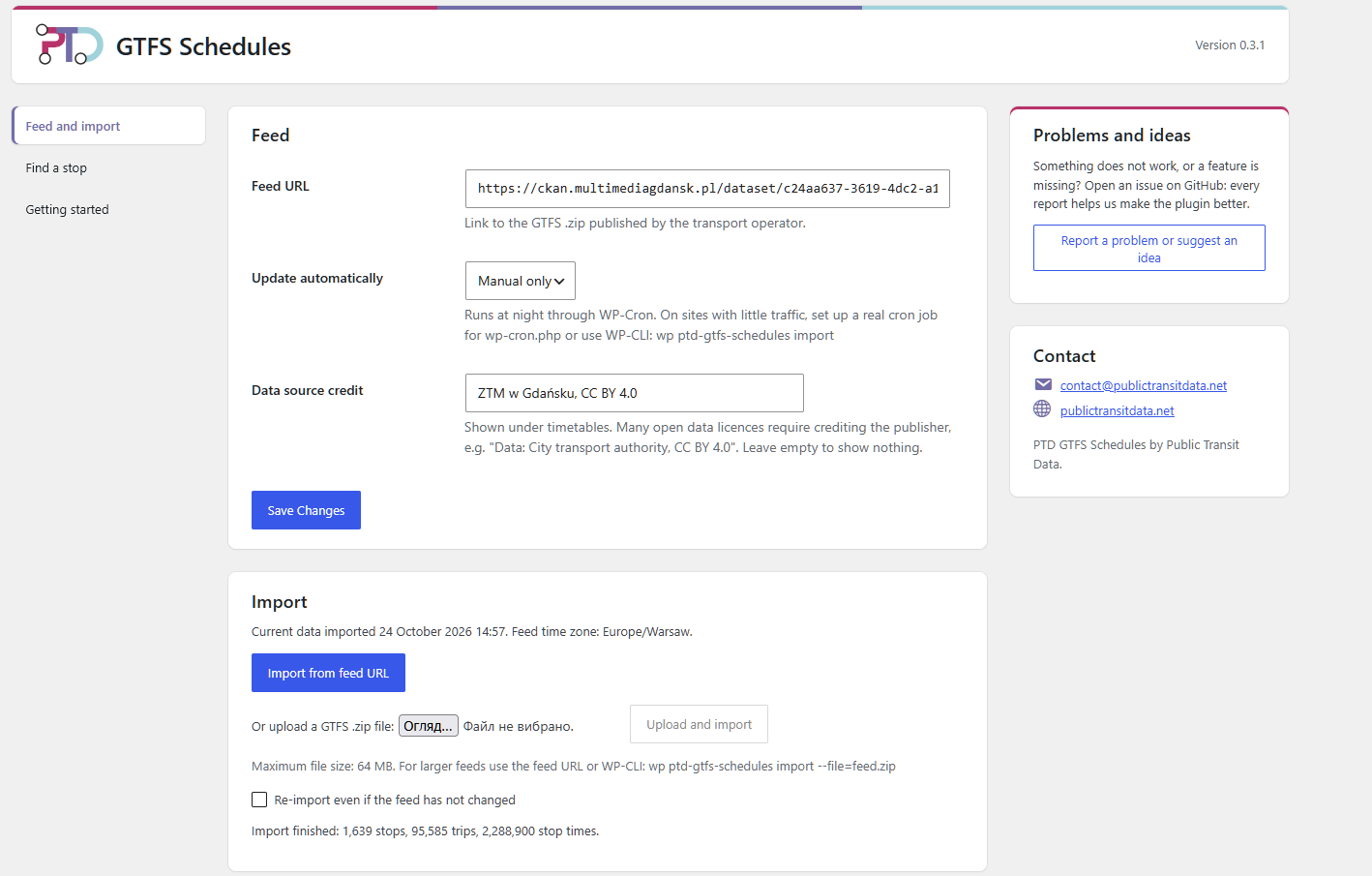
- Import from the feed’s address or from an uploaded .zip file, then user can configure automatical update every night or week.
- Imports run in short steps with progress shown, so large feeds work on shared hosting too. Visitors keep seeing the old schedule until the new one is fully imported.
- A stop finder in the admin gives ready-to-paste shortcodes.
- WP-CLI command for imports from the server.
Shortcodes
[ptd_gtfs_lines]: the list of lines. Options:modes="tram,bus",layout="destinations",tabs="yes",night="mixed",heading="3".[ptd_gtfs_line]: the line page. Put it, or the Line timetable block, on one page: every list of lines links there.[ptd_gtfs_timetable stop="123"]: the timetable of a stop; addroute="7"for one line only.[ptd_gtfs_departures stop="123" limit="8"]: the next departures from a stop.
Supported GTFS
The plugin reads agency.txt, stops.txt, routes.txt, trips.txt, stop_times.txt, calendar.txt and calendar_dates.txt, including extended route types, times after midnight and stations with several platforms. Trips described only with frequencies.txt are not shown yet, and the times are the scheduled ones (no GTFS Realtime).
Feedback
Something does not work, or a feature is missing? Open an issue on GitHub or write to contact@publictransitdata.net.
External services
The plugin does not use any service of its own. It downloads the GTFS feed only from the address that the site’s administrator enters in its settings, when an import runs: by hand, or automatically if automatic updates are switched on. No data about the site or its visitors is sent with the request.
Departure boards update themselves through the site’s own REST API; nothing is requested from other sites.
Credits
Icons from other projects, both under the MIT licence:
- The arrow: @icons by Valentin Fossati (https://github.com/Voxybuns/at-icons).
- The “on request” hand: Tabler Icons (https://tabler.io/icons).
Screenshots
Blocks
This plugin provides 2 blocks.
- Lines All lines of the network, grouped by transport mode.
- Line timetable The line a visitor chose in a Lines block. Put it on one page: every Lines block on the site links there.
Installation
- Install and activate the plugin.
- Open GTFS Schedules in the admin menu. Enter the address of your GTFS feed, or upload its .zip file, and import it.
- Add the Lines block to a page, for example the home page.
- Create one page with the Line timetable block. Every Lines block on the site links to it.
- To show a single stop, look it up under Find a stop and paste its shortcode into any page.
FAQ
-
Where do I get a GTFS feed?
-
Many transport authorities publish theirs as open data, you can export a GTFS feed from your scheduling system, or contact us: we can help your company or municipality create and maintain one.
-
My feed is larger than the upload limit.
-
Import it from its public address instead, or with WP-CLI on the server:
wp ptd-gtfs-schedules import --file=feed.zip. -
How often is the timetable updated?
-
As often as you choose in the settings: daily, weekly or manually. Automatic updates import from the feed’s address at night through WP-Cron. On sites with little traffic, set up a real cron job for wp-cron.php, or run
wp ptd-gtfs-schedules importfrom the server’s cron. Automatic updates replace data imported from an uploaded file. -
Can I link lines to my own pages?
-
Use the
ptd_gtfs_schedules_line_urlfilter to give each line the address you want. Theptd_gtfs_schedules_is_night_linefilter decides which lines count as night lines, and theptd_gtfs_schedules_importedaction runs after every import. -
How do I credit the data publisher?
-
Many open data licences require it. Enter the credit under Data source credit in the settings, and it is shown under the timetables.
Reviews
There are no reviews for this plugin.
Contributors & Developers
“PTD GTFS Schedules” is open source software. The following people have contributed to this plugin.
Contributors
Translate “PTD GTFS Schedules” into your language.
Interested in development?
Browse the code, check out the SVN repository, or subscribe to the development log by RSS.
Changelog
0.3.2
- First public release.