
Description
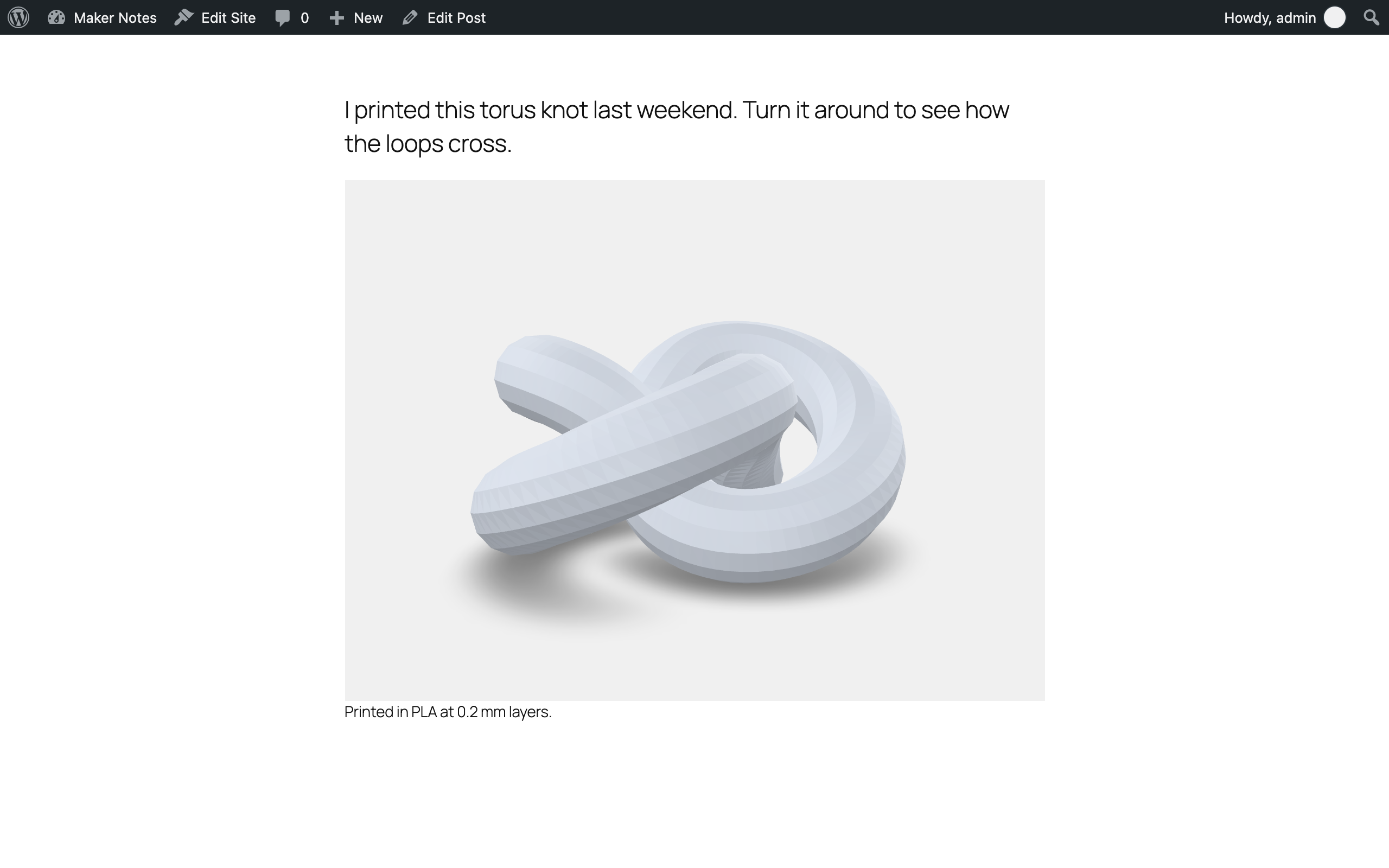
WordPress does not let you upload 3D files (“Sorry, you are not allowed to upload this file type”), and has no way to show one. Pratiks 3D Model Embedder adds both: upload the file like an image, insert the 3D Model block, publish. Visitors can turn the model around with the mouse or a finger.
Upload 3D files safely
GLB, glTF, STL, OBJ and USDZ files can be uploaded by anyone who can upload images. Each file is checked by its content, not just its name: a .glb must really be a binary glTF 2.0 file, an .stl must really be an STL, and text files that carry PHP or a script tag are refused. When a file is refused, you are told why.
STL and OBJ are converted for you
STL files (from 3D printing and CAD) and OBJ files are converted to GLB when you upload them. The conversion streams the file, so large models do not run the server out of memory. STL files are turned upright and scaled from millimetres, so they look right straight away. The original file is kept.
The 3D Model block
- Upload a model, pick one from the Media Library, or insert one from a URL.
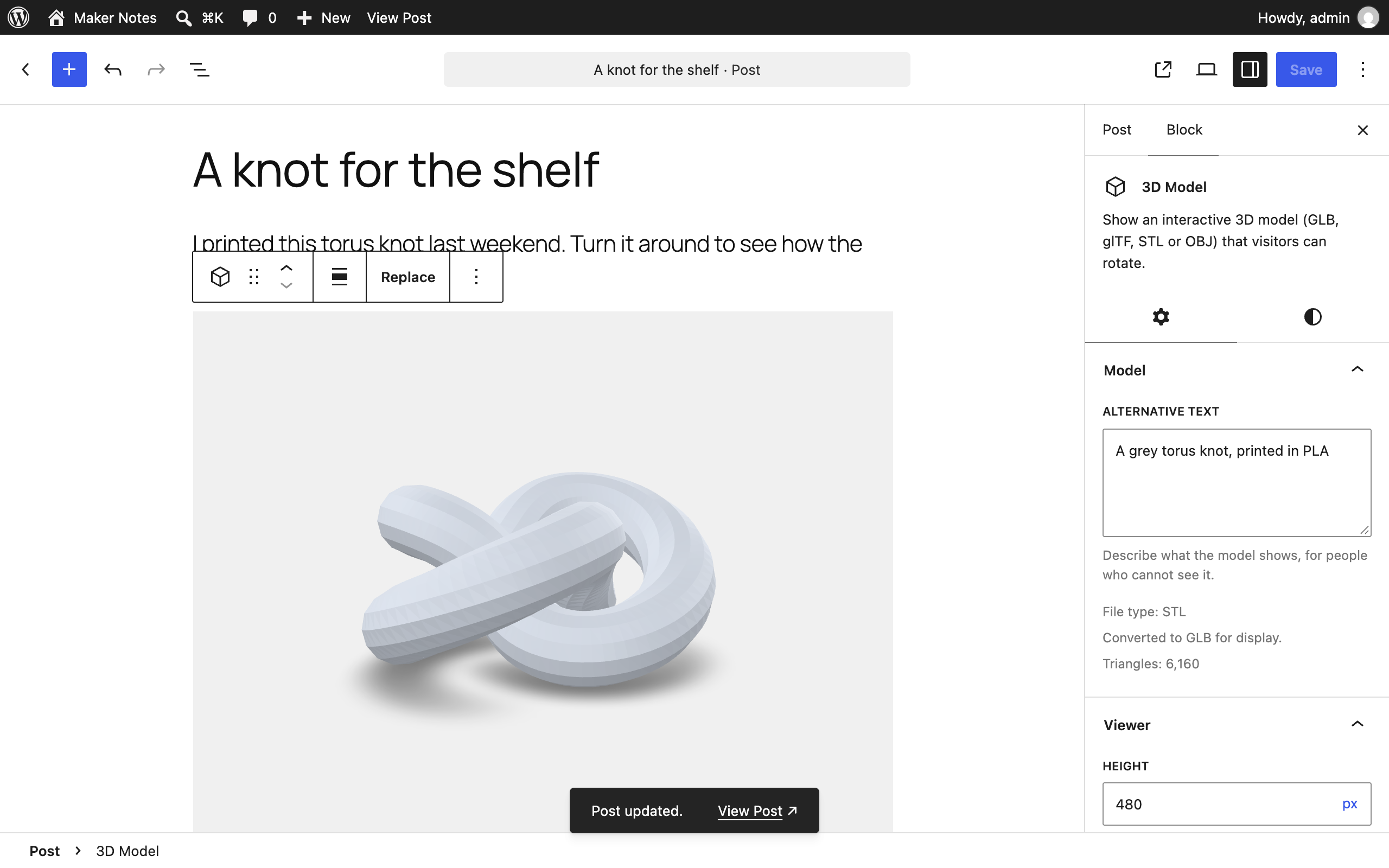
- The editor shows the real model, so what you see is what visitors get.
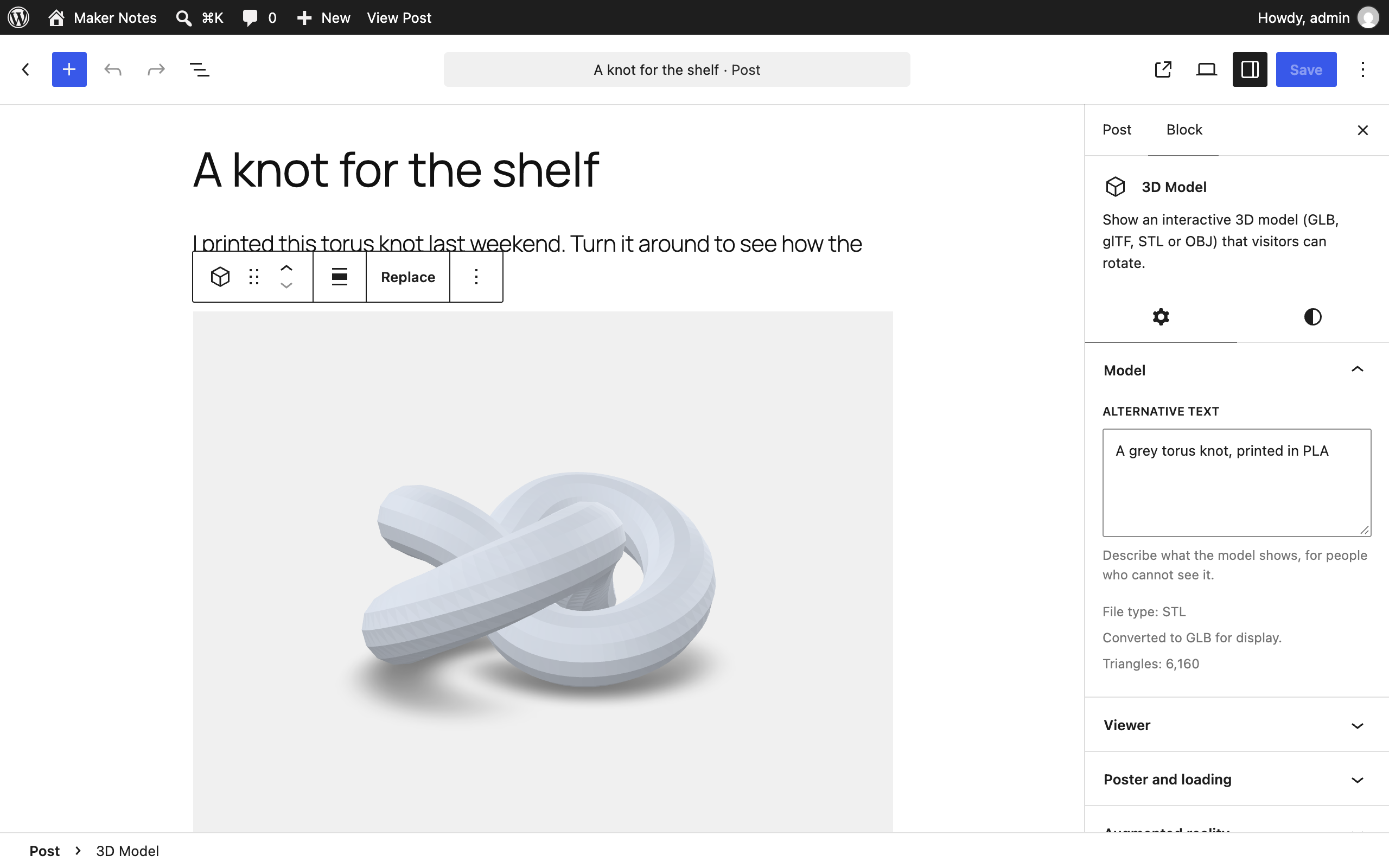
- Alternative text, a caption, height and background colour.
- Rotate automatically, let visitors rotate, let visitors zoom (off by default, so scrolling the page never gets stuck on the model), play animations.
- Brightness and shadow.
- Save current camera angle to start from the view you like.
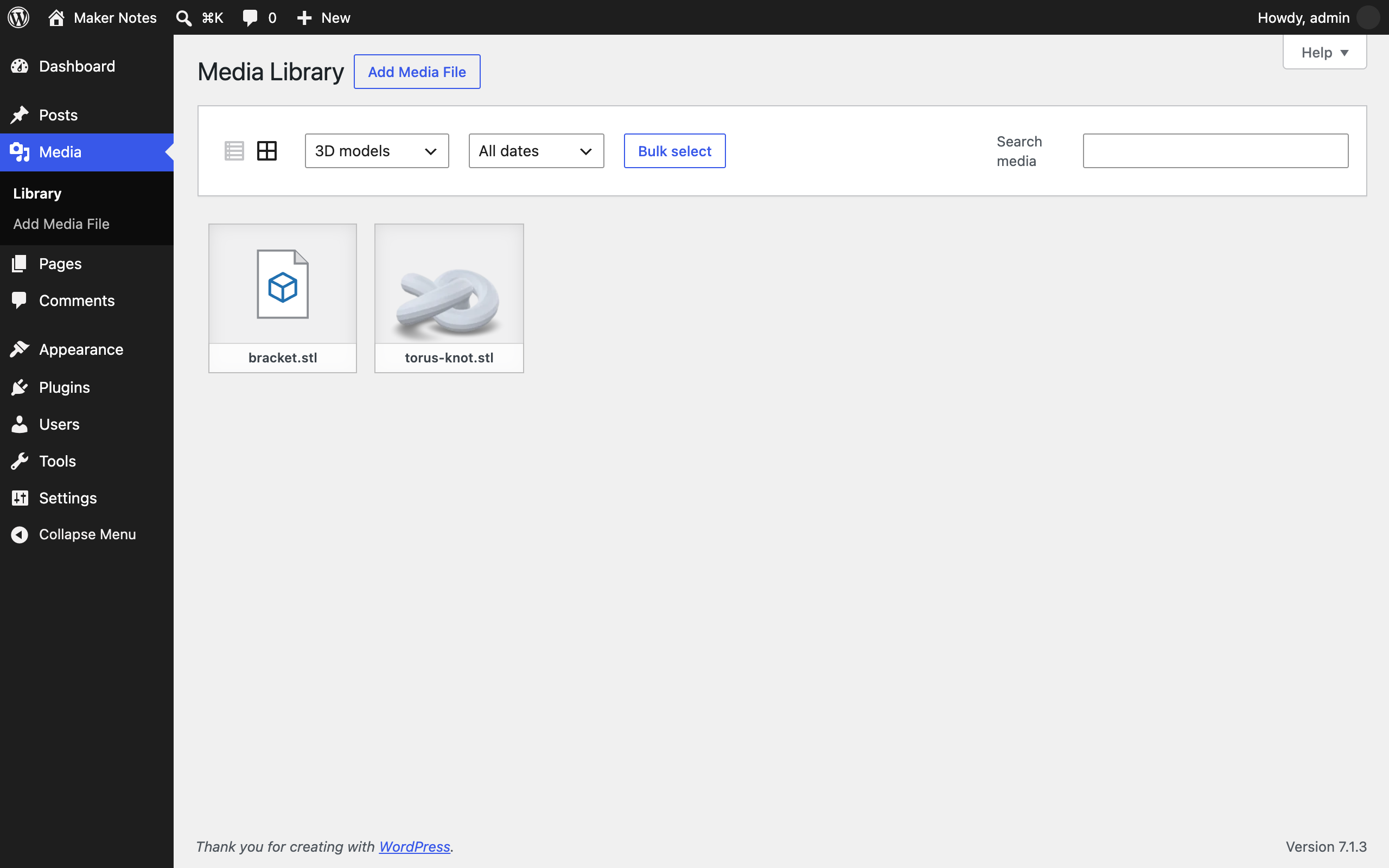
- Use current view as poster saves a picture of the model. It shows while the model loads and becomes the model’s thumbnail in the Media Library.
- Load when scrolled into view (default), right away, or only when the visitor clicks Load 3D model.
- Optional augmented reality (“View in your space”) on phones and tablets, with an optional USDZ file for iPhone and iPad.
Light on your site
The viewer is Google’s open source <model-viewer>, bundled with the plugin together with its decoders for compressed models. Nothing is loaded from a CDN, and the viewer only loads on pages that show a 3D model.
For developers
Filters and actions for every default, limit and message, JavaScript hooks in the editor, wp pratiks-3d-model-embedder WP-CLI commands, REST routes, and Abilities API abilities (WordPress 6.9+) so AI agents can list models, convert them and set posters. See the reference.
Free and open source under the GPL. No pro version, no upsells, no ads in wp-admin, no tracking.
External services
The plugin makes no requests to other services itself. The viewer, its decoders and every file it uses are bundled.
When you turn on augmented reality in a block, visitors on Android who tap “View in your space” are handed over to Google’s Scene Viewer app (part of Google Play Services), which downloads the model from your site to show it. The model’s address is passed to that app; nothing else is sent. This only happens when a visitor taps the button. Google’s terms of service and privacy policy apply. On iPhone and iPad, AR Quick Look runs on the device.
Source code and libraries
The plugin’s own code is not minified. Its source, tests and build tools are on GitHub.
Bundled libraries, unchanged from their releases:
- model-viewer 4.4.0 by Google, Apache-2.0:
assets/vendor/model-viewer/model-viewer-umd.min.jsisdist/model-viewer-umd.min.jsfrom the @google/model-viewer npm package. Readable source: packages/model-viewer/src. - Draco decoder and Basis Universal (KTX2) transcoder from three.js r183, MIT (sources: Draco, Basis Universal).
- meshoptimizer 1.3.0 decoder, MIT.
Screenshots
Blocks
This plugin provides 1 block.
- 3D Model Show an interactive 3D model (GLB, glTF, STL or OBJ) that visitors can rotate.
Installation
- Install from Plugins > Add New Plugin, or upload the zip.
- Activate it.
- Upload a 3D file to the Media Library, or add the 3D Model block to a post and upload it there.
FAQ
-
Which formats can I use?
-
GLB (recommended), glTF with everything embedded, STL and OBJ. STL and OBJ are converted to GLB at upload. USDZ can be uploaded too, as the iPhone and iPad version of a model for augmented reality.
-
My glTF file was refused. Why?
-
glTF files often come with separate files (a
.binfile and texture images) that cannot be uploaded together with them. Export the model as a single.glbfile from your 3D tool (Blender: File > Export > glTF 2.0, format “glTF Binary”) and upload that. -
My OBJ model is grey.
-
OBJ colours and textures live in separate
.mtland image files, which cannot come along with a single upload, so converted OBJ and STL models get a neutral grey. For colours and textures, upload a GLB. -
A large STL was not converted.
-
Files over 64 MB are not converted during the upload, to keep uploads fast. The block tells you so. Ask whoever manages the server to run
wp pratiks-3d-model-embedder convert <attachment ID> --ignore-limit, or raise the limit with thepratiks_3d_model_embedder_max_convert_bytesfilter. -
Who can upload 3D files?
-
Everyone who can upload images (the
upload_filescapability). To limit 3D uploads to administrators:add_filter( 'pratiks_3d_model_embedder_upload_capability', fn() => 'manage_options' ); -
Does it work on multisite?
-
Yes. On a network, add
glb gltf usdz stl objto Upload file types in Network Admin > Settings. Tools > Site Health tells you when they are missing. -
Augmented reality does not start on my iPhone.
-
iPhones and iPads need a USDZ version of the model (choose it in the block’s Augmented reality panel), and your server must send USDZ files as
model/vnd.usdz+zip. Tools > Site Health checks this.
Reviews
There are no reviews for this plugin.
Contributors & Developers
“Pratiks 3D Model Embedder” is open source software. The following people have contributed to this plugin.
Contributors
Translate “Pratiks 3D Model Embedder” into your language.
Interested in development?
Browse the code, check out the SVN repository, or subscribe to the development log by RSS.
Changelog
1.0.0
- First version.