
Description
The PublishPress Future plugin allows you to schedule changes to posts, pages and other content types. With this plugin you can create automatic actions to unpublish, delete, trash, move a post to a new status and more. With the Pro version you can update your content using custom workflows with multiple steps and schedules.
Here’s an overview of what you can do with PublishPress Future:
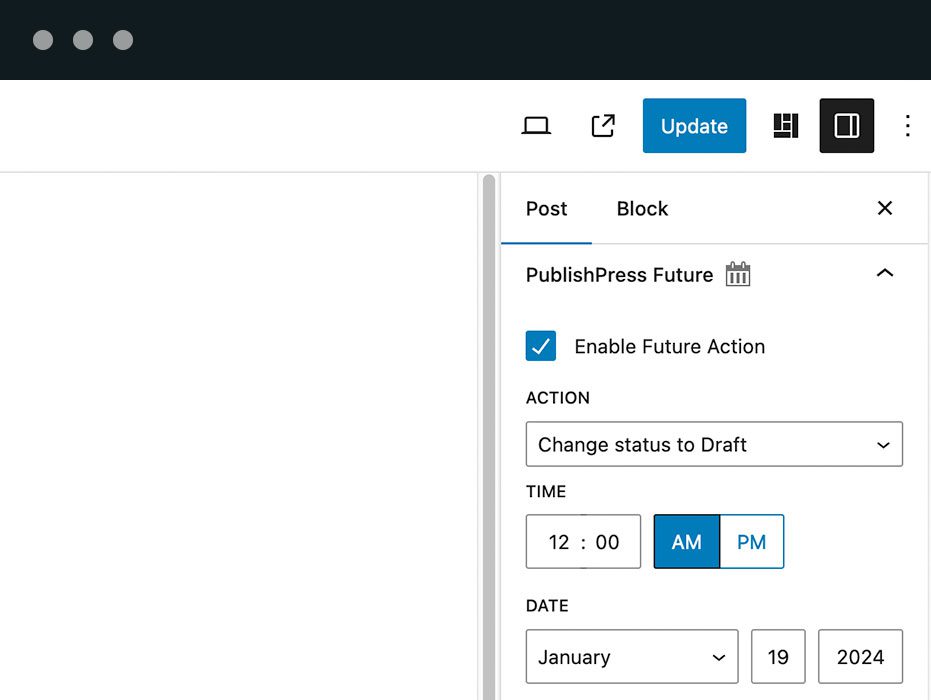
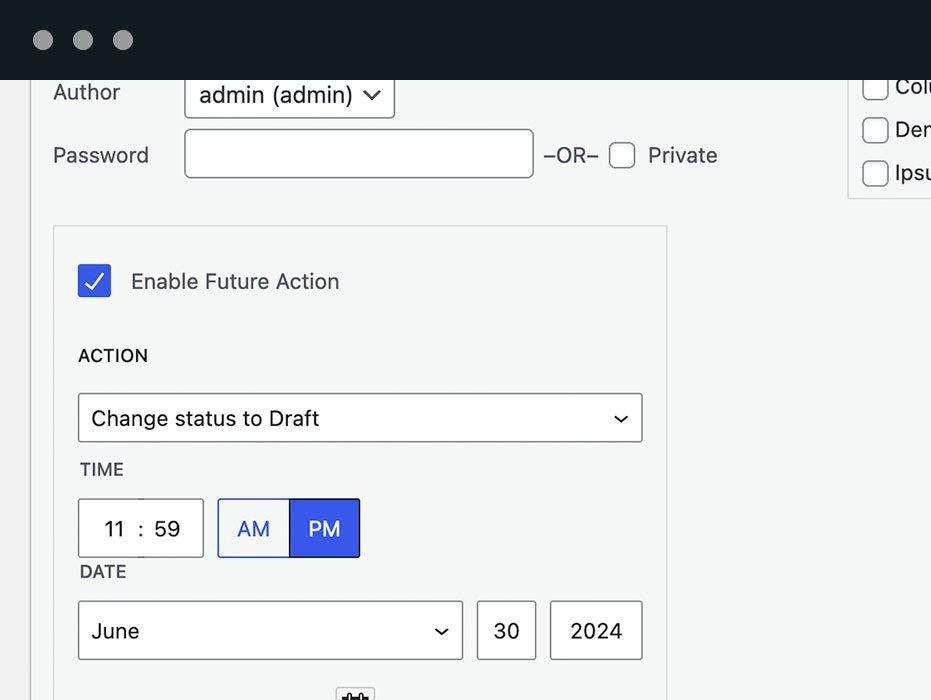
- Select future action dates in the right sidebar when you are editing a post. This makes it very easy to schedule changes to your content.
- Receive email notifications when Future makes changes to your content.
- Build Action Workflows that allow you to update your content using custom workflows with multiple steps and schedules (available in the Pro version).
- Control post changes via integrations with Advanced Custom Fields and other plugins (available in the Pro version).
PublishPress Future Pro
Upgrade to PublishPress Future Pro
This plugin is the free version of the PublishPress Future plugin. The Pro version comes with all the features you need to schedule changes to your WordPress content. Click here to purchase the best plugin for scheduling WordPress content updates!
Options for Future Actions on Posts
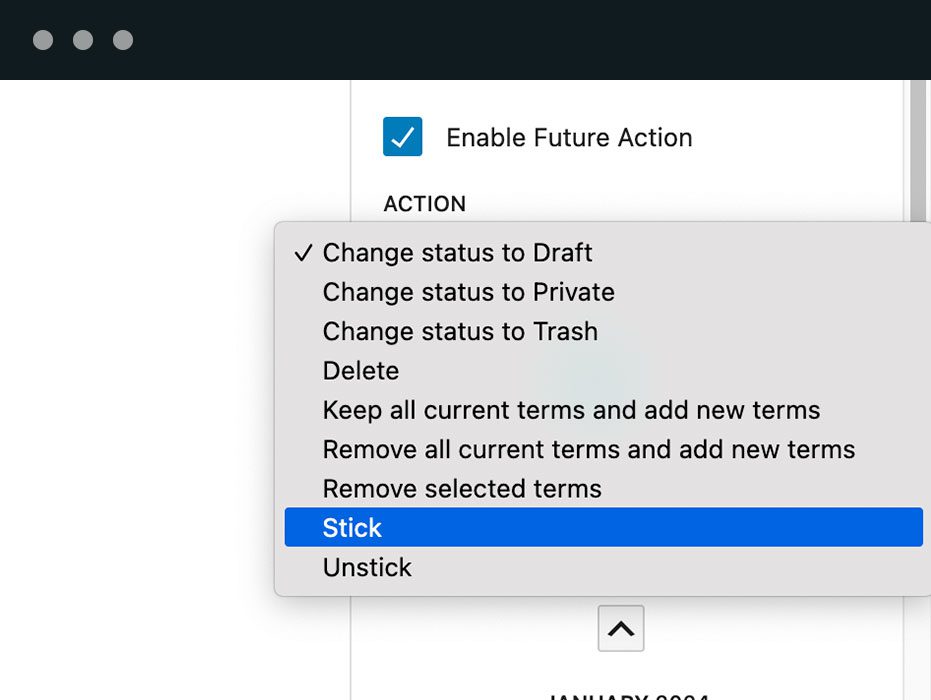
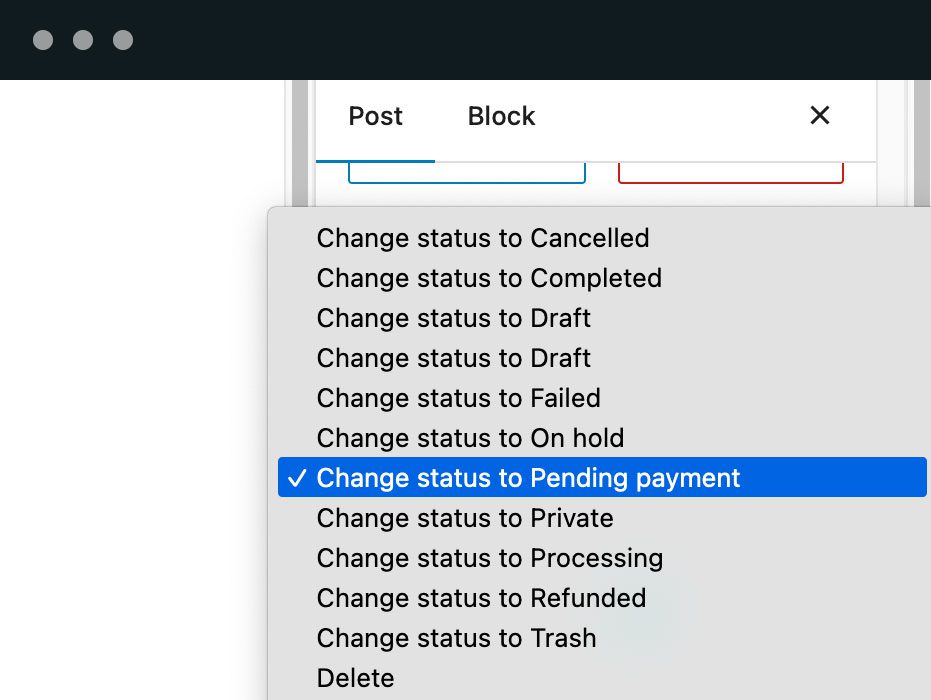
With PublishPress Future, you can configure actions that will happen automatically to your content. Here are the changes you can choose for your posts:
- Change the status to “Draft”.
- Delete the post.
- Send the post to the Trash.
- Change the status to “Private”.
- Enable the “Stick to the top of the blog” option.
- Disable the “Stick to the top of the blog” option.
- Remove all existing categories, and add new categories.
- Keep all existing categories, and add new categories.
- Keep all existing categories, except for those specified in this change.
- Move the post to a custom status (available in the Pro version)
Click here for details on scheduling post changes.
Custom Workflows to Schedule Content Changes
With PublishPress Future Pro, you can build Action Workflows. These allow you to update your content using custom workflows with multiple steps and schedules. Here are some examples of what you can do with Action Workflows:
- Email the site admin when a post is updated.
- Change the post status to “Trash” a week after it was published.
- 15 days after the post is published, move the post to the “Draft” status and add a new category.
- 1 year after a post is published, send an email to the author asking them to check the content.
Click here for details on workflows for changes.
Display the Action Date in Your Content
PublishPress Future allows you to place automatically show the expiry or action date inside your articles. The date will be added at the bottom of your post.
Click here to see the Footer Display options.
You can use shortcodes to show the expiration date inside your posts. You can customize the shortcode output with several formatting options.
Click here to see the shortcode options.
Choose Actions Defaults for Post Types
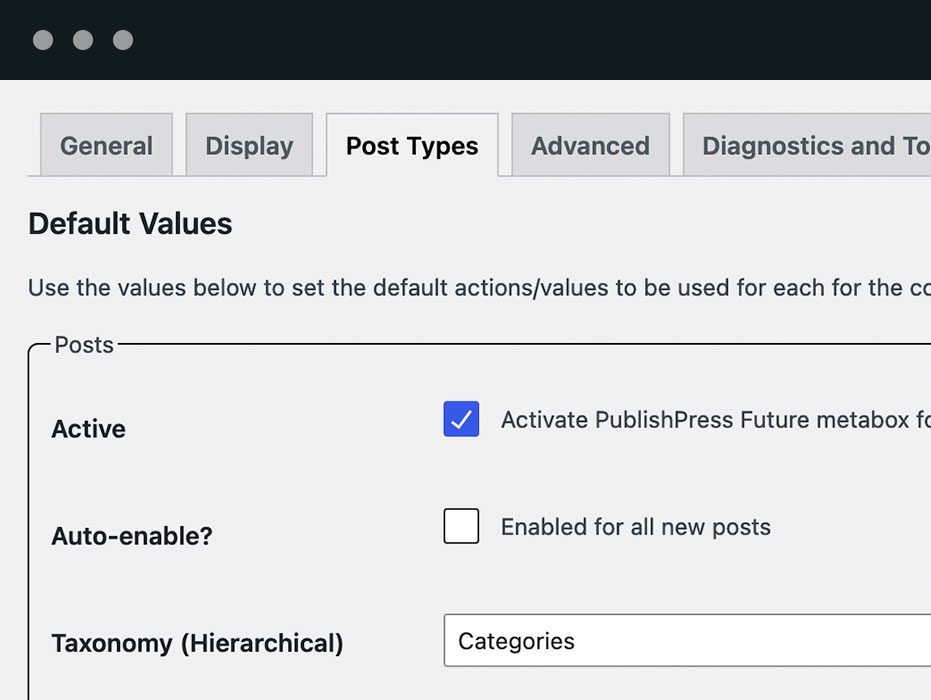
PublishPress Future can support any post type in WordPress. Go to Settings > PublishPress Future > Defaults and you can choose default actions for each post type.
Click here to see the default options.
PublishPress Future Email Notifications
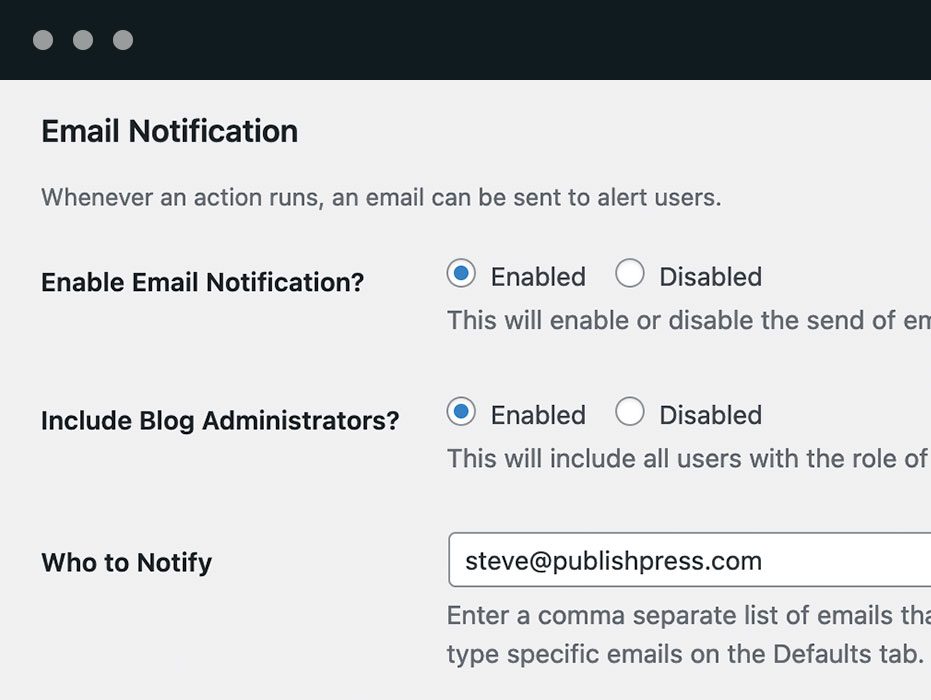
The PublishPress Future plugin can send you email notifications when your content is changed. You can control the emails by going to Settings > PublishPress Future > General Settings.
Click here to see the notification options.
Integrations With Other Plugins
In PublishPress Future Pro it is possible to schedule changes to your posts based on metadata. This makes it possible to integrate PublishPress Future with other plugins. For example, you can create a date field in the Advanced Custom Fields plugin and use that to control the date for Future Actions.
When you are using an integration, there are five types of data that you can update in PublishPress Future:
- Action Status: This field specifies if the action should be enabled.
- Action Date: This field stores the scheduled date for the action.
- Action Type: This field stores the type of action that will be executed.
- Taxonomy Name: The taxonomy name for being used when selecting terms.
- Taxonomy Terms: A list of term’s IDs for being used by the action.
Click here to see how to integrate Future with other plugins.
Import the Future Actions
PublishPress Future Pro supports imports from external data sources. You can import posts and automatically create Future Actions associated with those posts.
The best approach is to use the Metadata Scheduling feature. If you’re using a plugin such as WP All Import, you can match up the import tables with the fields you have selected in the Metadata Scheduling feature.
Click here to see how to import data for Future Actions.
Details on How Post Changes Works
For each expiration event, a custom cron job is scheduled. This can help reduce server overhead for busy sites. This plugin REQUIRES that WP-CRON is setup and functional on your webhost. Some hosts do not support this, so please check and confirm if you run into issues using the plugin.
Click here to see the technical details for this plugin.
Logs for All Your Post Changes
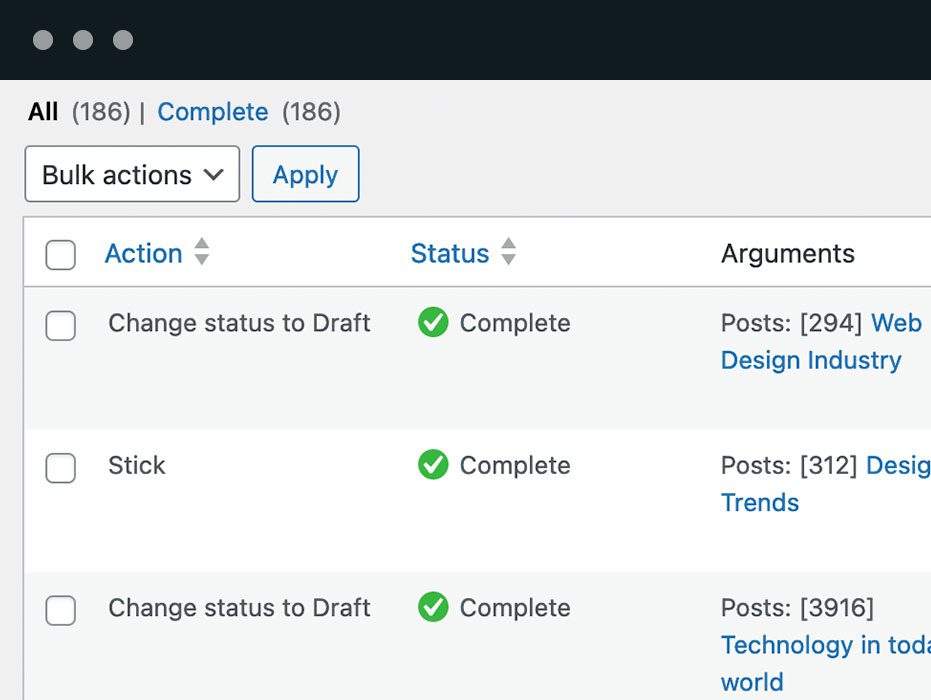
PublishPress Future Pro allows you to keep a detailed record of all the post updates. PublishPress Future records several key data points for all actions:
- The post that the action was performed on.
- Details of the post update.
- When the change was made to the post.
Click here to see more about the logs feature.
Join PublishPress and get the Pro plugins
The Pro versions of the PublishPress plugins are well worth your investment. The Pro versions have extra features and faster support. Click here to join PublishPress.
Join PublishPress and you’ll get access to these Pro plugins:
- PublishPress Authors Pro allows you to add multiple authors and guest authors to WordPress posts.
- PublishPress Blocks Pro has everything you need to build professional websites with the WordPress block editor.
- PublishPress Capabilities Pro is the plugin to manage your WordPress user roles, permissions, and capabilities.
- PublishPress Checklists Pro enables you to define tasks that must be completed before content is published.
- PublishPress Future Pro is the plugin for scheduling changes to your posts.
- PublishPress Permissions Pro is the plugin for advanced WordPress permissions.
- PublishPress Planner Pro is the plugin for managing and scheduling WordPress content.
- PublishPress Revisions Pro allows you to update your published pages with teamwork and precision.
- PublishPress Series Pro enables you to group content together into a series.
- PublishPress Shortlinks Pro allows you to create custom URLs for your posts and external links.
- PublishPress Statuses Pro enables you to create additional publishing steps for your posts.
Together, these plugins are a suite of powerful publishing tools for WordPress. If you need to create a professional workflow in WordPress, with moderation, revisions, permissions and more… then you should try PublishPress.
Bug Reports
Bug reports for PublishPress Future are welcomed in our repository on GitHub. Please note that GitHub is not a support forum, and that issues that are not properly qualified as bugs will be closed.
Screenshots

Installation
This section describes how to install the plugin and get it working.
- Unzip the plugin contents to the
/wp-content/plugins/post-expirator/directory - Activate the plugin through the ‘Plugins’ menu in WordPress
FAQ
-
Can I schedule changes to WooCommerce Products?
-
Yes, the PublishPress Future plugin allows you to schedule automatic changes to posts, pages and other content types including WooCommerce products. To enable this feature, go to Future > Post Types. Check the “Active” box in the “Product” area.
-
Can I schedule changes to Elementor posts?
-
Yes, the PublishPress Future plugin allows you to schedule automatic changes to posts, pages and other content types including WooCommerce products. To enable this feature, go to Future > Post Types. Check the “Active” box for the post type you’re using with Elementor.
Reviews


Contributors & Developers
“Schedule Post Changes With PublishPress Future: Unpublish, Delete, Change Status, Trash, Change Categories” is open source software. The following people have contributed to this plugin.
Contributors


“Schedule Post Changes With PublishPress Future: Unpublish, Delete, Change Status, Trash, Change Categories” has been translated into 23 locales. Thank you to the translators for their contributions.
Interested in development?
Browse the code, check out the SVN repository, or subscribe to the development log by RSS.
Changelog
The full changelog can be found on GitHub.