

Description
PingPaid adds Interac e-Transfer (also called Email Money Transfer or EMT) as a payment method at your WooCommerce checkout. It works with the new WooCommerce block checkout as well as the classic checkout.
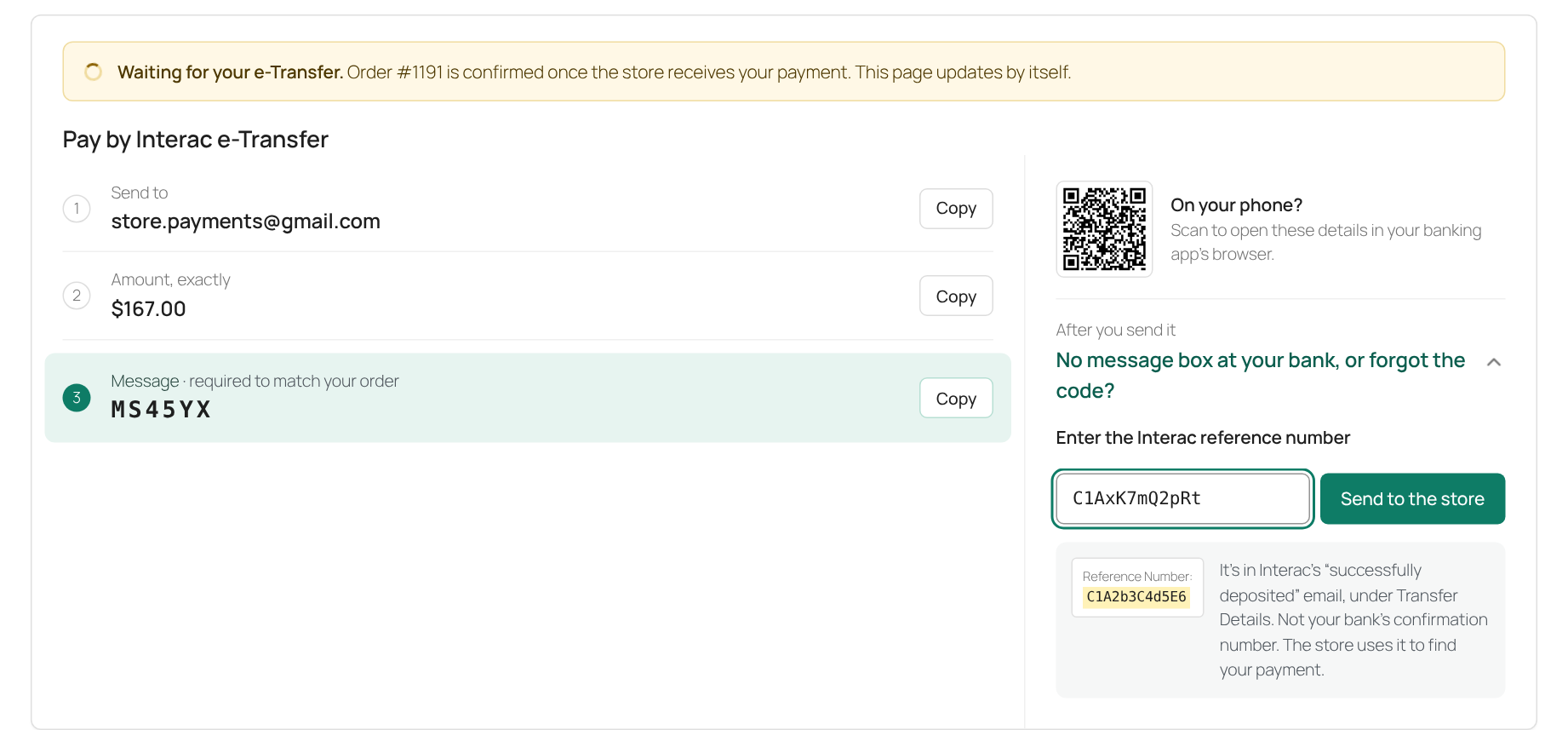
After placing an order, your customer sees exactly what to do: your payment email, the exact amount and a short order code to put in the e-Transfer message, each with a one-tap Copy button. A QR code opens the same details on their phone, so they can pay from their banking app without retyping anything.
- No card fees, no payment processor. Money goes straight from your customer’s bank to yours.
- A unique order code for every order, so you can tell which e-Transfer belongs to which order.
- Reference numbers from customers. If their bank has no message box, or they forget the code, customers can enter the Interac reference number from Interac’s deposit email. You’ll see it on the order.
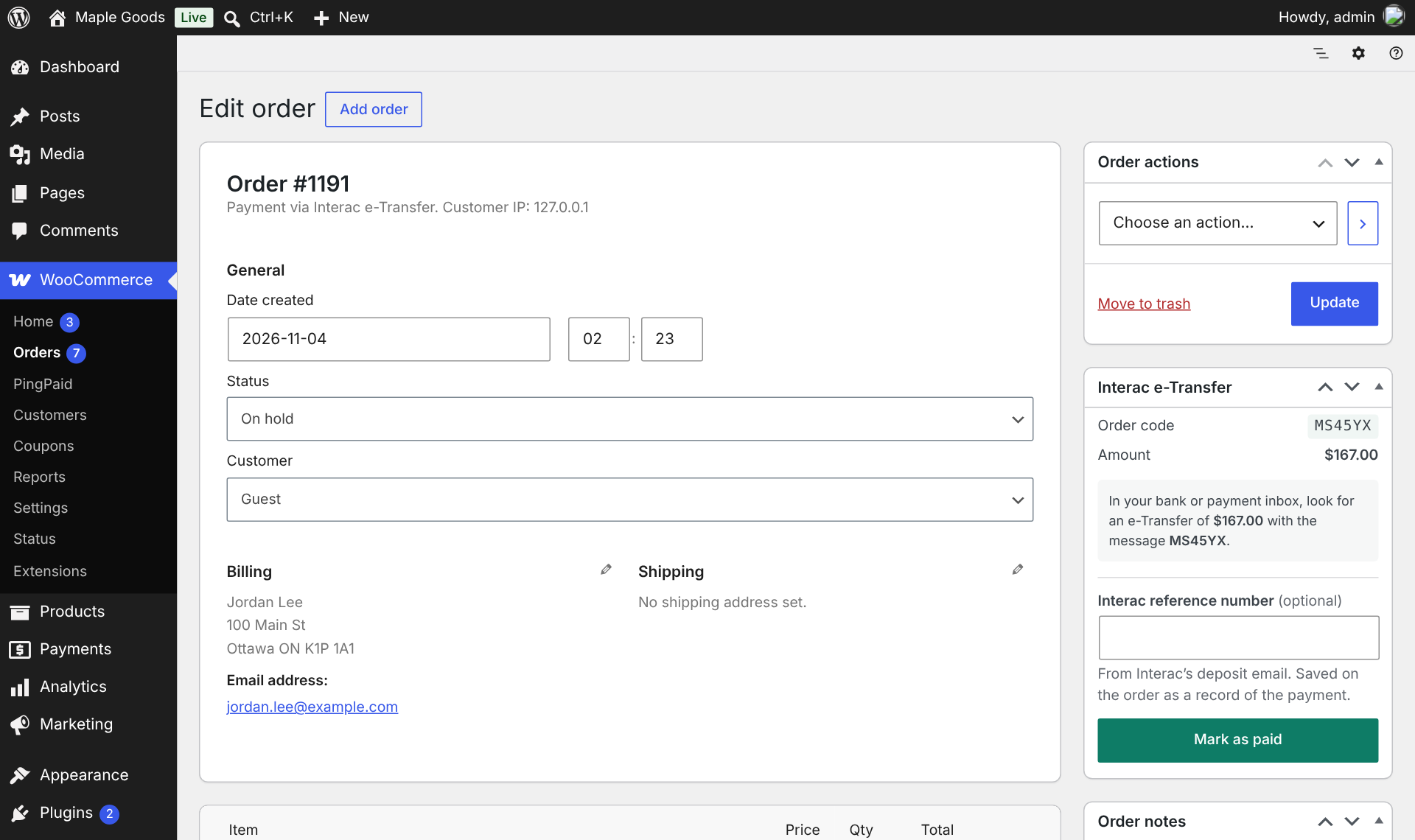
- An Interac e-Transfer box on the order screen with the code, the amount and any reference numbers, so you know what to look for in your bank.
- A payment page for phones that works without a store login and updates by itself once you mark the order paid.
- Works with the block checkout, classic checkout and HPOS.
- No external services. Everything runs on your own site. The QR code is generated in the browser.
Orders wait “on hold” until you find the e-Transfer in your bank or payment inbox and mark the order paid.
Requires a store priced in Canadian dollars. We recommend a payment email registered for Interac Autodeposit at your bank, so money lands without a security question.
PingPaid Premium
PingPaid Premium is an optional paid version that confirms orders automatically: PingPaid Cloud reads Interac’s deposit emails, matches each e-Transfer to the right order and marks it paid within seconds. The free plugin works fully on its own and does not connect to PingPaid Cloud.
Premium is a separate plugin that includes everything in this one. When you activate it, it switches this plugin off and keeps your settings, so you can then delete this one.
PingPaid is built in Ottawa by Strand Systems, who also build custom WooCommerce plugins and integrations.
Interac e-Transfer is a registered trademark of Interac Corp. PingPaid is not affiliated with or endorsed by Interac Corp.
Credits
QR codes are drawn with QR Code Generator for JavaScript by Kazuhiko Arase (MIT license), bundled in assets/js/vendor/qrcode.js. “QR Code” is a registered trademark of DENSO WAVE INCORPORATED.
Screenshots

Installation
- Install and activate the plugin. WooCommerce must be active.
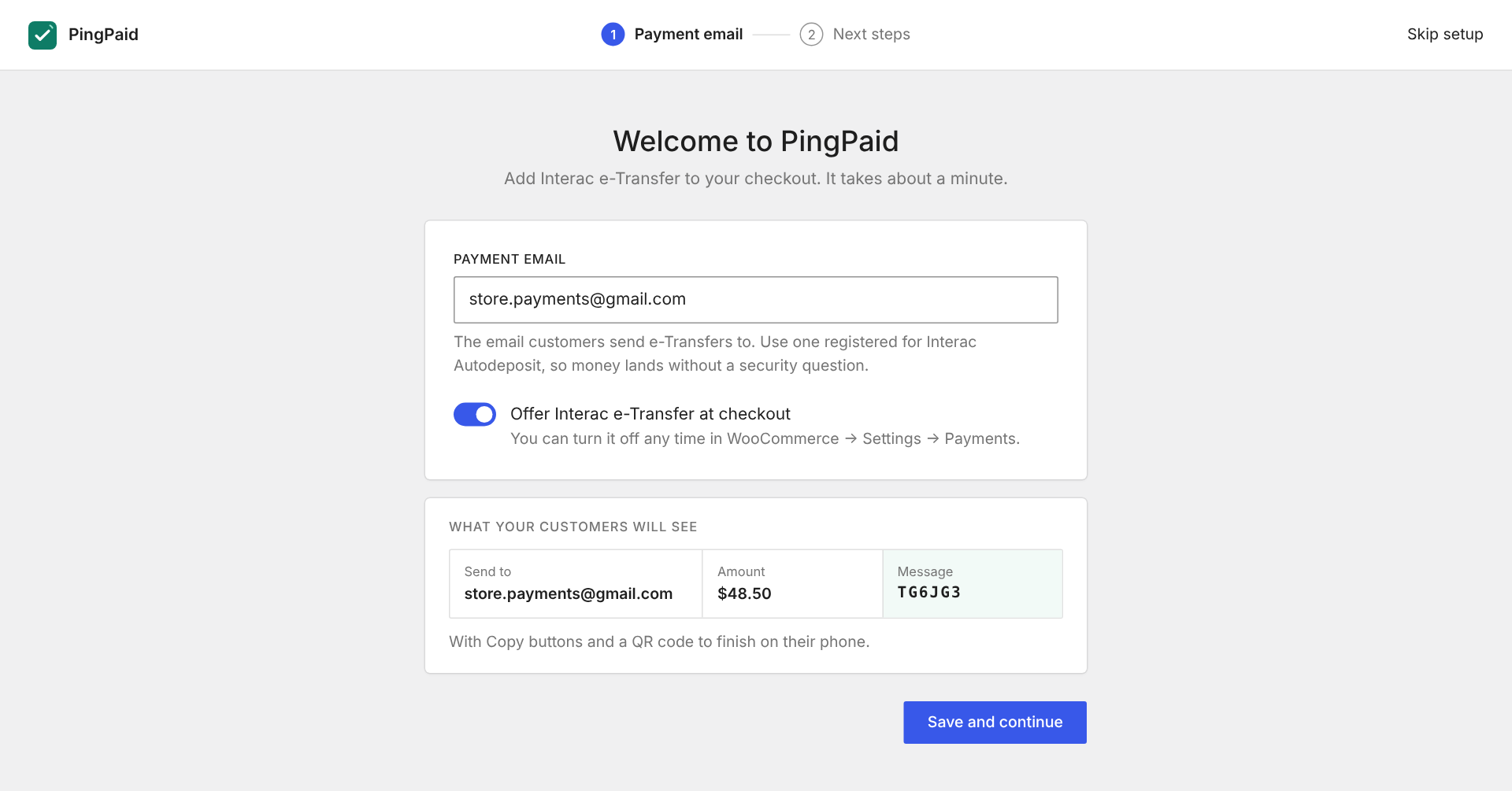
- On the welcome screen, enter your payment email and turn on Interac e-Transfer.
- Interac e-Transfer appears at checkout. You can change the settings any time in WooCommerce Settings Payments Interac e-Transfer.
FAQ
-
How do I know an order has been paid?
-
Look in your bank or payment inbox for an e-Transfer of the order’s amount with the order code in the message. The order screen shows both. When you find it, change the order status to Processing (or Completed). The customer’s payment page then shows “Payment received”.
-
What if the customer’s bank has no message box, or they forget the code?
-
They can open “No message box at your bank, or forgot the code?” on the payment page and enter the Interac reference number from Interac’s “successfully deposited” email. It’s added to the order as a note and shown in the order’s Interac e-Transfer box.
-
Why is the payment method not showing at checkout?
-
PingPaid shows only when your store currency is Canadian dollars and a payment email is set. If you’re switching from another e-Transfer plugin that disappeared from your checkout: many older gateways don’t support the WooCommerce block checkout (WooCommerce marks them “Incompatible with block-based checkout”). PingPaid supports both the block and classic checkout.
-
I already use another e-Transfer plugin. Can I switch?
-
Yes. Install PingPaid alongside it, set your payment email, then turn the other payment method off in WooCommerce Settings Payments when you’re ready. Orders placed with the other plugin stay as they are.
-
Can I change how the payment instructions look?
-
Copy
templates/payment-box.phptoyourtheme/pingpaid/payment-box.phpand edit it there. -
Does it send any data to you?
-
No. The free plugin makes no external requests.
-
Start a free trial at pingpaid.ca, download PingPaid Premium from your account and upload it under Plugins Add New Upload Plugin. Activating it switches this plugin off and keeps your payment email and settings. Setup then walks you through connecting Gmail.
-
Can I go back to the free plugin?
-
Yes. Deactivate PingPaid Premium and activate this plugin. Your settings are still there.
Reviews
There are no reviews for this plugin.
Contributors & Developers
“PingPaid – Interac e-Transfer Payments for WooCommerce” is open source software. The following people have contributed to this plugin.
Contributors
Translate “PingPaid – Interac e-Transfer Payments for WooCommerce” into your language.
Interested in development?
Browse the code, check out the SVN repository, or subscribe to the development log by RSS.
Changelog
1.0.5
- New name: PingPaid – Interac e-Transfer Payments for WooCommerce. Nothing else changed.
1.0.4
- Styles now load as regular stylesheets instead of inline style tags.
- The welcome screen opens after activation only when setup is still needed, and never when several plugins are activated at once.
- Payment page: the “No message box at your bank, or forgot the code?” help is easier to spot.
- Plugins screen: a link to rate PingPaid on WordPress.org.
1.0.3
- Works alongside PingPaid Premium: activating Premium switches this plugin off and keeps your settings. Deleting this plugin while Premium is installed keeps them too.
1.0.0
- First release.