

Description
PaintClarity turns your WordPress site into the back office for your painting business. (PaintClarity was formerly known as PaintOps. Same plugin, same team, same data.) Build professional quotes, send them to customers who can view, e-sign, and pay a deposit online, schedule crews on a calendar, track every job from lead to invoice, and, on Pro, see your real profit per job, per crew, and per worker.
It was built by a painter, for painters. The quote builder understands painting scope: interior/exterior components, standard inclusions and exclusions, and the disclaimer language that keeps you out of disputes. Your data lives in your own WordPress database, not locked inside someone else’s SaaS.
Quote to invoice, start to finish
- Quotes, estimates & bids: a scope-aware builder with reusable inclusions/exclusions, itemized or lump-sum pricing, printable output, and email delivery.
- A professional customer page: your customer opens a clean, branded page (your logo, your terms & conditions) and accepts by typing their name, an e-signature-grade record with timestamp. They can also decline with a reason, or ask a question, and you’re notified either way.
- Acceptance converts the quote to a job automatically, whether they paid a deposit online or you shook hands, and a “Mark as Won” button covers the phone call.
- Invoices: numbered invoices for the balance (full or partial), emailed or shared by link, payable online (Pro + Stripe) or marked paid for check/cash, with the payment logged so balances always agree.
- Receivables at a glance: unpaid invoices surface on your dashboard with amounts and age.
Running the work
- Scheduling calendar with crew filtering, worker badges, time-off, and a subscribe link for Google/Apple/Outlook. Add your own recurring holiday labels.
- Crews: group your painters into named, colored crews; staff a job with one tap and filter the calendar and reports by crew.
- Job board / pipeline: Quote Active Completed, plus a lost-leads drawer with the customer’s decline reason so you can revive the ones worth re-working.
- A real app for your painters: install-to-home-screen (PWA), a “My Jobs” home, one-tap directions (Google/Apple/Waze), per-job check-in/out that works offline and syncs, photo/receipt/note logging, a “My Hours” view of their own time and pay, and a “Mark Job Complete” button that notifies the office. Workers see only what their permissions allow, never your numbers.
- Customers: a directory with contact details, lifetime value, job history, and multiple service addresses per customer, built for landlords, realtors, property managers, and GCs whose one account means a dozen properties.
- Before/After photos with camera alignment overlay and a compare slider.
- Color Visualizer: load a photo of the house or the room, select the surface, and turn a color wheel until it is the color you are proposing. The wall changes color and keeps its own shading, grain and texture. Select by fill, by matching color, or by dragging a box over a big flat wall. Handles stucco, siding, brick, concrete block and interior drywall, takes the Sherwin-Williams or Benjamin Moore number alongside it, and prints or saves the render for the customer. The Manual tab runs entirely in your browser: no photo is uploaded anywhere.
- AI Visualizer (Pro): the other tab. Upload or take a photo, pick colors by brand and name from the Sherwin-Williams and Benjamin Moore books, add a note like “paint the stone wall too, in Alabaster”, and get back a realistic repainted photo to show the customer. This tab sends the photo to OpenAI under your own API key (Settings > AI), billed to your OpenAI account at a few cents per render. Renders can be saved to the job’s photos. Colors on screen are approximate; brand and color names are trademarks of their owners and PaintClarity is not affiliated with any paint manufacturer.
- Trade calculators, paint-color tracking, and resource links.
- A choice of visual themes (light, dark, industrial, and more) with a modern app-style navigation bar on desktop and phone.
What Pro adds
- Job financials & profitability: costs, materials, labor hours; gross, expenses, profit, and margin per job; a Profits dashboard with profit-by-classification, profit-per-hour rankings, and profit by crew and by worker (allocated by logged hours).
- Expenses & receipts against any job, plus business-level and vehicle expense tracking for tax time.
- Online payments: deposits on quote acceptance and invoice balances through Stripe Checkout, recorded automatically.
- AI tools (bring your own OpenAI key): estimate dimensions, gallons, and a Description of Work from a photo; scan receipts to auto-fill expenses; get feedback on or a rewrite of your quote wording.
Pro is a paid upgrade handled through Freemius. The free plugin is fully functional on its own; Pro is optional.
Bundled artwork
The four ready-made logos offered under Business > Logo URL (assets/img/logos/) are AI-generated original artwork created for this plugin. They carry no third-party rights and are distributed under the same GPLv2-or-later license as the rest of the plugin. They are optional, off by default, and carry no PaintClarity branding or link.
External services
This plugin can connect to the following third-party services. Some are optional and only run when you enable and configure the corresponding feature.
OpenAI (Pro AI features, optional). When you use an AI feature (Photo Estimate, Receipt Scan, Description-of-Work Feedback or Rewrite), the plugin sends the relevant input, the photo you choose to upload and/or the quote text you are working on, to the OpenAI API using your own OpenAI API key, and receives the generated result. No data is sent unless you click one of these buttons. PaintClarity does not store the photo. Requests go to https://api.openai.com. See OpenAI’s Terms (https://openai.com/policies/terms-of-use) and Privacy Policy (https://openai.com/policies/privacy-policy).
Stripe (Pro online payments, optional). If you enable card payments and a customer pays online, the plugin creates a Stripe Checkout session and verifies Stripe’s webhook using your own Stripe keys. Order/amount details are exchanged with Stripe to process the payment. Requests go to https://api.stripe.com. See Stripe’s Services Agreement (https://stripe.com/legal/ssa) and Privacy Policy (https://stripe.com/privacy).
Google Maps Platform (optional). If you add a Google Maps API key, address fields use Google Places/Geocoding for autocomplete and validation, and job locations may be shown on an embedded map. The address text you type is sent to Google to return suggestions. Requests go to https://maps.googleapis.com and related Google Maps endpoints. See Google’s Terms (https://cloud.google.com/maps-platform/terms) and Privacy Policy (https://policies.google.com/privacy). (One-tap turn-by-turn Directions for your crew use keyless map links and need no API key.)
YouTube and Vimeo (Resources page video embeds, optional). The Resources page (staff-facing, inside your admin area) lets you save links to training videos, and seeds a starter list of publicly available painting tutorials on YouTube. When a staff member clicks a saved YouTube or Vimeo link’s play button, the video is embedded on the page via the provider’s standard embed player (www.youtube.com / player.vimeo.com), which loads content from that provider and is subject to its terms; no data is sent until the play button is clicked, and you can delete any or all saved links. See YouTube’s Terms (https://www.youtube.com/t/terms) and Google’s Privacy Policy (https://policies.google.com/privacy), and Vimeo’s Terms (https://vimeo.com/terms) and Privacy Policy (https://vimeo.com/privacy).
Freemius (licensing & updates). PaintClarity uses the Freemius SDK to manage Pro licenses, deliver Pro updates, and (optionally) collect anonymous usage diagnostics you can opt out of. Site and license information is exchanged with Freemius. See Freemius’s Terms (https://freemius.com/terms/) and Privacy Policy (https://freemius.com/privacy/).
You control every one of these by whether you enter the corresponding API key and enable the feature. With no keys entered, PaintClarity runs entirely on your own site.
Privacy
Your customers’ details live in your own WordPress database. PaintClarity’s author never sees them, and nothing is sent to a PaintClarity server. That also means you, not the plugin, are the one a customer asks when they want to know what you hold about them, so the plugin’s job is to make sure you can answer.
Quote and invoice pages are blocked from search engines. Those pages are reached by a long private link rather than a password, and a link can be forwarded, pasted into a chat, or picked up from a referrer header. Every customer-facing document PaintClarity serves is marked no-index, no-archive at both the page and the header level, so a link that escapes cannot turn into a search result.
Data requests work out of the box. Under Tools -> Export Personal Data and Tools -> Erase Personal Data, WordPress can search PaintClarity by email address. Export collects the customer record, their jobs, quotes, invoices, payments, and the emails you sent them. Erase removes their details from all of it.
Erasing does not destroy your books. Quotes, invoices and payments are kept and stripped of the name, address, phone, email, typed signature and IP address instead of being deleted, because a business is required to keep financial records for years and data protection law allows exactly that. Any quote or invoice link previously sent to that customer stops working. Job photos are left for you to review yourself rather than deleted automatically.
Suggested privacy policy wording for what PaintClarity stores and which services can receive data is added to Settings -> Privacy -> Policy Guide.
Three optional limits, all off by default, under PaintClarity -> Settings -> Privacy & Customer Data: delete the emailed-communication log after N months, forget the IP address recorded when a quote was signed online after N months, and make quote and invoice links stop working after N days. A business working only in the United States can leave all three off and nothing changes.
None of this is Pro. It is all in the free plugin.
Screenshots


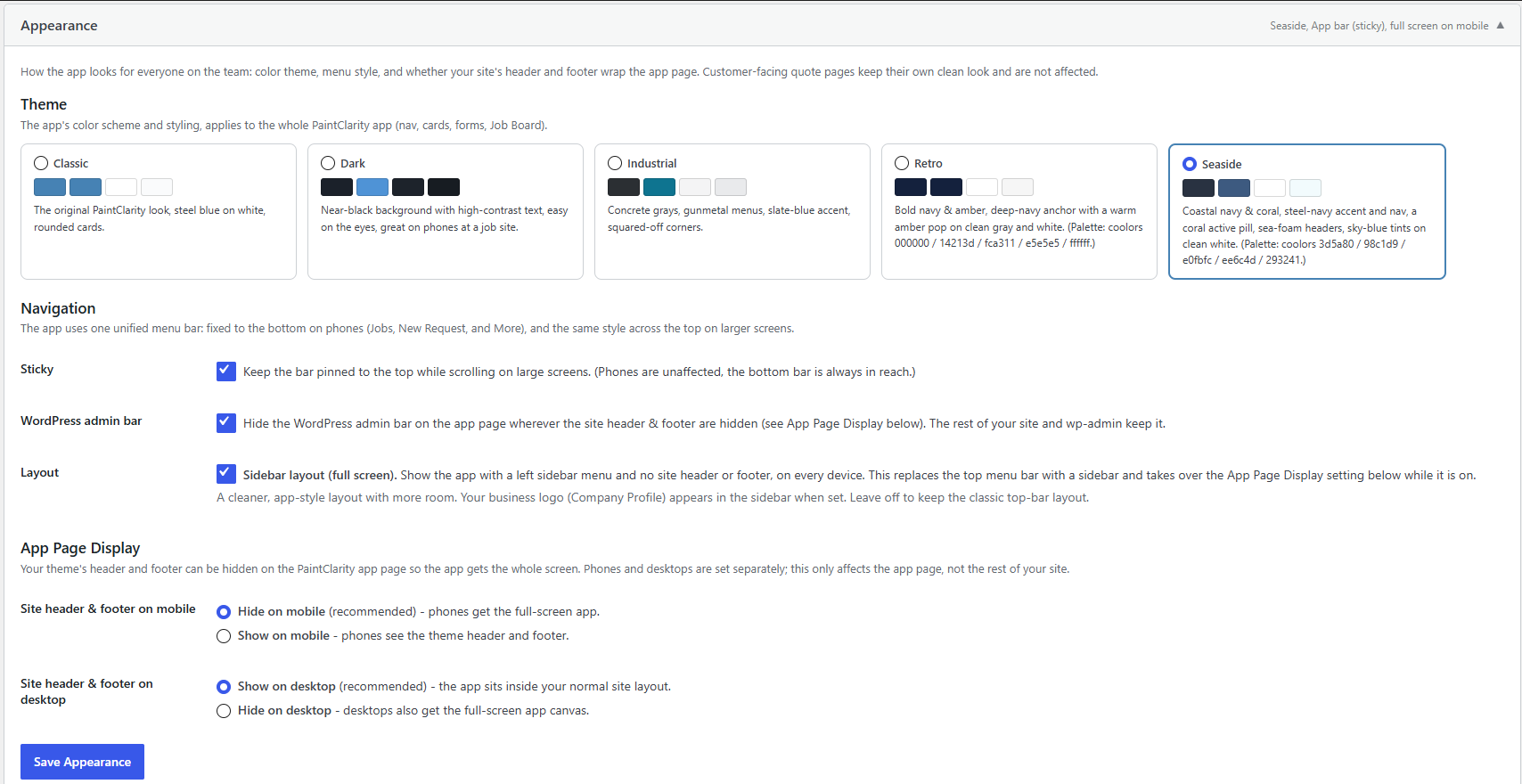

Installation
- Install PaintClarity from the Plugins screen (Plugins Add New search “PaintClarity”), or upload the plugin ZIP under Plugins Add New Upload Plugin. Activate it.
- Create a WordPress Page and add the shortcode
[paintops_app]. This one page is your whole PaintClarity app; it routes internally. - Go to PaintClarity Settings and set your Company Profile (business name, logo, country, currency), and review the Setup Health panel.
- (Optional) Add team members under PaintClarity Painters/Helpers, set their permissions, and group them into Crews.
- (Optional) Add your Quote Terms & Conditions under Business Settings so customers see and sign against them.
- (Optional, Pro) Under Settings AI Settings connect OpenAI, under Stripe Payments add your Stripe secret key AND webhook signing secret (both are required before online payment buttons appear), and add a Google Maps API key for address autocomplete.
FAQ
-
Do I need a paid account to use it?
-
No. The free plugin runs entirely on your own WordPress site and lets you quote, schedule, and manage unlimited jobs. Pro is an optional upgrade.
-
What happens to my data if I deactivate or delete the plugin?
-
Nothing is deleted. Your jobs, quotes, customers, payments, hours, and photos stay in your WordPress database, so nothing is lost if you deactivate temporarily or reinstall later. If you truly want the data gone, delete the plugin’s tables and its uploads from your database and media library.
-
Does it work without OpenAI, Stripe, or Google Maps?
-
Yes. Those are optional integrations. If you don’t enter their keys, the related features simply stay off and everything else works, including keyless turn-by-turn directions for your crew.
-
Can my customers really sign a quote online?
-
They accept by typing their full name, which is stored with a timestamp and IP address alongside your Terms & Conditions, a solid acceptance record. They can also decline with a reason, and change their minds later.
-
Who pays for the AI usage?
-
You do, through your own OpenAI account and key, typically a fraction of a cent to a few cents per action. PaintClarity adds per-month usage caps you control so costs stay predictable.
-
Can my painters log in without seeing my numbers?
-
Yes. Painters/Helpers get a dedicated role with opt-in permissions and their own app view: My Jobs, My Hours (their own time and pay only), directions, check-in/out, photos and receipts. Financial figures are owner-level and hidden from workers unless you explicitly grant access.
-
Does it work in the field with bad reception?
-
The app installs to a phone’s home screen, and Time Clock check-in/out keeps working offline and syncs when a connection returns.
-
Where is my data stored?
-
In your own WordPress database. PaintClarity doesn’t host your business data on an external server.
Reviews
There are no reviews for this plugin.
Contributors & Developers
“PaintClarity” is open source software. The following people have contributed to this plugin.
Contributors

Translate “PaintClarity” into your language.
Interested in development?
Browse the code, check out the SVN repository, or subscribe to the development log by RSS.
Changelog
1.2.066
- Fixed: on the Quote Request Form settings, a browser’s password manager could fill the Cloudflare Turnstile fields with your WordPress username and password when you pressed Save, because a text field followed by a password field looks like a login form. The widget then failed on every visit and every real request was filed under Spam without a word. Secret fields across the plugin (Turnstile, Stripe, OpenAI) are now masked text fields that password managers leave alone, and a Turnstile key that is not a key is refused at save with a message naming the field.
- Fixed: a Turnstile widget that cannot complete no longer fails silently. Two requests in a row arriving without a Turnstile token put a warning at the top of Leads and on the settings page, saying what usually causes it and how to turn Turnstile off; administrators viewing the form also see a note under the widget when Cloudflare reports it did not load. A saved key that is not a Turnstile key is called out the same way.
- Improved: the quote form’s validation messages are plain: “Some fields are missing or need a correction” and “First name is required”, instead of “A few fields need a moment”.
- Improved: the City, State and Zip fields on the quote form no longer show example values.
- Improved: notices and banners across the app lose their thick left accent bar and keep an ordinary border (the same rule that took the top rule off the stat tiles).
1.2.064
- New: Message History is now Customer History. One timeline per job, newest first: the quote request, the quote going out, opened, signed or declined, invoices raised, sent and paid, every payment and refund, the job finishing, and every call, text, email and note in between, with a funnel strip across the top that shows which stage the customer has reached and what has not happened yet. Same page, same link.
- New: painters can reach the office from a job. Call, Text and Email pills to the company phone and email on the painter’s job page and Customer History, with the job already named, logged as “Called the office”. A contact a painter records from the field is now emailed to the office, which the form always said and never did.
- New: the AI Visualizer can save a render when it was opened without a job: pick the job from a list. When it was opened from a job, the job’s actions bar sits above the tabs so the rest of the job is one tap away.
- Improved: the AI Visualizer no longer comes back cropped or reframed. The model only draws on three fixed canvases, so a phone photo was being recomposed to fill one; the photo is now placed on the right canvas with flat bars, the model paints it as-is, and the bars are trimmed off the result, so the render has exactly the photo’s own edges. The model is also told not to write any text, labels or swatches into the picture, and to keep each wall one uniform color from floor to ceiling, after real renders came back with a caption strip and a lighter band under the ceiling.
- Improved: the AI Visualizer’s result bar is Download and Save; the original photo already sits beside the result, so Hold to compare and Render again are gone, replaced by a note on how to re-render. While a render is in flight the result box itself shows Rendering with a spinner and the status, so the wait is visible without looking down at the Render button.
- Improved: the standard mileage rate is per tax year (2025 = 70 cents, 2026 = 72.5 cents built in), each trip is valued at the rate of the year it was driven, and typing this year’s rate no longer restates last year’s report.
- Improved: outside the US the vehicle and vendor screens stop talking about the IRS, 1099s and miles: a Canadian company sees CRA, T4A and kilometres, a British one HMRC and miles, and Colour is spelled the local way.
- Improved: the calendar feed has an option to leave customer names, street addresses and phone numbers out, for a calendar the whole crew can see.
- Improved: deleting a job that carries payments or paid invoices now says how much money leaves the books before you confirm.
- Fixed: a fourth real quote request from the same address inside the window no longer lands in Spam because bot submissions were being counted toward the cap.
- Fixed: the card processing fee and its sentence on the quote only apply where a card can actually be taken online; Free and Pro-without-Stripe sites no longer disclose a fee nobody can pay. The card fee and 1099 settings are Pro-only on the settings page.
- Fixed: Job Pulse honours the licence, so a lapsed Pro build locks it with the rest.
- Fixed: Profits no longer counts a job moved to Not Won, or a job whose start date is still ahead, as the year’s revenue; the Profit per Hour denominator follows the same rule.
- Fixed: the review request greets the customer by first name; {customer_full_name} is available for the body.
- Fixed: PHP notices on document upload, on CSV import under PHP 8.4, and when the Email Quote page is opened with a stale id (it now says the quote was not found).
- Fixed: the AI Visualizer’s monthly cap message named the wrong feature, the renders-used line did not move until a reload, and the void-invoice prompt now says the reason is shown to the customer.
- New: Hours on the Free plan. Every job has an Hours page (staff only): one row per person per day with a note, each row removable on its own. Hours logged on Free feed Profit per Hour and the labor lines the moment Pro is turned on, because they go in the same table with the worker’s rate stamped at save. On Pro the Hours action still opens the Financials hours editor.
- New: quotes carry cents. A quote total, its tax and an accepted upsell are stored to the cent instead of being rounded to whole dollars, so a $1,847.50 itemized quote no longer reads $1,848 on the customer’s page and the invoice. Existing figures are untouched; the columns are widened on upgrade.
- New: a printable letterhead on the quote. The company name, address, phone and email print across the top of the customer’s quote and the printable version, only the lines you have filled in.
- New: a subcontractor pay run on the Business page. Pick a through date and the date you paid, and every unpaid subcontractor hour up to that date is stamped with the pay date. The year report and the vendor report then follow the money: labor counts in the year it was paid (cash basis, what the 1099 or T4A asks for), with hours that have no pay date yet shown by work date and called out as such.
- New: payee details per vendor and subcontractor (legal name, entity type, address, last four of the tax id, how they are paid) on the Business page, carried onto the vendor report and its CSV, so the January forms can be filled from one screen.
- Improved: money on the dashboards drops the “.00” (a $1,800 job reads $1,800, a $1,847.50 one keeps its cents) on the Profits tiles, the rankings cards, the Financials summary and the Waiting on payment drawer. Lists, invoices and anything a customer sees keep two decimals.
- Improved: one date format everywhere. Every date the app shows follows the site’s Settings > General date and time format instead of three different built-in styles.
- Improved: the dark theme covers the classic layout as well as the app shell, and the app area on a classic page sits in its own panel so the theme does not bleed into the rest of the site.
- Improved: an expired quote or invoice link counts its privacy window from the last time the document was sent, not from the day it was created, so “send it again” makes the link work again. The expired page says so.
- Improved: the year report splits “Labor, employees” from “Contract labor” and adds a “tax collected, by rate” table on a cash basis, next to the accrual “Tax Billed” tile, with a note saying which is which.
- Improved: the browser tab is titled after the screen (“Customer History #10, Acme Painting”) instead of the page name, on every layout.
- Improved: a painter adding a receipt sees the amount of their own earlier receipts on the job and not a colleague’s.
- Improved: on an iPhone the install hint says where Add to Home Screen lives, and going offline no longer stacks a second banner on top of the first.
- Fixed: the job-start reminder read “begins tomorrow, the 30th at .” when the job had no start time.
- Fixed: a stray table cell on the vehicle settings page.
- Fixed: the data export now includes a painters CSV, and the quote and invoice files no longer carry the customers’ public link tokens.
- Fixed: two upgrade steps read a column’s type through information_schema, which answers nothing on some MySQL 8 hosts, so the step was skipped there without a word: the photo attachment column could stay NOT NULL (every AI render save would then fail), and this version’s quote-cents widening would not have run. Both now read the type with SHOW COLUMNS, the same way the rest of the upgrader does.
1.2.063
- Fixed: on a site that installed PaintClarity fresh from 1.2.059 on, business expenses and vehicle trips were reported as saved and were not. Two of the plugin’s tables were never created because a note inside their definition contained a semicolon. The tables are created on upgrade, and a save that fails now says so instead of showing a green notice.
- Fixed: an invoice raised for the remaining balance was shown to the customer with the job’s earlier payments subtracted a second time, so a $2,493 invoice after a $1,000 deposit read “Balance Due $1,493.00” and the online payment charged that. An invoice now remembers what had been paid when it was raised, and only money received after that reduces it. A second invoice on a job keeps its own amount after the first one is paid.
- Fixed: editing a job and saving without touching the tax box could quietly move it to today’s default rate when the rate it was stamped with had been changed or retired, which restated a quote that was already out. A stamped job keeps its rate unless you pick a different one; the form now shows a rate that is no longer offered and says so.
- Fixed: a painter given “view financials” could open the Business page, the Checkup, the Expenses page, the year-end reports and any job’s profit coversheet, including the hourly rates of the whole crew. That permission now covers the painter’s own jobs only; the office pages and reports are for staff.
- Fixed: a check-in or check-out saved on the phone while out of signal could be dropped without a word if the app had been open more than a day. Saved punches are now kept until they send, the app fetches a fresh key before sending, and it tells the painter when something is still waiting.
- Fixed: when a customer signed a quote and the online deposit could not start, they were shown a technical error and the same form again while their signature and any add-on they ticked were already recorded. The acceptance is now completed the same way an offline acceptance is, the customer is thanked and told you will arrange the deposit, and your email says what went wrong on the Stripe side.
- Fixed: the itemized quote a customer signs listed an accepted add-on twice, once at its price and once at your internal cost. The cost line stays in your own costing and never prints for the customer.
- Invoices now state the tax included, the rate, and the amount before tax, matching the quote to the cent.
- The public quote says how the deposit is paid when it is not collected online, and the deposit percentage prints as the tier you set (35%) rather than a recomputed 34.98%.
- The invoice email only promises “pay online” when the page will have a Pay button, and it goes out from your company address like the quote does.
- A customer opening, signing, or declining a quote, and a deposit paid online, now appear in the job’s Message History.
- Every customer-facing dead end (an expired quote, a link that no longer works, a decline) now shows your company name, phone and email.
- Checkup’s “Create invoice” link opens the job’s Financials invoices, not “Invoice not found”.
- Creating a request no longer leaves the form filled in under the success message, which made a second click create a duplicate.
- A painter’s home screen lists a multi-day job under Today for every day it runs, not under Needs attention from day two.
- Checking in on a job while still checked in on another now checks you out of the first one at that moment and says so, instead of paying both.
- The before/after comparison slider had its labels the wrong way round; Before is on the left.
- The mileage rate accepts half cents (the IRS rate for 2026 is 72.5 cents) and the settings text says which year is which.
- Imported quotes that carry a tax figure now stamp the job with the rate that figure implies, so Financials and the quote agree.
- New (Pro): AI Visualizer, a second tab on the Visualizer. Upload or take a photo, pick colors by brand and name from the Sherwin-Williams and Benjamin Moore books, add notes like “paint the stone wall too, in Alabaster”, and get back a repainted photo to show the customer. Uses your own OpenAI key (Settings > AI, with a new image model, quality and monthly cap). Renders can be saved to the job’s photos. The Manual tab is unchanged and still runs entirely in your browser.
- The AI Visualizer answers the browser as soon as the render is handed to OpenAI and then checks back for the result, so a web host or proxy that cuts off long requests no longer ends a render with “did not come back”. Settings > AI shows a record of the last render, including one the host stopped.
- The primary figure on stat tiles (Profit, Request Acceptance Rate) no longer carries a blue rule across its top; every tile is the same plain card.
- The More Actions tile on a job keeps its name while open (the chevron shows the state); the longer “Hide” label used to wrap and stretch every tile beside it. Same on the quote and invoice views.
- The remove button on an AI Visualizer color row has a proper touch target and breathing room from the card edge.
- AI Visualizer renders ask OpenAI for its less restrictive image filter and describe the photo as a building for a painting estimate, after the default filter rejected an ordinary house front as unsafe. A rejection that still happens explains itself and says what to try.
- Housekeeping: the database schema and the default content data moved out of the main plugin file into includes, keeping it well inside the size limit that produced a broken Pro update in 1.2.019. No behavior change.
1.2.060
- New: bring your customers in from a spreadsheet. Settings > Import takes a CSV out of your old system, a phone’s contact export or a list you typed yourself. It shows you exactly what it read before anything is saved, and tells you which rows it would skip and why. Nothing is written until you press the button on the second screen.
- The import matches on email first, then on phone number, then on an exact name. A row that could be two different customers you already have is skipped and listed for you, never merged on a guess. If the result is not what you wanted, Undo removes only the records that import created and leaves everything else alone.
- New: bring in past jobs and quotes as well, on the same screen. Old records and a new system rarely line up, so you say what you are loading: finished history, which lands as completed work, or open work you are still chasing. A job whose customer is not on file yet gets that customer created along with it.
- A fresh install can start over. “Delete all data and import” clears what PaintClarity holds and loads the file cleanly, which is what you want the second time you try an export you have since fixed. “Merge with existing records” is the default and never deletes anything.
- Fixed: a customer who paid you more than the billable amount looked exactly like a customer who had paid to the penny. A $400 job settled with $480 now says “Overpaid by $80.00” on the job and on the Financials screen, with a one-click “Set Billable to $480.00” for when the extra work was real and the number simply never got updated.
- Fixed: the Jobs page in row view showed a job as settled up while the same job in board view showed money still outstanding. Both now read one rule, and so does the Financials screen, which could say nobody owed you anything while an invoice was open.
- Jobs you have marked to leave out of reports are now left out of the Checkup warnings and the quote statistics too, not just the money totals. A practice job should not be chasing you.
- New: invoice history. An invoice is no longer something that quietly changes under the customer. You can cancel one with a short note saying why, and a customer who opens an older link is told it was cancelled and shown the replacement instead of a dead page.
- Changing a job’s billable amount now looks for invoices already out and asks what you want to do about them, rather than leaving the customer holding a number you no longer agree with. Reissue at the new amount, leave it as it is, or put the billable amount back the way it was.
- Fixed: invoice numbers on a job could repeat after a deletion, so two different invoices could go out carrying the same number.
- Fixed: the web address on a quote you text or email carried an old name. New quote links read paintclarity. Every link you have already sent still works.
- Hours and Invoices are now in the More Actions menu on a job, and each one opens straight to that section instead of dropping you at the top of the Financials screen.
- The job actions menu is now in the same order everywhere: the Jobs page in either view, the job search, and the job itself. It used to be three menus that almost agreed.
- Fixed: the More Actions menu on a job pushed the page down as it opened, so whatever you were aiming at moved out from under you.
1.2.059
- New: a quote request form for your own website. Paste one shortcode onto your contact page and a homeowner asking for a quote becomes a record you can work, instead of an email you have to remember to answer. Stacked or side by side, so it fits a contact page or a narrow strip off a menu.
- Requests arrive as Leads, and the new ones sit at the top of your Jobs page where you cannot miss them. There is a Leads screen too, with everything you have received: new, converted, dismissed and junk.
- Convert to Request turns a lead into a real request with the customer attached and the form already filled in. If the person already looks like a customer you have, PaintClarity shows you the two records side by side and asks whether it is the same person before it links them. Nothing is saved until you create the request, so you can back out at any point.
- You choose what the form asks for. Email, phone, property address, type of work and how they prefer to be reached can each be required, optional or left off, and you can add up to six questions of your own.
- Junk requests are flagged and kept, never thrown away. Four checks run on every submission, and not one of them can lose you a real customer: anything they catch goes to your Spam list where you can put it back. Flagged requests older than 30 days are deleted, which you can change or switch off.
- The form uses your own country’s wording. A Canadian shop asks for a Province and a Postal Code, a UK shop for a County and a Postcode, the same as the New Request form already does.
- Fixed: a customer who gave you their phone number one way and later another way could end up with two records. “941-555-1234” and “(941) 555-1234” are now recognized as the same number.
- Fixed: a customer’s state or region was limited to two letters, which is fine for the United States and cut “Greater London” down to “Gr” everywhere else.
- Quote requests are covered by the privacy tools like everything else. They are included when you export what you hold about a customer, and deleted when you erase it.
- You choose how you hear about a new request: an email as each one arrives, one summary a day, or nothing at all. As each one arrives is the default, because calling a homeowner back the same day is most of what wins the job. The once-a-day summary is there for a shop that would rather read them together, and for a web host that limits how much mail a site may send. A summary is only sent on a day that actually had requests.
- Requests are never paused, only the emails about them. There is now a daily ceiling as well as the hourly one, so a form being hit all day cannot spend your host’s whole mail allowance.
- Renamed on the Checkup screen: “Leads going cold” and “Leads with no quote yet” are now “Requests going cold” and “Requests with no quote yet”, so Leads means one thing across the app.
1.2.058
- Receipts are now stored privately. Every receipt photo used to sit in your WordPress media library, which means it had a web address that worked for anyone who had it, signed in or not. Receipts now live in a protected folder and open only for someone signed in with permission to see them. This applies to job receipts, overhead receipts and vehicle receipts alike.
- If you already have receipts in the media library, PaintClarity does not move them behind your back. A card on the Checkup screen tells you how many are waiting and moves them in batches when you press the button. You can stop after any batch and carry on later; receipts keep working the whole time, moved or not. The card disappears when there is nothing left to move.
- New: supporting documents on any receipt. A receipt often does not explain itself, so you can attach the extra paperwork that does: the itemized order page behind a reference-number receipt, a card statement line, a warranty. Photos and PDFs both work, each with an optional label saying what it shows. Stored in the same protected folder as the receipts themselves.
- New: a duplicate check when you save a receipt. If the same purchase already looks to be on the books, the save stops and shows you what it matched, with a tick to save it anyway if it really is separate. It matches on the same date and amount whatever the vendor name says, and on the same vendor and amount within three days, because store receipts get entered late.
- The duplicate check looks across job receipts, overhead and the vehicle log together. Filing the same receipt once against a job and once as overhead is the expensive version of the mistake, because it inflates that job’s cost and the year’s deductions at the same time, and neither screen would ever have shown you the other.
- A painter is only ever told about their own receipts. The check reads only what the person saving is allowed to see, so it can never describe an expense they could not have opened themselves.
- Fixed: a receipt form that stopped you with a warning used to fold itself away behind the “Scan Receipt with AI / Manually Enter” buttons, hiding both the details you had typed and the box you needed to tick. This affected the existing fuel warning too, on all three receipt forms.
- Fixed: font sizes on a quote were inconsistent. Several blocks rendered two sizes larger than the rest of the document. Terms and conditions stay smaller, as intended.
- PDF receipts now print with the rest of the report on the Vehicle report and the job coversheet, not just the Business report.
1.2.057
- New Production Rates page, under Tools in the menu as “Rates”. It works out how much area one painter covers in one day from the jobs you have already finished: your logged hours and the paintable area on each job. The headline is your own figure, with a breakdown per job category beside it, and the rate you quote from underneath so you can see the two next to each other.
- Every finished job in the window is listed, not just the ones that can be scored. A job with no paintable area recorded shows an “Add area” link instead of a rate, so it is obvious what is missing rather than quietly absent. You can look at the last 5, 10, 20 or 50 completed jobs.
- A job whose numbers look impossible, under 25 or over 2,000 sq ft per painter per day, is set aside in its own section with the reason explained, and is not counted. Usually it means an area was typed with a digit too many, or hours have not been logged yet.
- You have the last word on any job. “Count it anyway” puts an unusual but real job back in, “Leave out” takes a job out, and either can be undone. Four sprayers in a warehouse really do move that fast, and PaintClarity should not argue with you about it.
- New Production rate setting under Business > Pricing Rules, with an optional override per job category under Job Categories. The Labor Days & Crew Cost Calculator now starts from that figure and tells you which one it used and where to change it, instead of a general number out of a book.
- New Paintable Area field on the job form, and the Paint Calculator can save its own result straight onto the job with one click, which is what feeds the rates above. The calculator now confirms the save instead of leaving you wondering whether the click landed.
- Fixed: on a site set to metric units, the Paintable Area field could refuse to let the job form save at all.
1.2.056
- New installs now start with the calculators that suit each job category instead of just one. Residential Painting opens a quote with the Paint Calculator, the Paint Quantity Calculator and the Cabinet & Trim Calculator; Commercial Painting gets Paint, Paint Quantity and Labor Days. The category screen has allowed several calculators for a while, but every category still shipped naming only one, so four of the five sat unused in settings where nobody looks.
- The Fence and Handyman category templates were shipping with no calculator at all. Fence now comes with the Deck/Fence Staining Calculator it was built for, and Handyman with the Labor Days & Crew Cost Calculator.
- If you have already set your own calculators, nothing changes. Your selections are left exactly as you made them.
1.2.055
- Fixed five links in the app that pointed at pages which no longer exist. The Help Center button on the Help page, the “how do I do a full backup” link on the Business page, the plugin author link, and two of the starter links on the Resources page (the PaintClarity Software Tutorial and Getting the Most out of PaintClarity) were all still using addresses from before the plugin was renamed, so each one landed on a “page not found”.
- If your Resources page already has those two starter links, they are corrected for you on update. A link you edited or replaced yourself is left alone.
1.2.054
- Export Personal Data now includes everything it should: the state or region on the address, the inclusions and exclusions, the itemized lines as the customer saw them on their quote, the reason they gave if they declined, and when and how many times they opened their quote link.
- Erase Personal Data now clears the state on the customer record and on every job, and the reason the customer gave for declining. Those were being left behind.
- Erasing now also tells you if scope or internal notes on the customer’s jobs were kept, since free text can name someone anywhere inside it and no automated pass can tell.
= 1.2.053 …