
Description
Connect your WooCommerce store to KeyCRM and stop copying products, stock and orders by hand. Completely free — no paid version, no limits on products or orders.
What is synced
- Products and variations KeyCRM. Name, description, price, SKU, barcode, weight and dimensions, up to 6 images, currency and category. Variations become KeyCRM variants with their attributes (e.g. Color: Red). Only changed products are sent again.
- Categories KeyCRM, created together with their parent categories; existing KeyCRM categories with the same name are reused.
- Stock. WooCommerce owns stock by default: every sale, refund, cancellation or manual edit is sent to your KeyCRM warehouse within seconds. Or let KeyCRM own stock and import it every 15 minutes.
- Orders KeyCRM when they reach the status you choose (Processing by default): customer, shipping address, items, discount, shipping cost, customer note and payment. Existing orders can be sent in bulk, filtered by status. An order is never sent twice.
- Order statuses both ways using two mapping tables (WooCommerce KeyCRM immediately, KeyCRM WooCommerce every 5 minutes).
- Tracking numbers added in KeyCRM are copied to the WooCommerce order as a note to the customer.
Safe bulk tools
- Every bulk sync starts with a dry run that shows how many items will be created, sent, left unchanged or skipped — before anything is sent.
- Progress bar with live counters, errors and a Stop button. Syncs continue in the background if you close the page.
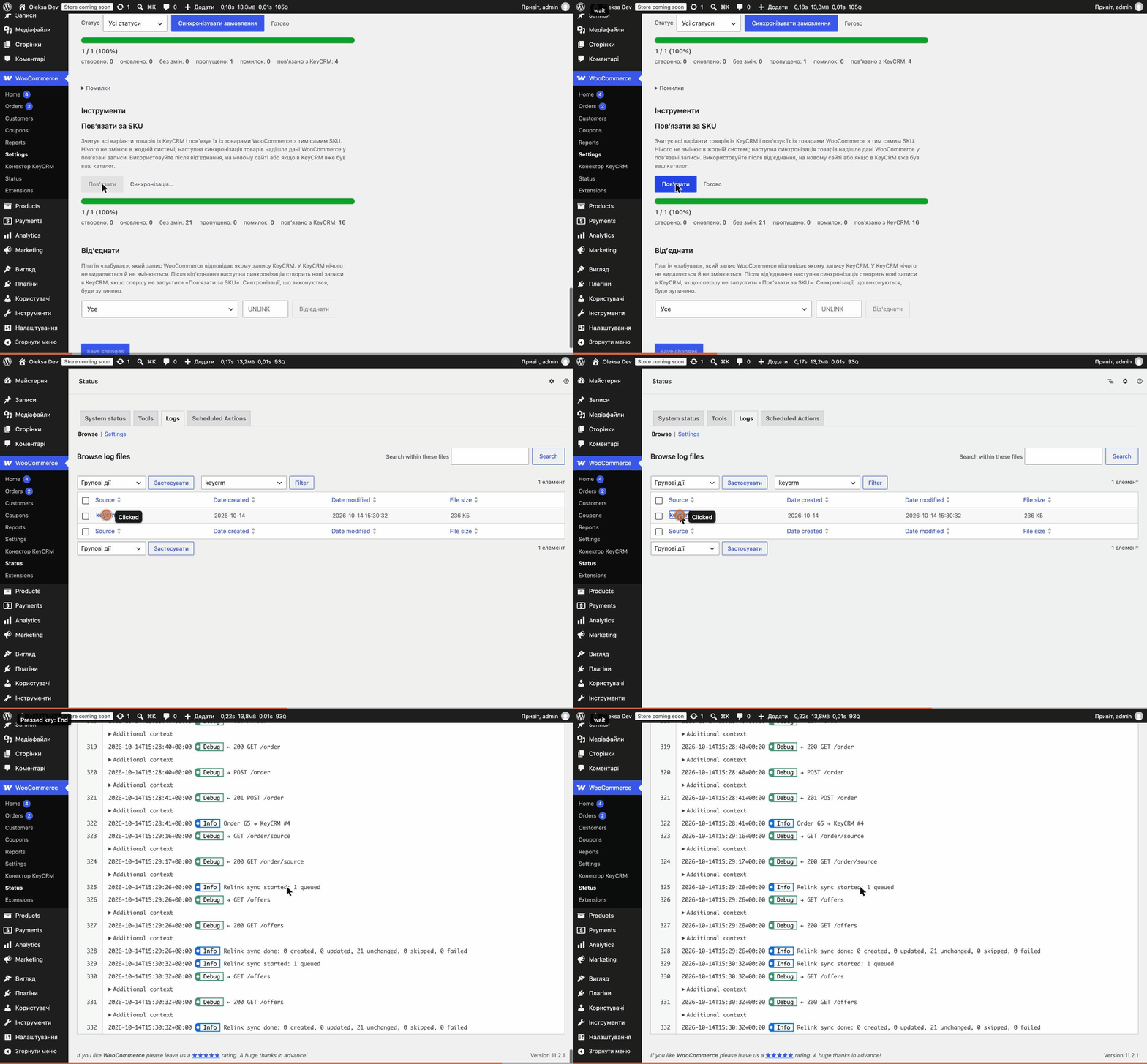
- Relink by SKU links products that already exist in KeyCRM, so nothing is duplicated. Unlink lets you start over. Nothing is ever deleted in KeyCRM.
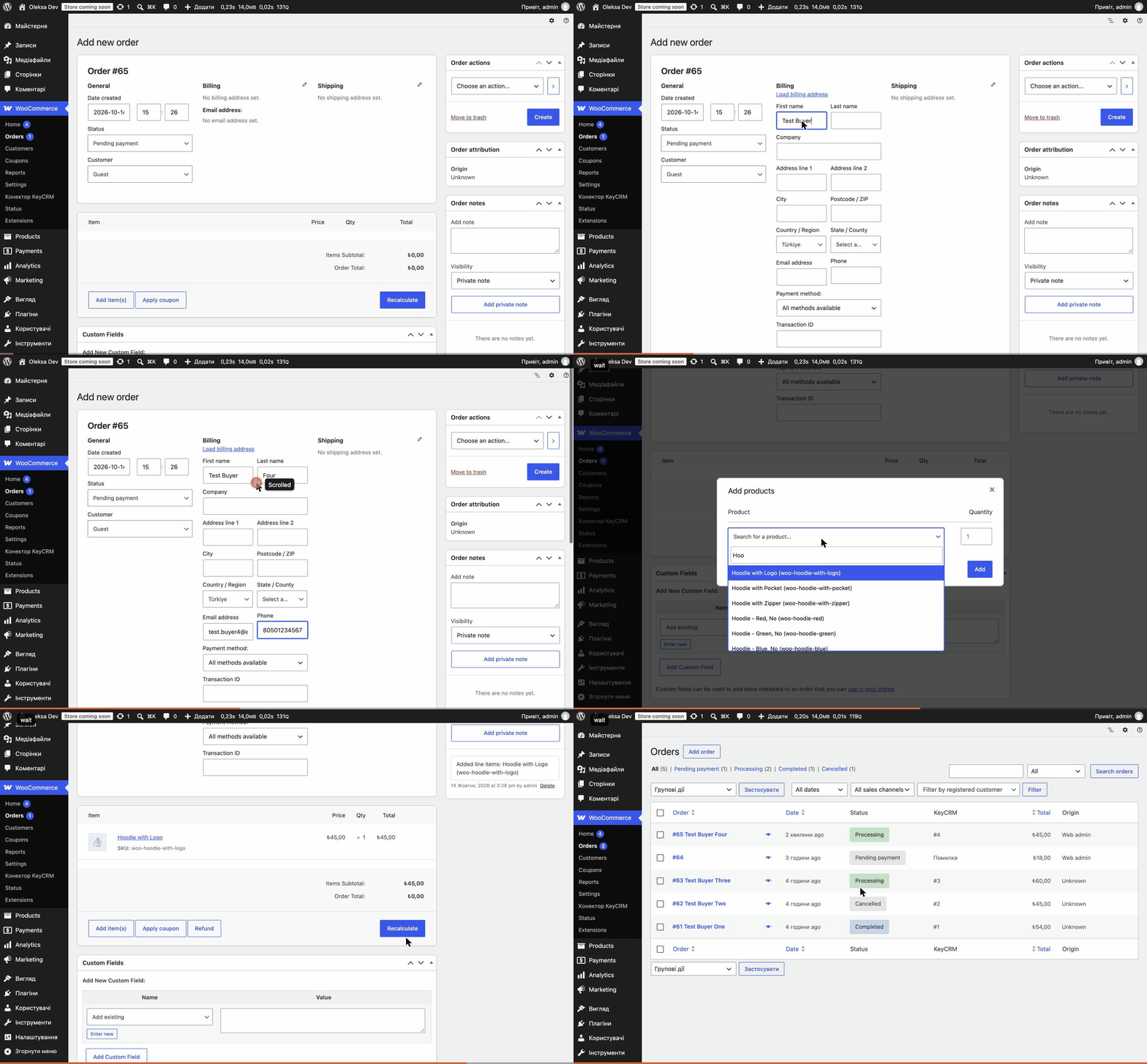
- “Send to KeyCRM” bulk action on the Products and Orders lists, a row link under each product, and a KeyCRM column on the Orders list showing the KeyCRM order number or why an order wasn’t sent.
Built for real stores
- Runs in the background with Action Scheduler — checkout never waits for KeyCRM, and failed requests are retried.
- Respects KeyCRM’s limit of 20 API requests per minute and uses KeyCRM’s batch endpoints for stock and variants.
- Compatible with High-Performance Order Storage (HPOS) and the block checkout.
- WooCommerce is the source of truth for the catalog, so there are no sync loops or conflicting edits.
- Built-in guide (WooCommerce KeyCRM Connector) with step-by-step setup, a live system status check and troubleshooting.
- Ukrainian translation included — used automatically when the admin language is Ukrainian or Russian.
- WP-CLI commands for large stores and cron jobs:
wp kcwc preview,products-sync,stock-push,orders-sync,statuses-pull,relink,unlink.
Requirements
- A KeyCRM account where you can create an API key (Settings General).
- A unique SKU on every product and variation — products, variants, stock and order lines are matched by SKU.
- A publicly reachable site for product images (KeyCRM downloads them).
Good to know (KeyCRM API limits)
- KeyCRM has no webhooks: changes made in KeyCRM reach WooCommerce on the next check (every 5 minutes for statuses, 15 for stock when KeyCRM owns it).
- The KeyCRM API cannot delete products, categories or orders, rename or move categories, or change a variant’s attributes — do that in KeyCRM by hand.
This plugin is not affiliated with or endorsed by KeyCRM or WooCommerce. Source code and issue tracker: GitHub.
External services
This plugin connects to the KeyCRM API (https://openapi.keycrm.app), the CRM service you connect your store to. It is required for the plugin to work and is only contacted after you enter your own KeyCRM API key in the settings.
- Product data — name, description, SKU, barcode, prices, weight and dimensions, image URLs, category names — is sent when you run a product sync or, if enabled, when a product is saved.
- Stock quantities and SKUs are sent when stock changes or when you push stock (if WooCommerce owns stock). If KeyCRM owns stock, stock levels are read from KeyCRM every 15 minutes.
- Order data — order number and date, items with SKUs, quantities and prices, discount, shipping cost, customer name, email and phone, shipping address and recipient, customer note, payment method name, transaction ID and payment status — is sent when an order reaches the configured status, or when you send orders manually.
- Order status changes are sent when you change the status of an order that is in KeyCRM. If status sync is on, the status and tracking number of orders from your store are read from KeyCRM every 5 minutes.
- Your KeyCRM order sources, order statuses and product variants are read to fill the settings screen and to link products.
KeyCRM terms of use: https://ua.keycrm.app/terms-of-use
KeyCRM privacy policy: https://ua.keycrm.app/privacy-policy
Screenshots
Installation
- Install the plugin from Plugins Add New (or upload the zip) and activate it. WooCommerce must be active.
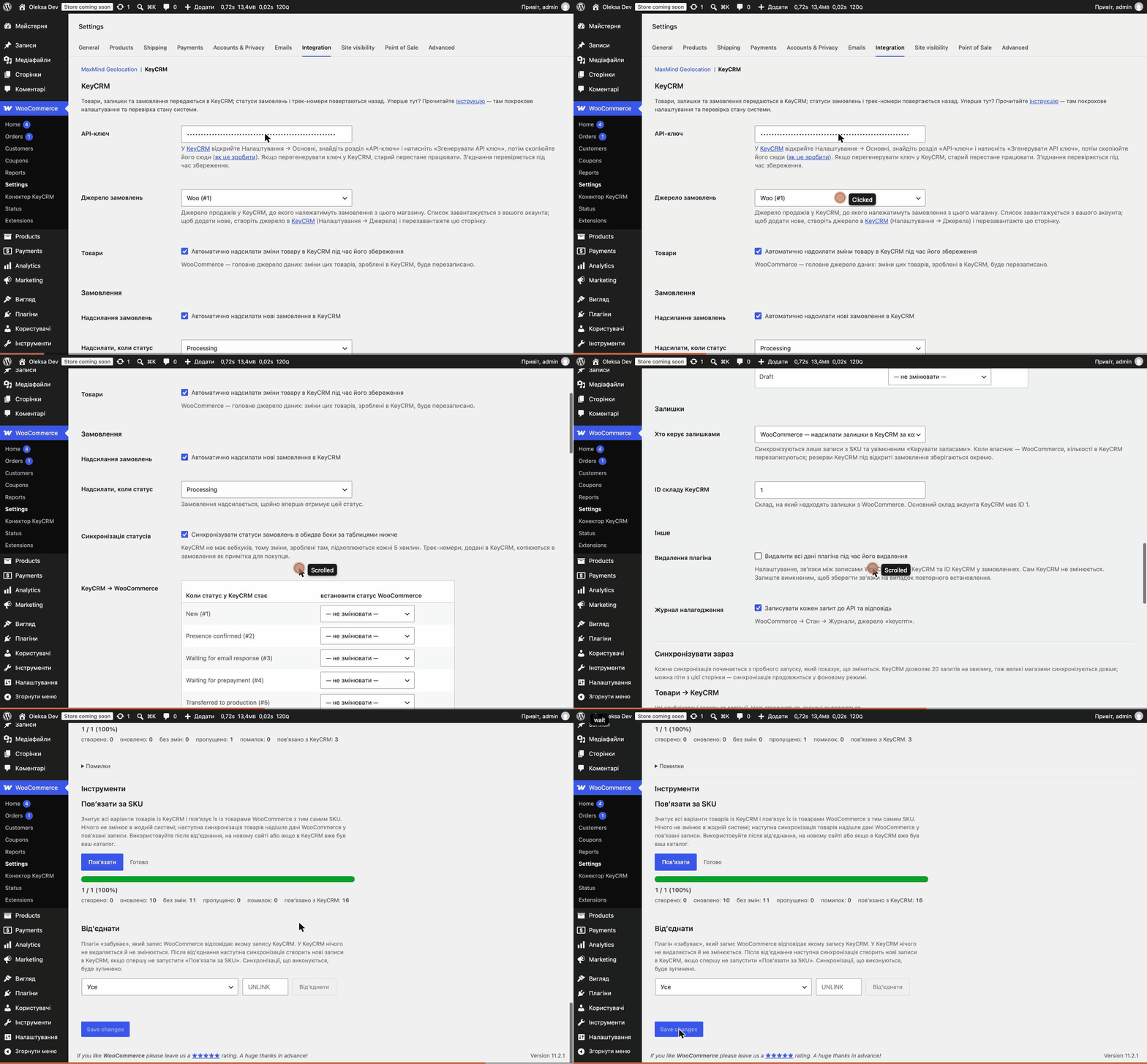
- Get an API key. In KeyCRM open Settings General, find “API key” and click “Generate API key”.
- Create an order source in KeyCRM, for example “Website”. Every KeyCRM order belongs to a source, and sources can’t be created through the API.
- Connect. In WordPress open WooCommerce Settings Integration KeyCRM, paste the key and click “Save changes”. You should see “KeyCRM: connection OK”.
- Choose the order source. Reload the page — the “Order source” field is now a list of your KeyCRM sources. Pick yours and save.
- Stock. Choose the stock owner (WooCommerce by default) and, if WooCommerce, the KeyCRM warehouse ID (the default warehouse is 1).
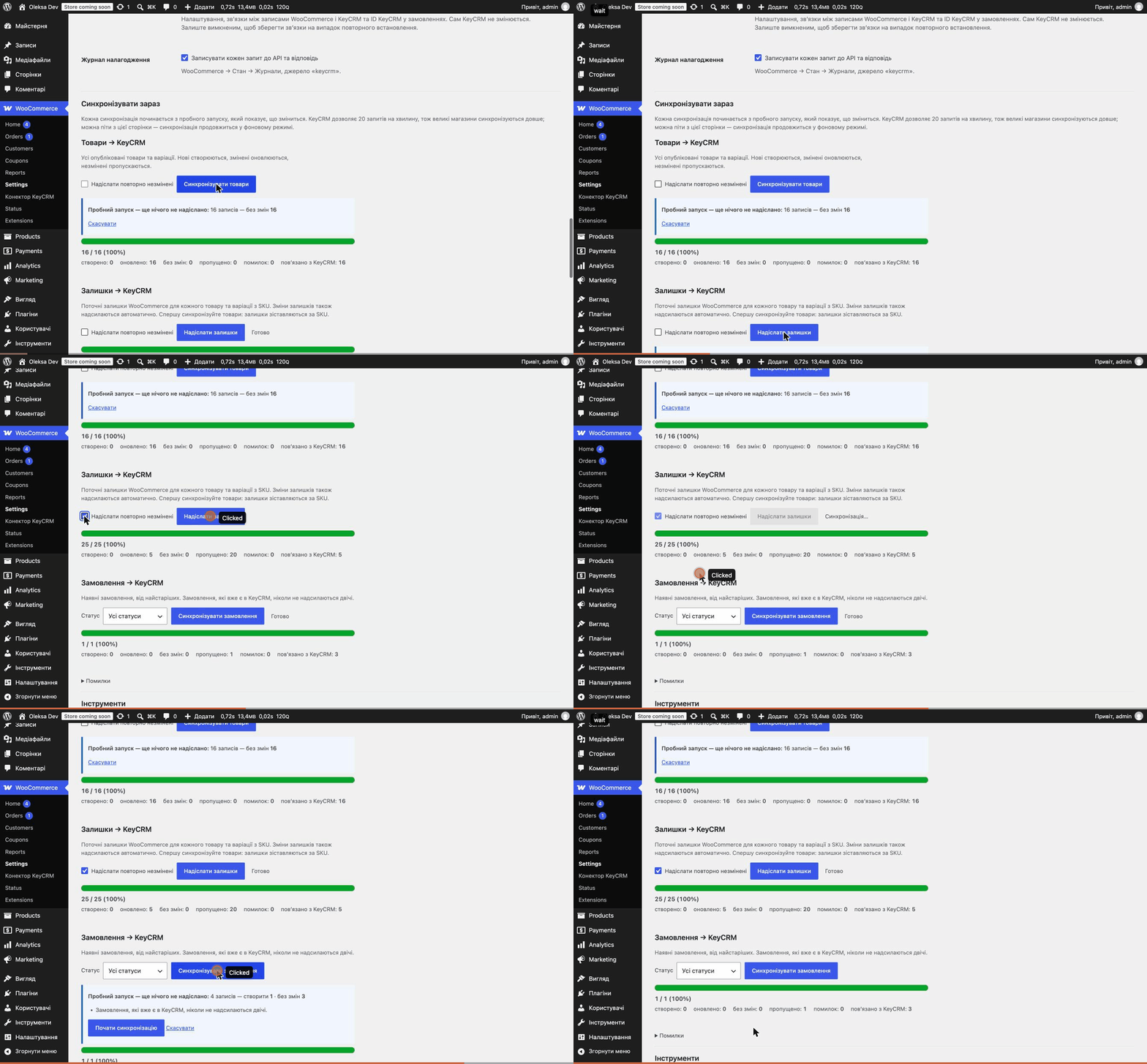
- Send products. Under “Sync now” click “Sync products”, review the dry run and click “Start sync”. If KeyCRM already has your catalog, run “Relink by SKU” (Tools) first.
- Send stock with “Push stock” (only if WooCommerce owns stock).
- Orders. Turn on “Send new orders to KeyCRM automatically”, check “Send when status is” and the two status mapping tables. Optionally send existing orders with “Sync orders”.
- Open WooCommerce KeyCRM Connector and check that every line of “System status” is green. The full guide is on the same page.
Tip: try it on a staging copy of your store and a test KeyCRM account first — KeyCRM’s API cannot delete products or orders, so test data has to be archived by hand.
FAQ
-
Is there a paid version?
-
No. The plugin is free and will stay free.
-
Do I need a paid KeyCRM plan?
-
You need a KeyCRM account with API access (an API key in Settings General). Check KeyCRM’s plans for availability.
-
My catalog is already in KeyCRM. Will products be duplicated?
-
No, if your products have SKUs. Run “Relink by SKU” first: it links WooCommerce products to the existing KeyCRM products without changing anything. New products are also matched by SKU before they are created.
-
Can an order be sent twice?
-
No. The KeyCRM order ID is stored on the order, and KeyCRM is checked by the WooCommerce order number before an order is created.
-
Why was an order skipped?
-
KeyCRM needs at least a customer name, email or phone, and at least one item. Hover over “Error” in the KeyCRM column of the Orders list to see the reason, fix the order and use “Send to KeyCRM” again.
-
How fast is it?
-
KeyCRM allows 20 requests per minute. The first product sync handles about 5–10 products per minute; later syncs only send changes. Stock is sent in batches of 500 items per request. Large syncs run in the background — you can close the page.
-
Can I change data in KeyCRM and have it come back to WooCommerce?
-
Order statuses and tracking numbers — yes. Product data — no: WooCommerce is the source of truth and the next sync overwrites product edits made in KeyCRM. Stock can come from KeyCRM if you choose KeyCRM as the stock owner.
-
Why does a status change in KeyCRM take a few minutes to appear?
-
KeyCRM has no webhooks, so the plugin checks for changed orders every 5 minutes.
-
Nothing happens until I open the settings page
-
Background jobs use WP-Cron, which runs on site visits. On low-traffic sites, or with DISABLE_WP_CRON, add a system cron job that calls wp-cron.php every minute. The system status on the guide page warns when jobs are late.
-
Does deleting a product or order in WooCommerce delete it in KeyCRM?
-
No. KeyCRM’s API cannot delete products, categories or orders, and the plugin never removes anything from KeyCRM.
-
Where are the logs?
-
WooCommerce Status Logs, source “keycrm”. Turn on “Debug log” in the settings to log every request and response.
-
What happens when I delete the plugin?
-
By default its data is kept, so a reinstall restores all links. Tick “Remove all plugin data when the plugin is deleted” to remove settings, links and KeyCRM IDs on orders. Your KeyCRM account is never changed.
-
Is it translated?
-
Yes, into Ukrainian (also shown when the admin language is Russian). Other languages can be added on translate.wordpress.org.
Reviews
There are no reviews for this plugin.
Contributors & Developers
“Oleksa Sync for KeyCRM” is open source software. The following people have contributed to this plugin.
Contributors
Translate “Oleksa Sync for KeyCRM” into your language.
Interested in development?
Browse the code, check out the SVN repository, or subscribe to the development log by RSS.
Changelog
1.0.0
First public release.
- Products, variations and categories KeyCRM, matched by SKU; only changed products are sent again; optional sending on product save.
- Stock: WooCommerce KeyCRM on every change (batched), or KeyCRM WooCommerce every 15 minutes.
- Orders KeyCRM automatically at a chosen status, or in bulk by status; never sent twice; orders KeyCRM would reject are skipped with a clear reason.
- Order statuses both ways with mapping tables; tracking numbers from KeyCRM as customer notes.
- Dry run before every bulk sync, progress bar with counters and Stop, “Resend unchanged items”, “Relink by SKU”, “Unlink”.
- “Send to KeyCRM” bulk and row actions, KeyCRM column on the Orders list.
- Built-in guide with system status and troubleshooting.
- Ukrainian translation (also used for the Russian admin language).
- WP-CLI commands.
- Optional removal of all plugin data on uninstall.
- Compatible with HPOS and the block checkout; PHP 8.1 – 8.4.