

Description
Every plugin wants your attention. Upgrade offers, license reminders, review requests and setup prompts pile up across the top of every admin screen and push the page you came for out of view.
NotiDrawer moves them out of the way:
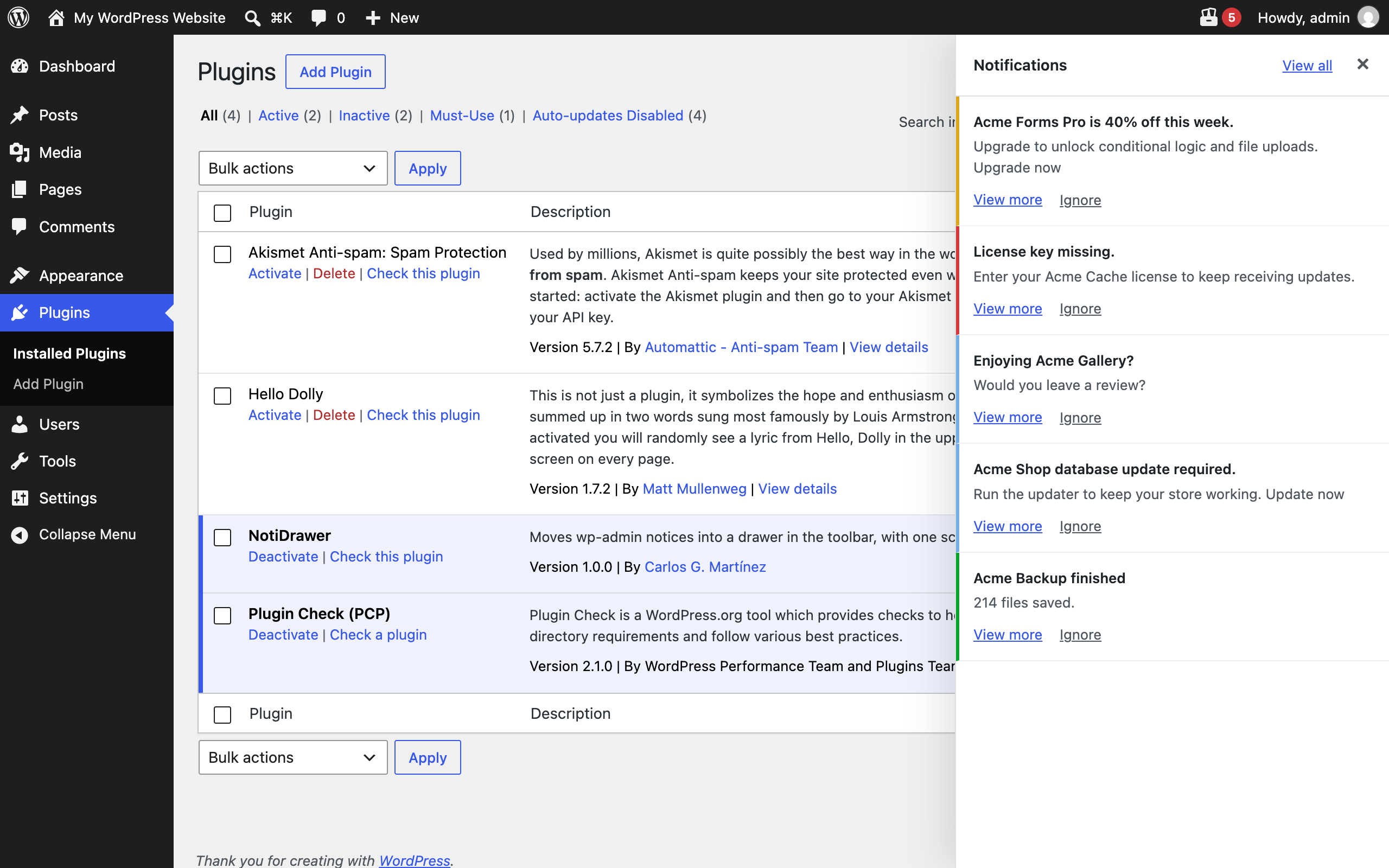
- A drawer icon in the toolbar fills with papers and shows how many notices are waiting. When there is nothing to review, it stays empty.
- Click it to open the drawer with a short summary of each notice: its title, a one-line summary, and two actions, View more and Ignore.
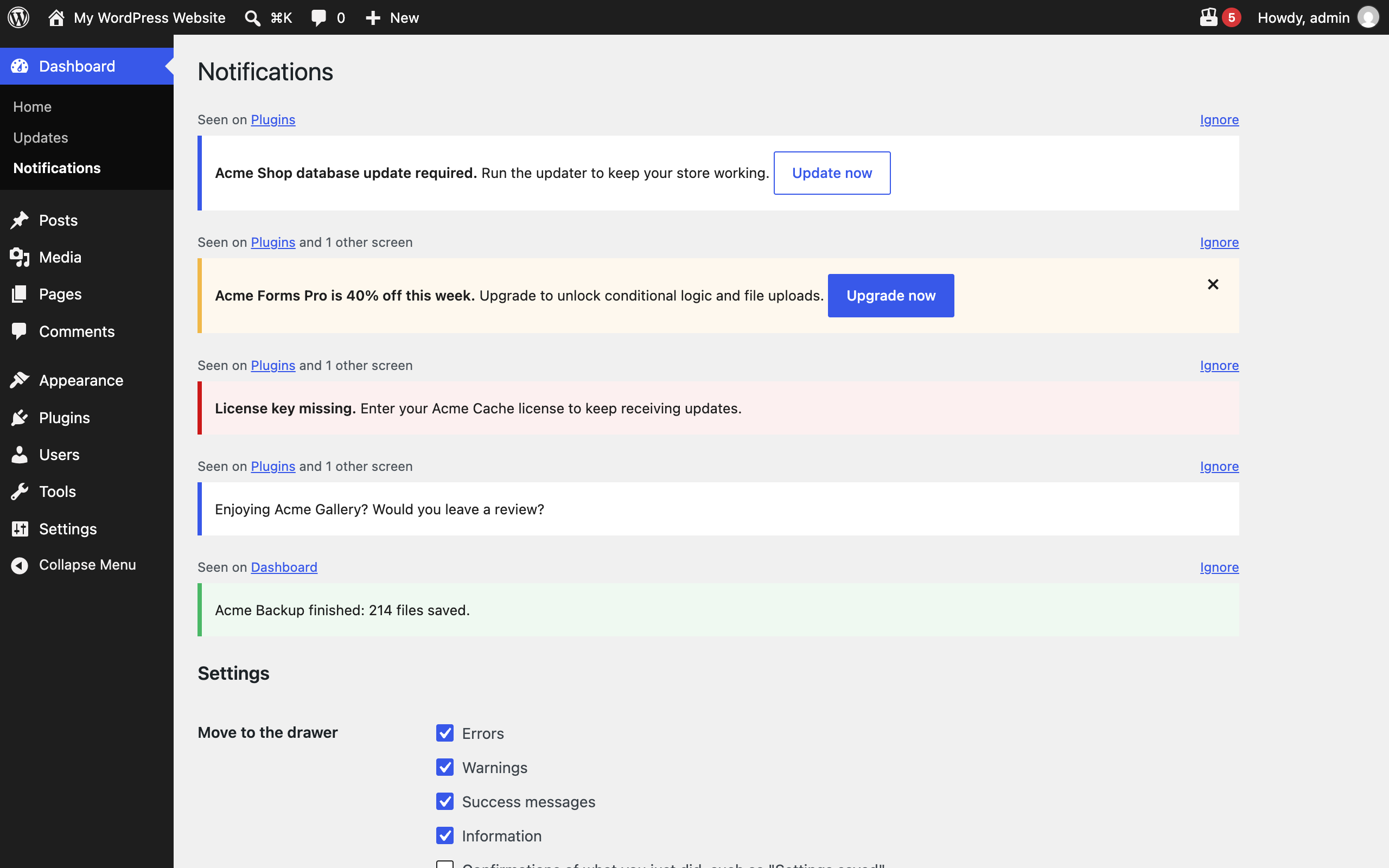
- View more opens Dashboard > Notifications, where every notice appears as its plugin designed it, collected from every admin screen in one place, with a link back to the screen that showed it.
- Ignore hides a notice from the drawer. Ignored notices stay listed on the Notifications screen, where you can restore them.
You decide what moves
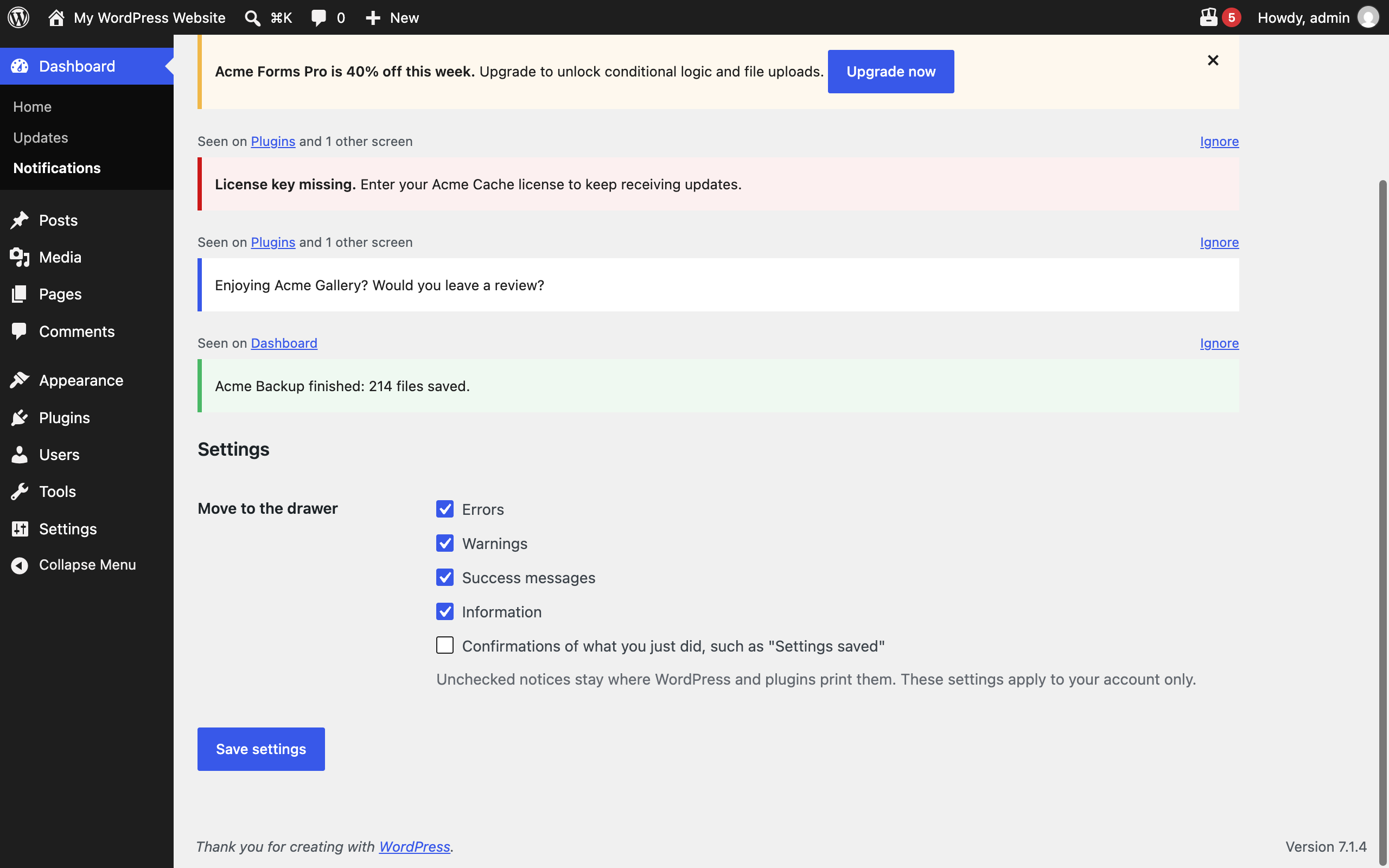
On the Notifications screen, each user chooses which notices go to the drawer: errors, warnings, success messages and information. Confirmations of what you just did, such as “Settings saved” or “Post updated”, stay in place by default.
What it does not do
- It does not delete or dismiss notices. The plugin that shows a notice still controls it.
- It does not touch notices that are part of a page’s own content, such as the inline messages in the plugin list.
- It sends nothing to any server. Notices are saved in your own database, per user and per site.
Security
- Every change is protected by a nonce and a capability check.
- Each user can only read and change their own saved notices and settings.
- Saved notices are filtered with the same rules WordPress uses for post content, without form controls, and their styles cannot paint outside their row.
- Notice text is never inserted into the page as HTML.
Built by Carlos G. Martínez.
Screenshots
Installation
- Install from Plugins > Add New, or upload the
notidrawerfolder to/wp-content/plugins/. - Activate the plugin.
- Notices move to the drawer in the toolbar. Open Dashboard > Notifications to review them or change what moves.
FAQ
-
Why does a notice still show at the top of a screen?
-
Check Dashboard > Notifications > Settings: its type may be unchecked, or it may be a confirmation of the action you just took. Notices that a plugin prints inside its own page content are left alone on purpose.
-
The Notifications screen shows a saved copy of notices from other screens, without form controls. Use the “Seen on” link to open the screen where the notice works.
-
Do other users see my ignored notices?
-
No. The drawer, the ignored list and the settings belong to each user.
-
Does it work on multisite?
-
Yes. Notices are saved per site.
-
What happens to my data when I delete the plugin?
-
Deleting the plugin from the Plugins screen removes every user’s saved notices, ignored list and settings.
Reviews
There are no reviews for this plugin.
Contributors & Developers
“NotiDrawer” is open source software. The following people have contributed to this plugin.
Contributors
Translate “NotiDrawer” into your language.
Interested in development?
Browse the code, check out the SVN repository, or subscribe to the development log by RSS.
Changelog
1.0.0
- First release.