
Description
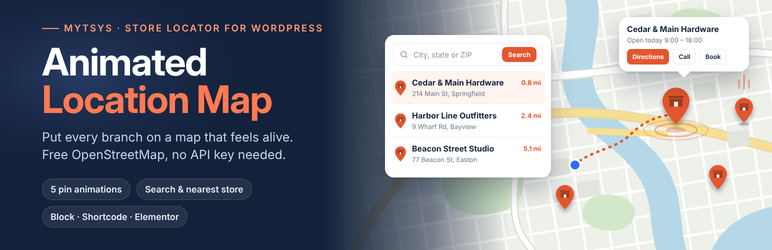
MyTsys Animated Location Map puts your branches on a map that actually feels alive. Markers drop, pop, ripple, float or sway. Clicking one opens a card with the shop name, address and phone number that you typed in yourself.
Out of the box there is no API key to find: maps are drawn with Leaflet and free OpenStreetMap tiles, so activation to working map takes one click. If you would rather use Google Maps, switch the engine in Map settings and paste your own Google key. A guided panel links each step of getting one, and a Test this key button tells you whether it works before you save.
What you get
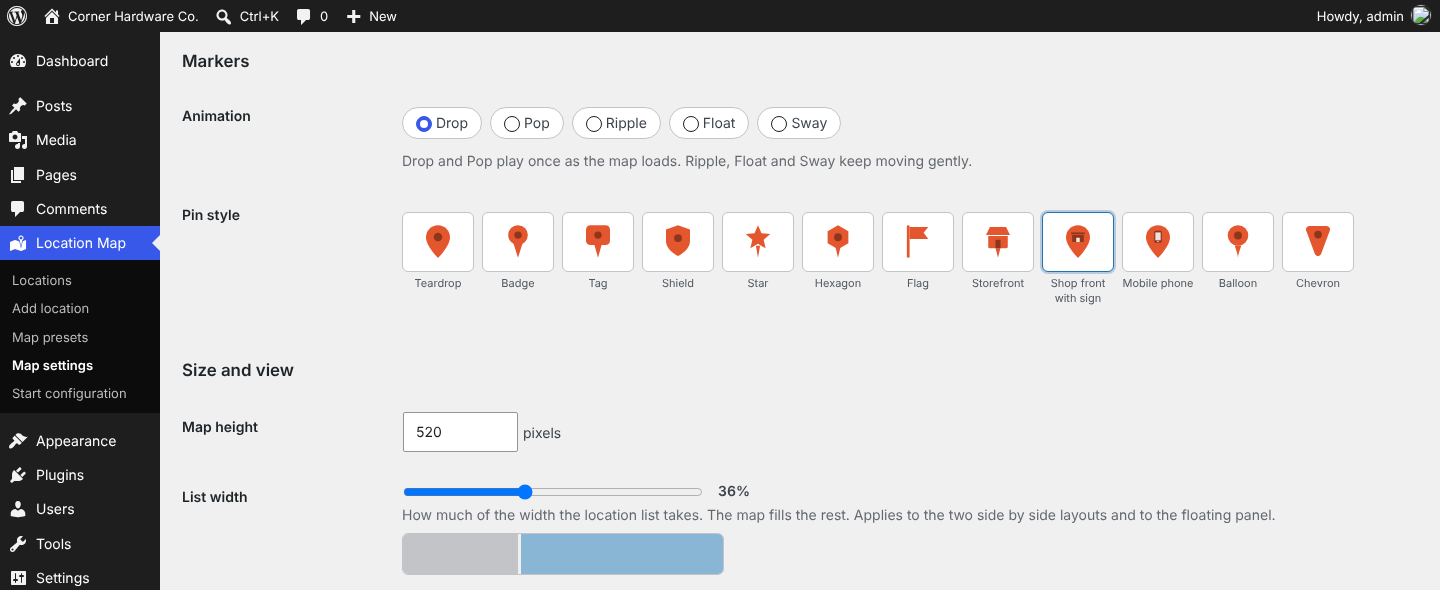
- Five marker animations: Drop, Pop, Ripple, Float, Sway
- Twelve pin shapes including a shop front and a mobile phone, each recolourable
- Hover a pin to see the place name without opening the card
- Map presets: save a different look for each page and pick it by name
- Adjustable list text size, with addresses, buttons and spacing scaling to match
- Adjustable split: set how much width the list takes and the map fills the rest
- Search box: visitors type a city or postcode and the list and map narrow to matches
- Route to the nearest shop drawn on the map, with turn by turn directions from the postcode searched
- Use my location: one tap ranks your shops by distance from the visitor
- Browse by area: states or cities listed with the number of shops in each
- Nearby search: a postcode with no exact match is located and your shops are ranked by distance from it
- Six layouts: list left, list right, list floating over the map, cards below the map, list behind a button, or map alone
- Call, Directions, Hours, Book and View details buttons on every location row
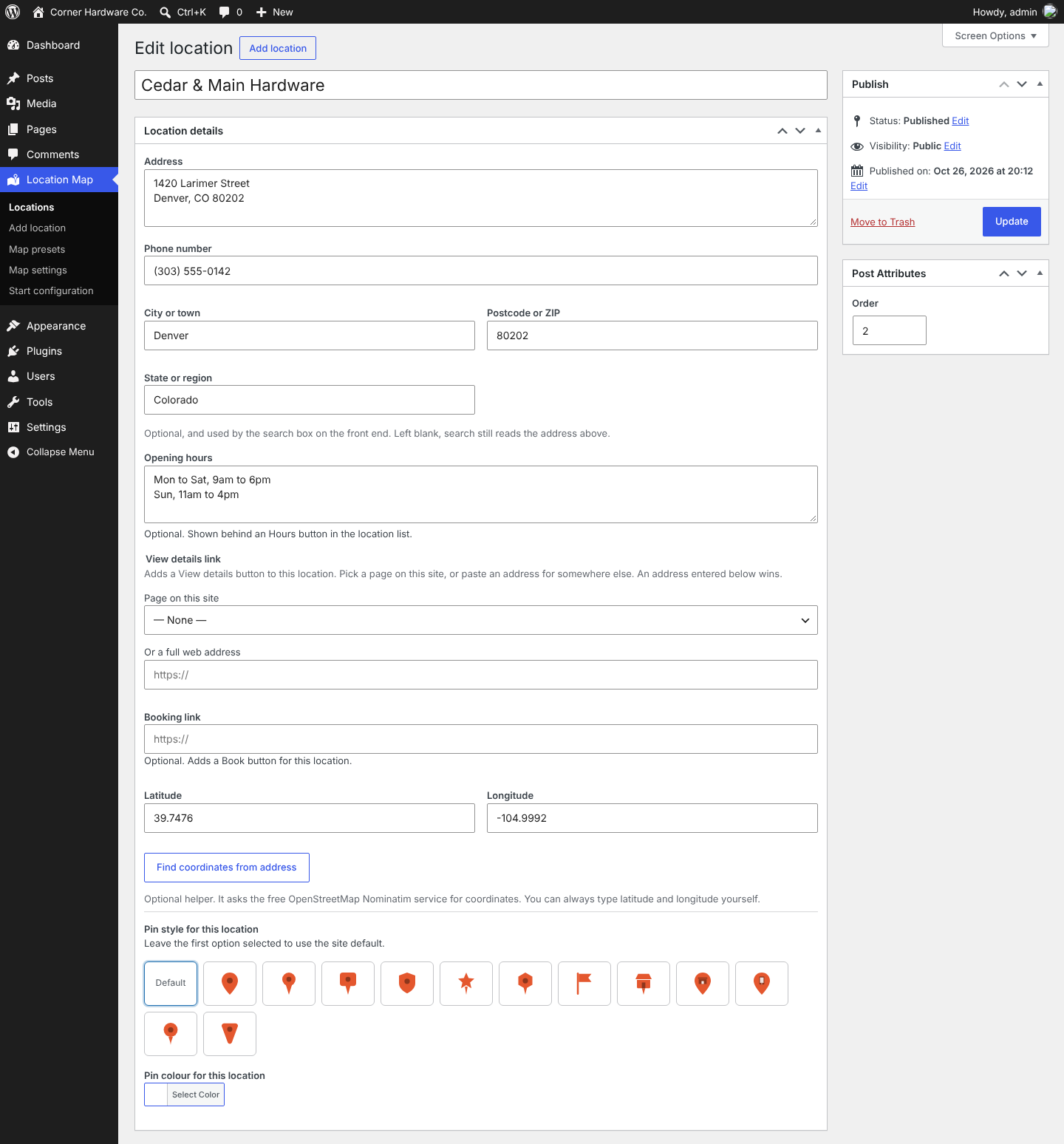
- View details links to a page on your site or to any web address
- Optional opening hours and booking link per location
- A details card on every pin with name, address and a tappable phone number
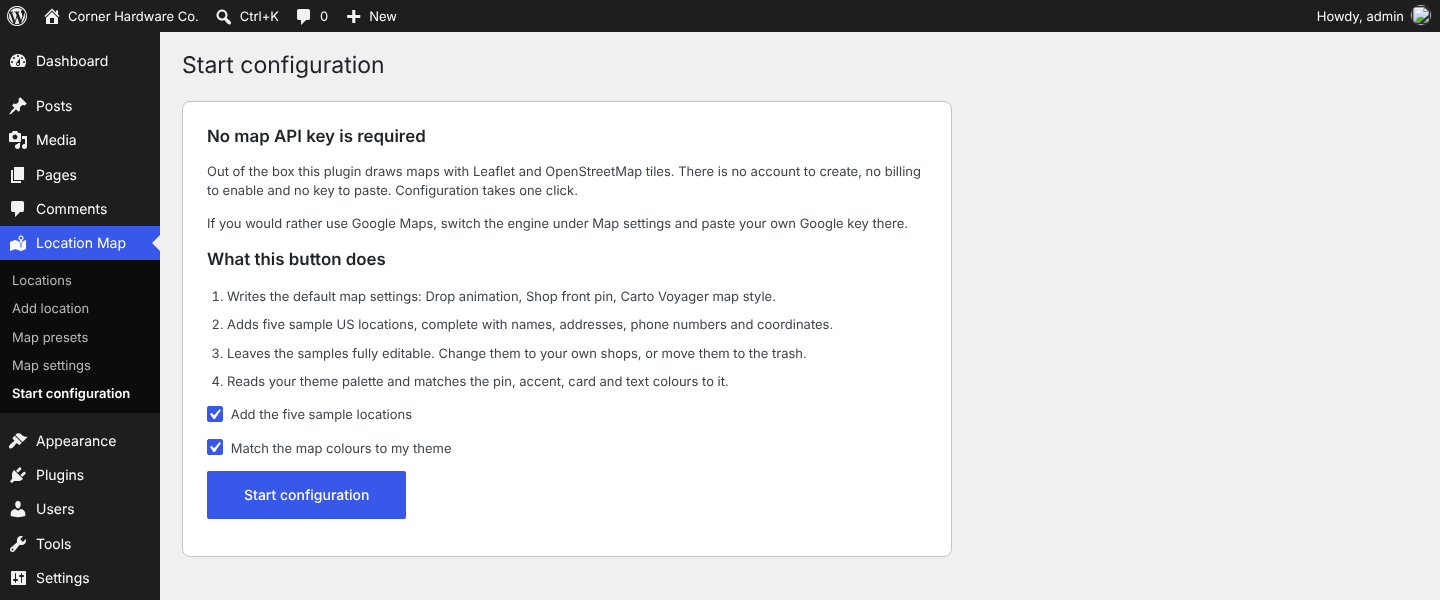
- One-click configuration that loads five sample US locations you can edit or trash
- Two engines you can switch between at any time: OpenStreetMap (keyless) or Google Maps (your key)
- Four keyless map styles, plus Google’s roadmap, terrain, satellite and hybrid
- Colour controls for the pin, the card background and the card text
- Theme colour matching: configuration reads the palette your theme publishes and adopts it
- A shortcode, a block, and an Elementor widget
- An optional address lookup button that fills in coordinates for you
Placing a map
Use the Location Map block, the Elementor widget, or the shortcode:
[mytsys_location_map]
Pages that still use the shortcode from before the rename, [animated_location_map], keep working.
Attributes: preset, engine, animation, pin, color, surface, on_surface, provider, height, view (fit, first, custom), zoom, focus_zoom, lat, lng, ids, layout (split-left, split-right, overlay, stacked, toggle, map-only), search, search_label, nearby, radius, units, geolocate, browse, browse_by, list_size, panel_width, title, subtitle, scroll, limit.
External services
This plugin connects to third-party services. Below is what each one is,
when it is contacted, and what is sent.
Google Maps Platform (optional)
Used only if you set the map engine to “Google Maps” and save your own API
key. When a page containing a map is viewed, the visitor’s browser loads
the Maps JavaScript API from maps.googleapis.com and requests map imagery.
This sends the visitor’s IP address, browser user agent, the map area being
viewed, and your API key. Nothing is sent to Google while the default
OpenStreetMap engine is selected, and nothing is sent from the WordPress
admin except when you press “Test this key”.
The API key belongs to you: the plugin never supplies one and cannot create
one on your behalf.
Terms of service: https://cloud.google.com/maps-platform/terms
Privacy policy: https://policies.google.com/privacy
OpenStreetMap tiles
Used when the map engine is set to OpenStreetMap and the map style is
“OpenStreetMap standard”. The visitor’s browser requests tile images from
tile.openstreetmap.org, sending its IP address, user agent, and the tile
coordinates needed.
Tile usage policy: https://operations.osmfoundation.org/policies/tiles/
Privacy policy: https://osmfoundation.org/wiki/Privacy_Policy
CARTO basemaps
Used when the map style is Voyager, Positron or Dark Matter. The visitor’s
browser requests tile images from basemaps.cartocdn.com, sending its IP
address, user agent, and the tile coordinates needed.
Terms of service: https://carto.com/legal/
Privacy policy: https://carto.com/privacy/
OpenStreetMap Nominatim geocoding
Used in two situations. In both, your server (never the visitor’s browser)
sends the text being looked up to nominatim.openstreetmap.org and receives
back a latitude and longitude.
First, in the admin, to find a location’s coordinates from its address. This
happens when an editor presses “Find coordinates from address”, when a
location is saved with an address but no coordinates, and when the “Look up the missing coordinates” button on the Locations screen
is used.
Second, when a visitor types a city or postcode in the map’s search box and
presses Enter or Search. Your server sends that search term to find out
where it is, so distances to your locations can be measured and the way to
the closest drawn. To steer the answer towards the right country, the
request also carries the area your locations cover and, if you set one,
the country to limit searches to. The visitor’s browser never contacts the service,
and their IP address is never sent to it. This lookup does not run while
someone is typing, and never runs on page load. Results are cached on your
server for a month and shared between visitors, so a repeated search costs
nothing. Turn it off under Map settings if you would rather it never ran.
No visitor data is sent in either case. Each request contains the address,
place name or postcode being looked up, your site’s language, and, as the
Nominatim usage policy requires, a user agent naming this plugin, its version
and your site’s address so the service can identify where requests come from.
Searches are also throttled per visitor and for the whole site.
Usage policy: https://operations.osmfoundation.org/policies/nominatim/
Privacy policy: https://osmfoundation.org/wiki/Privacy_Policy
Bundled libraries
Leaflet 1.9.4 is bundled in assets/vendor/leaflet/ and served from your own
site. It is released under the BSD 2-Clause licence, included alongside it.
Screenshots
Blocks
This plugin provides 1 block.
- Location Map An animated map of your shop or office locations. No API key needed.
FAQ
Do I need a Google Maps API key?
Only if you want Google Maps. The default engine is OpenStreetMap, which needs no account, no billing and no key.
Can the plugin create the Google key for me?
No, and neither can any other plugin. A key belongs to a Google Cloud project tied to your own account and payment method, and only a signed-in human can create one. What the settings screen does instead is walk you through it: five numbered steps, each with a button that opens the exact Google Cloud page, plus the referrer restriction to paste and a Test this key button that reports back whether Google accepts the key on this site.
What happens if the Google key stops working?
The map falls back to OpenStreetMap rather than showing Google’s error watermark, so visitors always see something.
Why does only one of my locations appear?
If you are on a version before 1.4.1, that was a bug in the shortcode: update. Otherwise it is almost always because the others have no latitude and longitude. Open Map settings and look at the Diagnostics table: it lists every location and states plainly whether it will be drawn. Anything marked “no coordinates” can be repaired with the button on the Locations screen, which looks the addresses up for you.
Edit a location and look for View details link. Pick a page from the dropdown to send visitors to a page on your site, or paste a full web address to send them anywhere else. An address you paste wins over a chosen page, so you can override without clearing the dropdown. Leave both empty and the button is not shown for that location.
How does the search box work?
There are two stages. As a visitor types, the list and the map narrow to locations whose name, city, postcode or address match. This happens in the browser, so it is instant and no request leaves the page. Postcodes match with or without a space, so SW1A 1AA and SW1A1AA both find the same place.
When the visitor presses Enter or the Search button, the place itself is located, so the distance to each shop can be shown and the way to the closest drawn. Your locations are then ranked by how far they are from it. Nothing is sent while the visitor is still typing. So somebody entering a postcode a few miles from one of your shops still finds it, with the distance shown on each result. The point they searched for is marked on the map.
Does nearby search slow the page down or cost anything?
No. The lookup runs only when a visitor presses Enter or Search, never on each keystroke, and every result is cached for a month and shared by all visitors, so a popular postcode is looked up once. Distances are worked out in the visitor’s browser from coordinates the page already holds. The service is free and needs no account.
How does Use my location work?
The visitor taps it and their browser asks them for permission. If they agree, the browser hands the page a rough position and the distances to your locations are worked out there and then. The position never reaches your server, and no third party is involved. If permission is declined the search box still works as normal.
The button only appears on sites served over HTTPS, because browsers refuse to share a location otherwise.
What is Browse by area?
A row of areas above the list, each showing how many locations it holds, for example Texas 2 or New Jersey 1. Picking one narrows the list and the map to that area; picking All areas restores everything. Group them by the State or region field, or by City, under Map settings.
Does it show the way to the shop?
Yes. After a postcode search the map draws a line from that postcode to the closest shop with the distance on it, and that shop is marked in the list. Pressing Directions then opens Google Maps with the journey already set up, starting from the postcode searched rather than from wherever the device happens to be, so the visitor gets real turn by turn directions. Nothing extra needs setting up and no routing account is required.
A postcode search found the wrong place. What do I do?
Update to 1.12.2 or later, which steers searches towards your own locations. If your shops are spread across more than one country, or you want to be certain, set Limit searches to country in Map settings to your two letter country code, for example us, or in for India. Several can be listed, separated by commas.
What if no location is within the radius?
The three closest are shown anyway, with a note saying nothing was inside the radius and how far the nearest one is. A visitor never sees an empty result with no explanation.
Can different pages show the map differently?
Yes. Go to Location Map, Map presets, and create a preset, for example one called Homepage and another called Locations. Each preset stores only the options you want to differ; anything left blank follows Map settings. Then place the map with the preset chosen: [animated_location_map preset=”homepage”] on one page and [animated_location_map preset=”locations”] on another. The block and the Elementor widget both have a preset dropdown instead.
How do I install a newer version?
Go to Plugins, Add New, Upload Plugin and choose the new zip. WordPress notices a copy is already installed and shows a comparison of the two versions with a Replace current with uploaded button. Your locations and settings are stored in the database, not in the plugin folder, so they survive untouched. There is no need to deactivate or delete first.
How does theme colour matching work?
Configuration reads the colour palette your theme publishes through theme.json, or through the classic editor palette. It picks the most saturated colour for pins, the lightest for card backgrounds and the darkest for text, then checks the pair for readable contrast. Every result lands in a field you can overrule.
What is removed when I delete the plugin?
Deleting the plugin from the Plugins screen removes its settings, cached lookups and search counters, on every site of a network. Your locations and presets are kept on purpose, so an accidental delete does not lose your address book. To remove them too, move them to the Bin from the Locations and Presets screens before deleting the plugin.
I used the plugin when it was called Animated Location Map. How do I move over?
Your locations, presets and settings carry over as they are. On the Plugins screen, deactivate Animated Location Map, then install and activate MyTsys Animated Location Map. With the new plugin active, you can then delete the old one from the Plugins screen as usual: the new plugin keeps the settings the two share while the old one cleans up. Existing shortcodes, blocks and Elementor widgets keep working, and blocks switch to the new name the next time the page is opened in the editor.
Do the sample locations stay on my site?
Only if you want them. They are ordinary entries under Location Map. Edit them into your own branches, or send them to the trash.
Can different pins appear on the same map?
Yes. Each location can override the site’s pin style and colour.
Does the map work with a screen reader or without motion?
Markers are keyboard reachable, and every animation is switched off automatically when the visitor’s system asks for reduced motion.
Reviews
There are no reviews for this plugin.
Contributors & Developers
“MyTsys Animated Location Map” is open source software. The following people have contributed to this plugin.
Contributors
Translate “MyTsys Animated Location Map” into your language.
Interested in development?
Browse the code, check out the SVN repository, or subscribe to the development log by RSS.
Changelog
1.13.0
- Renamed to MyTsys Animated Location Map, with the slug and text domain mytsys-animated-location-map, as requested by the WordPress.org plugin team.
- The shortcode is now [mytsys_location_map], the block is mytsys-animated-location-map/map and the Elementor widget is mytsys_location_map. The previous names keep working on existing pages and are hidden from the inserters.
- Fixed activation recording the plugin version and the migration flag before data from versions earlier than 1.2.0 had been carried over, which could leave those locations unreachable. Old data is now migrated first, and the version is recorded only once the migration has finished; a migration that cannot finish is retried.
- Sites already affected by that bug are repaired automatically on update. Old settings are carried over when the current ones were never changed, and kept as a backup otherwise.
- The migration now recognises this plugin’s old data by its contents. Another plugin’s option with a similar name, such as Ajax Load More’s alm_settings, is never read, changed or deleted, by the migration or by uninstall.
- Old location meta is renamed only on this plugin’s own posts, one location at a time, so an interrupted migration resumes where it stopped.
- Deleting the pre-rename copy from the Plugins screen no longer removes the settings it shares with this one.
- The setup prompt now appears only on the plugin’s own screens, can be dismissed for good, and never shows on the Dashboard or the Plugins screen.
- Admin styles and scripts load only on the plugin’s own screens.
1.12.4
- Hardening: every admin AJAX request now fails early with a clear JSON error when its security token or the user’s permission is missing.
- Hardening: result messages after setup and after looking up missing coordinates no longer read flags from the address bar; they are kept briefly for the current user instead.
- Hardening: all submitted values are sanitised as they are read, including every preset field, and the visitor address used for throttling is validated.
- Hardening: map colours and sizes are validated again at the moment they are printed, and icons are filtered through one shared allow-list.
- The Elementor widget prints the map directly, with every value escaped where it is printed.
- Fixed the block’s wide, full-width and spacing settings having no effect on the page.
1.12.3
- Security: a location name containing encoded markup could run script in the pin’s hover label. Names are now always shown as plain text, and the map data on the page is encoded so it can never break out of its attribute.
- Security: turning Nearby search off now also switches off the server endpoint, and a map no longer prints a search token when the feature is off.
- Security: the public search can no longer keep a server worker waiting. If the lookup service is busy the visitor is asked to try again. A site-wide hourly cap now sits beside the per-visitor limit, and the address used for throttling can be filtered for sites behind a proxy.
- Security: Look up the missing coordinates only lists and updates locations the current user is allowed to edit.
- The nearby lookup now runs only when Enter or Search is pressed, as the usage policy of the lookup service requires.
- A page served from a cache after its search token expired now tells the visitor to reload instead of silently failing.
- Fixed locations always being saved with a fixed pin and colour instead of Site default, so changing the site defaults had no effect on them. Untouched sample locations are corrected on upgrade.
- Fixed the block ignoring the site height, zoom and mouse-wheel settings. The Elementor widget gains a Site default choice for the mouse wheel.
- Fixed draft or binned presets being usable by ID or slug.
- Fixed the list of skipped locations repeating across several maps on one page.
- Map distances are cleared from the search cache when a location is published, moved to the Bin or deleted.
- Uninstall now removes every cached search, lookup and counter.
- Fixed pressing Search a second time for the same place leaving the list empty and the status stuck on Checking.
- Fixed the Google engine adding a duplicate hover label to a pin each time a search hid and re-showed it.
- Fixed a newly inserted block or Elementor widget showing a blank map until the page was saved and reloaded.
- Fixed a preset whose name is a number, such as 2024, not being found.
- A failed postcode lookup only falls back to a general search when the postcode itself was not found, not when the service was busy or unreachable.
- Bundled Leaflet is registered under its own name so another plugin’s copy cannot replace it.
- The block editor option lists are only prepared when the editor loads.
- Tested up to WordPress 7.1.
1.12.2
- Fixed a postcode search finding the wrong country. Postcodes repeat around the world, and 10309 exists in Spain and Germany as well as New York, so a search could report a distance of thousands of miles. Searches are now steered towards wherever your own locations are, several candidates are considered, and the closest one is used.
- An all-digit search now asks the service for a postcode specifically, rather than for anything matching those digits, and falls back to a general search if that finds nothing.
- Added a Limit searches to country setting for sites that want to remove any remaining doubt.
- Cached search results from before this fix are ignored, so a wrong answer is not kept.
1.12.1
- Typing a city now behaves like typing a postcode. The city is placed on the map, each matching shop gains its distance, and the way to the closest one is drawn. A city none of your shops sit in still finds the nearest ones.
- When the typed words already picked shops out, all of them are kept and simply ranked by distance, rather than being cut down by the search radius.
- Fixed a queued lookup surviving the next keystroke, which could make slow typing send several requests where one was needed.
1.12.0
- Searching a postcode now draws a line from it to the closest shop, labelled with the distance, so the journey is clear at a glance.
- The closest result is marked in the list, and Directions buttons start the journey from the postcode that was searched rather than wherever the phone happens to be, giving real turn by turn directions to that shop.
- Both map engines draw the route, in the colour the map is set to.
1.11.2
- Typing a complete postcode now finds nearby shops on its own. Previously it sat on “No locations match that search” until the visitor pressed Search, which read as a dead end when a shop was a few miles away.
- When a search is not a postcode and matches nothing, the message now says what to do next instead of only that nothing was found.
- The automatic lookup waits until typing stops and skips a postcode already looked up, so ordinary typing makes one request at most.
1.11.1
- Fixed the search placeholder being cut off in the side panel layouts. The field now takes its own line and the two buttons share the one beneath, so it reads properly at any panel width.
- Typing a state in full now finds shops recorded with its abbreviation, and the other way round. Searching Texas finds a shop listed as Houston, TX, and New Jersey finds one listed as NJ. Existing locations need no editing for this.
- The State or region field is now searched alongside the name, city, postcode and address.
1.11.0
- Added a Use my location button. The browser asks the visitor for permission and the shops are ranked by distance from where they are. Nothing is sent to your server or to any third party for this.
- Added Browse by area: a row of areas, each showing how many locations it holds, that narrows the list and the map when picked. Group by state or by city.
- Added a State or region field to each location, with suggestions drawn from the regions already in use.
1.10.0
- Added nearby search. Typing a postcode that none of your locations use, then pressing Enter or Search, now locates that postcode and lists your shops in order of distance from it, each showing how far away it is. Previously only an exact postcode matched.
- Added a search radius and a choice of miles or kilometres, set site wide or per map. When nothing falls inside the radius the three closest are offered instead, with the distance stated.
- The point searched for is marked on the map, and the view fits it together with the results.
- Lookups run only when a visitor presses Enter or Search, never while typing, and results are cached for a month and shared between visitors.
1.9.0
- Added a View details button to each location. Point it at a page on your site with the dropdown, or paste any web address. Links that leave your site open in a new tab; internal ones do not.
- Every row button now carries an icon, and the buttons are ranked: View details is solid, Book is outlined, the rest are quiet.
- Redesigned the location rows. The pin sits in a tinted chip, rows lift gently on hover instead of filling with colour, and opening hours are set off with an accent rule.
- Redesigned the search control with a softer field, an accent focus ring, an animated clear button, and a dot marker on the result count.
1.8.1
- Fixed a coloured block appearing behind a location row on hover. Themes that style every button were reaching the list rows; those states are now pinned so only the name tints, and the mobile tap highlight is cleared for the same reason.
- Redesigned the search control: a rounded field with the pin icon inside, a clear button that appears once you type, and a Search button alongside. On narrow panels the button keeps its icon and drops its label.
1.8.0
- Added a search box above the location list. Typing a city or a postcode filters the list and the map together, and the map refits to whatever is left. Clearing the box brings everything back.
- Added optional City and Postcode fields to each location. Searching still reads the address when they are empty, so existing locations work without being edited.
- The search box can be turned off site wide, per preset, or per map, and its placeholder text can be changed.
1.7.2
- Address lookups now go through wp_safe_remote_get, follow at most two redirects, and send the visitor site’s language alongside the identifying user agent Nominatim asks for.
- Renamed the readme section back to “External services”, the heading the Plugin Check tool looks for.
1.7.1
- Front-end map assets now load in the page head when a post contains the shortcode or block, instead of only being added while the map renders.
- Block editor assets no longer load on every editing screen, only where a map is actually present.
- Removed the two inline JavaScript handlers from the preset screens.
- Uninstall now clears cached geocoding results and runs across every site on a multisite network.
1.7.0
- Added Map presets. Save a named bundle of display options and use it on one page, while another page uses a different one. Find them under Location Map, Map presets.
- Presets can be applied with preset=”name” on the shortcode, or from a dropdown in the Location Map block and the Elementor widget.
- Anything written directly on a shortcode, block or widget still beats the preset, and anything the preset leaves blank follows Map settings.
1.6.2
- Added a List text size control, and raised the default so locations read more comfortably. Addresses, action buttons, padding and the pin icon all scale from that one number.
- Hovering a location now tints and underlines just the name, the way a link behaves. The previous full width block of hover colour is gone.
1.6.1
- Added a List width control. Drag the slider in Map settings, or set panel_width on an individual map, to decide how the space is divided between the list and the map. Applies to both side by side layouts and to the floating panel.
1.6.0
- Added six layouts, chosen from a picker with thumbnails in Map settings or set per map. The new default puts the list on the left and the map on the right, inside one rounded card.
- Location rows now carry Call, Directions, Hours and Book buttons. Each appears only when the underlying detail exists.
- Added optional opening hours and a booking link to each location. Hours expand inside the row when the button is pressed.
- Added an optional heading and sub heading above the list.
1.5.0
- Maps now open showing every location at once by default. Centring on the first entry, or on a fixed point, are both still available.
- Hovering a pin shows the place name, on either map engine.
- Added two pins aimed at shops: a shop front with a sign, and a mobile phone. The shop front is now the default.
- The location list can be hidden behind a button so the map fills the width until a visitor asks for the list. Choose per site, or per map.
1.4.1
- Fixed a bug that limited every shortcode map to a single location. An unsupplied “limit” attribute arrived as an empty string, which was read as zero and then clamped up to one, so only the first location was ever queried. Maps placed with the block or the Elementor widget were unaffected.
- Shortcode attributes left blank are now ignored entirely rather than being treated as zero.
1.4.0
- Added a Diagnostics table to Map settings listing every location, its status and its coordinates, so it is obvious which ones will be drawn and why.
- Added a one-click button that looks up coordinates for locations already saved without them.
- Coordinates pasted as a single “latitude, longitude” string are now split across both fields instead of being discarded.
- The Locations screen now explains why each unmappable entry failed.
1.3.1
- Uploading a newer zip over an existing copy now upgrades cleanly. Settings and locations are kept, and anything a version change needs runs automatically instead of waiting for a reactivation.
- Added an Update URI header so WordPress.org cannot push an unrelated plugin that happens to share this folder name.
1.3.0
- Fixed: locations saved without latitude and longitude were silently left off the map. Saving a location now resolves its address automatically, the Locations screen warns about any that still cannot be mapped, and logged-in editors see which ones were skipped.
- Redesigned the details card: coloured header, icon rows, and Call and Directions buttons, with entrance animations and much tighter spacing.
- Added a hover accent bar to the location list.
1.2.0
- Renamed every internal prefix from “alm” to “almap” to meet the WordPress.org four-character minimum. Existing locations, settings and meta are migrated automatically the first time an administrator loads the dashboard.
- The Google Maps API script now loads with a real async strategy instead of relying on Google’s own query parameter.
- Expanded the external service disclosures in this readme.
1.1.0
- Added a Google Maps engine you can switch to with your own API key.
- Added a guided key setup panel with direct Cloud Console links and a live key test.
- Added colour settings for the pin, card background and card text.
- Added theme colour detection, run during configuration or on demand.
- Google without a working key now falls back to OpenStreetMap instead of failing.
1.0.0
- First release.