
Description
WordPress runs scheduled work through WP-Cron, which only fires on page loads. On quiet sites tasks run late or never. On busy sites they can overlap and hammer the database. ModuleFest Cron Monitor gives you one control tower for all of it.
Bottleneck profiler. Every task that runs during cron is timed and measured, then ranked by duration, peak memory and failure rate. Instrumentation is attached only during real cron runs, so normal page loads are unaffected.
Overlap protection. Mark heavy tasks as “guarded” and only one copy will run at a time. An overlapping copy is skipped and retried shortly after, so no work is lost.
Stall recovery and alerts. A shutdown guard, active only during cron runs, records fatal errors mid-task. Tasks that run past your stall threshold are closed and, if recurring, rescheduled. Email and webhook alerts are rate-limited so you are never flooded.
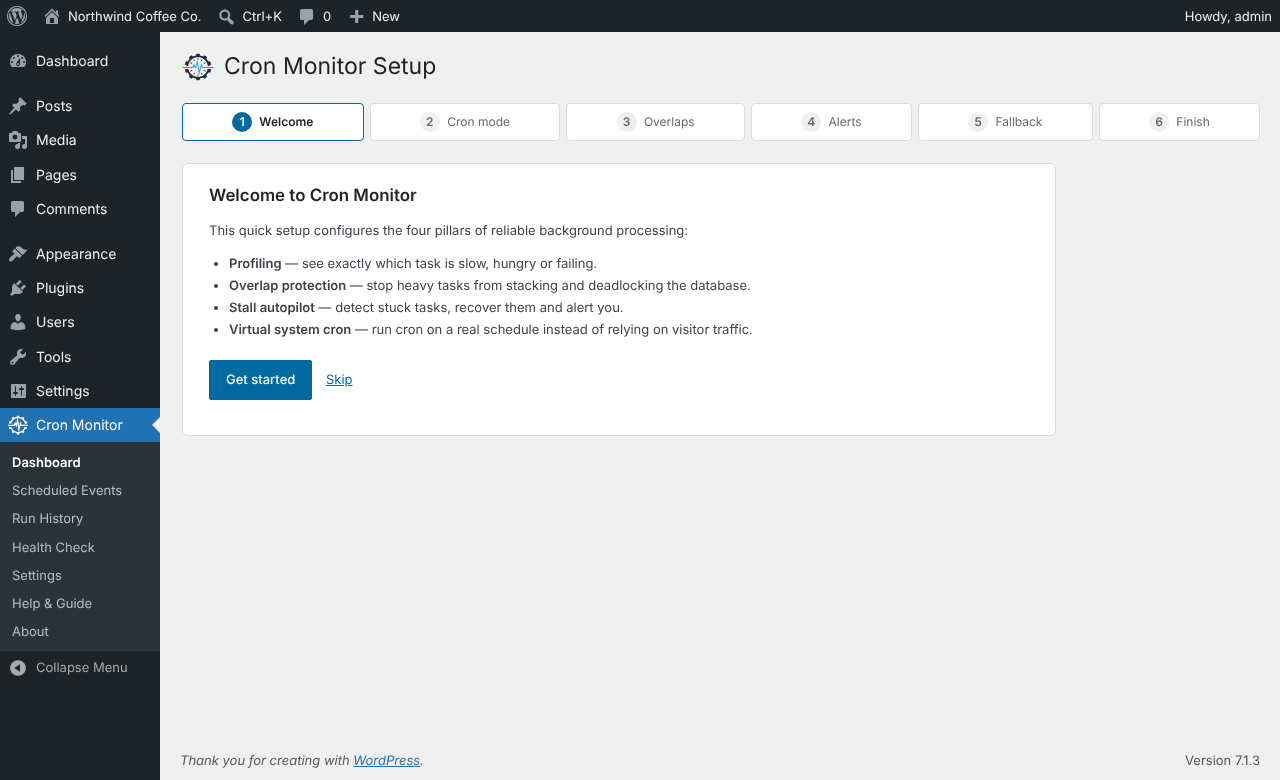
Real cron trigger. A secret REST endpoint lets a server crontab or an uptime monitor run cron on an exact schedule. An optional, throttled loopback keepalive helps sites that still get some traffic. The plugin never edits wp-config.php: switching off the page-load trigger (DISABLE_WP_CRON) is your choice, and the Setup Wizard shows you exactly what to add.
Per-run drill-down. See each run’s arguments, the callbacks that fired, the plugin or theme that owns them, memory, and (optionally) database query profiling.
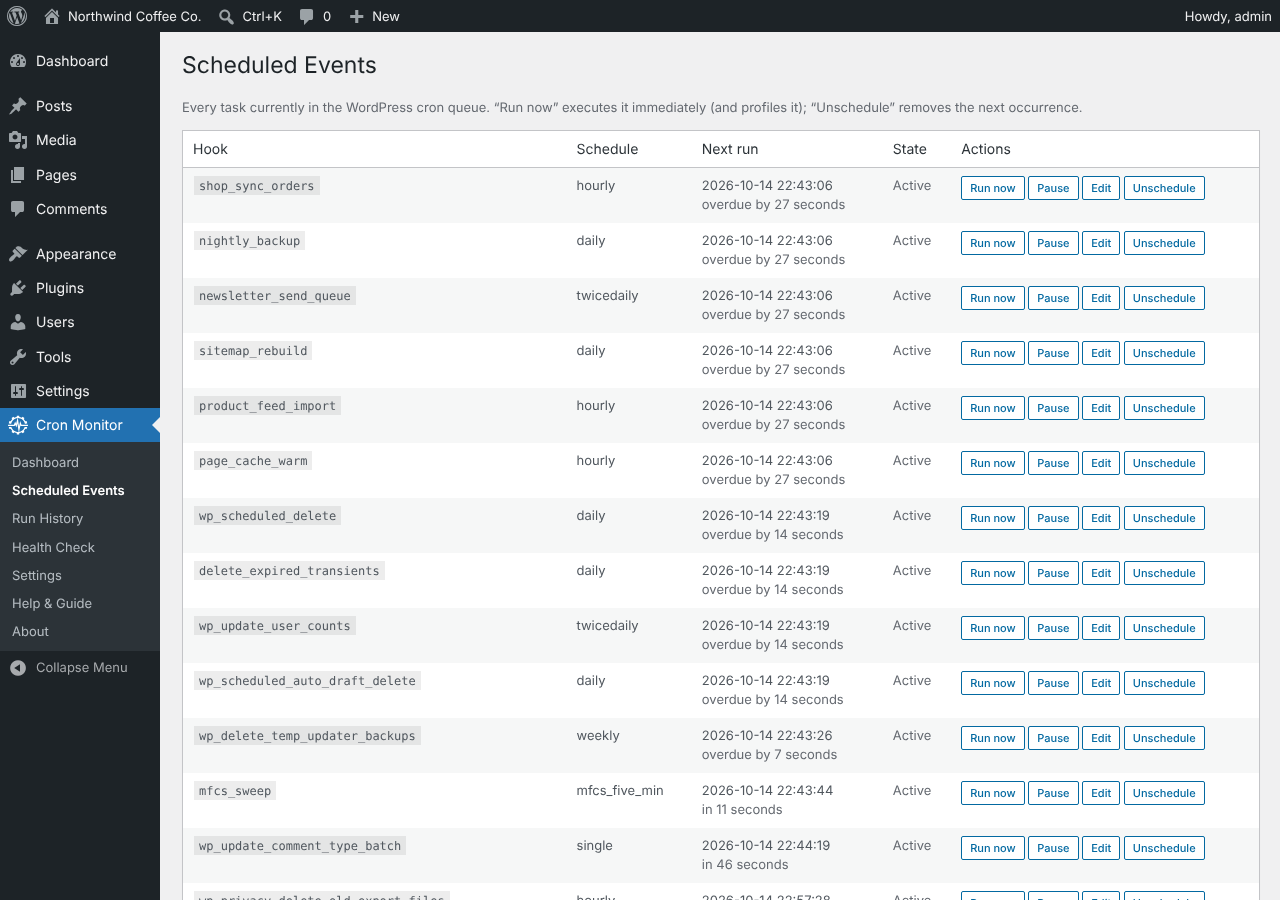
Event editor. Reschedule, re-time, pause, resume, add and remove events, and manage custom schedules.
Health score and weekly email. One number from 0 to 100 at the top of the Dashboard, with the main reason. An optional weekly summary email sends the same to you.
Late-task explainer. A task that is late shows why, in plain English, with a link to the fix. Common WordPress, WooCommerce and plugin tasks have friendly names and a safe-to-pause hint.
Schedule snapshots. Compare the schedule with a saved copy to see what an update added, removed or changed. One is taken automatically before any update.
Test my cron. One button checks a task really runs on time, and explains what to fix if it does not.
Action Scheduler bridge. If WooCommerce or another plugin uses Action Scheduler, see its queue (status counts, recent and failed actions) next to WP-Cron.
WP-CLI. wp cronmonitor list|run|pause|resume|profile|history|health|purge for agencies managing many sites.
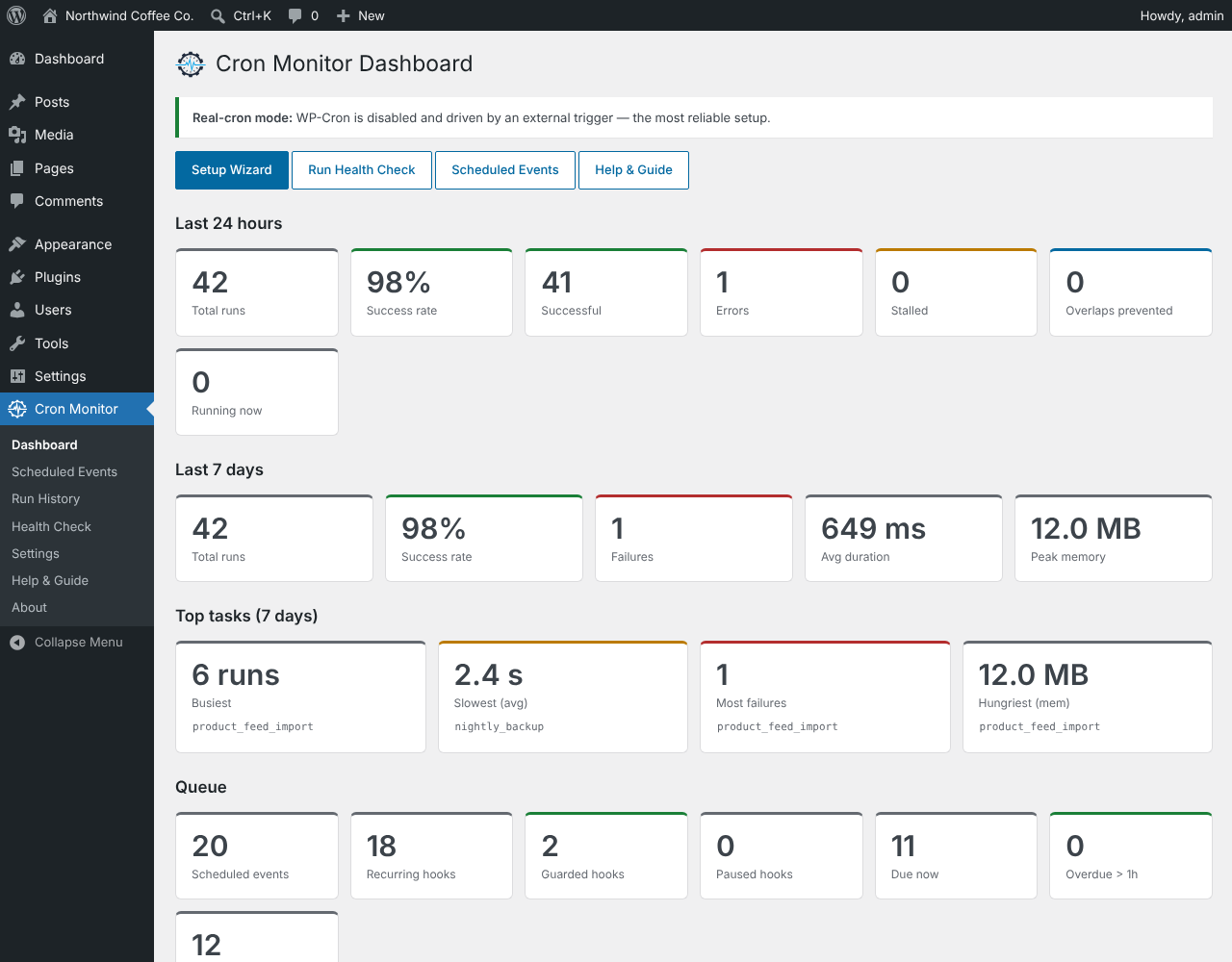
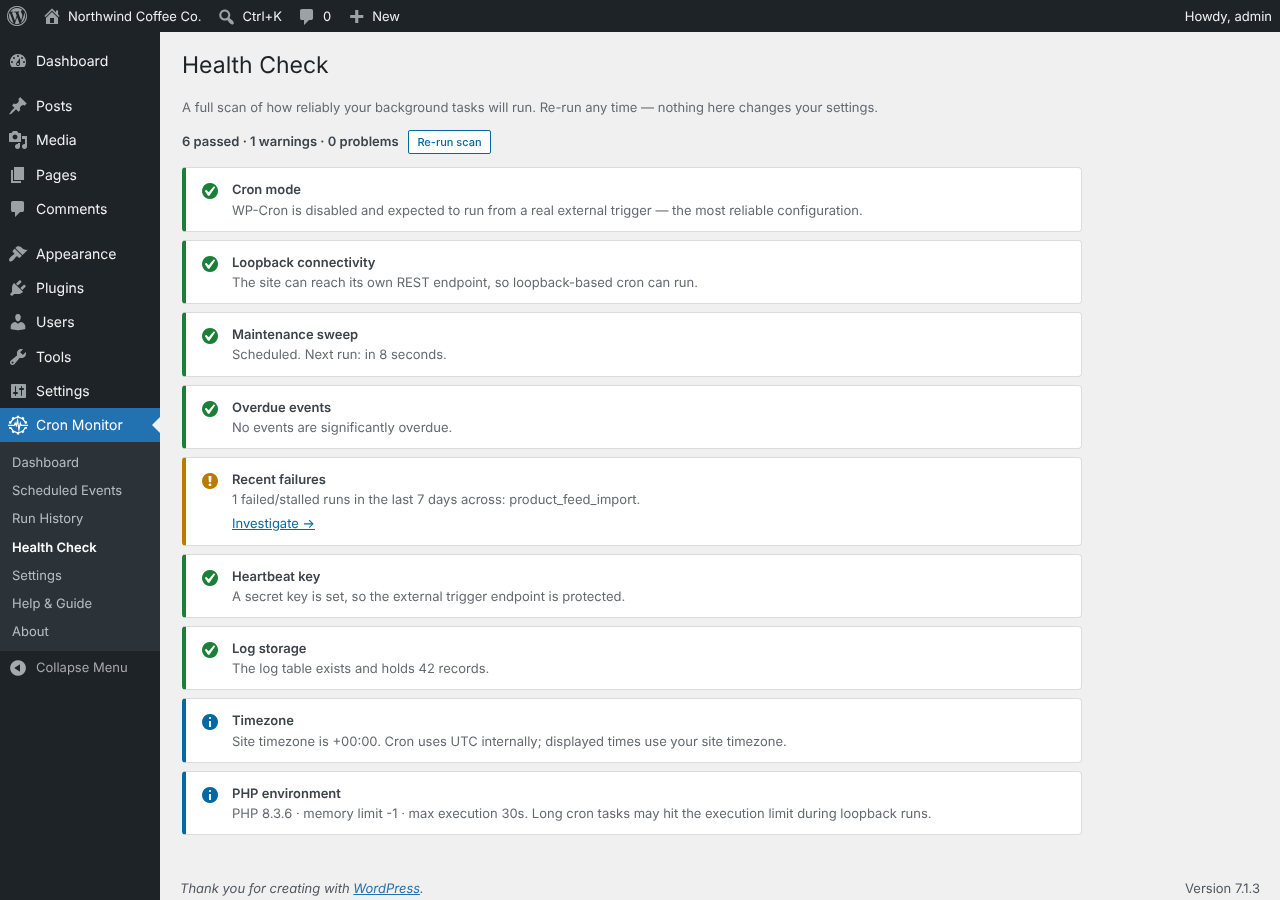
Also included: a guided Setup Wizard, an on-demand Health Check, a KPI dashboard, contextual Help tabs on every screen, and a Help & Guide page with step-by-step walkthroughs, an FAQ and a glossary.
Everything here is free. Every feature is available from the moment you activate it, with no time limit and no account. Everything runs on your own site.
Formerly Cron-Sentry. If you used Cron-Sentry, activating this plugin imports your settings, paused tasks, custom schedules and run history. A notice then reminds you to deactivate and delete Cron-Sentry.
More from ModuleFest
Cron Monitor is made by ModuleFest. Our other free plugins on WordPress.org:
- ModuleFest Pet Groomer – bookings, clients, pets and a staff app for grooming businesses.
- ModuleFest Pet Walker – walks, clients, pets and a staff app for dog-walking businesses.
Guides for every Cron Monitor feature are at modulefest.com/help/cronmonitor. You can also ask for Cron Monitor news by email from the plugin’s Dashboard; nothing is sent unless you choose to subscribe.
External services
This plugin makes outgoing requests only in the cases below. Nothing is sent on activation.
Alert webhook (optional, off until you enter a URL). If you enter a webhook URL under Settings Alerts (for example a Slack incoming webhook), the plugin sends a POST request to that URL when a task errors or stalls (rate-limited per task), and when you click “Send test alert”. The JSON body contains the alert type, the hook name, a short message, your site’s home URL and name, and a timestamp. The service receiving it is the one you choose, so its own terms and privacy policy apply.
Alert email (optional). Alerts are sent with WordPress’s own wp_mail() to the address you enter, through whatever mail setup your site already uses. The email contains the same details as the webhook.
Your own site (loopback). The keepalive, the “Test trigger” button and the Health Check make requests to your own site (wp-cron.php and the REST API). Nothing leaves your server unless your site’s URL points elsewhere.
ModuleFest newsletter sign-up (support.modulefest.com, only when you press Subscribe). The Dashboard and the About ModuleFest screen show a “Get news for Cron Monitor” card. Only when you tick its consent box and press Subscribe does the plugin send one request to https://support.modulefest.com/wp-json/modulefest/v1/subscribe. It sends the name and email you entered, this site’s address, the plugin’s name and version, and the consent wording you agreed to, so that ModuleFest can send you the newsletter you asked for. ModuleFest then emails you to confirm, and every email has a link to change or leave. The plugin does not store your email address, and no feature depends on subscribing. Privacy policy · Terms of service.
WordPress.org plugin details (only when you click). The About ModuleFest screen lists other free ModuleFest plugins. Clicking “View details” opens WordPress’s own plugin window, and WordPress itself fetches that listing from WordPress.org (api.wordpress.org). Nothing is fetched until you click. WordPress.org privacy policy.
External cron services (your choice). If you use an outside uptime monitor or cron service to call your trigger URL, that service calls your site; the plugin does not contact it. Its own terms apply.
Source code
There is no build step. The PHP, JavaScript (assets/admin.js) and CSS (assets/admin.css) in this plugin are the source, shipped unminified with their comments. The plugin bundles no third-party libraries.
Screenshots
Installation
- In wp-admin go to Plugins Add New, search for “ModuleFest Cron Monitor”, then install and activate it. Or upload the
modulefest-cron-monitorfolder to/wp-content/plugins/and activate it. - You are taken to the Setup Wizard. Choose your cron mode, guard heavy tasks, set up alerts and, if you like, the keepalive.
- Run the Health Check (Cron Monitor Health Check) any time to confirm everything is green.
For the most reliable timing, add define( 'DISABLE_WP_CRON', true ); to wp-config.php yourself and call the trigger URL from a real crontab or uptime monitor every 1–5 minutes. The wizard and Settings page show the exact URL and crontab line.
FAQ
-
Does profiling slow down my site?
-
No. Instrumentation is attached only while WordPress is running cron, so normal front-end and admin requests carry no profiling overhead. Database query profiling is off by default.
-
Will guarding a task make it run less often?
-
Only when a previous run has not finished. The overlapping copy is skipped and retried shortly after.
-
Can this create traffic on a site with no visitors?
-
No plugin can. Use the real cron trigger with a server crontab or an uptime monitor. The wizard walks you through it.
-
Is the cron trigger URL safe to use?
-
Yes. It only runs cron when the request carries your site’s secret key, checked in constant time. You can rotate the key at any time under Settings; remember to update your crontab or monitor afterwards.
-
Does the plugin change wp-config.php or turn off WP-Cron?
-
No. It only shows you the line to add if you choose to.
-
Does it send any data anywhere?
-
Only what you choose: alert emails to the address you enter, alert webhooks to the URL you enter, and, if you press Subscribe on the “Get news for Cron Monitor” card, your sign-up to the ModuleFest newsletter. Nothing is sent on activation or in the background. See External services below.
-
What happens when I delete the plugin?
-
Deactivating keeps your history and settings. Deleting the plugin removes its log table, options, transients and its own maintenance task. It never touches other plugins’ scheduled events; anything you had paused simply resumes.
-
I used Cron-Sentry. What changes?
-
Your settings and history are imported automatically when you activate this plugin. Then deactivate and delete Cron-Sentry on the Plugins page. The trigger URL changes to
/wp-json/mfcs/v1/run?key=…, so update your crontab or monitor; a notice shows the new URL. The WP-CLI command is nowwp cronmonitor. -
Are there other ModuleFest plugins?
-
Yes. See all our free plugins on our WordPress.org profile, or visit modulefest.com. The plugin’s About page lists them too.
-
What are the Welcome and What’s new windows?
-
A short Welcome window appears once per site, the first time someone opens a Cron Monitor screen on a new install. After each update, a What’s new window lists the changes once per person. They appear only on Cron Monitor’s own screens, close for good with one press, and contact no other site.
-
Where do I get help?
-
Use the plugin’s support forum on WordPress.org. The plugin also has a Help & Guide page and contextual Help tabs on every screen.
Reviews
There are no reviews for this plugin.
Contributors & Developers
“ModuleFest Cron Monitor – Scheduled Task Control Tower” is open source software. The following people have contributed to this plugin.
Contributors
Translate “ModuleFest Cron Monitor – Scheduled Task Control Tower” into your language.
Interested in development?
Browse the code, check out the SVN repository, or subscribe to the development log by RSS.
Changelog
1.12.0
- New: a health score (0 to 100) at the top of the Dashboard, with the main reason.
- New: an optional weekly summary email, with a Send summary now button.
- New: late tasks on Scheduled Events show a Late badge, the likely cause and a link to the fix.
- New: plain-English names under common WordPress, WooCommerce and plugin task names, with a safe-to-pause hint.
- New: schedule snapshots. Compare the schedule with a saved copy to see what was added, removed or changed. A snapshot is taken automatically before updates.
- New: Test my cron on Health Check checks that a task really runs on time and explains why if not.
1.11.3
- Changed: the plugin folder, text domain and WordPress.org address are now modulefest-cron-monitor.
1.11.2
- Changed: settings are cleaned as soon as they are submitted, before any add-on can read them.
- Changed: the Cron-Sentry import notice now shows only on Cron Monitor’s own screens.
1.11.1
- Fixed: after closing the Welcome window with the keyboard, focus now moves to the Got it button in What’s new.
- Fixed: pressing Got it and leaving the page straight away no longer shows What’s new again on the next screen.
1.11.0
- New: a short Welcome window the first time anyone opens Cron Monitor on a new site, with where to send feedback and feature requests and where the help is. It shows once per site.
- New: a What’s new window after each update, once per person, listing what changed since the version that person last saw.
- Both windows appear only on Cron Monitor’s own screens, close with the X, the main button, Escape or a click outside, and never contact another site.
- New: “The Welcome and What’s new windows” help topic.
1.10.2
- Changed: below the minimum PHP (7.2) or WordPress (6.2) version, the plugin now stays switched off and shows one notice instead of loading.
- Changed: the Unschedule confirmation now uses the admin script like every other confirmation, with no inline handler.
- Changed: the menu no longer asks for a fixed position, so it sits after Settings.
- Fixed: licence and readme links now point straight at their final address.
1.10.1
- Fixed: WordPress 6.7+ “translation loading was triggered too early” notice when another plugin reads the cron schedule list before init.
1.10.0
- New: “Get news for Cron Monitor” card on the Dashboard and a new About ModuleFest screen. Nothing is sent until you tick the consent box and press Subscribe. “Not now” hides it for 30 days; “Don’t show again” hides it for good.
- New: About ModuleFest screen with our other free plugins on WordPress.org.
- New: Documentation, Support forum, Newsletter and Rate links on the Plugins screen, and “Read the full guide” links from each help topic to modulefest.com.
- New: after 14 days, one dismissible line on the Dashboard asks for a review on WordPress.org. “Already did” hides it for good.
- Changed: alert emails end with one “Sent by Cron Monitor from ModuleFest” line.
1.9.3
- New: the ModuleFest Cron Monitor logo. The admin menu shows a one-colour version that takes on your admin colour scheme; page titles and the About and Help pages show the full-colour logo.
- Changed: the plugin’s colours follow the new brand palette (slate navy and teal), including buttons, links, focus highlights and checkboxes on its own screens.
1.9.2
- Security: admin forms verify their nonce before anything else in the request is read. Each form’s nonce now names its own action.
- Changed: the WordPress upgrade file is loaded only when dbDelta() is not already available, right before it is used.
- New: a “More free plugins from ModuleFest” section on the About page, using WordPress’s own plugin details window.
1.9.1
- Security: every link that carries a filter, run id, event or wizard step now carries a nonce, verified before the value is read.
- Security: AJAX actions check their nonce and capability first, in the handler itself.
- Changed: importing from Cron-Sentry no longer deactivates it or touches its scheduled events; a notice links to the Plugins page instead.
- Changed: the menu and page icon is now a clock.
1.9.0
- Renamed: Cron-Sentry is now ModuleFest Cron Monitor, ready for the WordPress.org directory.
- New: settings, paused tasks, custom schedules and run history are imported from Cron-Sentry on activation. A notice shows your new trigger URL.
- Changed: all internal names use the
mfcs_prefix; REST namespace ismfcs/v1; the WP-CLI command iswp cronmonitor. - Fixed: the cron trigger URL now sets WordPress’s cron lock before calling wp-cron.php, as core does. Before, wp-cron.php could exit without running anything, so sites with WP-Cron switched off could miss tasks.
- New: “Moving from Cron-Sentry” help topic and ? links to the matching help.
- Security: the trigger endpoint checks its key in the REST permission callback; new sites get a 32-character key.
- Changed: no hub, support-desk or usage-data code in this build, and no calls home.
- Changed: inline event handlers moved into the admin script. Minimum WordPress version is now 6.2.
1.8.0
- Released as Cron-Sentry: plugin slug aligned with the support hub.
1.7.0 – 1.7.2
- Released as Cron-Sentry: help content shared with the support hub; release metadata.
1.6.0 – 1.6.1
- Merged dashboards into one KPI page; categorised Help & Guide; redesigned About page; tested with WordPress 7.0.
1.5.0
- KPI dashboard: success rate, runs, errors, stalls, overlaps prevented, average duration and peak memory.
1.4.0
- Setup Wizard recommends which tasks to guard, using run history, intervals and hook names.
1.3.0 – 1.3.7
- About page; optional support desk and usage data (hub copy only); PHP 7.2 support restored.
1.2.0
- Per-run drill-down, optional query profiling, event editor, Action Scheduler bridge, WP-CLI commands, plugin/theme attribution.
1.1.0 – 1.1.1
- Setup Wizard, Health Check, Help & Guide, contextual Help tabs, test buttons; “Run now” uses each event’s real arguments.
1.0.0
- Initial release: bottleneck profiler, overlap governor, stall recovery with alerts, and real cron trigger.