
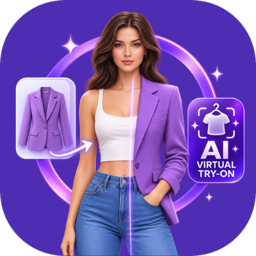
Description
Mirrolo adds four AI tools to a WooCommerce store, from one settings screen and
without touching your theme: virtual try-on, AI product photography, AI
banners and logos, and an AI shopping assistant — a chatbot that answers
from your real catalog and adds products straight to the cart.
Mirrolo is a TryVue product. Mirrolo is the plugin; TryVue is us — the service at
tryvue.io that runs the AI and holds your account, your plan and your credits.
Shoppers upload a photo and see your product on themselves or inside their own
room. You generate a full product photoshoot from a single image. You design
banners and logos from a written brief. And an AI assistant answers questions
using your real catalog, with a direct add-to-cart.
Free forever plan available. No watermark on the results, all three try-on
niches included, and you can connect your own fal.ai API key so the AI
generations bill to your own AI account and you buy nothing from us.
1. Virtual try-on studio (storefront)
A shopper uploads one photo and sees the product on themselves — or in their
home. Three niches ship today:
- Fashion & clothing — the garment worn by the shopper, in their own photo.
- Home decor & furniture — the item placed into a photo of their room,
either replacing what is already there or furnishing an empty space. - Accessories & jewelry — bags, watches, glasses, hats, jewellery.
Other useful details:
- Opens as a popup on the product page, or as a standalone try-on page at a
URL you choose — so you can link it from a menu, an ad or an email campaign. - You map your product categories to niches, so the right mode loads for the
right product automatically. - Multiple products in one try-on — a full outfit, or a whole room.
- Shoppers can add photos of items you don’t sell (a jacket they already own,
a chair from another store) and try them together with your products. You
decide per niche whether that is free or costs credits. - Button text, position and behaviour are configurable per niche, plus an accent
colour and a light/dark mode that follows your theme. [mirrolo_button]shortcode for placing the trigger anywhere you like.- Daily rate limits per visitor and per logged-in account.
2. AI Product Studio (admin)
Turns a single product image into a full photoshoot — several styled photos per
product. You review every image before anything is published, then save the ones
you like straight into the WooCommerce product gallery. Works in bulk across
many products at once, with a cost estimate shown before the batch starts.
3. AI Creative Studio (admin)
Designs marketing artwork from a written brief:
- Banners & graphics — shop banners, category headers, Instagram posts and
stories, Facebook covers, email headers. Pick the placement and the format
follows automatically. - Attach up to ten reference images — from your Media Library or straight
from your phone — and label each one (product, logo, person, background,
style, layout), so the AI uses each picture for what you meant it for. - Text in your own language. You choose the language of the copy and
accented characters (ă, ț, ö, ñ, ł, ş) are rendered correctly instead of being
swapped for lookalikes. Around fifty languages are covered. - Logo (SVG) — real vector logos drawn from a description and your brand
colours, sharp from a favicon to a billboard, with a genuine transparent
background and an automatic crop to the artwork.
Everything you keep is saved into your WordPress Media Library, with the
description carried over as alt text, ready to use in a page builder, a category
header, an email or as the site logo. Failed artwork is refunded automatically.
4. AI Shopping Assistant (storefront chat)
A chat widget that answers using your catalog and never invents products. It
reads the products, categories, attributes and stock you already have, and
recommends real, purchasable items with a direct add-to-cart. It replies in the
language the shopper writes in. With the AI Vision add-on, a shopper can upload
a photo of a room, an outfit or a garden and get recommendations from it.
Sell try-on credits to your own customers (optional)
Your store can sell try-on credits as ordinary WooCommerce products, give free
credits on signup or per completed order, and show the balance in My Account.
What’s in the free plan
The Starter plan is free forever and includes:
- All three niche modules — fashion, home decor, accessories
- No watermark on any result
- Bring your own key — connect your own fal.ai API key and generations bill
to your fal.ai account instead of ours - The standalone try-on page
- Standard 2K output
Paid plans add the AI Product Studio, the AI Shopping Assistant, 4K output, a
priority generation queue, the scene/destination prompt, selling credits to your
customers, and ticket support.
Current plans and prices are listed at https://tryvue.io/pricing
Nothing about branding is behind a plan: the “Powered by TryVue AI” credit is
off on every store, free and paid alike, and only ever appears if you switch it
on yourself under Display & limits.
How it works
The browser never talks to the TryVue API directly. Every request is proxied
through your own WordPress site and signed server-side with a secret stored in
your database that is never sent to a browser. The photo a shopper uploads is
relayed for generation and is not retained afterwards. The try-on it
produces is hosted by TryVue and deleted automatically when your plan’s
retention window ends.
Mirrolo is a client for the TryVue service: it declares HPOS compatibility,
uses the WooCommerce CRUD API, works behind a page cache (stale security tokens
are refreshed transparently), and every admin string is translatable.
External services
This plugin connects to third-party services. It will not function without them.
TryVue API (api.tryvue.io) — required.
This is the service that performs every AI generation. It is contacted when you
connect your store, when a shopper runs a try-on, when you generate product
photos or artwork, and when the shopping assistant answers a message.
What is sent: your site URL and licence identifier; the product data needed for
the request (title, price, images, categories, attributes, stock); the image a
shopper or an admin uploads; and the text of an assistant message. The photo a
shopper uploads is relayed for generation and is not retained afterwards; the
try-on produced from it is hosted by TryVue and deleted when your plan’s
retention window ends.
TryVue runs the generation on an AI image provider (fal.ai). Your shopper’s
photo and the product images reach that provider as part of the request, under
TryVue’s own account, unless you connect your own key (below). TryVue is the
data processor for your store and the provider is its sub-processor; the current
list is published in the privacy policy linked below.
Two anonymous outcome events are reported for a finished try-on — whether the
image was downloaded, and whether the product was added to the cart — carrying
nothing but the generation’s own id, so the AI prompt can be improved against
what actually worked. No shopper is identified.
Terms: https://tryvue.io/terms — Privacy: https://tryvue.io/privacy
TryVue storage and site (tryvue.io, app.tryvue.io, cdn.tryvue.io) — required
for the generated files themselves.
Every image the AI produces is hosted on TryVue storage for the retention window
your plan grants, and your WordPress downloads it from there when you save a
photo into a product gallery or the Media Library. No request is made unless you
generate or save something.
Two admin-only pages also load media from tryvue.io: the locked screens of the
AI Product Studio and the AI Shopping Assistant show a short product demo, and
nothing is fetched from the video host until you press play. app.tryvue.io is
linked (not contacted) as the account portal where plans and billing live.
Terms: https://tryvue.io/terms — Privacy: https://tryvue.io/privacy
fal.ai (fal.run / fal.ai) — the AI image provider behind every generation.
The plugin never contacts it: TryVue does, as its sub-processor, and the image
and prompt for a generation are processed there. If you connect your own fal.ai
API key (“bring your own key”), the same requests are billed to your own fal.ai
account and processed under it instead.
Terms: https://fal.ai/terms — Privacy: https://fal.ai/privacy
An active TryVue account is required. A free account is enough to use the free
plan; some features listed above are unlocked by a paid plan.
Cookies. One first-party, HTTP-only cookie (tryvue_visitor) is set for a
logged-out shopper, and only at the moment they actually start a try-on — never
on a normal page view. It holds a random token, no personal data, and exists so
the per-visitor daily limit can count a browser rather than an IP address (an
IP counts a whole household or office as one shopper). It expires after a week.
Logged-in customers are counted by their user ID and get no cookie at all.
Screenshots


Installation
- Install through Plugins Add New, or upload the ZIP via Plugins Add New Upload Plugin.
- Activate it. WooCommerce must be installed and active.
- Go to Mirrolo Settings and click Connect your store. You will be taken to app.tryvue.io to sign in or create a free account; the plugin then activates itself. There is no licence key to copy and paste.
- Map your product categories to the niches you want enabled, and choose where the try-on button appears.
- Optional: under Settings Billing, paste your own fal.ai API key if you would rather pay your AI provider directly.
To move a site or reinstall, you can also activate with your TryVue account email and password, or with your licence key. Binding a licence key to a new domain requires a 6-digit code emailed to the account owner.
FAQ
-
Why does it say TryVue when I connect my store?
-
Mirrolo is a TryVue product — the plugin is Mirrolo, the company and the service
behind it are TryVue, at tryvue.io. Your account, your plan and your credits all
live there. When you click “Connect your store” you are taken to tryvue.io to
sign in, and brought straight back. Same company, same people: nothing changes
hands and nothing is shared with anyone else.Nothing is shared with a third party by that step, and you never copy a licence
key by hand. If you would rather not create an account with us at all, you can
connect your own fal.ai API key instead and the AI generations bill directly to
your own fal.ai account. -
Is Mirrolo free?
-
Yes — the Starter plan is free forever and includes all three try-on niches, no
watermark on the results and the standalone try-on page. The AI generations
themselves cost credits; on the free plan you connect your own fal.ai API key,
so those generations bill to your own AI account and you buy nothing from us.
Paid plans add the AI Product Studio, the AI Shopping Assistant, 4K output and
support. -
Does it work without WooCommerce?
-
No. Mirrolo reads WooCommerce products, categories, variations and stock, so
WooCommerce must be installed and active. -
Do I need an account on tryvue.io?
-
Yes. Every AI generation runs on the TryVue service, so the plugin has to be
connected to an account. Creating one is free and takes one click from the
plugin’s settings screen — there is no key to copy. -
Do shoppers need an account to try a product on?
-
No. A guest can use the try-on studio. You set separate daily limits for guests
and for logged-in customers, and if you sell credits to customers, the balance
is tied to their WooCommerce account. -
What happens to the photo a shopper uploads?
-
It is relayed to the TryVue service for the generation and is not retained after
the result is produced. It is never written to your WordPress database, and the
browser never talks to the AI provider directly — every request is proxied
through your own site.The try-on itself is a different thing and is treated as one: it is a picture of
the same person, so TryVue hosts it on its own storage and deletes it when your
plan’s retention window ends. The studio tells the shopper exactly that before
they upload anything. -
Where are the generated images stored?
-
Try-on results are served from TryVue and expire on your plan’s retention
schedule. Anything you keep from the AI Product Studio or the AI Creative Studio
is copied into your own site — into the WooCommerce product gallery or into your
Media Library — so your store never depends on a temporary link. Every screen
tells you, in plain words, how long TryVue keeps a file on your plan. -
Can I use my own AI provider key?
-
Yes. Connect a fal.ai API key and every generation bills to your fal.ai account
instead of consuming TryVue credits. This works on every plan, including the
free one. -
Will there be a watermark on the results?
-
No — there is no watermark on any plan, including the free one, and nothing is
added to your storefront by default. The small “Powered by TryVue AI” credit is
switched OFF for every store; it appears only if you tick “Credit on your
storefront” under Display & limits, and you can switch it back off whenever you
like. It is not tied to your plan in any way. -
Which product types does the try-on work with?
-
Simple and variable products. Variations are read, so a shopper picks the colour
or size first and sees that exact variant. Products are matched to a niche
through the category mapping you set in the plugin’s settings. -
Why can I not save an SVG logo to my Media Library?
-
WordPress refuses SVG uploads unless a plugin allows them, because an SVG can
carry scripts. Install the free “Safe SVG” or “SVG Support” plugin and the
button starts working — TryVue detects it automatically. Either way the Download
button gives you the file, and every SVG TryVue produces is stripped of scripts
and external references before it is stored or handed to you. -
What happens when credits run out?
-
The storefront enters a graceful “we’ll be right back” state instead of showing
errors to shoppers, and you receive warning emails before the balance reaches
zero. Nothing on your product pages breaks. -
Is it compatible with HPOS (High-Performance Order Storage)?
-
Yes. Compatibility is declared and the plugin uses the WooCommerce CRUD API
throughout. -
Does it work with a page cache?
-
Yes. The try-on and assistant endpoints detect a stale security token coming
from cached HTML and refresh it transparently. -
Which languages does the shopping assistant speak?
-
It replies in the language the shopper writes in. The admin interface and every
storefront string are translatable, and the banner generator lets you set the
language of the text drawn on the artwork — around fifty languages, including
every European one with accented characters. -
Does it slow my store down?
-
The studio and the chat load only where they are enabled, and the assets are
loaded on demand. The AI work itself runs on the TryVue service, not on your
server, so a generation never blocks a page load. -
What happens to my data if I uninstall the plugin?
-
Deleting the plugin removes its options and settings from your database. Images
you already saved into your Media Library or a product gallery are yours and
stay where they are.
Reviews
There are no reviews for this plugin.
Contributors & Developers
“Mirrolo — AI Virtual Try-On, Product Photos & Shopping Assistant for WooCommerce” is open source software. The following people have contributed to this plugin.
Contributors
Interested in development?
Browse the code, check out the SVN repository, or subscribe to the development log by RSS.
Changelog
2.20.3
- Changed: the try-on shortcode is
[mirrolo_button]. The short-lived[tryvue_button]alias from 2.20.2 has been dropped — the plugin had only been public for minutes, so nothing anywhere could have been using it, and one name is clearer than two.
2.20.2
- New: the try-on shortcode is now
[mirrolo_button], matching the plugin’s name.
2.20.1
- Fixed: with every option enabled, the try-on window squeezed the photo area — the part the whole feature is about — until the instruction inside it was cut off. It was the only part of the column that could shrink, so it paid for all the others. The empty upload zone now refuses to be cut, the window uses more of a tall screen than it used to, and it asks for less room on a short laptop.
- Fixed: when the product list failed to load, the picker showed “No products found” — the same message as a shop with no matching products. A failure now says so, shows what the server answered, and offers a retry.
- Fixed: the “My Try-On Credits” tab never loaded its own stylesheet or its buy handler, so it rendered as unstyled markup and the “Buy now” button on a credit pack did nothing when clicked. The check that decided whether the page was ours asked WooCommerce a question it cannot answer about a plugin’s own endpoint, and it had been answering “no” on every store.
- Redesigned “My Try-On Credits” in My Account. The balance now says what it is worth in try-ons rather than only in credits, credit packs show what each one buys and which is genuinely the best value per credit, and the history is a list that reads on a phone instead of a four-column table that scrolls sideways. Running out, having no packs on sale, and a brand-new customer with no history each get a screen that makes sense. A failed purchase reports itself under the packs instead of in a browser alert box.
- Single photoshoots and the Banners & Logo tabs now show the same thing the bulk panel does: how much longer they have to run, when the server was last checked, and an honest “taking longer than usual” once the estimate has been overshot.
- Spacing: the buttons under a finished bulk run are no longer welded to the bottom edge, and the file-retention notice no longer touches the panel below it.
- Bulk photoshoots now show what they are doing. The batch panel used to sit at “0 done, 0%” with an unchanging “Working…” on every row for the minute or two a run takes, which is indistinguishable from a page that has frozen. It now counts the time it has been running, estimates how much is left from how long your own products actually take, narrates the stage each product is at, shows empty slots for the photos on the way, says when it last checked the server, and marks products that have not started yet as queued rather than working.
- Hardened: in the storefront widget, an image-resize helper took a parameter named after the element builder it sits next to. Harmless as written, but the next line added inside it would have failed in a shopper’s browser; renamed so it cannot.
- Fixed: AI Product Studio opened to a blank screen. A local variable shadowed the plural-form translation helper inside three of its panels, so Bulk, Banners & graphics and Logo threw as soon as they rendered.
- Added a “Settings” link on the plugin’s own row in Plugins > Installed Plugins, next to Deactivate, so you can open the panel straight after installing instead of hunting for it in the admin menu.
- Both that link and the “Mirrolo” admin menu link now take you straight to the License tab while your store is not connected, so the one thing that still needs doing is the first thing you see. Once the license is active and valid they open the panel normally.
2.20.0
- Renamed: the plugin is now Mirrolo Virtual Try-On for WooCommerce. Only the plugin’s name changes — the AI service behind it is still TryVue at tryvue.io, your account and credits are unchanged, and nothing needs to be reconnected. The admin menu is now “Mirrolo”.
2.19.0
- Added: a Conversations tab in the AI Shopping Assistant, led by the one thing the assistant knows that you cannot find anywhere else — the questions shoppers asked where it had nothing to recommend. Repeated lines are usually a stock gap, a naming mismatch, or something missing from your store brain. Greetings and thank-yous are kept out of that list, so it stays worth reading. Individual conversations can be opened underneath it.
- Added: assistant conversations are now covered by WordPress’s own Tools Export Personal Data and Erase Personal Data. A customer with an account can ask for a copy of their chats or have them deleted, and you can carry that out yourself. If TryVue cannot be reached, an erasure reports the data as RETAINED rather than deleted — so you are never told a request succeeded when it did not.
- Fixed: conversations are now genuinely deleted once they pass the retention period on your plan. The suggested privacy text has always said they were; until now nothing removed them.
- Improved: honest privacy wording. The suggested text said your shoppers’ IP addresses were not stored with a conversation, which was true only on a technicality — what is stored is a scrambled fingerprint calculated from the address. It now says so, and explains why a guest’s conversations cannot be found from an email address.
- Improved: the storefront is dramatically lighter. The assistant is no longer downloaded on every page whether or not anyone opens it — pages now ship a small launcher and fetch the assistant the moment a shopper reaches for it, so it is usually ready before they press it. Nothing about the assistant itself changes.
- Fixed: the assistant could be talked into offering a discount code, a price reduction, free shipping or a delivery date that your store never authorised — a promise a shopper can screenshot and bring to you. It no longer makes commitments that are not in your product data or in what you wrote about your policies. Real discounts on real products are unaffected and still stated in full.
- Fixed: a message that failed after your store had been charged for it is now refunded, and a message is charged only once the assistant is genuinely about to answer. Previously a failure late in the process could leave the charge in place.
- Fixed: on a busy store, two shoppers sharing the last credit could both be answered and only the second one refused. The credit is now taken before the answer is produced, so the second shopper is told politely instead.
- Fixed: the assistant could refuse shoppers with “I’m helping a lot of people right now” on a store that was not busy, when a slow reply had its place in the queue reclaimed while it was still working.
- Improved: the daily conversation counts and the questions list load a fraction of the data they used to, so the new tab stays fast on stores with long conversations.
2.18.0
- Improved: product pages are dramatically lighter. The try-on studio is no longer downloaded on every product page whether or not anyone opens it — the page now ships a small button and fetches the studio on the first click, starting the moment a shopper hovers the button so it is usually ready before they press it. Nothing about the studio itself changes.
- Fixed: the accent colour you pick in Appearance never reached the try-on button on your storefront — it always rendered in the default purple. It now uses your colour.
- Fixed: a shopper could reset their daily try-on allowance simply by clearing a cookie, which meant a script could run through a store’s credits far faster than the daily limit suggested. The limit is now also counted per address, with plenty of headroom so a family or an office sharing one connection is never the thing it stops.
- Fixed: a try-on that included a product which had just been unpublished or lost its image went ahead without it — and the shopper was charged for the full selection. It now stops and says the selection changed.
- Fixed: an expired subscription made every request retry itself once before failing, doubling the load on stores that were already having a bad day.
- Improved: photos are sent to the AI at a higher resolution, which shows most in faces, and their rotation is now applied explicitly — on some Android browsers a portrait photo was reaching the AI sideways and ruining the result.
- Improved: a photo the browser cannot open (an iPhone HEIC on a desktop, most often) now says so, instead of showing the file-size hint and leaving the shopper looking for a problem that was not there.
- Added: photo framing can now be set per product category. TryVue works out how much of a shopper has to be in frame from your product names, in six languages — this is for the catalogs it cannot read, so a shop in any language can tell it directly that “shoes” needs a full-length photo.
- Improved: every try-on result is now hosted by TryVue and deleted on your plan’s retention schedule. Previously results on plans without a watermark stayed on the AI provider’s servers indefinitely.
- Improved: honest privacy wording in the studio. It said your photo was “never stored”; it now says what actually happens — the photo is deleted once the try-on is ready, and the try-on is kept only long enough to view and download.
- Improved: the studio asks that shoppers upload a photo of themselves, or one they have permission to use, at the moment they choose the file.
- Improved: screen readers now hear the studio’s error messages and its progress while a try-on is being created — both were previously silent.
- Improved: variable products no longer print their entire size/colour matrix into every product page. The options are fetched when the studio opens, exactly as they already were for every other product.
- Fixed: a shop that turned the scene/destination field off could still have scene text applied to a generation by a forged request.
2.17.0
- Changed: “Remove the original photo” in the AI Product Studio no longer deletes a file that is still in use. The photo is always taken off the product; the file itself is only removed from your Media Library when nothing else on your site points at it — another product, a variation, a post — and it is never force-deleted, so a site with the media trash enabled can still recover it. The option now says which of the two will happen before you tick it, and the confirmation says which one did.
- Fixed: saving the same generated photo twice — from a second tab, after a reload, or from the History panel — added a second identical image to the product gallery and a second file to your disk. A photo already imported into a product is now recognised and handed back instead of copied.
- Fixed: the cost shown above “Generate” was compared against the credit balance from the moment the page was opened, so after a few photoshoots it warned about topping up when there was money, and stayed silent when there was not.
- Fixed: “Save all” could stop halfway with no error if you clicked Save on one photo just as the queue reached it. It now waits for that save and carries on.
- Fixed: photos imported into a product had no alt text, so they reached your storefront invisible to screen readers and worth nothing to search. They now carry the product name.
- Fixed: a product whose featured image had been deleted still appeared in the picker, then failed at generate time with “no usable image”.
- Improved: the studio no longer polls the server every few seconds for the whole length of a job. Checks start quick and then space out, and stop entirely while the tab is in the background — a long batch now costs your site a fraction of the requests it used to.
- Improved: product search in the picker is cached for a minute and cleared the moment a product changes, so repeated searches on a large catalog no longer re-run the same scan.
- Improved: the studio tabs are now a real tab strip for screen readers and can be moved through with the arrow keys, and the photo preview keeps keyboard focus inside it and returns it where it was on close.
- Improved: counts in the studio (“3 photos”, “2 products were skipped”) now use proper plural forms, so every language can translate them correctly instead of being forced into English grammar.
- Improved: a bulk batch larger than your plan allows now says how many products were left out, instead of silently dropping them.
2.16.0
- Changed: the small “Powered by TryVue AI” credit is now OFF on every store and only appears if you tick “Credit on your storefront” under Display & limits. Nothing is added to your public pages unless you ask for it.
- Improved: the admin notices about credits and setup now appear only on the Dashboard, the Plugins screen, WooCommerce screens and TryVue’s own pages — not on every screen in wp-admin. The first-run setup notice can be dismissed for 30 days.
- Improved: all styles and scripts are registered through the WordPress enqueue system instead of being printed inline, so they are cached, versioned and can be dequeued like any other asset.
- Fixed: on stores without a persistent object cache, two chat messages sent at the same instant could each claim the last slot of a shopper’s daily allowance. The counter is now updated under a lock, so the cap is exact either way.
2.15.0
- New: the try-on studio now shows how much of the shopper has to be in the photo, as a silhouette that changes with what they are trying on — head and shoulders for glasses and jewellery, head to waist for clothes, head to toe for footwear. Asked for a pair of trainers on a photo cropped at the waist, the AI had to invent the legs it could not see, and the invented half came back distorted; the shopper is now told before they upload.
- New: if a product is added after the photo, the requirement appears next to the Generate button, naming the product that raised it.
- Developers: a
tryvue_product_framefilter to set the framing a product asks for, when your catalogue’s wording is not one the built-in list knows.
2.14.0
- Improved: the product cards in the chat have been rebuilt. Sizes and colours are now tapped instead of opened from a dropdown, combinations you do not sell are greyed out on sight, and the price updates to the exact variant chosen. A card takes about half the height it used to, so shoppers see several products at once instead of one.
- Improved: much better on phones — bigger tap targets for sizes and buttons, a larger product picture where the picture is the decision, and a tighter header so more of the screen is the conversation.
- Fixed: the chat could inherit styling from your theme, so buttons appeared with the wrong capitalisation (“Add To Cart”) and the panel looked slightly different on every store. The widget is now fully isolated and looks the same everywhere.
2.13.0
- Removed: the “Suggest synonyms from my catalog” button, which cost 5 credits. TryVue now works the same vocabulary out from your whole catalogue automatically after every sync — every word rather than a handful, on a better model, at no cost. The button was selling you something you already had.
- Improved: the “Extra words only you know” box is unchanged and still worth using, but only for what TryVue cannot know: trade jargon, a local nickname, the shorthand your regulars type.
2.12.0
- New: TryVue now learns the words your shoppers use, from your own catalogue, after every sync — so a customer searching in their own language finds your products even when your product titles are written in another one. Nothing to fill in, and what it learns is kept between syncs rather than worked out again from scratch.
- New: “Language your customers speak” is now a required question in Store brain, with a picker. It is what the assistant uses to understand your customers’ words, and guessing it from your WordPress settings fails silently — an English-language shop selling abroad would tell shoppers a product is unavailable when it is in stock.
- Improved: the Store brain screen shows what TryVue understood from your catalogue, with examples from your own products.
- Improved: the search vocabulary box is now optional, for the words only you would know — a local nickname, a trade abbreviation. What you write there still wins over anything TryVue works out.
2.11.0
- New: TryVue now learns the words your shoppers use, by itself. If your product titles are in English but your customers search in their own language, the assistant used to tell them you had nothing in stock — a shop full of “T-shirt” products found nothing for anyone typing “tricou”. The vocabulary is now built from your own catalog after each sync, covering every word in it, and every word is tested against your real products before it counts. You do not fill anything in.
- Changed: the “Search vocabulary” box is now optional, for the words only you would know — a local nickname, a trade abbreviation. It is no longer where you repair what the AI missed, and what you write there still wins over anything generated.
- Fixed: a search vocabulary entry made of more than one word (or containing a hyphen) matched nothing at all, so those groups silently did nothing.
2.10.1
- Fixed: the assistant sometimes printed stray asterisks in the middle of a sentence — “Loose Fit Washed T-shirt **, nu cămașă”. Replies are now always clean, whatever formatting the AI produces.
- Fixed: a product link whose address contained an underscore was rendered as broken text instead of a link.
- Fixed: search vocabulary suggestions could not see hyphenated product names. A shop selling “T-shirt” was only ever shown the word “shirt”, so it was offered Romanian words for a shirt and none for a t-shirt — and shoppers typing “tricou” were told the shop had none in stock. Suggestions now read compound names whole (“t-shirt”, “v-neck”, “a-line”). Re-run “Suggest synonyms from my catalog” to pick up the words that were missing.
- Fixed: a search vocabulary entry made of more than one word (or containing a hyphen) silently matched nothing at all, so those groups never did anything.
2.10.0
- New: shoppers can now pick a size or colour and add the product to their cart without ever leaving the chat. Products with options used to offer only a “View” link, which sent the customer to the product page to start their choice again.
- New: your suggested questions now appear as one-tap buttons under the assistant’s greeting. You have always been able to write them during onboarding, but only the AI ever saw them — now the shopper does, so nobody has to stare at an empty box wondering what to ask.
- New: the assistant knows which page the shopper is on. Someone asking “does this come in blue?” on a product page now gets an answer about that product, instead of a search of your whole shop for the word “blue”. On the cart and checkout pages it keeps answers short and practical rather than starting a new browse.
- New: the assistant’s product cards show which combinations you actually sell. An option that does not exist is greyed out before it can be picked, a sold-out one says so, and the price updates to the exact variant chosen.
- Fixed: a product with options could show one end of its price range as if it were the price — a dress sold from 199 to 349 advertised “199” in the chat.
- Fixed: the daily message limit reset at midnight UTC rather than in your store’s own timezone, so a shopper told to come back tomorrow could still be refused the next morning.
- Fixed: “Out of stock” and the chat’s close button were always in English, whatever language the rest of the assistant spoke.
- Fixed: keyboard and screen-reader users could tab into the closed chat panel on every page of the shop. The panel is now properly hidden until opened, Escape closes it, and focus returns to the chat button.
- Fixed: an add-to-cart that failed reset the button and said nothing; it now explains what happened.
- Improved: the storefront no longer counts your products on every single page view, and long conversations no longer redraw themselves from scratch on each reply.
- Improved: a catalog sync can no longer run twice at the same time on sites without a working cron, which made the progress bar overstate what had been done.
2.9.2
- Fixed: the AI Shopping Assistant kept asking you to “tell the assistant about your store” after you had already done it. Opening the assistant screen was quietly forgetting your saved answers, so the go-live checklist reset itself and the widget disappeared from your storefront until the next save.
- Fixed: shoppers could be shown a raw technical code (“nonce_refresh_failed”) inside the chat instead of a normal message. The assistant now only ever replies in plain, customer-friendly language.
- Fixed: the chat’s automatic recovery on cached storefronts never ran for logged-out shoppers, so a page served from cache could fail to send a message. It now works for guests and signed-in customers alike.
- Fixed: if your saved store brain could not be loaded, the form appeared empty — and saving from there would have overwritten your real answers. It now says what happened and offers to retry, and nothing can be overwritten until it loads.
- Improved: when the assistant refuses a request, it says which reason applies (expired page, permissions, plan) instead of one generic “not allowed” message.
2.9.1
- Fixed: the feature demos were being cropped to a widescreen frame; they are 4:3 and now play in full.
- Improved: each demo now opens on its own preview image instead of a plain panel.
2.9.0
- New: the AI Shopping Assistant stays hidden from shoppers until your store brain is filled in and your catalog is synced — it no longer goes live the moment you subscribe, only to greet customers it cannot help.
- New: a go-live checklist on the assistant screen shows exactly what is left to do, and the assistant appears on your store by itself once the list is clear.
- New: short demos of the AI Shopping Assistant and the AI Product Studio on their locked screens, so you can see what each one does before deciding to upgrade.
- Improved: finishing a catalog sync now refreshes the storefront immediately instead of up to five minutes later.
2.8.6
- Fixed: saving the store brain could leave the button spinning forever on a save that was never actually sent.
- Improved: every long operation now shows how long it has been running and which step it is on.
- Improved: search-vocabulary suggestions return substantially faster and can be left mid-run.
- Fixed: a request that timed out showed a raw cURL error; it now explains what happened and what to do.
2.8.5
- Fixed: a store that had not yet chosen how to pay for generations was shown a “credits have run out” alert it could not have earned.
2.8.4
- Improved: the “choose how your AI generations are paid for” message no longer appears twice on the TryVue screen.
2.8.3
- Fixed: WordPress notices were being rendered inside the TryVue header card instead of at the top of the screen.
2.8.2
- Fixed: a freshly connected store was told its credits had run out before spending one. It now gets the choice it was missing — connect your own fal.ai key, or buy TryVue credits.
- Improved: the out-of-credits notice offers your own fal.ai key as an alternative to topping up.
- Fixed: portal links in these notices landed on the dashboard rather than the page they named.
2.8.1
- Fixed: discounted products printed their price twice, including screen-reader wording.
- Improved: the optional “place or setting” field is now a chip that opens when wanted, with one-tap starting points.
- Improved: the home-decor “replace or furnish” choice is a single row with tooltips.
2.8.0
- New: shoppers can add photos of items you don’t sell and try them on together with your products. Configurable per niche, free or charged.
2.7.9
- Fixed: clearing the background of a logo left the inside of the letters filled.
- Improved: the Banners tab states up front that a banner takes 2–3 minutes, and paces the progress bar for it.
2.7.8
- Fixed: “Transparent background” on a logo is now genuinely transparent, including pockets of white inside the artwork.
- Fixed: banner text is now set in the language you are writing in, with accented characters preserved.
- Changed: a banner now requires at least one reference image, so the artwork is built from your pictures rather than invented.
2.7.5 – 2.7.6
- Fixed: dropdowns capped at 400px by the WordPress admin stylesheet, misaligned paired settings, and a tab bar that clipped tabs on phones.
- Improved: settings rows reflow cleanly at any width, and labels sit with the field they name.
2.7.4
- The retention reminder can be dismissed and knows when to come back; dismissal is remembered per WordPress user, not per browser.
2.7.3
- New: every studio screen states how long TryVue keeps your generated files, using the real number from your plan.
2.7.2
- New: “Crop to the artwork” for logos, on by default.
- Fixed: logos no longer allow themselves to be stretched by a theme that sets both width and height.
2.7.1
- Fixed: logo quality — your description is now sent as you wrote it, instead of buried in 195 words of art direction.
- Fixed: switching between the Banners and Logo tabs carried work from one into the other.
- Fixed: the same artwork could be saved into the Media Library more than once.
2.7.0
- New: AI Creative Studio — banners, social graphics and email headers from a written brief, plus real SVG logos.
- New: up to ten labelled reference images per brief, from the Media Library or straight from your phone.
- New: generated artwork saves into the Media Library with the description as alt text.
- Failed artwork is refunded automatically; a partly successful job is charged only for the files you received.
- The admin interfaces are now included in the translation template.
2.6.5 – 2.6.8
- Privacy: shopper photos are no longer retained after a try-on.
- Security: the try-on status endpoint now requires a token issued by your store alongside the generation id.
- Security: the standalone try-on page no longer exposes unpublished products.
- Fixed: several Customer credits issues, including credit packages that were invisible in the buy-credits popup on larger stores.