

Description
Mercury Schema adds structured data to your WordPress site, so Google, Bing and AI assistants understand exactly what each page is about, and can show it as rich snippets: star ratings, FAQs, recipe cards, product prices, event dates and more.
No coding and no confusing settings. A one-minute setup wizard adds the essentials to your whole site, and every new schema fills itself in from your post’s title, date, author and featured image.
Read the step-by-step help guide (with screenshots) to see how it works.
What is schema markup?
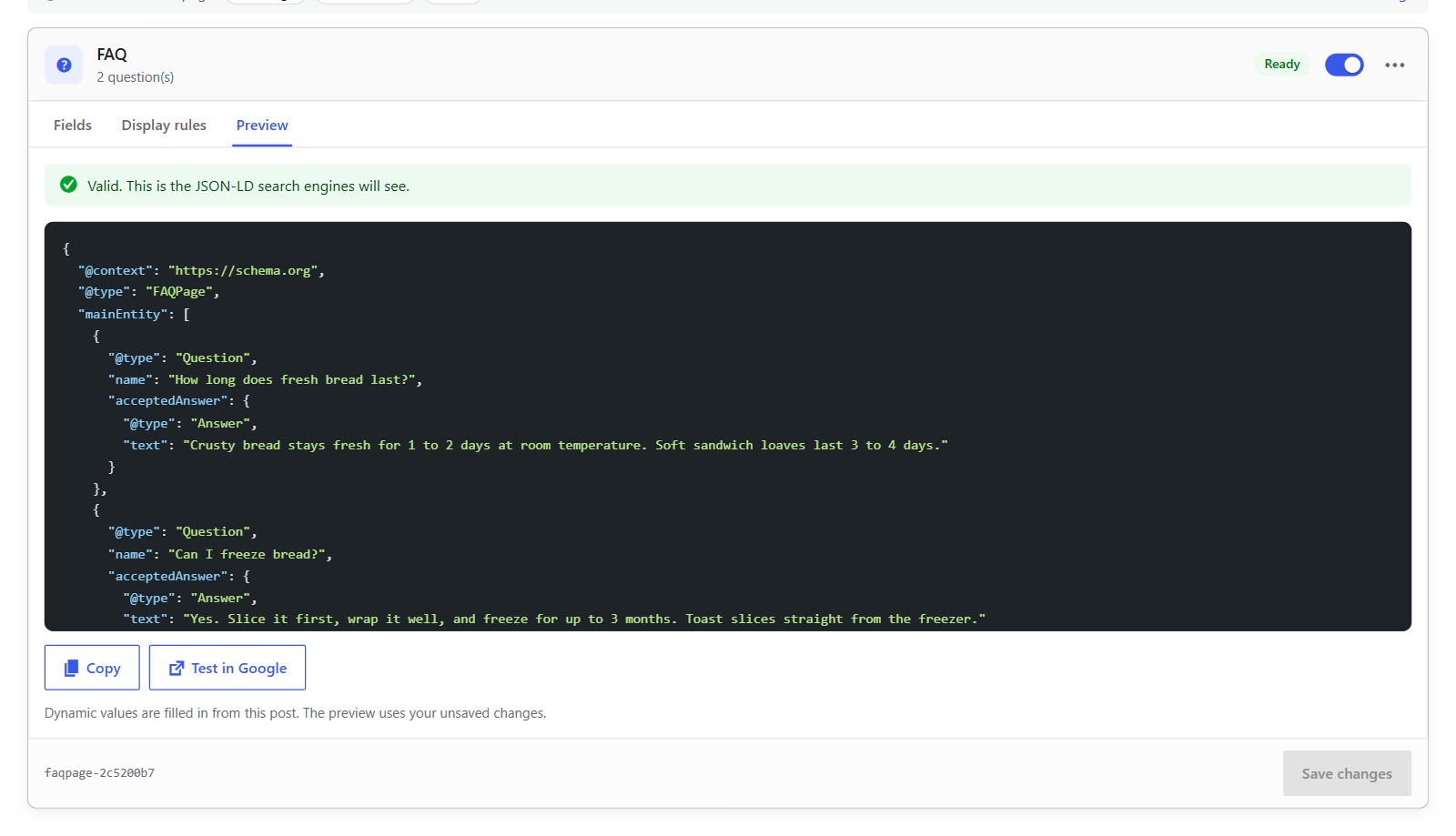
Schema markup is a small piece of code, written in the JSON-LD format, that describes your content in a language search engines understand: “this is a recipe, it takes 25 minutes, it has a 4.8-star rating”. Search engines use it to show richer listings, which stand out and attract more clicks. It also helps AI search tools describe your business and content correctly.
Why Mercury Schema?
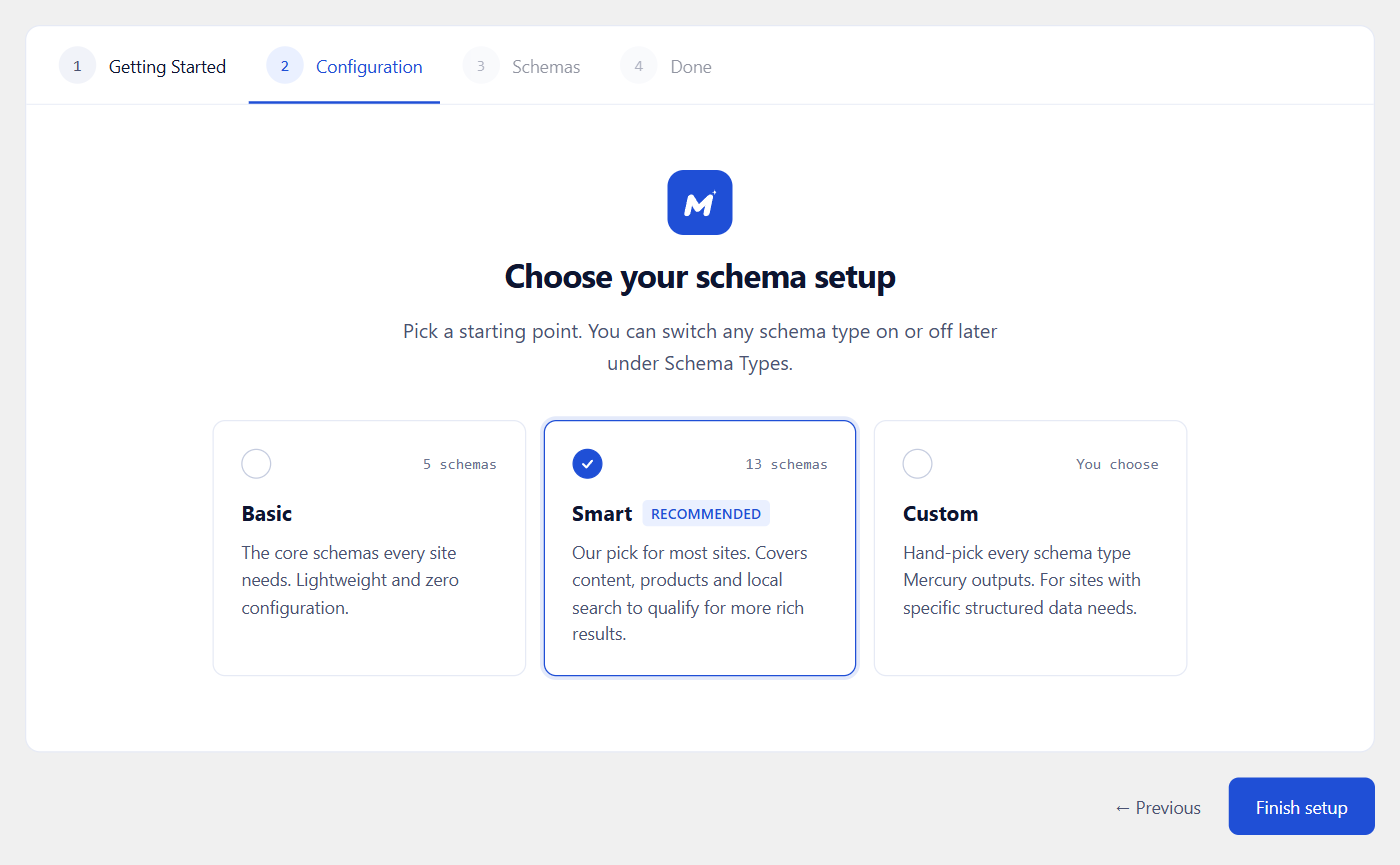
- Set up in one minute. Pick Basic, Smart or Custom, and your organization, website, page and breadcrumb details are added to every page for you.
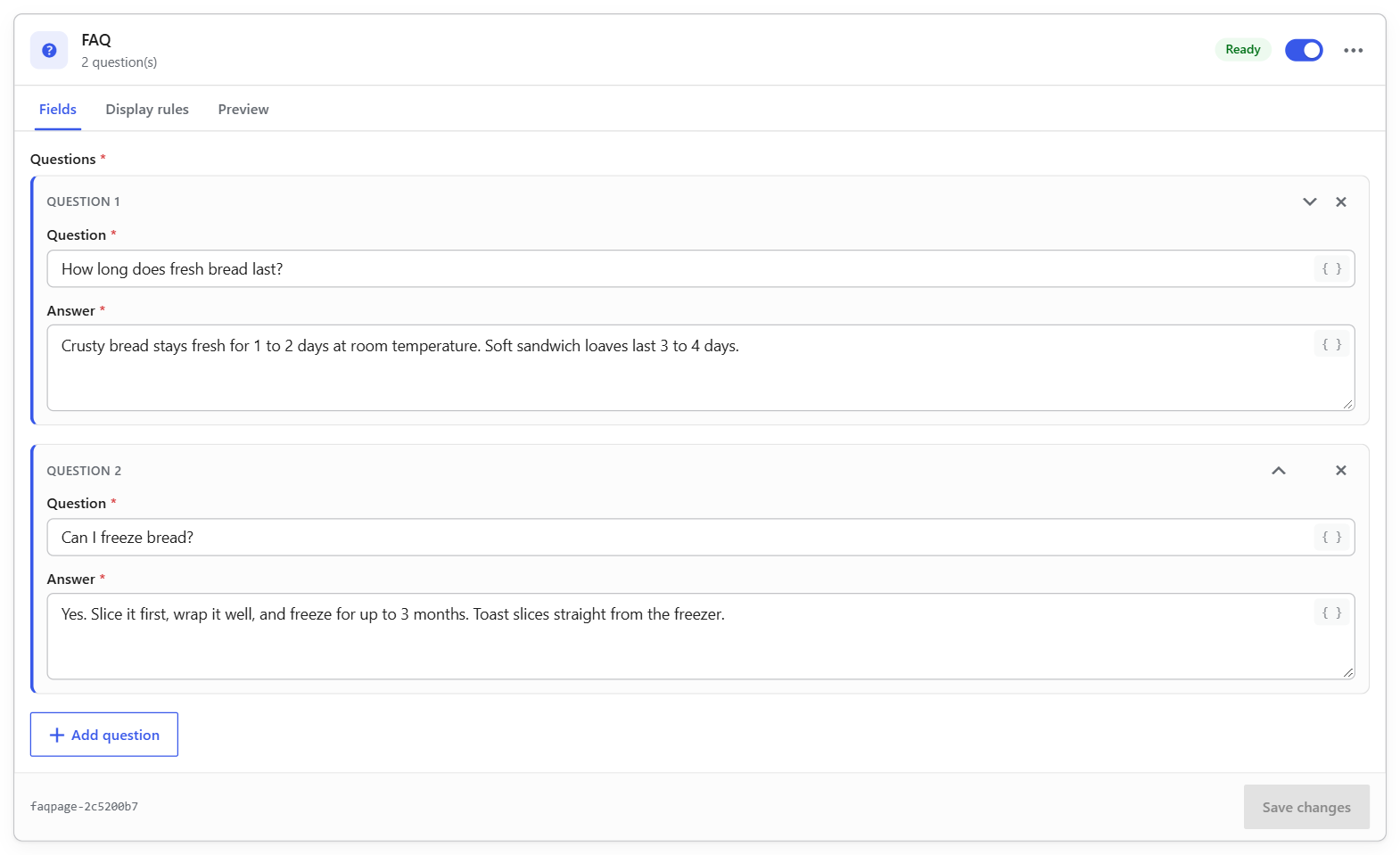
- Fills itself in. Dynamic values such as the post title, publish date and featured image keep your structured data in sync whenever you edit a post.
- Never prints broken markup. If a required detail is missing, the schema is marked Incomplete and kept off your site until you add it, with a clear message saying what to fix.
- See exactly what Google sees. A live preview shows the finished JSON-LD, with a one-click link to Google’s Rich Results Test.
- Fast by design. Nothing is loaded on the front end: no scripts, no styles, no external requests. Each post’s markup is stored in a single database row.
- Works with your tools. The block editor, the Classic Editor, Elementor (with its own button inside the builder), other popular page builders, WooCommerce and caching plugins.
- Warns about duplicates. If a popular SEO or schema plugin also adds markup, Mercury Schema tells you and shows how to keep one source.
- Every feature is free. No upsells, no ads in your dashboard, no account to create.
22 schema types
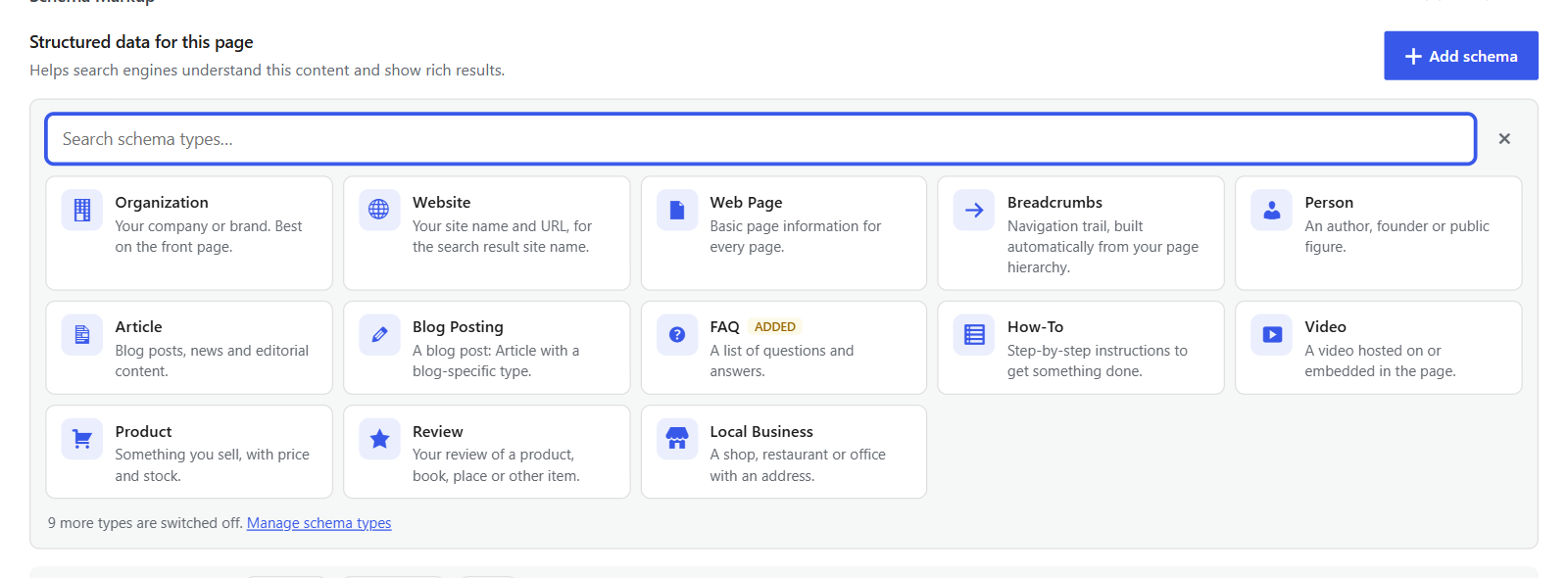
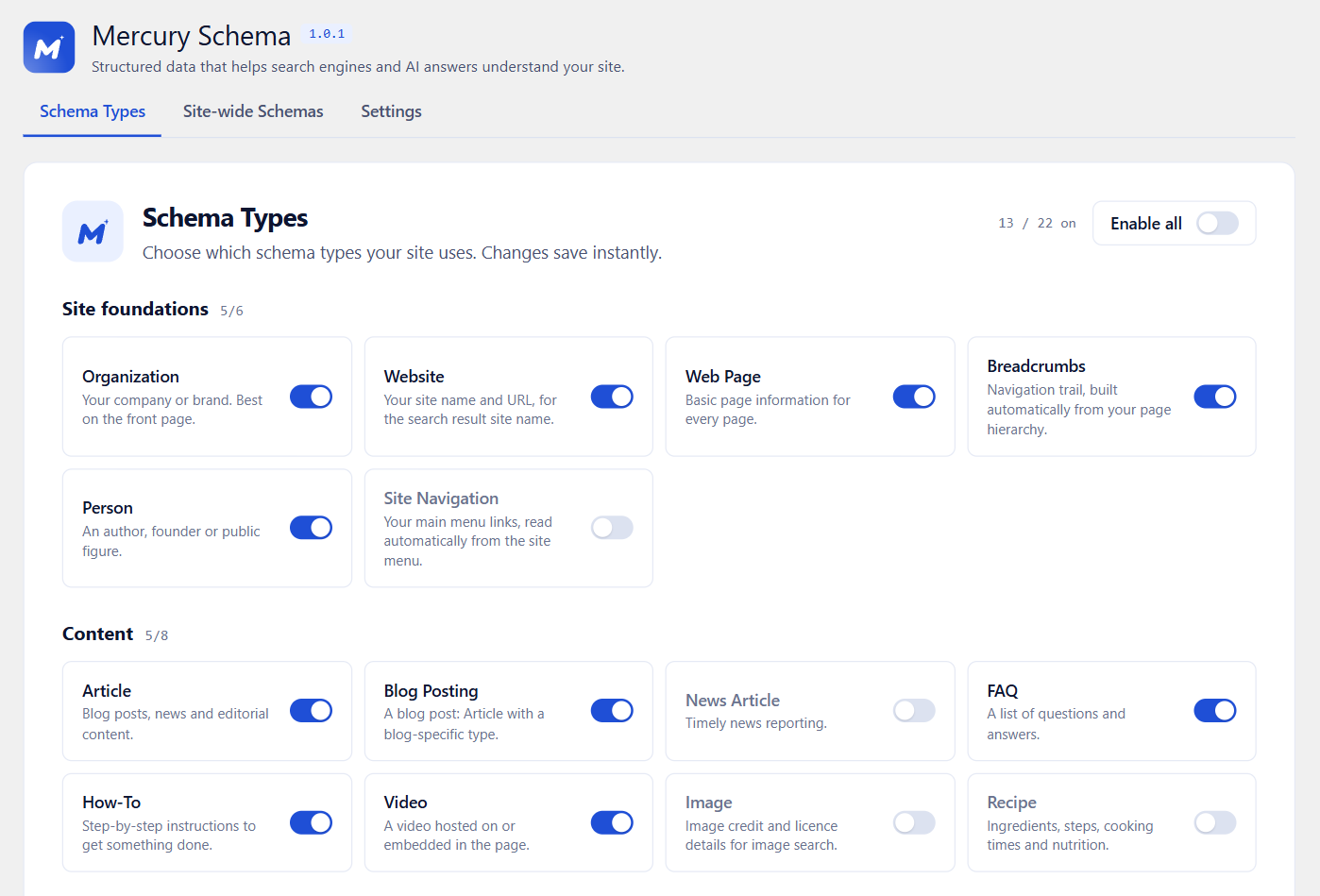
- Site foundations: Organization, Website, Web Page, Breadcrumbs (built automatically), Person, Site Navigation (read from your menu).
- Content: Article, Blog Posting, News Article, FAQ, How-To, Video, Image, Recipe.
- Commerce: Product (with WooCommerce price, stock and ratings filled in), Review, Service, Software App.
- Local and events: Local Business, Event, Course, Job Posting.
Switch any type on or off under Schema Types to keep the editor tidy. Switched-off types keep their saved data.
Who is it for?
- Bloggers and publishers who want articles, FAQs and how-to guides to stand out in search.
- Small businesses that want their name, logo, address and phone number shown correctly.
- Online stores using WooCommerce that want product prices, stock and ratings in search results.
- Recipe, event and course sites that rely on rich results for traffic.
- Agencies that need lightweight, predictable structured data on client sites.
Use one source of schema
Many SEO plugins add some structured data of their own. Search engines should get each kind of schema from one place, so Mercury Schema tells you when it finds a popular SEO or schema plugin on your site. The help guide lists what each one adds and how to turn off the overlap.
Privacy
Mercury Schema does not collect personal data, set cookies, track visitors or contact any outside service. Your markup is built on your own server from content you already have. The “Test in Google” buttons only open Google’s Rich Results Test when you click them.
Help and source code
- Step-by-step help guide with screenshots.
- Questions? Ask in this plugin’s support forum.
- All code ships unminified. Development happens on GitHub, where developers will also find the REST API and filters.
Screenshots
Installation
- In your WordPress dashboard, go to Plugins Add New Plugin and search for “Mercury Schema”.
- Click Install Now, then Activate. The setup wizard opens automatically.
- Pick Basic, Smart or Custom and click Finish setup. Your site-wide structured data is now live.
- To add an FAQ, recipe, product or other schema to a post, open it and use the Schema Markup box below the content.
FAQ
-
Do I need to know how to code?
-
No. You pick schema types from a list and fill in plain fields. Most fields fill themselves in from your post, and the help guide walks you through every screen.
-
Will schema markup improve my Google rankings?
-
Schema markup is not a direct ranking factor, and no plugin can guarantee rich snippets: Google decides when to show them. What structured data does is help search engines understand your pages and make them eligible for rich results, which stand out and tend to get more clicks.
-
Does it slow down my site?
-
No. Mercury Schema adds no scripts, styles or external requests to your pages. The markup is a few lines of text in the page head, built from data WordPress has already loaded.
-
What do the setup presets do?
-
Basic switches on Organization, Website, Web Page, Breadcrumbs and Article. Smart adds Person, Blog Posting, FAQ, How-To, Video, Product, Review and Local Business. Custom lets you choose. Finishing setup adds site-wide Organization, Website, Web Page, Breadcrumbs and Article schemas for you if their types are on. You can change any of this later under Mercury Schema Schema Types.
-
What happens when I switch a schema type off?
-
It disappears from the editor and stops printing on your site. Any schema you already saved for that type is kept, and comes back when you switch the type on again.
-
What’s the difference between site-wide and post schemas?
-
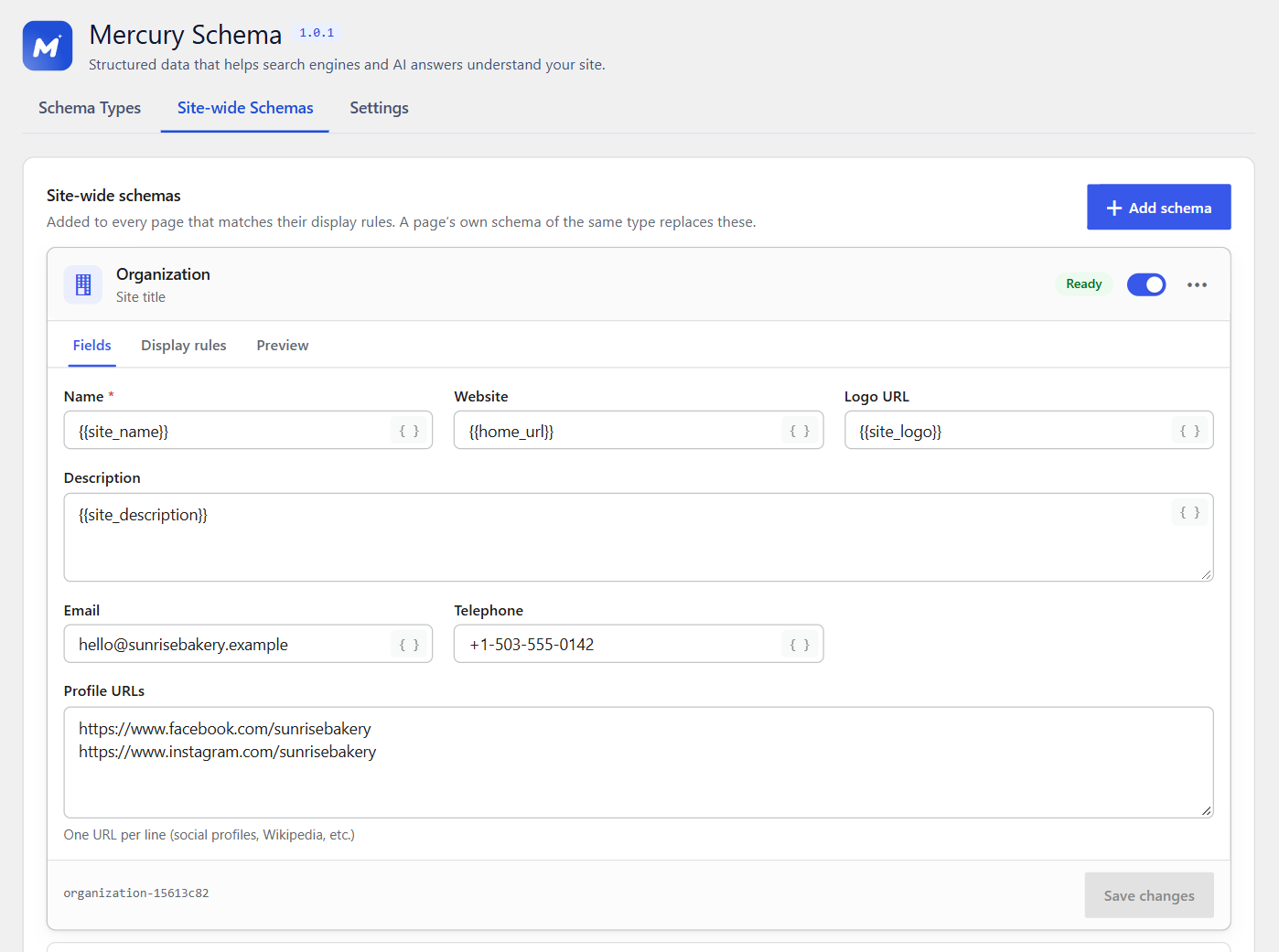
Site-wide schemas live under Mercury Schema Site-wide Schemas and appear on every page that matches their display rules. A post’s own schema replaces a site-wide schema of the same type on that post.
-
Why does a schema say “Incomplete”?
-
A required field is empty, often because a dynamic value has nothing to fill in (for example {{featured_image}} on a post without a featured image). Incomplete schema is not printed. Fill the field or set a featured image.
-
Does it work alongside Yoast SEO, Rank Math or another SEO plugin?
-
Yes, they run side by side without errors. Most SEO plugins also add some schema (often Website, Web Page, Breadcrumbs, Organization and Article), so use one source per type: turn off schema in your SEO plugin where it has a setting, or switch off the same types under Mercury Schema Schema Types. Mercury Schema shows a warning when it finds a popular SEO or schema plugin, and the help guide lists what each one adds and how to turn it off. WooCommerce also adds Product schema on classic themes; developers can switch that off with the
woocommerce_structured_data_productfilter. -
Does it work with caching plugins?
-
Yes. Schema is data for search engines, not a script that runs, and caching plugins’ minify, combine and “delay JavaScript” options leave it alone. After changing schema, clear your cache so visitors see the new version.
-
Does it work with Elementor and other page builders?
-
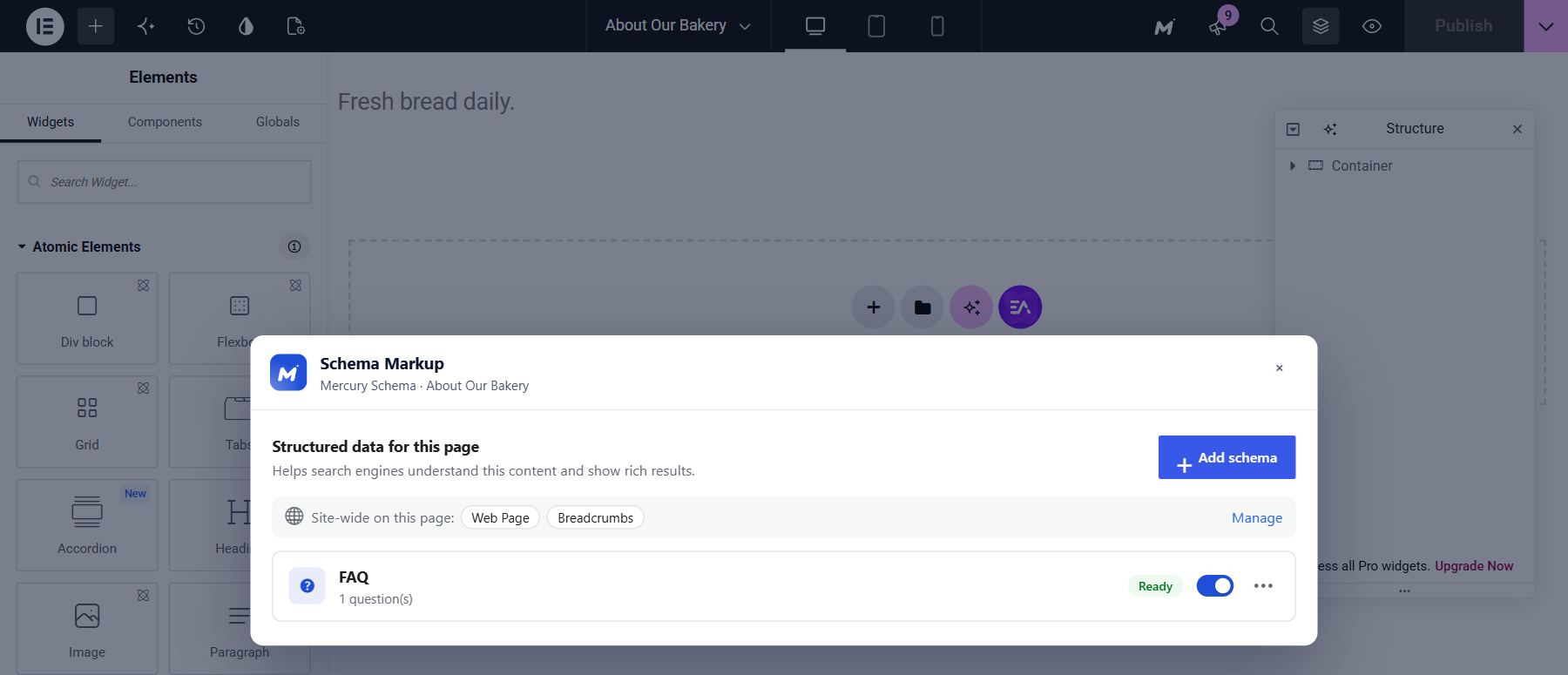
Yes. Schema is printed in the page head, independent of how the content was built. In the Elementor editor, click the Mercury Schema (M) button in the top bar to edit the page’s schema without leaving Elementor. With other builders, use the Schema Markup box on the WordPress edit screen.
-
Who can edit schema?
-
Editors and administrators can edit schema on posts they’re allowed to edit. Authors and contributors can’t. Site-wide schemas, schema types and the setup wizard are for administrators only. Developers can change this with the mercury_schema_rest_capability and mercury_schema_global_capability filters.
Reviews
There are no reviews for this plugin.
Contributors & Developers
“Mercury Schema – Structured Data & Rich Snippets” is open source software. The following people have contributed to this plugin.
Contributors
Translate “Mercury Schema – Structured Data & Rich Snippets” into your language.
Interested in development?
Browse the code, check out the SVN repository, or subscribe to the development log by RSS.
Changelog
1.0.2
- New: a short demo video on the plugin page.
1.0.1
- New: a warning when a popular SEO or schema plugin also adds schema, with a link to how to keep one source.
- New: links to the help guide on the Plugins screen and at the end of the setup wizard.
- Fix: page text from shortcode-based page builders (such as WPBakery and Divi) and Brizy now comes through in descriptions.
- Fix: a required-field error now clears as soon as you fill in the field.
- Change: the setup notice can be dismissed.
- Change: upgrading from UnlimitedSchema moves your data but no longer switches the old plugin off for you.
- Tested with WordPress 7.1 and PHP 8.0 to 8.4.
1.0.0
- First public release.
- Setup wizard with Basic, Smart and Custom presets that adds the site-wide basics for you.
- 22 schema types, including automatically generated breadcrumbs and site navigation.
- Site-wide schemas with display rules; a post’s own schema replaces a site-wide one of the same type.
- Schema editor for the block editor, the classic editor and Elementor, with live preview, dynamic values and repeatable fields.
- Schema Types screen to switch types on and off; switched-off types keep their data.
- WooCommerce price, currency, stock, SKU and rating values for Product schema.
- Status badges show whether each schema will print; incomplete schema is never printed.
- Editors and administrators edit post schemas; site-wide schemas and setup are administrator-only.
- Password-protected posts never reveal their content through structured data.