
Description
Mema Multi Branch Locator Map lets site administrators manage map locations without editing plugin code. Add as many marker locations as your site needs, provide translated names and addresses, and display them in an interactive map. It is an independent plugin and is not affiliated with OpenStreetMap or Google.
Map providers:
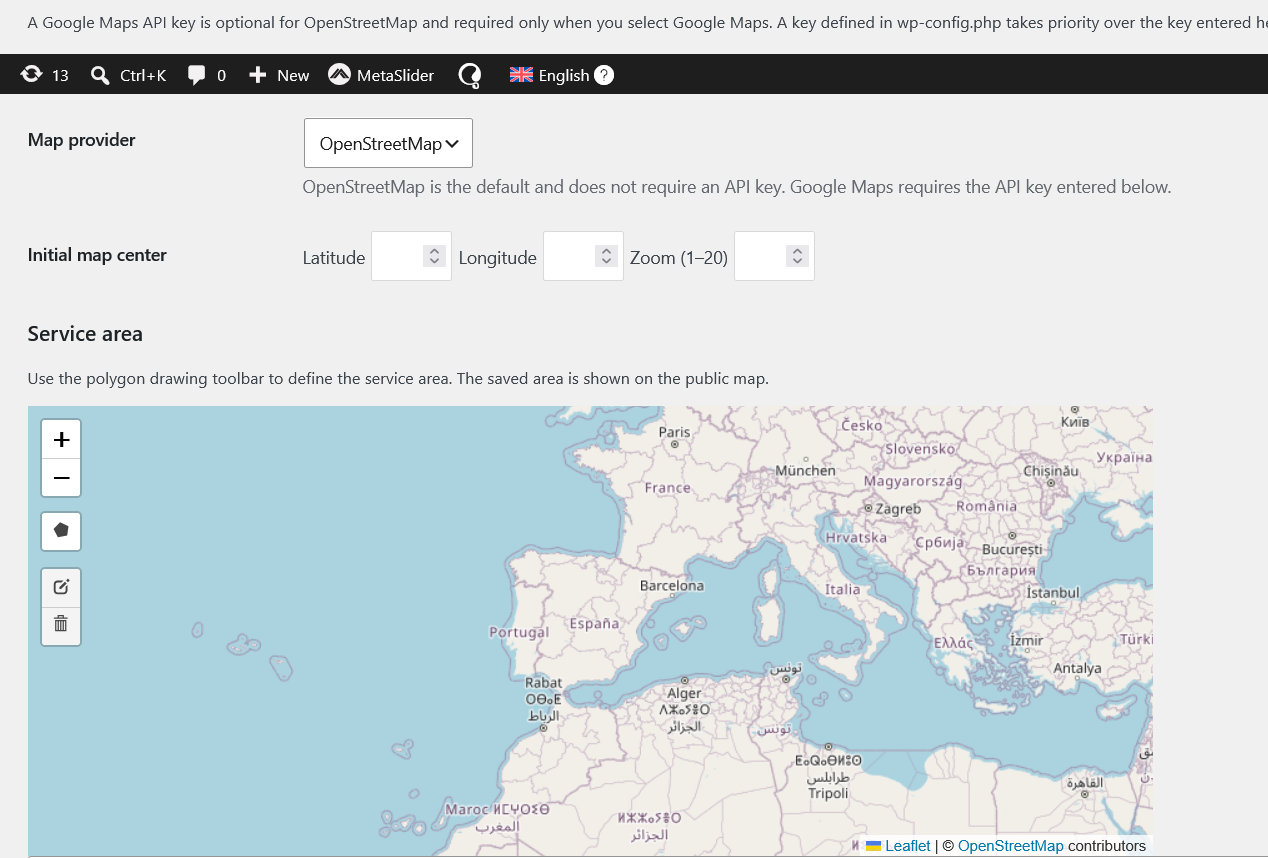
- OpenStreetMap is the default and does not require an API key. Enter latitude and longitude for each location.
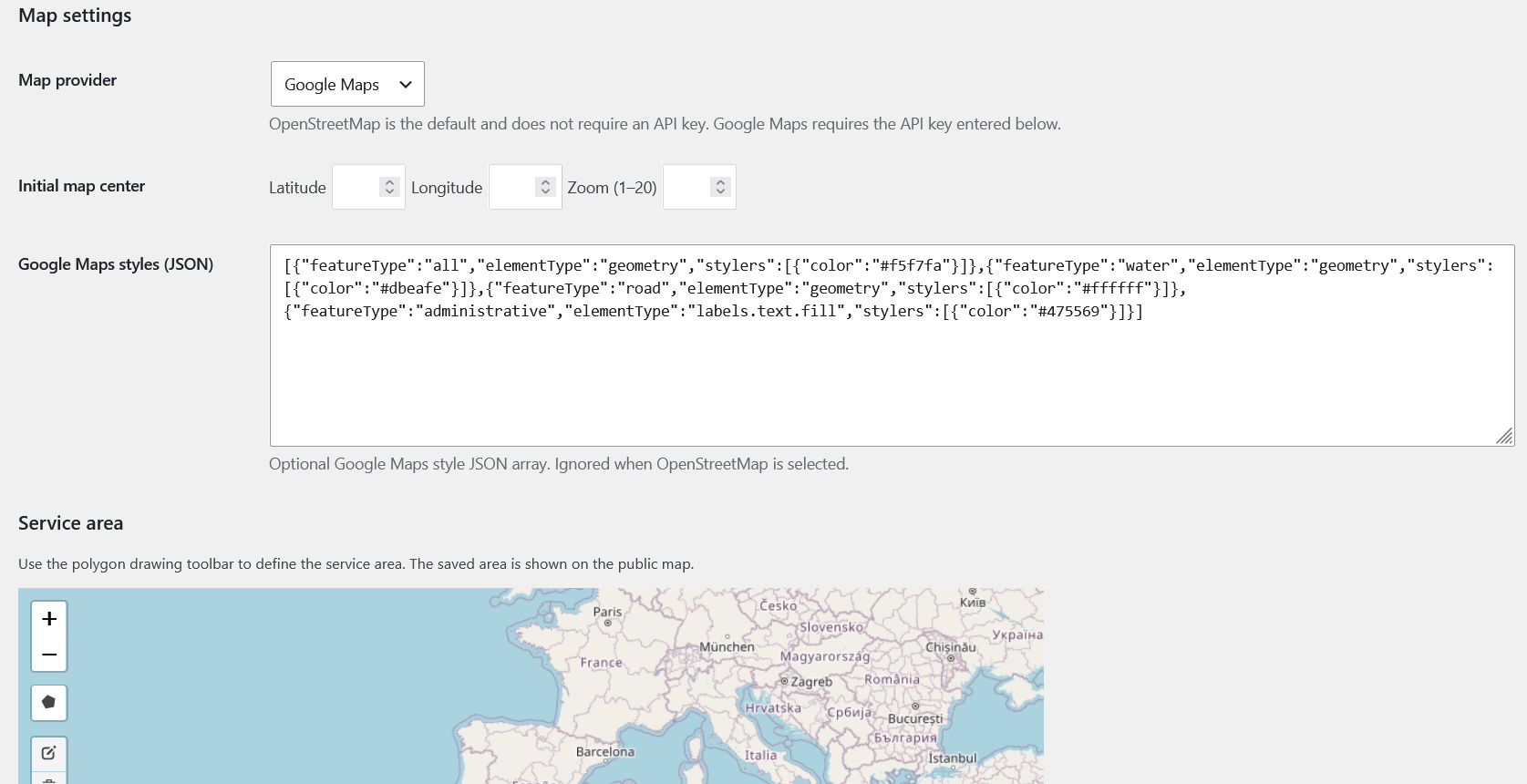
- Google Maps can geocode a location from its address when coordinates are not provided. A Google Maps API key with the required Maps JavaScript API and Geocoding API enabled is required.
Features:
- Add, edit, and remove as many marker locations as needed in WordPress Admin. Actual throughput is subject to the selected provider’s usage limits and quotas.
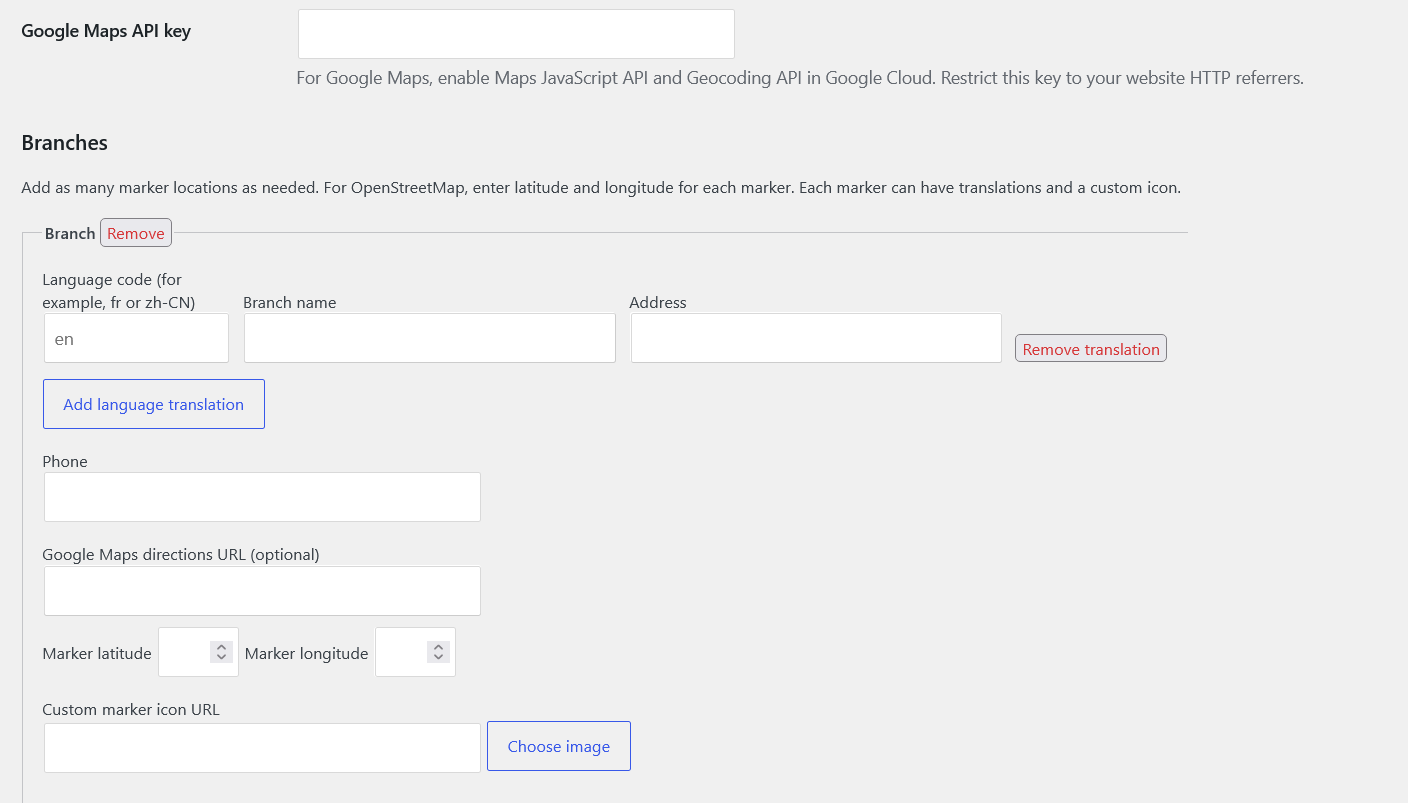
- Add translations with language codes such as
en,fr,ar, orzh-CN. - Choose a map provider globally or override it per shortcode.
- Configure the initial map center and zoom globally or per shortcode.
- Apply custom JSON styles to Google Maps.
- Choose a custom marker image from the WordPress Media Library.
- Draw, edit, and save a polygon service area; display it with either provider.
- Let visitors request their current location and add a temporary marker (with their permission).
- Display each marker’s title, address, optional phone, and directions link.
- Provide map reset and marker visibility controls.
- Embed maps on pages, posts, and custom post types with
[branch_locator]. - Use WordPress translation functions for the plugin interface and translated marker content for any configured language.
Locations and map configuration are stored in WordPress options. No business locations are bundled with the plugin.
Usage
Basic shortcode:
[branch_locator]
Optional shortcode attributes:
lang— marker translation to display. Accepts a language code such asfrorzh-CN. Defaults to the current WordPress locale.provider—osmorgoogle. Defaults to the provider selected in plugin settings.zoom— initial zoom level from 1 to 20. When omitted, the map fits the saved markers when possible.center_latandcenter_lng— initial map center. Both must be provided.height— map height in pixels, for example600pxor600.
Example:
[branch_locator lang="fr" provider="osm" zoom="12" center_lat="48.8566" center_lng="2.3522" height="600px"]
The shortcode can be added to standard posts and pages, or to the content of a custom post type that supports shortcodes. The plugin does not automatically create or inject maps into every custom post type.
For OpenStreetMap, the coordinates entered for a marker determine its position. For Google Maps, coordinates are preferred when present; otherwise, the address from the selected translation is geocoded. If a requested translation is not available, the plugin uses that branch’s base-language translation or its first available translation.
The service-area drawing tool creates a polygon. It does not calculate delivery eligibility or restrict markers and map interactions.
Map providers and third-party services
The plugin uses the following external services when the corresponding map provider or feature is used. These services receive requests directly from the site visitor’s browser (or, for the service-area editor, the administrator’s browser).
OpenStreetMap tile service
OpenStreetMap tiles are loaded to display the map whenever an OpenStreetMap map is displayed. The service receives the browser’s IP address, requested tile URLs (which disclose the map areas viewed, including the area around a visitor’s location if they use the location control), and normal request headers such as the referrer. The service-area editor also requests tiles from the administrator’s browser when the settings page is opened. Map tiles are provided by the OpenStreetMap Foundation’s community service and are subject to its usage policy; the service is not guaranteed for high-volume use.
Google Maps Platform
When Google Maps is selected and a map shortcode is displayed, the plugin loads the Google Maps JavaScript API from Google and includes the configured API key in that request. Google receives the visitor’s IP address, site referrer, map/API request data, and normal browser request headers. If a branch has no saved coordinates, its configured address is sent to Google’s Geocoding service to place the marker. If a visitor chooses the location control, their coordinates are passed to Google Maps to center the map and place the temporary marker. If a visitor clicks the directions link, they are sent to Google Maps with the branch destination in the URL. Google Maps use is governed by Google’s terms and privacy policy.
The plugin’s service-area editor uses the locally bundled Leaflet and Leaflet Draw libraries; it does not contact an additional library CDN.
Privacy
When a visitor opens a map, the selected map provider and its tile or API services receive requests from the visitor’s browser as described above. The Google Maps API key is sent to Google only when Google Maps is selected and its map is displayed. OpenStreetMap tiles are used for the service-area editor on the settings page.
The Use my location control requests the visitor’s location only after they choose the control. The browser may ask for permission. If granted, the coordinates are used to center the map and place a temporary marker. When Google Maps is selected, the coordinates are sent to Google Maps as part of those map interactions; with OpenStreetMap, the tile requests disclose the approximate area being viewed. This plugin does not send or save the visitor’s location to WordPress.
Branch names, addresses, phone numbers, marker coordinates, icon URLs, and map settings entered by an administrator are stored in the site’s WordPress options table.
Screenshots

Installation
- Upload the
mema-multi-branch-locator-mapfolder to/wp-content/plugins/, or install the plugin ZIP through Plugins > Add New > Upload Plugin. - Activate Mema Multi Branch Locator Map from the Plugins screen.
- Open Settings > Branch Locator.
- Select OpenStreetMap or Google Maps.
- Add at least one location. For OpenStreetMap, provide latitude and longitude. For Google Maps, enter a Google Maps API key and enable the Maps JavaScript API and Geocoding API in Google Cloud.
- Optionally configure the map center, zoom, custom Google Maps styles, custom marker icons, and a drawn service area.
- Add
[branch_locator]to a page, post, or custom post type.
The Google Maps API key can be entered in plugin settings or defined in wp-config.php:
define( 'BRANCH_LOCATOR_GOOGLE_MAPS_API_KEY', 'YOUR_API_KEY_HERE' );
The wp-config.php constant takes priority over the key saved in plugin settings. Restrict a Google API key to the appropriate APIs and website referrers.
FAQ
-
Do I need a Google Maps API key?
-
No, not when using OpenStreetMap. A Google Maps API key is required only when Google Maps is selected.
-
How do I get markers to appear on OpenStreetMap?
-
Edit each location in Settings > Branch Locator and enter valid latitude and longitude coordinates. OpenStreetMap mode does not geocode addresses.
-
Can I translate a location into more than two languages?
-
Yes. Add a translation for each language and enter its language code, name, and address. The shortcode’s
langattribute selects the displayed translation. -
Can I use the shortcode on a custom post type?
-
Yes, in the content of any custom post type that processes WordPress shortcodes. Add
[branch_locator]to the post content or a shortcode-capable page builder block. -
Does the service-area polygon restrict where visitors can get directions?
-
No. The polygon is a visual highlight only. It does not validate whether an address is inside the area or change directions behavior.
-
Browser geolocation requires visitor permission and is generally available only on secure HTTPS pages (or localhost). Visitors can decline the request or their browser/device may not provide a location.
Reviews
There are no reviews for this plugin.
Contributors & Developers
“Mema Multi Branch Locator Map” is open source software. The following people have contributed to this plugin.
Contributors
Translate “Mema Multi Branch Locator Map” into your language.
Interested in development?
Browse the code, check out the SVN repository, or subscribe to the development log by RSS.
Changelog
1.2.3
- Updated the plugin name and slug.
1.2.2
- Renamed the plugin to distinguish it in the directory.
- Enqueued plugin styles and scripts and documented provider data transfers.
1.2.1
- Bundled Leaflet and Leaflet Draw locally instead of loading library assets from a CDN.
- Matched the translation text domain to the plugin slug.
- Declared compatibility through WordPress 7.1.
1.2.0
- Added OpenStreetMap and Google Maps provider selection.
- Added marker coordinates, custom icons, map center and zoom settings, and Google Maps styling.
- Added a service-area drawing editor, visitor geolocation, and map controls.
- Added shortcode attributes for provider, language, center, zoom, and height.
1.1.0
- Added admin-managed multilingual locations and removed bundled sample locations.
1.0.0
- Initial release.