
Description
Get every new Gravity Forms entry as a message in Bale messenger, the moment it is submitted.
- Works with your own Bale bot – no third-party relay server.
- Send to a private chat, a group or a channel; several chats per feed.
- One or more feeds per form, each with its own message and chats.
- Full merge tag support, including {all_fields}.
- Gravity Forms conditional logic decides when a feed runs.
- Messages are sent in the background, so visitors never wait.
- Long messages are split automatically to fit Bale’s limits.
- A success or error note is added to every entry.
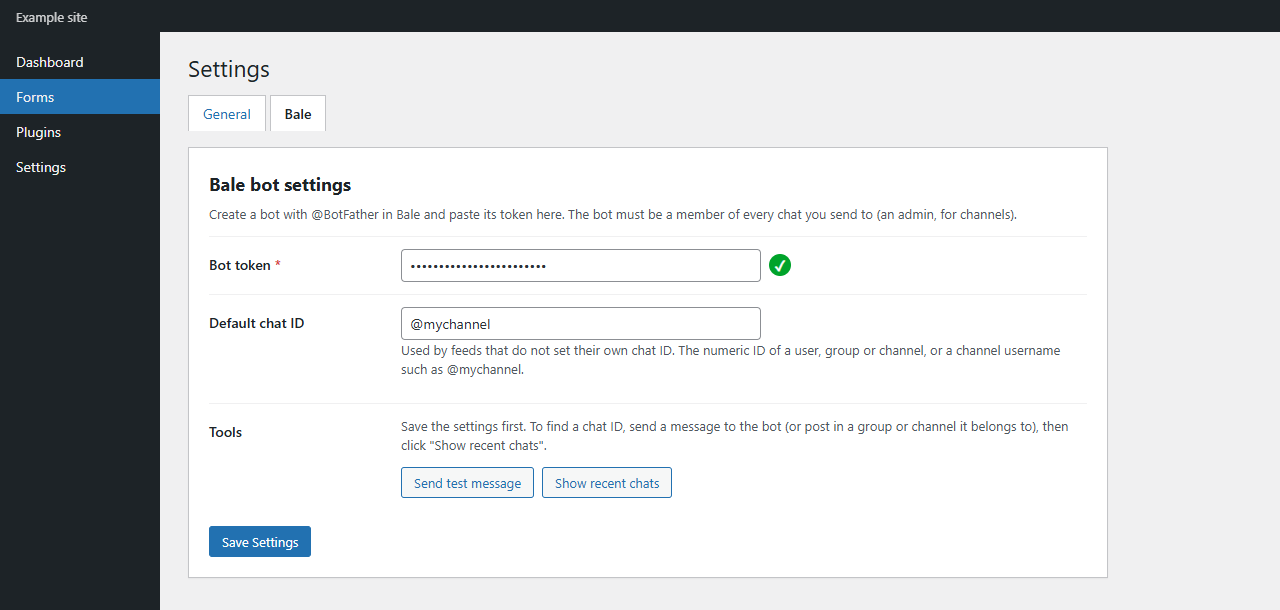
- “Send test message” and “Show recent chats” tools to find chat IDs without any technical knowledge.
- Translation-ready. Language packs are provided through translate.wordpress.org.
Gravity Forms is a separate commercial plugin and must be installed and active. This plugin is not affiliated with or endorsed by Rocketgenius or Bale.
External services
This plugin connects to the Bale Bot API (https://tapi.bale.ai) to deliver form submissions to Bale messenger. Nothing is sent until you save a bot token and create a feed.
- When a form with an active feed is submitted, the message text you configured (which normally contains the submitted form data) and the target chat ID are sent to Bale.
- When you open the add-on settings page, the bot token is checked with Bale (at most once per hour).
- When you click “Send test message” or “Show recent chats”, a test message is sent or the bot’s recent updates are requested.
The service is provided by Bale. See Bale’s terms of service and privacy policy.
Screenshots

Installation
- Install and activate Gravity Forms.
- Upload this plugin to
/wp-content/plugins/or install it from the Plugins screen, then activate it. - In Bale, open @BotFather, create a bot and copy its token.
- Go to Forms Settings Bale, paste the token and save.
- Send a message to your bot (or add it to a group, or as an admin to a channel, and post something there), then click “Show recent chats” and copy the chat ID into “Default chat ID”. Save again.
- Click “Send test message” to check the connection.
- Open a form, go to Settings Bale and add a feed.
FAQ
-
Where do I find the chat ID?
-
Send any message to the bot, or post in the group or channel it belongs to, then click “Show recent chats” on the settings page. For public channels you can also use the channel username, for example @mychannel.
-
Messages are not arriving. What should I check?
-
Open the entry in Gravity Forms: an error note explains what Bale replied. Common causes are a wrong token, a bot that is not a member of the group, or a bot that is not an admin of the channel. Enabling Gravity Forms logging (Forms Settings Logging) gives more detail.
-
The settings page says Bale does not recognise the bot token.
-
Bale and Telegram bots are separate. Create the bot with @BotFather inside the Bale app, copy the whole token (digits, colon and letters) and save the settings again. A check mark appears next to the token when Bale accepts it.
-
Can I send to several chats?
-
Yes. Enter several chat IDs separated by commas in the feed, or create several feeds.
-
Is the submitted data stored anywhere else?
-
No. The plugin only sends the configured message to Bale; it does not store or send data anywhere else.
Reviews
There are no reviews for this plugin.
Contributors & Developers
“Melalweb Notifications for Gravity Forms and Bale” is open source software. The following people have contributed to this plugin.
Contributors
Translate “Melalweb Notifications for Gravity Forms and Bale” into your language.
Interested in development?
Browse the code, check out the SVN repository, or subscribe to the development log by RSS.
Changelog
1.0.1
- Renamed the plugin so Gravity Forms and Bale are referenced after “for”, under the Melalweb name.
- Removed the bundled translation files. Translations are loaded from WordPress.org.
1.0.0
- First release.