
Description
Media Library Assistant Blocks provides Gutenberg blocks for all shortcodes provided by the popular Media Library Assistant plugin. The blocks offer an easy way to compose MLA shortcodes by customizing the look and feel of shortcode output with controls in the Block Editor’s Inspector Panel.
Custom MLA Blocks
- MLA Gallery: The
[mla_gallery]shortcode displays a gallery of images and/or other Media Library items (such as PDF documents). MLA Gallery is a superset of the [gallery] shortcode in the WordPress core; it is compatible with [gallery] and provides many enhancements. - MLA Tag Cloud: The
[mla_tag_cloud]shortcode displays a list of taxonomy terms in what is called a ‘tag cloud’, where the size of each term is determined by how many times that particular term has been assigned to Media Library items (attachments). The cloud works with both flat (e.g., Att. Tags) and hierarchical taxonomies (e.g., Att. Categories) MLA Tag Cloud provides many enhancements to the basic “cloud” display. - MLA Term List: The
[mla_term_list]shortcode displays hierarchical taxonomy terms in a variety of formats; link lists, dropdown controls and checkbox lists. The list works with both flat (e.g., Att. Tags) and hierarchical taxonomies (e.g., Att. Categories). - MLA Custom Field List: The
[mla_custom_list]shortcode displays a list of WordPress custom field values in a variety of formats, including a “cloud”, where the size of each list item is determined by how many times that particular value has been added to Media Library items (attachments). MLA Custom Field List provides many enhancements to the basic flat/cloud display. - MLA Archive List: The
[mla_archive_list]shortcode displays date-oriented values in a variety of formats, including a “cloud”, where the size of each list item is determined by how many Media Library items (attachments) have the corresponding date value. The archive list works with year, month, week and day values.
NOTE: Complete documentation is included in the Documentation tab on the Settings/Media Library Assistant admin screen and the drop-down “Help” content in the admin screens. You can find a stand-alone version of the Documentation on my web site: Media Library Assistant Documentation
I do not solicit nor accept personal donations in support of the plugin. WordPress and its global community means a lot to me and I am happy to give something back.
If you find the Media Library Assistant plugin useful and would like to support a great cause, consider a tax-deductible donation to our Chateau Seaview Fund at the ALS Network. Every dollar of the fund goes to make the lives of people with ALS, their families and caregivers easier. Thank you!
Screenshots


Blocks
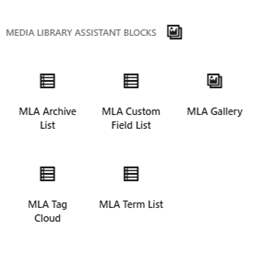
This plugin provides 5 blocks.
- MLA Archive List Displays date-oriented values, e.g., yearly, monthly, weekly, daily and the number of Media Library items assigned to each value in a variety of formats. The block is a wrapper for the MLA shortcode [mla_archive_list] and supports all of the shortcode parameters.
- MLA Custom Field List Displays a list of WordPress custom field values and the number of Media LIbrary items assigned to each value in a variety of formats. The block is a wrapper for the MLA shortcode [mla_custom_list] and supports all of the shortcode parameters.
- MLA Tag Cloud Displays a tag cloud of WordPress terms and the number of Media Library items assigned to each term in a variety of formats. The block is a wrapper for the MLA shortcode [mla_tag_cloud] and supports all of the shortcode parameters.
- MLA Gallery Displays a gallery of items from the Media Library. The block is a wrapper for the MLA shortcode [mla_gallery] and supports all of the shortcode parameters.
- MLA Term List Displays a list of WordPress terms and the number of Media Library items assigned to each term in a variety of formats. The block is a wrapper for the MLA shortcode [mla_term_list] and supports all of the shortcode parameters.
Installation
Install and activate the “Media Library Assistant” plugin
Upload
media-library-assistant-blocksand its subfolders to your/wp-content/plugins/directory, OR Visit the Plugins/Add New page and search for “Media Library Assistant Blocks”; click “Install Now” to upload itActivate the plugin through the “Plugins” menu in WordPress
Look for the “MLA Blocks” category in the Block Editor “Block Inserter” panel, or search for “MLA” in the “choose a block” popup.
Add and configure one or more MLA blocks to your post/page.
FAQ
-
Do the blocks support all of the shortcode parameters?
-
The blocks allow you to see and configure all of the shortcode parameters needed for most applications. There are additional parameters used for more complicated applications; you can enter these directly, as you would when using the shortcode.
Reviews
There are no reviews for this plugin.
Contributors & Developers
“Media Library Assistant Blocks” is open source software. The following people have contributed to this plugin.
Contributors
Translate “Media Library Assistant Blocks” into your language.
Interested in development?
Browse the code, check out the SVN repository, or subscribe to the development log by RSS.
Changelog
1.0.0
- Initial Release