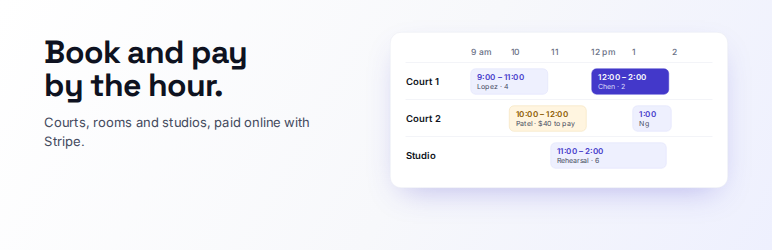

Description
MarcoPlot Booking Venue is for businesses that rent out a space by the hour: tennis, pickleball and padel courts, golf simulators, bowling lanes, escape rooms, karaoke and party rooms, meeting rooms, music and photo studios.
Requires MySQL 5.7 or MariaDB 10.3 or newer.
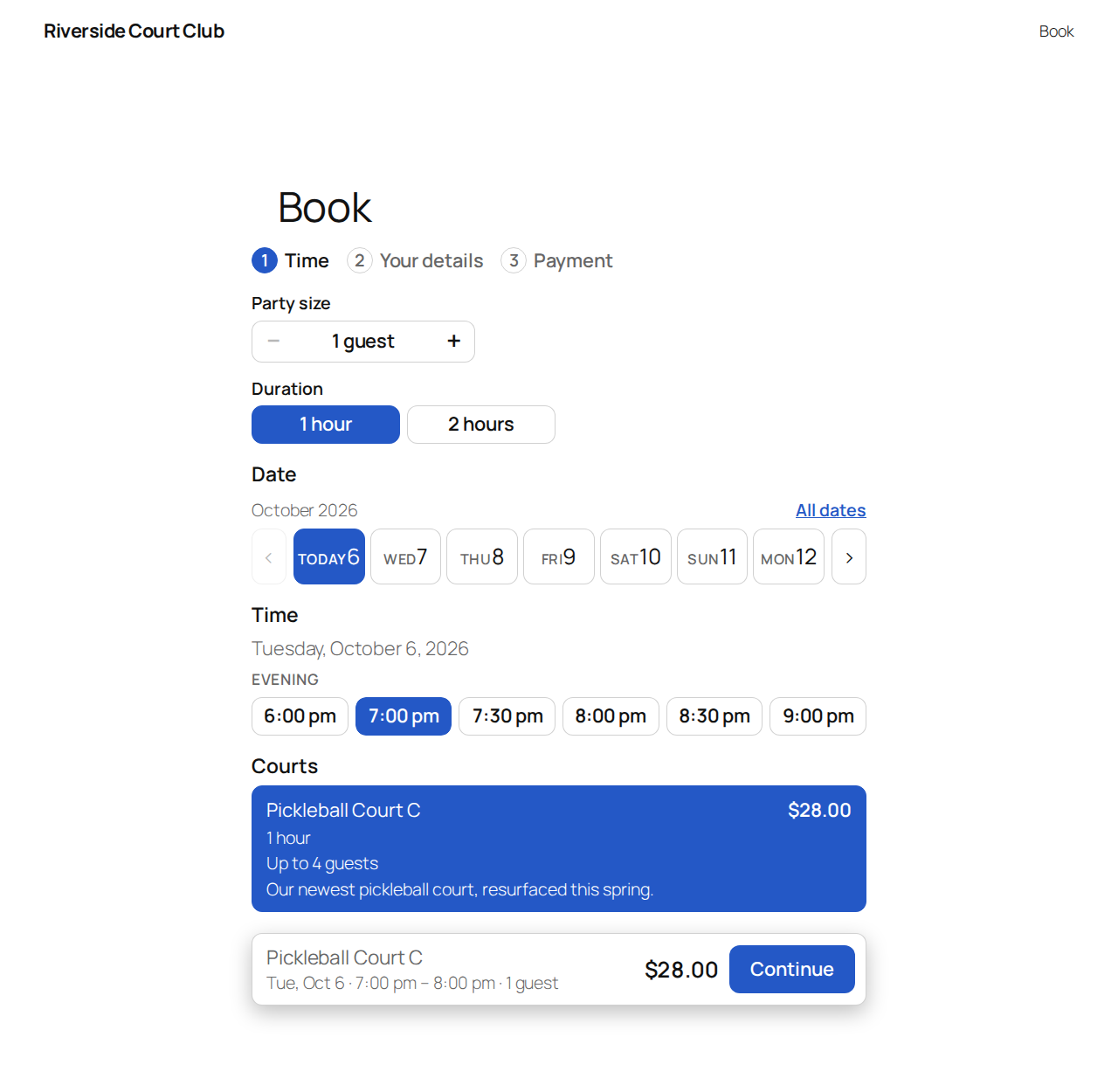
Customers select a party size, a date, a duration, a start time and the space they want, then pay with Stripe or PayPal. You see every booking on one schedule, take bookings by staff, and refund to the card or PayPal account from the booking.
For customers
- One booking page: party size, date, duration, time, space, details, payment. Add it with a block or the
[mpvenue_booking]shortcode. - Only times that really fit are shown: business hours, closed dates, buffer time between bookings, notice needed and how far ahead customers can book.
- Each customer gets a page for their booking: see it, add it to their calendar, or cancel it within your rules.
- A country-code picker for the phone number, and an email check that catches domains that can’t receive mail and suggests fixes for common typos. A one-time code to the customer’s email before they can submit is optional, off by default.
- Your own questions on the booking form: short or long answers, a choice from a list, a checkbox or a number, required or not. They show as Additional details on the booking, in your notification and in the customer’s confirmation.
- Confirmation, reminder, change, cancellation and refund emails.
For you
- Schedule by day (one lane per space), week and month; a searchable list of bookings. Drag a booking to a new time or space on the day schedule; it snaps to the nearest valid start time.
- Close a space for some dates.
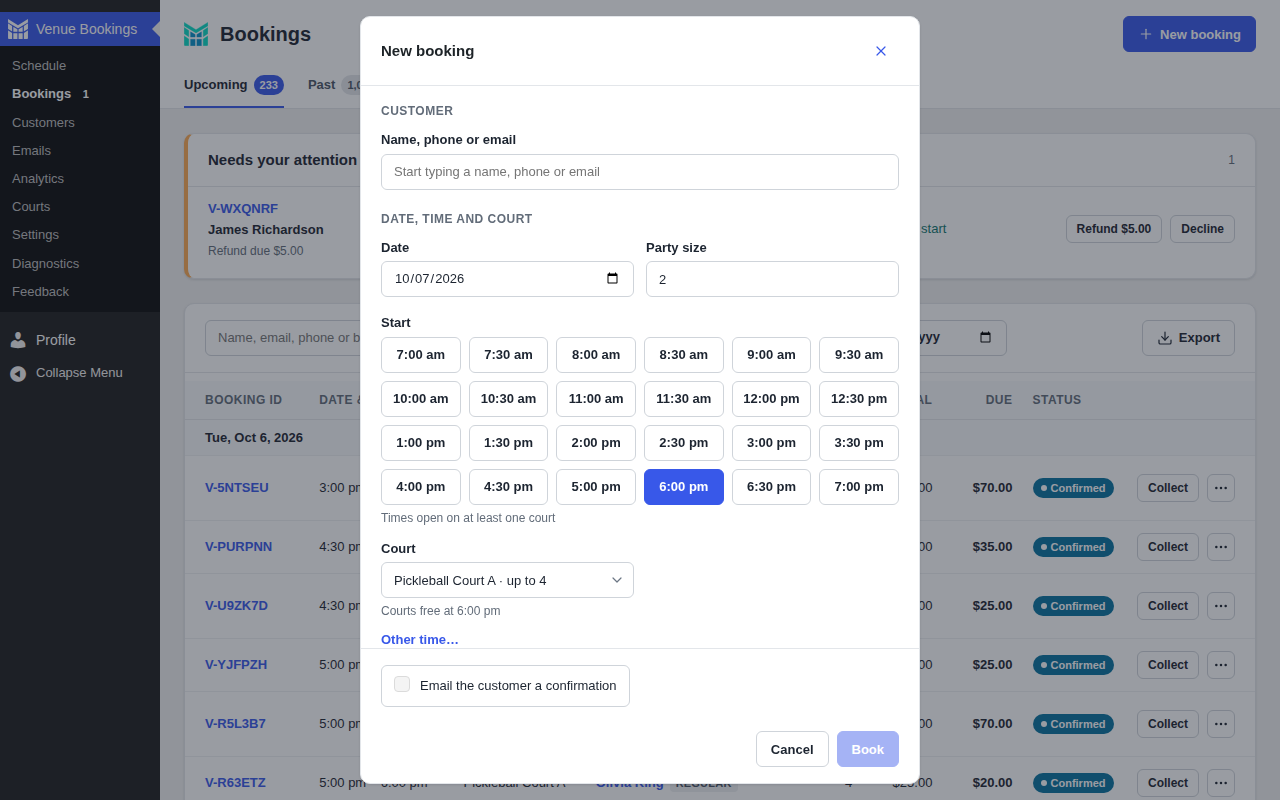
- Book for customers as staff, change or cancel bookings, and mark no-shows.
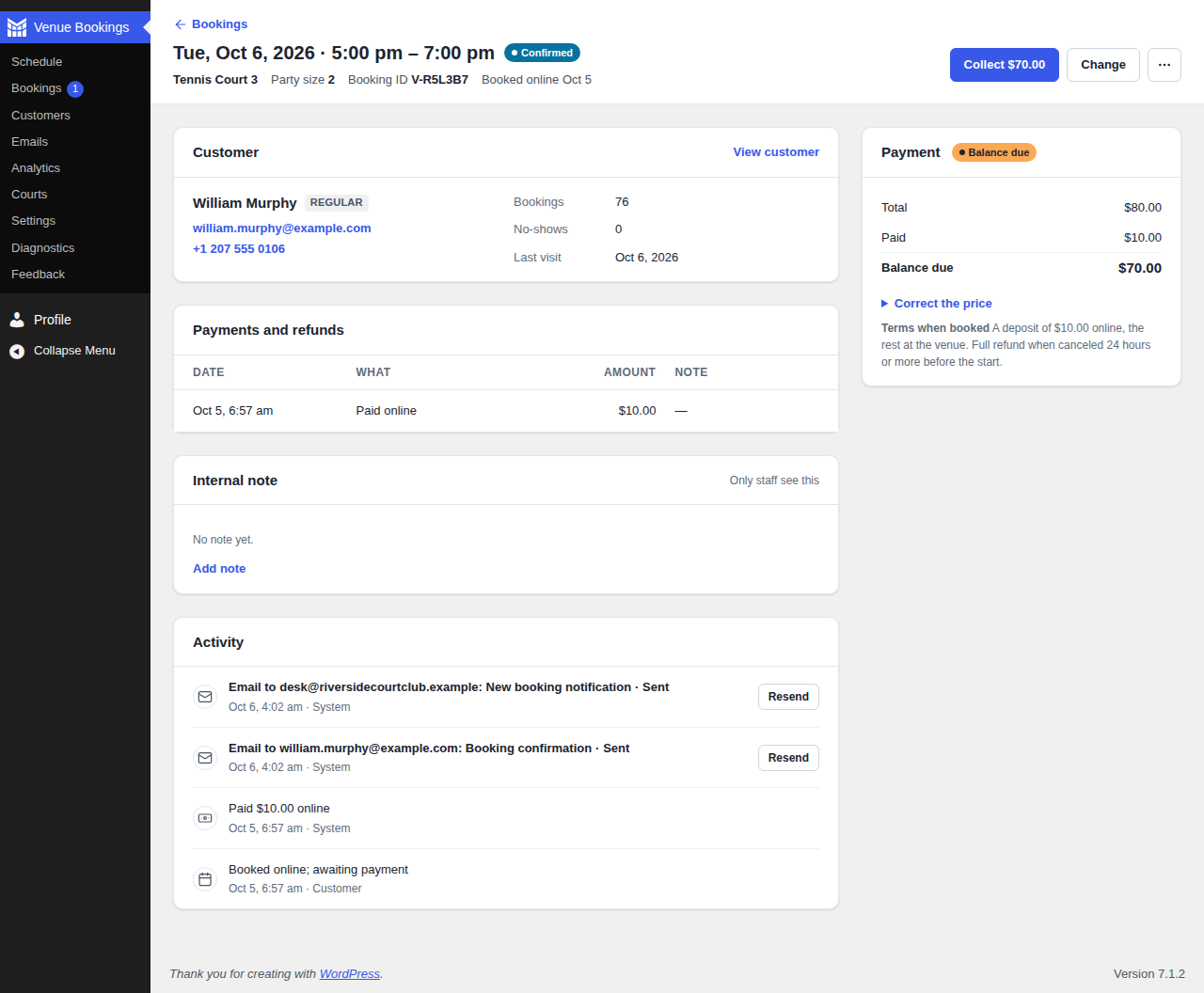
- Payments by Stripe or PayPal: full payment, a deposit, or pay at the venue. Refunds to the card or PayPal account from the booking. Refunds due appear at the top of the Bookings page, where you refund or decline them.
- Currency and sales tax: pick from 20 currencies, including ones with no decimal places like the Japanese yen. Add one sales tax rate and name; it shows separately on Stripe receipts and in the PayPal order.
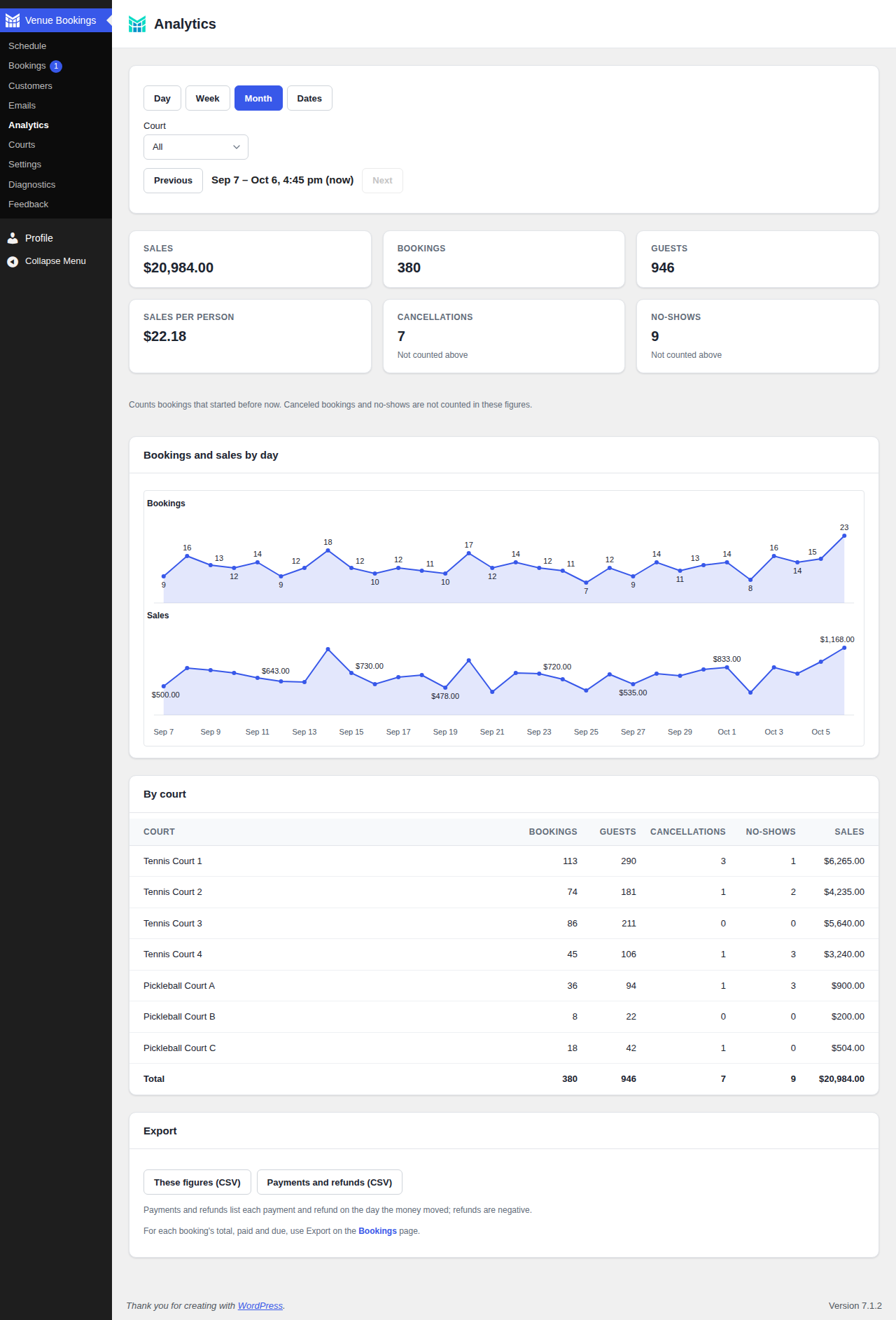
- Analytics for sales, tax, bookings, guests, cancellations, no-shows and sales per person, by day, week, month or any dates, all counted up to now and split by space, with CSV export of the figures.
- A private calendar link for your bookings, to subscribe to in Google Calendar, Apple Calendar or Outlook on your phone.
- Customers with total spent, tags and no-shows, and their booking history; email a customer straight from their page. Personal data export and erasure through the WordPress tools.
- Customer tags: Regular after 5 completed bookings across your MarcoPlot plugins, VIP by hand, and Flagged automatically at a second no-show or by hand. The Flagged tag never holds a booking for approval or declines it; where you take payments online, a flagged customer pays in full whatever your deposit setting.
- Several notification addresses for new bookings and cancellations, your own sender address, and resending a customer’s upcoming confirmations after you fix their email.
- All your booking-page settings on one screen, with a live preview as you change them.
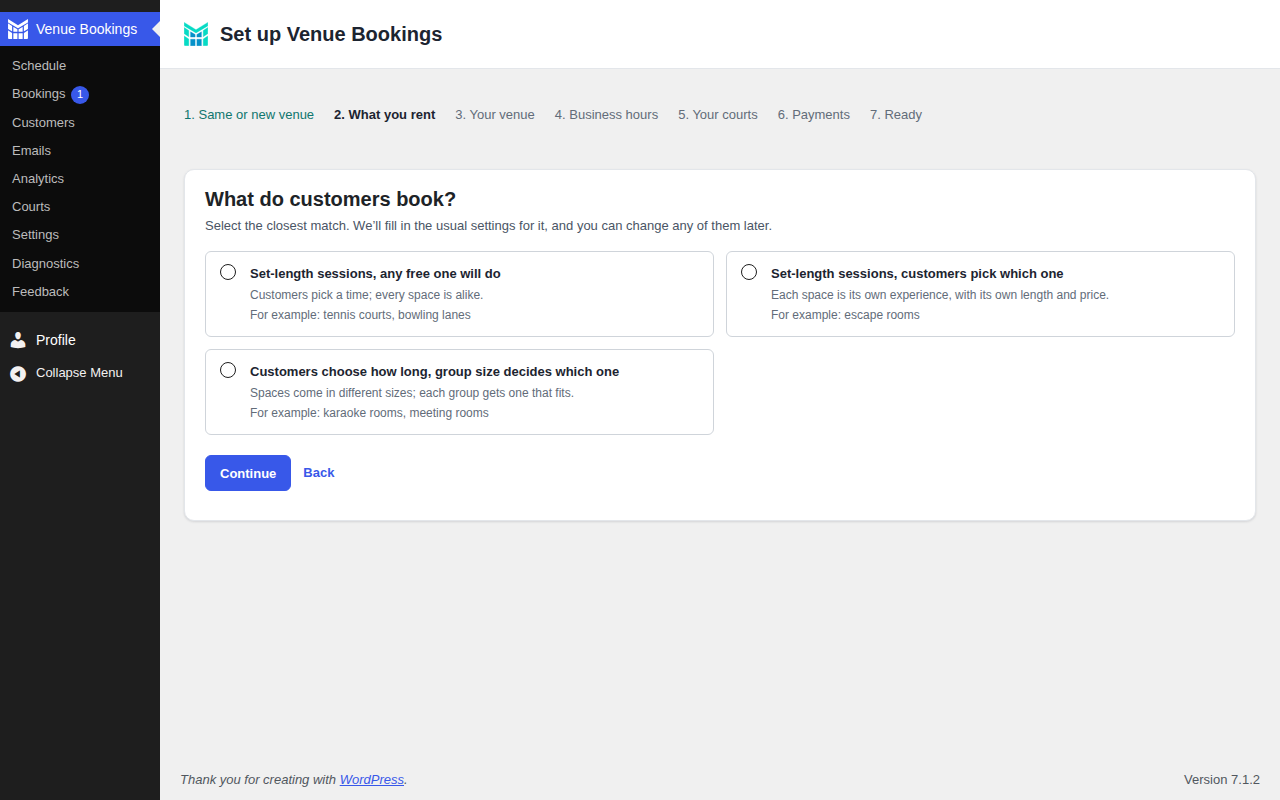
- A setup wizard, and a Diagnostics page that checks scheduled tasks, time zone, tables and payments and fixes what it can.
Spaces and times
- Each space has its own capacity, minimum party size, price for the shortest duration (per space or per person), longer durations priced in proportion, a shortest duration with longer durations in half steps of it (for example 60, 90 and 120 minutes), and buffer time, and can have its own custom hours.
- Start times come from a scheduling method tuned over 120,000 simulated business days, so less time sits empty between bookings.
- Fixed sessions for courts and escape rooms, or an optimized schedule.
- Bookings are matched to spaces so that large parties still find a large room and no space goes to waste.
- Business hours can run past midnight.
- The admin uses your own word for spaces — court, room, studio — everywhere it appears.
Pro
MarcoPlot Booking Venue Pro adds automatic refunds on cancellation, peak pricing, coupon codes, business analysis and space utilization, manager and staff roles, review invitations after a visit, and a layout, your logo, header photo, color and footer on customer emails.
External services
This plugin connects to these services only as described here.
Stripe
Used to take and refund payments online, only if you enter a Stripe secret key. When a customer pays, the plugin sends Stripe the amount, currency, a description of the booking (space, date and time), and for a deposit the amount still due at the venue, the booking ID, the customer’s email and the address of the customer’s booking page on your site, where Stripe sends the customer back. It then opens Stripe Checkout for the customer. It also asks Stripe for the status of payments and refunds, and checks your key when you save it and each time you open the Diagnostics page while online payments are on. When you save it, and again from time to time, it also reads your Stripe account’s country and payment method settings (card, Apple Pay and Google Pay) to show the matching payment marks. If you set a sales tax rate, it also creates and uses a Stripe tax rate so the tax shows separately on the customer’s receipt, and when you change the rate it asks Stripe to deactivate the old one (tax_rates/{id}, active=false). When you cancel a booking that is waiting for payment, when a payment is checked, or when a booking cannot be saved, it asks Stripe to close that booking’s payment page (checkout/sessions/{id}/expire). When you delete the plugin, it asks Stripe to close any payment pages still open. Stripe terms, privacy policy.
PayPal
Used to take and refund payments online, only if you enter PayPal API credentials and switch PayPal on. When a customer chooses PayPal, the plugin sends PayPal the amount and the tax in it, currency, a description of the booking (space, date and time), and for a deposit the amount still due at the venue, the booking ID and the address of the customer’s booking page on your site, where PayPal sends the customer back. The customer then logs in and approves the payment at PayPal. It also asks PayPal for the status of payments and refunds, and checks your credentials when you save or test them and each time you open the Diagnostics page while PayPal is on. When you delete the plugin, it asks PayPal for the status of any payment still waiting. PayPal terms, privacy policy.
MarcoPlot feedback
Only when you click Send on the Feedback page, the plugin sends marcoplot.com the topic and message you wrote, your reply address if you gave one, which MarcoPlot plugin it came from, the versions of this plugin, its Pro add-on, WordPress and PHP, and the site language. Nothing is sent otherwise. Terms, privacy policy.
Email address check
When a customer, or you, enter an email address, the plugin looks up the address’s domain (the part after the @) with a DNS lookup on your server’s own resolver, to catch mistyped addresses. No third-party service receives the address or the domain from the plugin.
Google Maps
If you enter the venue’s address, the customer’s booking page links to Google Maps for directions. Nothing is sent until the customer clicks the link. Terms, privacy policy.
The line icons (assets/icons.svg, the calendar icon on the customer page and the drop-down arrow in the stylesheets) come from Lucide (ISC license, see assets/icons-licence.txt).
The Visa, Mastercard, American Express, Discover, Apple Pay, Google Pay and PayPal badges shown with the payment buttons are trademarks of their respective owners and come from Shopify’s payment_icons (MIT license, see assets/pay-icons-licence.txt).
The MarcoPlot logo (assets/logo.svg and assets/menu-icon.svg) is the author’s own artwork, released with the plugin under the same license.
Screenshots

Blocks
This plugin provides 1 block.
- Venue booking form Let customers book online.
Installation
- Install and activate the plugin from Plugins > Add New.
- The setup wizard opens: venue name and time zone, business hours, spaces and prices, payments, and the booking page. Every step can be skipped and done later under Venue Bookings > Settings.
- To take payments online, select full payment or a deposit under Settings > Payments and switch on Stripe or PayPal, and enter your Stripe secret key or your PayPal API credentials. Otherwise customers pay at the venue.
FAQ
-
What happens to my bookings when I delete the plugin?
-
They stay unless you chose otherwise. Bookings, payment records, customers, spaces, form fields and settings are kept in the database, so installing the plugin again brings everything back. Only the Stripe key, the PayPal credentials and the scheduled tasks (emails, reminders and payment checks) are removed.
-
How do I delete all the data?
-
Go to Venue Bookings > Settings > Data and select Delete the data with the plugin. The confirmation lists what will be deleted and offers downloads of all bookings, payments and customers first. Nothing is deleted then: the data goes when you delete the plugin in the usual way on the Plugins page. You can change your mind until then. Only administrators can make this choice.
If another MarcoPlot booking plugin is still installed, only this plugin’s settings, closed dates, Stripe key and PayPal credentials are deleted: customers, bookings and payment records stay until the last MarcoPlot booking plugin is deleted with its data.
On a multisite network, each site’s administrator makes this choice for their own site. When the network administrator deletes the plugin, each site is handled as its administrator chose; sites that made no choice keep their data.
-
Can I start again with no bookings but keep my spaces and settings?
-
Yes. Run the setup wizard again from Settings and select A new venue. After you confirm, bookings, payment records and customers are deleted, and you select the currency again; spaces, prices, form fields and other settings stay. Customers who also use another MarcoPlot plugin on this site are kept.
-
Can I delete a single booking or payment?
-
No. Bookings and payment records are never deleted one by one, so the records always add up. To remove a customer’s personal details, use the personal data tools under Tools.
-
What happens when a customer asks to have their personal data erased?
-
Use Tools > Erase Personal Data in WordPress. The customer’s name, email, phone, notes and additional details are cleared from the customer record, their bookings and the emails sent to them; with Pro, also the email on coupon uses and review invitations. Amounts stay, so reports still add up. If the customer has a booking that is not over yet, or the Pro add-on is switched off, nothing is erased and the result says why: erase again after the booking, or after switching Pro on.
-
Are there known issues in this version?
-
- The Bookings list cannot yet be filtered by payment status or by requests waiting for you.
- A booking’s page has no button to check its payment status now; payments are checked every 5 minutes, and at most once a minute while an administrator has the admin open.
- Text where “<” is followed by a letter and never closed (such as “a <b”) is kept in WordPress’s cleaned form, so plain-text places such as email subjects show “<b”.
-
How are the payment keys stored?
-
Your Stripe secret key and PayPal secret are stored encrypted. To keep them unreadable from a copy of the database alone, add define( ‘MPVENUE_SECRET_KEY’, ‘a long random string’ ); to wp-config.php before you enter the keys. If you change or remove it later, or move the site without it, enter the keys again.
Reviews
There are no reviews for this plugin.
Contributors & Developers
“MarcoPlot Booking Venue” is open source software. The following people have contributed to this plugin.
Contributors
Translate “MarcoPlot Booking Venue” into your language.
Interested in development?
Browse the code, check out the SVN repository, or subscribe to the development log by RSS.
Changelog
1.0.3
- Works on MySQL 8: the bookings list and its counts no longer fail when no date is picked.
- Works on WordPress Playground (SQLite), single site and network: tables are created on activation, and guests can book, customers can be saved and email addresses checked.
- An email address is no longer refused when the server cannot look up domains at all.
- Activation no longer jumps to the setup wizard; a dismissible notice points to it, and only while the shop has no settings or spaces yet.
- Numbers on the Analytics chart no longer run into the line on narrow screens.
- Every value read from a request is unslashed and cleaned where it is read; guest pages and customer cards pass the allowed-tags filter.
- Requests to Stripe and PayPal identify the plugin, not the site address.
- Translator comments on every string with a placeholder; fault notices can be dismissed.
- Forms refuse a field sent in the wrong shape as an expired page instead of showing PHP warnings; opening hours in any wrong shape are reported as invalid.
- Suggested privacy policy text (Settings › Privacy) describes what the plugin stores and sends to payment providers.
1.0.2
- Missing tables are recreated from an admin page only for users who can manage the plugin.
- Payment dates in guest receipts no longer break across lines on narrow screens.
- Admin pages no longer process overdue booking requests for users who cannot manage bookings.
- The booking page preview in Settings is filtered before it is shown.
- Database queries pass every value as a placeholder.
- The amount due at the top of the schedule no longer counts a deposit the customer is still paying online.
- The booked-by-staff and changed-by-staff marks sit in the top right corner of every schedule block.
1.0.1
- Signed guest links now use a random key the plugin creates for itself, no longer derived from WordPress salts.
- Page styles load from the plugin stylesheet instead of inline style tags.
- Tighter output escaping, permission checks and database query handling.
- Tables are checked after setup; a table that could not be created is created again automatically.
- Missing tables are recreated automatically when a Venue Bookings admin page or scheduled task runs, and right after any request finds one missing.
- Deactivating the plugin network-wide clears its scheduled tasks on every site.
- The Repair the tables button on the Diagnostics page also repairs the Pro tables.
- When several plugins are activated at once, or network-wide, a notice links to the setup wizard.
- A reminder due exactly on the hour is sent on that run.
- When the venue moves a booking into its reminder window, the guest gets only the change notice.
1.0.0
- First release.