

Description
Add as many checkout notices as you need, each one an ordinary entry under WooCommerce MCW Checkout Notices. A notice can be a simple message — an order cutoff, a closure, a delivery delay — or it can ask the customer a question and store their answer on the order.
Each notice is independent. It has its own message, its own schedule, its own targeting rules, and its own question. Nothing is hardcoded and nothing requires a developer to change.
Ordering
Notices appear at checkout in the order they are listed. On the notices list, drag the handle in the Order column to rearrange them, or focus the handle and use the up and down arrow keys. The order saves as soon as you drop a row.
Targeting
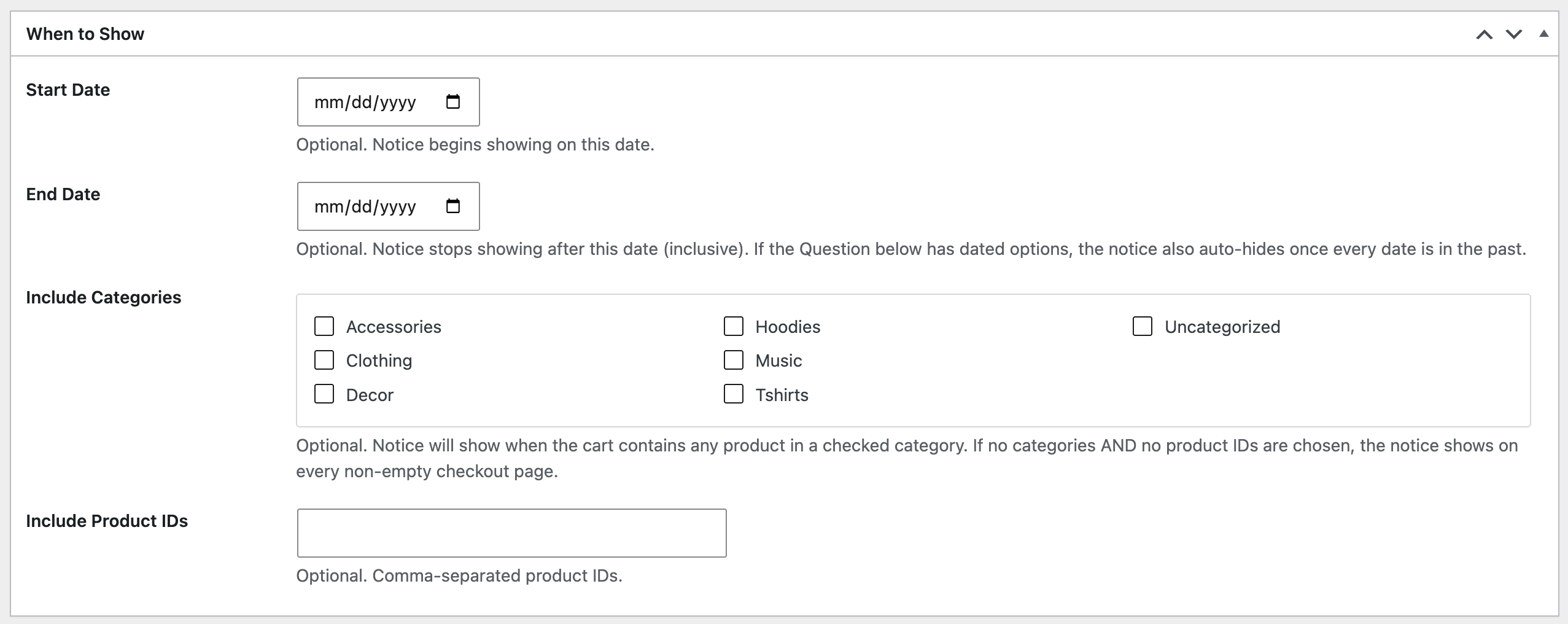
A notice can be limited to carts containing particular product categories, particular product IDs, or both. Leave both empty and it shows on every non-empty checkout page. Give it a start date, an end date, or neither.
Appearance
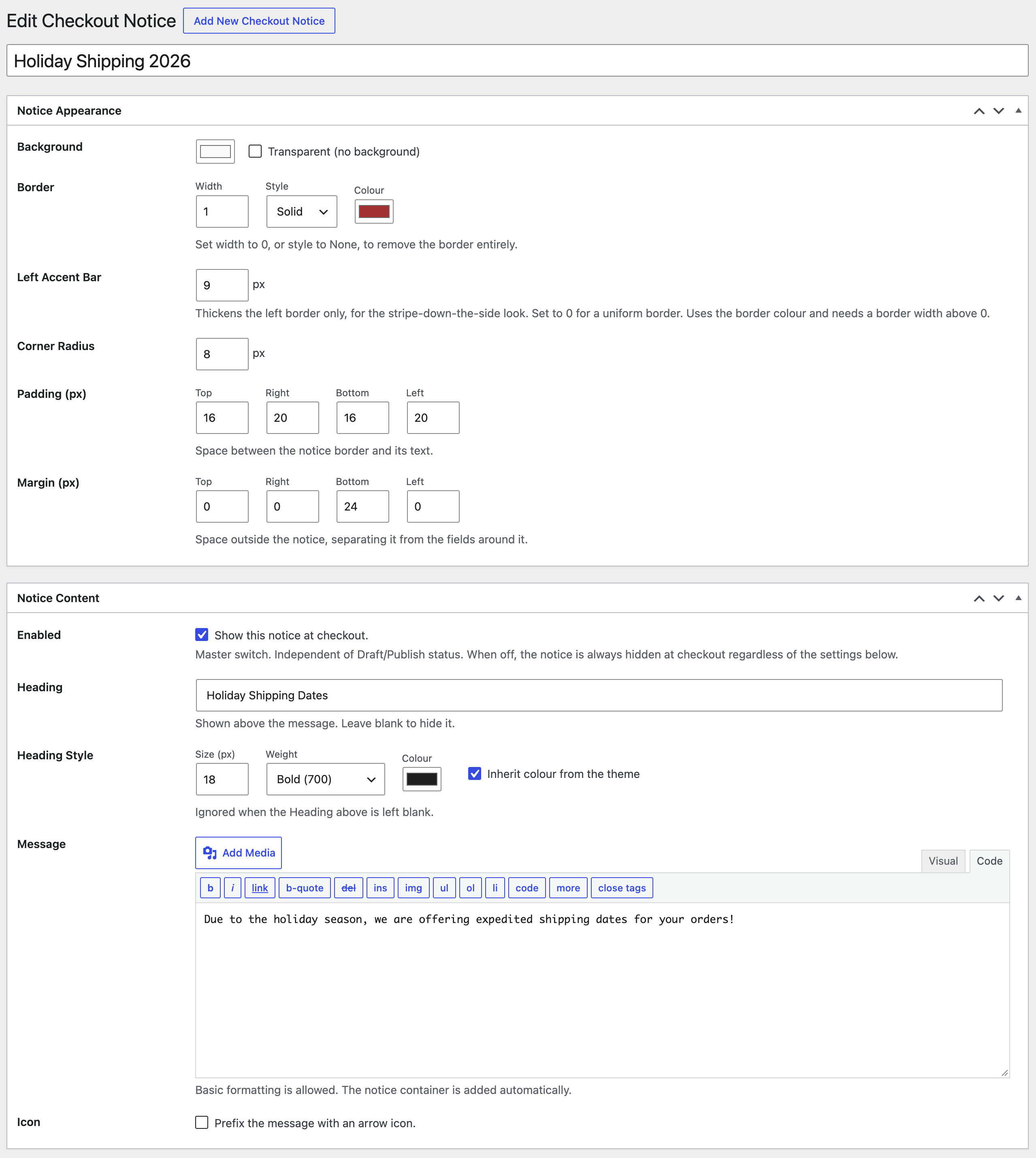
Each notice carries its own styling, so two notices on the same checkout can look completely different. Heading font, size, weight and colour; question label font, size, weight and colour; background colour (or none); border width, style and colour; a thicker left accent bar; corner radius; and padding and margin on all four sides. Every box setting in the Notice Appearance panel starts blank, so a new notice picks up your theme’s styling; fill in only what you want to change.
The message itself is written in the full WordPress editor, so colours, alignment, lists, links and images are set as you write rather than through separate fields.
The optional question
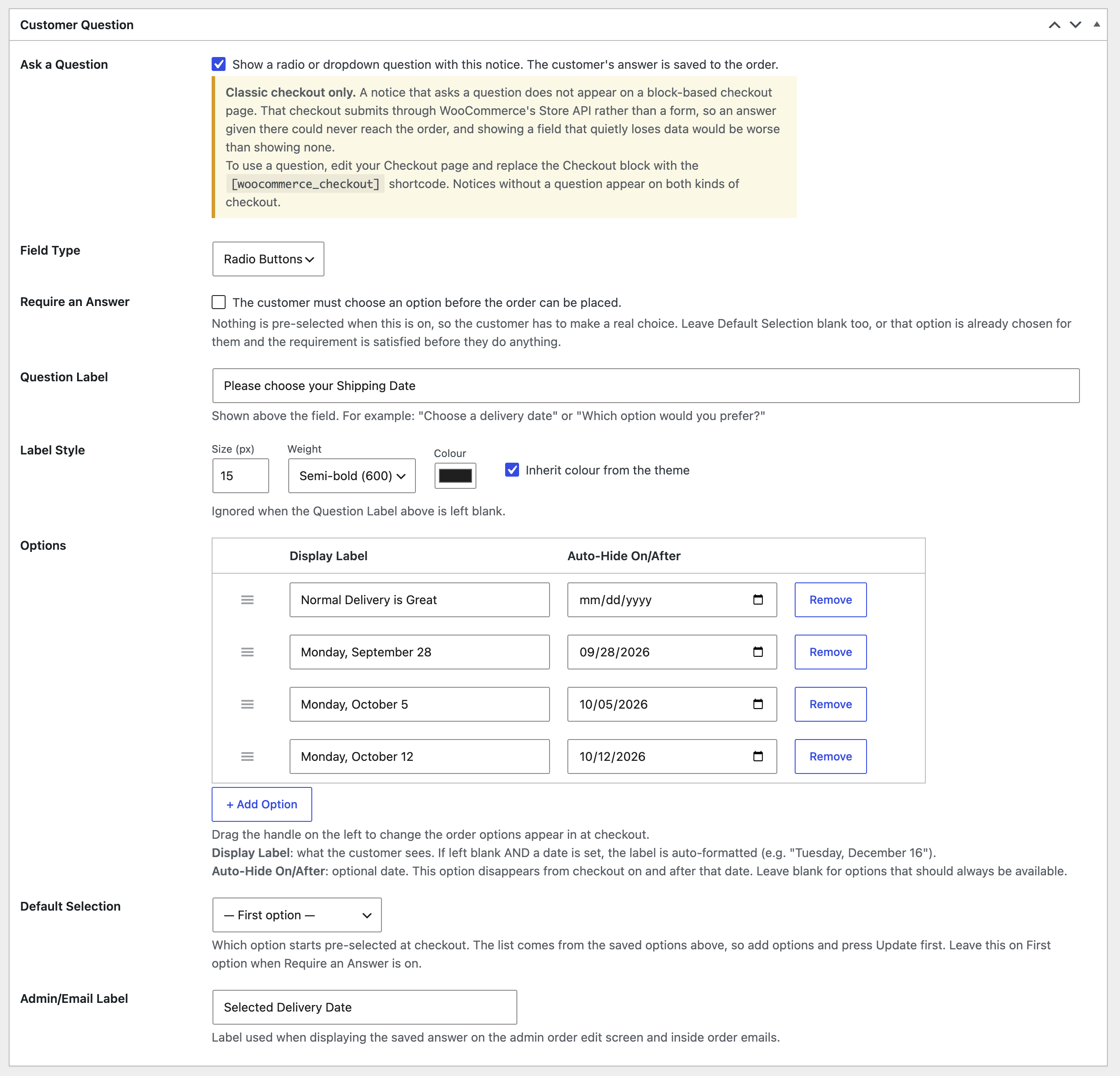
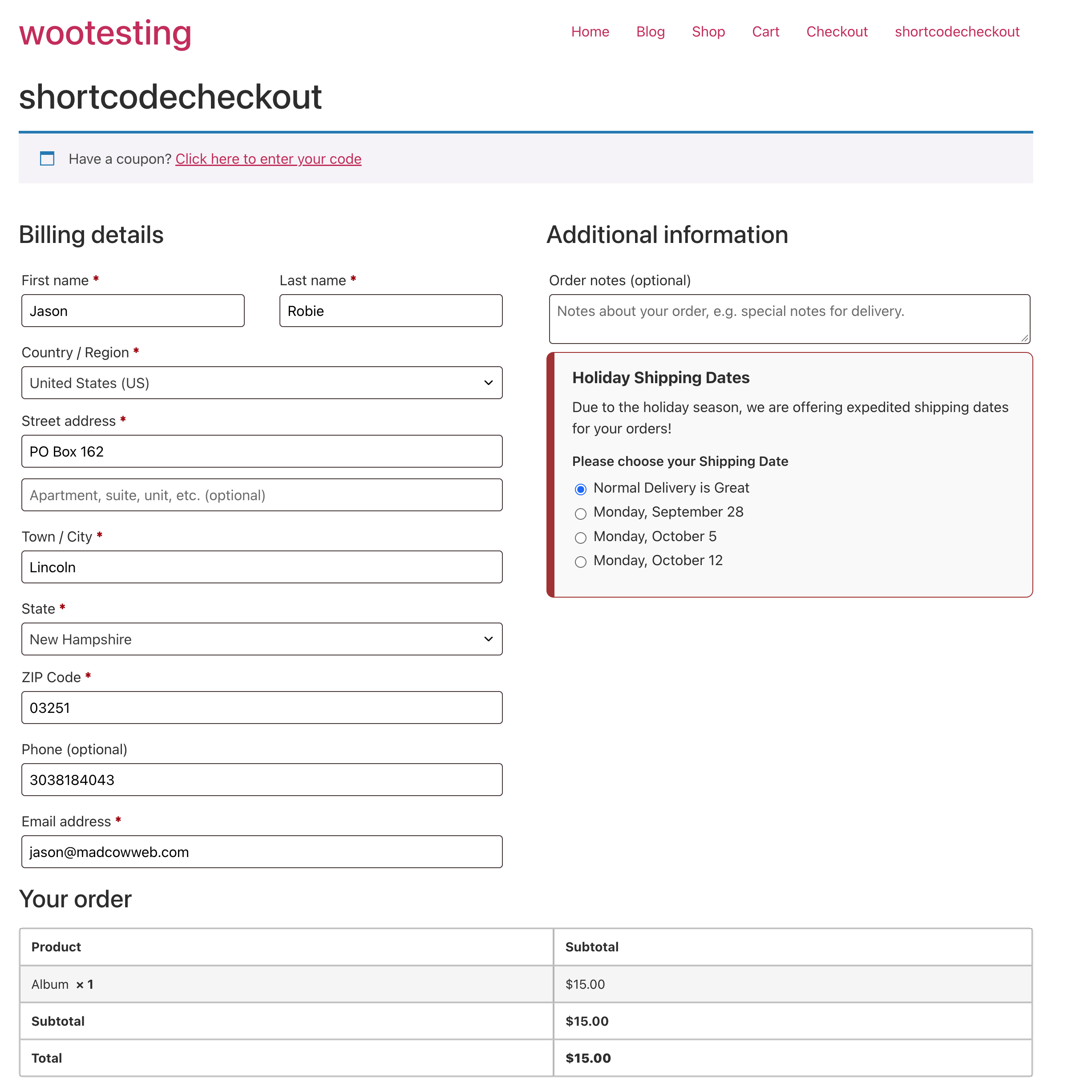
Turn the question on and the notice renders a dropdown or a set of radio buttons underneath its message, built with WooCommerce’s own form-field helper so it inherits your checkout styling.
Each option has two parts:
- Display Label — what the customer sees. Leave it blank on a dated option and the date is shown, formatted, for example “Tuesday, December 16”. A blank label follows the date if you change it; a label you type is shown as written.
- Auto-Hide On/After — an optional date. That option disappears from checkout on and after that date. Leave it blank for options that should always be available. When every option has a date and all of them have passed, the whole notice hides itself.
Drag the handle beside a row to change the order options appear in at checkout.
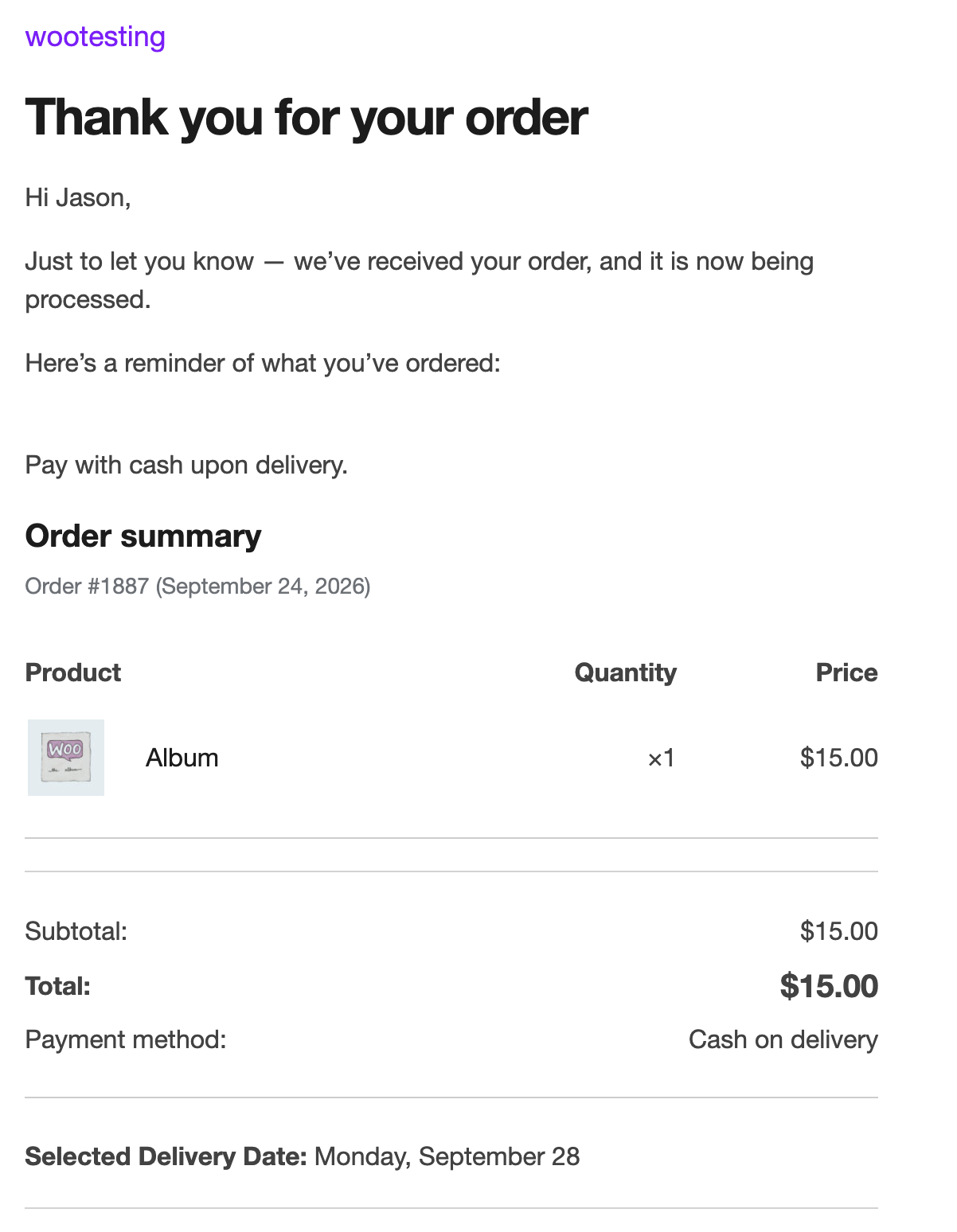
What gets stored on the order is worked out for you: a dated option saves its date, anything else saves its label. The order screen and emails show the label the customer chose.
You can require an answer. With that on, nothing is pre-selected, the label carries an asterisk, and an order cannot be placed until the customer picks an option — validated server-side through WooCommerce’s own checkout validation, so the error appears where shoppers already expect checkout errors.
You choose the label used when the answer is shown on the order edit screen and in order emails.
Answers are validated against the options the notice actually offered before anything is written to the order.
Classic and block checkout
Notices appear on both: the classic [woocommerce_checkout] shortcode and the newer Checkout block. The question is classic-only, for the reason given in the FAQ.
Built for WooCommerce
- Declares High-Performance Order Storage (HPOS) compatibility. Order meta is read and written through the order CRUD API.
- The message field is the full WordPress editor, with both toolbar rows open and the media library available.
- Notices are a private post type visible only to users with
manage_woocommerce. - No external requests, no tracking, no bundled fonts or icon libraries. The one icon is an inline SVG.
Developer notes
Rows shown on the admin order screen and in order emails pass through a filter:
apply_filters( 'mcwccn_order_meta_rows', $rows, $order )

$rows is an array of `array( 'label' => string, 'value' => string )`. Return the array modified, reordered, or emptied.
Screenshots
Installation
- Install and activate WooCommerce.
- Upload the plugin through Plugins Add New Upload Plugin, or install it from the WordPress plugin directory.
- Activate it.
- Go to WooCommerce MCW Checkout Notices and add your first notice.
FAQ
-
Does this work with the Checkout block?
-
Notices do. They are placed above the Checkout block with the same targeting, scheduling and styling they use on the classic checkout, and no JavaScript is involved.
The optional question is classic checkout only. The Checkout block submits through WooCommerce’s Store API rather than a form post, so a field rendered alongside the block would appear, the customer would answer it, and the answer would never reach the order. Rather than lose an answer silently, a notice that asks a question is skipped on the block checkout. Message-only notices work on both.
-
Where do the answers end up?
-
On the order, in its own meta field. They show on the order edit screen and inside order emails under the Admin/Email Label you set, and are available to anything else that reads order meta.
-
What happens to a notice when all of its dates pass?
-
It stops rendering. Individual options disappear on and after their own date, and once every dated option has passed the whole notice hides itself. Nothing needs to be switched off by hand.
-
How do I change the order notices appear in?
-
Go to WooCommerce MCW Checkout Notices and drag the handle in the Order column. Handles are shown while the list is sorted by Order, which is how it opens by default. If you have sorted by another column, click the Order column heading to get the handles back. You can still type a number into the Order field under Page Attributes on a notice’s edit screen.
-
Does the plugin load fonts?
-
No. The font field sets the CSS font-family for the heading or question label, using a font your site already provides, whether from your theme, a font plugin or your own stylesheet. Enter the name followed by a fallback, for example “Open Sans”, sans-serif, or a CSS variable such as var(–heading-font). Leave it blank to use the theme’s font. Nothing is requested from Google or any other external server.
-
Does the Enabled checkbox do the same thing as Publish?
-
No, and that is deliberate. Publish controls whether the notice exists; Enabled controls whether it shows at checkout. A published notice with Enabled switched off stays hidden, which lets you keep a seasonal notice fully configured between seasons.
-
Does deleting the plugin delete my order data?
-
No. Uninstalling removes the notices and their settings. Answers already stored on orders are left alone, because they belong to the order record.
Reviews
There are no reviews for this plugin.
Contributors & Developers
“Mad Cow Checkout Notices for WooCommerce” is open source software. The following people have contributed to this plugin.
Contributors
Translate “Mad Cow Checkout Notices for WooCommerce” into your language.
Interested in development?
Browse the code, check out the SVN repository, or subscribe to the development log by RSS.
Changelog
1.1.0
- New: drag-and-drop ordering of notices on the list screen, with keyboard support.
- New: font field for the heading and the question label. Leave it blank to use the theme’s font, or enter a font your site already loads.
- The notices list now opens in checkout order instead of newest first.
- Notice Appearance fields (border width, accent bar, corner radius, padding, margin) now start blank and only apply when filled in. New notices start with a transparent background.
1.0.0
- Initial release.