

Description
Your content. The right people.
Lumo Content Restriction gives you straightforward content access rules inside WordPress. Keep a resource page for signed-in readers, share a client page with selected accounts, or make a collection available to specific user roles. Choose where visitors go when they do not have access.
Set defaults for public posts, pages and custom post types, then override them on individual items. No paid plan, external account or license activation is required.
What you can do
- Set a global content default, or independent post type rules, for everyone, members, guests, or chosen roles.
- Override that rule on one post with the meta box: everyone, members, guests, selected roles, or selected users.
- Send blocked visitors to a URL on your site, including a different URL per role.
- Send people back to the page they wanted after they log in, when the redirect points at the WordPress login screen.
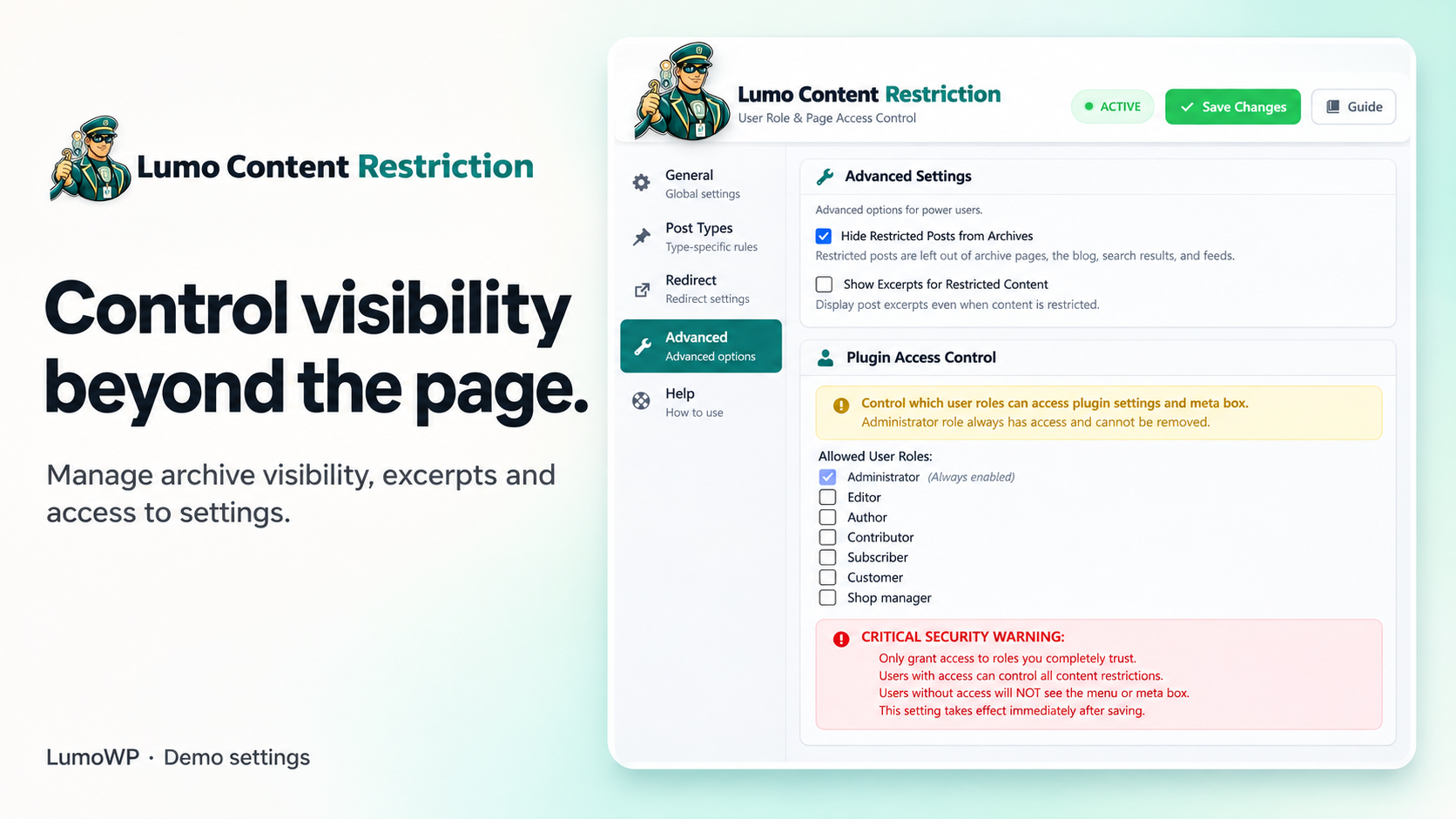
- Leave restricted items out of archive pages, the blog, search results, and feeds.
- Choose which roles may open the settings screen. Administrators always can.
- Protect standard WordPress REST post responses and omit denied posts from REST collections.
The plugin controls public posts, pages and public custom post types. It does not protect direct media-file URLs or implement paid memberships. Exclude protected pages from shared page caches and CDN caches so every request reaches WordPress for its permission check.
Clear rules, from one page to a collection
An explicit rule on an individual post or page takes priority. Otherwise, an enabled rule for its post type applies, followed by the global content default. Choosing Everyone on an individual page makes it public even when a broader rule would restrict it. A post type rule does not require global restrictions to be enabled.
Use Members Only for any signed-in account, Selected User Roles for matching roles, or Selected Users for named accounts on an individual page. These choices control reading access; they do not grant editing permissions or verify purchases.
Start with one resource
- Keep global restrictions off while you configure your first page.
- Open that page’s Content Restriction Settings box and choose the audience.
- Set an accessible destination on your own site for visitors who are denied access.
- Save the page and test with a signed-out visitor, an allowed account and a denied account.
- Check your cache, search results, archives and any directly linked files before sharing the resource.
Screenshots show example settings in a local demonstration site; choose rules that fit your own audience.
Documentation from LumoWP
Visit the Lumo Content Restriction product page for the product overview.
Our page access and user roles tutorial explains a resource-page workflow, rule priority and visitor testing. It documents the earlier Content Restrictor 2.10.6 release, so its screenshots and version-specific findings differ from this release. Login-return and settings fixes are listed in the changelog below.
External services
This plugin does not contact any external service.
Privacy and scope
Access rules and selected user IDs are stored in your WordPress database. No tracking or remote license check is included. Deactivation preserves rules for later use. A selected role or a logged-in account does not establish that a visitor has paid for access. Custom APIs, external search indexes and direct file downloads need their own access controls.
Screenshots


Installation
- Upload the plugin folder to
/wp-content/plugins/or install it from the Plugins screen. - Activate Lumo Content Restriction.
- Open Lumo WP, then Lumo Content Restriction.
- Start with an individual page rule and verify it outside your administrator session.
Updating the published lumo-access-studio plugin keeps the same folder, settings and access rules. If migrating from a separate earlier Content Restrictor build, deactivate that plugin before activating Lumo Content Restriction. Existing restriction settings and metadata use the same storage keys.
FAQ
-
Can I restrict one post and leave the rest public?
-
Yes. Each post and page has a Content Restriction Settings box. That rule overrides the site-wide and post type rules.
-
Do post type rules need the global restriction to be on?
-
No. A post type rule works on its own. The global rule is only a fallback for types that do not have their own rule.
-
Can administrators still read restricted content?
-
Yes, when Exclude Administrators is enabled. That option is on by default.
-
Does Members Only mean paying members?
-
No. It means any logged-in WordPress account. A role such as Subscriber or Customer does not prove that someone bought a product or has an active subscription. Paid access needs a separate entitlement system.
-
Can visitors return to the original page after login?
-
Enable the return-after-login option and use the standard WordPress login URL as the redirect destination. Custom login forms may handle return URLs differently; test the complete journey with your own login setup.
-
Does this protect uploaded PDFs and every URL on my site?
-
No. Content rules are not a server-wide access policy. Direct media URLs, custom APIs, external indexes and third-party integrations need their own controls. Standard WordPress REST post responses are checked, but this does not guarantee protection for custom endpoints.
-
What should I check when using a cache or CDN?
-
Exclude protected pages from shared full-page caches and purge older cached copies. Test signed-out and allowed accounts through your actual cache and CDN. A cached response served before WordPress runs cannot be checked by this plugin.
-
Can I show a public excerpt?
-
Yes, if you deliberately enable Show Excerpts for Restricted Content in Advanced settings. Write a public-safe teaser. Leave the option disabled if the excerpt should also remain restricted.
-
Can another role manage restriction settings?
-
Administrators can delegate plugin management in Advanced settings. This is separate from the roles allowed to read a page. Administrators always retain access to the plugin settings screen.
Reviews
There are no reviews for this plugin.
Contributors & Developers
“Lumo Content Restriction – User Role & Page Access Control” is open source software. The following people have contributed to this plugin.
Contributors
Translate “Lumo Content Restriction – User Role & Page Access Control” into your language.
Interested in development?
Browse the code, check out the SVN repository, or subscribe to the development log by RSS.
Changelog
2.10.11
- Updated the display name to Lumo Content Restriction – User Role & Page Access Control. The plugin slug, URLs, existing settings and access rules stay the same.
2.10.10
- Updated the product name to Lumo Access Studio, with a matching folder and translation domain. Existing settings and access rules are preserved.
2.10.8
- Fixed settings saving, including selections containing multiple roles.
- Fixed the return address after login and the global redirect destination.
- Protected restricted content in standard REST responses and secondary content displays.
- Limited delegation of settings access to administrators and validated malformed input.
- Preserved WordPress admin notices and removed the unused debug switch.
2.10.6
- Released as a free plugin. License checks and remote notices are not included.
- Post type rules apply even when the site-wide restriction is off.
- Restricted items can be hidden from archive pages, the blog, search results, and feeds.