
Description
LumenThemes Backup is a backup and restore plugin built around one rule: a restore should never leave your site worse off than before.
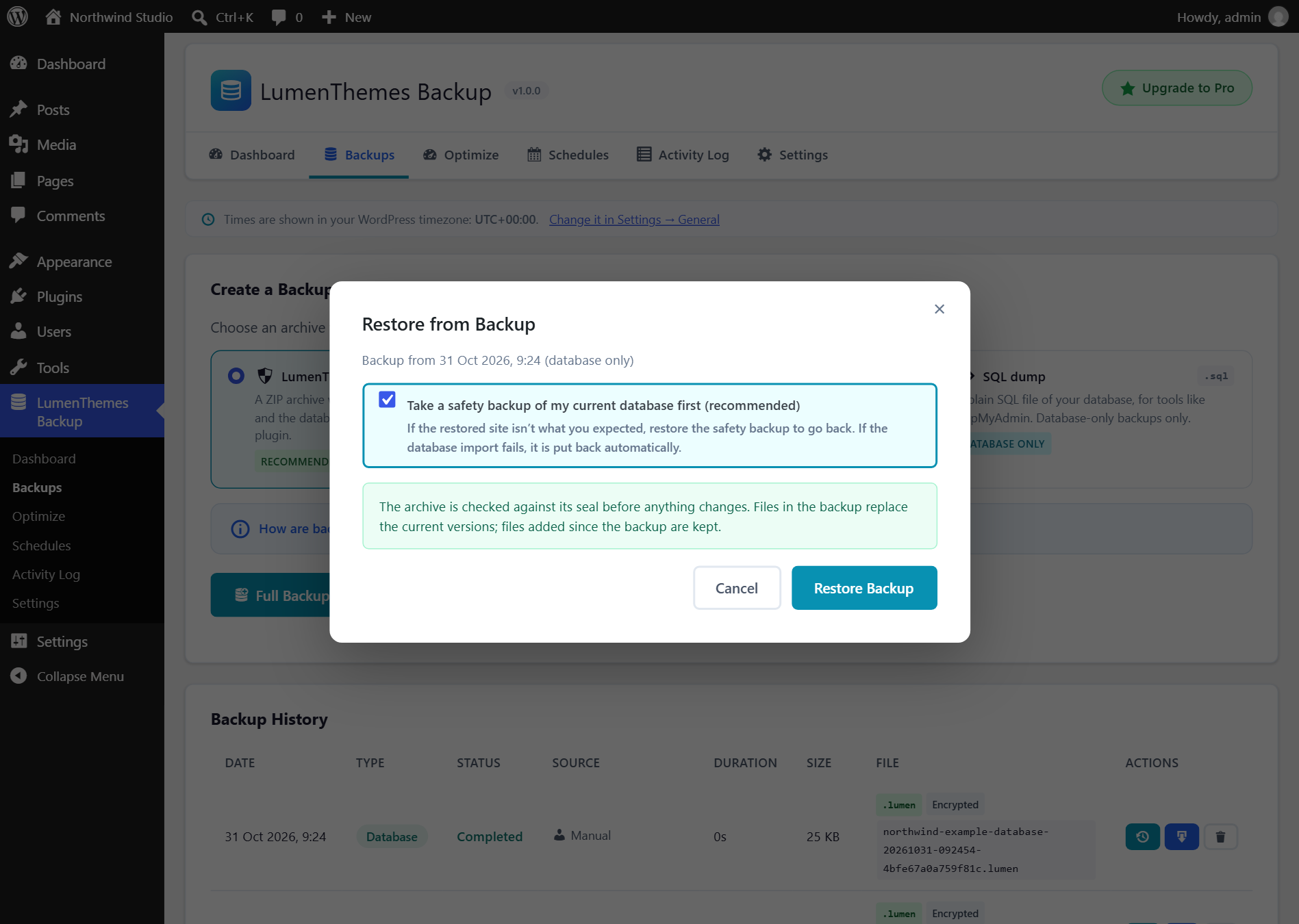
Every backup is encrypted on the server and sealed with a keyed SHA-256 checksum when it is created. Before a restore changes anything, the archive is checked against that seal, and a damaged or modified archive is refused. Next, LumenThemes Backup takes a safety backup of your current database. If the database import fails part-way, the safety backup is put back automatically. If the restore works but the result isn’t what you expected, restore the safety backup to go back.
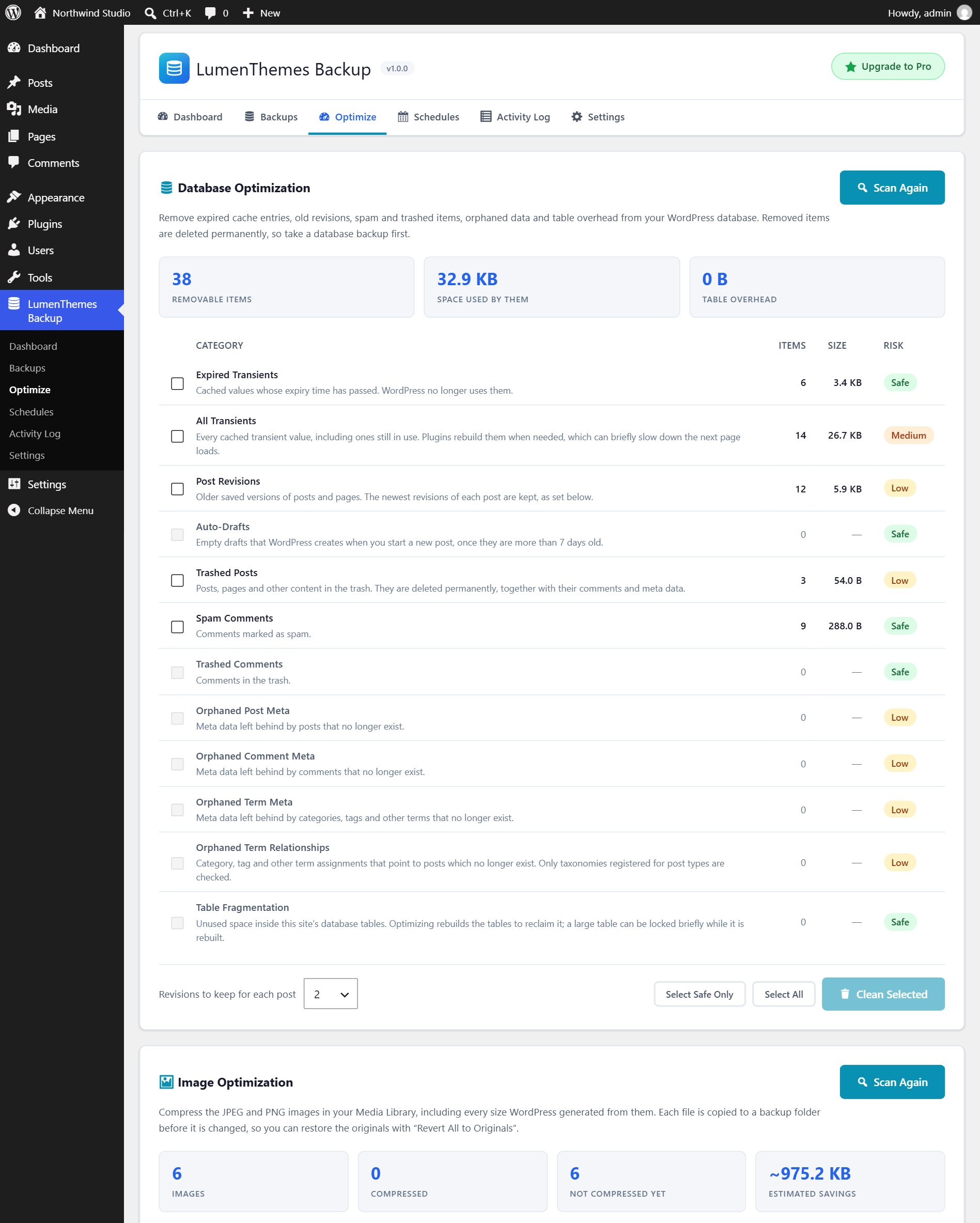
LumenThemes Backup also helps keep your site lean. The built-in optimizer scans your database for clutter and compresses your JPEG and PNG images, and it shows you what it found before anything is changed. Original images are kept, so you can revert them.
Everything runs on your own server. There is no account to create and no external service, and nothing is sent anywhere.
What makes LumenThemes Backup different
- Safety backup before every restore: an automatic backup of your current database, with automatic rollback if the database import fails.
- Sealed archives: every backup is checked against its seal before a restore, so a damaged archive is caught before it can harm your site.
- Encrypted on the server: backups are stored encrypted (AES-256-GCM, or XChaCha20-Poly1305 where OpenSSL isn’t available) with the key kept in your database, so a backup file can’t be read even if someone requests it directly, on any web server. Downloads are decrypted for you.
- Backup and optimizer in one plugin: remove expired transients, old revisions, spam and trashed items, and orphaned metadata, optimize tables, and compress images, with revert.
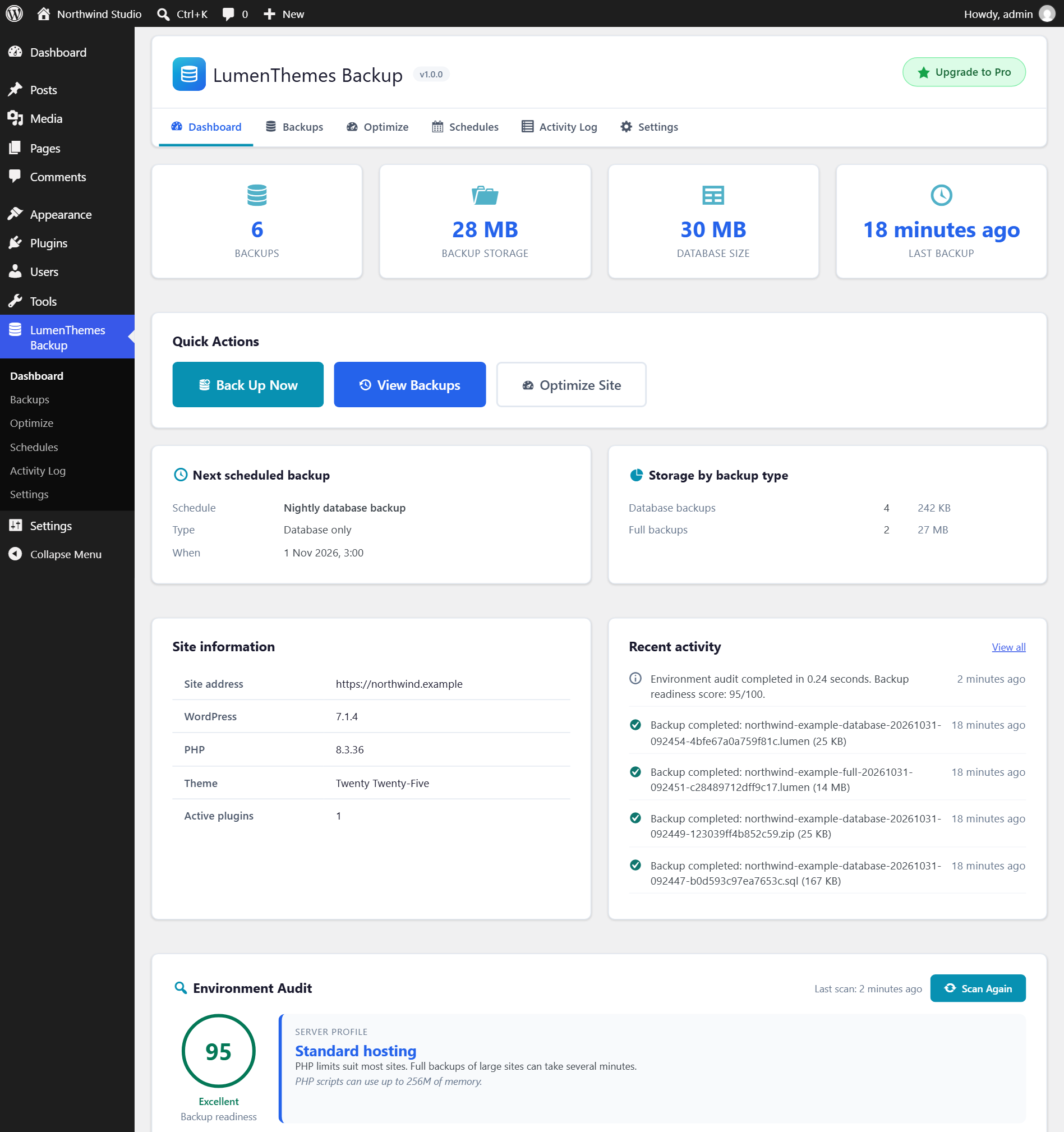
- Environment Audit: checks your PHP limits, disk space, database size and server features, and explains what to change before a backup fails.
- Live progress: every backup and restore shows its current step, including scheduled backups that run in the background.
Features
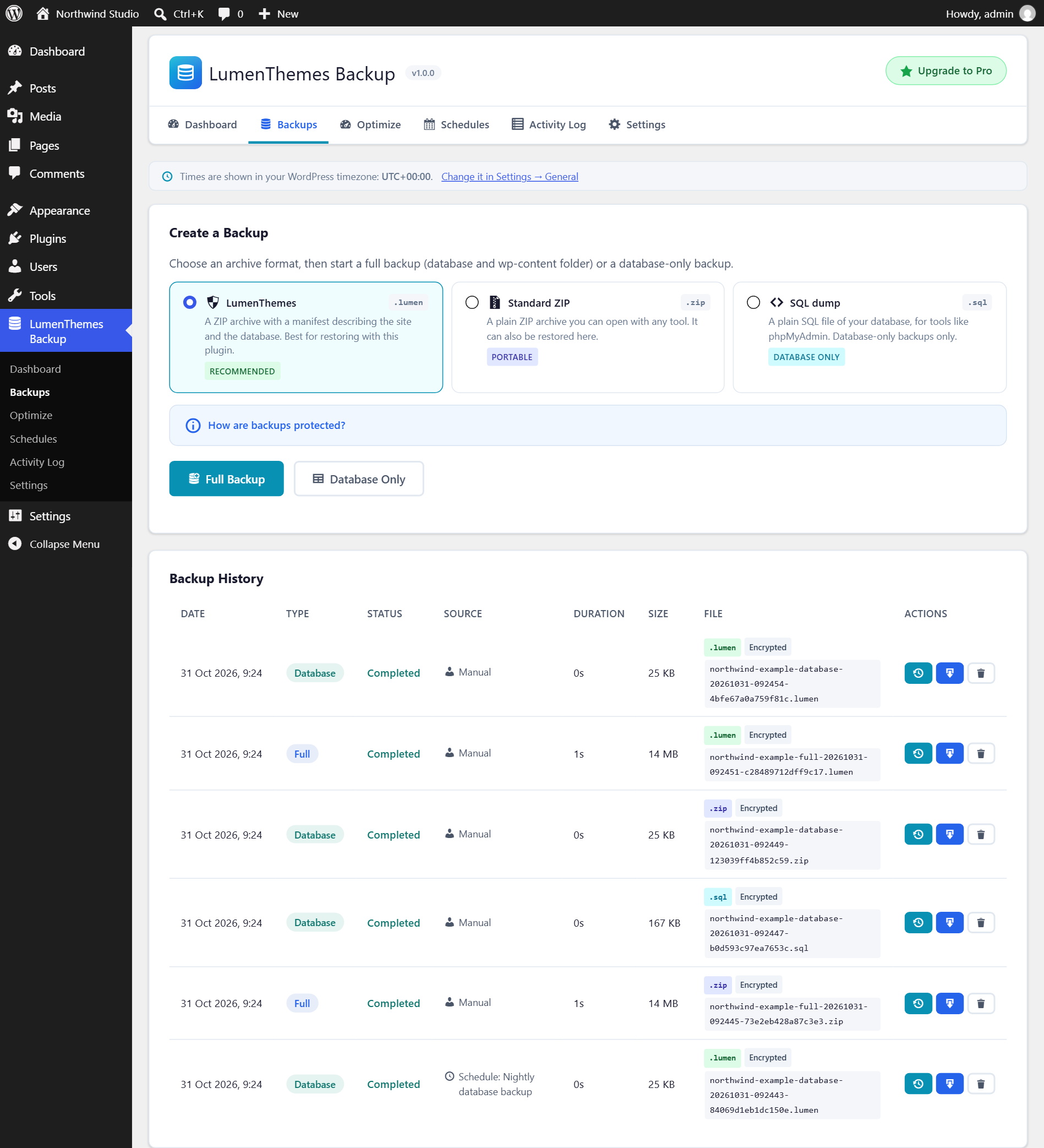
- Full backups (database and the wp-content folder) and database-only backups, on demand.
- Three archive formats: .lumen, .zip (opens in any ZIP tool) and .sql (database only). All three can be restored by the plugin.
- Restore the database and files, the database only, or the files only.
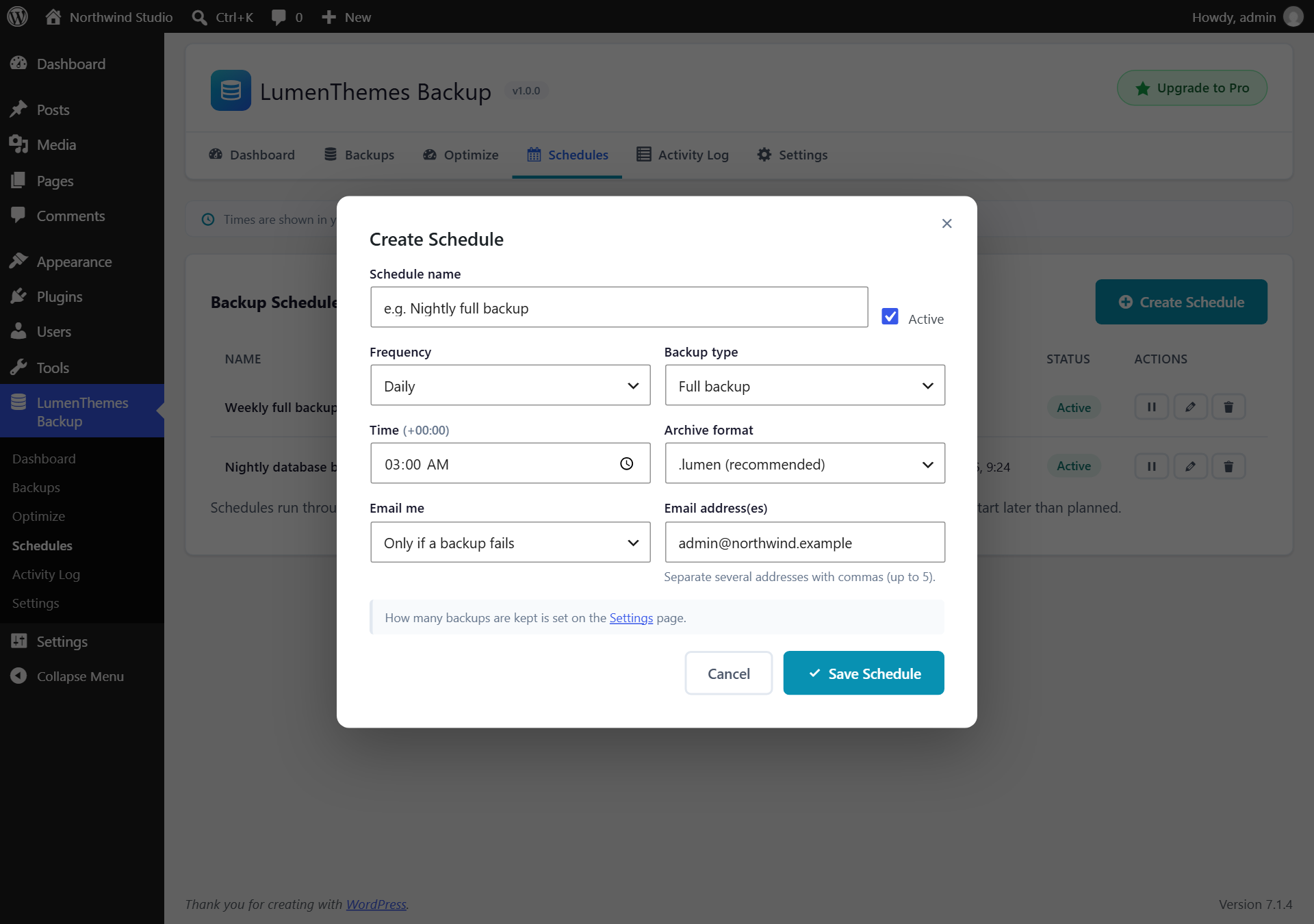
- Scheduled backups: every hour, twice a day, daily, twice a week, weekly or monthly, at the time you choose in your site’s timezone.
- Optional email notifications for scheduled backups.
- Automatic clean-up that keeps the number of backups you choose.
- Download any backup to your computer.
- Database clean-up with a scan first and a risk label for every item.
- Image compression with GD or Imagick, with revert.
- Activity log of every backup, restore, schedule and clean-up, with CSV export.
- Backups are stored encrypted in a protected folder and can only be downloaded by administrators.
Privacy
LumenThemes Backup does not connect to any external service and does not collect, track or send any data. Backups, logs and settings stay on your own server. Email notifications for scheduled backups are optional and are sent through your site’s own wp_mail() to the addresses you enter.
LumenThemes Backup Pro
LumenThemes Backup is complete on its own: nothing in this plugin is locked or time-limited. If you also need cloud storage, incremental backups, staging or site migration, those are part of the separate LumenThemes Backup Pro plugin from Lumen Themes.
Screenshots

Installation
- In your WordPress admin, go to Plugins Add New, search for “LumenThemes Backup”, then install and activate it. Or upload the
lumenthemes-backupfolder to/wp-content/plugins/and activate it on the Plugins screen. - Open LumenThemes Backup in the admin menu.
- Optional: click Run Audit on the Dashboard to check your server.
- Click Back Up Now to create your first backup, or create a schedule on the Schedules page.
Requirements: PHP 7.4 or newer with the Zip extension (ZipArchive) for .lumen and .zip backups, and a writable temporary folder outside your website (the temporary folder WordPress uses: PHP’s temporary folder, or the folder set in WP_TEMP_DIR). Encryption uses PHP’s OpenSSL extension, or the sodium extension where OpenSSL isn’t available; without either, a much slower library that ships with WordPress is used. Scheduled backups use WP-Cron.
FAQ
-
Where are my backups stored?
-
On your own server, encrypted, in
wp-content/uploads/lumenthemes-backup/backups/(shown under Settings), and every backup file has a random name. The encryption key is stored in your database, not next to the files, so a backup file can’t be read even if someone requests it directly. The plugin’s folder also contains rules that block web access on Apache and IIS, and backups can only be downloaded through the plugin by administrators.While a backup or restore runs, its unencrypted files (the database export and the archive before it is encrypted) are kept only in a private folder in the temporary folder WordPress uses, outside your website, and deleted when it finishes. If the server has no usable temporary folder, LumenThemes Backup doesn’t run the backup and explains how to fix it: usually by setting
WP_TEMP_DIRinwp-config.phpto a folder outside your website.Keep a copy somewhere else as well: download important backups to your computer. Downloads are decrypted, so they are normal files you can open with other tools.
-
I use Nginx. Do I need to do anything?
-
No. Nginx ignores
.htaccessfiles, but backups are encrypted, so a backup file can’t be read even if it is requested directly, and unencrypted files are never placed inside your website. If you like, you can also block the folder in your Nginx server block:location ^~ /wp-content/uploads/lumenthemes-backup/ { deny all; } -
What happens if a restore goes wrong?
-
Before a restore changes anything, the archive is checked against its seal and a safety backup of your current database is taken. If the database import fails, the safety backup is put back automatically. If the restore finishes but you don’t like the result, restore the safety backup from the Backups page. The newest three safety backups are kept.
-
Does a restore delete files that I added after the backup?
-
No. Files in the backup replace the current versions, and files added since the backup are left in place. The database is replaced completely by the one in the backup. Your site address (Settings General) is kept as it is now.
-
Does LumenThemes Backup send any data to other servers?
-
No. The plugin makes no external connections and has no tracking.
-
Which archive format should I choose?
-
Use .lumen for normal backups. Use .zip when you also want to open the archive with other tools. Use .sql for a plain database export, for example to import with phpMyAdmin.
-
Is the optimizer safe?
-
The scans only read your data. Nothing is removed or compressed until you select it and confirm. Image compression keeps a copy of every original so you can revert it. For extra safety, take a backup before cleaning.
-
My host stops long backups. What can I do?
-
Click Run Audit on the Dashboard. It checks your PHP time and memory limits and suggests what to change. A database-only backup is much faster than a full backup.
-
Does it work on multisite?
-
Not yet. LumenThemes Backup works on single-site installations and won’t activate on a multisite network.
-
What is removed when I delete the plugin?
-
The plugin’s database tables, settings, scheduled events and image-optimization records, and the backups stored on this server: they are encrypted with a key that is removed too, so they could not be opened again. Download any backups you want to keep before you delete the plugin; downloaded copies are not encrypted. The original copies of optimized images are kept in
wp-content/uploads/lumenthemes-backup/originals/; delete that folder by hand if you no longer need them.
Reviews
There are no reviews for this plugin.
Contributors & Developers
“LumenThemes Backup” is open source software. The following people have contributed to this plugin.
Contributors
Translate “LumenThemes Backup” into your language.
Interested in development?
Browse the code, check out the SVN repository, or subscribe to the development log by RSS.
Changelog
1.0.0
- Initial release.