Description
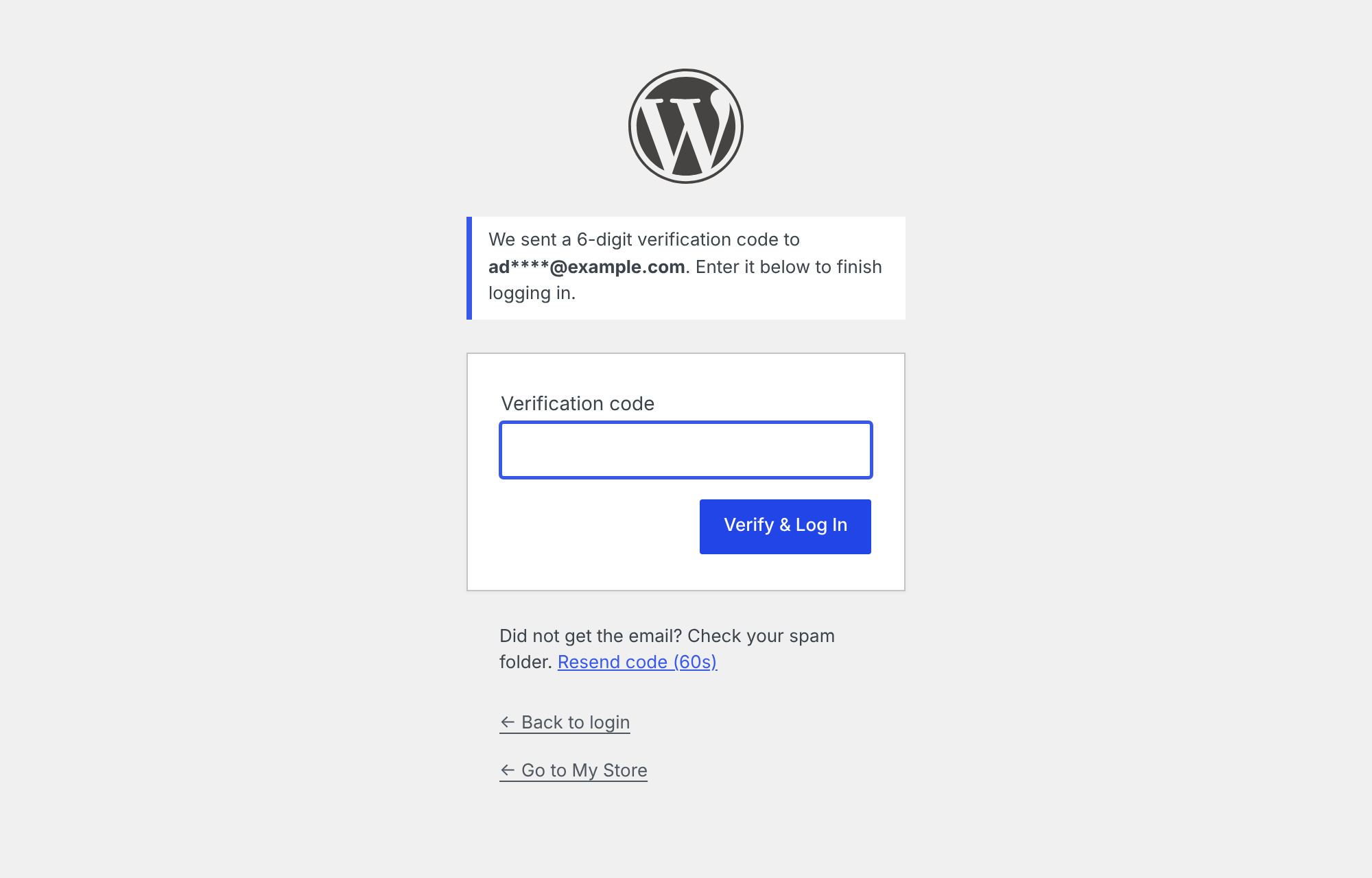
Loginward adds a second step to every administrator login. After an administrator enters the correct username and password, a 6-digit code is emailed to that administrator’s own address only. The WordPress session is created only after the code is entered.
There is no QR code, no authenticator app and no setup step. Every administrator is protected as soon as the plugin is activated. Editors, authors, shop managers, customers and subscribers keep logging in exactly as before.
What Loginward focuses on
Loginward does one job: making sure no one reaches an administrator dashboard with a password alone. It is built around four design decisions.
- Enforced, not opt-in. Protection applies to every administrator account the moment the plugin is activated. No administrator has to enrol, scan anything or remember to turn it on, so no account is left unprotected.
- Every path to an admin session is checked. The login session itself is created only after the code is verified. On every request, an administrator is accepted only with a session that was verified this way. Sessions created before activation or by other login code, Application Passwords, password logins over XML-RPC or the REST API, and admin API tokens are refused by default.
- Mailbox takeover is considered. “Lost your password?” is disabled for administrators by default. Someone who gains access to an administrator’s mailbox therefore cannot reset the password and receive the login code.
- Limits that hold under parallel attacks. Code attempts, emails and lockouts are counted with atomic database operations, so sending many requests at once cannot exceed the limits.
Only administrators are affected, which makes it suitable for WooCommerce stores and membership sites where customers must keep a simple login.
How it works
- An administrator enters a correct username and password on the login page, or on a front-end login form such as the WooCommerce “My Account” page.
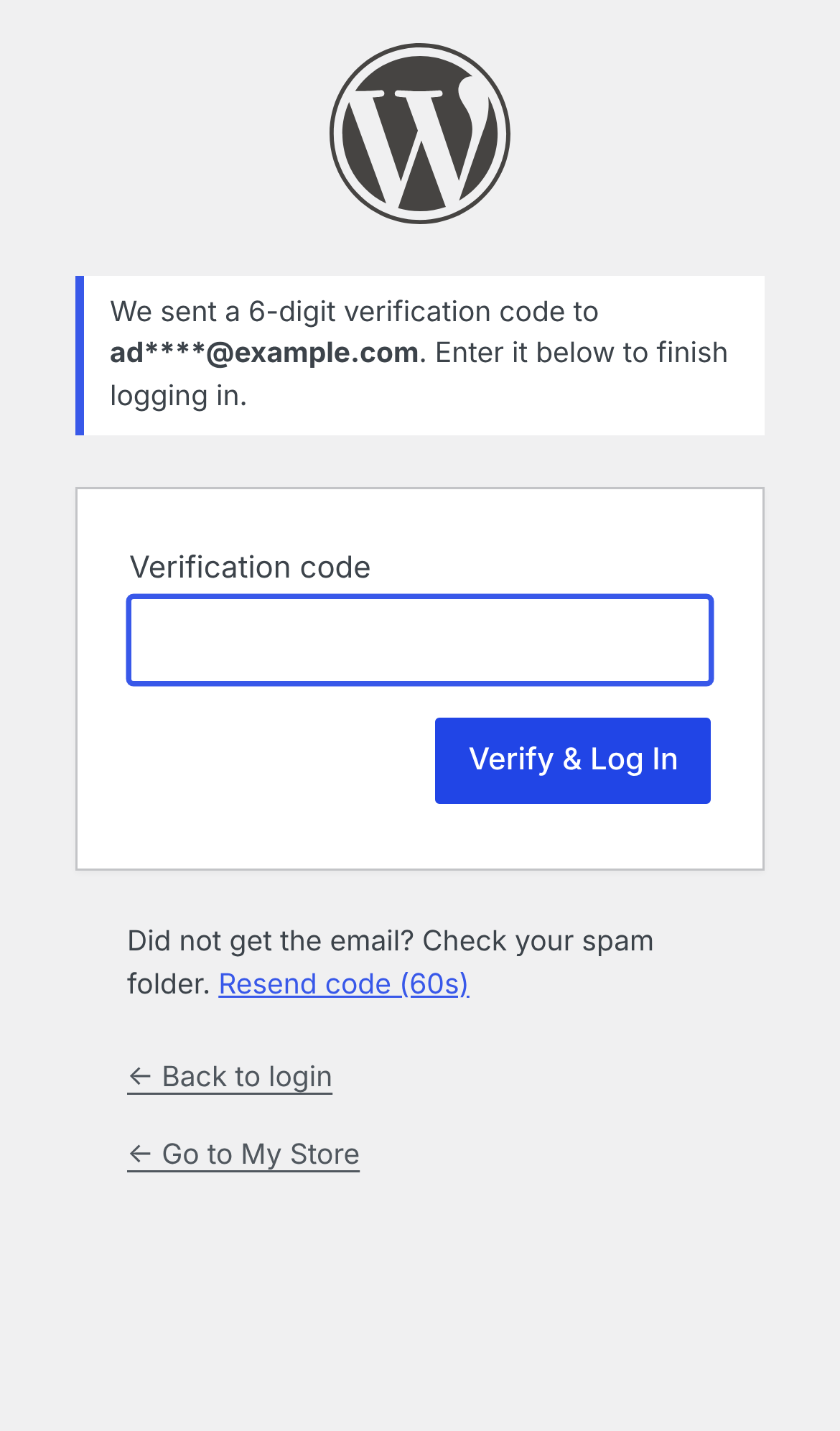
- Before WordPress creates a login session, Loginward emails a one-time code to that administrator and shows the “Email Verification” screen.
- Entering the correct code completes the login.
- On every request, an administrator is accepted only with a session that was verified this way. Sessions created before activation or by other login plugins, and API tokens, are treated as logged out.
Brute-force protection
All limits are enforced with atomic database operations, so firing many requests in parallel cannot get around them.
- Codes are valid for 10 minutes and work only once.
- 5 attempts per code, after which the administrator must log in again.
- 10 code attempts per account in 15 minutes. After that, the account is locked for 15 minutes and an alert email is sent.
- No more than 5 code emails per account in 15 minutes.
- Requesting a new code invalidates the previous one, and “Resend” has a 60-second cooldown.
- Codes are stored only as keyed hashes.
Closing other entry points
- Password logins through XML-RPC, the REST API and AJAX are refused for administrator accounts.
- Application Passwords are disabled for administrators.
- “Lost your password?” is disabled for administrators by default. Someone who takes over an administrator’s mailbox therefore cannot reset the password and receive the code. Another administrator can still set a new password under Users Edit.
Settings (Settings Loginward)
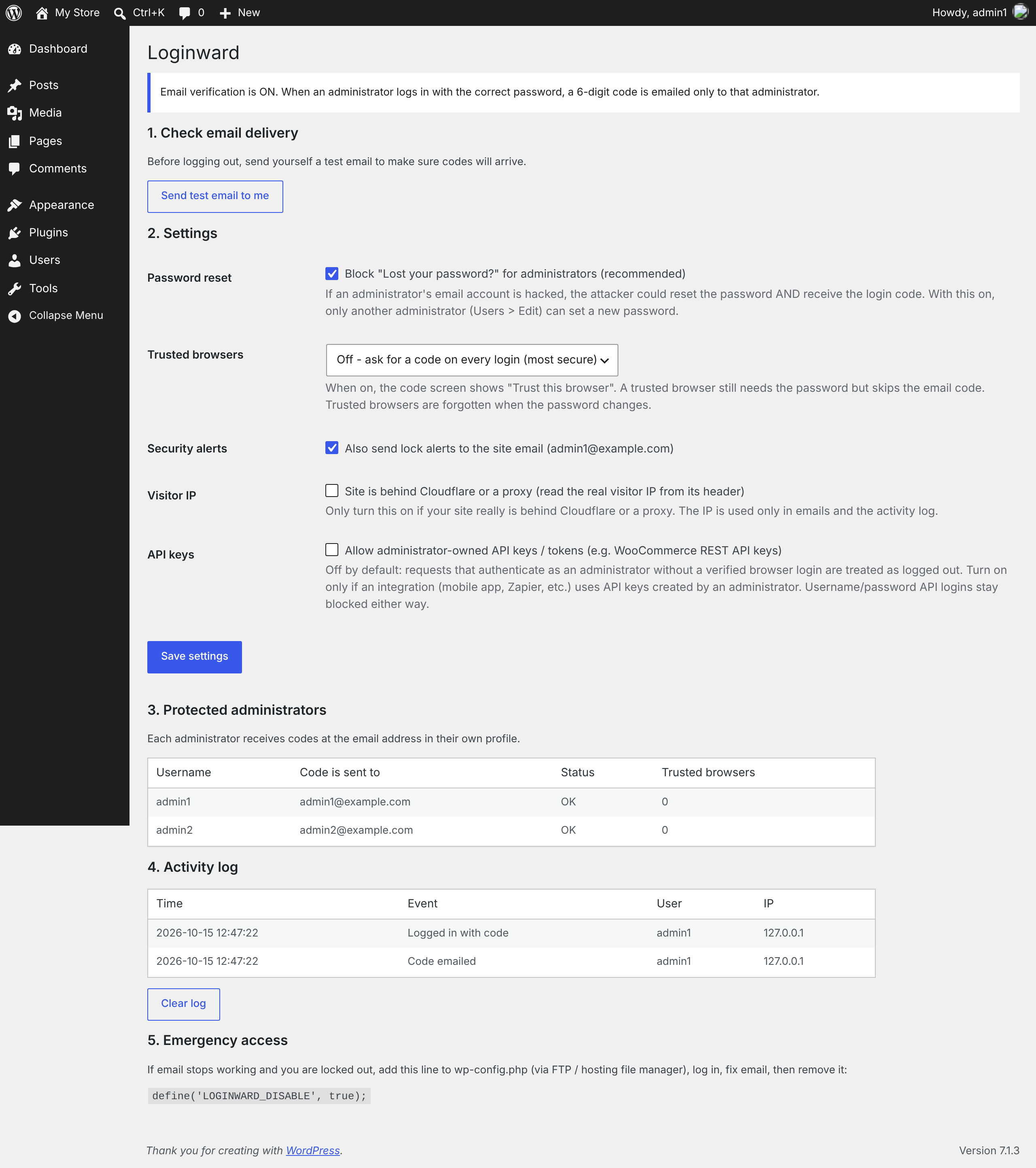
- Send test email. Confirms that codes will arrive before you log out.
- Trusted browsers. Optional. A trusted browser still needs the password but skips the code for 7, 14 or 30 days. Trusted browsers are forgotten when the password changes.
- Security alerts. Lock alerts go to the affected administrator and, optionally, to the site email address.
- Proxy support. Shows the real visitor IP when the site is behind Cloudflare or a reverse proxy.
- Administrator API keys. Optional. Allows integrations that use API keys created by an administrator, such as WooCommerce REST API keys.
- Protected administrators. Lists each administrator, the address their codes are sent to, their lock status (with an Unlock button) and their trusted browsers.
- Activity log. Shows the last 200 events: codes sent, successful logins, wrong codes, locks and blocked attempts.
Privacy
Loginward does not contact any external service. Codes are sent with the site’s own wp_mail() function. The plugin stores the visitor IP address and username in the activity log, which is kept in the site’s database, limited to the most recent 200 events and can be cleared at any time. Login codes are sent to the email address in the administrator’s WordPress profile.
Screenshots
Installation
- Make sure your site can send email. On most hosts this means installing and configuring an SMTP plugin.
- Upload the plugin through Plugins Add New Upload Plugin, or install it from the plugin directory, then activate it.
- Go to Settings Loginward and click “Send test email to me”. Do not log out until the test email has arrived.
Your own session stays logged in when you activate the plugin. Every other administrator will need an email code the next time they open the dashboard.
FAQ
-
Who receives the code?
-
Only the administrator who is logging in. The code goes to the email address in their own WordPress profile. Other administrators receive nothing.
-
Does it affect customers or editors?
-
No. Only users with the Administrator role are asked for a code. On multisite, Super Admins are asked as well.
-
Email stopped working and I am locked out. What can I do?
-
Add the following line to wp-config.php through FTP or your hosting file manager:
define( 'LOGINWARD_DISABLE', true );Log in, fix email delivery, then remove the line.
-
Does it work with WooCommerce?
-
Yes. Administrators who log in through the WooCommerce “My Account” page are sent to the code screen. Shop managers and customers are not affected. If an integration such as a mobile app, Zapier or an ERP uses REST API keys owned by an administrator, either create the keys under a Shop Manager user (recommended) or enable “Allow administrator API keys” in the settings.
-
Does it work on a local development site?
-
Only if the local site can send or capture email, for example with the Mailpit tool built into Local, or with an SMTP plugin. Otherwise add the LOGINWARD_DISABLE line shown above while you develop.
-
Can I change the email text?
-
Yes. Use the
loginward_email_subjectandloginward_email_bodyfilters.
Reviews
There are no reviews for this plugin.
Contributors & Developers
“Loginward – Email OTP for Administrators” is open source software. The following people have contributed to this plugin.
Contributors
Translate “Loginward – Email OTP for Administrators” into your language.
Interested in development?
Browse the code, check out the SVN repository, or subscribe to the development log by RSS.
Changelog
1.0.0
- Initial release.