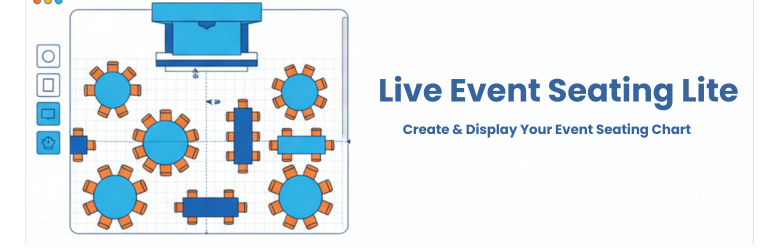
Description
The Easiest Way to Create & Sell Tickets with a Seating Chart in WordPress!
Are you trying to create a visual seating chart for an upcoming event? Building a custom venue map or an interactive floor plan in WordPress can be a challenge. Live Event Seating Lite is the ultimate solution. It provides a powerful, intuitive, drag-and-drop builder to create a detailed seating plan and now includes FREE WooCommerce integration for selling tickets!
Whether you are organizing a local concert, a church event, managing auditorium seating, mapping out stadiums, or handling table reservations for a gala or workshop, this seat booking system adapts perfectly to your venue.
🎥 See It In Action (Video Tutorials)
Want to see how easy it is to build a venue and sell tickets? Check out our quick video tutorials:
How to Create a Seating Chart
How to Connect Seats to WooCommerce
Advanced Venue Builder Features
🆓 Live Event Seating LITE (Free Version) – NEW FEATURES!
Now you can sell tickets directly from your seating chart with our built-in WooCommerce integration at NO extra cost!
Free Features Include:
* Visual Drag & Drop Builder: Create your seating chart right inside the WordPress admin area.
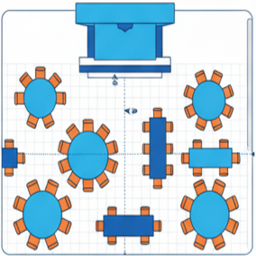
* Multiple Elements: Add circular tables, rectangular tables, seat rows, stages, images, and freeform polygon shapes.
* WooCommerce Ticket Sales (NEW): Link variable price products to events to accept payments easily.
* Interactive Seat Selection: Customers can click seats and see real-time pricing based on your product variations.
* Shopping Cart Integration: Add selected seats to the WooCommerce cart and proceed directly to checkout.
* Detailed Cart Display: Shows specific seat information (table/seat number), event details, and pricing in the cart and checkout.
* 5-Minute Seat Locking: Seats are automatically locked for 5 minutes when added to the cart; changing to an orange “reserved” color to indicate they’re temporarily held. If the order is not completed, the seat is automatically released.
* Order Information Tracking: Comprehensive seat and event details (date, time, place) are automatically added to WooCommerce orders and displayed in admin order details, thank you pages, and email confirmations.
* Prevent Double-Bookings: Booked seats are marked as unavailable (gray color) to prevent overlapping sales.
* Multi-Level Pricing: Support for variable products with multiple price tiers (e.g., VIP, Standard, Economy).
* Intuitive Controls: Easily move, duplicate, and delete elements with smart snapping guides.
* Responsive Display: Use a simple shortcode [lesl_seating_plan id="YOUR_EVENT_ID"] to display your chart on any page or post.
🚀 Want Even More? Upgrade to Premium!
Our Premium versions include advanced features like QR code ticket scanning, complex multi-section venues, General Admission areas, and more!
🏆 Which Version is Right For You?
1. LITE VERSION (Free) – NEW!
Best for: Selling tickets with basic seating arrangements.
* Drag-and-drop visual builder
* WooCommerce ticket sales (NEW!)
* Seat selection and booking (NEW!)
* Display via shortcode
2. STARTER VERSION
Best for: A single venue or personal website (1 Website).
* 0% Ticket Fees: Keep 100% of your profits without paying third-party platform fees.
* Tiered Pricing: Charge different prices for VIP vs. Standard seats.
* Whole Table Booking: Allow corporate sponsors to buy a whole table with one click.
* Real-time Seat Summary: Live cart updating to prevent double-bookings.
* Advanced Builder Tools: Includes full Undo/Redo (Ctrl+Z), 360° rotation tools, curved seat rows, block/kill individual seats, and advanced alphabetic seat numbering.
* Pan & Zoom: Users can easily pan and zoom the displayed seating chart on any mobile device or desktop.
3. BASIC VERSION
Best for: Freelancers & agencies getting started (5 Websites).
* Includes all features from the Starter Version, expanded for use on up to 5 websites!
4. PRO VERSION
Best for: Power users, client work, and complex venues (Unlimited Websites).
* Everything in Starter & Basic, plus:
* QR Code Ticket Scanner: Scan tickets at the door using any smartphone camera for fast check-ins.
* Sections Mode: Build complex venues with multiple sections (Balconies, Orchestra pits, etc.).
* General Admission (GA) Areas: Sell standing-room or unreserved area tickets.
* Booking Manager: Centralized dashboard to view and manage all attendees.
* Import/Export Layouts (JSON): Save your venue as a template for future events.
* Calendar Integration: Native, seamless integration with The Events Calendar and Events Manager plugins.
* Countdown Timer: Seat lock timer displays directly in the cart and checkout page.
* Advanced Ticket Templates: Advance Ticket Customizer using a drag-and-drop builder.
* Seat & Table Add-ons: Offer food packages, drinks, signage, and other
WooCommerce products as optional extras when customers book their seat or table.
* Premium Support.
🏆 Feature Comparison: Lite vs Premium
Wondering which version is right for you? Here is a quick breakdown:
👉 Compare All Premium Features Here!
Screenshots

Lite vs Pro version feature comparison. 
Create a venue floor plan using the intuitive drag-and-drop seating chart builder. 
Customize table reservations, stages, and seat bookings easily in the editor. 
[PREMIUM] Frontend interactive seat selection and booking for your event attendees. 
[PREMIUM] Link your seating map to WooCommerce products with Tiered Pricing. 
[PRO] Build complex auditorium and stadium layouts with Sections Mode and General Admission (GA) areas. 
[PREMIUM] Automated email ticket delivery featuring scannable QR Codes. 
[PRO] Built-in QR Code ticket scanner for fast event-day attendee check-ins. 
[PRO] Real-time Seat Lock countdown timer displayed on the WooCommerce cart and checkout pages. 
[PRO] Ticket customizer using an advanced drag-and-drop visual builder.
Installation
- Upload the
live-event-seating-litefolder to the/wp-content/plugins/directory. - Activate the plugin through the ‘Plugins’ menu in WordPress.
- Go to Seating Charts > Add New.
- Use the “Seating Plan Builder” to create your chart.
- Copy the shortcode from the “Event Seating Settings” box.
- Paste the shortcode into any page or post to display your seating chart.
FAQ
-
How do I create a seating chart in WordPress?
-
You can easily create a custom seating chart using our visual drag-and-drop builder. Simply go to Seating Charts > Add New, drag tables, rows, or sections onto your canvas, and publish your venue map via shortcode on any page.
-
Can I sell tickets and accept payments with the free Lite version?
-
Yes! We recently added built-in WooCommerce integration to the free version. Your customers can select their seats from your chart, add them to their cart, and securely check out using your WooCommerce payment gateways.
-
Does this plugin take a percentage of my ticket sales?
-
Absolutely not! Unlike third-party platforms like Eventbrite or Ticketmaster, we charge 0% per-ticket commission. With the free version or our Premium flat-fee licenses, you keep 100% of your ticket revenue.
-
Do I need WooCommerce installed?
-
Yes, to sell tickets you must have the free WooCommerce plugin installed. Our plugin acts as a bridge, mapping your visual seating plan to WooCommerce products for a secure checkout experience.
-
Can I customize the colors for available, selected, and booked seats?
-
Yes! The latest update adds new admin settings so you can choose custom colors for available seats, selected seats, and booked seats. This makes it easy to match your seating chart style or highlight seat states more clearly.
-
How do I scan tickets at the door?
-
The Pro version includes a built-in QR Code generation and scanning system. Every customer gets a unique QR code on their ticket. Your staff can use any smartphone camera logged into your WordPress admin to scan the ticket and check them in instantly!
-
Does this work with The Events Calendar?
-
Yes! The Pro version features native, seamless integration with The Events Calendar and Events Manager, allowing you to attach seating charts directly to your existing calendar events.
Reviews


Contributors & Developers
“Live Event Seating Lite – Seating Chart, Floor Plan & Ticket Sales” is open source software. The following people have contributed to this plugin.
Contributors
“Live Event Seating Lite – Seating Chart, Floor Plan & Ticket Sales” has been translated into 3 locales. Thank you to the translators for their contributions.
Translate “Live Event Seating Lite – Seating Chart, Floor Plan & Ticket Sales” into your language.
Interested in development?
Browse the code, check out the SVN repository, or subscribe to the development log by RSS.
Changelog
1.2.2
- Fix: Multiple seats now add correctly to cart — each seat gets its own unique cart entry instead of merging into one
- Fix: PHP warning “Undefined variable $has_seat” on cart page removed
- Fix: Seat info now displays correctly in WooCommerce Gutenberg Cart and Checkout blocks (previously only worked with classic shortcode)
- Fix: Order details on thank-you page, my-account, and emails now show seat info in the same clean format as the cart (Event title, seat label, date/time/venue) instead of raw meta keys like
lesl_seat_idandlesl_event_id - New: Added admin settings for custom seat colors — available, selected, and booked seats can now be customized from plugin settings
- Fix: Quantity number no longer shown next to seat items on thank-you page order details