
Description
ListenUp is a powerful WordPress plugin that adds text-to-speech functionality to your posts and pages. With just a few clicks, you can generate high-quality audio versions of your content using Murf.ai’s advanced AI voices.
Key Features
- Easy Audio Generation: Generate audio for any post or page with a simple click
- Murf.ai Integration: Uses professional AI voices for natural-sounding audio
- Gen2 API Controls: Tune reusable Murf audio with locale, format, response mode, duration, timing metadata, speed, pitch and pauses
- No FFmpeg Required: Ideal for hosting environments where FFmpeg is not available or restricted
- Smart Caching: Audio files are cached locally to save API credits
- Hands-Off Generation: Queue audio automatically when content is published and backfill recent posts on a schedule
- Intelligent Chunking: Long content is automatically broken into manageable chunks
- Seamless Playback: Multiple audio chunks play continuously without interruption
- Leech Protection: Secure audio delivery prevents unauthorized direct file access and hotlinking
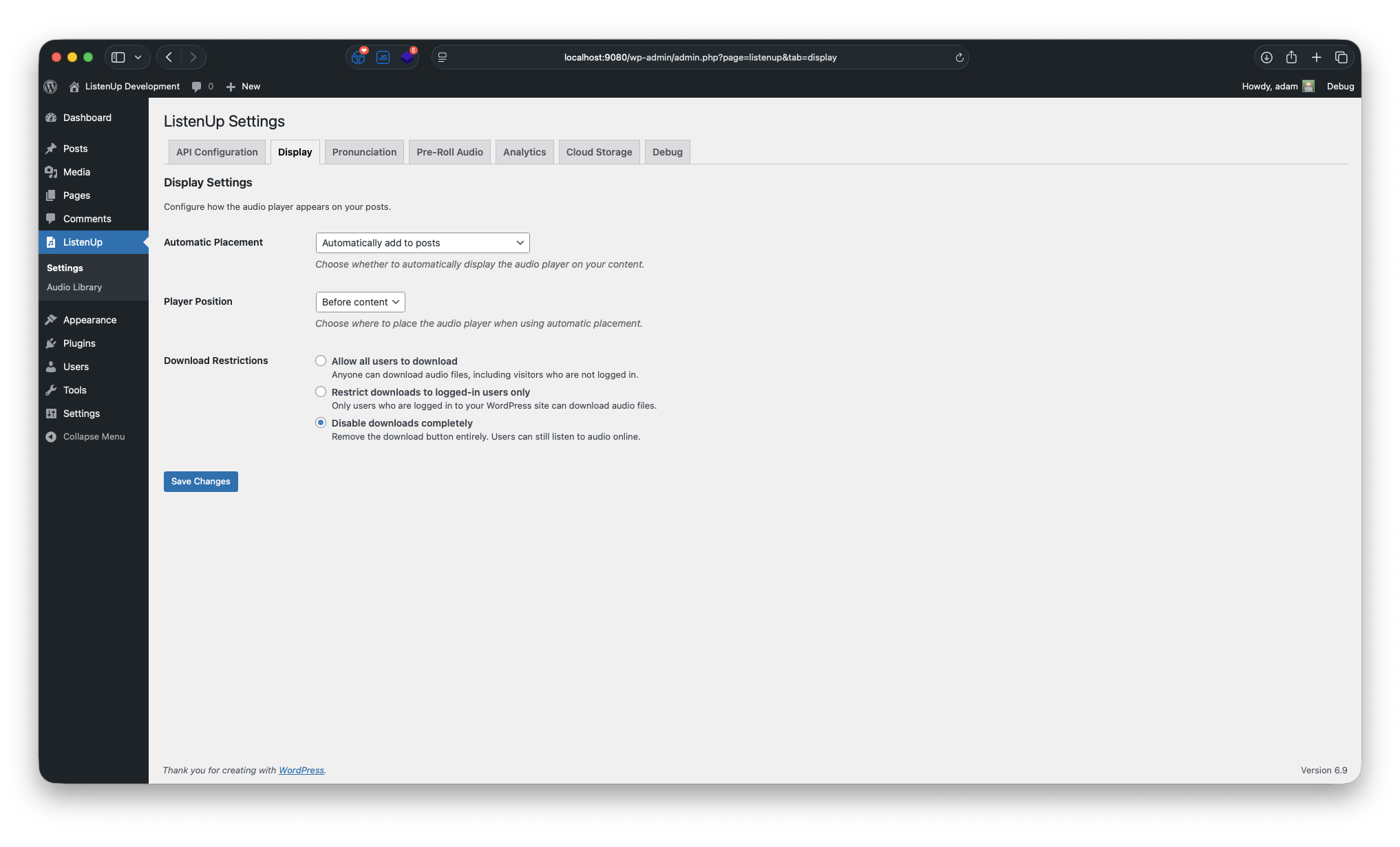
- Download Control: Restrict downloads to logged-in users or disable downloads entirely
- Flexible Placement: Choose where to display the audio player (before/after content)
- Shortcode Support: Use [listenup] shortcode to place players anywhere
- Accessibility First: WCAG-compliant audio player with keyboard navigation
- Mobile Responsive: Works perfectly on all devices
- Admin-Friendly: Simple settings page with clear instructions
- A Voice for Each Language: Read each post in the voice, and with the pronunciation rules, chosen for its language
- Translation (Optional): Draft a translation of a post for a person to review and approve, then read it aloud in its own language. Off until you turn it on, and nothing is translated unless someone asks
How It Works
- Setup: Enter your Murf.ai API key in the plugin settings
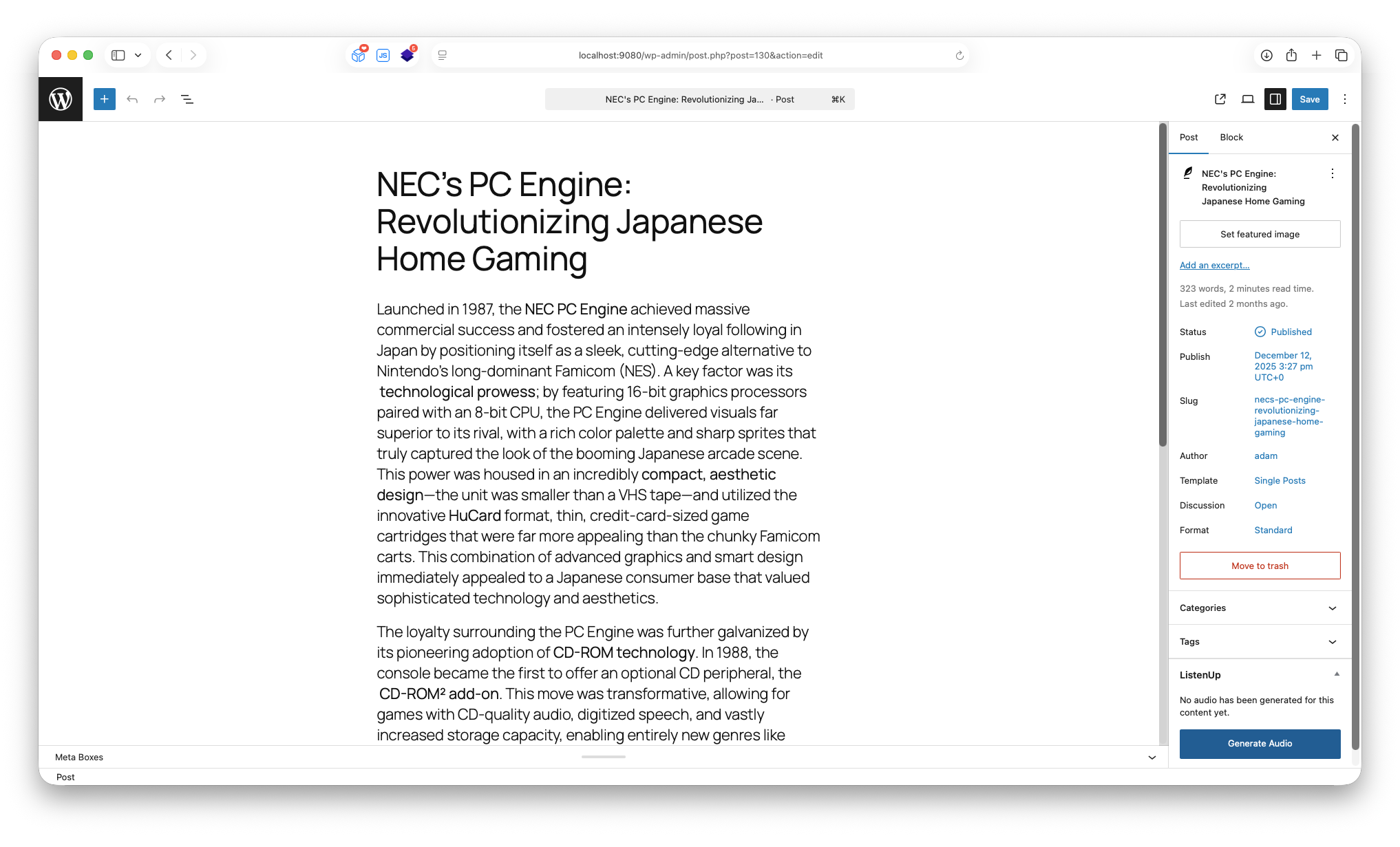
- Generate: Use the meta box on any post/page, or enable background generation on publish
- Display: Audio players appear automatically or via shortcode
- Listen: Visitors can play, pause, and download audio content
Advanced Features
Content Chunking: For posts that exceed Murf.ai’s API limits, content is automatically broken into smaller chunks. Each chunk generates a separate audio file, but the frontend player seamlessly plays all chunks in sequence without interruption.
Audio Concatenation: When downloading audio content that has been chunked, the plugin automatically concatenates supported stream-friendly formats into a single file, so listeners do not have to manage separate chunks.
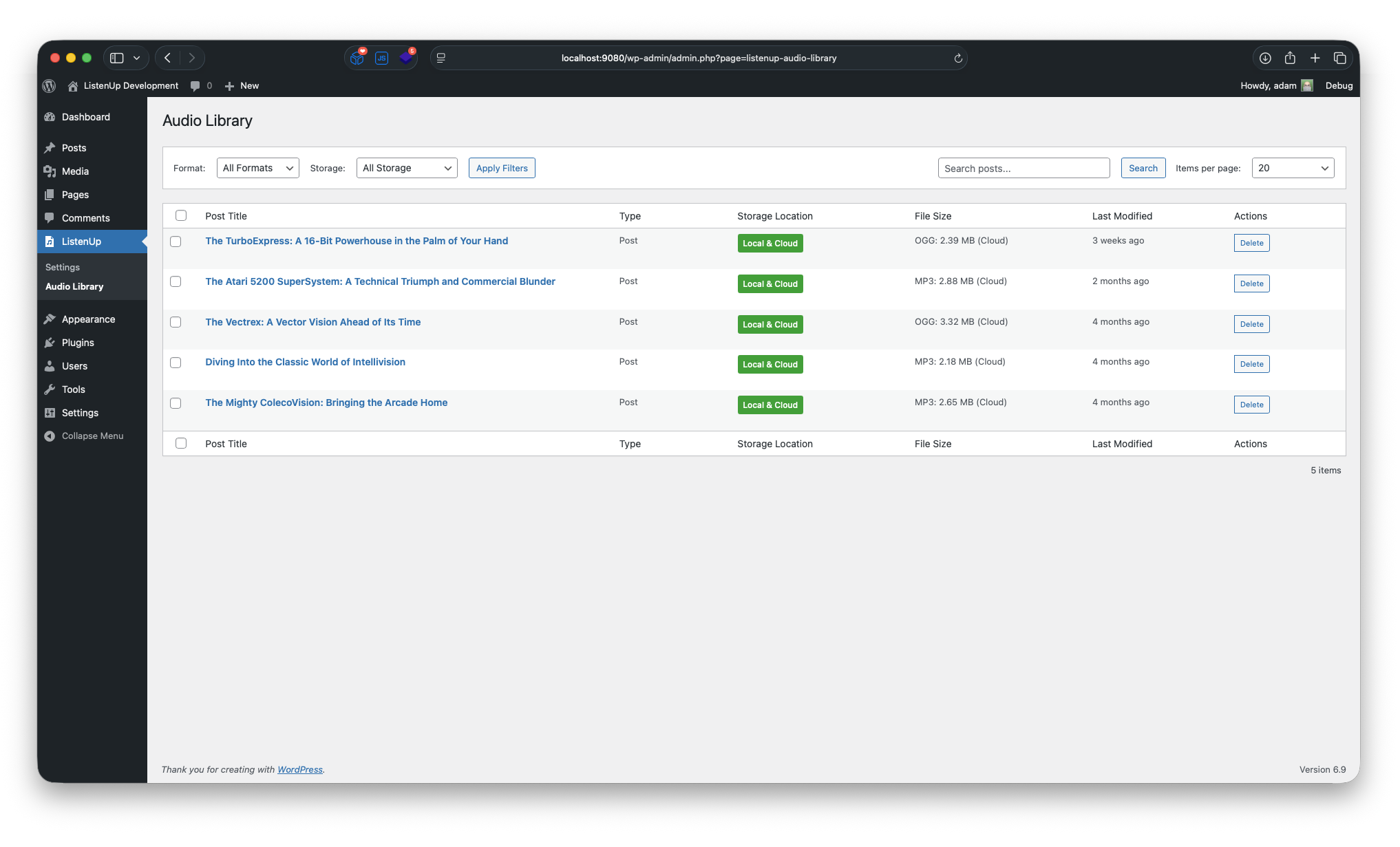
Bulk Cloud Migration: Upload existing local-only audio files to configured cloud storage from the Audio Library without regenerating audio. Large backlogs run in small browser-safe batches, track remaining work by post, and upload the canonical playable audio file instead of internal chunk files.
Murf Gen2 Controls: Choose URL or direct base64 responses, set single-file target durations, request word timing metadata, tune speed/pitch/variation, and use [pause 1s] tags in content or pre-roll scripts. ListenUp still caches generated files locally so audio is reused instead of regenerated on every play.
No FFmpeg Dependency: Unlike many audio plugins, ListenUp doesn’t require FFmpeg, making it perfect for shared hosting environments, managed WordPress hosts, or any situation where FFmpeg is not available or restricted.
Leech Protection: Audio files are served through a secure PHP proxy with cache-safe per-file tokens, preventing unauthorized direct access and hotlinking without embedding expiring nonces in cached article HTML. All audio is delivered via WordPress AJAX endpoints with proper HTTP range request support for smooth seeking. This server-agnostic solution works on Apache, Nginx, IIS, and any PHP-capable server without requiring special server configuration.
Translation
ListenUp can draft a translation of a post for a person to review, and narrate the approved translation in its own language. Translation is off until an administrator turns it on, on the Translation tab of ListenUp’s settings.
- Only when someone asks: A translation starts from the Translations box in the post editor, from WP-CLI, or through an ability once its cost is confirmed. Nothing is translated on publish, on save or on a schedule, and nothing translates the whole archive.
- Drafts for review: Each translation is saved as a new draft linked to its source, and the source post is never changed. A translation can’t be published, scheduled or voiced until a person approves it.
- Your choice of engine: The WordPress AI client, which uses the AI provider connected to your site (WordPress 7.0 and later), or Murf.ai’s translation API. No engine runs without a monthly budget, and the Murf.ai engine keeps a reserve of your Murf.ai balance for audio. Other plugins can add engines.
- Glossaries and checks: A glossary for each language fixes how terms are translated and which are kept as written. Every translation is checked for broken markup, changed numbers and units, glossary terms, formality, length and untranslated text.
- Out-of-date flags: A translation whose source changed after it was translated is flagged in the editor, on post lists and in WP-CLI.
- Background jobs: Long translations run in the background through Action Scheduler or WP-Cron, and WP-CLI finishes them where WP-Cron is disabled.
- Narration in each language: Choose a voice for each language, keep pronunciation rules by language, and play the site’s pre-roll only before audio in the site’s language.
- Engine bake-off:
wp listenup translate compareandwp listenup translate scorecompare engines blind on your own articles, so you can choose one on evidence. - Abilities:
listenup/translate-postandlistenup/translation-statuslet AI and MCP clients ask for and follow translations with the same permissions and budgets as the editor. They are not exposed to REST or MCP unless your site opts in. - Analytics by language: Player events say which language the post and its audio are in, which voice read it, and whether the post is a translation.
Perfect For
- Bloggers who want to offer audio versions of their posts
- Content creators looking to improve accessibility
- Websites targeting mobile users who prefer audio content
- Educational sites with long-form content
- News sites wanting to offer audio news
Accessibility Features
- Full keyboard navigation support
- Screen reader compatible
- High contrast mode support
- Reduced motion support
- Proper ARIA labels and descriptions
External Services
ListenUp connects to the services below, each only for the feature described. It never sends anything about your visitors to any of them. Translation is off until an administrator turns it on, and even then nothing is translated on publish, on save or on a schedule: a post is sent for translation only when someone asks for it.
Murf.ai text-to-speech
ListenUp uses Murf.ai’s text-to-speech API to create audio versions of your posts and pages.
- Endpoint:
https://api.murf.ai/v1/speech/generate - Data Sent: Your Murf.ai API key; the text of the post or page; the voice ID, locale and style chosen for the post’s language; the speech generation settings (format, sample rate, channels, speed, pitch, variation, response mode, optional target duration and optional word timing request); and the pronunciation rules for the post’s language, if you have set any. A voice or pronunciation preview sends a short sample sentence, and pre-roll generation sends your pre-roll script.
- When Sent: Only when audio is asked for: from the post editor, with
wp listenup generate, or from a preview or pre-roll generation on the settings screen; and, once an administrator turns them on in the Automation settings (both are off by default), when a post is published or by the recurring backfill. In URL response mode, ListenUp then downloads the finished audio from the address Murf.ai returns. - Cost: Uses characters from your Murf.ai plan.
- Terms of Service: https://murf.ai/terms-of-service
- Privacy Policy: https://murf.ai/privacy-policy
Murf.ai voice list
ListenUp reads Murf.ai’s list of voices, with the languages and styles each one offers, to show the voice pickers and to pick a style a voice offers.
- Endpoint:
https://api.murf.ai/v1/speech/voices?model=GEN2 - Data Sent: Your Murf.ai API key only. No content is sent.
- When Sent: When an administrator tests the API connection, and when the list is needed and not already kept: on ListenUp’s settings screen, and when audio is created or previewed in a voice other than the site’s default voice. Once fetched, the list is kept for a day, or until the API key changes.
- Cost: Free; it uses no characters.
- Terms of Service: https://murf.ai/terms-of-service
- Privacy Policy: https://murf.ai/privacy-policy
Murf.ai translation
The optional Murf.ai translation engine translates posts with Murf.ai’s translation API.
- Endpoint:
https://api.murf.ai/v1/text/translate - Data Sent: Your Murf.ai API key (the audio key, or a separate translation key set on the Translation tab or with the
LISTENUP_MURF_TRANSLATION_API_KEYconstant); the target language; and the text of the post’s title, excerpt and content, with the alt and title text in its markup, as plain text with numbered placeholders in place of the markup. No tags or other attributes are sent, so no link or image addresses, and nothing else: no glossary, style notes or context. - When Sent: Only after an administrator turns translation on and sets a monthly budget and an audio reserve for the Murf.ai engine, and only when a user allowed to translate the post asks for a translation: from the Translations box in the post editor; through the
listenup/translate-postability once the caller confirms the cost; or withwp listenup translate post,batch,compare(after--yes) orrun, which runs translations already asked for. A translation asked for in the editor, or a long one asked for through the ability, is sent from a background job, by WP-Cron or Action Scheduler. - Raw-HTML probe:
wp listenup translate compare --probe-raw-htmlalso sends a few passages of each compared post to the same endpoint with their HTML markup and attributes, link addresses included, to test whether Murf.ai keeps markup. It runs only when that option is given. - Cost: Spends the same Murf.ai balance as audio, billed by the characters returned. Every request counts against the monthly budget and keeps the audio reserve for audio.
- Terms of Service: https://murf.ai/terms-of-service
- Privacy Policy: https://murf.ai/privacy-policy
AI provider, through the WordPress AI client
The optional AI translation engine translates posts with the AI provider connected to your site, through the AI client built into WordPress 7.0 and later. ListenUp includes no provider of its own and makes no request to one directly: it hands the request to the WordPress AI client, which sends it to the AI provider selected on ListenUp’s Translation tab or, when none is selected there, to the site’s default provider. Providers are added by provider plugins and connected under Settings > Connectors.
- Data Sent: The text of the post’s title, excerpt and content, with the alt and title text in its markup, and with its inline HTML tags but none of their attributes, so no link or image addresses; the title and excerpt again as plain text, for context; the glossary terms the text uses; the language’s style notes; and the translation instructions. The provider receives it with your site’s credentials for that provider.
- When Sent: Only after an administrator turns translation on and sets a monthly budget for the AI engine, and only when a user allowed to translate the post asks for a translation, in the same ways as for Murf.ai above.
- Cost: Billed by the provider, under your account with it. Every request counts against the monthly budget.
- Terms and Privacy: The selected provider’s terms of service and privacy policy apply to what it is sent, together with your account’s data settings with that provider, such as whether it keeps or trains on what it receives. Check them before choosing this engine.
Optional Cloud Storage Services
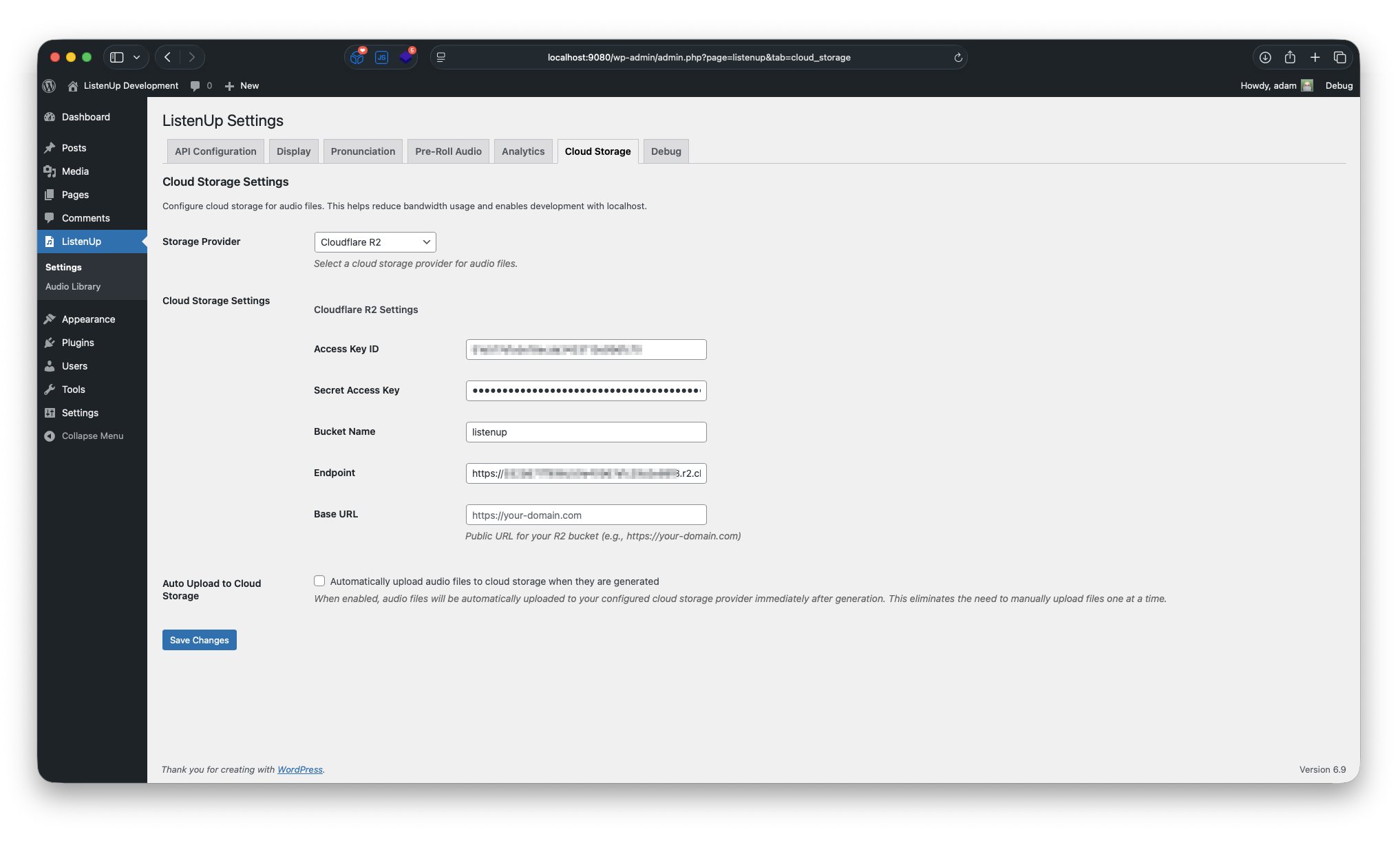
This plugin optionally supports uploading audio files to cloud storage services (Amazon S3, Google Cloud Storage, Cloudflare R2) to reduce bandwidth usage on your web server. This feature is completely optional and disabled by default. No data is sent to these services unless you explicitly configure and enable cloud storage in the plugin settings. Once it is enabled, audio files are uploaded when you move them there from the Audio Library or with wp listenup cloud-upload, when audio is created with automatic upload turned on, and when ListenUp replaces a cloud copy it finds incomplete. Your visitors’ browsers then play and download audio from the storage service.
- Amazon S3: https://aws.amazon.com/service-terms/ (Privacy: https://aws.amazon.com/privacy/)
- Google Cloud Storage: https://cloud.google.com/terms/ (Privacy: https://cloud.google.com/terms/cloud-privacy-notice)
- Cloudflare R2: https://www.cloudflare.com/terms/ (Privacy: https://www.cloudflare.com/privacypolicy/)
Support
For support, please visit the plugin’s support forum or contact the developer.
Privacy Policy
ListenUp stores nothing about your site’s visitors and sets no cookies. It sends your content to other services only as described under External Services: to Murf.ai when audio is created, to your cloud storage service if you use one, and to the translation engine you choose when someone asks for a translation. It never sends anything about your visitors.
- Audio playback: Audio plays from your site, or from your cloud storage service if you use one, which then receives the IP address and browser details of each visitor who plays or downloads audio from it, as with any download. The audio library remembers a visitor’s autoplay choice in their browser’s local storage, and never sends it to your site.
- Analytics: If you turn on analytics tracking (off by default), the player adds play, progress and download events to the page’s dataLayer. They carry facts about the content only: the post, its audio, their languages, the voice, and whether the post is a translation and of which post. ListenUp sends them nowhere; your tag manager or analytics service decides what happens to them.
- Translation: Off until an administrator turns it on. ListenUp records who asked for each translation and who approved it, and when, and it counts the translations each user started in the last hour, to limit them.
- Abilities: The
listenup/translate-postandlistenup/translation-statusabilities act for a signed-in user who may translate the post. They are not available through the REST API or the MCP Adapter unless your site opts in with thelistenup_translation_ability_publicfilter, and translate-post sends nothing until the caller confirms the cost. - Suggested policy text: ListenUp suggests text for your privacy policy under Settings > Privacy > Policy Guide.
Deleting ListenUp removes everything it stores and keeps translated posts as ordinary posts; see “What happens to my data when I delete ListenUp?” above.
Screenshots
Installation
- Upload the plugin files to the
/wp-content/plugins/listenupdirectory, or install the plugin through the WordPress plugins screen directly. - Activate the plugin through the ‘Plugins’ screen in WordPress
- Go to Settings > ListenUp to configure your Murf.ai API key
- Start generating audio manually, or enable Automation settings for hands-off generation
FAQ
-
Do I need a Murf.ai account?
-
Yes, you’ll need a Murf.ai account and API key to use this plugin. You can sign up at Murf.ai and get your API key from your dashboard.
-
How much does Murf.ai cost?
-
Murf.ai offers various pricing plans. Check their website for current pricing information.
-
Can I use this on multiple sites?
-
Yes, but you’ll need separate API keys for each site or ensure your Murf.ai plan supports multiple domains.
-
Does ListenUp work on a multisite network?
-
Yes. Activated for the whole network, ListenUp runs on every site, and each site has its own settings, audio and scheduled tasks. A site’s audio folder is created, with the files that keep it private, when audio is first saved on that site, sites added later included.
Deactivated for the whole network, ListenUp stops its scheduled tasks on every site of that network, except sites that have it activated on their own. On a network of more than 10,000 sites, deactivate it with
wp plugin deactivate listenup --network, which the web server’s time limit doesn’t cut short.Deleting ListenUp removes its settings, post meta, scheduled tasks and cached audio files from every site. Audio copied to cloud storage stays in your bucket.
-
What audio formats are supported?
-
The plugin supports MP3, WAV, FLAC, ALAW, ULAW, PCM, and OGG output from Murf.ai. MP3 is the default because it works well across browsers and supports chunked audio downloads without requiring FFmpeg.
-
What is the Audio Response Mode setting?
-
Audio Response Mode controls how ListenUp receives the generated file from Murf.ai. URL mode asks Murf for a hosted audio URL, then ListenUp downloads and caches it. Direct base64 mode asks Murf to return the encoded audio in the API response, then ListenUp decodes and caches it locally. Both modes still generate audio through Murf.ai and both are cached locally after generation.
-
Does direct base64 mode cost less?
-
No. Response mode changes delivery, not Murf.ai generation usage. The cost saver is ListenUp’s local cache: once audio is generated and cached, visitors replay the saved file instead of generating new audio each time.
-
Can I force audio to a specific length?
-
You can set an optional target duration for single-file Murf Gen2 audio. Murf.ai treats this as a generation target, not a frame-perfect editor. For very long posts that ListenUp splits into multiple chunks, target duration is skipped so each chunk can be generated safely.
-
Can I add pauses to the spoken audio?
-
Yes. Add pause tags like
[pause 1s]in post content or generated pre-roll scripts. ListenUp normalizes supported pause values between 0.1 seconds and 5 seconds before sending text to Murf.ai. -
What does Word Timing Metadata do?
-
When enabled, ListenUp asks Murf.ai to return word timing metadata and stores it with newly generated audio when Murf returns it. This metadata is mainly for future transcript and word-highlighting features; it does not display a transcript on the frontend yet. Regenerate existing audio if you need timing metadata added to audio that was already cached.
-
Can I customize the audio player appearance?
-
Yes, the plugin includes CSS classes that you can customize in your theme’s stylesheet.
-
What happens with very long posts?
-
For posts that exceed Murf.ai’s API character limits, the plugin automatically breaks the content into smaller chunks. Each chunk is processed separately and saved as an individual audio file. The frontend player seamlessly plays all chunks in sequence, and supported formats can be downloaded as a concatenated file.
-
How does the leech protection work?
-
ListenUp serves audio files through a secure PHP proxy instead of relying on direct file access. Public playback URLs include stable per-file tokens so cached pages keep working behind page caches, CDNs, and hosts like Kinsta. Private or unpublished content still uses WordPress nonce and capability checks where needed. The system supports HTTP range requests for smooth audio seeking and includes proper caching headers for performance. This protection works automatically without requiring any server configuration.
-
Can I block direct access to audio files at the server level?
-
Yes! For additional security, you can configure your web server to block direct access to the audio directory. Here are example configurations:
For Apache (.htaccess):
Add this to/wp-content/uploads/listenup-audio/.htaccess:
<IfModule mod_rewrite.c>

RewriteEngine On

RewriteRule .* - [F,L]

</IfModule>
For Nginx:
Add this to your server block configuration:
location ~* ^/wp-content/uploads/listenup-audio/ {

    return 403;

}
After implementing server-level blocks, audio will still play normally through the WordPress player because the plugin reads files directly from the filesystem, bypassing the web server’s URL routing entirely.
-
Does ListenUp translate automatically?
-
No. Translation is off until an administrator turns it on, and even then a post is translated only when a person asks: from the Translations box in the post editor, with
wp listenup translate, or through thelistenup/translate-postability once the caller confirms the cost. Nothing is translated when a post is saved or published, and nothing runs on a schedule. Each translation is a draft that a person reviews and approves before it can be published or voiced. -
Which translation engine should I use?
-
ListenUp recommends none yet: an administrator chooses. The WordPress AI client engine takes your glossary, the formality and the markup, and needs WordPress 7.0 or later with an AI provider connected under Settings > Connectors. The Murf.ai engine takes plain text only, and spends the same Murf.ai balance as your audio. To choose on evidence, run a blind comparison on your own articles with
wp listenup translate compare, thenwp listenup translate score. -
Does translation cost anything?
-
Each engine bills you under your own account: the AI provider for AI translation, Murf.ai for Murf.ai translation. The post editor shows the estimate and asks before anything is sent. From the command line,
wp listenup translate postsends at once, so run it with--dry-runfirst to see the estimate. No engine runs without a monthly budget in characters, which you set on the Translation tab. -
Can each language have its own voice?
-
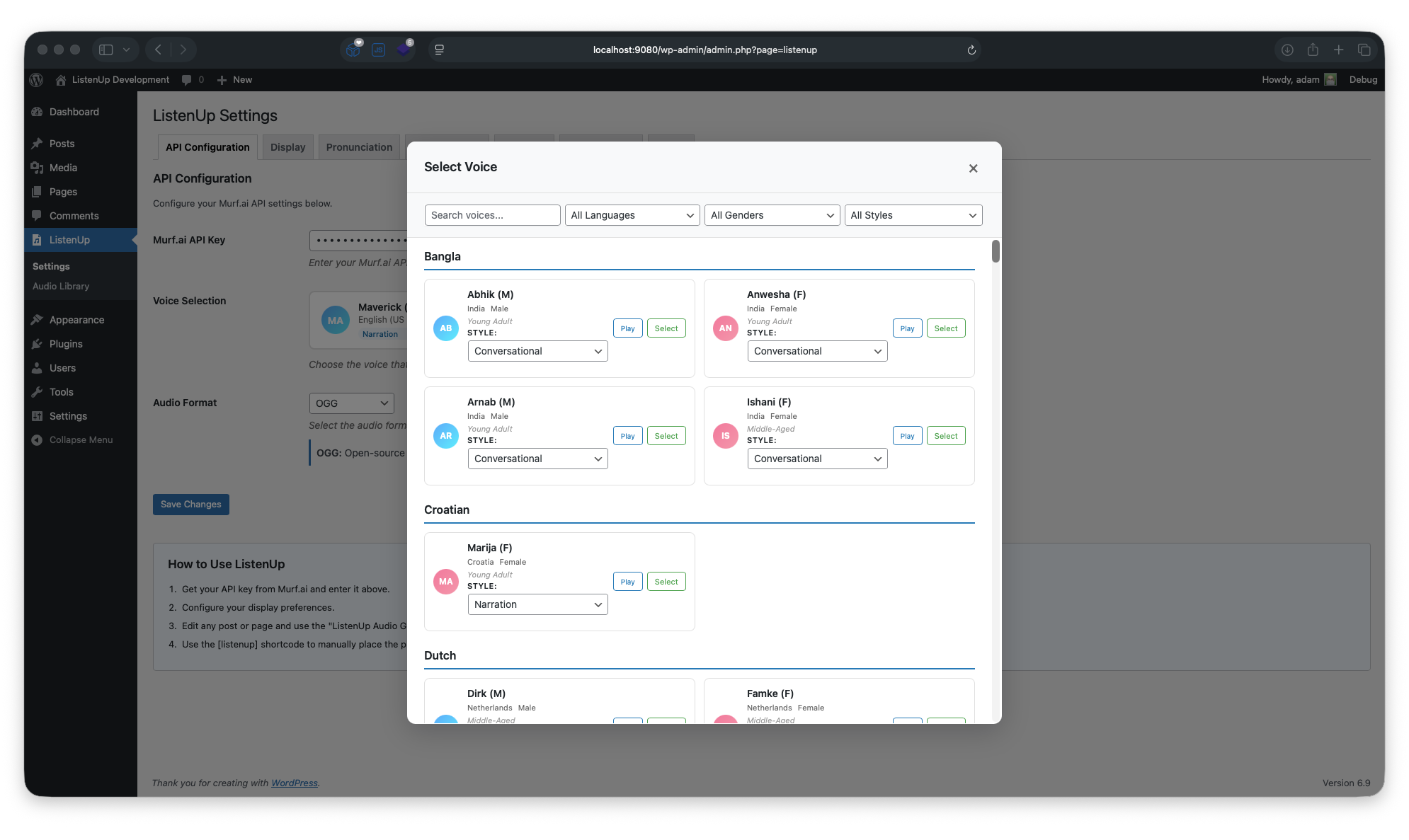
Yes. Under Voices by Language on the API Configuration tab, choose a voice, locale and style for each language. A post is read in its language’s voice, with that language’s pronunciation rules, and posts in the site language keep the site voice. ListenUp chooses no voice for you: for Spanish (Mexico), preview en-US-natalie speaking es-MX and the native es-MX voices.
-
What happens to my data when I delete ListenUp?
-
Deleting ListenUp from the Plugins screen removes everything it stores, on every site of a network: its settings, pronunciation rules, translation settings, glossaries, usage records and translation jobs, its cached data and scheduled tasks, all of its post meta, and the cached audio and pre-roll files in your uploads. Audio copied to cloud storage stays in your bucket, and comparison output from
wp listenup translate comparestays where you wrote it.Translated posts are your content, so they are kept, as ordinary posts of the same type and status. Their link to the source post, their provenance and their review state are removed with the rest of ListenUp’s post meta. While ListenUp is deactivated or deleted, nothing holds an unapproved translation back from being published, so review or delete unapproved translations first.
Deactivating ListenUp only stops its scheduled tasks. Queued translations stay queued until you run them again.
Reviews
There are no reviews for this plugin.
Contributors & Developers
“ListenUp” is open source software. The following people have contributed to this plugin.
Contributors
Translate “ListenUp” into your language.
Interested in development?
Browse the code, check out the SVN repository, or subscribe to the development log by RSS.
Changelog
1.6.0
- Added an optional translation module, off by default: draft a translation of a post for a person to review, from the editor’s Translations box, WP-CLI or an ability. Nothing is translated on publish, on save or on a schedule, and the source post is never changed
- Added an approval gate: a translation can’t be published, scheduled or voiced until a person approves it, on every publishing path, whether or not translation is on
- Added two translation engines, the WordPress AI client (WordPress 7.0 and later) and Murf.ai’s translation API, each within a monthly character budget, with an audio reserve that keeps part of the Murf.ai balance for audio. Other plugins can add engines
- Added per-language glossaries with CSV import and export, automatic translation checks, out-of-date detection and an optional Translations column on post lists
- Added background translation jobs through Action Scheduler or WP-Cron, and the wp listenup translate (post, batch, status, check, roundtrip, run) and wp listenup glossary commands
- Added a blind engine bake-off harness: wp listenup translate compare and wp listenup translate score
- Added the listenup/translate-post and listenup/translation-status abilities (WordPress 6.9 and later), not exposed to REST or MCP unless a site opts in with the listenup_translation_ability_public filter
- Added per-language narration: voices by language, pronunciation rules by language (existing rules become the site language’s, unchanged), and the site pre-roll only before audio in the site’s language. Only approved translations are voiced
- Added language fields to player analytics events (audio_language, content_language, audio_voice_id, is_translation, translation_source_post_id) and listenup_get_player_attributes() for players built by themes
- Fixed download analytics events never firing from ListenUp’s own player
- A post or translation whose generated audio can’t be saved gets no audio and no recorded voice, and keeps a voice recorded before
- Added suggested privacy policy text under Settings > Privacy > Policy Guide
- Changed uninstall to also remove the translation settings, glossaries, usage ledger, jobs and translation links on every site of a network; translated posts are kept as ordinary posts
- Improved: the Murf.ai voice list is cached for a day, and long text is split into chunks by characters rather than bytes
- Deactivation now also unschedules translation runs, in WP-Cron and Action Scheduler
- The audio folder’s .htaccess from versions before 1.5.131 is now replaced with the current one the next time audio is saved; a .htaccess you edited is left as it is
1.5.138
- Security: ListenUp no longer saves a .json file beside each audio file in uploads/listenup-audio. Each held the voiced text or its word timings, including a draft’s text, and the Murf.ai account’s remaining characters, and on servers that don’t apply the folder’s .htaccess, such as Nginx, anyone could read it. Existing .json files are deleted once per site, on the next admin page or audio save; on a network,
wp site list --field=url | xargs -I % wp listenup cleanup-orphaned --dry-run --url=%lists them on every site, and running it without--dry-rundeletes them along with every local audio file no post uses - Fixed Delete Audio and permanent post deletion leaving a post’s audio files, chunks included, on the server, and Regenerate Audio leaving unused files behind
- Security: Updated the bundled Guzzle, PSR-7 and JMESPath libraries, used by cloud storage, to versions with published security fixes
- Fixed a fatal error when activating ListenUp on sites where WordPress writes files over FTP or SSH, and uninstalling or clearing the debug log failing there
- Fixed network deactivation and deletion only cleaning up the main site; scheduled tasks, settings and cached audio are now removed from every site
- Fixed the audio folder missing its protection files on network sites; they are now added whenever audio is saved
- Fixed multisite sites using another site’s pronunciation rules, audio folder or cloud storage after
switch_to_blog(), which could delete the main site’s audio when a network user was deleted - Fixed Regenerate Audio and
wp listenup generate --forcedeleting the old audio before the new audio was saved; if generation fails, the post keeps its old audio - Changed
wp listenup generate --forceto request new audio from Murf.ai, which uses Murf.ai characters for every post it touches - Fixed a fatal error in URL mode when Murf.ai’s audio couldn’t be downloaded or saved, which spent characters again on every retry; batches now stop and automatic generation pauses for 24 hours
- Fixed
wp listenup generate --cloud-uploadand the Audio Library’s Upload button uploading long posts one chunk at a time - Fixed
wp listenup cloud-uploadrecording a cloud path that doesn’t exist, so the posts it uploaded couldn’t play, and--forcenot uploading again - Fixed Delete Audio in the post editor leaving the cloud copy in the bucket
- Fixed the Audio Library reporting “Failed to delete” for audio it had deleted on WordPress 5.9–6.6
- Fixed the Audio Library’s “Local Files Only” delete removing the site’s shared pre-roll file along with a long post’s chunks
- Added a bucket scan to
wp listenup cleanup-orphaned --cloudthat lists cloud audio no post uses, with--delete-untrackedto remove it on production sites - Fixed
wp listenup cleanup-orphaned --cloudskipping sites with no local audio folder and deleting cloud files other posts still use - Fixed deleting a post leaving its cloud copies behind, and added the
listenup_supported_post_typesfilter - Fixed the player and editor strings showing in English on sites in other languages
- Added Murf.ai quota and rate-limit handling: automated generation pauses when characters run out, busy responses are retried, and remaining characters are shown on the API Configuration tab
1.5.137
- Fixed longer posts playing only the last part of their article from cloud storage instead of the full recording; affected posts are detected and republished automatically
- Fixed Audio Library bulk upload re-uploading every chunked post on each run instead of skipping those already in cloud storage
- Fixed posts with pre-roll audio being unable to upload to cloud storage
- Fixed cloud playback never being used on sites whose audio is not MP3
- Fixed concatenated audio files in formats other than WAV building up in the uploads directory
- Added WordPress 7.1 compatibility
1.5.136
- Fixed audio playback failures on long-lived page caches by removing expiring nonce requirements from public playback URL refreshes
- Added cache-safe local audio proxy tokens and legacy nonce compatibility for existing cached markup
- Added Audio Library bulk upload controls for moving existing local-only audio files to cloud storage without regenerating
- Fixed bulk cloud upload counting so the Audio Library tracks local-only posts and does not count internal chunk files as separate migration items
- Added Kinsta edge/CDN cache guidance for large sites using cloud storage and signed audio URLs
1.5.135
- Added file-based cache busting for plugin assets to prevent stale JavaScript after CDN/browser caching
- Added Murf Gen2 locale, sample rate, channel, response mode, duration, word timing, pause, speed, pitch and variation controls for reusable audio generation
- Added direct base64 response caching, optional target duration, word timing metadata storage and pause tag normalization for Murf Gen2 generation
1.5.134
- Added player display options for featured or compact layouts
- Added selectable player accent colors
- Refreshed the frontend player with a featured visual treatment and stronger theme isolation
- Removed the experimental Howler.js playback option in favor of the native browser audio player
1.5.132
- Added Automation settings for publish-triggered audio generation and recurring recent-content backfill
- Fixed audio playback failing on post revisions and previews due to meta lookups using the revision ID instead of the parent post
- Centralized revision-to-parent post resolution into Cache::get_meta_post_id() for consistent behavior across all audio endpoints
- Fixed pre-roll audio URL resolution for revisions via cloud storage
- Fixed access check in AJAX audio URL handler incorrectly rejecting anonymous users on revisions of published posts
- Preserved audio post meta when local files are missing instead of deleting it, allowing recovery and regeneration
1.5.131
- Security fixes
1.5.13
- Fixed audio playback errors caused by expired signed URLs when page caching is enabled
- Cloud storage audio URLs are now fetched fresh via AJAX on player initialization
- Improved compatibility with page caching plugins and CDNs (Varnish, Cloudflare, WP Super Cache, etc.)
- Enhanced security: added post existence and publication status validation for audio URL requests
- Improved error handling with generic client messages and detailed server-side logging
1.5.12
- Code optimizations for WordPress plugin directory compliance
- Update documentation with external service usage
1.5.11
- Added pagination to Audio Library admin page
- Update Audio Library filtering
- Improve analytics events to not fire for pre-roll audio
1.5.1
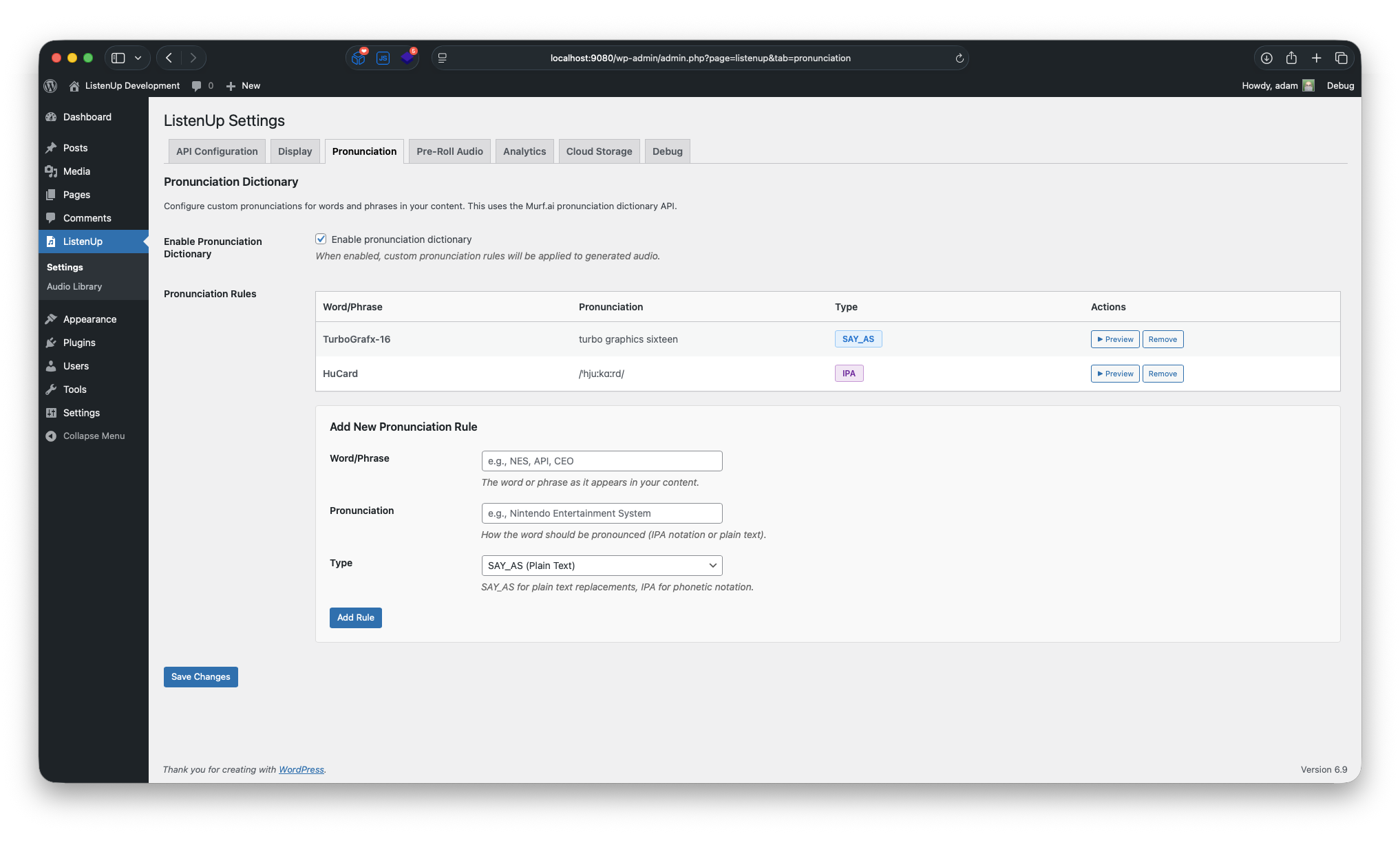
- Added “pronunciation” feature to plugin settings to specify how certain words should be spoken
1.5.0
- Code quality improvements and WordPress coding standards compliance
- Enhanced security and sanitization throughout the plugin
- Improved error handling and user feedback
- Optimized file operations and directory structure
- Better compatibility with WordPress plugin directory requirements
1.4.1
- Implement tracking feature to push events to the datalayer for GTM and GA4 consumption
1.4.0
- Add option to specify conversion output bitrate
- Add option to apply normalization with parameters to conversion process
1.3.22
- Fix autoplay feature in audio library
1.3.21
- Add ability to delete cloud audio as well as local audio files
1.3.2
- Improve frontend player user experience when pre-roll audio is present
1.3.11
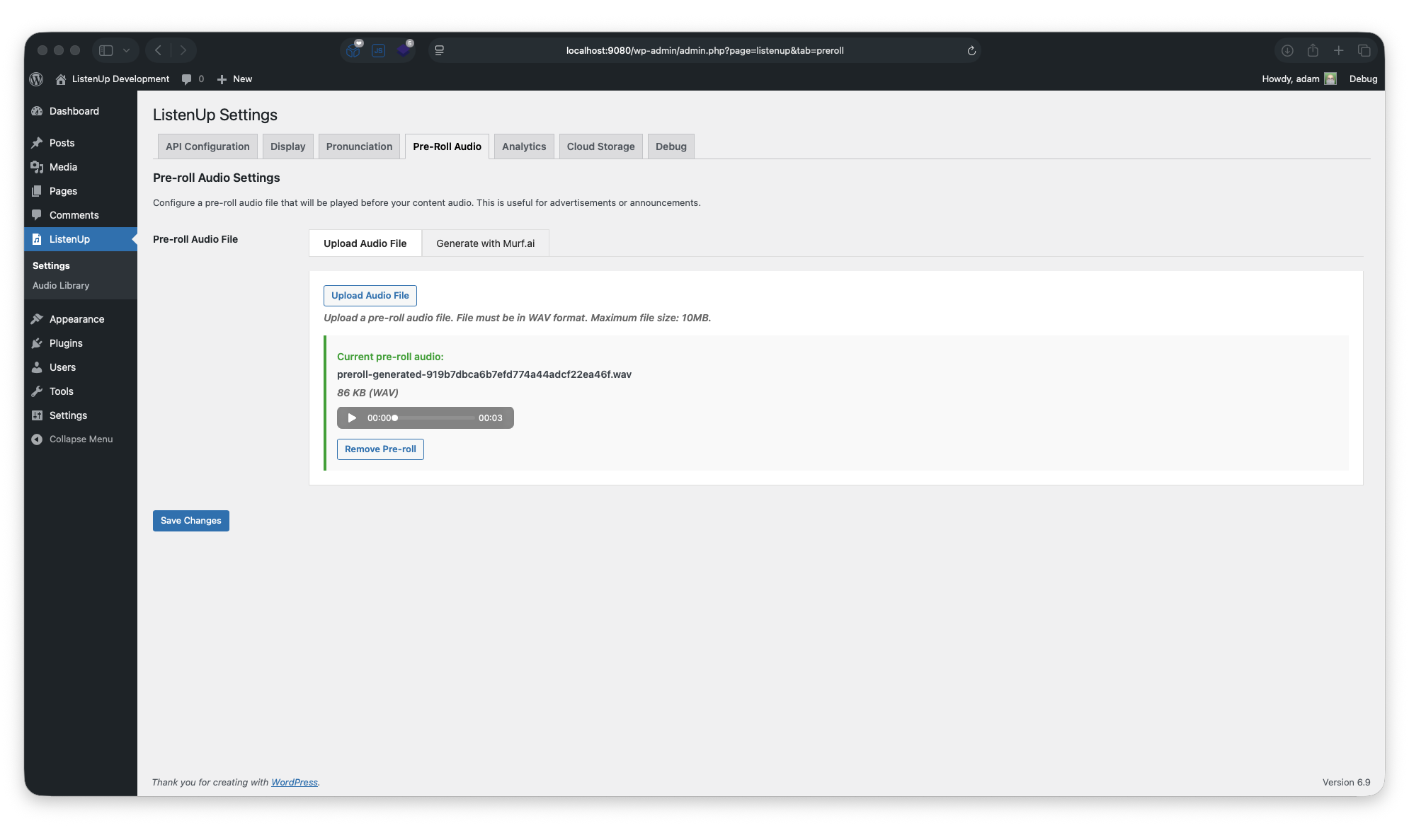
- Add feature to generate pre-roll audio
1.3.1
- Add “autoplay” feature to audio library shortcode
1.3.0
- Restrict download to logged-in users or block all downloads completely
-
Implemented leech protection (requires server configuration)
-
1.2.01 =
- Minor frontend player presentation improvements
1.2.0
- Added ability to generate audio for posts that do not fit in the Murf.ai API request length
1.1.1
- Improved debug logging
1.1.0
- Users can select a default voice and style
- Voices can now be previewed
1.0.0
- Initial release
- Murf.ai API integration
- Audio caching system
- Meta box for manual generation
- Automatic placement options
- Shortcode support
- Accessibility features
- Mobile responsive design