
Description
Ledgerbridge Sync connects your WooCommerce store to your own QuickBooks Online company through the official Intuit API, using credentials from your own Intuit developer app.
What it does
- Orders – WooCommerce orders are pushed to QuickBooks Online as Invoices or Sales Receipts, and payments are recorded against the invoice. Changes made in QuickBooks can flow back into WooCommerce.
- Customers – sync customers in either direction.
- Products and inventory – pull items, pricing and stock levels from QuickBooks into WooCommerce, or push products to QuickBooks.
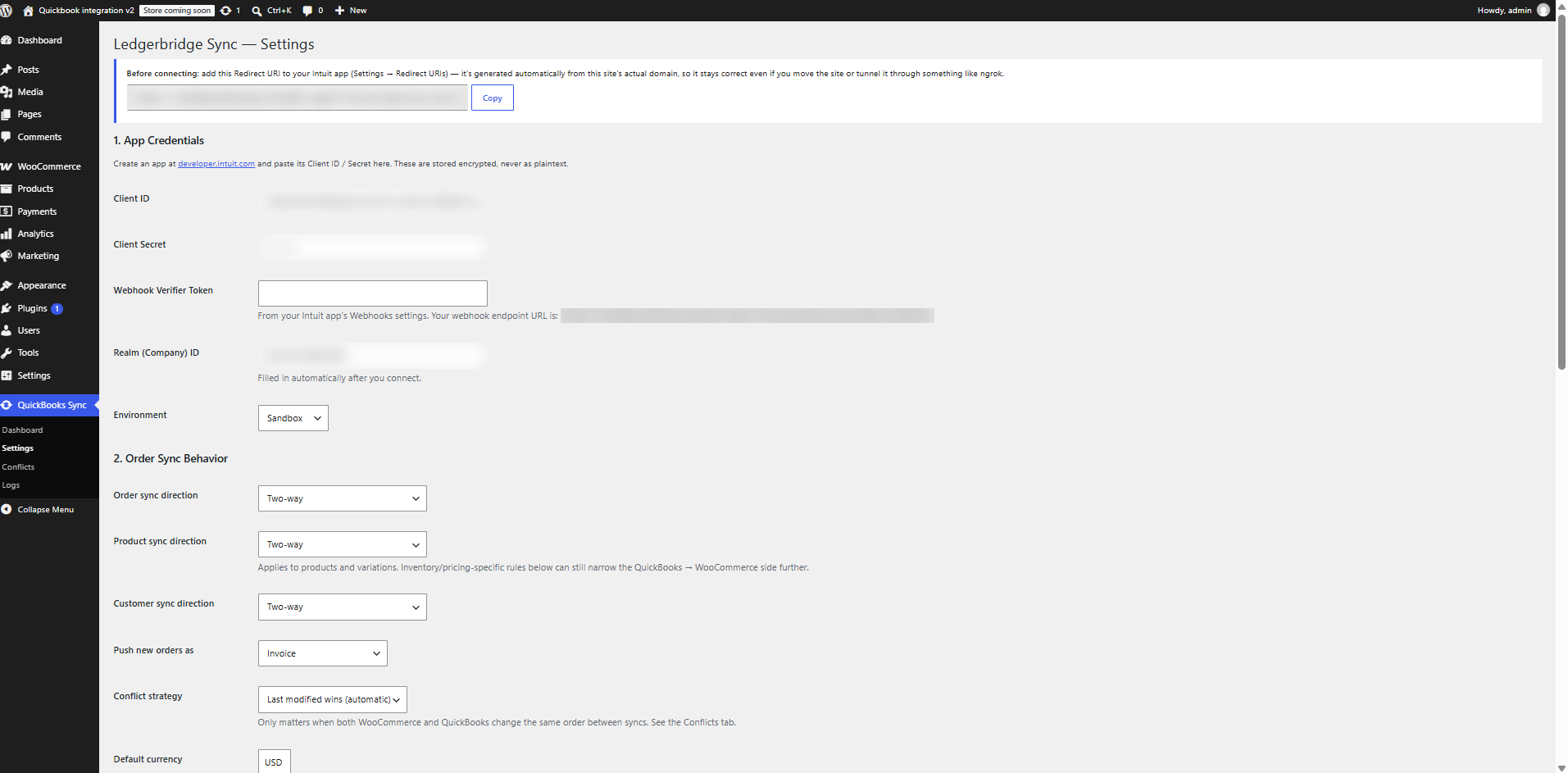
- Direction control – for each of orders, products and customers choose QuickBooks WooCommerce, WooCommerce QuickBooks, or two-way.
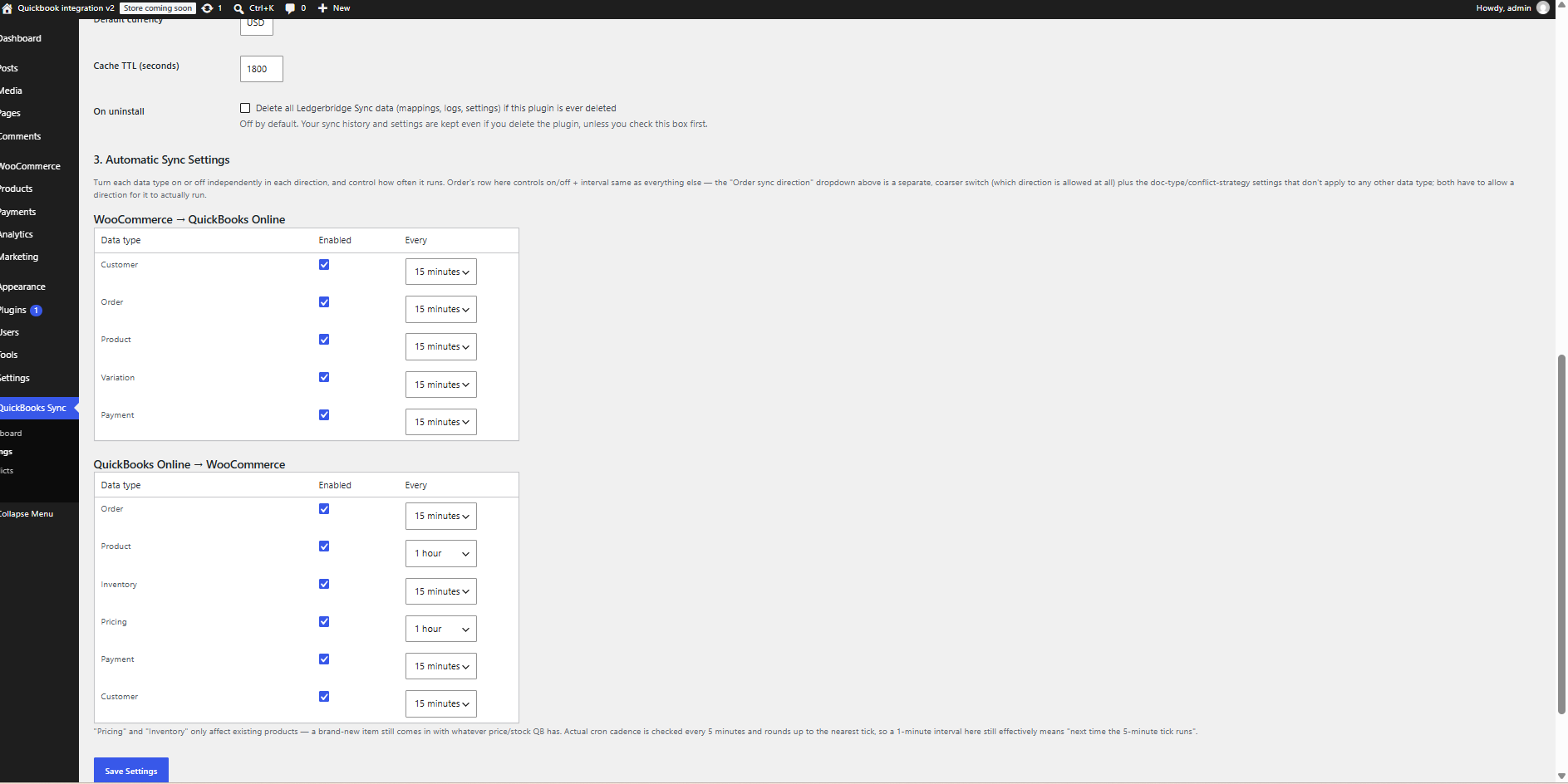
- Automatic sync schedule – an on/off switch and interval per data type and direction, run with WP-Cron.
- Webhooks – an Intuit webhook endpoint lets QuickBooks notify your site of changes (signature verified with your verifier token).
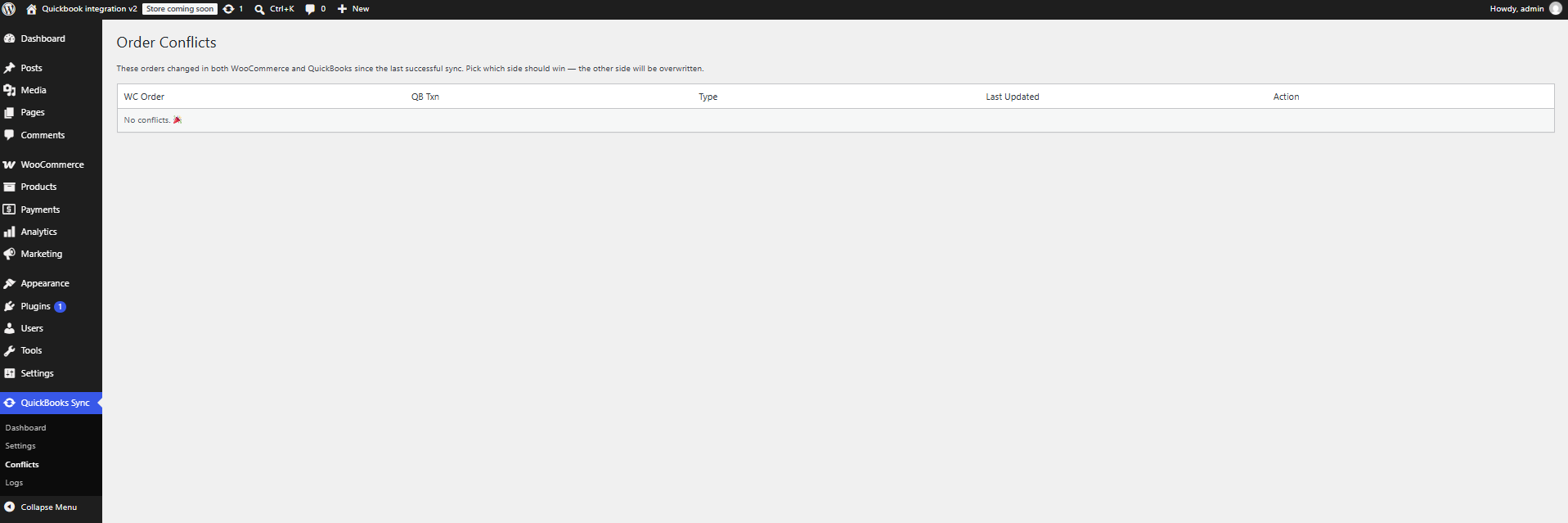
- Conflict handling – “last modified wins” or a manual review queue for orders changed on both sides.
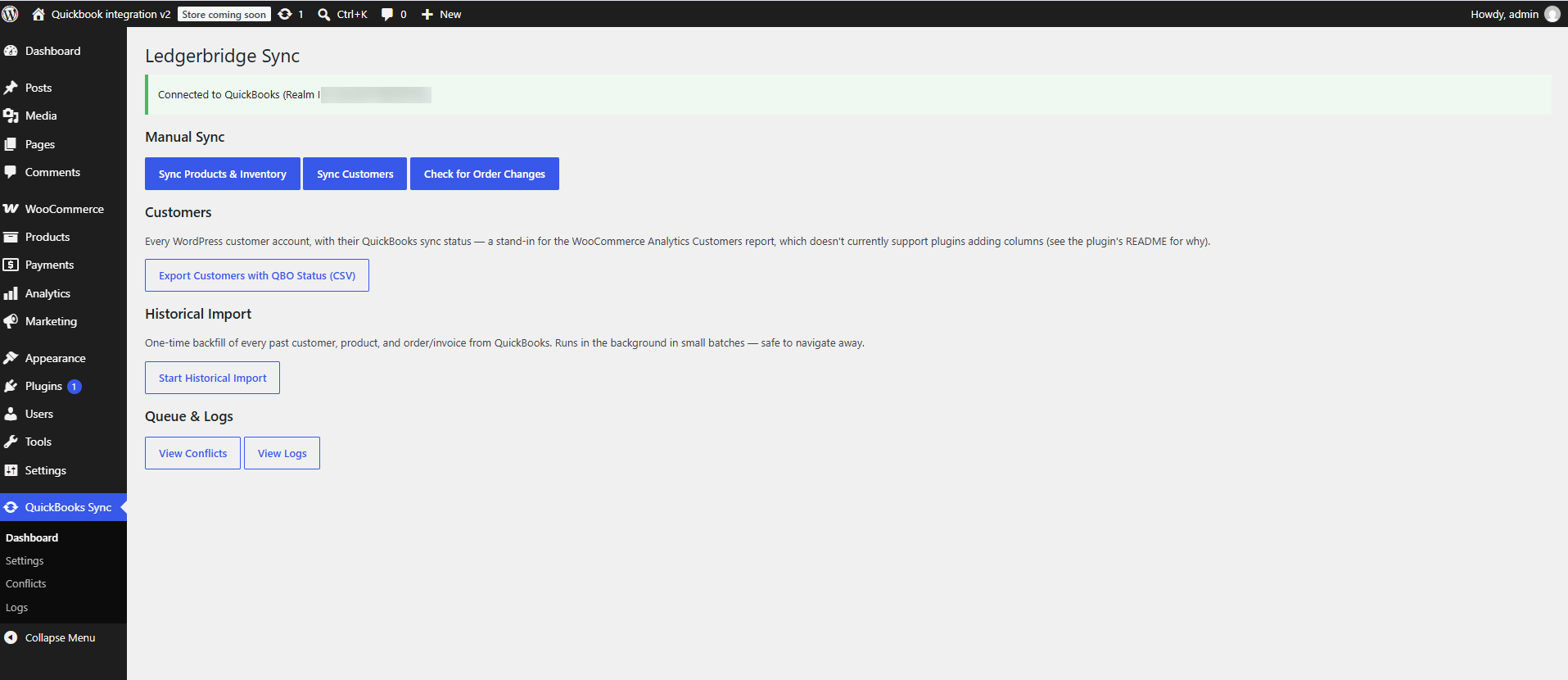
- Historical import – back-fill existing QuickBooks data in small background batches so large imports never block a request.
- Status at a glance – a “QBO Status” column on Orders, Products and Users, plus meta boxes with an “Update in QuickBooks” button, a link to open the document in QuickBooks, and PDF download.
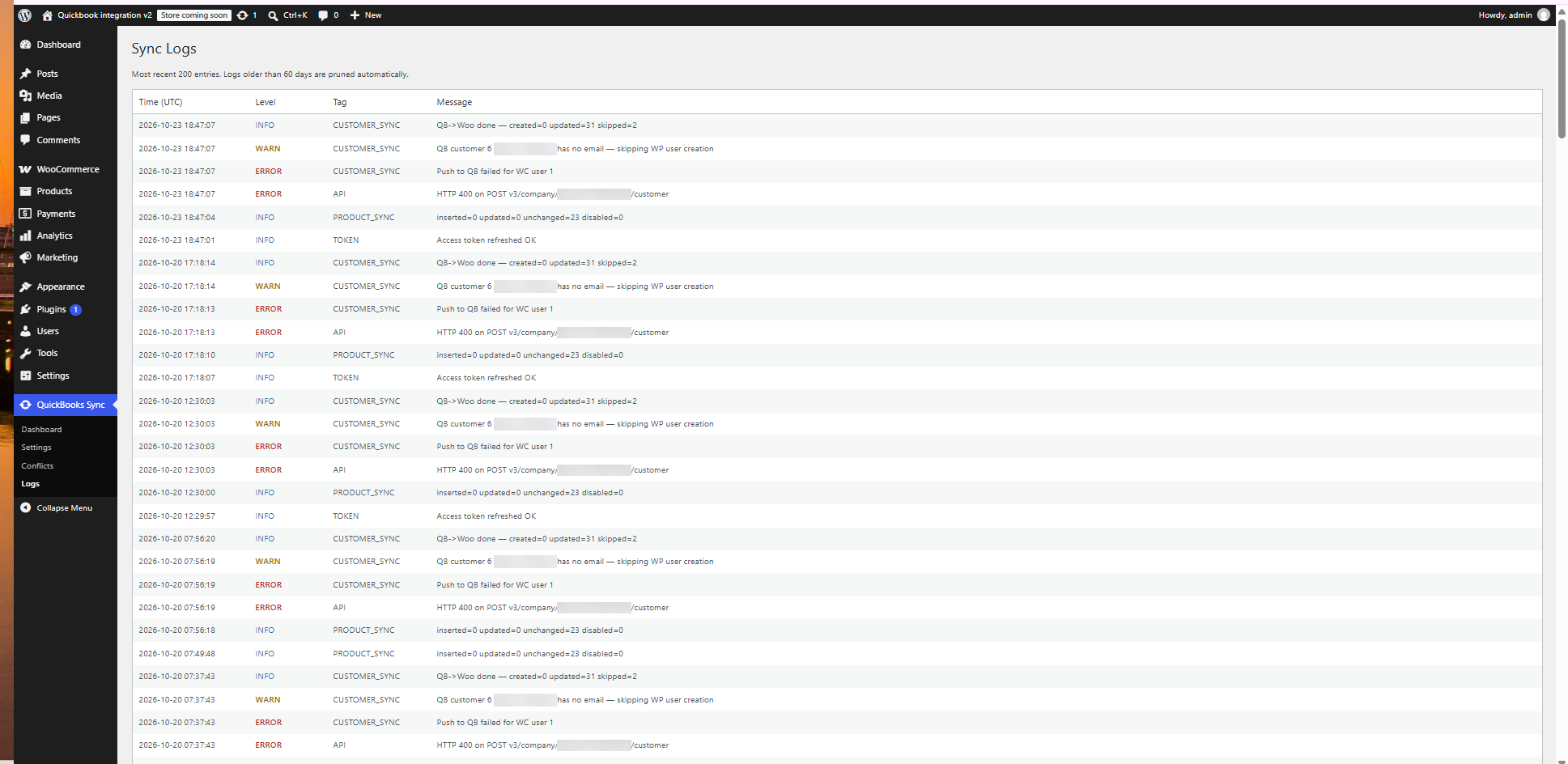
- Sync log – every sync action and error is recorded and viewable under QuickBooks Sync Logs.
- HPOS compatible – declares compatibility with WooCommerce High-Performance Order Storage.
All features are included. There are no usage limits, license keys or paid tiers in this plugin.
Requirements
- WooCommerce 8.0 or newer
- A QuickBooks Online company
- A free Intuit developer account and app (to obtain a Client ID and Client Secret)
- A site served over HTTPS for the production QuickBooks connection
Trademarks and affiliation
This plugin is not affiliated with, endorsed by or sponsored by Intuit Inc. or Automattic Inc. QuickBooks is a registered trademark of Intuit Inc. WooCommerce is a registered trademark of Automattic Inc.
External services
This plugin connects to the Intuit QuickBooks Online API. It is the core purpose of the plugin and nothing is sent until a site administrator enters their own Intuit app credentials and connects their QuickBooks company.
Intuit QuickBooks Online API and OAuth service
- Endpoints used:
https://appcenter.intuit.com/connect/oauth2(authorization),https://oauth.platform.intuit.com/oauth2/v1/tokens/bearer(token exchange and refresh),https://quickbooks.api.intuit.com(production data) andhttps://sandbox-quickbooks.api.intuit.com(sandbox data, only if the Sandbox environment is selected). - What is sent and when: OAuth credentials when connecting and refreshing the connection; and, whenever a sync runs, the WooCommerce data that is being synchronised – order details (line items, totals, currency, billing/shipping details), customer details (name, email, phone, address, company) and product details (name, SKU, price, stock) – plus requests to read the same kinds of records from QuickBooks.
- Intuit also sends webhook notifications to the REST endpoint of your own site; these are only accepted when their signature matches the verifier token you configure.
- Intuit terms and privacy: https://www.intuit.com/legal/ and https://www.intuit.com/privacy/statement/
No data is sent to the plugin author.
Screenshots
Installation
- Make sure WooCommerce is installed and active.
- Install and activate this plugin through the Plugins screen in WordPress.
- Create an app at https://developer.intuit.com/ and copy its Client ID and Client Secret.
- Go to QuickBooks Sync Settings. Copy the Redirect URI shown there into your Intuit app’s redirect URIs, then paste your Client ID, Client Secret and Realm (Company) ID and save.
- Click “Connect to QuickBooks” and approve access.
- (Optional) In your Intuit app, add the webhook URL shown on the Settings screen and paste the webhook verifier token into the plugin settings.
- Choose your sync directions and schedule, then run a first sync from the Dashboard.
FAQ
-
Is there a paid version or usage limit?
-
No. Every feature in this plugin is available with no limits and no license key.
-
Do I need my own Intuit developer app?
-
Yes. You connect with the Client ID and Client Secret of your own Intuit developer app. Intuit developer accounts are free.
-
Why does QuickBooks need an HTTPS address?
-
Intuit requires HTTPS redirect URIs for production apps. The sandbox environment accepts local development addresses.
-
Where are my QuickBooks credentials stored?
-
The Client Secret, webhook verifier token and OAuth tokens are stored encrypted in your WordPress database using keys derived from your site’s authentication salts. If PHP’s OpenSSL extension is not available, the plugin refuses to store them.
-
What happens to my data if I delete the plugin?
-
Nothing is removed on deactivation. On deletion, plugin tables and settings are only removed if you ticked “Delete all data on uninstall” in the settings first.
-
Can sync create duplicate or looping updates?
-
The plugin includes a sync guard that stops changes it just pulled from QuickBooks from being pushed straight back, and a conflict queue for records changed on both sides.
-
An order shows a conflict. What do I do?
-
Open QuickBooks Sync Conflicts and choose whether to keep the WooCommerce version or the QuickBooks version.
Reviews
There are no reviews for this plugin.
Contributors & Developers
“Ledgerbridge Sync” is open source software. The following people have contributed to this plugin.
Contributors
Translate “Ledgerbridge Sync” into your language.
Interested in development?
Browse the code, check out the SVN repository, or subscribe to the development log by RSS.
Changelog
1.0.0
- Initial release.