
Description
Larina Studio Connect links your WooCommerce store to your account on Larina with one button. It is made by Larina, the company behind larina.ai, for its own service; it is not affiliated with WooCommerce or Automattic. It carries two features, each with its own state:
- Studio: you make product photos in Larina, and Larina publishes the finished photos to your WooCommerce products.
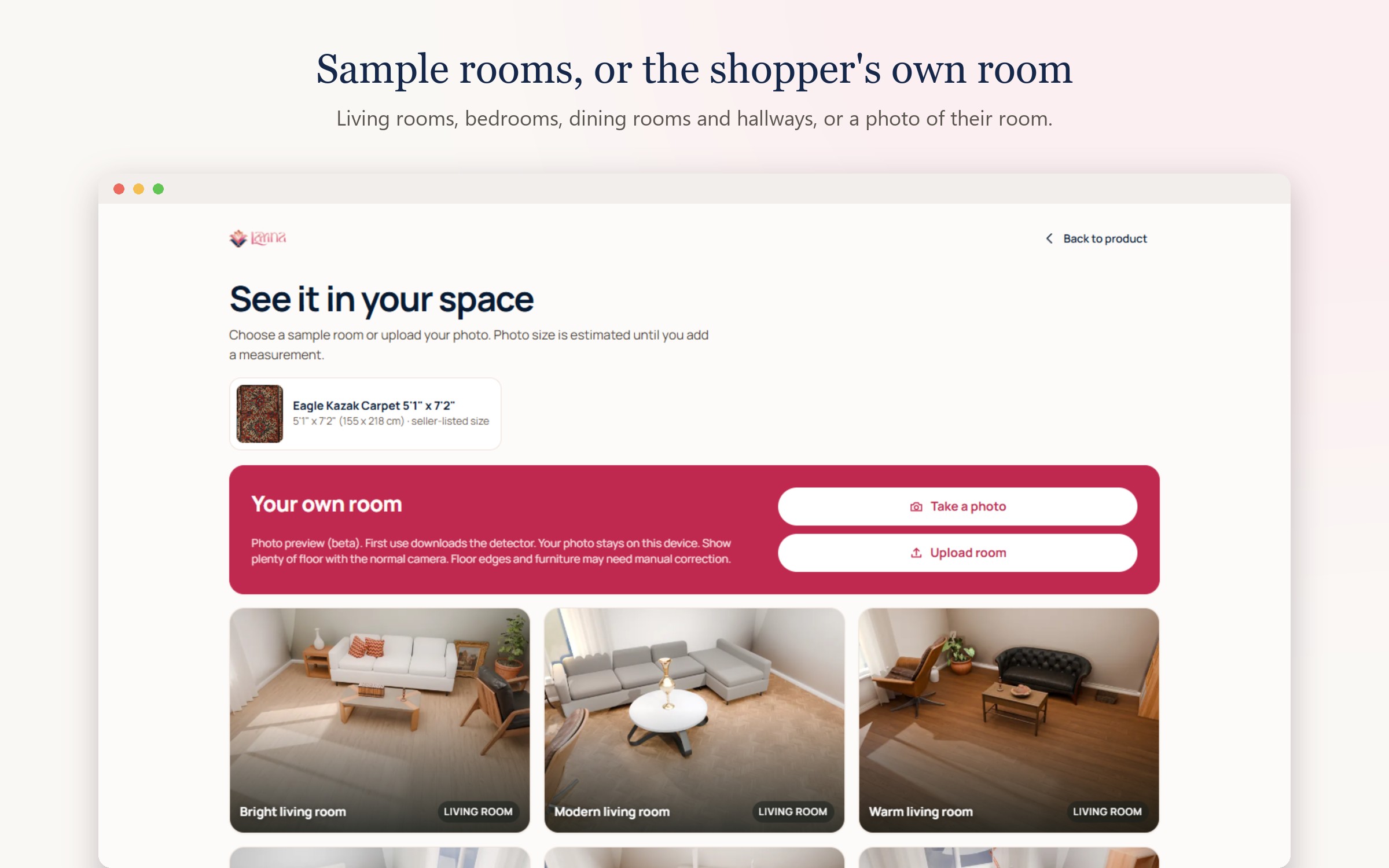
- Rug Visualizer: a “See it in your room” button on your rug pages. Shoppers see the rug in a prepared room at the size given on your product page. Your rugs, sizes and pictures stay in your store.
Larina is an external service: Studio uses credits on your Larina account and the Rug Visualizer needs a Visualizer plan. Every part of this plugin’s code is included and readable; nothing in it is locked.
How connecting works
- Open Larina in the WordPress admin menu and press Connect to Larina.
- Sign in to Larina (or create an account), check the store and what will be connected, and approve.
- For Studio, WooCommerce shows its own approval screen for Larina Studio. WooCommerce makes the key and hands it to Larina directly: you never make or copy a key.
The Connection screen then shows the connection and each feature separately: Studio (state, credits, plan if any, Open Studio) and the Rug Visualizer (state, rugs switched on out of the plan’s limit, whether the button is on your site, Manage rugs). You can disconnect Studio, the Visualizer or everything at any time.
Advanced path
The older ways still work and end up on the same Larina store: a connect code from the Larina dashboard for the Rug Visualizer (Larina > Visualizer), and WooCommerce REST keys pasted in the Larina dashboard for Studio. A REST key lets Larina publish photos; it does not put the “See it in your room” button on your site. Whether the button is on the site is reported only by this plugin.
Your store keeps working when Larina does not answer
Product pages and checkout never wait for Larina. The Visualizer licence is checked in the background and kept for a limited time when Larina cannot be reached; the room button then hides quietly.
External services
This plugin connects your store to Larina (larina.ai), a service run by Larina, which makes product photos (Studio) and shows rugs in rooms (Rug Visualizer). The plugin contacts Larina only after an administrator presses Connect to Larina or pastes a connect code.
What is sent, and when:
- When you connect: this store’s address, the platform (WooCommerce), the plugin version and a one-time code with its proof (PKCE verifier), from your server to
larina.ai/api/connect/v1/. Your browser opensapp.larina.ai/connect/with the store address and a one-time state; no key or password is in that address. - When Studio is approved: WooCommerce’s approval screen sends the new WooCommerce REST key (read/write) directly to Larina, which keeps it encrypted. Larina then reads your products and publishes the photos you choose to publish.
- While connected, from your server, in the background or when you open the Larina screens: the store address and plugin version with each call, a status request (at most every 10 minutes on the Larina screens), the Visualizer licence check with the number of rugs switched on (every few hours), and a report of whether and where the “See it in your room” button renders (every few hours).
- When a shopper opens the room preview: your server asks Larina for a short-lived pass. The rug’s name, size and link travel inside the link to the shopper’s own browser, and the picture is read from your store. Your catalogue is not sent to Larina’s servers.
No orders, customer details or payment details are sent. The shopper’s room preview runs on Larina’s viewer (an iframe from Larina) inside a page on your store.
Larina terms of service: https://larina.ai/terms
Larina privacy policy: https://larina.ai/privacy
Screenshots



Installation
- In WordPress, go to Plugins > Add New Plugin > Upload Plugin, choose the larina-studio-connect ZIP file, install it and activate it. WooCommerce must be active.
- Open Larina > Connection and press Connect to Larina.
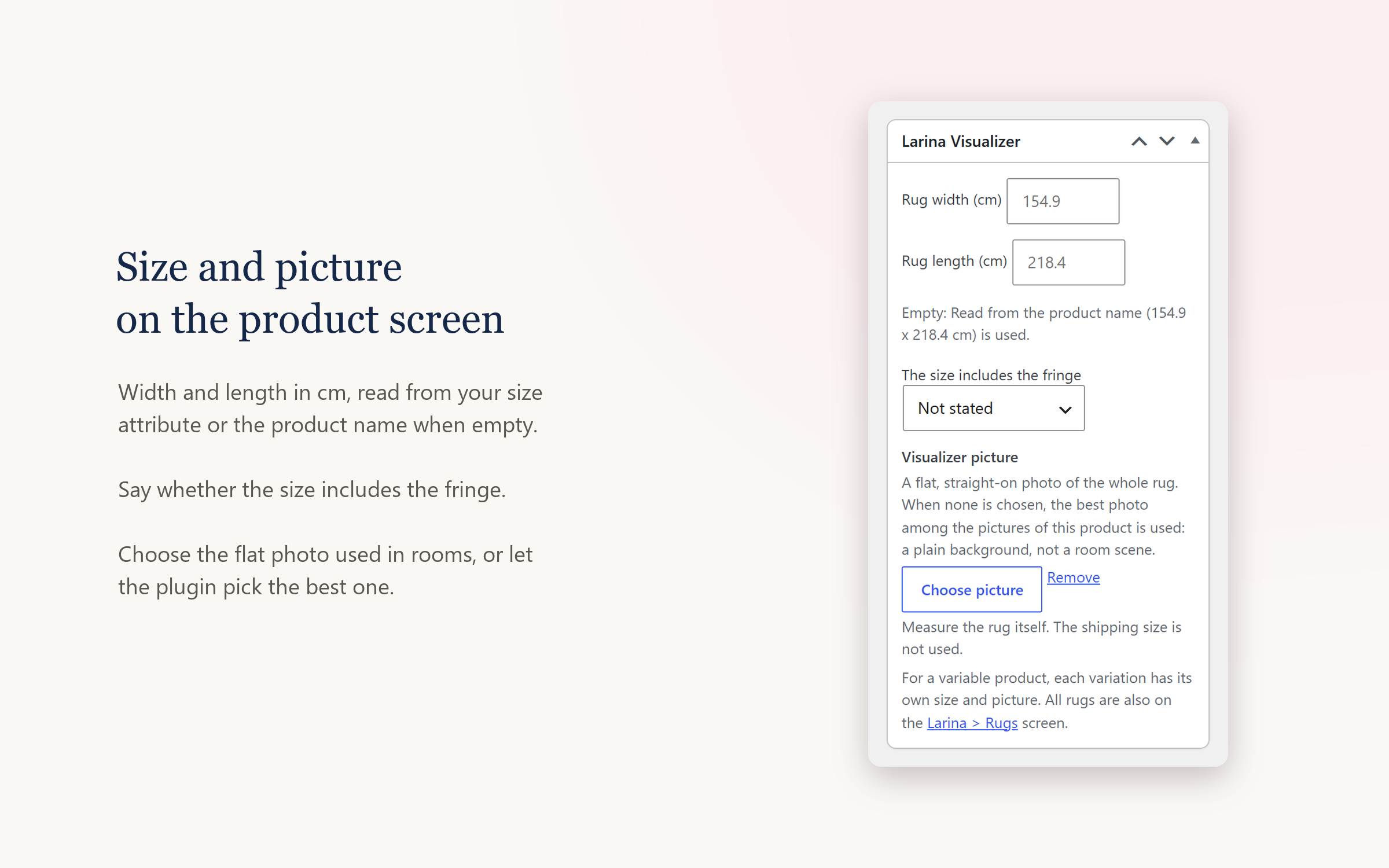
- For the Rug Visualizer, open Larina > Rugs, check sizes and pictures, preview a rug and switch rugs on. Test with “Only administrators”, then choose “Everyone” in Larina > Visualizer.
Updating from Larina Visualizer 3.x: upload this plugin and activate it. It switches the older copy off, keeps the connection, settings, sizes and pictures, and links the store to Larina without a new approval. Then delete the older copy in Plugins > Inactive.
FAQ
-
Does the plugin contact Larina before I connect?
-
No. Nothing is sent to Larina until an administrator presses Connect to Larina (or pastes a connect code). A store updated from Larina Visualizer 3.x was already connected by its administrator and keeps that connection.
-
Do I need to create or copy an API key?
-
No. For Studio, WooCommerce’s own approval screen creates the key and sends it to Larina. Disconnecting Studio deletes that key from WooCommerce.
-
What happens when I disconnect?
-
Larina revokes the keys for that feature, and this site deletes its own copies and the WooCommerce key made for Larina. Your products, photos, sizes and pictures are kept. Your Larina projects, credits and subscriptions are kept on Larina.
-
What happens if I uninstall the plugin?
-
The plugin ends the connection at Larina (when Larina can be reached), deletes the WooCommerce key made for Larina and removes its own settings. Products, product images and the sizes you entered are not deleted.
-
After the add to cart form on the product page, through WooCommerce’s product hook (classic themes) or the add to cart block (block themes). If your theme or page builder draws neither, place the [larina_room_preview] shortcode on the product template.
-
My security keys (salts) changed and the plugin asks me to connect again. Why?
-
The plugin keeps its Larina tokens encrypted with a key derived from your site’s AUTH_KEY and SECURE_AUTH_KEY. New salts make the old tokens unreadable; press Connect to Larina once more.
-
Can I go back to Larina Visualizer 3.x?
-
Yes, but 3.x cannot read the encrypted licence key: connect it again with a connect code.
Reviews
There are no reviews for this plugin.
Contributors & Developers
“Larina Studio Connect for WooCommerce” is open source software. The following people have contributed to this plugin.
Contributors
Translate “Larina Studio Connect for WooCommerce” into your language.
Interested in development?
Browse the code, check out the SVN repository, or subscribe to the development log by RSS.
Changelog
4.0.1
- New name and folder: Larina Studio Connect for WooCommerce (folder larina-studio-connect). An active copy in the earlier larina-connect folder is switched off on the next admin page and its connection, settings, sizes and pictures carry on.
- Admin notices only on Plugins and on this plugin’s own screens, and dismissible.
- All HTML the plugin prints is escaped at output.
- The room page prints its style and script with WordPress’s own functions.
4.0.0
- Larina Connect, one plugin for Larina Studio and the Rug Visualizer.
- Connect to Larina button: sign in, approve, done. No codes or keys to copy; WooCommerce’s own approval screen makes the Studio key.
- Connection screen with separate cards for Studio and the Rug Visualizer, each with its own state, from Larina’s answer.
- Disconnect Studio, the Visualizer or everything; disconnecting Studio deletes the WooCommerce key made for Larina.
- The plugin reports whether and where its button renders on your product pages.
- Tokens are stored encrypted.
- Updating from Larina Visualizer 3.x keeps the connection, settings, sizes and pictures, without a new approval.
- Without WooCommerce the plugin stays quiet and shows one notice.