
Description
When you switch themes or change image sizes, your existing images keep their old sizes and new sizes are missing. Kestrelpine Image Size Manager rebuilds the sizes you pick for the images you pick, with a progress screen you can pause and resume, and it shows the old size files that nothing uses any more.
Features
- Regenerate all images, a selection from the Media Library, or a single image.
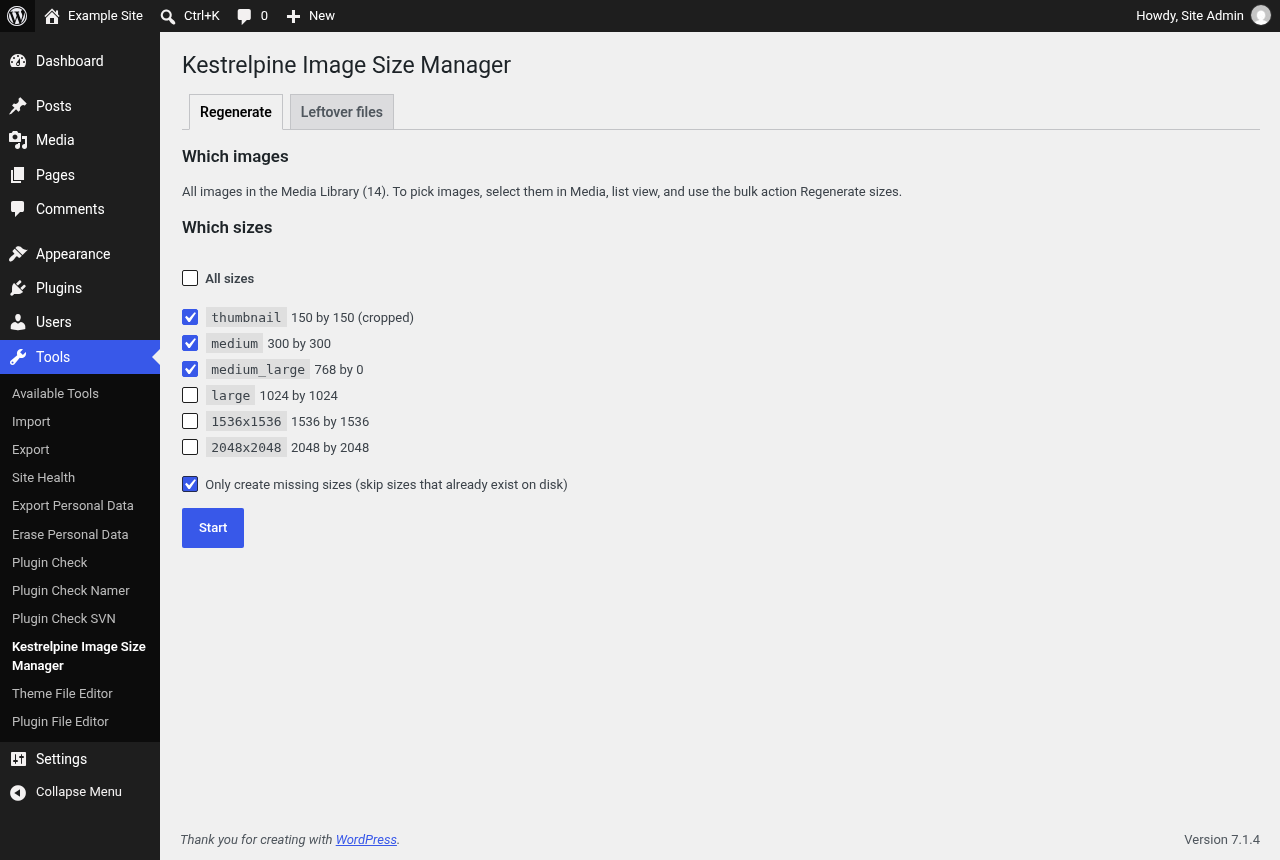
- Pick which registered sizes to rebuild, or rebuild them all.
- Missing only mode creates sizes that are absent and leaves existing files alone.
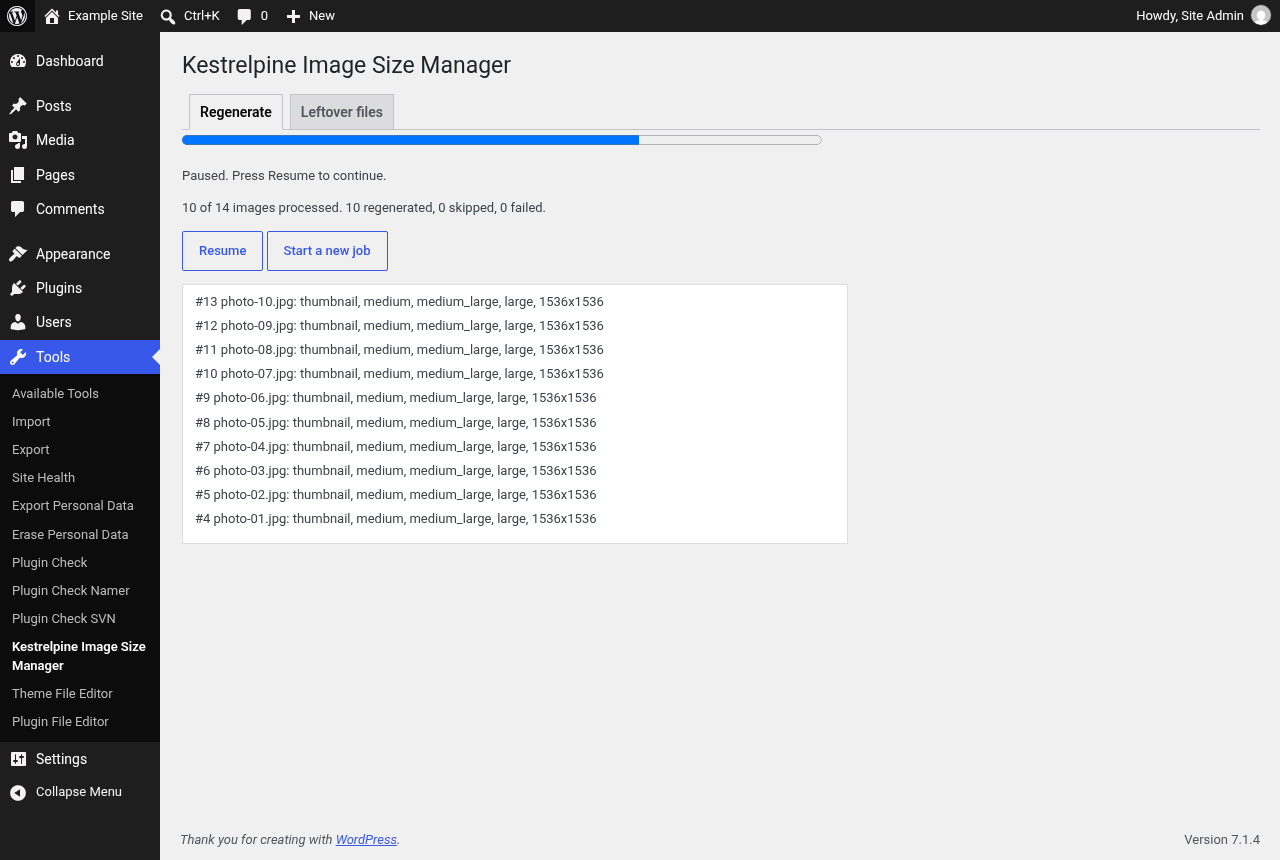
- Progress screen that works in small batches, so it does not time out on large libraries. Pause at any time, leave the page, and resume later.
- WP-CLI command:
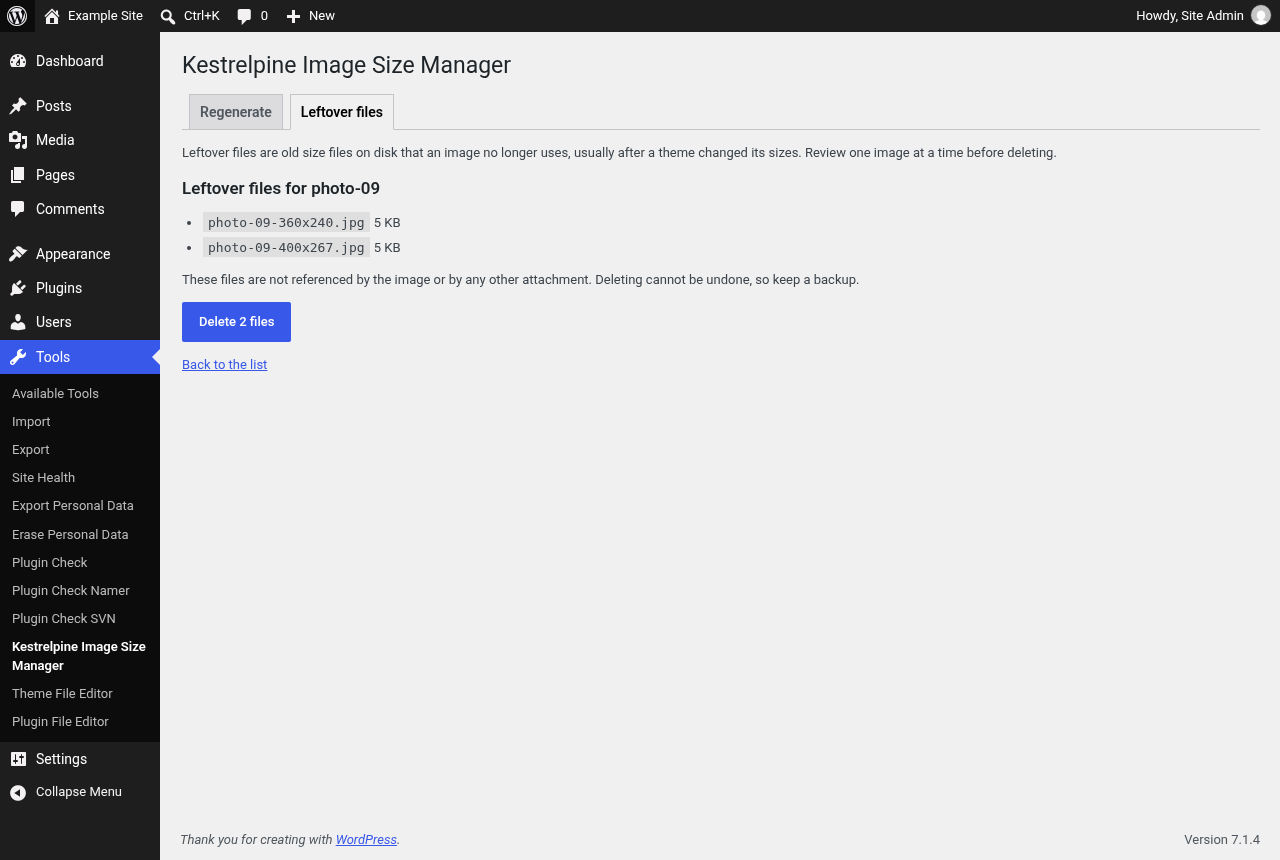
wp kestrelpine-sizes regeneratewith--sizes,--missing-only,--from,--toand--dry-run. - Leftover files report: a resumable scan walks the whole Media Library in small batches and lists only images with size files on disk they no longer use, with a preview, and deletes them one image at a time.
- Uses the WordPress image functions, so WebP and AVIF output settings from core or other plugins are respected.
- No external requests, no tracking, no ads. Only administrators can use it.
Privacy
Kestrelpine Image Size Manager does not send any data anywhere and does not set cookies. It stores the progress of a running job in your user profile and removes it when you uninstall the plugin.
Screenshots

Installation
- Install and activate the plugin from Plugins, Add New.
- Go to Tools, Kestrelpine Image Size Manager.
- Pick the sizes, choose whether to create only missing sizes, and press Start.
To regenerate selected images, open Media, switch to list view, select images and choose Regenerate sizes from the Bulk actions menu. Each image row also has a Regenerate sizes link.
FAQ
-
Will this delete my original images?
-
No. Regeneration only writes size files. The original upload is never changed. The leftover files report only lists size files that match an image’s name pattern and are not referenced by that image or any other attachment, and nothing is deleted until you confirm on the preview screen.
-
What happens to old size files after I regenerate?
-
When a size changes dimensions, WordPress writes a new file and the old one stays on disk. Use the Leftover files tab to scan the library, then review and remove those, one image at a time. The scan can be paused and resumed, and it only reports that nothing was found once every image has been checked. Keep a backup before deleting files.
-
My library is large. Will it time out?
-
The progress screen processes a few images per request and saves its position after every image. If the browser closes or the server stops, open the page again and press Resume. For very large libraries, the WP-CLI command is the fastest option.
-
How do I use the WP-CLI command?
-
wp kestrelpine-sizes regenerate processes all images. Add attachment IDs to process only those,
--sizes=thumbnail,mediumto pick sizes,--missing-onlyto skip existing sizes,--fromand--tofor an ID range, and--dry-runto preview.wp kestrelpine-sizes leftovers <id>lists leftover files for one image and--deleteremoves them. -
Does it work with WebP or AVIF?
-
Yes. The plugin calls the same core functions as an upload, so any output format set through the image_editor_output_format filter is used.
-
Who can use it?
-
Users with the manage_options capability, which is administrators by default. Developers can change this with the kpism_capability filter.
Reviews
There are no reviews for this plugin.
Contributors & Developers
“Kestrelpine Image Size Manager” is open source software. The following people have contributed to this plugin.
Contributors
Translate “Kestrelpine Image Size Manager” into your language.
Interested in development?
Browse the code, check out the SVN repository, or subscribe to the development log by RSS.
Changelog
1.0.0
- First release. Regenerate all, selected, single and missing only sizes, size picking, resumable progress screen, WP-CLI command and leftover files report.