
Description
WooCommerce shows product variations as dropdown menus. A shopper choosing a colour reads
the word “Ocean Blue” instead of seeing it, and on a phone the dropdown opens a picker that
takes them off the page entirely.
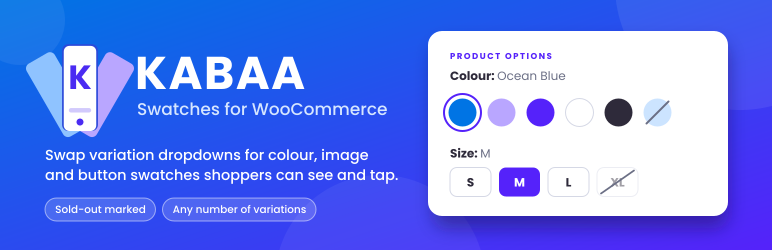
KABAA Swatches replaces those dropdowns with swatches a shopper can see and tap.
Works with classic themes that use WooCommerce’s standard variation form.
Setup guide, every screen with a screenshot: kazibadrul.com/kabaa-swatches/docs
Out-of-stock handling
Works on products with many variations.
WooCommerce sends variation data to the browser only up to a threshold (30 variations by
default). Below it, the plugin uses that data and adds no extra request. Above it, the plugin
fetches availability sized to the number of swatches on screen, not the number of variations,
and keeps sold-out combinations marked as the shopper chooses.
Independent of catalog visibility.
Out-of-stock swatches work the same whether WooCommerce’s “Hide out of stock items from the
catalog” option is on or off, so you can keep sold-out products visible in your shop.
What it does
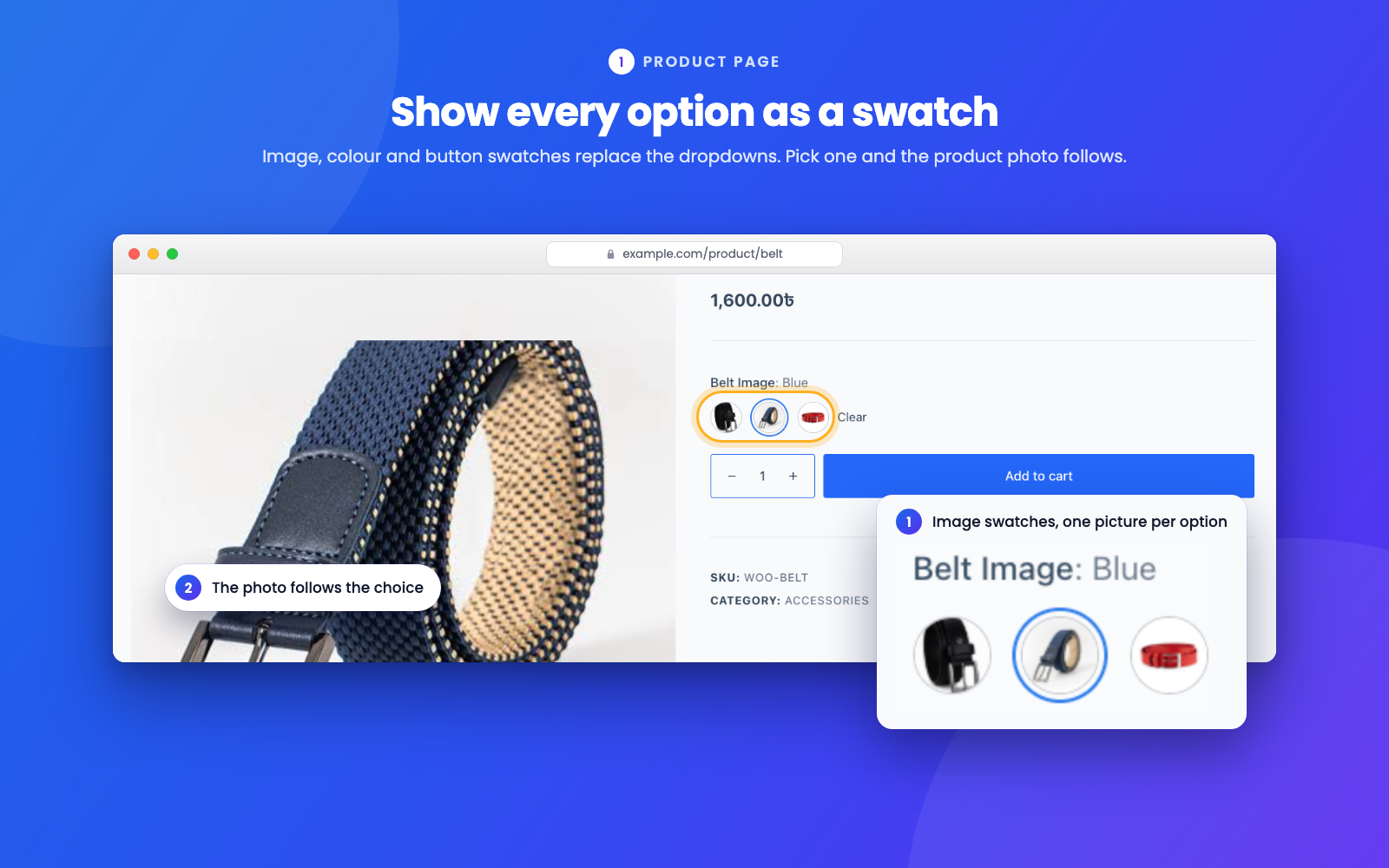
- Color, image and button swatches on the single product page
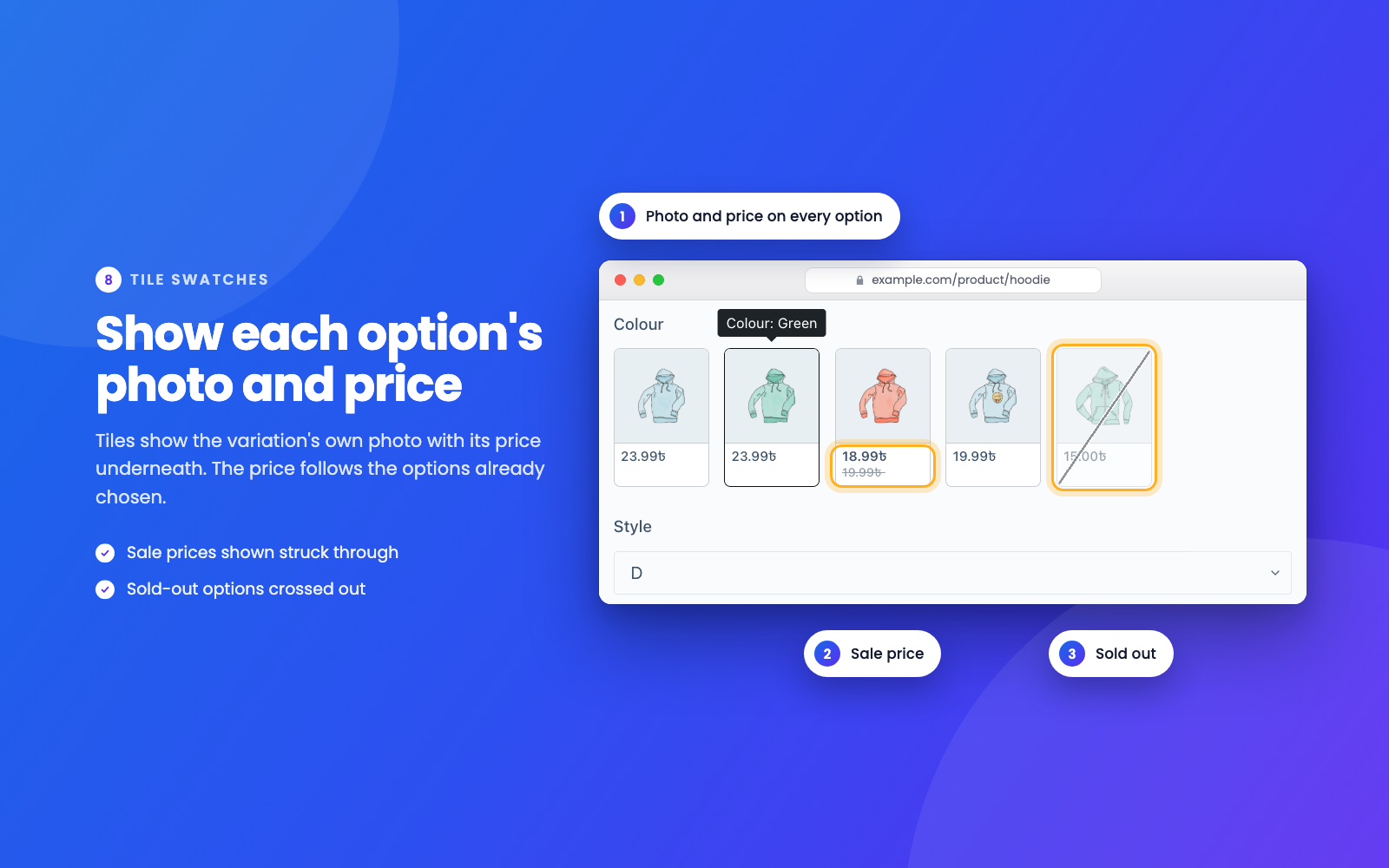
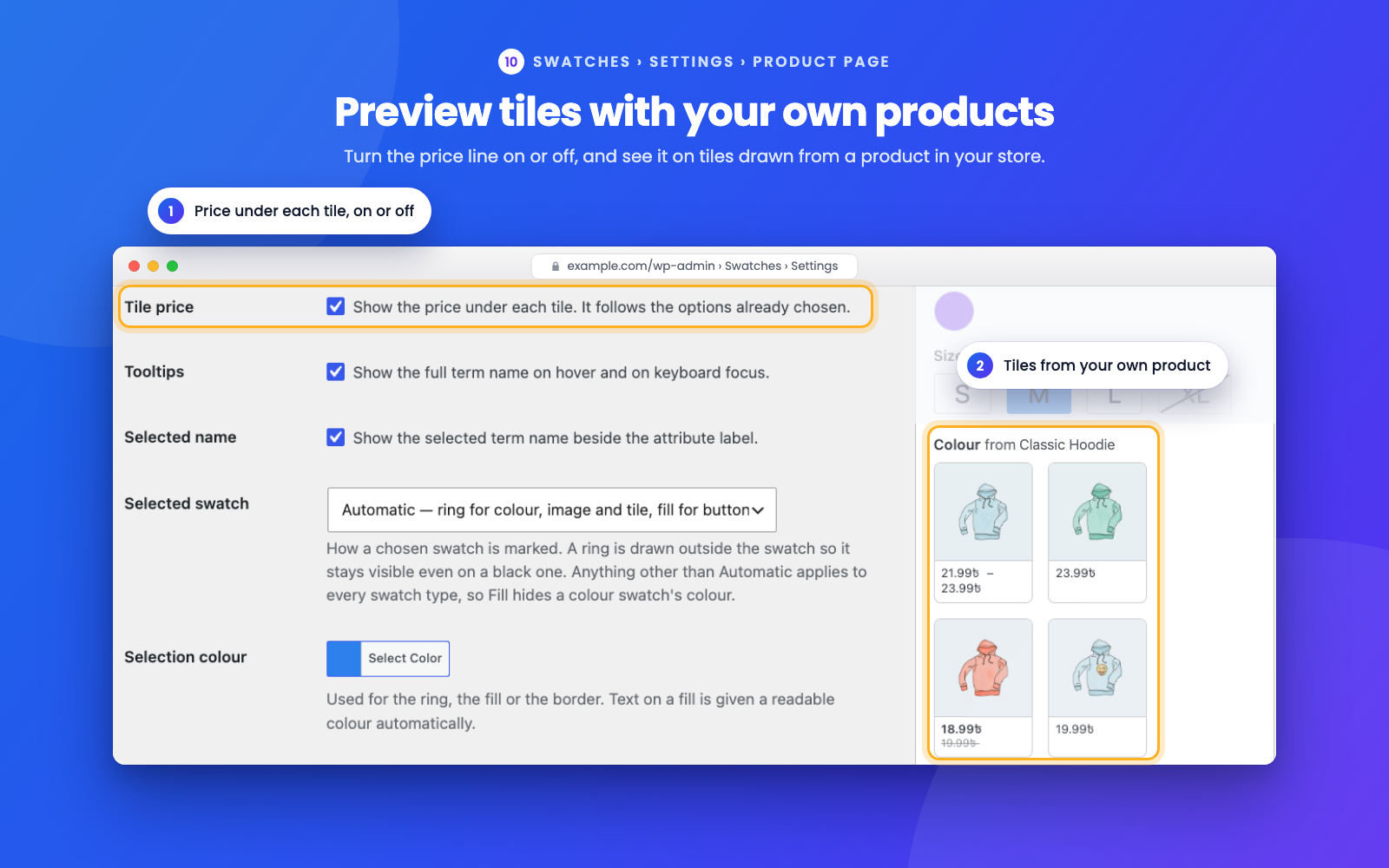
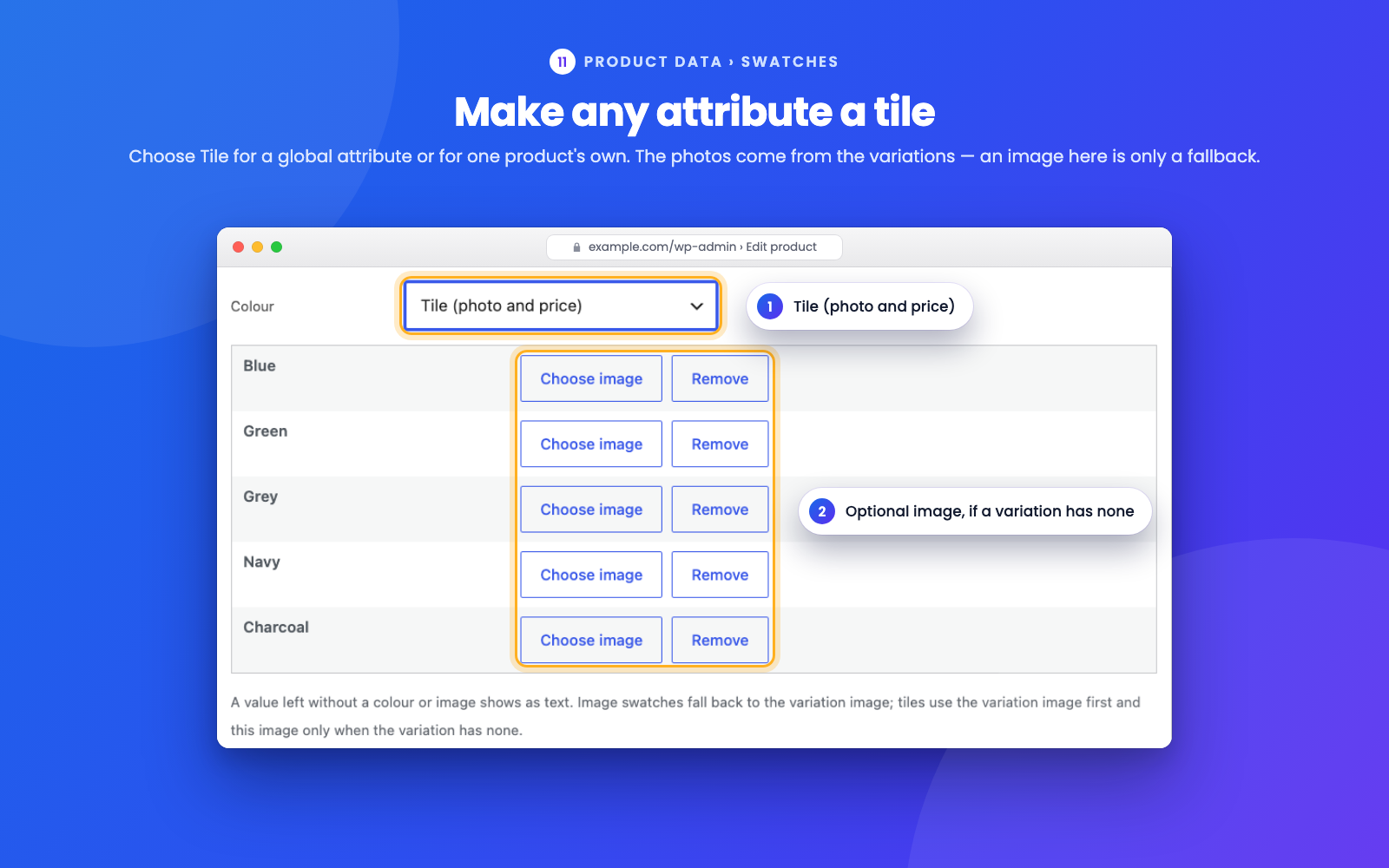
- Tile swatches: each option’s own photo with its price underneath, following what is already
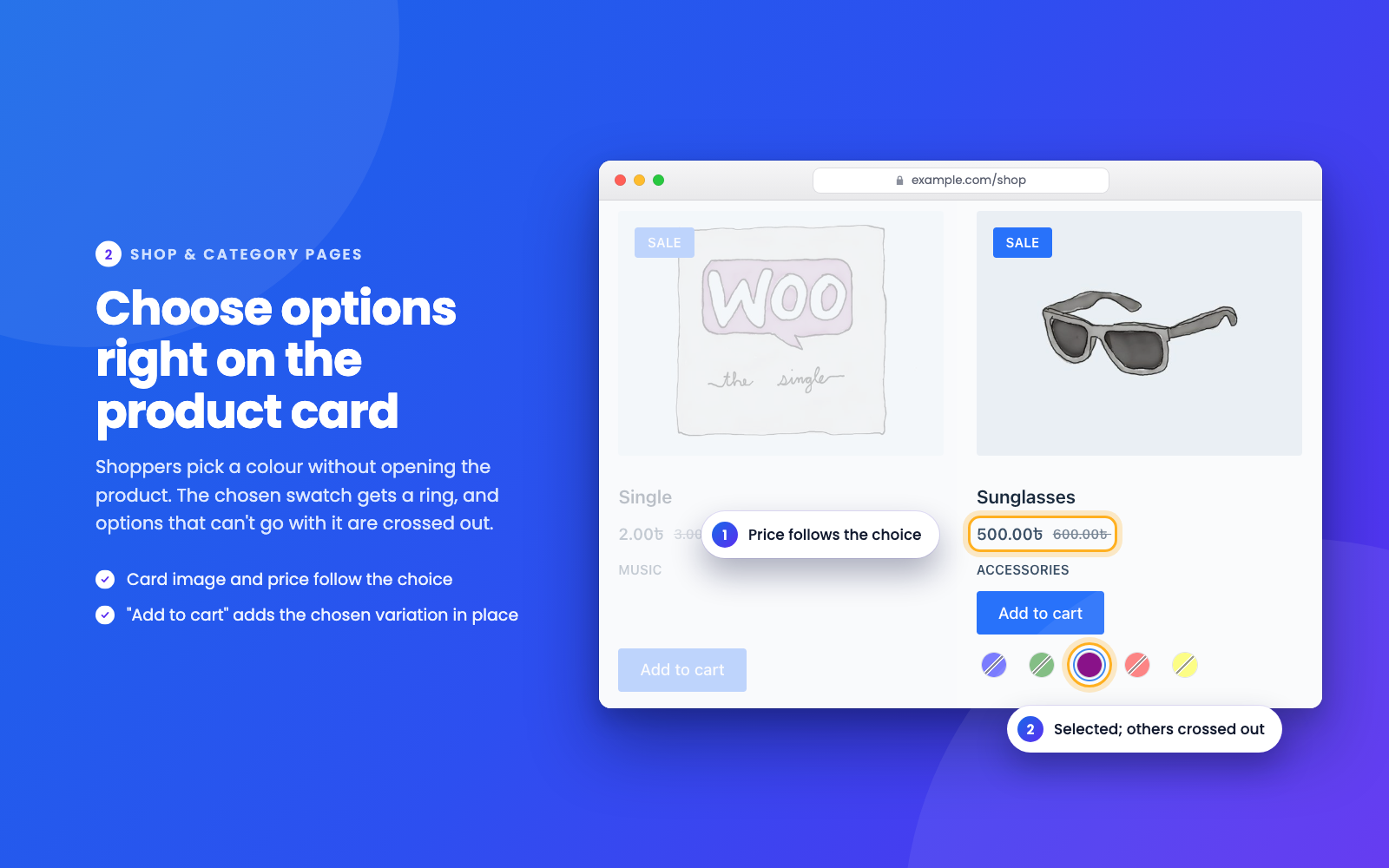
chosen. Hovering a tile previews its photo in the product gallery - Swatches on shop, category, tag and search pages too: pick options right on the card, see that
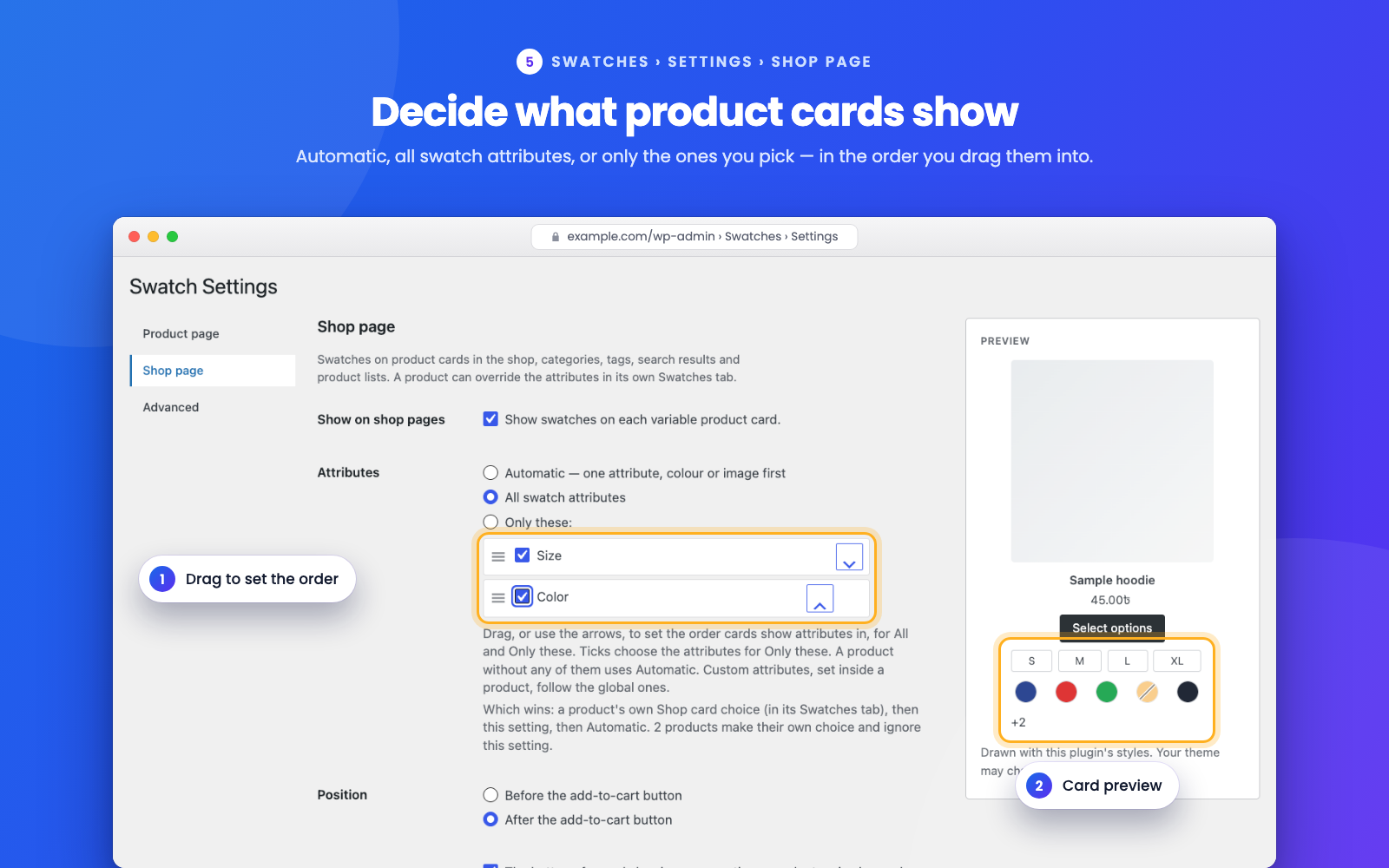
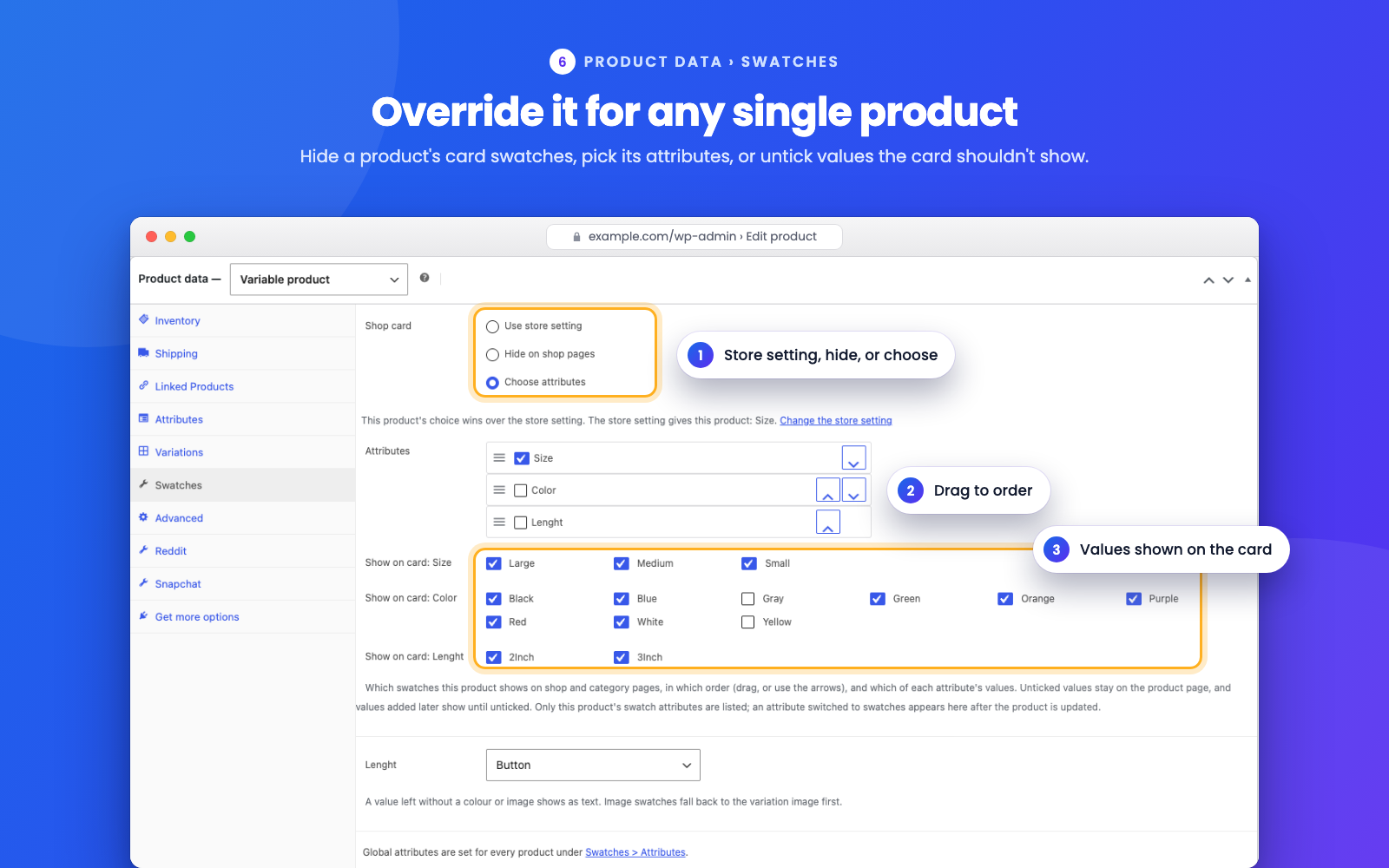
option’s photo and price, and add the variation to the cart without leaving the page - Choose which attributes shop cards show and in which order, store-wide or per product, which of
their values, their spacing and alignment, and whether they sit before or after the add-to-cart
button - On a card, options with nothing in stock alongside your choice are marked as you pick
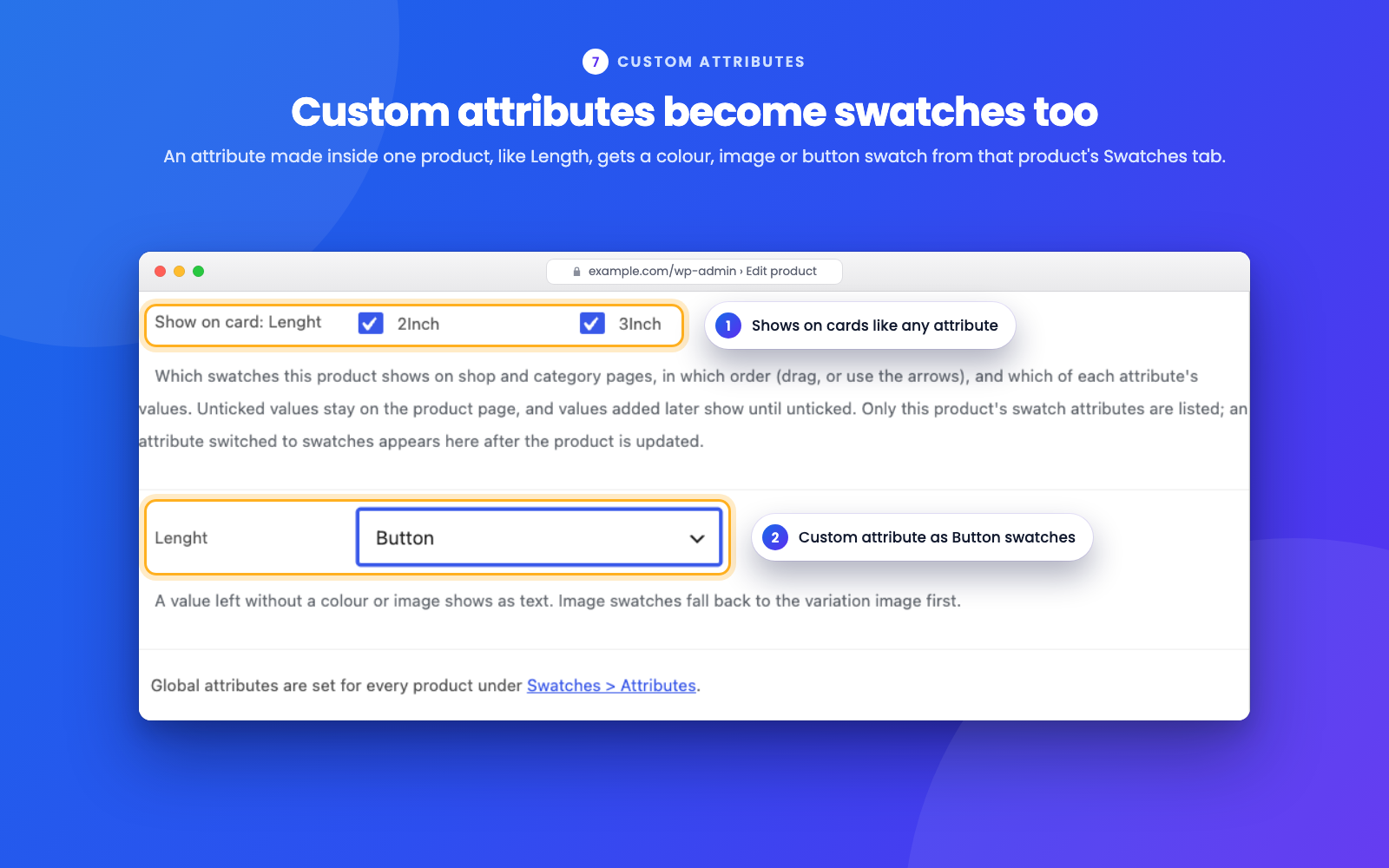
- Works with custom attributes created inside a product, set from the product’s own Swatches tab
- Name a term after a color (Navy, Tomato) and its swatch color fills itself
- Image swatches fall back to the variation’s own featured image when a term has none
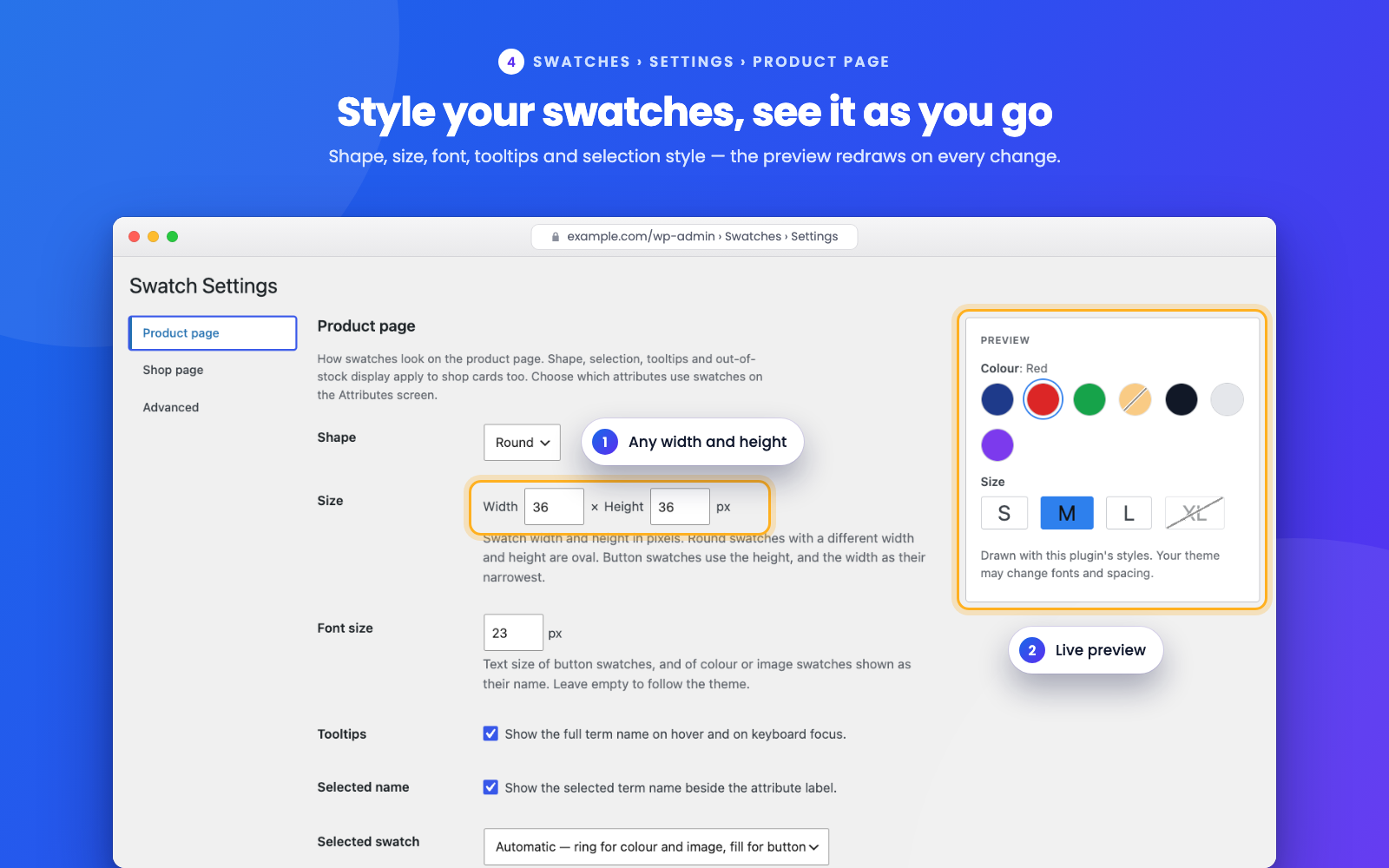
- Round or square, any width and height, and a text size for button swatches — no CSS to write
- Selection shown as a ring outside the swatch, so it stays visible on a black swatch
- Choose ring, fill or border, and the colour, or leave it to pick per swatch type
- Tooltips on hover and on keyboard focus
- Shows the selected term’s name beside the attribute label
- Marks sold-out terms as crossed out, blurred, or hidden, on product pages and shop cards
- Any attribute can be switched back to a plain dropdown, keeping its colours and images
- Correct for products with any number of variations
- Backorders count as purchasable, because they are
- German included for Germany, Austria and Switzerland, used when the site language is Deutsch
(WordPress 6.5 or newer)
Built to stay out of the way
- WooCommerce’s own
<select>stays in the form and stays in charge. The plugin writes to it
and listens to it; it never resolves variations or touches add to cart. - Swatches are real radio inputs, so keyboard navigation, focus and selected state come from
the browser itself. - No template is overridden. If a theme renders its own variation markup, you get WooCommerce’s
normal dropdowns and the product page keeps working. - Assets load only on pages that show swatches. Shop cards never call back to the server, so
they keep working on pages served from a full-page cache. - Stores its settings in a single option, and custom attribute settings on their own product.
No tracking and no external services.
Screenshots


Installation
- Install and activate the plugin. A short welcome screen opens once, pointing to where setup happens. Nothing changes on your store yet — every attribute starts as a dropdown.
- Go to Swatches > Attributes and set a swatch type on an attribute. The same control is on each attribute’s own form under Products > Attributes.
- For a colour attribute, edit its terms and give each one a colour. For an image attribute, give each term an image, or leave it and let the variation image be used. For an attribute created inside a product, use that product’s Swatches tab instead.
- Adjust shape, size, tooltips and out-of-stock display at Swatches > Settings.
Everything the plugin does lives under the Swatches menu: Settings, Attributes (set the type for every attribute in one place), Terms (jump to the terms that need a colour or image) and Status (read-only diagnostics for support).
Terms are edited on WordPress’s own screens rather than in a rebuilt copy, so you keep its search, bulk actions and quick edit.
Step by step, with a screenshot of every screen: the setup guide.
FAQ
-
Is there a setup guide?
-
Yes: kazibadrul.com/kabaa-swatches/docs walks through
every screen with a screenshot — swatch types, term colours and images, custom attributes, tile
swatches, shop cards, out of stock and troubleshooting. -
Do I have to change my theme?
-
No. The plugin hooks a WooCommerce filter that classic themes already use.
-
My theme has a custom variation form and I see dropdowns.
-
That theme renders its own markup and does not call the WooCommerce function this plugin
filters. The product page keeps working normally; it just will not show swatches. -
Does it work with custom attributes created inside a product?
-
Yes. Open the product’s Swatches tab, choose a swatch type for the attribute, and give each
value a color or image. The settings belong to that product only. -
Does it work with more than 30 variations?
-
Yes, including out-of-stock marking.
-
Do I need “Hide out of stock items from the catalog” switched on?
-
No. That setting has no effect on swatches here.
-
Does it send anything to a third party?
-
No.
-
Does it work on shop and category pages?
-
Yes: the shop, categories, tags, search results, product shortcodes and related products. Each
variable product card shows its swatches before or after the add-to-cart button. Shoppers can pick
options on the card and, when the card shows every option, add the variation to the cart there,
whatever the number of variations. Otherwise the product opens with the options already chosen. -
Can I choose which products show swatches on the shop page?
-
Yes. Swatches > Settings > Shop page chooses the attributes for every card (automatic, all, or the
ones you pick), or turns card swatches off. A product’s own Swatches tab can choose different
attributes for that product, or hide its swatches on shop pages. -
My theme’s product cards look different. Will it work?
-
The plugin finds each card’s image and add-to-cart button on its own. If your theme lays out cards
unusually, Swatches > Settings > Advanced lets you name them with a CSS selector. -
What happens if I delete the plugin?
-
It removes only what it created: its settings, the colours and images you set on attribute
terms, and the swatch settings saved on products (custom attributes and the shop card choice). It never deletes an attribute, a term, a product, a variation, or anything in your media
library. A swatch image is a reference to a file in your media library — deleting the plugin
removes the reference, never the file. Your store keeps working with WooCommerce’s normal
dropdowns.Deactivating is different again: that changes nothing at all, so you can switch the plugin off
and back on without losing any setup.
Reviews
There are no reviews for this plugin.
Contributors & Developers
“KABAA Swatches for WooCommerce” is open source software. The following people have contributed to this plugin.
Contributors
Translate “KABAA Swatches for WooCommerce” into your language.
Interested in development?
Browse the code, check out the SVN repository, or subscribe to the development log by RSS.
Changelog
0.8.0
- German translation included. When the site language is Deutsch (Germany, Austria or
Switzerland), the plugin’s admin screens, swatches and shop-card buttons are in German, in
Swiss spelling on Swiss sites. Needs WordPress 6.5 or newer. An approved translation from
translate.wordpress.org replaces it automatically.
0.7.0
- A short welcome screen on a new install, listing the swatch types and leading to
Swatches > Attributes, where setup happens. It shows once, and never on update. - Help links on every screen: Docs and Support on the Plugins list, and a link to the matching
section of the setup guide on Settings, Attributes, Terms, Status and the product Swatches tab.
0.6.0
- Tile swatches. A new swatch type for global and custom attributes: each option shows its
variation’s own photo with its price underneath. The price follows the options already chosen,
as one price or a range, with sale prices struck through and sold-out options marked, on
products of any size. - Hovering or tabbing to a tile previews its photo in the main product image, and a chosen tile
keeps its photo before the other options are picked. - New Tile width and Tile price settings in Swatches > Settings > Product page. The live preview
shows tiles from one of your own products. - On shop cards, a tile attribute shows as an image swatch.
0.5.0
- Swatches on shop and category pages. Pick options on the product card: the image follows
your choice, options out of stock alongside it are marked, and a complete choice can be added
to the cart right there, on products of any size. Sold-out options are marked beyond 30
variations too. - The card’s price follows your choice, and its button reads “Add to cart” from the start: pressed
before every option is picked, the card shows which ones are missing. - Choose the card attributes in Swatches > Settings > Shop page (automatic, all, or chosen), or
per product in its Swatches tab, where a product can also hide its card swatches or choose which
of their values the card shows. Sort attributes into the order cards show them, set the spacing
and alignment, and place them before or after the add-to-cart button. Long rows collapse behind
a “+N” control, and card swatches stay easy to tap on phones. - Swatches > Settings is reorganised into Product page, Shop page and Advanced sections, with a
live preview of your swatches and of a shop card. - Swatch width and height are now set separately, for every shape. A round swatch with a
different width and height is an oval; a sample on the settings screen shows the result as
you type. - New font size setting for button swatches, and for color or image swatches shown as their
name. Leave it empty to keep following the theme. - A size saved by an earlier version is used as both width and height, so swatches look the
same after updating. - For theme developers: the
--kabaa-swatch-sizeCSS variable is replaced by
–kabaa-swatch-width and--kabaa-swatch-height.
0.4.0
- Custom attributes created inside a product can now be swatches. A new Swatches tab on
variable products sets the swatch type and each value’s color or image. - Name a term after a color (Navy, Tomato, Dark Olive Green) and an empty swatch color fills
itself. A color name typed into the color field becomes its hex value. Worked out by the
browser; nothing is sent anywhere.
0.3.3
- Tooltips now appear instantly on hover and on keyboard focus, and read “Attribute: Term”
(for example “Colour: Ocean Blue”). Tapping a swatch on a phone shows its tooltip too. - Swatches no longer carry a
titleattribute, so the browser’s own delayed tooltip is gone.
0.3.2
- The stylesheet now loads in the page head on product pages through WordPress’s asset system;
the plugin no longer prints any inline style tag. - Write requests now accept the security token only from the submitted form, never from the URL.
- Readme rewritten to describe only what this plugin does.
- Translation template regenerated with every string.
0.3.1
- Selected swatches now show a ring drawn outside the swatch. The previous thickened border
was invisible on a black swatch and hard to see on any dark one. - Added a selection style setting — automatic, ring, fill or border — and a selection colour.
Automatic uses a ring for colour and image swatches and a fill for button swatches. - The label colour on a filled swatch is now worked out from the selection colour so it stays
readable. - The out-of-stock stroke is now legible on dark swatches, light swatches and images alike.
- Keyboard focus is now a dashed outline, distinct from the selection ring.
- If you preferred the old appearance, set the selection style to Border.
0.2.0
- The plugin now has its own Swatches menu, with Settings, Attributes, Terms and Status screens.
- Swatch types for every attribute can be set on one screen instead of one at a time.
- Settings moved out of WooCommerce > Settings > Products into Swatches > Settings. Your saved
settings carry over untouched. - Added a Settings link on the Plugins screen.
- Deleting the plugin now cleans up its own data and nothing else.
0.1.0
- First release: colour, image and button swatches on the single product page.
- Out-of-stock marking correct above WooCommerce’s variation preload threshold.
- Out-of-stock display independent of the catalog visibility setting.