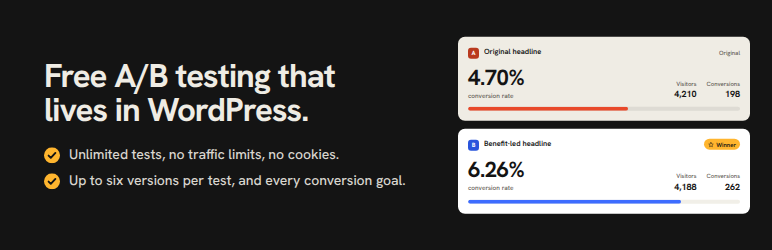

Description
ImproveAB is a free A/B testing and split testing plugin for WordPress that works with any page builder or theme – Elementor, Bricks, Etch, the block editor (Gutenberg), Beaver Builder, Divi, Oxygen, Breakdance, Kadence, GeneratePress, Astra, or a classic theme. Test which headline, button, layout, or landing page converts best, then ship the winner with confidence – all from your WordPress dashboard, with unlimited tests, no traffic limits, no cookies, and no third-party cloud.
Stop guessing. Show two versions of a page or element to real visitors at the same time, measure which one wins on a goal you choose, and make data-driven decisions that lift your conversion rate.
Free means free
No limits and nothing held back: unlimited tests running at once, unlimited pageviews and visitors, up to six variants per test, and every goal type, WooCommerce add-to-cart and purchase with revenue included. Nothing in this plugin is locked or limited.
It works with any builder, has no visitor limits and keeps your visitors’ data on your own site. Variants are matched with a simple CSS class, so it works everywhere; everything runs on your own site, so there are no pageview fees; and assignment happens in the browser, so it’s compatible with caching and CDNs and sets no cookies.
Self-hosted A/B testing
ImproveAB runs inside your site instead of a separate cloud dashboard, and it never meters your traffic. If you used Google Optimize before it shut down in 2023, the workflow will feel familiar: create a test, choose a goal, and read the results without leaving your dashboard.
Built for any page builder
Element tests target a CSS class, and every major builder has a field for one, so the same plugin works on every site you build, whichever builder or theme it uses. No lock-in.
What the free plugin does
- Element and section tests – A/B test a headline, button, hero section, call to action, pricing table, image, or whole layout on a page using a simple CSS class.
- Ship the winner instantly – once you declare a winner, keep showing it to every visitor with one click until you have updated the page itself. No tracking, no flicker, works for element, point-and-click and full-page tests.
- Goals that match how sites convert – page visit (thank-you page), element click, link click, form submission (Contact Form 7, WPForms, Gravity Forms, Fluent Forms, Ninja Forms, Formidable, Forminator, or any plain form), and WooCommerce add-to-cart.
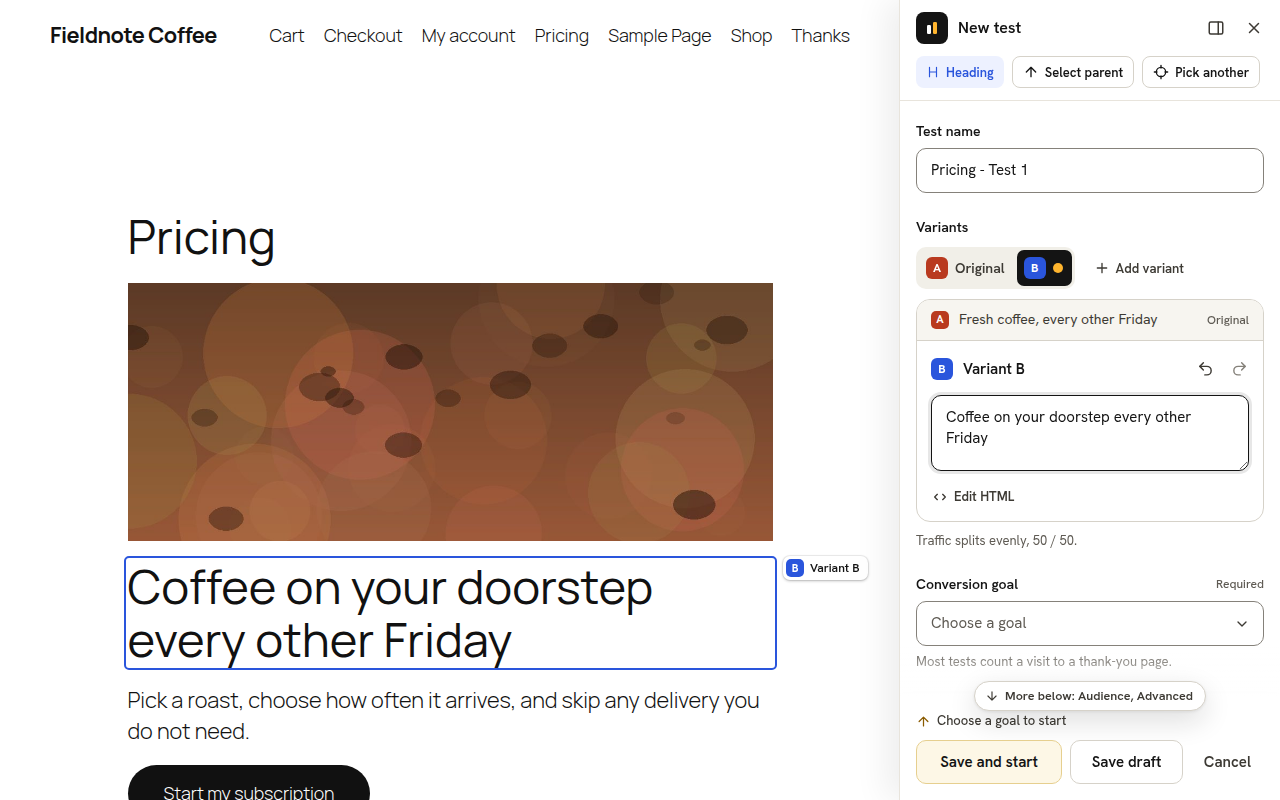
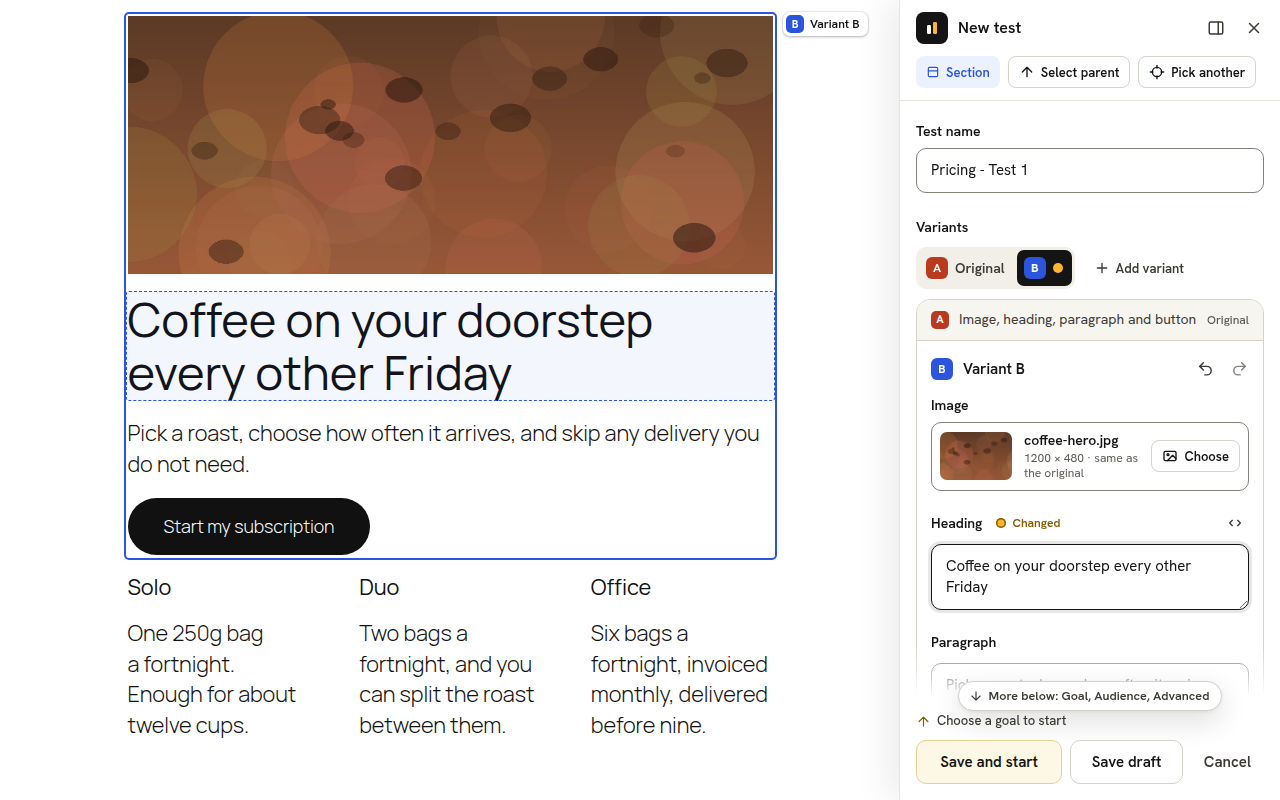
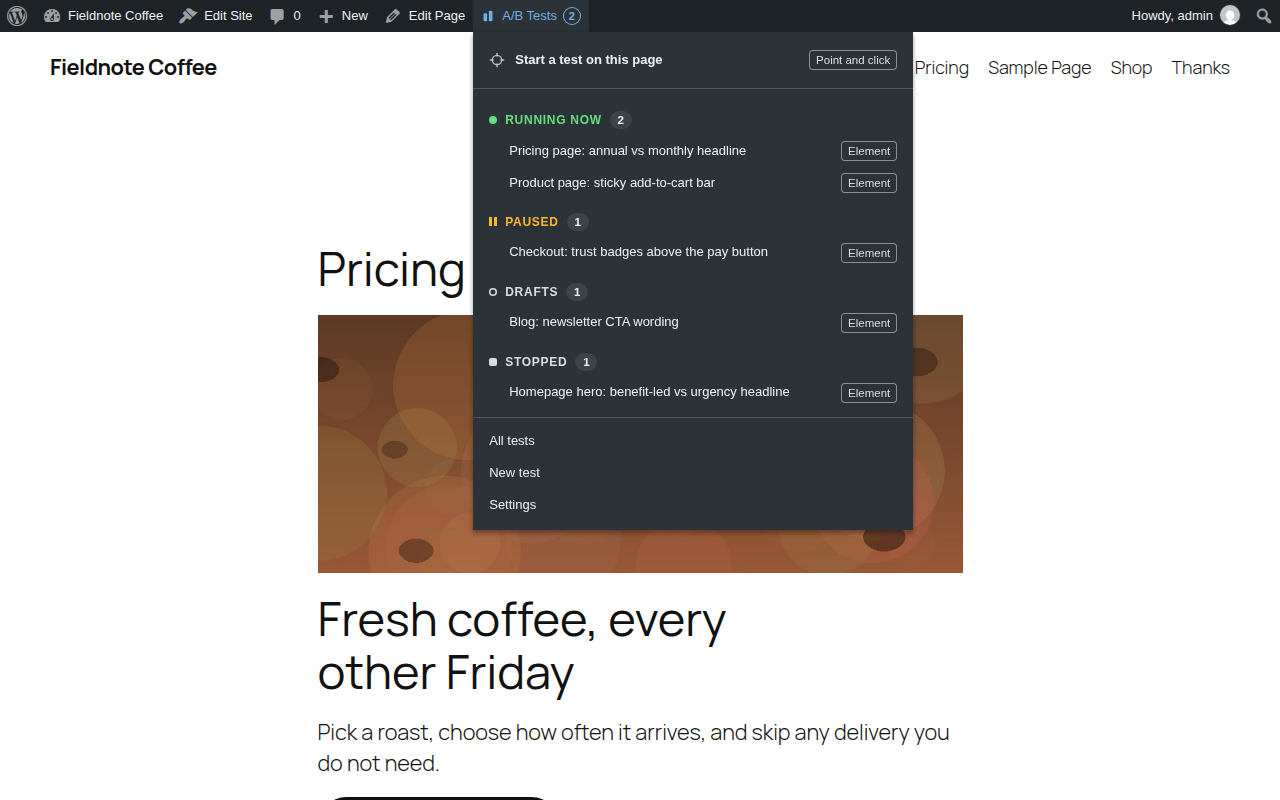
- Point-and-click test creation – while logged in, click “A/B Tests” in the admin toolbar on any page, click the headline or button you want to improve, type the new wording, and start the test. No builder, block editor, or code involved. A section opens as one field per text and image, with its layout kept as it is, and any field or the whole element can be edited as HTML. If you pick a big or interactive block (a form, a product grid, more than 30 elements), the panel says so and offers to pick a smaller part or keep the block.
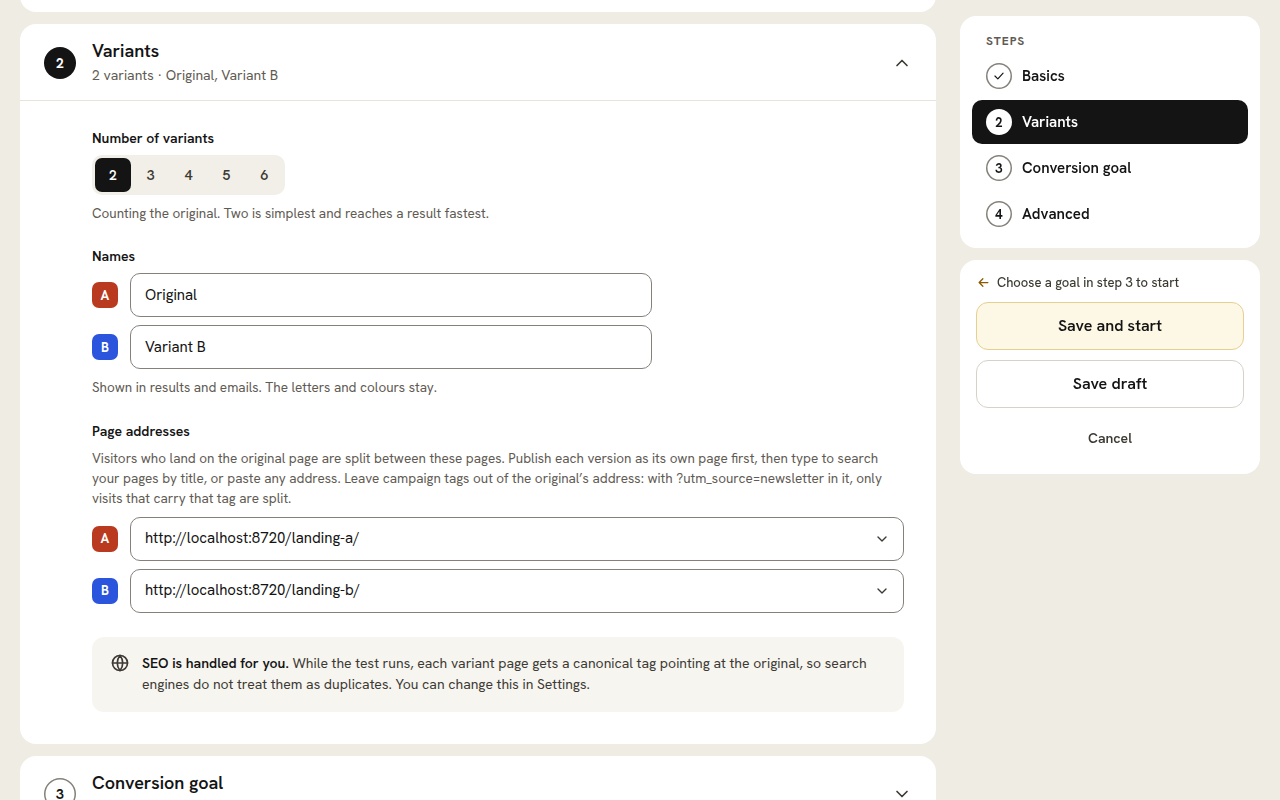
- Full-page split (URL) tests – split traffic between two page URLs with an automatic, SEO-safe redirect. Ideal for comparing entire landing-page designs – including a variant on a second WordPress site at a subdomain such as new.yoursite.com, with the free plugin installed on both.
- A/B and A/B/n testing – the original against one new version, or up to six variants in one test.
- As many tests as you like – no limit on how many run at once.
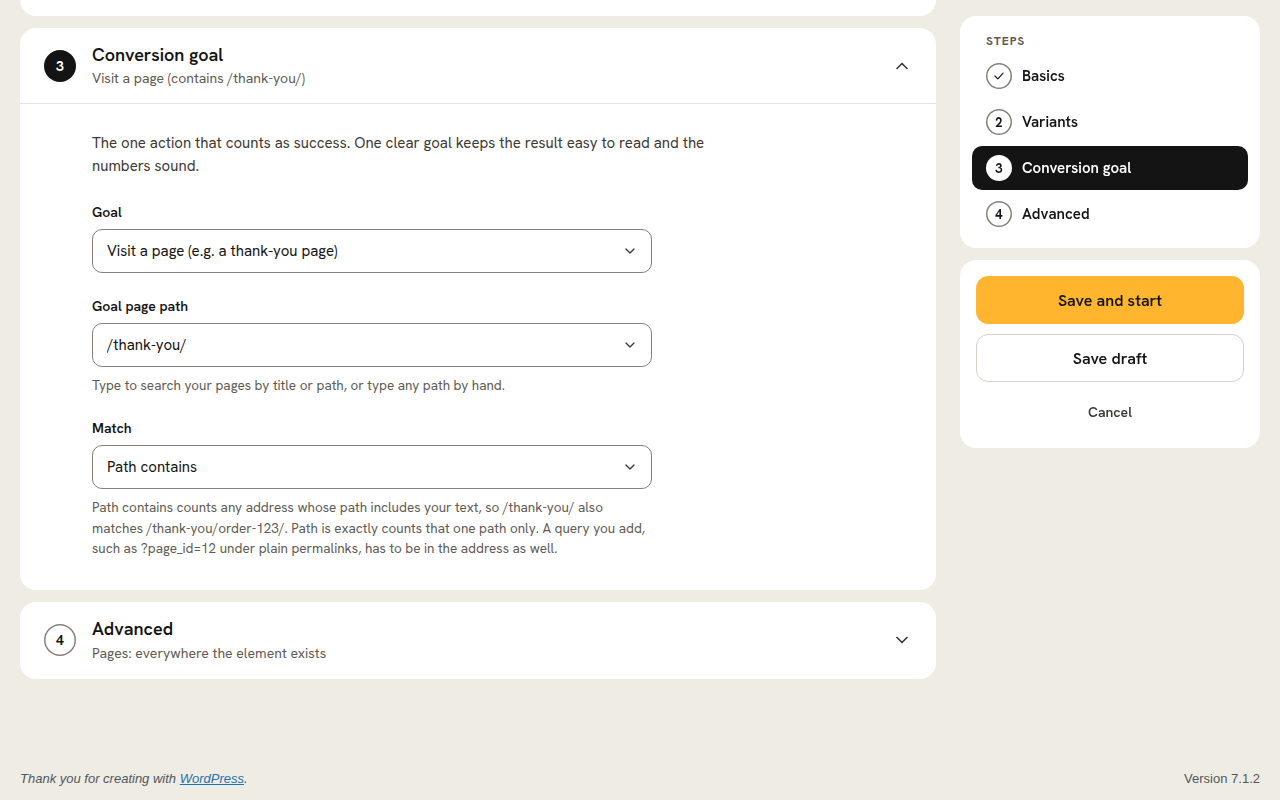
- Conversion goals – page visit (e.g. reaching a thank-you page), element click, link click, form submission, WooCommerce add-to-cart and purchase (with revenue), scroll depth, time on page and active time.
- Page targeting – an element test runs on every page where its classes are found, so a header button or nav link is tested site-wide; a point-and-click test starts on the page you picked it on. Either can run only on paths matching a pattern (/blog/*), everywhere except those, or on every page where its element exists; with plain permalinks a pattern names a page by its query (/?page_id=12).
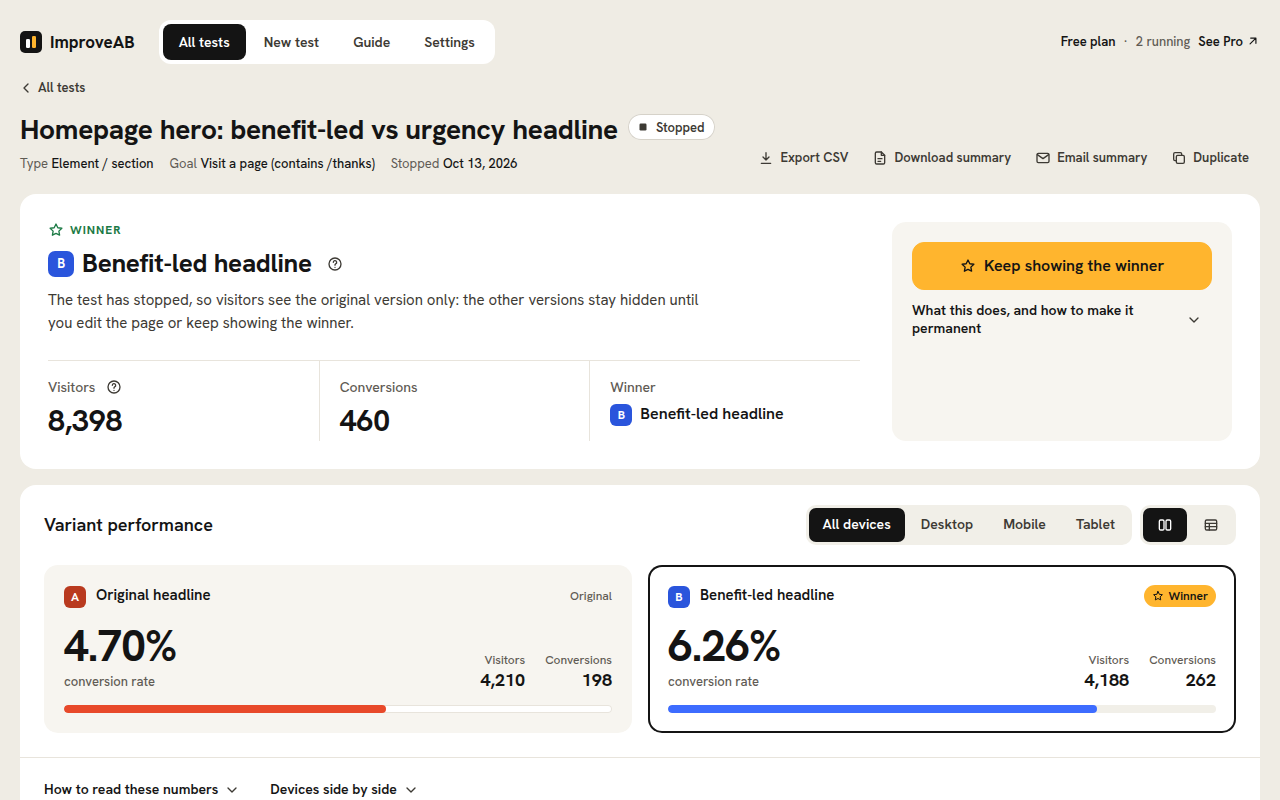
- Clear results – impressions, conversions, and conversion rate per variant, with the leading variant highlighted, a device breakdown, a day-by-day chart and CSV export.
- Traffic split warning – the plugin checks that visitors are divided between your versions the way the test planned. When the gap is too big to be chance, the results page says so first, with the likely causes and the fix, and the test is tagged “Split off” in the tests list, the admin-bar menu and the dashboard widget, so you never act on a broken test.
- Flicker-free – visitors never see the wrong version flash before the right one loads.
- Cookieless and cache-friendly – assignment happens in the browser, so it works behind page caching and CDNs and sets no cookies.
- No traffic limits – no view caps and no visitor limits, ever.
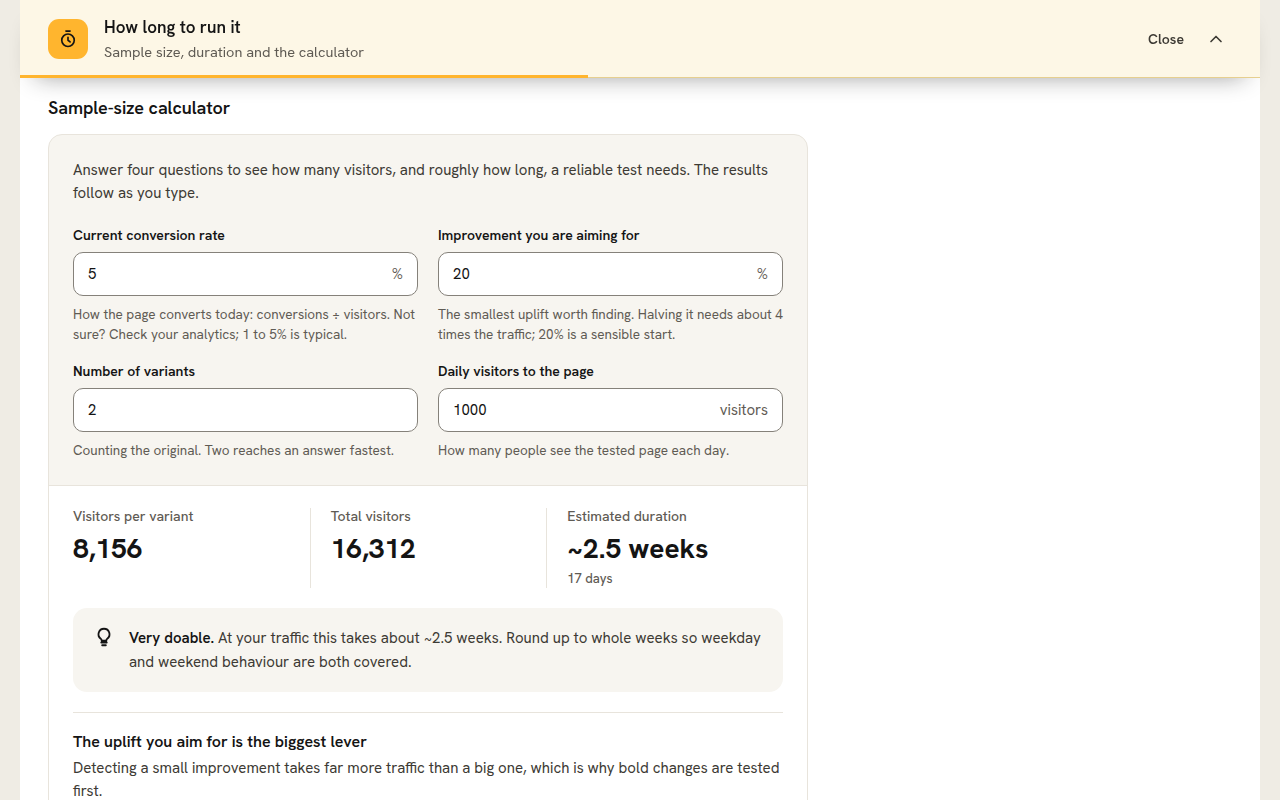
- Sample-size and duration calculator – estimate how many visitors and days you’ll need before you start, with plain-language guidance, right inside the guide.
- Edit tests safely – names, notes and labels any time; the goal and pages with a clear confirmation on live tests, so collected data is never mixed by accident.
- Notes and shareable summaries – keep your hypothesis and learnings with each test, and download a plain-text results summary or email it to yourself.
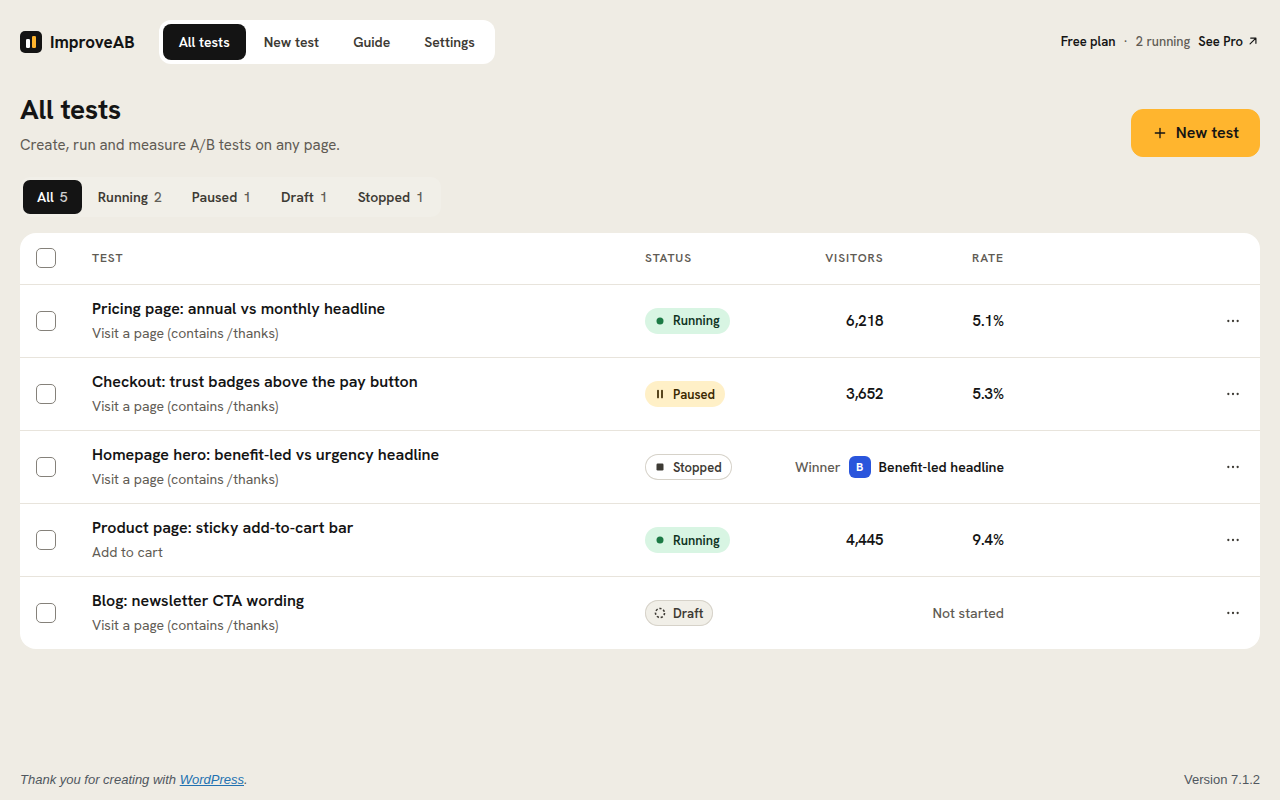
- A dashboard you can actually scan – status filters, pagination, bulk pause/stop/delete, visitors and conversion rate at a glance, and a wp-admin dashboard widget of your running tests.
- SEO handling, your way – while a URL test runs, variant pages canonical to the original (Google’s recommendation), get a noindex, or are left entirely to your SEO plugin – your choice; the original page is never touched.
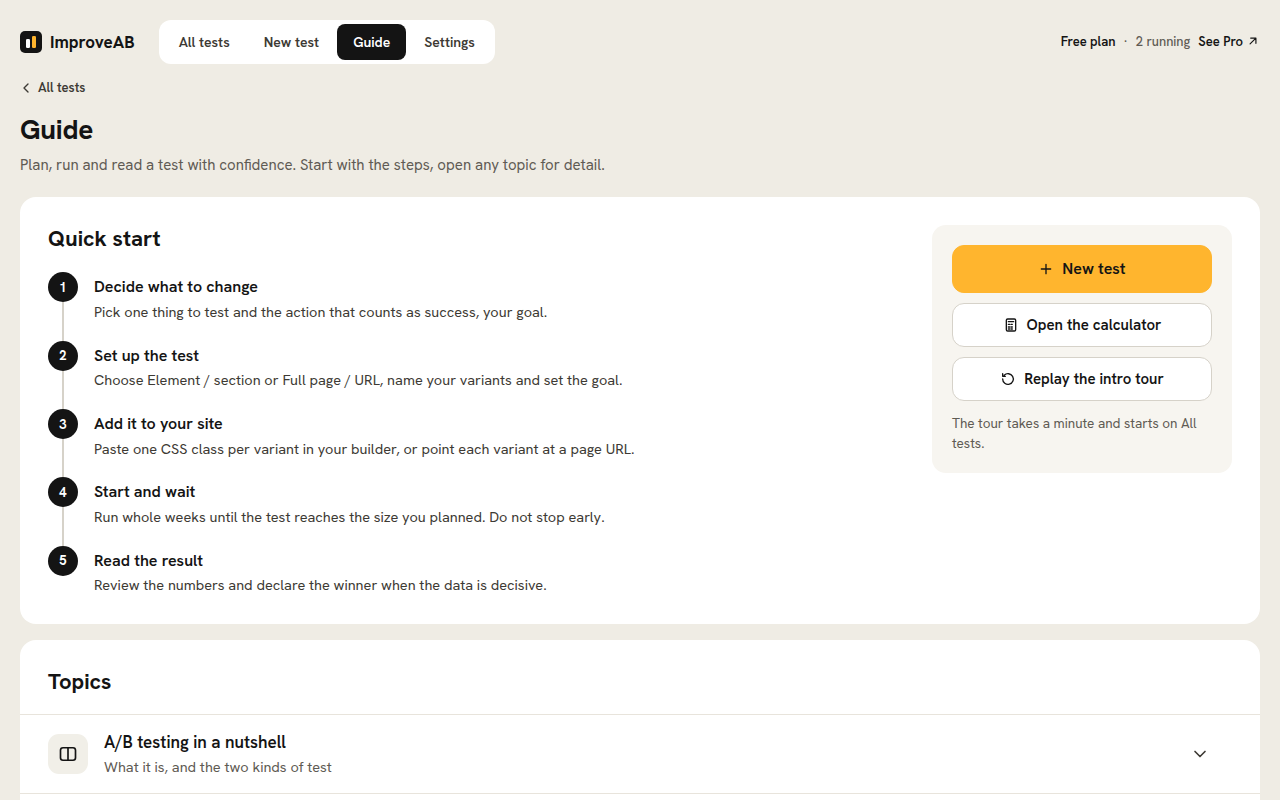
- Built-in guide and intro tour – a plain-English guide to planning, running, and reading tests, plus a one-minute replayable intro tour.
- Your data stays yours – deleting the plugin keeps your tests, results and settings by default, with an optional clean-delete setting.
- Private by design – no account required, and nothing is ever sent to us or to any third party.
Who it’s for
- Bloggers and content sites testing headlines and calls to action to grow signups.
- WooCommerce stores testing product copy, buttons, and layouts, with purchase and revenue goals.
- Marketers and landing-page builders comparing whole page designs without a monthly SaaS bill.
- Freelancers and agencies who want one tool that works on every client site, on any builder.
At a glance
- Where it runs: on your own server.
- Pricing: free, with no pageview meter.
- Data: stays in your WordPress database. No test data is sent to us or any third party.
- Builders: any builder or theme.
- Performance: no flicker, and fully compatible with caching and CDNs.
- Code: GPLv2 and open – read it, audit it, adapt it.
ImproveAB Pro
ImproveAB Pro is a separate, complete version of this plugin that adds statistics, automation, audience targeting, uneven traffic splits, custom CSS, webhooks, a settings screen for role access and AI tools. You download it when you buy it and upload it yourself in this plugin’s place; it keeps every test, result and setting. This plugin never downloads or installs anything, and never needs Pro. Learn more.
On the roadmap for this plugin: exporting and importing tests between sites (next release), then a learnings archive of completed tests, test templates and WP-CLI commands. Multivariate testing is being researched.
Privacy
ImproveAB is built privacy-first. It sets no cookies and requires no visitor account. To keep a visitor on the same variant, a random, pseudonymous identifier is stored in their browser’s local storage. Your own database keeps a row when a visitor first sees a test, and one more if they convert, with that identifier, the version they saw, their device type (desktop, tablet or mobile), when it happened and, for a conversion, the path of the page it happened on (never its query string, and for a purchase without the order’s number) and, for a purchase, the order total less any refund; never a name, an email address or an IP address. A WooCommerce order it counts also gets a note on the order itself: that identifier, the test, the version, the device type and when the purchase was counted, so each order counts once and a refund or a cancellation comes off the right result (an order still waiting for payment carries the same note until it is paid). An order holds its buyer’s details, so in your store’s own database the identifier is then linked to that order; the note goes when the order is deleted, and when you remove the plugin with “Delete all data when the plugin is removed” switched on. Once a test has ended, its rows are compacted into daily totals after the retention period (90 days by default, adjustable in Settings). No test data is sent to us or any third party. To limit abuse, the event endpoint counts requests per address and minute under a salted, one-way hash; the counts are deleted by the plugin’s nightly clean-up at the latest, and nothing else is kept about the address. This makes it easier to run tests in a privacy-respecting, GDPR- and CCPA-conscious way.
This plugin contacts no external service: it loads nothing from other servers, sends nothing to us or to any third party, and needs no account.
A test’s name is not private. Its short form names an element test’s CSS classes and the key a visitor’s browser keeps for the test, so it is in your pages’ source, where anyone can read it: an element test’s from the moment it is saved (drafts and paused tests too, whose other versions a rule in the page keeps hidden), any other test’s while it runs or keeps showing its winner. Choose names you are happy for visitors to see.
Credits
The admin screens and the point-and-click panel use the Hanken Grotesk typeface (Copyright 2021 The Hanken Grotesk Project Authors), bundled with the plugin under the SIL Open Font License 1.1; the license is in assets/fonts/OFL.txt. Nothing is loaded from a font service.
To tell this site’s own pages from another customer’s on a shared name (co.uk, web.id, github.io), the plugin bundles the Public Suffix List (https://publicsuffix.org/, Copyright Mozilla Foundation and contributors) as includes/data/public-suffix-list.php, under the Mozilla Public License 2.0; its notice is in the file’s header. The list is read from that file; nothing is fetched.
Two icons in the Settings screen, the bell and the webhook hook, are from Lucide (Copyright Lucide Contributors 2022, portions Copyright Cole Bemis 2013-2022 as part of Feather), used under the ISC License; the notice is beside them in assets/js/admin.js.
Screenshots
Installation
- Upload the plugin to
/wp-content/plugins/improveab-ab-testing/, or install it from Plugins Add Plugin in your dashboard and search for “ImproveAB”. - Activate it through the Plugins screen.
- Open A/B Testing in the admin menu and create your first test from New test.
- For element tests, build both versions of the element on the page and add the CSS class shown to each version in your builder’s CSS-class field (the plugin lists where that field is for each builder). For URL tests, build each variant as its own published page and paste the URLs. Or skip the builder entirely: open any page while logged in and choose “A/B Tests Start a test on this page” in the toolbar.
- Choose a goal, press Save and start, and watch results come in.
A full step-by-step guide is built into the plugin, and more guides are at improveab.com/resources/.
FAQ
-
Is it really free?
-
Yes. The plugin is GPL-licensed and free forever, with no pageview or traffic limits. It runs complete A/B and A/B/n tests on its own, as many at once as you like, with every goal type and page targeting.
-
Does it work with my page builder?
-
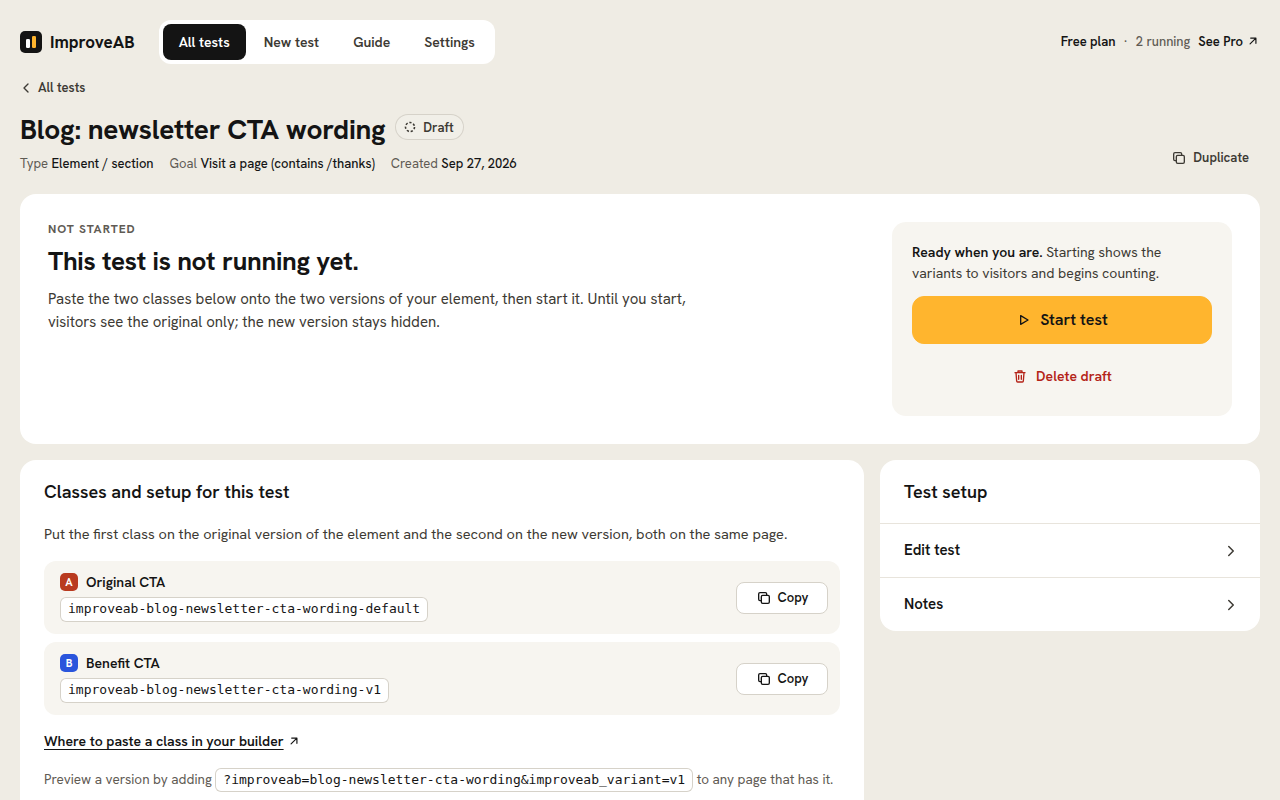
Yes. Element tests target a CSS class, which every major builder lets you add. Build both versions of the element on the same page, then paste the class the plugin gives you onto each version (the first class on the original, the second on the new version). Where the field is:
- Block editor (Gutenberg), Kadence Blocks, GenerateBlocks, Spectra: select the block, open the Settings sidebar, expand Advanced, paste into “Additional CSS class(es)”.
- Elementor 4 (the default for new sites): select the element, paste the class into “Classes” on the Style tab. Elementor 3, and legacy widgets inside Elementor 4: open the Advanced tab, paste into “CSS Classes”. Both can appear on one page, so go by which tab the element offers.
- Bricks: select the element and type the class into the selector input in the left panel, just under the element’s name.
- Etch: select the element and add the class in its class / selector input.
- Divi 5: open the element settings, Advanced, open Attributes, choose “+ Add Attribute” and add one named “class”. Divi 4: Advanced, expand “CSS ID & Classes”, paste into “CSS Class” – those fields are gone in Divi 5.
- Beaver Builder: open the module (or row / column) settings, Advanced tab, paste into “Class” under HTML Element – not the CSS Selectors box.
- Oxygen 6: select the element and add the class in the Classes control of the Properties panel. Oxygen Classic: open “Choose selector…”, then “Add Class”.
- Breakdance: select the element, open Settings, expand Advanced, add the class under Classes.
- WPBakery: edit the element and paste into “Extra class name” (near the bottom of the General tab).
- Avada: open the element options in Avada Builder, Extras tab, paste into “CSS Class”.
- GeneratePress, Astra, Kadence and other block themes: page content is blocks, so use the block editor steps.
- Classic theme or hand-written HTML: add the class to the element’s class attribute.
Builder not listed? Any field named CSS class, Additional CSS class(es), Extra class name or Attributes will do. The same steps are shown inside the plugin, next to the classes, with a Copy button. Point-and-click tests and URL tests need no class at all.
Until a test is started, visitors see the original version only; the new version stays hidden, so you can add the classes whenever you like. Only deleting a test removes its hiding rule, so remove the extra markup from the page first.
-
Is there a traffic or visitor limit?
-
No. Because tests run on your own site, there are no view caps, no visitor limits, and no overage bills.
-
Will visitors see a flash of the wrong version?
-
No. The plugin hides untested variants until the assigned one is ready, so the page reveals flicker-free.
-
Does it work with a strict Content Security Policy?
-
Yes. The runtime is a normal external script, its configuration is an inert JSON block, and the small inline scripts (anti-flicker reveal and URL-split redirect) are printed through WordPress’ inline-script functions, so a CSP tool that gives WordPress’ inline scripts a nonce gives these one too. The anti-flicker rules are inline styles that WordPress itself prints, like any theme’s or plugin’s: a CSP tool that adds nonces to the inline style tags WordPress prints covers this plugin’s too, and the plugin’s script gives the styles it adds the same nonce. Without such a tool, a policy that refuses inline styles refuses the anti-flicker rules as well: the page can show more than one version for a moment, until the plugin’s script runs, and from then on exactly one version.
-
No cookies, and nothing is ever sent to us. Visitor and test data never leaves your site: a random, pseudonymous identifier is stored in the visitor’s browser so they keep seeing the same version, and your own database records which version that identifier saw and whether it converted, with the device type and the time. No names, emails or IP addresses are stored with your results.
-
Does it work with caching and CDNs?
-
Yes. Variant assignment happens in the visitor’s browser, so the same cached HTML can be served to everyone. It works behind page caching plugins and CDNs, with no cache exclusions needed.
One detail is handled for you: a small snippet in every page’s head changes when a test starts or stops, so cached copies made before that moment are stale. The plugin purges the page cache at those moments when it recognises the cache: WP Rocket, W3 Total Cache, WP Super Cache, LiteSpeed Cache, WP Fastest Cache, Cache Enabler, Hummingbird, Breeze, Autoptimize, SiteGround Optimizer, Nginx Helper, WP Engine, Kinsta, Pantheon and the Cloudflare plugin. With any other cache or CDN, clear it yourself right after starting or stopping a test (developers can hook the
improveab_purge_cachesaction).If your site sits behind a proxy or CDN that hides visitors’ addresses from WordPress, the plugin’s per-address rate limit for tracking events (600 a minute) is shared by everyone behind that address. Cloudflare is recognised automatically, and so is a reverse proxy on a private address that appends the visitor’s address to X-Forwarded-For; for any other proxy, restore the real address at the web server or return it through the
improveab_client_ipfilter. -
Does it work with script optimizers (WP Rocket, Autoptimize, LiteSpeed Cache, Perfmatters, Cloudflare Rocket Loader)?
-
Yes. The plugin marks its own tags so optimizers leave them alone and adds itself to the exclusion lists of WP Rocket, Autoptimize, LiteSpeed Cache, Perfmatters and SiteGround Optimizer automatically. If you use a tool that only has a settings screen (Flying Scripts, WP Fastest Cache’s delay, Asset CleanUp), exclude
runtime.js,improveab-pendingandimproveab-redirect: the two small inline scripts must run before the page paints and the runtime must not wait for the first click. If they are delayed anyway, tested elements are still revealed after two seconds and no visitor is ever stuck, but the flicker-free hiding and the URL split redirect happen later than intended and results from that period deserve caution. -
Do ad blockers stop it?
-
Not with the lists they ship with. uBlock Origin, AdGuard, Brave and similar blockers work from public lists of ad and tracker addresses, and cloud testing tools, which load from their own servers, are on those lists. This plugin’s script and its tracking address are on your own site, and before each release they are checked against EasyList, EasyPrivacy and the uBlock Origin and AdGuard lists. A visitor whose browser runs no scripts or stores nothing sees the original version and is not counted, and anyone can still block a site’s files by hand.
-
Emails from the plugin don’t arrive. Is it broken?
-
Almost certainly not the plugin. Every email it sends (the “Email summary” button on a test’s results page) goes out through your site’s own WordPress mail, the same route as password-reset emails. The plugin has no mail server of its own. If the summary does not arrive, check spam first, then press “Email summary” again: when the mail server refuses, the page shows the server’s own error message. The fix is on the hosting side: install an SMTP plugin (WP Mail SMTP, FluentSMTP, Post SMTP or similar), connect a mail service, and send its test email. Once that works, the plugin’s emails work too. Nothing is ever emailed to your visitors.
-
Can the same visitor see both versions?
-
Rarely. Assignment is stored in the browser’s local storage, so it is per browser and per device: one person on a phone and a laptop counts as two visitors, and clearing site data or using a private window starts over. Safari and iOS also delete script-written storage after seven days without a visit to your site, so a visitor who returns later than that on Safari may be assigned again. This is inherent to cookieless testing and rare enough not to move a result; run tests for a week or two and read the final numbers.
-
Why are the numbers different from Google Analytics?
-
They are meant to be. The plugin counts people, not pageviews or sessions: a visitor is counted once per test however many pages they view, and each conversion once per person. A visitor is only counted when the tested element was actually on the page they loaded and the test was running. Logged-in staff are always excluded, events from crawlers and headless browsers are dropped, visitors with JavaScript or site storage blocked see the original and are not counted, and a conversion only counts for someone who was entered into the test. Expect the plugin’s visitor numbers to be below your analytics users and well below pageviews; what matters is that both versions are counted the same way.
-
My variant is not showing, or both versions show at once
-
While a test is Running, each visitor sees their assigned version; while it is a draft, paused, or stopped without a kept winner, everyone sees the original and the other versions stay hidden (only deleting a test stops the hiding, so remove the extra markup first). If both versions show at once, the classes are on the page but the plugin’s small head snippet is not: the page is a stale cached copy, or the plugin is not active on that site. While a test runs: logged-in staff always get the original, so check in a private window; make sure the variant’s class is on the new version of the element on that page; and clear your page cache and CDN if the cached copy predates the start. To see a specific version regardless, open the page with
?improveab=your-test-slug&improveab_variant=v1added to the address (nothing is recorded). If a running test shows both versions to everyone, the plugin’s script is not executing on that page: a speed plugin is delaying JavaScript (excluderuntime.js), another script on the page throws an error, or the page is a stale cached copy. No visitors recorded at all usually means a security or firewall plugin is blocking the WordPress REST API for visitors; theimproveab/v1/eventroute must answer for logged-out visitors. -
Can I test a redesign on a different domain or subdomain?
-
Yes. A full-page URL test can send part of your traffic to a variant hosted on another WordPress site. Install the free plugin on both sites, create the URL test on the original site and use the redesign’s address (for example new.yoursite.com/pricing/) as the variant. Visitors are split between the two sites and every result is collected on the original. The original site must use https. A subdomain of your site works as it is (on a shared name such as co.uk or a host’s site address, your own name is the domain, so another customer’s site never counts as yours); for a different domain altogether, the variant’s site must name the original’s domain with the
improveab_handoff_hostsfilter, or no conversion is reported back. A domain with international characters works however it is stored (as typed, or in its xn-- form). Keep both sites on the same release and update them together: a site still on an earlier release can lose the conversions it reports back in some browsers. Your own address with or without www. is the same site, so the variant’s site needs a name of its own. For a redesign on the same domain, a standard URL test is all you need. See “Testing across two sites or subdomains” in the built-in guide for the SEO notes. -
My site also answers under another domain. Are visits there counted?
-
Visits are counted from pages on your site’s own address (Settings, General, Site Address) and on any subdomain of its domain, so www. and the like are covered. If the same site also answers under another domain without sending visitors on to that address (a second brand’s domain, a language on a domain of its own), the plugin cannot tell its pages there from another site’s, so visits there record nothing. Redirect that domain to your site’s address, or name it with the
improveab_handoff_hostsfilter:add_filter( 'improveab_handoff_hosts', function ( $hosts ) { $hosts[] = 'example.net'; return $hosts; } ); -
Can I move my site to a new address with tests on it?
-
Yes. Migration and search-replace tools (WP-CLI, Better Search Replace, your host’s migration tool) update the plugin’s tables like any other, as long as the tables whose names contain
improveab_are included. Visitors’ versions are remembered by their browser for each address, so after a move to a new domain a running test sees every visitor as new. Where you can, start tests after the move. -
Will A/B testing hurt my SEO?
-
No. Element tests change content client-side and don’t create duplicate URLs. For URL/redirect tests, each variant page is given a canonical tag pointing to the original (works alongside Yoast and Rank Math), so search engines understand they’re variants of one page.
-
Can I use it in place of Google Optimize?
-
Yes. Google Optimize was shut down in 2023. ImproveAB runs A/B tests inside WordPress, with no traffic limits and no external dashboard.
-
Can I test WooCommerce products?
-
You can test any element or page, including WooCommerce product and shop pages. A purchase can be the conversion goal, with revenue and revenue per visitor shown per variant. It counts paid WooCommerce orders. An order waiting for payment counts when it is paid; refunds and cancellations are taken off its revenue. So a stopped test’s purchase figures can still move a little: an order placed while it ran counts once it is paid, a deleted refund goes back on, and a cancelled order (cash on delivery that never arrived, say) gives its revenue back until it is paid after all.
-
Does it slow down my site?
-
It’s built to be lightweight. Visitors load one small script (about 18 KB compressed), deferred on WordPress 6.3 and later, plus a few lines in the page head that keep the wrong version from flashing; nothing is fetched from third-party servers, no cookies are set, and pages stay fully cacheable. Results are read from your own database only in wp-admin.
-
The plugin was designed for privacy: it sets no cookies, loads nothing from third parties, and stores no IP addresses with your results. A random identifier saved in the visitor’s own browser keeps their assigned version consistent, and your database records which version that identifier saw and whether it converted, compacted into daily totals once a test has ended and the retention period has passed. Whether you need visitors’ consent for this depends on the laws that apply to your site, so review it with your own privacy policy or counsel. If you ask for consent first, a consent tool can hold the plugin’s script back (developers can use the
improveab_enabledfilter); visitors without consent see the original version and are not counted. -
Can I edit a test after creating it?
-
Yes. The name, description, notes and variant labels can be changed at any time. The goal and pages can also be changed on a live test, after a clear warning, since data already collected followed the old rules. Variant URLs are only editable while a test is still a draft; to try different pages once it has started, duplicate the test.
-
How long should I run a test?
-
Until it reaches the sample size you planned, and always in full weeks so weekday and weekend behaviour are both covered. The built-in calculator (in the Guide) estimates the visitors and days you need from your traffic and conversion rate before you start. Until then the results page names the variant with the highest rate so far (“Variant B leads so far.”): that is a reading, not a test of significance, so decide at the sample size you planned and then declare the winner.
-
What happens to my data if I uninstall the plugin?
-
By default, nothing is lost: deleting the plugin keeps your tests, results and settings, so you can reinstall later and pick up where you left off. If you prefer a complete clean-up, turn on “Delete all data when the plugin is removed” in Settings before uninstalling: every table, option and user setting the plugin made is then removed, whichever version of it made them. If ImproveAB Pro ran on the site before, deactivate its license on its License screen before you install this plugin in its place: this plugin cannot release a license, so a license still active stays counted against your plan until you release it in your account.
-
What happens to my pages if I deactivate the plugin?
-
Your tests and results stay. URL split tests stop redirecting and point-and-click changes stop showing, so visitors see your original pages. Element tests are different: every version you built is in the page itself, and only the plugin hides the ones a visitor should not see, so while it is deactivated visitors see every version at once. Remove the versions you no longer need from your pages before deactivating, or keep the plugin active. The Plugins screen reminds you while element tests exist.
-
Can editors or other roles manage tests?
-
Yes. Administrators manage tests, and the plugin checks its own capability,
improveab_manage_tests, the standard WordPress way: any role you give it can create, run and read tests in this free plugin. Give it with WP-CLI (wp cap add editor improveab_manage_tests) or with any role editor plugin. Settings, and a URL test’s version on another site, stay with administrators. ImproveAB Pro only adds a settings screen for choosing the roles; this plugin’s Settings names every role that holds the capability, each with a button to take the access back. -
Yes. Every test has a one-click plain-text summary you can download, or email to yourself and forward, including the variants, numbers, verdict and your notes.
-
Does it work on WordPress multisite?
-
Yes, per site. Each site in the network gets its own tests, results and settings. Network activation installs the plugin on every existing site, and a site created later sets itself up on its first page load. You can also activate it on individual sites only.
-
Can I create a test without touching my page builder?
-
Yes. While logged in as an administrator, open any page of your site, click “A/B Tests” in the admin toolbar and choose “Start a test on this page”. Click the element you want to improve, write the alternative wording, choose a goal, and start the test. The plugin swaps the text for visitors assigned to the variant; your page, theme, and builder are never modified. If the element contains inline formatting, such as “This is a heading in hero.” with a differently colored word, it opens as editable HTML so you can keep the tags and change only the words.
Reviews
There are no reviews for this plugin.
Contributors & Developers
“ImproveAB: A/B Testing” is open source software. The following people have contributed to this plugin.
Contributors
Translate “ImproveAB: A/B Testing” into your language.
Interested in development?
Browse the code, check out the SVN repository, or subscribe to the development log by RSS.
Changelog
1.0.0
Initial release.
- Element and section tests on any page builder or theme via a simple CSS class, plus full-page URL/redirect split tests – including tests that span two WordPress sites or subdomains.
- Point-and-click (visual) tests: start a test from the front end via the admin toolbar, click an element, edit its text (or its inline HTML for formatted elements), and start it. A structured element opens with one field per text and per image. The toolbar also lists running tests and marks the ones on the current page.
- Flicker-free, cookieless, cache- and CDN-friendly delivery with no traffic limits; all data stays in your own database.
- Conversion goals: page visit (with a searchable page picker), element click, link click, form submission (Contact Form 7, WPForms, Gravity Forms, Fluent Forms, Ninja Forms, Formidable, Forminator, or any plain form), WooCommerce add-to-cart and purchase with revenue, scroll depth, time on page and active time.
- Clear per-variant results (visitors, conversions, conversion rate) with the leader highlighted, per-test notes, and a downloadable or emailable plain-text summary.
- Edit tests safely after creation: names, notes and labels any time; goal and pages with a clear confirmation on live tests; variant URLs while a draft.
- A scannable dashboard: status filters, pagination, bulk pause / stop / delete, metric columns, and a wp-admin dashboard widget of running tests.
- Sample-size and duration calculator with plain-language guidance, a built-in plain-English guide, and a replayable one-minute intro tour.
- SEO handling for URL tests, your way: canonical to the original (recommended), noindex the variants, or off entirely; the original page is never touched.
- Privacy-first: no cookies, no third parties, no IP addresses stored with results; data is kept on uninstall by default with an optional clean delete.
- Works per site on WordPress multisite and declares WooCommerce HPOS compatibility.