
Description
HourGate lets your WooCommerce store take orders only while you are open. Set your opening hours, close for holidays, and pause orders in one click when the kitchen is busy. Shoppers see when you’re open and when you open next, and the store refuses orders it shouldn’t take. It works on the Checkout block, the classic checkout and the Store API.
It’s made for bakeries, cafés, restaurants, florists, grocers and any shop that can only fulfil orders at certain times.
Opening hours that fit real shops
- Weekly hours: as many time ranges per day as you need, ranges past midnight (6 pm – 2 am), days closed all day, or open 24 hours.
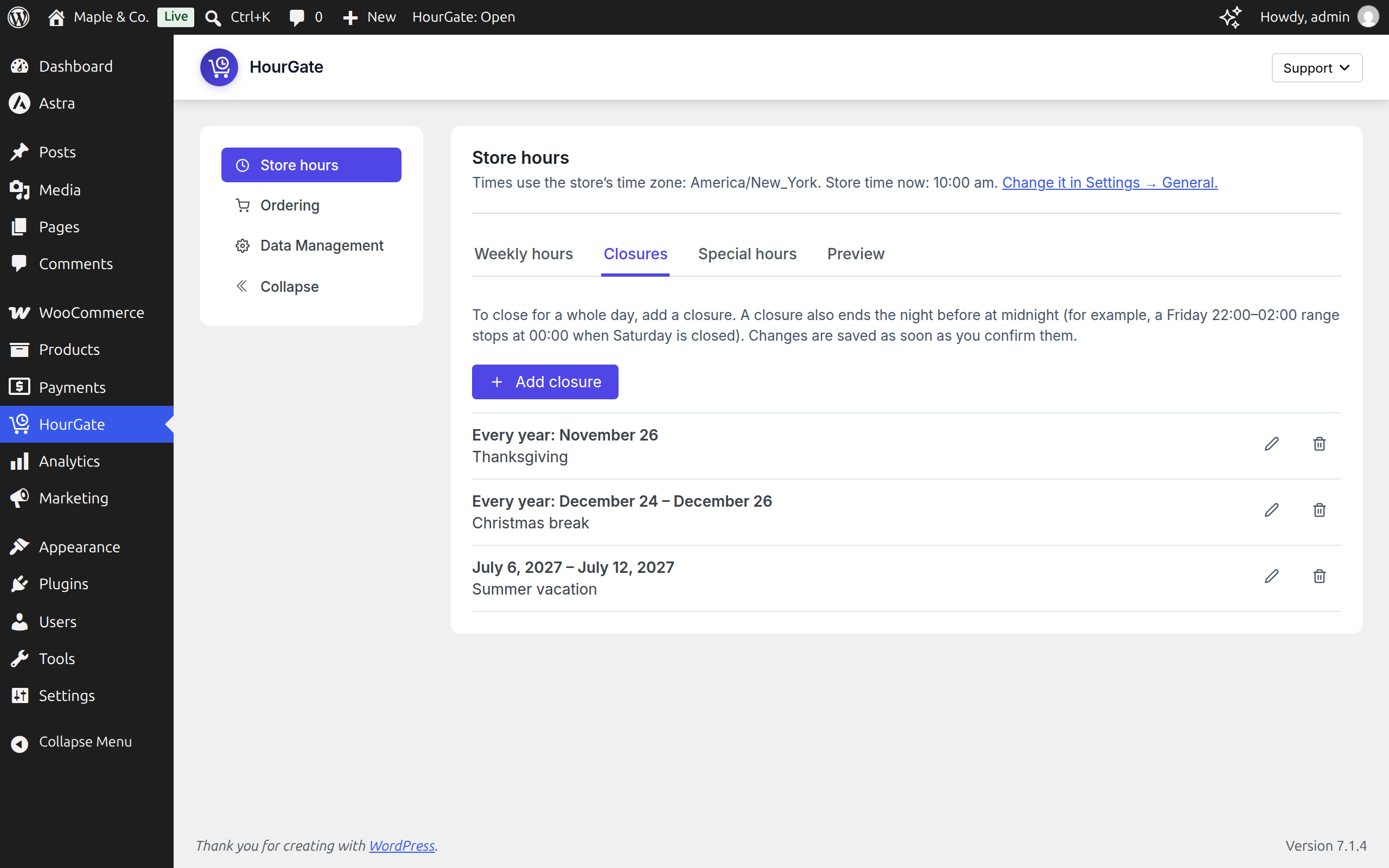
- Holiday closures: close your store for a date or a range of dates (vacation mode), with a label such as “Christmas” and an optional yearly repeat.
- Special hours: different hours on one date, such as a short day before a holiday.
- Preview: the next 14 days exactly as shoppers will see them, and whether you’re open now and why not.
- Time zone: uses the time zone from Settings General, and warns you when a fixed UTC offset means your hours won’t follow daylight saving changes.
Pause orders in one click
Pause ordering from the admin bar or the Ordering tab: for 30 minutes, 1 or 2 hours, the rest of today, until the next opening, until a date and time you choose, or until you resume. It ends on its own.
What happens while you’re closed
Pick one:
- Block checkout: shoppers can browse and fill their cart, but can’t place an order until you open.
- Accept orders for the next opening: orders still come in, marked with the time they’re scheduled for. The scheduled time shows on the order screen, in the order e-mails, on the thank-you page and in My Account.
- Catalogue mode: add-to-cart buttons show “Closed” and are disabled while you’re closed.
The rules are checked on the server, not only on the page. They hold on the Checkout block, the classic checkout, direct Store API requests, add-to-cart (AJAX, Store API and add-to-cart links), “Order again” and express payment buttons.
Orders your staff create are never blocked: orders made in the admin, through the WooCommerce REST API, by other plugins and by subscription renewals go through at any hour. A customer can always pay for an order they already placed.
Tell shoppers when you’re open
- A closed message with tokens:
{next_open}(when you open next) and{closures_label}(the holiday’s label). - A notice bar at the top of WooCommerce pages or every page, which shoppers can dismiss.
- Cart and checkout notices explaining why they can’t order now, or when their order is scheduled for.
- “Store status” and “Opening hours” blocks, and the shortcodes
[hourgate_status]and[hourgate_hours].
What shoppers see stays correct behind page caches, because the status is fetched after the page loads.
Safe to try
Enforcement is off when you first install the plugin. Set your hours, check the preview, then turn on “Enforce opening hours” on the Ordering tab when you’re ready.
Shop managers can use HourGate, not only administrators.
Other Plugins By Us
- Pastmark – Activity Log, User Activity & Audit Trail: Activity log & audit trail for WordPress. Track user activity, logins, content changes, WooCommerce orders and site settings in real time.
- BugTrace – Debug Log Tool: A minimalist debugging companion for WordPress. View and download your debug log, toggle
WP_DEBUG,WP_DEBUG_LOG,WP_DEBUG_DISPLAY, andSCRIPT_DEBUGwithout editingwp-config.php, and inspect server info,wp-config.php,.htaccess, and PHP info — all from your dashboard.
Contribute
HourGate is an open-source project. You can view the full sources (unminified JS) and contribute to the project on GitHub: Click here
External Services
This plugin does not connect to any external services. It sends no data off your site; the storefront status badge only calls your own site’s REST API (/wp-json/hourgate/v1/status).
Screenshots



Installation
- Make sure WooCommerce is installed and active.
- In Plugins Add New, search for “HourGate”, then install and activate it. Or upload the zip in Plugins Add New Upload Plugin.
- Open HourGate in the admin menu. On the Store hours tab, set your weekly hours, closures and special hours.
- Check the Preview under Store hours.
- On the Ordering tab, choose what happens while you’re closed, edit the closed message if you like, and turn on “Enforce opening hours”.
FAQ
-
Why does my store still take orders after I activated the plugin?
-
Enforcement is off after install, so you can set your hours first. Turn on “Enforce opening hours” on the Ordering tab. Pausing works even while enforcement is off.
-
Will it block orders my staff create?
-
No. HourGate only checks orders shoppers place on your site. Orders created in the admin, through the WooCommerce REST API (for example a POS or phone-order app), by other plugins, and subscription renewals are never blocked.
-
Can a customer pay for an order while the store is closed?
-
Yes. Paying an order that already exists (the “Pay for order” page) is allowed at any time. Developers can change this with the
hourgate_allow_order_pay_while_closedfilter. -
Does it work with the Checkout block and the classic checkout?
-
Yes, both, and with direct Store API requests. The rules are checked on the server when the order is placed.
-
Does it work with page caching?
-
Yes. Cart and checkout pages are never cached, and every order is checked on the server. On cached pages, the notice bar, status block and catalogue buttons ask the store for the current status after the page loads, from a REST route that is never cached. We tested with WP Super Cache, W3 Total Cache, WP Fastest Cache and LiteSpeed Cache.
-
No. The buttons stay visible, but the store refuses the order when it reaches checkout, with your closed message, and no order is created. We checked the requests the express buttons of WooCommerce Stripe Gateway and WooPayments send, on a test store. A live wallet payment hasn’t been tested yet, so please verify it on your own store.
-
Which time zone does it use?
-
The one in Settings General. Choose a city (for example “Europe/London”) rather than a fixed UTC offset: with an offset, your hours stay on the same UTC time all year and won’t follow daylight saving changes. HourGate shows a warning when your site uses an offset.
-
Can shop managers use it?
-
Yes. Anyone who can manage WooCommerce can change the hours, the ordering settings and pause ordering. Only administrators can turn on “Remove Data on Uninstall”. Developers can change the capability with the
hourgate_manage_capabilityfilter. -
What happens to my settings when I uninstall?
-
They are kept, unless an administrator turned on “Remove Data on Uninstall” on HourGate’s General Settings tab. On a multisite network, each site keeps or removes its own data according to its own setting.
-
Do I need HourGate Pro?
-
No. HourGate works fully on its own. Pro is an optional add-on for delivery and pickup slots.
Reviews
There are no reviews for this plugin.
Contributors & Developers
“HourGate – Store Hours for WooCommerce” is open source software. The following people have contributed to this plugin.
Contributors
Translate “HourGate – Store Hours for WooCommerce” into your language.
Interested in development?
Browse the code, check out the SVN repository, or subscribe to the development log by RSS.
Changelog
1.0.0 (05 November 2026)
- First release.