

Description
Google Preferred Sources for WordPress — without the code
SourceSignal makes it easy to add Preferred Sources buttons and prompts to your WordPress site — without editing code or hiring a developer.
Install the plugin, choose what you want the button to look like and where you want it to appear, and turn it on.
That’s it.
Built by a publisher, for publishers
I run a small independent publishing company. We don’t have an in-house development team.
When Google launched Preferred Sources, I wanted it on our sites. The basic Google code looked simple enough. Making it work the way I wanted across WordPress, different placements, mobile devices, caching and our existing site setup was another story.
So I built SourceSignal.
The goal was simple: make Google Preferred Sources something a publisher can set up in a few minutes instead of another project to send to a developer.
We use it on our own publishing sites, and we’ve tested it on real WordPress sites and browsers.
What you can do with SourceSignal
- Add Google Preferred Sources without touching code. No snippets, no theme files, no CSS.
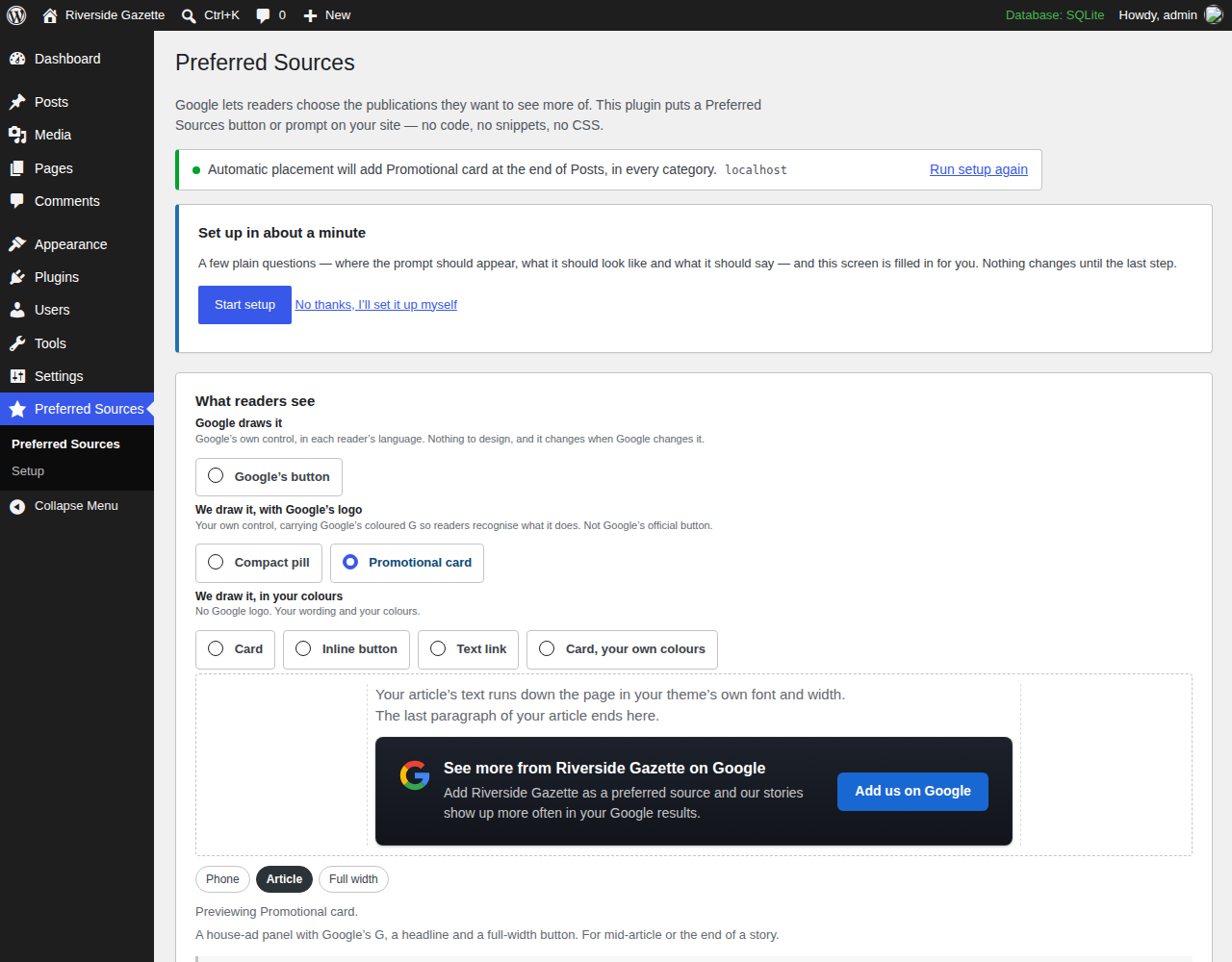
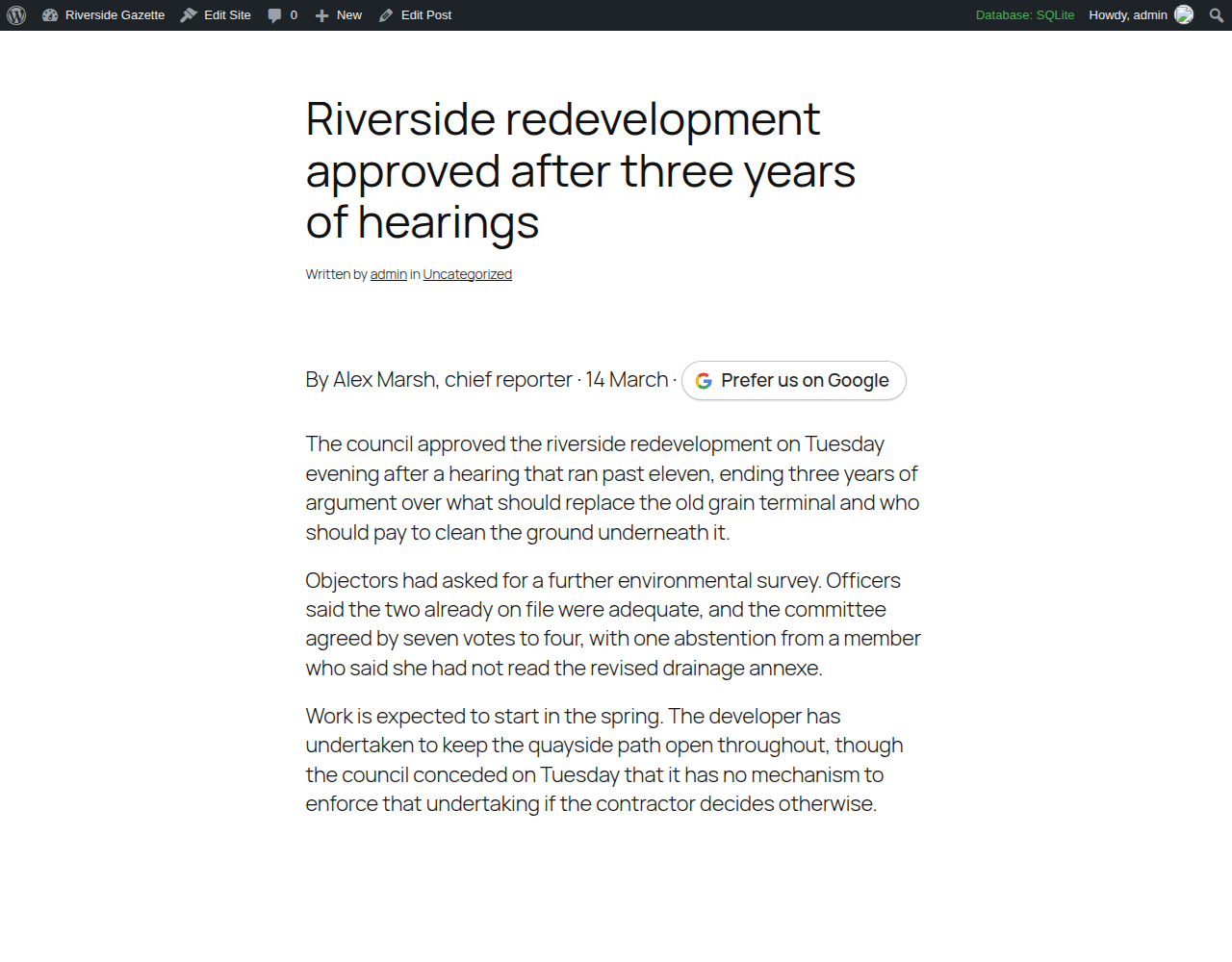
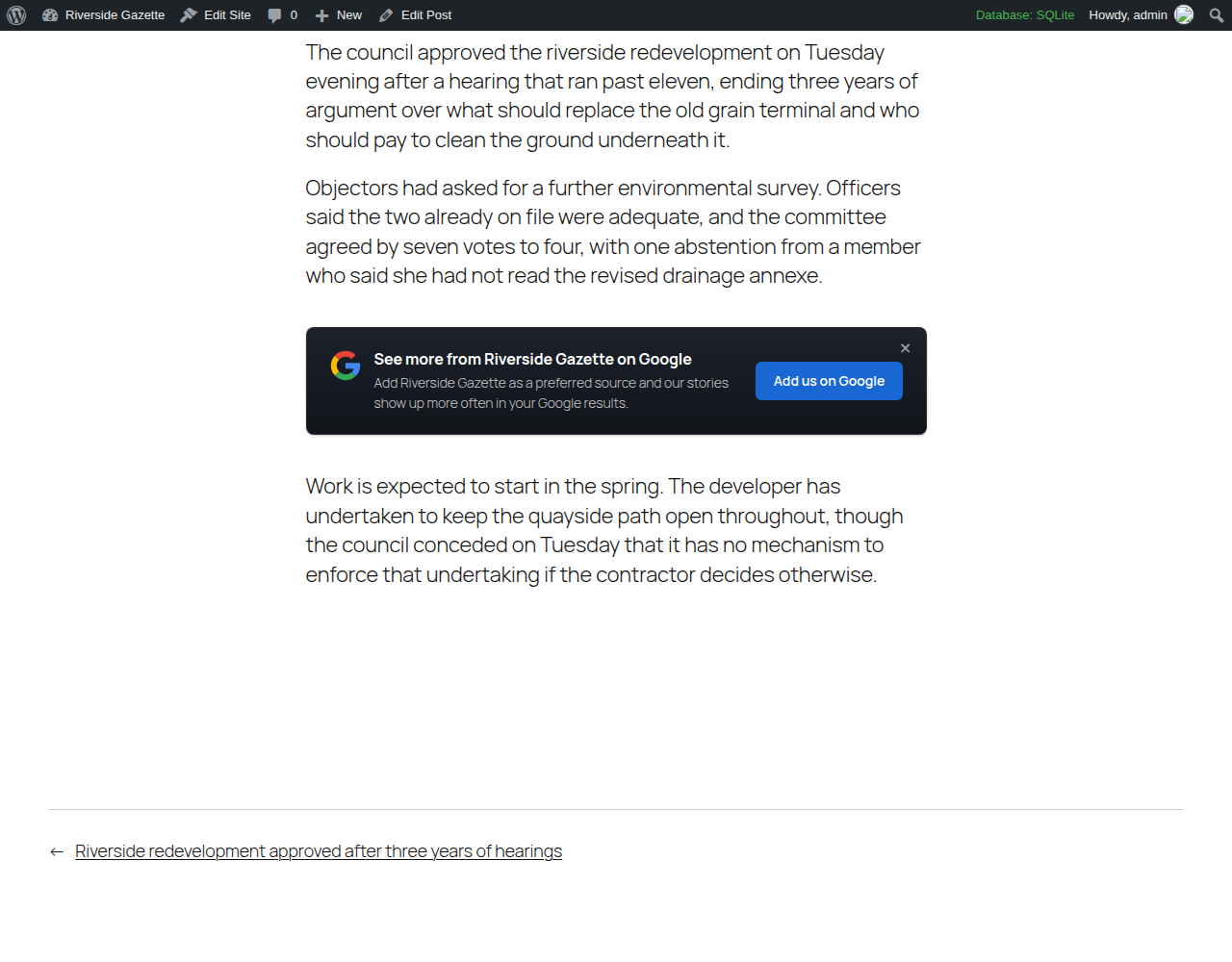
- Choose how it looks. Google’s official button; a compact pill or a promotional card drawn by the plugin and carrying Google’s G; a plain card, an inline button, a text link or a card in your own colours; or a button you already have.
- Choose where it appears. Automatically before or after articles, or place the Preferred Sources button block or the
[preferred_source]shortcode yourself. - Control where it shows. Limit automatic placement to the post types and categories you choose.
- Preview everything before turning it on. The wizard and the settings screen draw the real prompt at phone, article or full width. Nothing changes for readers until you press Turn it on.
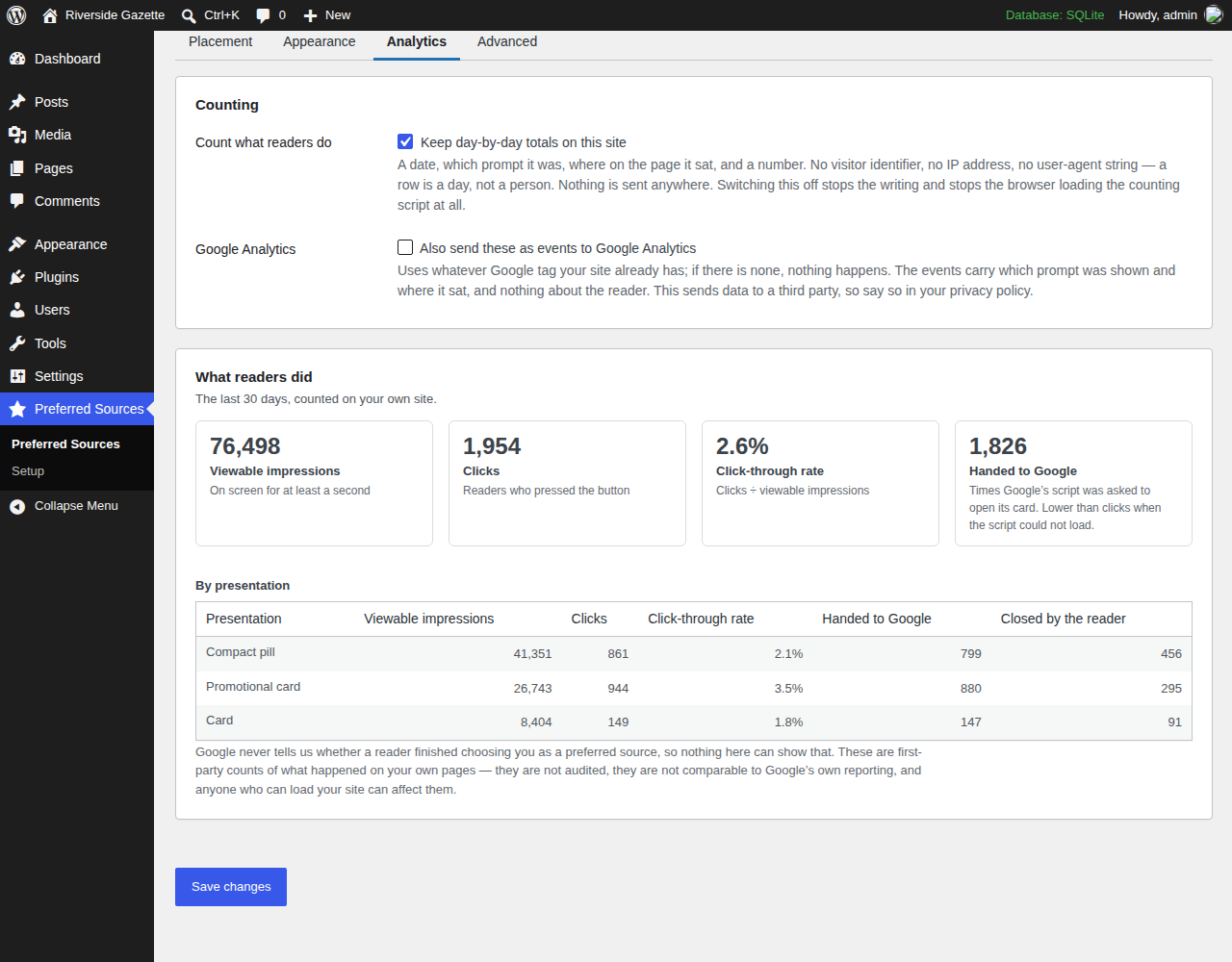
- See what readers do. Day-by-day counts of how often each prompt was on screen, pressed, and opened Google’s flow — kept on your own site, with nothing about any reader in them. Optionally send the same counts to the Google Analytics tag your site already runs.
- Don’t nag your readers. Choose how long to hide it after someone uses or closes it.
- Works with page caching and CDNs. Every visitor gets the same HTML; the reader’s browser decides whether to show it.
- Still works if Google’s script doesn’t load. Readers get a link to Google’s Source Preferences page instead.
A note about Google
SourceSignal helps you promote Google’s Preferred Sources feature. Google controls the feature and the final selection happens on Google’s side.
Google does not provide publishers with confirmation that an individual reader completed the selection, so SourceSignal does not report clicks as confirmed Preferred Source adds. The counts on the Analytics tab are of what happened on your own pages — on screen, pressed, Google’s flow opened — and nothing more.
SourceSignal is an independent publisher tool and is not affiliated with or endorsed by Google. The compact pill and the promotional card carry Google’s G so readers recognise what the button does; they are drawn by the plugin and are not Google’s official button.
Want to promote Preferred Sources beyond your website?
We’re also building SourceSignal Pro for publishers who want to promote Preferred Sources through newsletters, social media and print.
Pro adds publisher-controlled campaign links, printable QR codes, campaign management and reporting for the parts of the funnel we can actually measure — including views, clicks and Google-flow launches.
Pro is coming soon.
External services
To open Google’s Preferred Sources screen, this plugin loads Google’s publisher library from https://news.google.com/swg/js/v1/publisher.js.
When it loads: on pages that carry a Preferred Sources button or prompt — or, if you switch on “Let buttons added outside the block editor open the card too”, on every page of your site. That setting is off unless you turn it on, and the settings screen tells you which state your site is in.
What Google receives: loading that file is a request to Google, so Google receives what any web request carries — the reader’s IP address, their browser, and the address of the page they are on. If you use Google’s own rendered button, Google also draws it inside a frame served from Google, and that frame receives the address of the article the reader is on. Google’s library also records, on Google’s side, that it was loaded and that its button was shown or pressed, against the address of the page; this plugin does not see those records and cannot switch them off.
The fallback: when Google’s library cannot load, or JavaScript is switched off, the prompt becomes a plain link to Google’s Source Preferences page, https://www.google.com/preferences/source?q=yourdomain.com. It is written into the page but only requested if a reader follows it.
Google’s handling of any of this is governed by Google’s own terms and privacy policy, not by this plugin:
- Terms: https://policies.google.com/terms
- Privacy: https://policies.google.com/privacy
Google Analytics (optional, off by default). If you tick “Also send these as events to Google Analytics” on the Analytics tab, the reader’s browser also sends one event per count — psfp_view, psfp_click, psfp_invoke, psfp_fallback, psfp_dismiss — through whatever Google tag your site already runs. Each event carries which prompt it was, where on the page it sat, its position, the content type and a schema number, and nothing about the reader. This plugin loads no analytics script of its own: if your site has no Google tag, nothing is sent. What Google does with those events is governed by Google’s privacy policy (https://policies.google.com/privacy).
Privacy
Nothing about any individual reader is stored on your server. There is no reader table, no event log, no visitor identifier, no IP address and no user-agent string, and nothing is ever sent to the plugin’s author.
Counting, which you can switch off. While counting is on, the plugin keeps day-by-day totals in one table on your own site: a date, which prompt it was, where on the page it sat, and how many times it was on screen, pressed, opened Google’s flow, fell back to the plain link, or was closed. A row is a day, not a person, and rows older than 400 days are deleted automatically. Your own visits as a logged-in editor are not counted. Switch counting off on the Analytics tab and the table is never written to and the counting script is never loaded.
In the reader’s own browser, when they press or close a Preferred Sources button or prompt, the plugin saves a date stamp — in local storage and in a first-party cookie of the same name:
psfp_used_at— the reader pressed it.psfp_closed_at— the reader closed it.
Each holds a date and nothing else: no name, no account, no identifier. The cookie is set with path=/ and SameSite=Lax, and expires by itself after the window you chose. Nothing is written merely because a reader was shown the prompt, and nothing at all is written if both windows are set to “Keep showing it”. Your server never reads either copy, which is what keeps page caching working — though the cookies travel with ordinary page requests the way every cookie does.
It is per browser, not per person: the same reader on a phone and a laptop counts twice, and clearing site data resets it.
WordPress’s Settings Privacy screen carries a suggested paragraph for your own privacy policy, generated from your site’s own settings, including the counting and Google Analytics paragraphs only when those are switched on. It is a starting point, not legal advice.
The plugin stores its own settings in psfp_settings and psfp_setup, a note of what the 1.1 upgrade changed in psfp_migration, a 60-second marker after activation, and — while counting is on — the table of day-by-day totals, psfp_analytics_daily, with a daily job that deletes rows older than 400 days. Uninstalling removes all of it — the options, the table and the job — from every site on a network, and leaves your posts alone.
Screenshots
Blocks
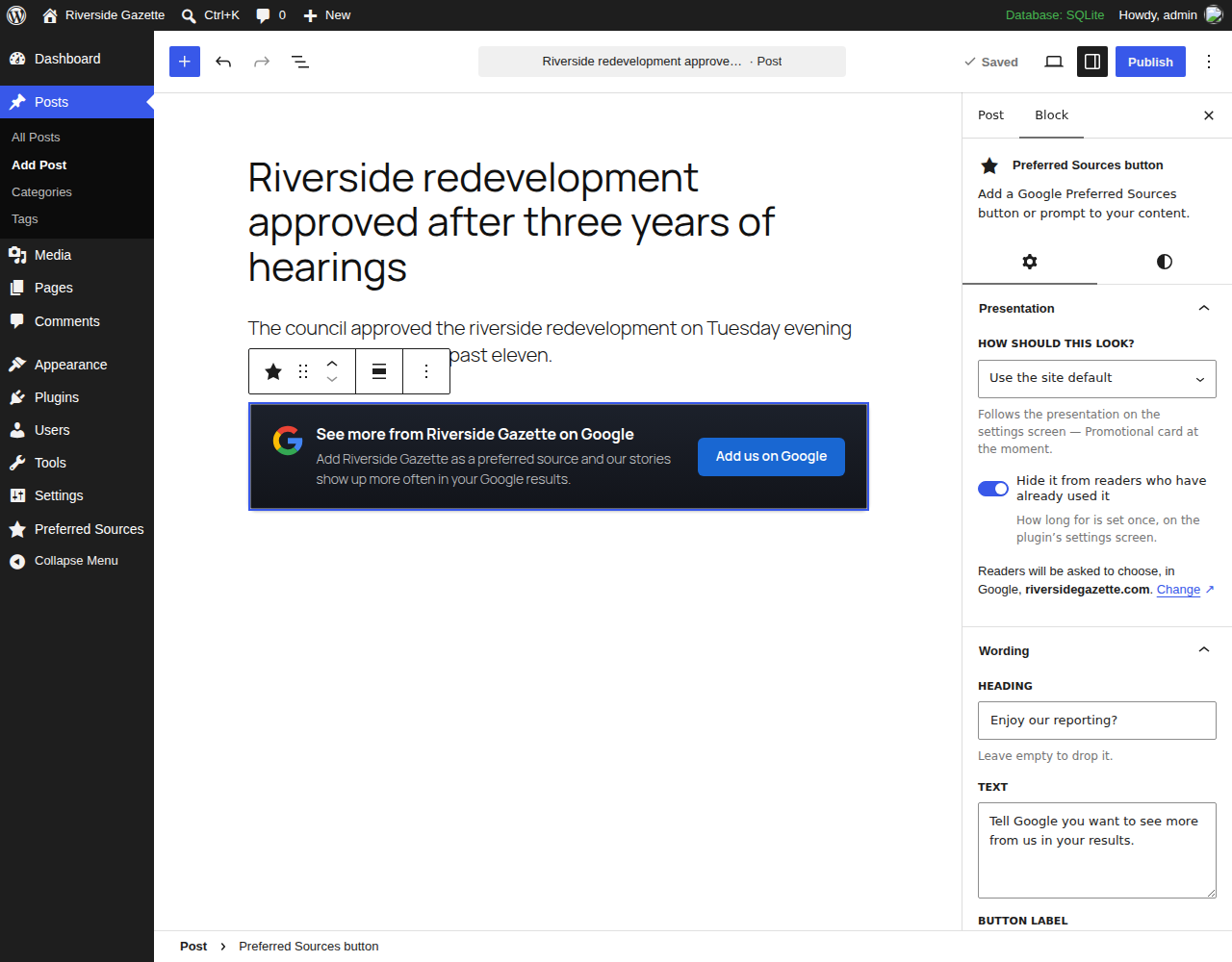
This plugin provides 1 block.
- Preferred Sources button Add a Google Preferred Sources button or prompt to your content.
Installation
- Install and activate the plugin. Nothing changes for readers yet.
- WordPress opens Set up Preferred Sources. (If it does not, open Preferred Sources Setup from the admin menu.)
- Answer the questions — where it should appear, on what content, how it should look, what it should say — watching the preview beside them.
- Press Turn it on on the last step.
- If your site uses a caching plugin or a CDN, clear its cache.
To place it by hand instead, add the Preferred Sources button block to any post or page. In the editor, search for “preferred sources”.
FAQ
-
How do I add Google Preferred Sources to WordPress?
-
Install this plugin, answer the setup questions, look at the preview, and press Turn it on. You can also drop the Preferred Sources button block into a post (search “preferred sources” in the editor), or use the
[preferred_source]shortcode. -
Do I need to add Google’s JavaScript manually?
-
No. The plugin loads Google’s publisher library on pages that need it, and leaves it off pages that do not.
-
Can I add Preferred Sources without a developer?
-
Yes. Install it, choose where it appears and how it looks, preview it, and turn it on. No PHP, no JavaScript, no templates.
-
Which presentation should I choose?
-
Google’s official button is drawn by Google, in each reader’s own language, and changes when Google changes it. The compact pill sits in a byline or next to a date; the promotional card is a house-ad panel for mid-article or the end of a story — both are drawn by the plugin and carry Google’s G. The plain card, inline button, text link and the card in your own colours carry no Google logo and follow your theme. Every one of them opens the same Google screen; the settings screen previews each before you save.
-
Does it work with caching and CDNs?
-
Yes. Every visitor gets the same HTML, and whether a particular reader sees the prompt is decided in their browser. Clear your cache after you change a setting.
-
Can I control which posts or categories show it?
-
Yes. Automatic placement can run before or after articles, on the post types you choose, and — for posts — only in, or except in, the categories you choose. You can also place a block or shortcode by hand and leave automatic placement off.
-
Yes. Tick “Open the preferred sources card” on a core Button block, or give a page-builder button the class
psfp-trigger. You can also choose “Card, your own colours” in the plugin’s block. -
Does it work with my theme or page builder?
-
It inherits your theme’s fonts and colors and sets nothing globally. For a page-builder button, use the class
psfp-trigger. Tested with Twenty Twenty-Five, Twenty Twenty-Four and Twenty Twenty-One, and exercised with Kadence. -
What happens if Google’s script doesn’t load?
-
Readers get a link to Google’s Source Preferences page instead, opened in a new tab. If JavaScript is off entirely, that link is what they see in the first place.
-
What does the Analytics tab count?
-
How often each prompt was on screen (half of it visible for a second — the same rule ad servers use), how often it was pressed, how often Google’s flow was opened, and how often it was closed, as day-by-day totals for the last thirty days. They are first-party counts of what happened on your own pages, not audited, and not comparable to Google’s own reporting. Google’s own button is drawn and handled by Google, so its presses cannot be counted here and its row shows only how often it was on screen.
-
Does SourceSignal know whether someone completed the final Google selection?
-
No. Google does not tell publishers that. SourceSignal can count that a prompt was on screen, pressed, or opened Google’s flow, and remember in the reader’s browser that it was pressed or closed. None of that is a confirmed add, and the plugin never reports one.
-
I upgraded from 1.0 and my articles look different.
-
They should not. 1.0 kept two presentation settings — one for automatic placement, one for the block and shortcode — and 1.1 has one. If your two 1.0 values were the same, nothing changed. If they differed, the upgrade kept the one your articles were already showing and the settings screen tells you once which one it kept, with the other one click away.
-
Not in the free plugin. It puts buttons and prompts on your WordPress site. SourceSignal Pro is being built for newsletters, social and print. It is coming, and it is not yet for sale.
Reviews
There are no reviews for this plugin.
Contributors & Developers
“Hooray SourceSignal for Google Preferred Sources” is open source software. The following people have contributed to this plugin.
Contributors

Translate “Hooray SourceSignal for Google Preferred Sources” into your language.
Interested in development?
Browse the code, check out the SVN repository, or subscribe to the development log by RSS.
Changelog
1.1.0
- Two presentations drawn by the plugin and carrying Google’s G: a compact pill that sits in a byline or a header, and a promotional card for mid-article or the end of a story. Google’s own button, the card, the inline button, the text link and the card in your own colours are unchanged.
- Counting, on by default and switchable off: how many times each prompt was on screen (half of it visible for a second, the same rule your ad server uses), pressed, and opened Google’s flow — kept as day-by-day totals in one table on your site, with nothing about any reader in it. The Analytics tab shows the last thirty days and says plainly what the numbers are not: Google does not report whether anyone completed the add, so there is no conversion rate and never will be. Google’s own button is handled by Google, so its row shows impressions only rather than an invented click rate.
- Optional forwarding of the same events to the Google Analytics tag your site already runs — off by default, switched on with a checkbox on the Analytics tab or the
psfp_ga4_enabledfilter. It sends which prompt, where it sat and its position, and nothing about the reader. - Every event is also announced to other plugins through
psfp_event, with a documented, versioned shape, so a publisher’s own logging can listen without this plugin knowing. - One presentation for the whole site. “Presentation” and “Which presentation” were two settings for the same thing — the preview followed one, articles followed the other. There is one now, chosen next to the preview; any block or shortcode can still be set differently, and the block’s presentation control gained “Use the site default”. A site whose two 1.0 values differed keeps what its articles showed and is told once, with the other value one click away. Developers who want automatic placement to differ have the
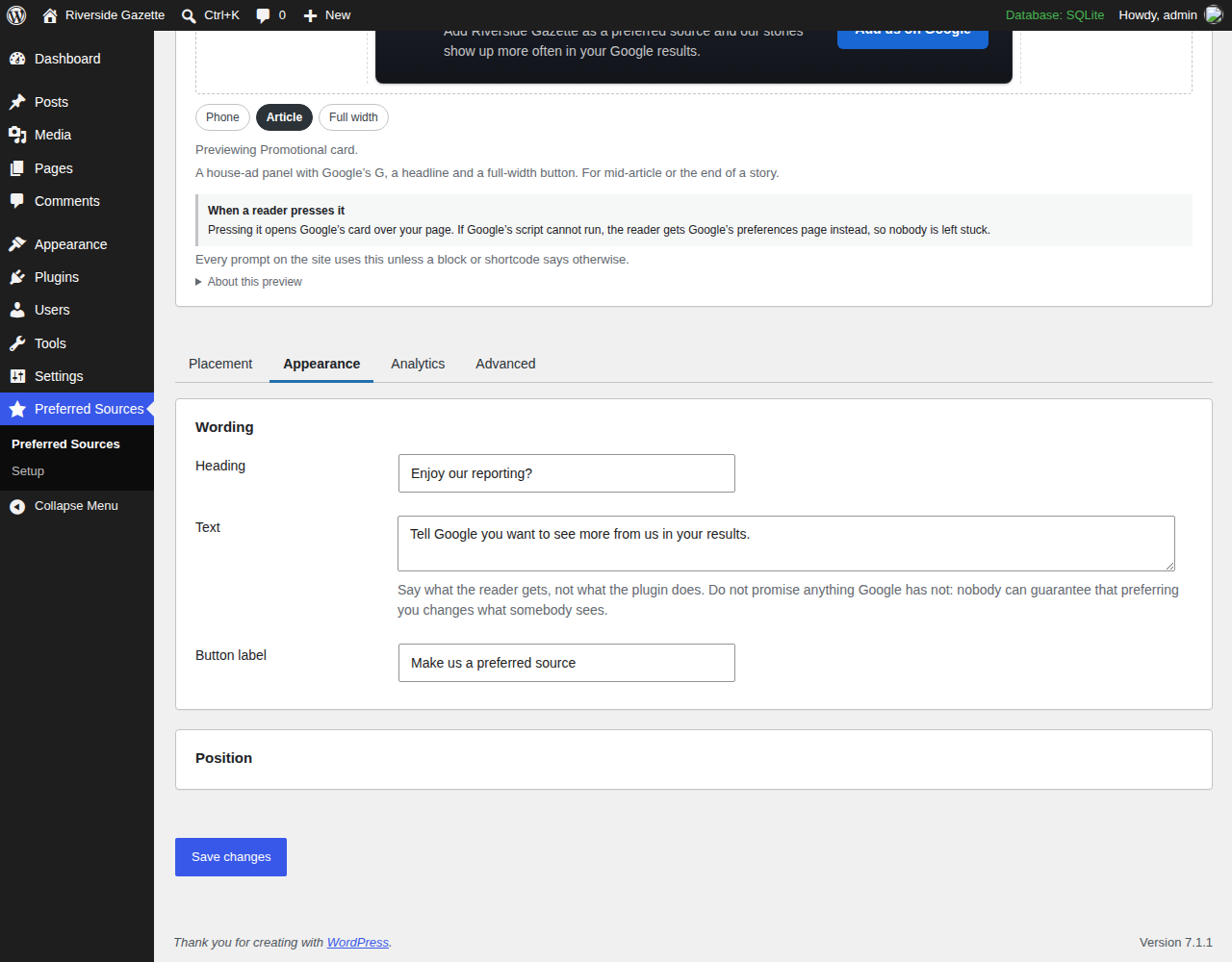
psfp_auto_stylefilter. - The settings screen is four tabs — Placement, Appearance, Analytics, Advanced — with the preview beside all of them. Controls that only apply to one presentation appear with it, and saving returns you to the tab you were on.
- The preview draws the prompt in a content column at a phone, an article or the full width, and, for Google’s button, puts a labelled stand-in at the button’s footprint. The stand-in is drawn by the plugin in its own words — no Google artwork, and still nothing loaded from Google inside wp-admin.
- Unticking “Draw a border around it” now changes the preview before you save.
- The block is now called “Preferred Sources button”, and the screens say button, prompt and card rather than “invitation”.
- The reporting table’s styling arrives through the enqueued admin stylesheet, and the plugin’s front-end bootstrap is printed through WordPress’s own inline-script printer so content-security-policy nonces apply to it.
1.0.0
- A setup wizard: eight plain questions, a live preview, and a last step that turns it on. Nothing changes on your site until that step, and an existing install is never redirected into it.
- The preview on the settings screen and in the wizard now follows every change instantly, including the presentation, rendered by the same code as the front end.
- Automatic placement can be limited to, or kept out of, particular categories.
- A suggested privacy-policy paragraph under Settings Privacy, written for the site’s own settings.
- Alignment now moves Google’s own button as well as the plugin’s presentations.
- Nothing is written to a reader’s browser when both “asking again” windows are set to “Keep showing it”.
- The settings screen says what was corrected when a colour, domain or language tag could not be used, reminds you about page caches after a save, and states plainly when Google’s library is being loaded on every page.
- Uninstalling now also removes the record of whether setup was run.
- A backslash typed into the heading, text or button label now survives saving; a suppression window set outside the dropdown’s choices (for example from WP-CLI) is no longer reset to “Keep showing it” on the next save.
0.2.0
- Google’s own button is left alone. The plugin no longer waits six seconds, guesses whether Google’s control rendered, and adds its own link beside it — a live beta showed that guess was wrong on a working button in every browser it was tried in, including one already reading “Added to Preferred Sources”.
- The link beside Google’s button is now shown only when Google’s library never loads at all, which is the one case where there is definitely no button to press.
- Asset version bumped so browsers and CDNs pick up the new script and stylesheet rather than a cached 0.1.0 copy.
0.1.0
- First release.
- Close button on the card and “your own design” presentations, so the “hide it after a reader closes it” setting has something to act on.
- Google’s own button falls back to a link if the library never fills its slot.
- Automatic placement stays out of excerpts and out of query loops inside an article.
- Automatic placement stands down on an article that already contains a block or shortcode — the one the publisher placed wins.