
Description
📚 The knowledge base plugin that shows you what readers need
Helpora turns WordPress into a knowledge base, documentation site, help center, or internal handbook. Readers find answers in seconds with instant search, and you see exactly which articles help and what people searched for but couldn’t find.
Set it up in two minutes, write in the block editor you already know, and keep everything on your own site.
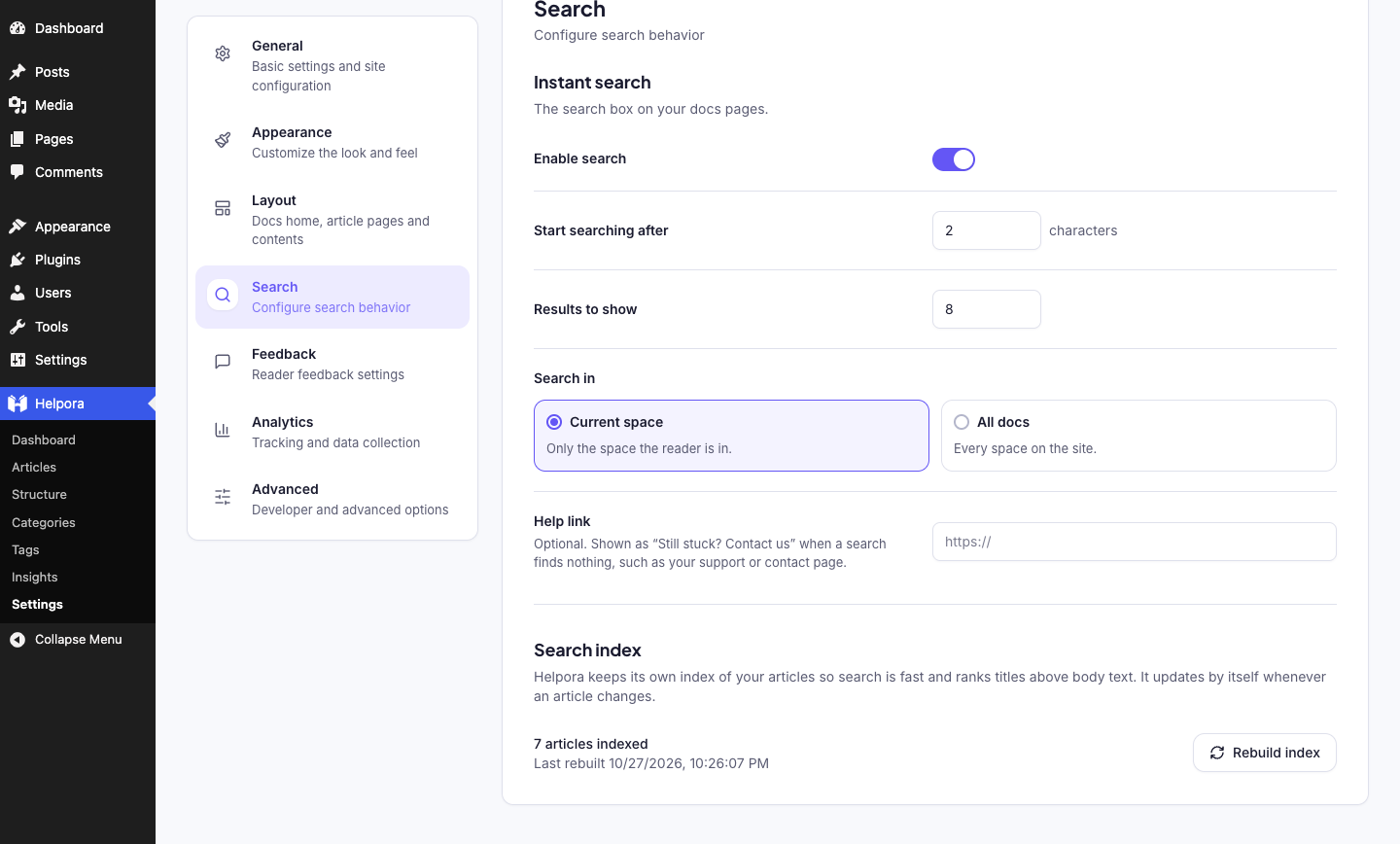
- 🔍 Instant search that ranks: results as readers type, typo suggestions, and partial-word matching.
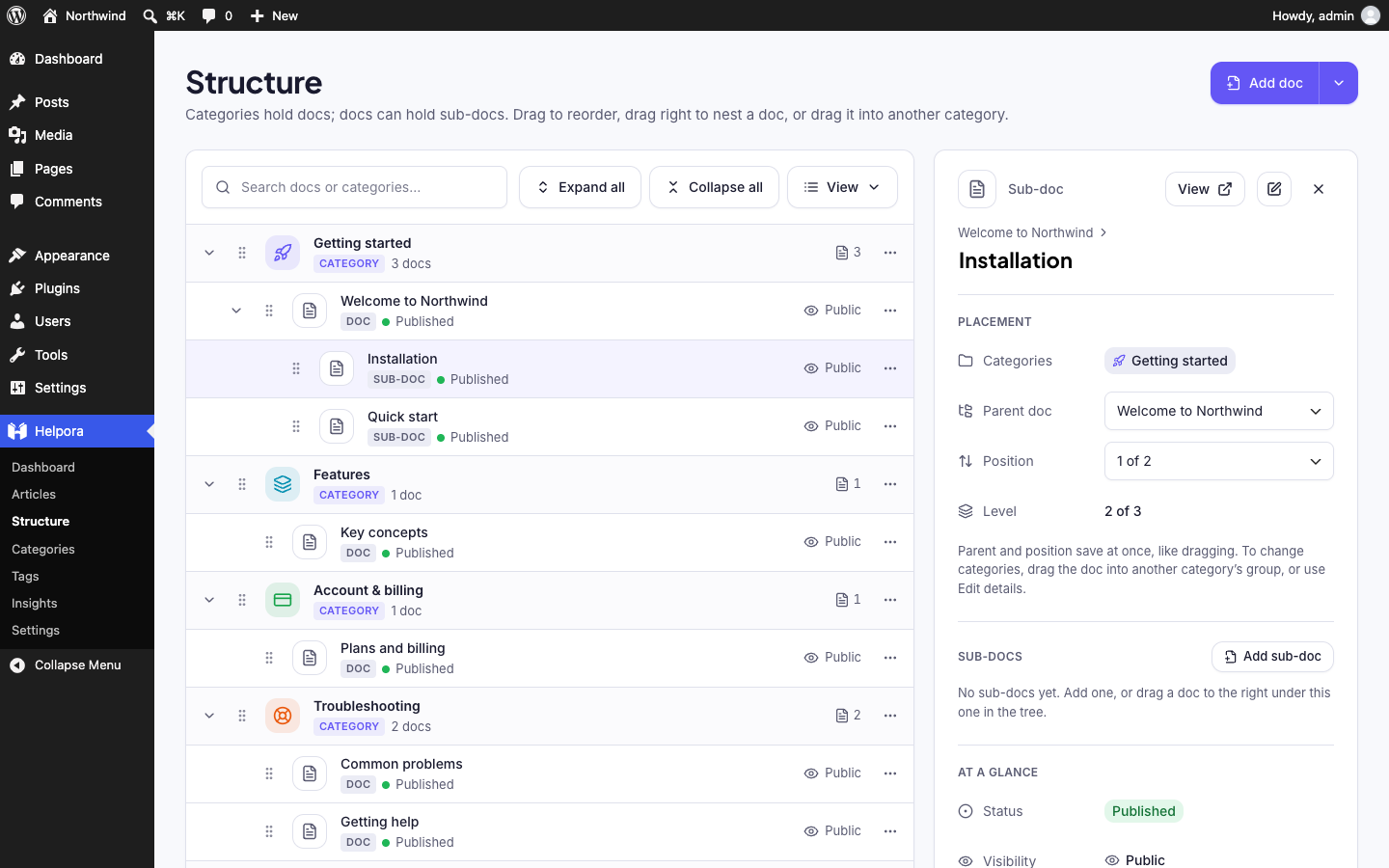
- 🗂️ Drag-and-drop structure: nest articles three levels deep and reorder everything from one screen.
- 📈 Insights that suggest actions: failed searches, helpful votes, and a one-click Create article for missing topics.
- 🧩 Multiple knowledge bases, free: one docs site for several products, teams, or audiences.
- ✍️ Blocks made for docs: callouts, steps, code snippets, tabs, FAQs, and lightbox screenshots.
- 🔒 Private and role-based articles: public, logged-in only, or chosen roles.
- 🎨 Fits any theme: block and classic themes, light and dark mode, your brand colour.
👥 Who is Helpora for?
- Product and plugin makers: user guides, getting-started docs, and release notes.
- SaaS and support teams: a self-service help center that answers repeat questions before they reach your inbox.
- Companies and agencies: an internal wiki or team handbook, visible only to logged-in staff or chosen roles.
- Stores and services: an FAQ and help pages for shipping, returns, and accounts.
🔍 Search that ranks
- A dedicated search index that weights titles over headings over body text.
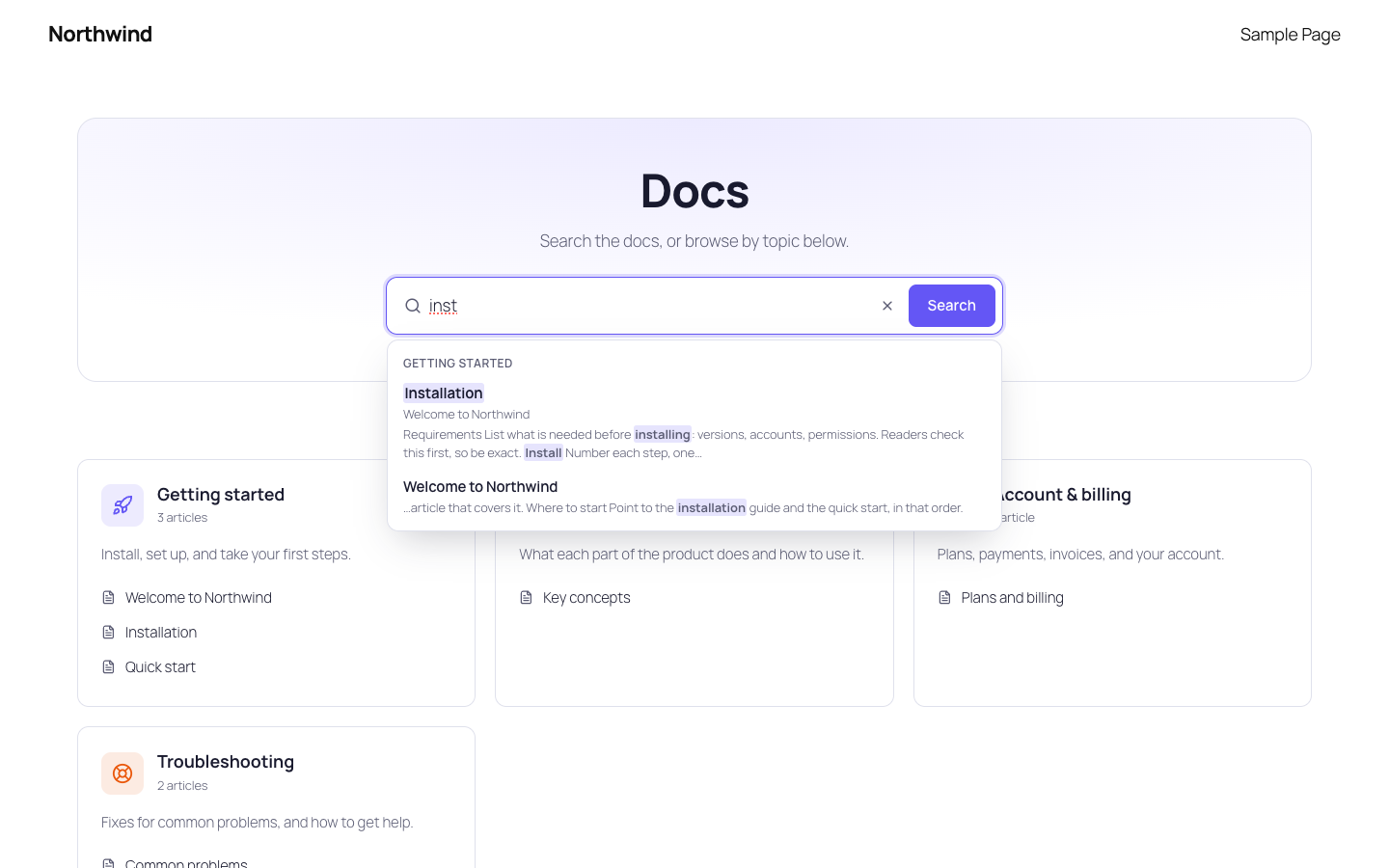
- Instant results as readers type, grouped by category, with matched words highlighted.
- Finds partial words (“inst” finds “Installation”) and suggests fixes for typos.
- Works without JavaScript, and never shows restricted articles to the wrong reader.
📈 Insights that suggest actions
- Views, searches, and “Was this helpful?” votes, stored on your own site.
- Failed searches shows what readers looked for and didn’t find, with a one-click Create article.
- Searches that found results nobody opened, a sign a title doesn’t use readers’ words.
- Export any report to CSV.
- No IP addresses, accounts, or browser details are stored.
🗂️ Structure you can drag
- Articles nest three levels deep and reorder from one tree screen, by mouse or keyboard.
- Categories and tags, with icons and colours, for the docs home.
- Spaces: separate knowledge bases on one site, each with its own docs home, categories, and search.
- Quick edit for title, slug, status, categories, visibility, and attachments without opening the editor.
🌐 Docs pages that fit your theme, and search engines
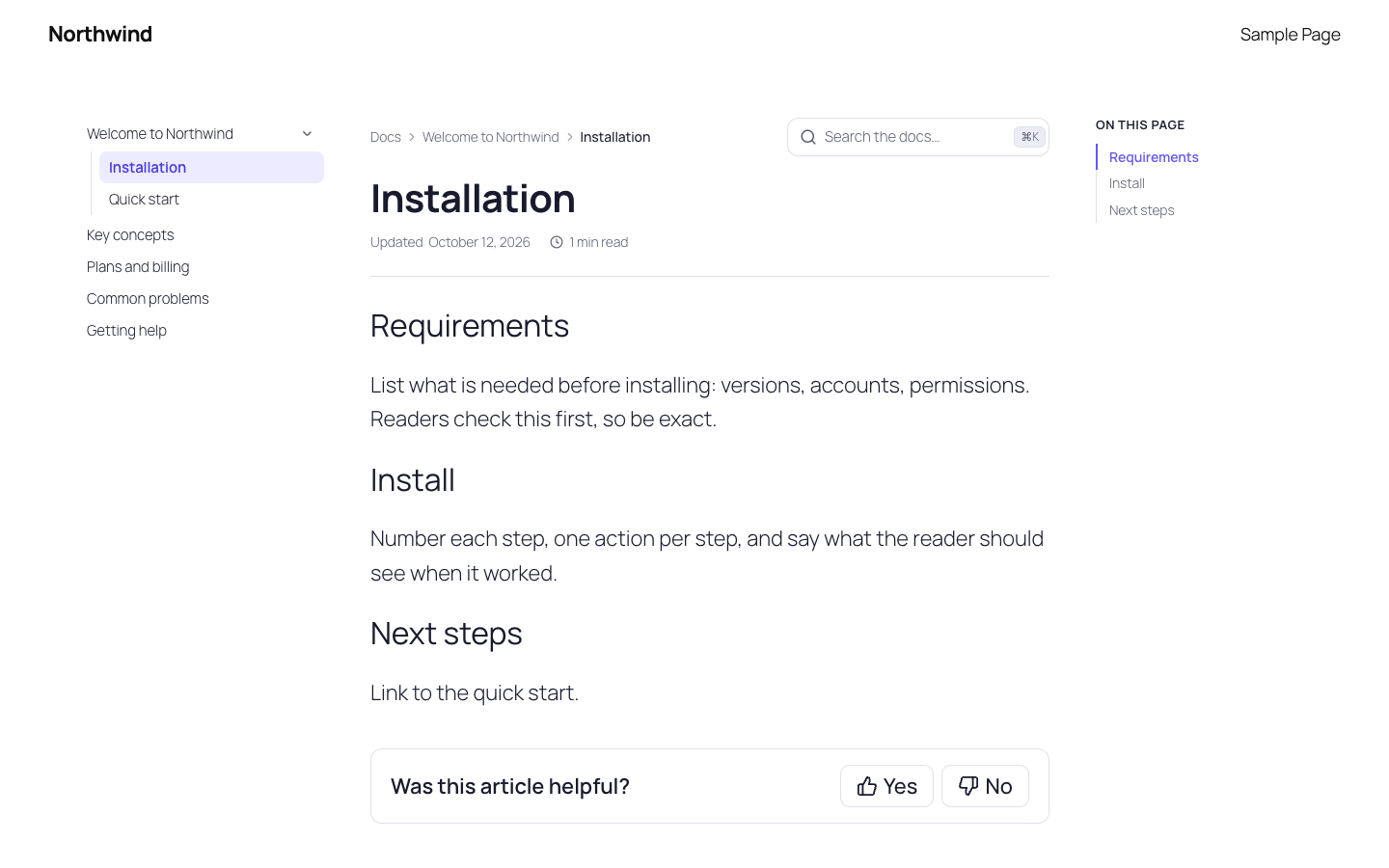
- A docs home (cards, list, or full tree) you edit like any page, plus category pages and article pages with a docs tree, breadcrumbs, table of contents, and previous/next links.
- Works with block themes and classic themes, and every template can be overridden from your theme.
- Light, dark, or automatic colour mode, with your brand colour.
- Clean URLs, and structured data search engines understand:
TechArticle,BreadcrumbList, andFAQPage. - Accessible: keyboard navigation, screen-reader labels, and contrast checked in both modes.
✍️ Blocks for writing docs
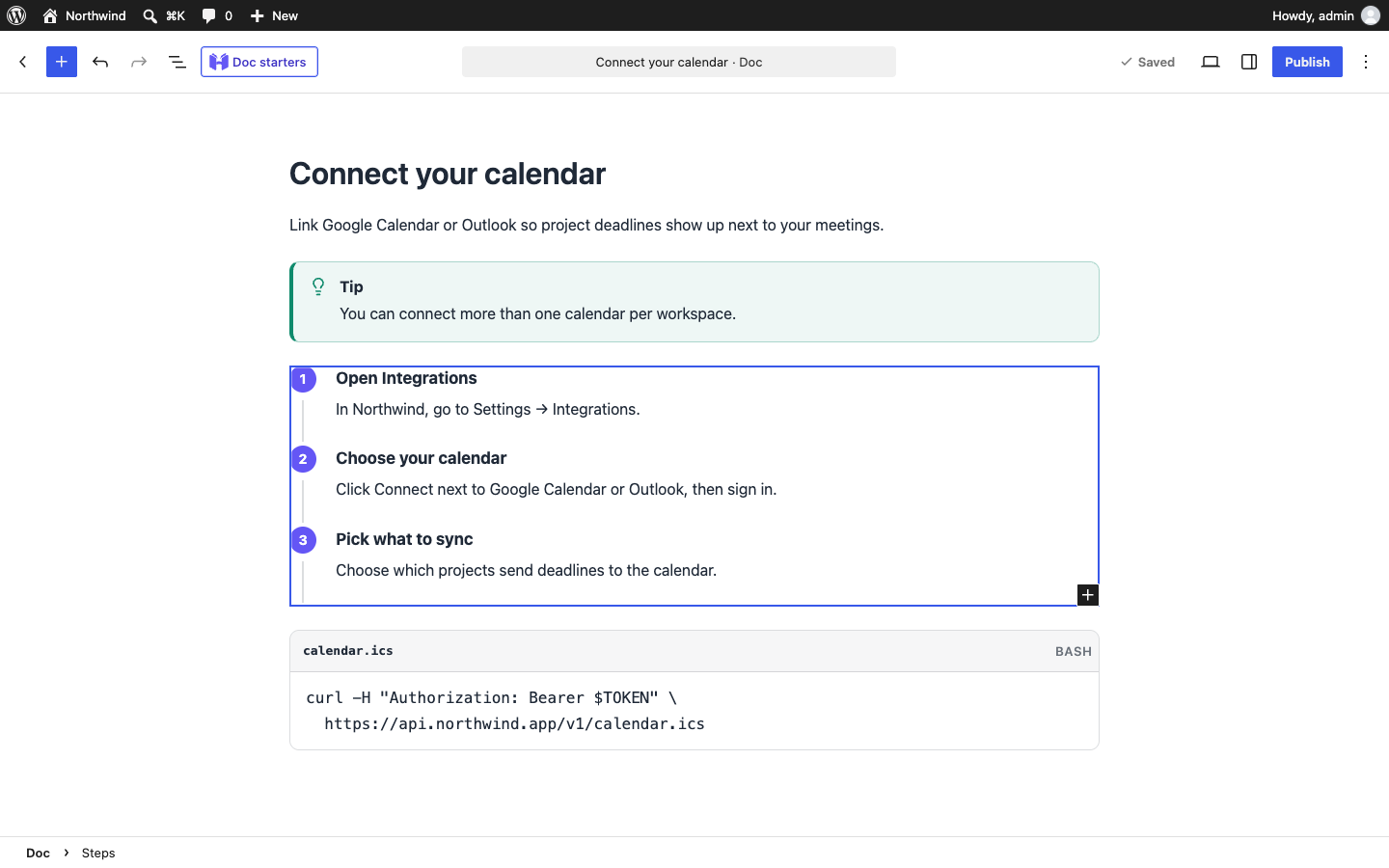
- Callout: Note, Tip, Important, Warning, and Danger boxes.
- Steps: numbered steps that renumber themselves.
- Code Snippet: a filename, language label, optional line numbers, and one-click copy (each can be turned off).
- Tabs: per-OS or per-plan instructions; readers’ choices carry across pages.
- FAQ: questions that open on click, marked up for search engines.
- Lightbox Image: a screenshot readers can click to see full size, with an optional frame and caption.
- Docs Gallery: several screenshots in a tidy 1–4 column grid; readers open any one full size and page through the rest.
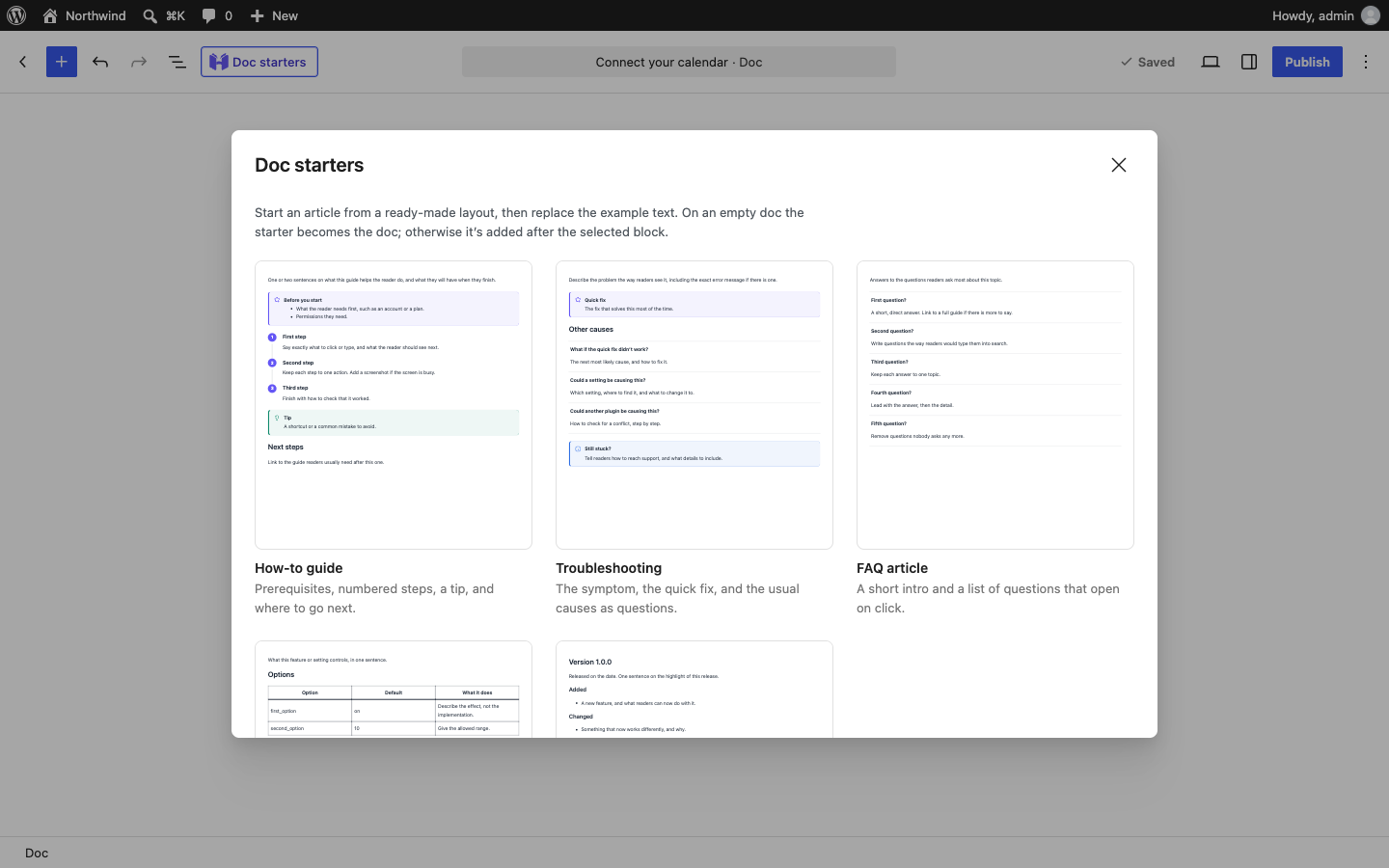
Plus five article starters (How-to, Troubleshooting, FAQ, Reference, Release notes), one click away from the Doc starters button at the top of the editor. Everything is saved as plain HTML, so your content stays readable even without Helpora.
🧱 Blocks and shortcodes for any page
Five blocks for building pages around your docs, with live previews: Docs Search, Docs Categories, Docs Articles, Docs Breadcrumbs, and Table of Contents. Each has a matching shortcode: [helpora_search], [helpora_categories], [helpora_articles], [helpora_breadcrumbs], [helpora_toc].
🔒 Who can read what
Each article can be public, for logged-in users only, or for chosen roles. Restricted articles are hidden everywhere: listings, search, feeds, the REST API, and sitemaps.
🛠️ For developers
Template overrides from your theme, actions and filters for search, analytics, access, structured data, and templates, and WP-CLI commands (wp helpora reindex, wp helpora search).
Screenshots

Blocks
This plugin provides 16 blocks.
- Tabs Versions of the same content, one tab each — for example per operating system.
- Steps A numbered, step-by-step procedure.
- Docs Articles A list of documentation articles: recent, popular, from a category, or hand-picked.
- Lightbox Image A screenshot or image that readers can open full size.
- Docs Breadcrumbs The trail from the docs home to the current article.
- Table of Contents Links to the headings on this page.
- Docs Categories Your documentation categories as cards or sections.
- Code Snippet Code with a filename, language label, optional line numbers, and a copy button.
- FAQ Questions and answers that open on click. Marked up as an FAQ for search engines.
- Docs Search A search box for your documentation, with instant results.
- Docs Gallery Several screenshots or images in a tidy grid; readers can open each one full size and page through them.
- Docs Home The docs landing page: a search hero, your spaces or categories, and popular and recent articles.
- Callout A highlighted note, tip, or warning.
- Question One question and its answer.
- Tab One tab's content.
- Step One step of a procedure.
Installation
- Install Helpora from Plugins Add New, or upload the zip.
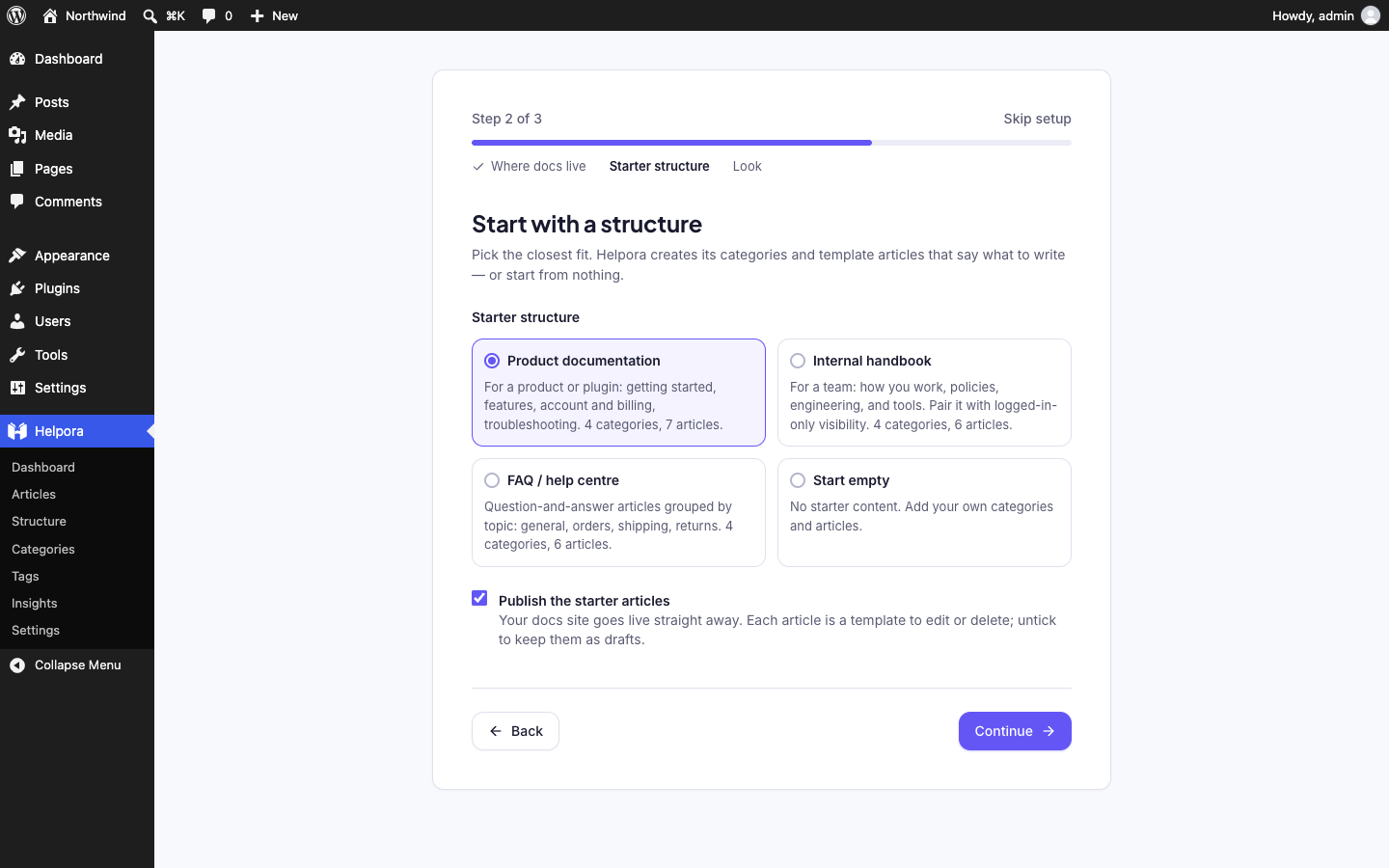
- Activate it. A notice offers a two-minute setup in three steps: where your docs live, a starter structure (product docs, internal handbook, or FAQ), and your colours.
- Your docs are at
/docs/. Arrange them under Helpora Structure.
From the command line: wp helpora reindex rebuilds the search index, and wp helpora search "query" tests ranking.
FAQ
-
Can I have more than one knowledge base?
-
Yes, for free. Turn on Use spaces under Helpora Settings General, and each product or team gets its own docs home, categories, and search.
-
Can I make a private or internal knowledge base?
-
Yes. Make any article visible to logged-in users only, or to chosen roles, for an internal wiki or staff handbook. Restricted articles are hidden from search, listings, feeds, the REST API, and sitemaps.
-
Is Helpora good for SEO?
-
Articles get clean URLs, breadcrumbs, and structured data (
TechArticle,BreadcrumbList, andFAQPagefor question-style articles), and public articles appear in your site’s sitemap. -
Does it work with my theme?
-
Yes, with block themes and classic themes. Helpora uses your theme’s header, footer, and fonts. To change a template, copy it from the plugin’s
templates/folder into ahelpora/folder in your theme. -
Do I need to configure search?
-
No. Articles are indexed as you save them. If your database doesn’t support full-text indexes, Helpora uses a slower matching method automatically.
-
Is analytics data sent anywhere?
-
No. Everything is stored in your own database. Raw events are deleted after the retention period (90 days by default). Daily totals are kept.
-
What happens to my articles if I deactivate the plugin?
-
Nothing. Content, settings, and data stay. Deleting the plugin also keeps everything, unless you first turn on Settings Advanced Delete data on uninstall.
-
Can I translate it?
-
Yes. All text is translatable; a template is in
languages/helpora.pot. -
Where is the source code for the JavaScript?
-
In the plugin’s
src/folder. The files inbuild/are compiled from it with@wordpress/scripts: runnpm install, thennpm run build. The open-source libraries included in the build, and their licences, are listed inthird-party-licenses.txt.
Reviews
There are no reviews for this plugin.
Contributors & Developers
“Helpora – Knowledge Base, Docs & Documentation” is open source software. The following people have contributed to this plugin.
Contributors
Translate “Helpora – Knowledge Base, Docs & Documentation” into your language.
Interested in development?
Browse the code, check out the SVN repository, or subscribe to the development log by RSS.
Changelog
1.0.0
- First release: articles with nesting and visibility; the Structure, Articles, Categories, Tags, Insights, and Settings screens; docs templates for block and classic themes; instant search with its own index; analytics with failed-search reports; helpfulness votes; a setup wizard.
- Blocks: five for building docs pages (with matching shortcodes) and seven for writing them: Callout, Steps, Code Snippet, Tabs, FAQ, Lightbox Image, and Docs Gallery, plus five article starters.