

Description
Most themes, page builders and plugins load their fonts from Google. Every visitor’s browser then connects to Google’s servers, which shares the visitor’s IP address with Google and adds extra connections before your text appears.
Fontstay finds those fonts, downloads them to your site once, and serves them from there. Your pages look the same; the fonts simply come from your own domain.
How it works
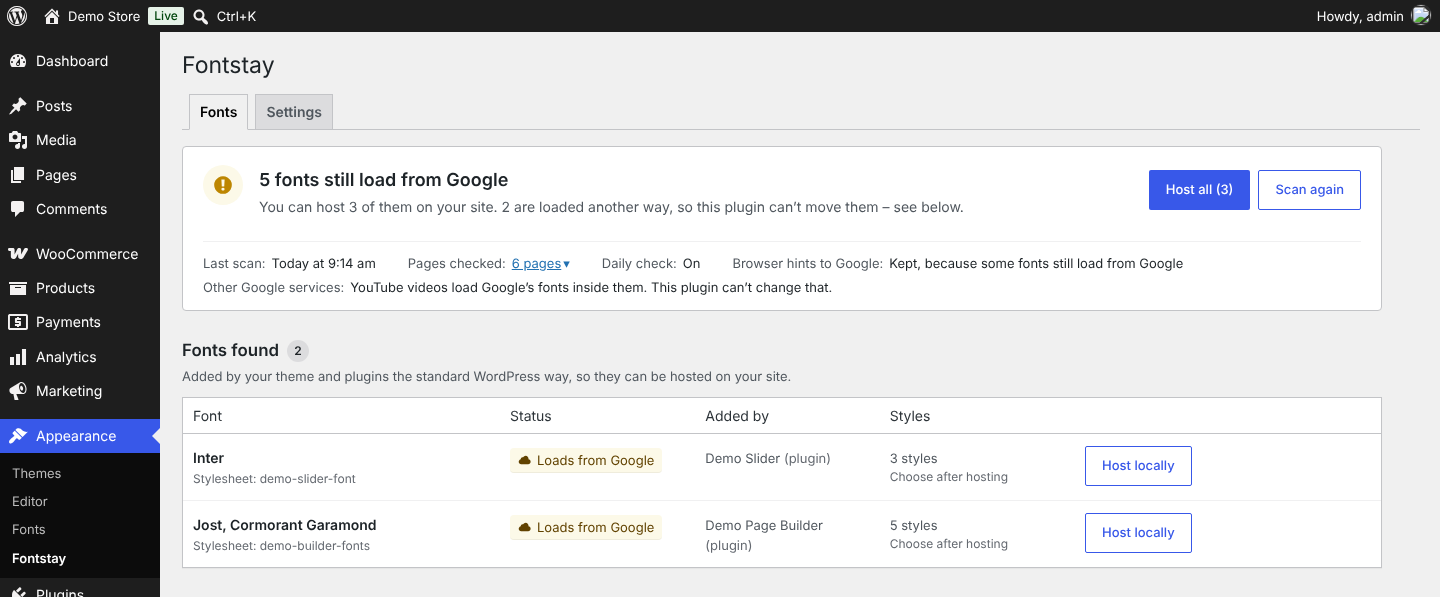
- Scan. Your site opens a few of its own pages – home page, latest post, a category, the first page of your menu and, with WooCommerce, the shop and a product – and lists every Google Fonts stylesheet they load, and which theme or plugin adds it.
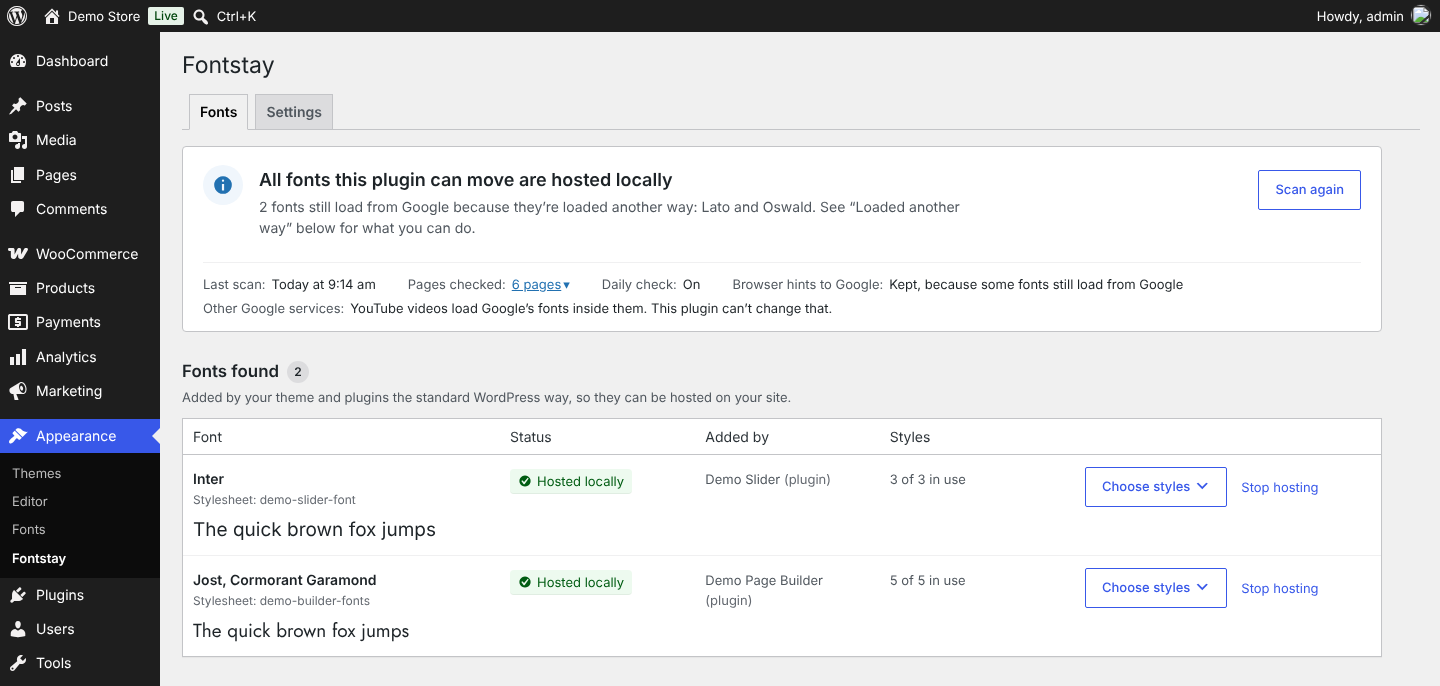
- Host locally. One click per font, or “Host all”. Your server downloads the font files once and keeps them in your uploads folder.
- Done. Visitors’ browsers load these fonts from your site, not from Google.
Features
- Finds Google Fonts added by your theme, plugins and page builders the standard WordPress way.
- Shows which theme or plugin adds each font, and a preview of every style.
- Hosts fonts with one click; “Stop hosting” switches a font back to Google (its files are removed a week later, so cached pages keep working).
- Hosted fonts are also used on pages the scan didn’t open, with nothing downloaded again.
- On slow servers, “Host all” continues by itself in short parts.
- Clears the page cache of popular caching plugins and tells you which one.
- Warns you if a security rule, server setting or CDN blocks the hosted files.
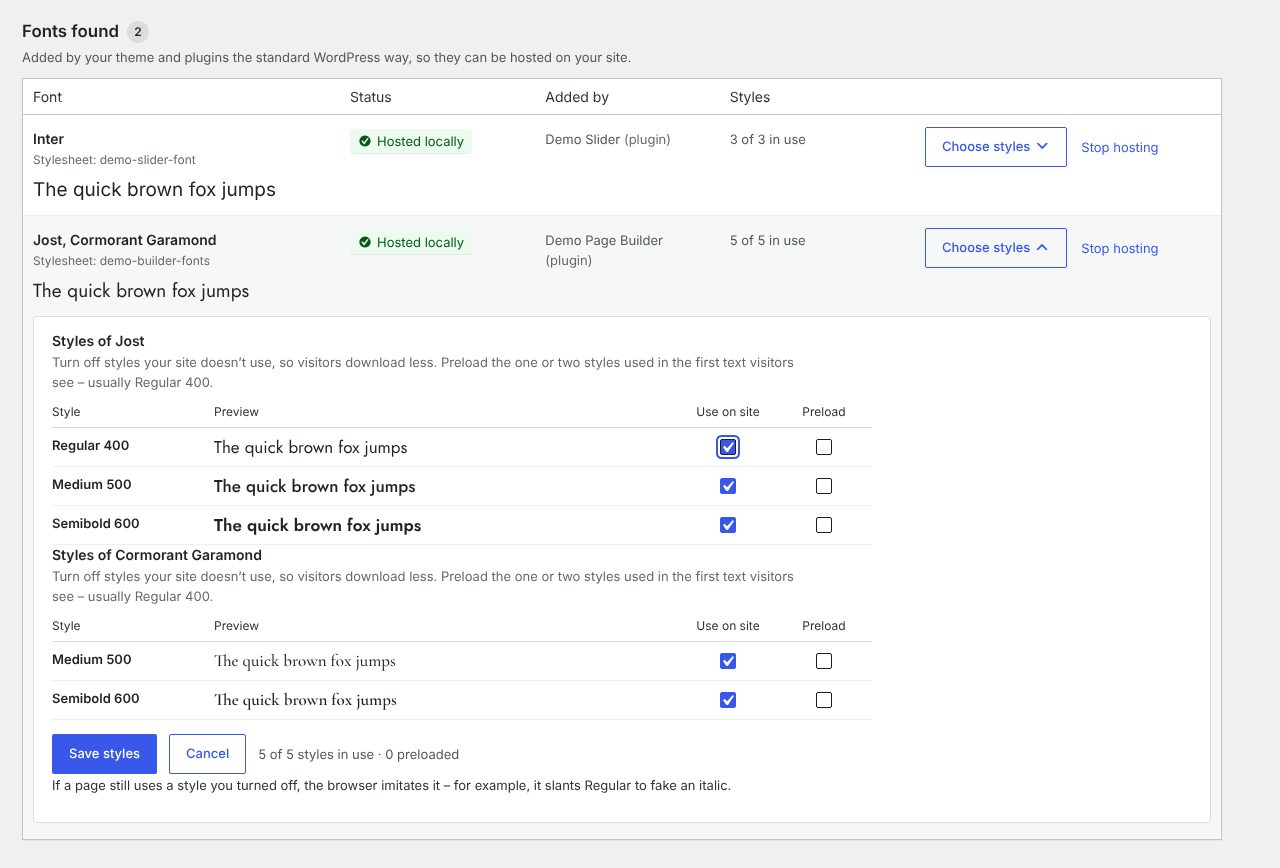
- Choose styles: turn off weights and styles you don’t use, so visitors download less.
- Preload the one or two styles visitors see first.
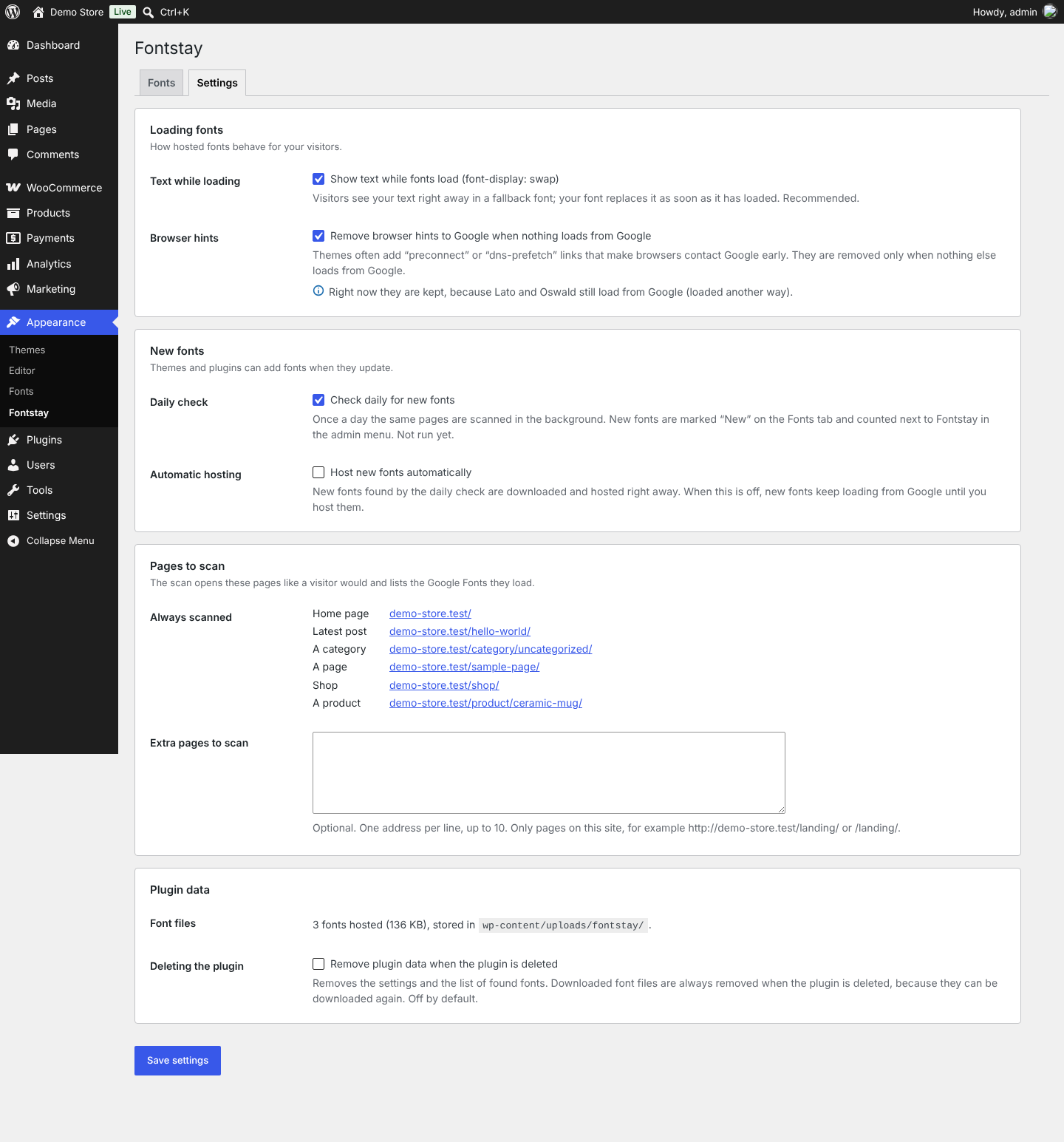
- Shows text right away while fonts load (font-display: swap), on by default.
- Removes “preconnect” and “dns-prefetch” hints to Google once nothing on the page still loads from Google.
- Daily check: when a theme or plugin update adds a new font, it is marked “New” on the plugin’s screen and counted next to the menu item. Optionally host new fonts automatically.
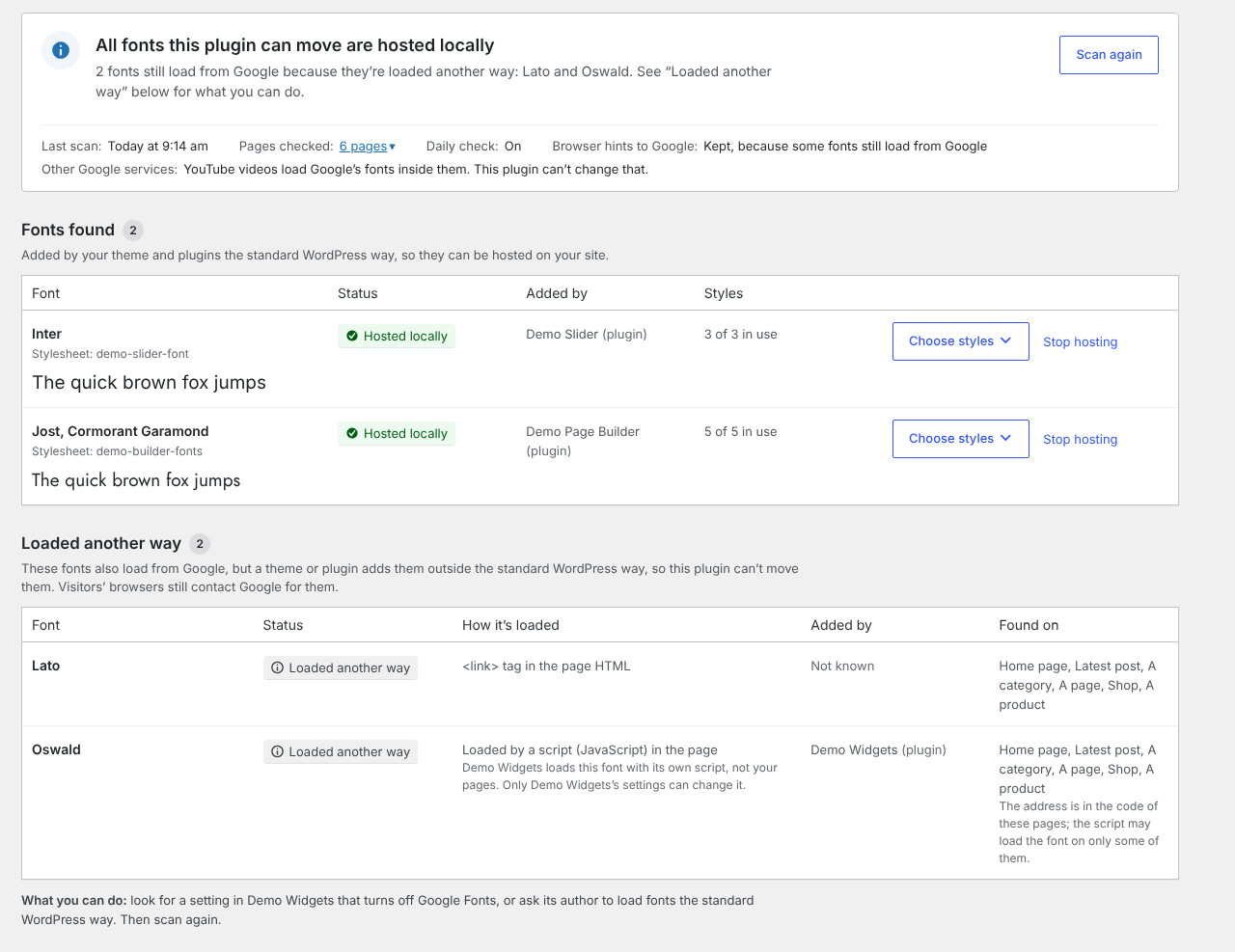
- Lists fonts that a theme or plugin loads from Google in another way (a link in the page code, an @import in a stylesheet, a script) and where they come from.
- Tells you when reCAPTCHA, YouTube videos or Google Maps on your pages load Google’s fonts inside them – no plugin can change that.
- Icon fonts such as Material Icons and Material Symbols are recognized and left on Google, so icons never turn into words.
- Extra pages to scan, for a landing page with a special font.
- Clear advice when a scan is blocked – by Cloudflare, a firewall or security plugin, a login requirement, or a site address that forwards elsewhere.
Privacy
Hosting fonts on your site means visitors’ browsers don’t send requests to Google for those fonts. This can help you meet privacy rules such as the GDPR; it is not legal advice, and your site may use other services that share visitor data.
The plugin adds no tracking and sends nothing about your visitors anywhere. See “External services” below for what your server sends to Google when you host a font.
Compatibility
- Any theme and plugin that adds Google Fonts the standard WordPress way (wp_enqueue_style), which most do.
- Classic and block themes; WooCommerce pages are scanned when WooCommerce is active.
- Multisite: each site has its own fonts and settings.
- Font files are stored in wp-content/uploads/fontstay/.
- Works with Bedrock and other setups with the content folder outside WordPress.
- Works on every address of your site – http and https, www or not, a language on its own domain (WPML, Polylang). On Apache, a CDN may use the fonts too.
External services
This plugin connects to Google Fonts, a service by Google, to download font files – only when an administrator clicks “Host locally”, “Host all” or “Host new fonts”, or, if “Host new fonts automatically” is turned on, when the daily check finds a new font.
- What is sent: your server requests the Google Fonts stylesheet that your theme or plugin already uses (it contains the font names and styles, for example “Roboto 400, 700”) from fonts.googleapis.com, and then the font files it lists from fonts.gstatic.com. Like any web request, this shows Google your server’s IP address. Your server identifies itself as a current desktop browser, because Google sends the compact WOFF2 font format only to browsers that support it. Nothing about your visitors is sent.
- When: once per font, when you host it (or click “Try again” after a failed download). Choosing styles and changing settings use the files already downloaded. Scanning never contacts Google; it only opens your own pages.
- Visitors’ browsers do not contact Google for hosted fonts.
Google Fonts: https://fonts.google.com/
Google Terms of Service: https://policies.google.com/terms
Google Privacy Policy: https://policies.google.com/privacy
Google Fonts privacy FAQ: https://developers.google.com/fonts/faq/privacy
Screenshots
Installation
- Install and activate Fontstay.
- Go to Appearance Fontstay.
- Click “Scan site”, then “Host all”.
FAQ
-
Where do I find Fontstay after installing it?
-
In the admin menu, go to Appearance Fontstay. You can also click “Settings” under the plugin’s name on the Plugins screen.
-
What is sent to Google, and when?
-
Only when you host a font: your server asks Google for the font names and styles, for example “Roboto 400, 700”, and downloads the files once. Your visitors’ browsers never contact Google for hosted fonts, and Google sees your server’s address, not your visitors’. Scanning only opens your own pages.
-
Does it work with my theme and page builder?
-
It works with any theme, page builder or plugin that adds Google Fonts the standard WordPress way, which most do. If a theme or builder already has its own “load fonts locally” option turned on, those fonts are already on your site and won’t appear in the list. Fonts added another way are listed under “Loaded another way”.
-
Why does a font appear under “Loaded another way”?
-
A theme or plugin loads it from Google without the standard WordPress way – for example with a link written directly into the page code, or an @import inside a stylesheet. This plugin can’t move those fonts safely, so it shows where they come from. Many themes and builders have their own “load Google Fonts locally” option; turning it on usually solves it.
-
Why isn’t a font found?
-
The scan checks your home page, latest post, the busiest category, the first page in your main menu or site header (or your newest page) and, with WooCommerce, the shop and one product. A page the scan didn’t open still gets local fonts when they are already hosted – for example the same font with fewer weights. If a page uses a font that isn’t hosted at all, add that page under Settings Extra pages to scan. Fonts that appear only for logged-in users can’t be seen by the scan. A font that a script adds after the page has loaded is listed under “Loaded another way” when the scan recognizes the script – with the theme or plugin that adds it, when the scan can tell – but it can’t be moved.
-
Why can’t icon fonts be hosted?
-
Icon fonts such as Material Icons and Material Symbols need Google’s own stylesheet: it holds the rules that turn words like “home” into icons. Hosting only the font file would show words instead of icons, so the plugin leaves icon fonts on Google and tells you so.
-
What if scanning fails?
-
To scan, your site visits its own pages (a “loopback request”). Some hosts, firewalls or security plugins block this. Ask your host to “allow loopback requests” for your site; Tools Site Health shows the same check. WooCommerce’s “coming soon” mode is fine: the scan sees the real site. With another maintenance or “coming soon” plugin, or a password prompt, scan once the site is open.
-
I use a caching or optimization plugin. Anything to do?
-
After you host or stop hosting a font, the plugin clears the cache of popular caching plugins and tells you which one. If your host or a CDN caches pages, or your caching plugin isn’t recognized, clear that cache yourself so cached pages pick up the local fonts.
-
How do I undo?
-
Click “Stop hosting” next to a font: your site loads it from Google again, and its files are removed a week later. To undo everything, deactivate the plugin – your site then loads fonts exactly as before.
-
What happens when I delete the plugin?
-
The downloaded font files are always removed, because they can be downloaded again. Settings and the list of found fonts stay, unless you turn on “Remove plugin data when the plugin is deleted” in Settings.
-
Where can I get help?
-
Ask in the support forum of this plugin on WordPress.org. Support is free and best effort: we read the forum regularly and fix confirmed bugs in the next release. Please describe the steps and what you expected instead; never post passwords or other private data.
-
How do I report a security issue?
-
Please email office@wedoingood.com and do not post it in the support forum. We confirm the report, fix it and release an update.

Contributors & Developers
“Fontstay – Local Hosting for Google Fonts” is open source software. The following people have contributed to this plugin.
Contributors
Translate “Fontstay – Local Hosting for Google Fonts” into your language.
Interested in development?
Browse the code, check out the SVN repository, or subscribe to the development log by RSS.
Changelog
1.0.8
- First release on WordPress.org.