
Description
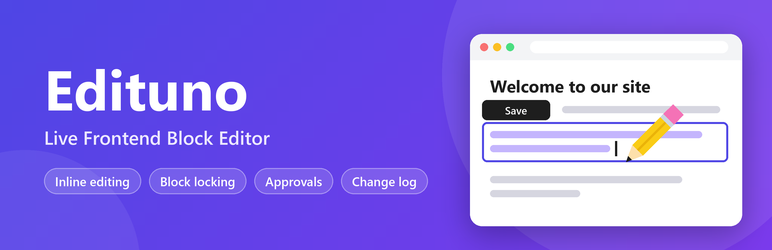
Let your content team edit text, links, buttons and images on the front end, with locks, approvals and a site-wide changelog built in.
Why Edituno?
Most content changes on a WordPress site are small: a heading needs updating, a sentence needs rewording, an image needs swapping, a button needs to point somewhere else. None of that requires wp-admin, a page builder, or a training session — it just requires clicking the thing and changing it.
Edituno lets your team do exactly that. Click any paragraph, heading, link, button, image or quote citation on the live page, edit it in place, and save — without ever opening the block editor.
It’s built on the WordPress Interactivity API, ships with no build step, and saves through a server-side REST endpoint that parses and re-serializes the block, so the block markup you started with is the block markup you end up with.
At a glance
- ✍️ Click any paragraph or heading to edit it inline, right on the live page
- 🔗 Add, edit or remove links on your text without leaving the page
- 🖼️ Replace images from the media library, set alt text, or remove an image, all on the front end
- 🔘 Edit button text and links from the front end too
- 💬 Edit a quote’s citation directly on the page
- 🧱 Block markup, styling and settings are fully preserved on save
- 🔒 Lock a whole page from front-end editing with a single checkbox
- 🧩 Lock individual blocks or whole sections, including everything nested inside them, enforced on save
- ✅ Optional per-role approval queue for edits before they go live
- 🔔 Email and/or Slack-compatible webhook notifications on publish or submission
- 📊 A site-wide, searchable, exportable log of every front-end edit ever made
- 🚪 Optionally restrict chosen roles to front-end-only editing, with no wp-admin access at all
🎯 Built for teams, not just solo editors
Plenty of inline editors let one person click text and change it. Edituno is built around the reality that more than one person edits your site, and that not everyone should be able to touch everything or publish without a check:
- Site changes log. Every published edit — text, links, images, buttons, quote citations — is recorded with who changed it, what page it was on, which block type, and when. It lives in one searchable, filterable, exportable screen, not scattered across post revisions.
- Locking, not just permissions. Beyond “can this user edit this post,” you can lock a specific block, a whole section, or an entire page from front-end editing — regardless of who’s logged in. Locks apply to everything nested inside, and they’re enforced when the save request hits the server, not just hidden in the UI.
- Approval workflow. Require selected roles to submit changes for review instead of publishing immediately. Approvers are configurable too, so the roles that submit and the roles that approve don’t have to be the same people. Administrators always publish straight away.
🎛️ Off until you turn it on
Edituno doesn’t change how your site looks or behaves until someone actively asks for the editing UI. A Edituno item in the admin bar switches it on or off for the current user — off by default — so browsing stays exactly as it was until a logged-in editor opts in. Visitors never see it, and the assets behind it only load for users who could edit that specific page anyway.
💡 What it’s for
These are the edits Edituno is built to make fast:
- Fixing a typo or updating a stale sentence on a service page
- Rewriting a heading after a campaign or offer changes
- Swapping an image or updating its alt text
- Repointing a button or text link to a new destination
- Updating a pull-quote’s citation
- Letting a client or teammate make any of the above without a wp-admin walkthrough — and without you worrying about what else they might touch
⚙️ How It Works
- Install and activate Edituno.
- Go to Edituno Settings to choose which block types are editable and set up locking, approvals and notifications.
- Open a page on the front end while logged in, click Edituno in the admin bar, and turn it on.
- Click any supported paragraph, heading, link, button, image or quote citation and edit it in place.
- Save. The change is written back into the existing block markup and appears in Site changes.
🧱 Supported content
Text blocks — editable inline, configurable in Settings:
- Paragraph (
core/paragraph) and Heading (core/heading) — on by default - Verse (
core/verse), Preformatted (core/preformatted), List item (core/list-item), Code (core/code) — optional, turned on per site
Handled separately, editable out of the box for any eligible user:
- Images (
core/image) — replace from the media library, set alt text, or remove - Buttons (
core/button) — edit label and link - Quote citations (
core/quote) — edit the citation text
🔒 Locking, two ways
- Whole page — a single checkbox in the “Front-End Editing” box on the page/post editor takes an entire page out of front-end editing.
- Block or section — use a block’s own Lock option (the padlock in its Options menu) or add the
edituno-no-editCSS class in its Advanced panel. Either one locks that block and everything nested inside it. Locks are checked again on the server when a save request comes in, so they can’t be bypassed by editing the page directly.
✅ Approval, on your terms
Approval is on by default for every role except Administrator, so nothing goes live unreviewed on a fresh install. Untick roles in Edituno Settings to let them publish immediately; the roles that stay ticked have their edits (text, images, buttons, quote citations) held in a Pending changes screen instead of going live. You choose which roles need approval and, separately, which roles are allowed to approve or reject. Administrators always publish immediately, regardless of the settings above.
🔔 Notifications
Get an email and/or a Slack-compatible webhook message whenever an edit is published or submitted for approval, so nothing lands without anyone noticing.
📊 Site changes log
Under the Edituno admin menu, the Site changes screen lists every front-end edit made anywhere on the site: what changed, the before/after values, which page and block type, who made it, and when. Filter by user, page, block type and date, search across entries, and export the current view to CSV.
🚪 Front-end-only roles
Restrict chosen roles to editing exclusively from the front end, with wp-admin access blocked entirely. Useful for clients or contributors who should only ever touch content through the guided front-end flow.
Installation
- Upload the
edituno-live-frontend-block-editorfolder to/wp-content/plugins/, or install through the Plugins screen. - Activate the plugin through the Plugins menu.
- Go to Edituno Settings to configure editable blocks, locking, approvals, notifications and restricted roles.
FAQ
-
Does this work with any theme?
-
Yes. The plugin uses the
render_blockfilter and works with any block theme. -
Does it preserve block markup?
-
Yes. Edits are saved per-block via a custom REST endpoint that parses and serializes blocks server-side, so block structure, styling and block-specific settings stay intact.
-
What blocks can be edited?
-
By default, paragraphs and headings. In Edituno Settings you can also turn on verse, preformatted, list item and code blocks. Images, buttons and quote citations are handled separately from that list and are editable for any eligible user out of the box.
-
How is this different from other front-end/inline editors?
-
Three things most inline editors don’t have: every published edit is recorded with who/what/where/when in a searchable, exportable Site changes log; you can lock a whole page or individual blocks (including everything nested inside them) so editors can only touch what they’re meant to; and edits from chosen roles can be routed into a Pending changes approval queue instead of going live immediately. It’s built for a team with more than one editor, not just a single-user convenience feature.
-
Do edits need approval before going live?
-
By default, yes — for every role except Administrator. In Edituno Settings you can untick any role to let it publish immediately; the roles that stay ticked have their edits (text, images, buttons and quote citations) held in the Pending changes screen until someone with approval rights reviews them. Administrators always publish immediately. You can also configure which roles are allowed to approve/reject, separately from which roles need approval.
-
Who can edit content on the front end?
-
Only logged-in users who already have permission to edit the post. The editing UI is never shown to visitors, and its assets are never loaded for them either.
-
Why don’t I see any editing UI even though I can edit the page?
-
Edituno is off by default for every user. Click the “Edituno” item in the admin bar (top toolbar) at the top of the page and choose “Enable Edituno” — it stays on for you until you switch it off again.
-
Can I stop my team editing certain content?
-
Yes. Lock a whole page (a checkbox in the “Front-End Editing” box when editing the page), or lock a single block/section using the block’s own Lock option (the padlock in its Options menu) or by adding the CSS class
edituno-no-editin its Advanced panel. A locked block, and everything nested inside it, becomes read-only on the front end. Locks are enforced when saving, so they can’t be bypassed. -
Does this require a build step or a page builder?
-
No. Edituno is built on the native WordPress Interactivity API and ships ready to run — no npm install, no compiling assets, and no separate page-builder layout system to learn.
-
Does Edituno slow down my site for visitors?
-
No. The editing UI and its assets only load for logged-in users who already have permission to edit the page they’re viewing. Regular visitors never load any of it.
Reviews
There are no reviews for this plugin.
Contributors & Developers
“Edituno – Live Frontend Block Editor” is open source software. The following people have contributed to this plugin.
Contributors
Translate “Edituno – Live Frontend Block Editor” into your language.
Interested in development?
Browse the code, check out the SVN repository, or subscribe to the development log by RSS.
Changelog
1.0.0
- Initial Release