

Description
Digipacket Backup Toolkit copies your files and your database into a single .dpbackup
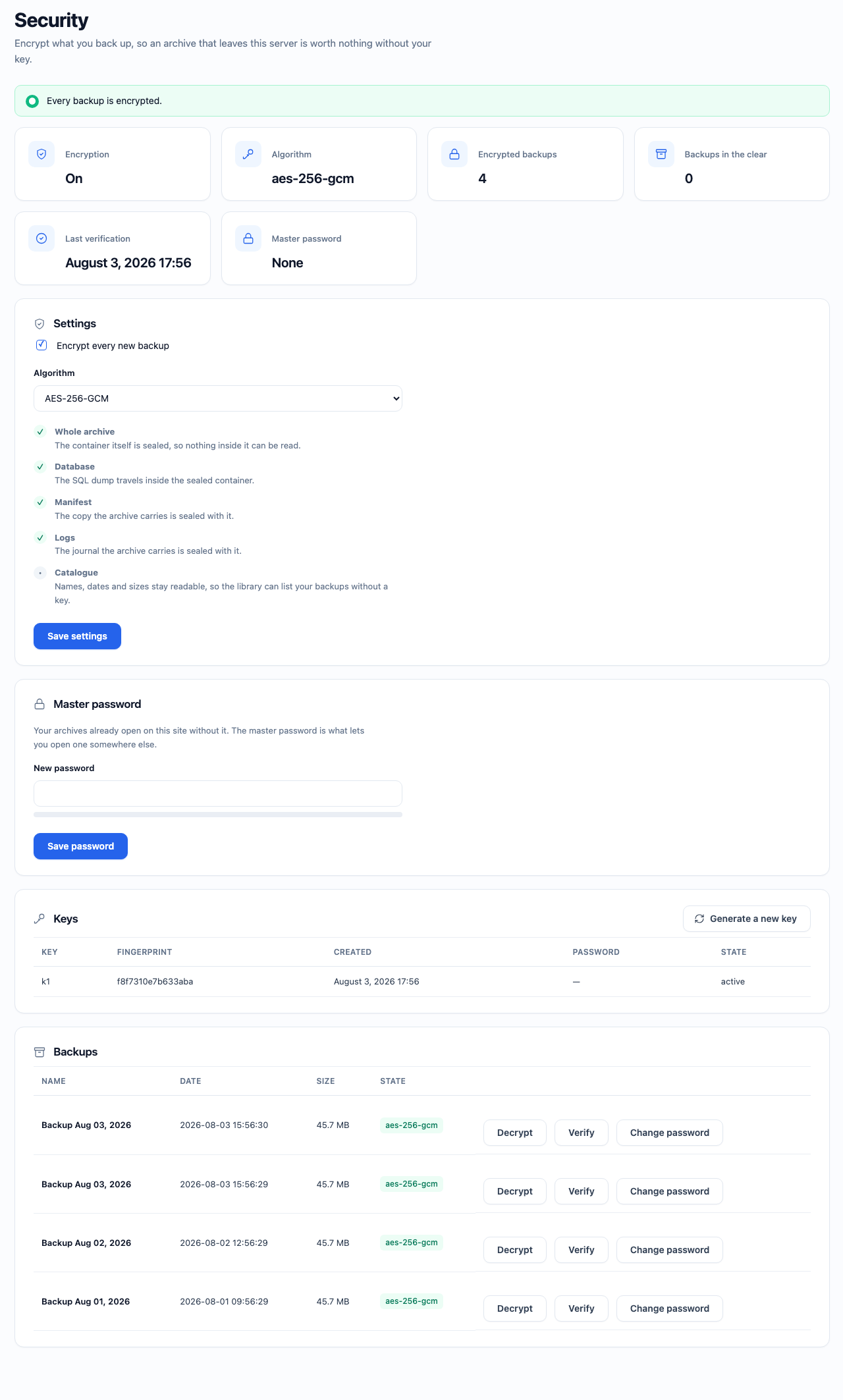
archive, puts that archive back when you need it, and can seal it with AES-256-GCM
so a stolen copy is worth nothing without your key.
Everything runs on your own server. The plugin makes no outbound connection,
has no account, no telemetry and no paid tier hidden behind a button.
Built for hosts that cut you off
Shared hosting kills long requests. Every operation here is therefore cut into
slices that fit inside max_execution_time and resume where they stopped — the
file scan, the SQL dump, the compression, the encryption, the extraction and the
row-by-row replay of the database. A 100,000-file site is backed up and restored
with flat memory, in as many requests as it takes.
What it does today
- Backups — full site, database only,
wp-content, plugins, themes or uploads.
Progress is reported live, with the size, the duration and the checksum of the archive. - Backup Manager — search, filters, sorting, pagination, integrity check, rename,
duplicate, download and delete, plus a detail card showing the manifest and the
journal the archive carries inside itself. - Import — upload an archive produced on another site, in slices. Every entry is
verified before publication: signature, checksums, manifest, directory traversal,
Zip Slip and symbolic links are all refused. - Restore — a seven step wizard with preflight checks. A safety snapshot of the
current site is taken before a single byte is written, and a failure half way
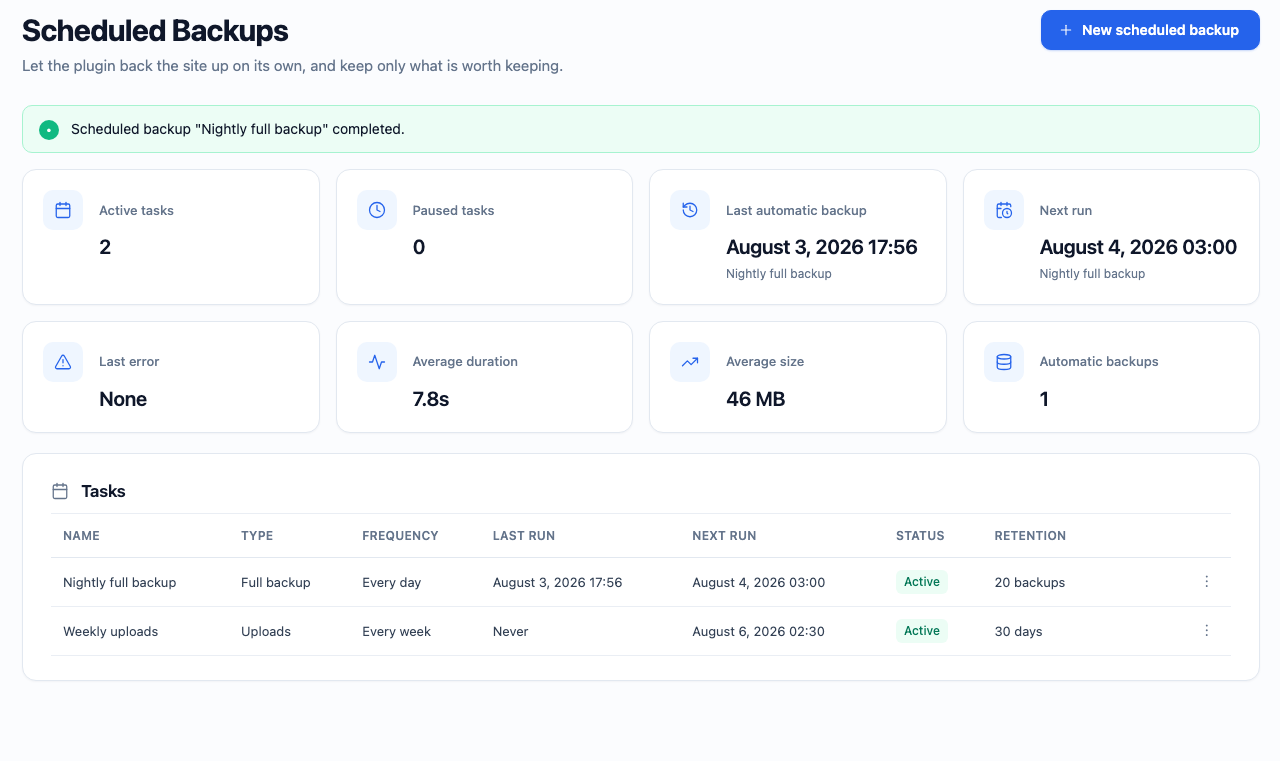
through rolls the site back to it automatically. - Scheduled backups — hourly to monthly, or a custom cron expression. Retention
by count or by age, run history, pause, duplicate, and a Run Now button. Deleting a
schedule never deletes the backups it produced. - Encryption — AES-256-GCM over the whole container, a keyring that survives
rotation, an optional master password, and transparent decryption when you import
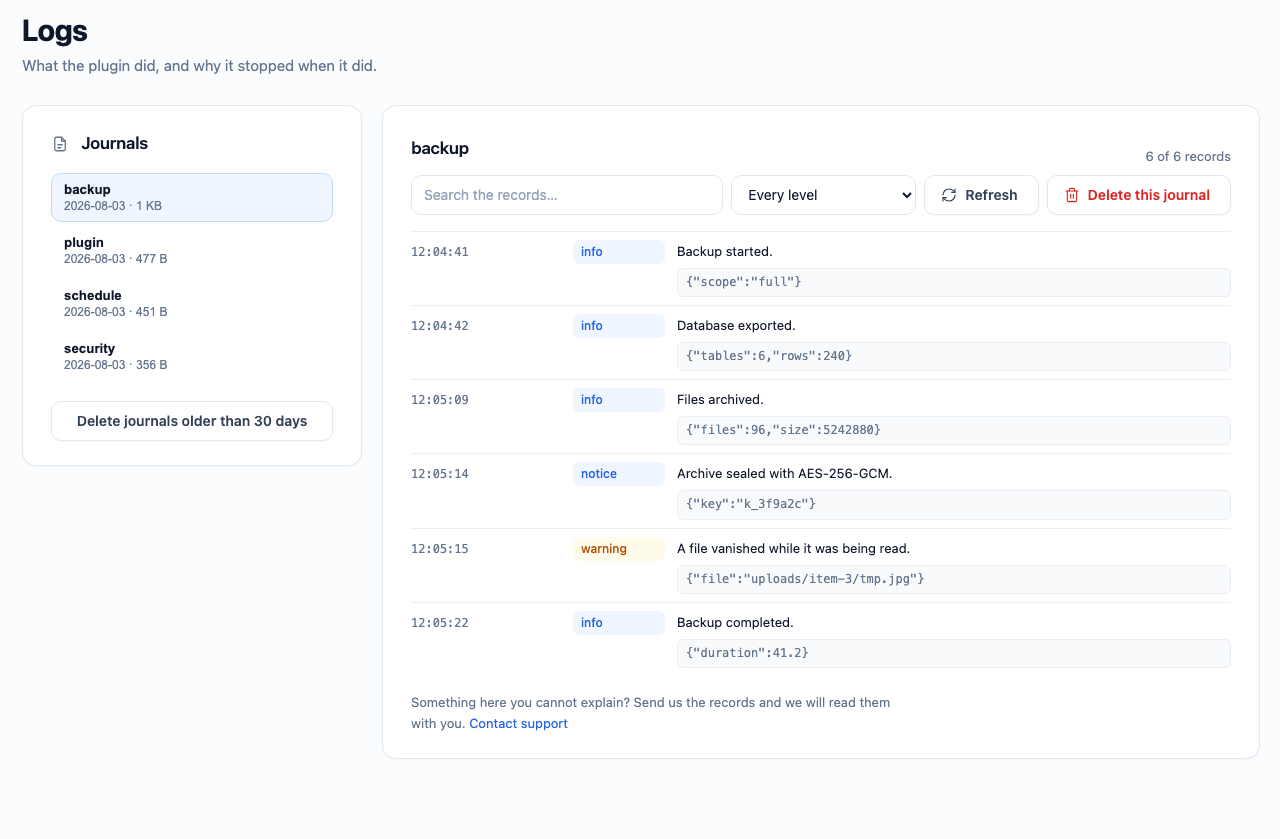
or restore. Existing backups can be sealed afterwards, and sealed ones opened again. - Logs — every operation writes what it did and why it stopped. Read a journal by
severity or by search, delete one, or clear the ones older than your retention rule.
Where your backups live
In wp-content/digipacket-backups/, outside the plugin directory — because
WordPress deletes a plugin’s own folder before installing a new version, and a
backup plugin that stored its archives there would destroy them at every update.
The folder is protected by an .htaccess and a silent index.php, both written
at activation. Nginx ignores .htaccess, so on Nginx the equivalent rule has to
be added by hand — see the FAQ below. The digipacket_wp_backup_storage_path
filter moves the whole thing anywhere you like, including outside the web root,
which is stronger than any web server rule.
What it does not do
- No export to Google Drive, Dropbox, S3 or OneDrive yet. That is the next release.
- No incremental backups: every run produces a complete archive.
Screenshots
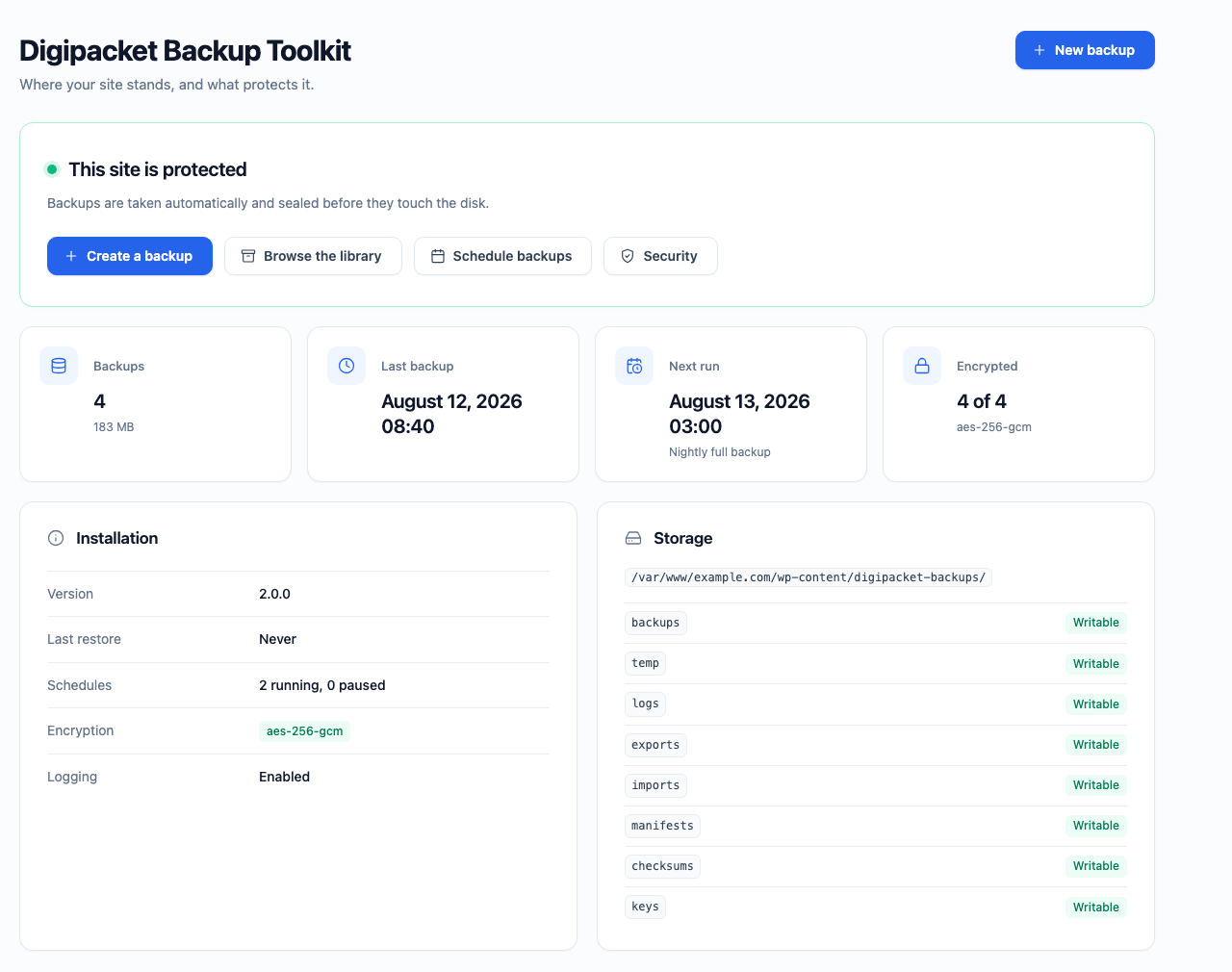
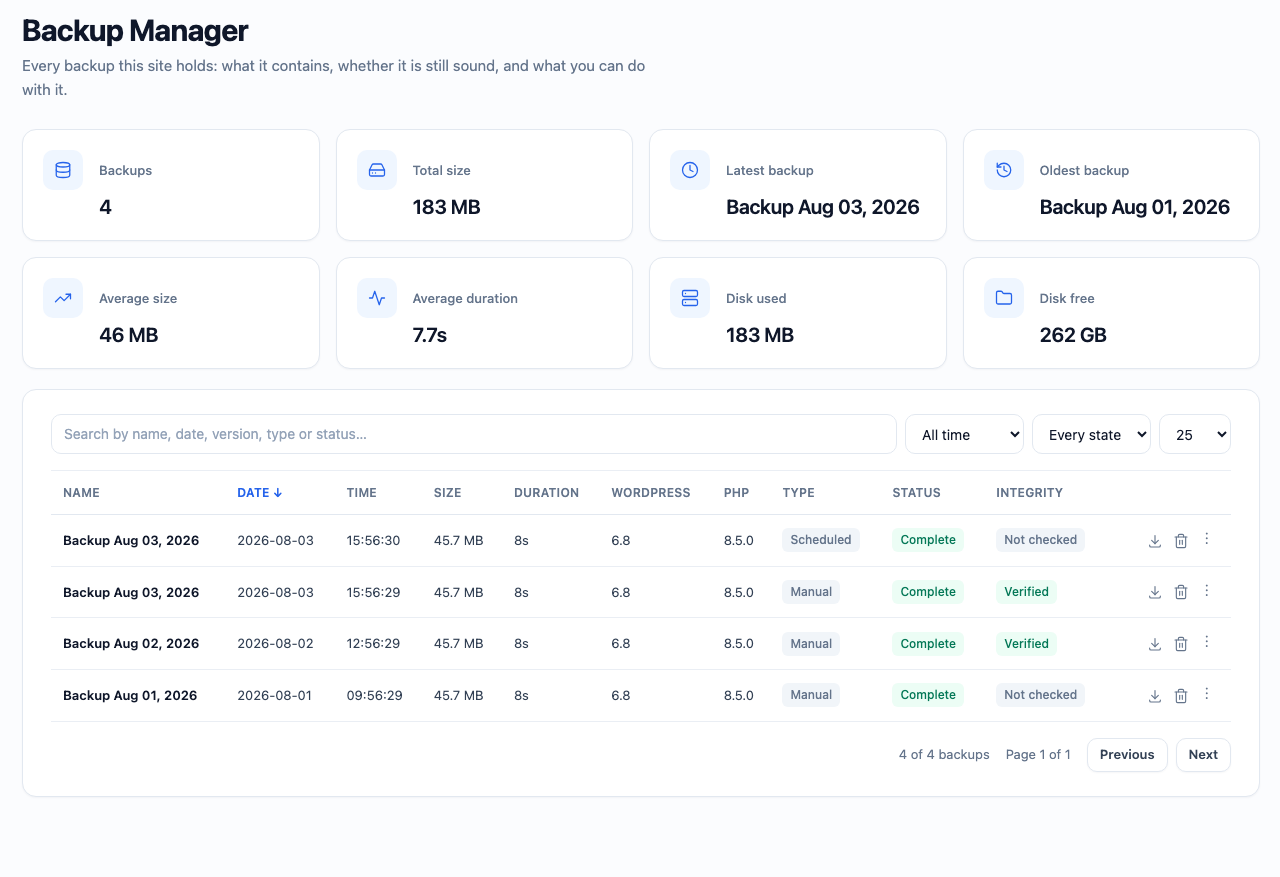
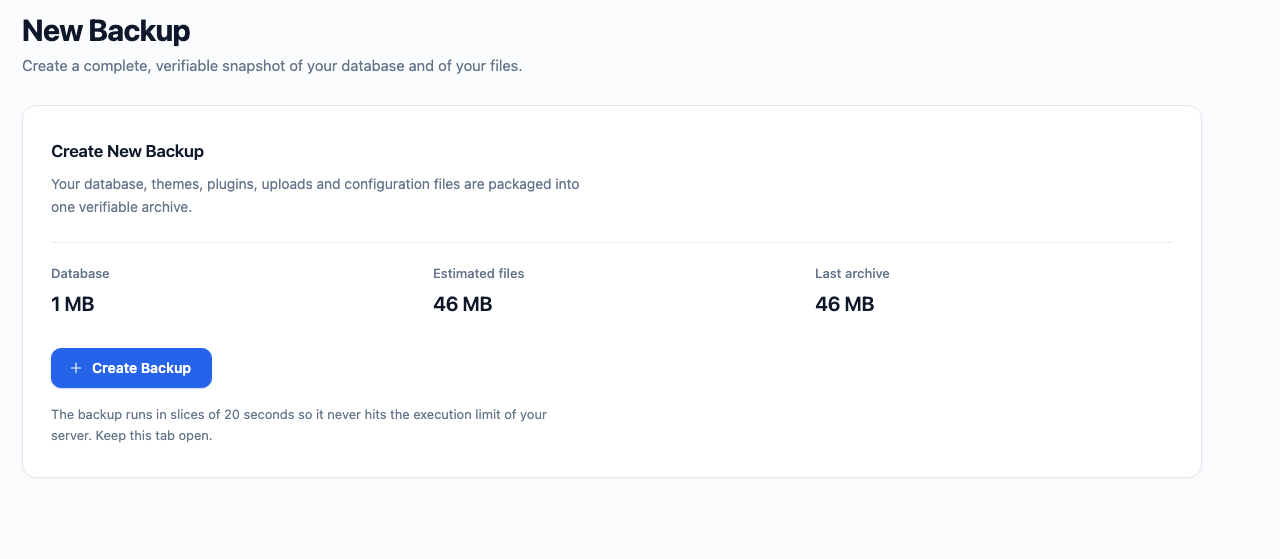
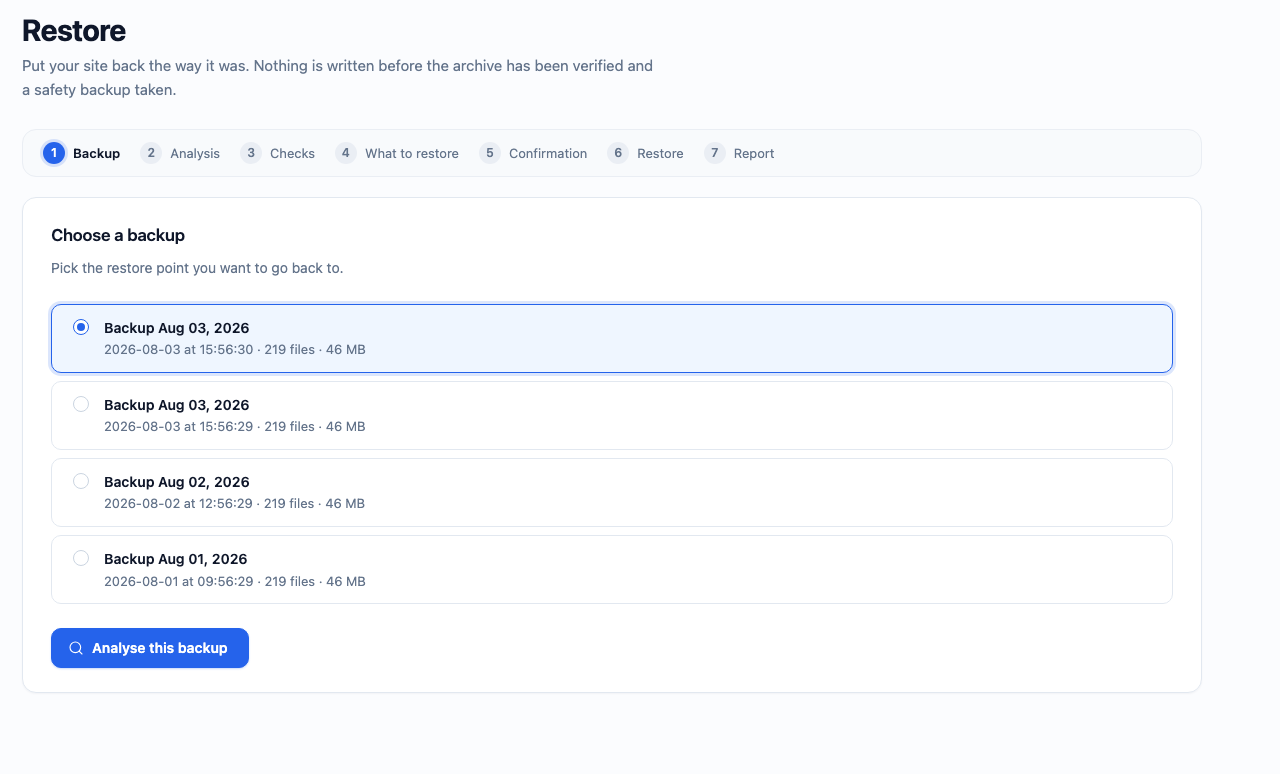
Installation
- Upload the plugin through Plugins Add New Upload Plugin, or extract it into wp-content/plugins/.
- Activate it. Eight storage directories are created, with their protection files. No database table is added.
- Open Backup Toolkit New Backup and take your first backup.
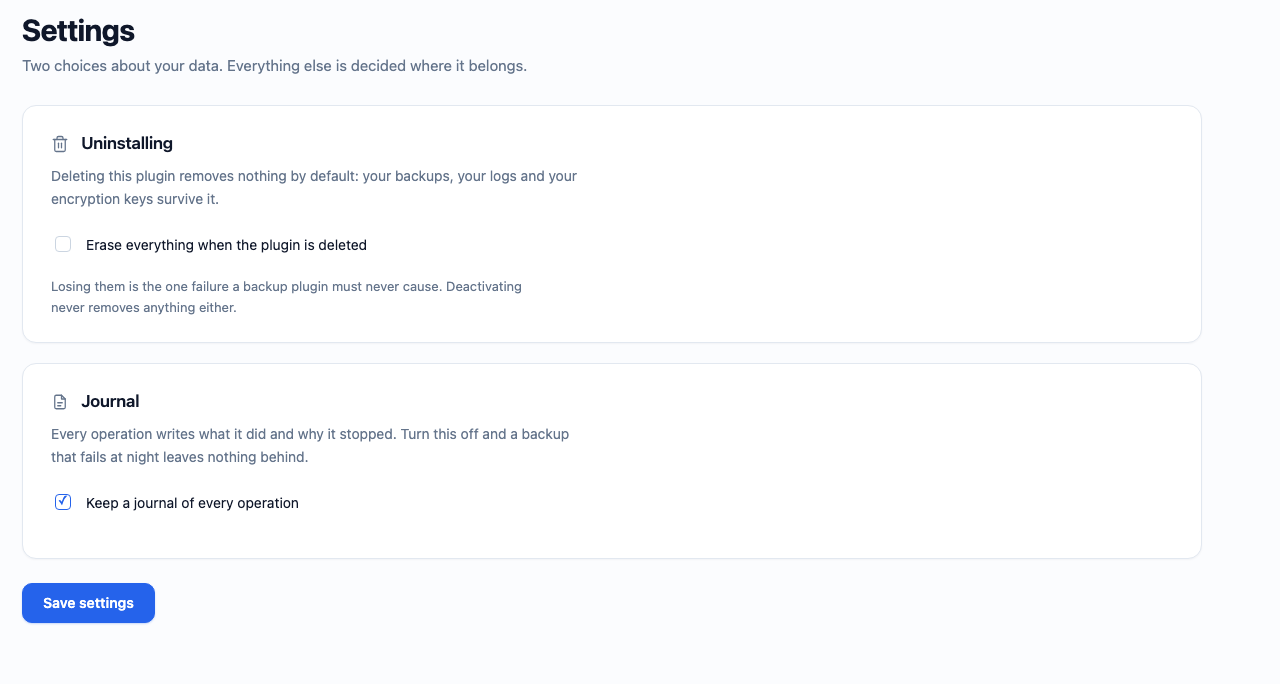
- Optionally visit Backup Toolkit Settings to decide what deleting the plugin does to your archives. It destroys nothing unless you ask it to.
The plugin needs PHP 8.2, WordPress 6.8, and the zip and openssl PHP extensions.
If any of these is missing it stays inert and explains why in a notice, rather than
failing with an error.
FAQ
-
Are my backups sent anywhere?
-
No. The plugin makes no outbound connection of any kind. Your archives stay on your
server until you download them yourself. -
The task says Active, the hour has passed, and nothing ran.
-
Open Backup Toolkit Scheduled Backups. If the screen says WP-Cron is not firing,
that is the answer: WordPress only runs scheduled work when a request comes in,
and it triggers that work through a request the server makes to itself. A local
install, a firewall or an HTTP password blocks it, and nothing ever runs.The fix is a real cron. Add to
wp-config.php:define('DISABLE_WP_CRON', true);then, every five minutes:
curl -s https://example.com/wp-cron.php?doing_wp_cron > /dev/nullCheck the timezone too. The Next run tile is written on the site’s clock, in
Settings General, which is not always the one on your wall. -
My scheduled backup never ran. Why?
-
Two reasons, usually together. First, a new schedule fires one full interval after
you create it — a daily task runs in 24 hours, not tonight. The Next run column
tells you exactly when. Second, WP-Cron only wakes up when someone loads a page, so
on a site with no traffic nothing happens until your next visit. For a dependable
schedule, disable WP-Cron and callwp-cron.phpfrom a real system cron. -
Can I choose the hour a scheduled backup runs at?
-
Yes. Pick Every day or Every week, then fill Start at — and for a
weekly one, tick the days. The hour is the one on your site’s clock, and it stays
that hour when the clocks change.Leave it empty and the frequency behaves as a plain interval: a daily task
created at 14:07 runs at 14:07 the next day. -
My scheduled backup says it failed. Where do I see why?
-
The notice names the cause itself. The full account is in Backup Toolkit Logs,
journalschedule, and in the task’s own History — the ⋮ menu of its row.One cause looks like a failure but is not: if a backup was already running when
the schedule fired — a manual one whose tab was closed keeps the engine busy for
up to an hour — the task simply waits and starts on its own within minutes. It
is not marked failed and its next run is not pushed to tomorrow. -
What is this pre_restore_… file?
-
The safety snapshot. Before a restore writes anything, the plugin takes a complete
backup of the site as it stands, so a failure can be undone. It is a normal backup,
marked “Safety copy” in the library. It is never deleted automatically — delete it
yourself once you are satisfied the restore worked. -
I lost my master password. Can you recover my archives?
-
No, and neither can anyone else. That is what encryption means. The keyring in
storage/keys/keyring.json opens the archives sealed on this site; back it up
somewhere safe, or set a master password so an archive can travel to another site. -
Can I restore a backup on a different site?
-
Yes. Import the archive on the other site, then restore it. If the archive is
encrypted and the other site does not have your keyring, the import pauses and asks
for the master password instead of failing. -
Does deleting the plugin delete my backups?
-
No. Uninstalling removes nothing by default. There is a setting to opt into a full
cleanup, and it is off unless you turn it on. -
I run Nginx. How do I protect the backup folder?
-
Nginx never reads
.htaccess, so the guard the plugin writes has no effect there.
Add this to yourserver { }block, before the genericlocation ~ \.php$block,
then reload withnginx -t && systemctl reload nginx:location ~* /wp-content/digipacket-backups/ { deny all; return 403; }If you moved the storage with the
digipacket_wp_backup_storage_pathfilter, use
your own path in that rule. Better still, point the filter at a directory outside
the document root —/var/backups/digipacket/, readable and writable by the PHP
user — and no web server rule is needed at all, because there is no URL that can
reach the archives. -
That is what it is designed for. Every long operation resumes across requests, so a
30 secondmax_execution_timeis enough. -
Where do I get help?
-
Ask in the support forum here, or write to us directly at
https://dynetwork.net/contact.php — the link is on the plugins list and on the Logs
screen. If something failed, send the records from Backup Toolkit Logs with it:
that file is what explains a failure after the fact.
Reviews
There are no reviews for this plugin.
Contributors & Developers
“Digipacket Backup Toolkit” is open source software. The following people have contributed to this plugin.
Contributors
Translate “Digipacket Backup Toolkit” into your language.
Interested in development?
Browse the code, check out the SVN repository, or subscribe to the development log by RSS.
Changelog
2.0.1
Securitynow owns every superglobal read in the plugin, and hands back
nothing until the request has proved its nonce and its capability. Handlers
used to verify once and then read$_POSTfrom a dozen small private helpers:
the check did run first, but nothing in the code said so, and a reader called
from a new path tomorrow would have read unproved input without anything
failing. Reading input and proving the request are now the same act.- Covered that rule with a suite, after finding that the WordPress stand-in used
by the tests had nowp_verify_nonceat all — so every authorisation check in
the suite had been passing on a function that did not exist. - Removed the Nginx sample file. It protected
wp-content/plugins/…/storage/,
which has not been where the archives live since 1.6.6, so its rules guarded an
empty directory. The correct rule is in the FAQ, pointing at the real path. - Text domain aligned with the directory slug.
2.0.0
- Renamed to Digipacket Backup Toolkit. The plugin directory does not allow a
standalone “WP” in a plugin’s public naming, so the display name, the slug,
the text domain and the sidebar entry all changed. Nothing about how the
plugin works changed with them: the storage path, the settings, the filters
and the archives already on disk are untouched.
1.9.10
- Dropped the empty storage skeleton the package still carried from the layout
used before 1.6.6. The storage has lived inwp-content/digipacket-backups/
since then, where activation creates every directory and writes its own
.htaccess andindex.php; the copies inside the plugin were byte-identical
dead weight, and one strayindex.jsonhad no business shipping at all. - Declared compatibility with WordPress 7.0.
1.9.9
- Statistic tiles no longer cut their value short. “August 3, 2026 17:37” is what
the default WordPress date format produces, and it does not fit a quarter of
the screen: every date tile ended in an ellipsis. The value wraps instead. - Refreshed the screenshots of the listing.
1.9.8
- The dashboard card no longer outlines itself in amber when it has a warning to
give — “Backups are not encrypted” and its siblings. The dot beside the title
already says it.
1.9.7
- The ⋮ menu of a row is no longer cut off by the table. It was positioned
inside the wrapper that scrolls the table sideways, and anything positioned
inside a box withoverflowset is clipped by it: everything past the third
entry disappeared at the edge. It now floats above the screen, opens upward
when the row sits near the bottom of the window, and closes when the page
scrolls under it.
1.9.6
- Scheduled backups now run. Every one of them was dying on the same line:
WP-Cron runs with nobody logged in, WordPress answers that with a user whose
login isfalserather than an empty string, and five copies of the same
three-line method returned it from a function declared to return a string. The
resulting TypeError killed the request before the backup had recorded
anything, so the task kept its lock, wrote no failure, and did nothing —
silently, every five minutes. - There is now one place that answers “who triggered this”, it answers “system”
when nobody did, and a test runs a whole scheduled backup as nobody.
1.9.5
- A scheduled run now writes down what killed it. A backup that runs at three in
the morning has no witness: when the request carrying it dies — memory
exhausted, execution time exceeded, a fatal error in another plugin — every
line it would have written dies with it, and the journal shows a start
followed by silence. The plugin now arms a witness before touching the engine
and records the fatal, with its message, its file and its line. - Anything thrown out of the engine is caught and recorded as a failure of the
task, instead of ending the request without a word.
1.9.4
- A run whose request is killed before it can record what it started no longer
jams its task. The lock it left behind was held for its full fifteen minutes,
the task started again, died in the same place and waited again — a loop that
produced nothing and reported nothing, while the journal read
“skipped: locked” every five minutes. - A lock with no run behind it is now taken back after two minutes, and the
journal says so as a warning, with what to look at next.
1.9.3
- The Scheduled Backups screen now says when WP-Cron is not firing at all, and
when the scheduler was last woken up. A site whose loopback request is blocked
— a local install, a firewall, an HTTP password — ran nothing and said nothing,
which is indistinguishable from a plugin that does not work.
1.9.2
- A paused scheduled backup now says so at the top of the screen, and says how
to resume it. It used to sit in a column with a “Next run” that had already
gone by, which reads exactly like a backup that failed silently. - A paused task no longer advertises a next run it will never honour.
- The Status column says “Active” rather than “Running”: “Running” also meant a
backup being written at that moment, and one word could not carry both. - The next run is printed on the clock of the site, like the tile above it. The
two disagreed by the offset of whoever was looking at the screen.
1.9.1
- A scheduled backup can now be given the hour it starts at, and a weekly one
the days it runs on. The hour is read in the timezone of the site and follows
it through daylight saving; a hand written cron expression is still read in
UTC, as it always was. - Fixed the ⋮ menu of the task table and of the Backup Manager. It opened and
closed on the same click, which made every row action unreachable.
1.9.0
- Backups are named after the day they were taken — “Backup Aug 01, 2026” —
in the library, the restore wizard and the Security screen. The identifier
stays what it always was: it names the file on disk, it is still what every
action uses, and it is shown in the detail card. - A backup you renamed keeps the name you gave it.
- Searching matches what the row reads, and still matches the identifier.
1.8.2
- A scheduled backup that could not start because another backup was already
running is no longer reported as a failure. It kept its failure count, and it
pushed the next run to the following day — so one abandoned manual backup cost
a whole night. The task now waits and starts on its own at the next tick. - Failure notices say why. “Scheduled backup X failed.” carried no cause, and
the reason sat in the journal where nobody was told to look.
1.8.1
- The administration canvas is now a pale wash instead of white, so the cards
read as surfaces sitting on top of it. The cards themselves stay white. - The footer credit reads “Built by dynetwork”.
1.8.0
- Rebuilt the interface on a single design system: one file now holds every
colour, radius, shadow, spacing step and duration, and every screen paints
from it. A test refuses any value written anywhere else. - White canvas, white surfaces separated by hairline borders, one blue for
anything actionable, and more room between things. - Icons throughout: the statistic tiles, the card headings and the main actions
now carry an inline Lucide icon. Nothing is fetched from a third party. - Motion is uniform: every transition now runs between 150 and 200ms, and the
whole interface stops moving when the system asks for reduced motion. - Fixed the labels of the Settings and Security checkboxes, which were printed
bold and broken onto two lines. - Fixed the Security screen’s own styles, which had never applied: the rule that
carried them could not match the element it was written for.
1.7.3
- The plugin now signs its own screens: “Built by dynetwork.net” replaces the
WordPress footer sentence on its pages, and nowhere else.
1.7.2
- Added a support link, on the plugins list and on the Logs screen.
1.7.1
- Fixed the “Delete this journal” button on the Logs screen: red text on a red
block, which is to say no button at all.
1.7.0
- Added the Logs screen: read any journal by severity or by search, delete one, or
clear the ones older than the retention rule. - Dates now read as dates. The dashboard, the Security screen and the schedule
table were printing raw ISO timestamps, which overflowed their tiles. - Schedule states read as words instead of machine values.
- “Last archive” on the New Backup screen showed 0 B instead of the real size.
- Added the Settings screen. The uninstall preference existed since the first release
and no screen offered it: you could never turn it on, nor be sure it was off. - Encrypting or decrypting an archive is now written to the security journal.
- The Security dashboard repaints after every action instead of showing stale figures.
- Added skeleton loading and icons to the Security screen.
1.6.7
- The Type, Status and Integrity badges now read as words instead of machine values.
1.6.6
- Backups are no longer stored inside the plugin directory. Updating the plugin
used to delete them. They now live inwp-content/digipacket-backups/, and anything
left by an older layout is carried over on activation.
1.6.5
- Added a download button on every row of the Backup Manager.
1.6.4
- Added a delete button on every row of the Backup Manager.
1.6.3
- Fixed the Restore screen hanging forever on “Analyse this backup”.
1.6.2
- Fixed the Restore screen listing no backup at all.
1.6.1
- Fixed unreadable panels on machines using a dark system theme.
- The dashboard now reports the real state of the site instead of a placeholder.
- Plugin updates now run the installation routine again.
1.6.0
- Added encryption: AES-256-GCM, keyring, master password, key rotation, migration of
existing backups, and transparent decryption on import and restore.
1.5.0
- Added scheduled backups, retention rules, run history and notifications.
1.4.0
- Added the Backup Manager: search, filters, sorting, integrity checks and downloads.
1.3.0
- Added the restore engine, with preflight checks, safety snapshot and rollback.
1.2.0
- Added the import of archives produced on another site.
1.1.0
- Added the backup engine.
1.0.0
- First release.