
Description
Deskdove adds an AI chat widget to your WordPress site.
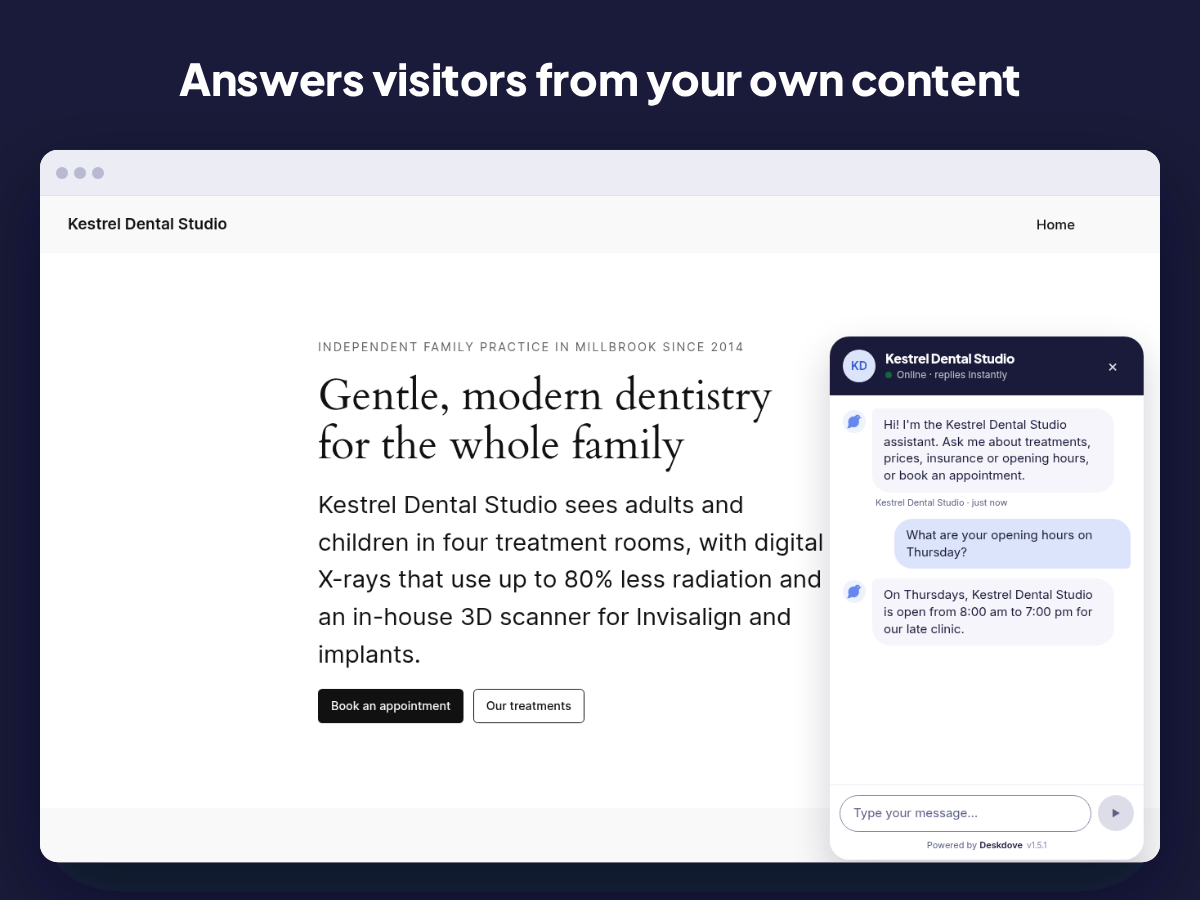
You add the bot’s answers in your Deskdove dashboard, under Bot settings > Your content. Add FAQ entries (a question and its answer) and Page entries (a title and some text), and the bot answers visitors from them. When a question isn’t covered by your content, the bot says it isn’t sure instead of guessing.
When someone wants to be contacted, the widget captures the lead. You read every conversation and lead in your Deskdove inbox.
Getting started takes five steps:
- Sign up free at deskdove.com.
- In your Deskdove dashboard, add your FAQ and Page entries under Bot settings > Your content.
- Copy your bot ID from your Deskdove dashboard.
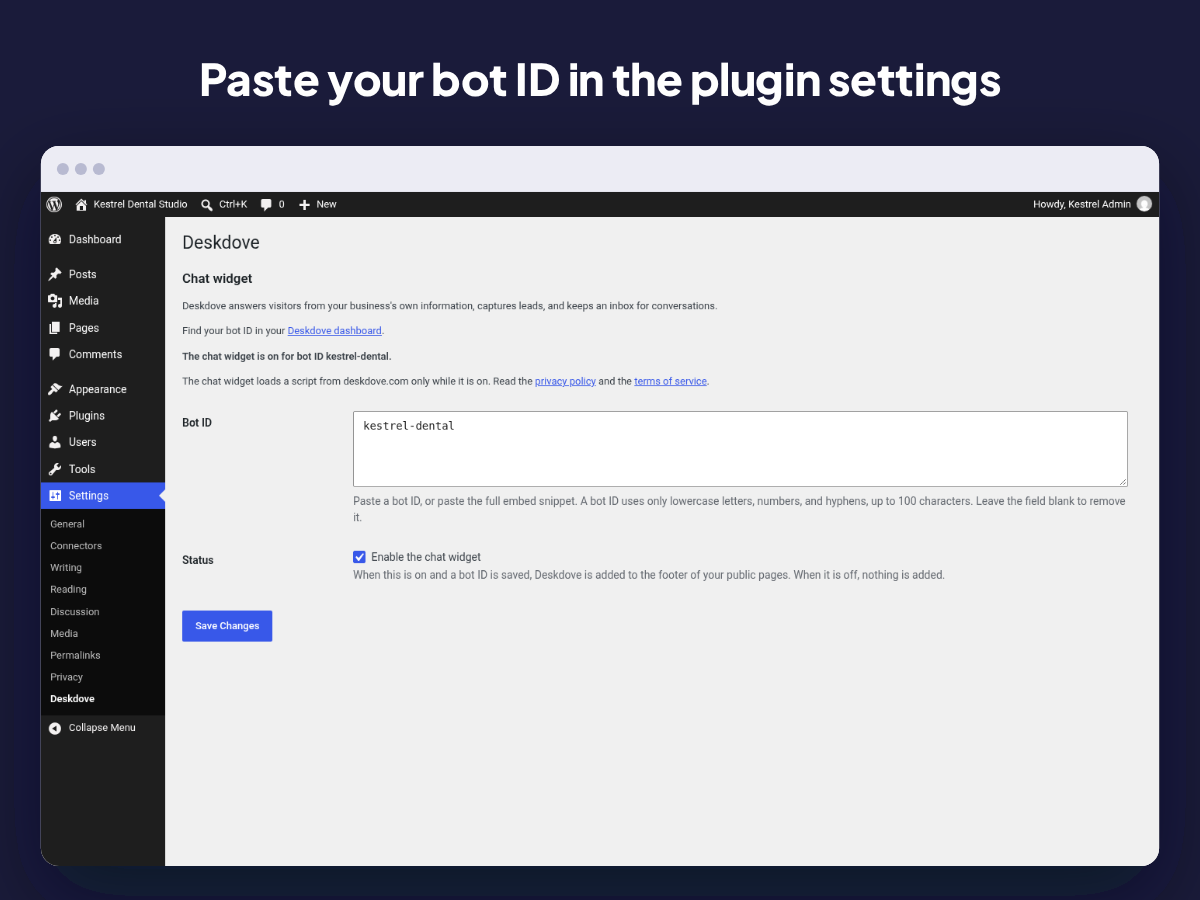
- Paste it here, under Settings > Deskdove.
- Switch the chat widget on and save.
You can paste either the bot ID on its own or the full embed snippet. The plugin reads the bot ID from the snippet for you.
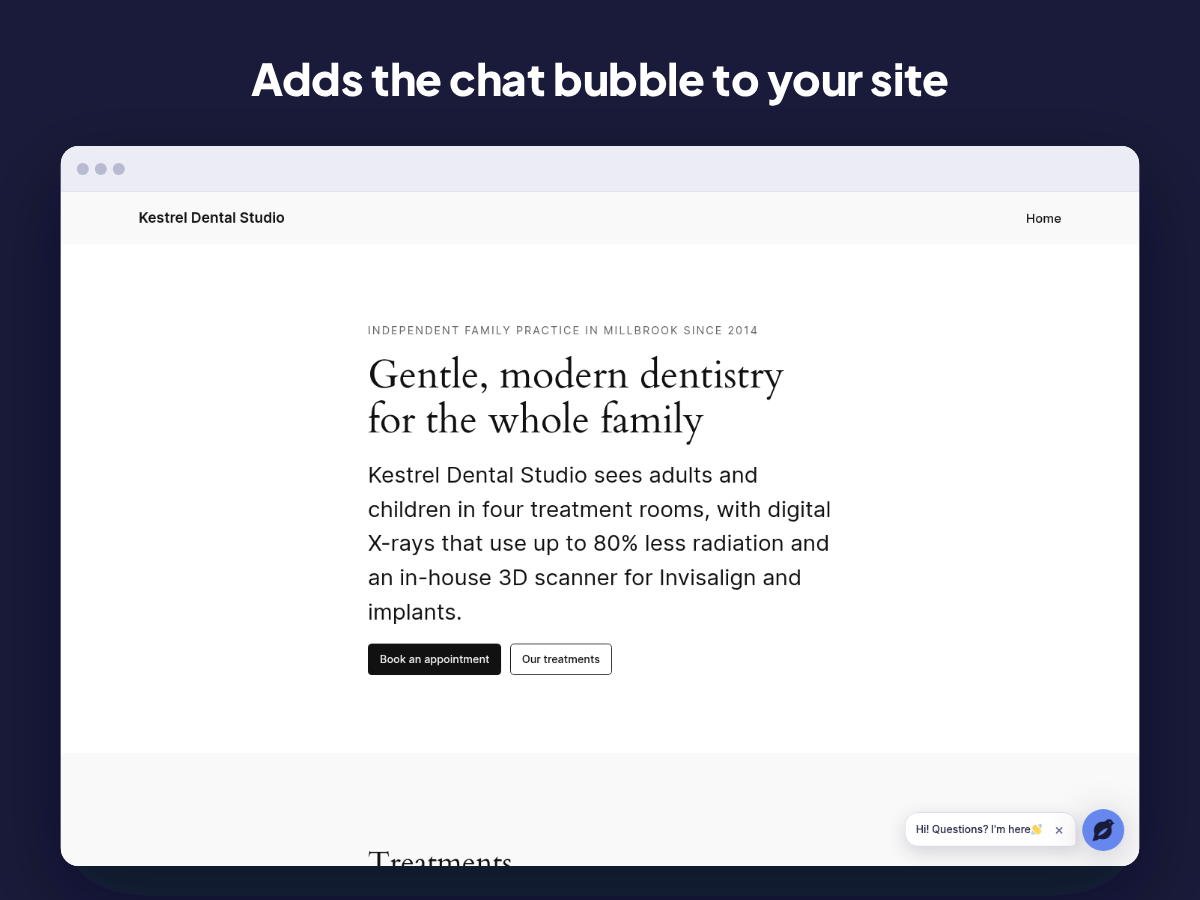
While the widget is on, the plugin adds the Deskdove script to the footer of your public pages. Switch it off, or clear the bot ID, and the plugin adds nothing to your pages.
The plugin makes no requests from your server, and it contains no tracking or telemetry. Its only external request is the chat script, loaded in your visitor’s browser while the widget is on. See “External services” below for exactly what is sent.
External services
This plugin connects your site to Deskdove (https://deskdove.com), an AI chat service run by Deskdove. The plugin is needed to show the Deskdove chat widget on your site. It does not call Deskdove from your WordPress server, and it contains no tracking or telemetry.
Deskdove chat widget
Service: https://deskdove.com/widget.js
When: The plugin loads this script on public pages only after an administrator saves a valid bot ID and switches the chat widget on. It is never loaded in wp-admin, while the widget is off, or while no bot ID is saved.
What is sent:
- Loading the script: on every page view while the widget is on, the visitor’s browser requests https://deskdove.com/widget.js. Like any web request, this sends the visitor’s IP address, browser user agent, and the page address. The saved bot ID is added to the script tag as its data-business attribute.
- Widget settings: on every page view the script then requests https://deskdove.com/api/widget-config?slug= to get the bot’s name, colour, and greeting settings.
- Opening the chat: when a visitor opens the chat, the script loads an iframe from https://deskdove.com/embed/?page=.
- Chatting: the messages a visitor types, the page they chat from, and any name, email address, or phone number they choose to give are sent to Deskdove, so the business can read the conversation and the lead in its Deskdove inbox.
Browser storage: the script stores display preferences (the launcher colours and whether the greeting bubble was dismissed) in the browser’s localStorage and sessionStorage. The chat iframe keeps the visitor’s current conversation in deskdove.com’s localStorage so it survives page changes. No cookies are set.
The plugin itself sends nothing from your WordPress server. All of these requests come from the visitor’s browser.
Privacy policy: https://deskdove.com/privacy
Terms of service: https://deskdove.com/terms
Screenshots
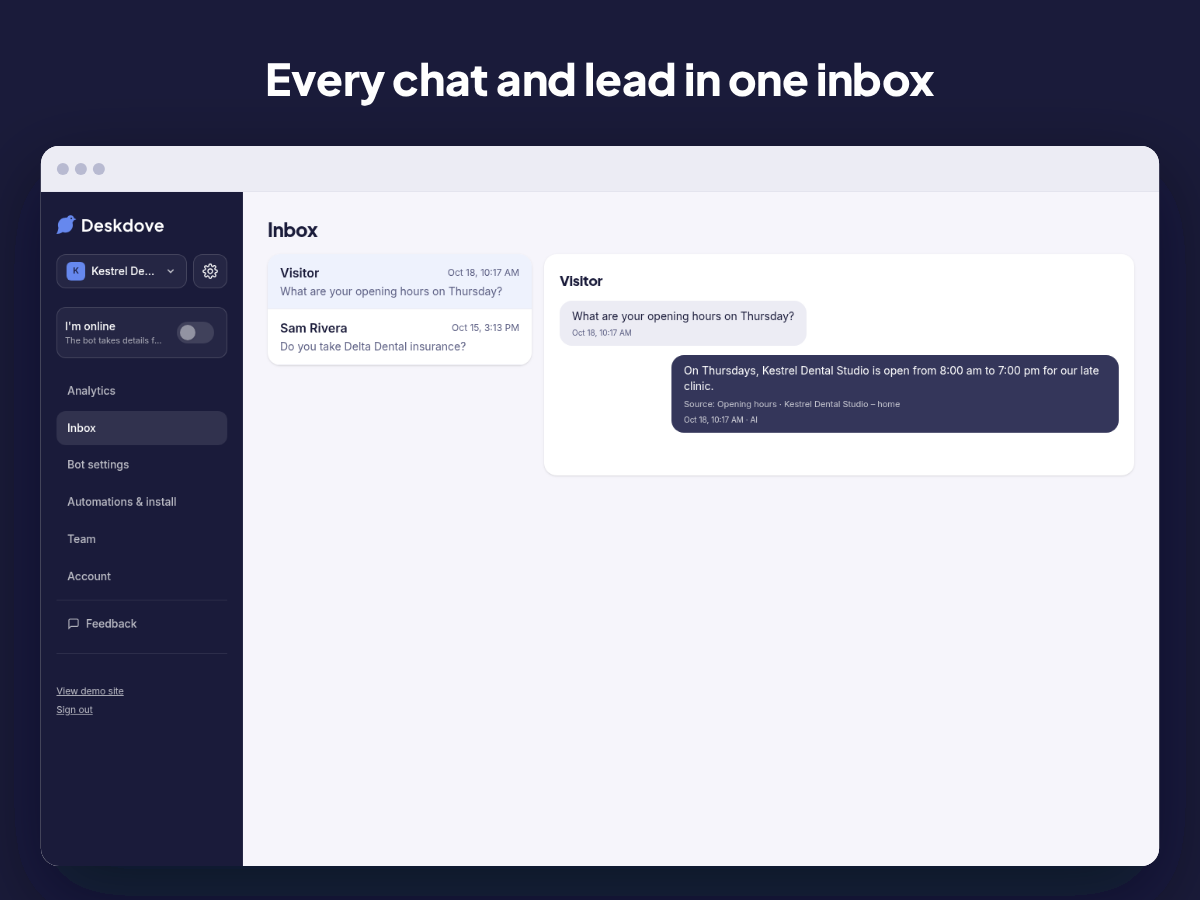
Installation
- Sign up free at deskdove.com and set up your bot.
- In WordPress, go to Plugins > Add New, search for “Deskdove”, then install and activate it. Or upload the
deskdovefolder to/wp-content/plugins/and activate it on the Plugins screen. - In your Deskdove dashboard, open Settings and copy your bot ID or the embed snippet.
- In WordPress, go to Settings > Deskdove and paste it into the Bot ID field.
- Tick “Enable the chat widget” and click Save Changes.
A bot ID uses lowercase letters, numbers, and hyphens, for example my-business. An embed snippet looks like this:
<script src="https://deskdove.com/widget.js" data-business="my-business" defer></script>
FAQ
-
Where do I get a bot ID?
-
Sign up free at deskdove.com, then open your dashboard settings at https://deskdove.com/dashboard/settings and copy the bot ID or the embed snippet.
-
Do I need a Deskdove account?
-
Yes. The plugin connects your site to your Deskdove bot, so you need a Deskdove account and its bot ID.
-
What does the chat widget do?
-
It answers visitors from the content you add in your Deskdove dashboard, captures leads, and keeps the conversations in your Deskdove inbox.
-
Where do the bot’s answers come from?
-
From the FAQ and Page entries you add in your Deskdove dashboard, under Bot settings > Your content. The bot answers from those entries only. When a question isn’t covered, it says it isn’t sure instead of guessing. Edit your entries there at any time; the plugin needs no changes.
-
When does the plugin load the Deskdove script?
-
Only on public pages, and only while the widget is switched on and a valid bot ID is saved. It is never loaded in wp-admin.
-
Does the plugin send data from my WordPress server?
-
No. The plugin makes no server-side requests. While the widget is on, your visitor’s browser loads the chat script from deskdove.com.
-
What happens when I delete the plugin?
-
The plugin removes its two settings (the bot ID and the on/off switch) from your database, on every site of a multisite network.
-
Where can I get help?
-
Email shane@arkhv.com.
Reviews
There are no reviews for this plugin.
Contributors & Developers
“Deskdove – AI Chat & Lead Capture” is open source software. The following people have contributed to this plugin.
Contributors
Translate “Deskdove – AI Chat & Lead Capture” into your language.
Interested in development?
Browse the code, check out the SVN repository, or subscribe to the development log by RSS.
Changelog
1.0.0
- Initial release: paste a bot ID or embed snippet, switch the chat widget on or off, and get suggested privacy policy text.