
Description
Asking clients to email passports, contracts or tax papers leaves copies in inboxes, and most upload forms keep files on your web server, where anyone who breaks into the site can read them.
This plugin puts a Share file request on any page instead. Visitors choose their files in a form served by Share by DeltaBreen; the files are encrypted in their browser before anything leaves their device, and go straight to storage. Your website never receives them, and neither Share nor this site can read them. You open them in your Share inbox.
You need a Share by DeltaBreen account. The free plan works, with one file request; paid plans add more requests, larger files, emailed requests with reminders, ID checks, your own branding and a team.
- End-to-end encrypted. Files and answers are encrypted in the visitor’s browser with a key only you and the people you give access hold.
- Nothing on your server. No files in
wp-content/uploads, no upload size limits from your host. - Large files. Up to what your Share plan allows, far beyond a typical PHP upload limit.
- Checklists. Ask for each document by name, and see what has arrived.
- Forms. Ask questions instead, such as an account number, and receive the answers encrypted.
- Senders confirm their email. Before a stranger can send anything, Share emails them a code.
- You hear when something arrives, at most every ten minutes.
- Only your website can show your request. Share tells browsers which websites may show it, so nobody can put your form on theirs.
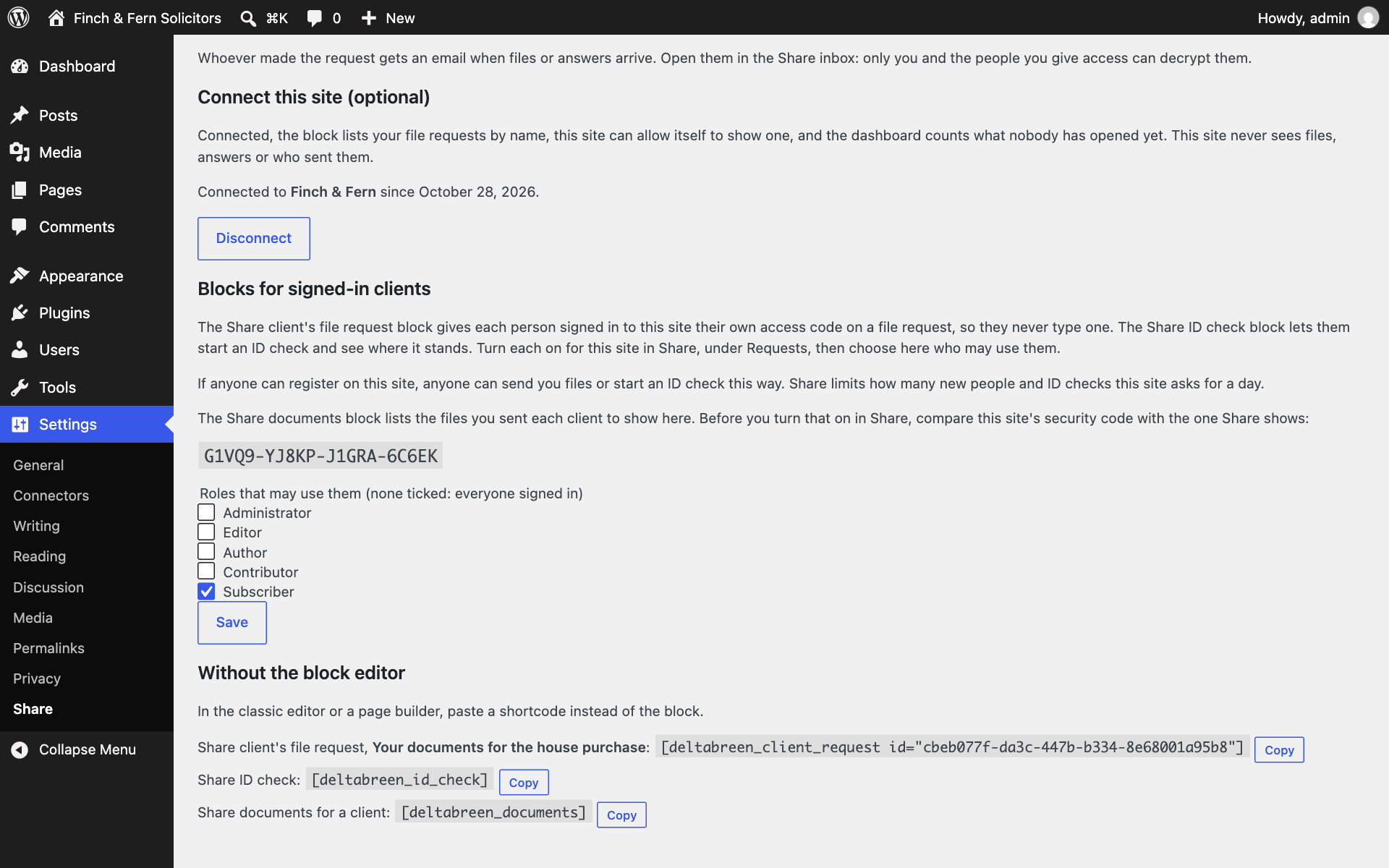
- A place for each client. On a page your clients sign in to, the Share client’s file request block gives each of them their own access code on a file request, so they never type one and you see who sent what.
- Documents for each client. The Share documents block lists the files you sent a signed-in client, sealed to this site’s own key, so neither Share nor anyone without the site can read the links. Each opens at Share after the client confirms their email with a code.
- A thank-you page. Send visitors to a page of your own once they have sent everything you asked for, and count it as a conversion.
- ID checks for your clients. The Share ID check block lets a signed-in client check their ID (a document and a selfie, checked by Didit) through Share, and shows them where it stands. The result goes to you, encrypted; this site only learns whether it passed. Needs ID checks on your Share plan.
External services
This plugin shows a form from Share by DeltaBreen, a file sharing service run by DeltaBreen Limited, and does nothing without it.
- What the form sends, and when: the form is a frame loaded from Share (share.deltabreen.eu, or your workspace’s own Share address) when a visitor opens a page that shows it, or, if you choose, only after they click. Everything visitors do in it goes to Share, not to this site: their email address (Share emails them a code to confirm it), the files or answers they send (encrypted in their browser, so Share receives only an encrypted copy), and their IP address and browser details, as with any website. On file requests open to anyone, Cloudflare Turnstile may check the visitor is not an automated program (Cloudflare’s Turnstile privacy addendum: https://www.cloudflare.com/turnstile-privacy-policy/).
- ID checks: the Share ID check block sends a signed-in client to Share’s own page, where Didit (Didit Identity Spain, S.L.) checks their ID document and selfie for Share. This site sends Didit nothing, and learns from Share only whether the check passed, and when. Didit’s privacy notice for people who check their ID: https://didit.me/en/terms/verification-privacy-notice/
- What this site sends: nothing, unless you connect it to Share (optional, under Settings, Share). Without a connection the plugin only writes the frame’s address into your pages.
- What a connected site sends, and when: this site’s own server talks to Share (share.deltabreen.eu, or the address in
DELTABREEN_SHARE_API_URL), never a visitor’s browser. When you connect, it sends the one-time connection code you pasted and this site’s address. Once a day, and whenever its access runs out, it renews that access with the token Share gave it. When someone opens the dashboard (at most every five minutes) or the block’s list of requests, it asks Share for the workspace’s file requests, their links and how many arrivals nobody has opened yet. When an administrator presses “Allow this site” in the block, it asks Share to let this site show that request. When a signed-in person opens a page with the Share client’s file request block, it sends Share their email address, to get an access code for them alone, which it keeps in their user profile here until a few days before it expires; when their email address changes, their account is deleted or removed from a site of a network, or you erase their personal data (Tools, Erase Personal Data), it sends Share the address so that code stops working. When you open Settings, Share on a connected site, it gives Share this site’s public key (once for each connection), which the files you send to clients’ portals are sealed to; its private key never leaves this site. When a signed-in person opens a page with the Share documents block, it sends Share their email address to get the files sent to them, sealed, and opens them here. When a signed-in person opens a page with the Share ID check block, it sends Share their email address to learn where their ID check stands (whether it passed, and when), and when they press the button, to get the link to their check’s page at Share; it keeps neither. When you disconnect, it asks Share to end the connection. It never sends or receives files or answers. - Share’s terms: https://share.deltabreen.eu/legal/terms
- Share’s privacy policy: https://share.deltabreen.eu/legal/privacy
The plugin suggests a paragraph for your privacy policy under Settings, Privacy.
Screenshots

Blocks
This plugin provides 4 blocks.
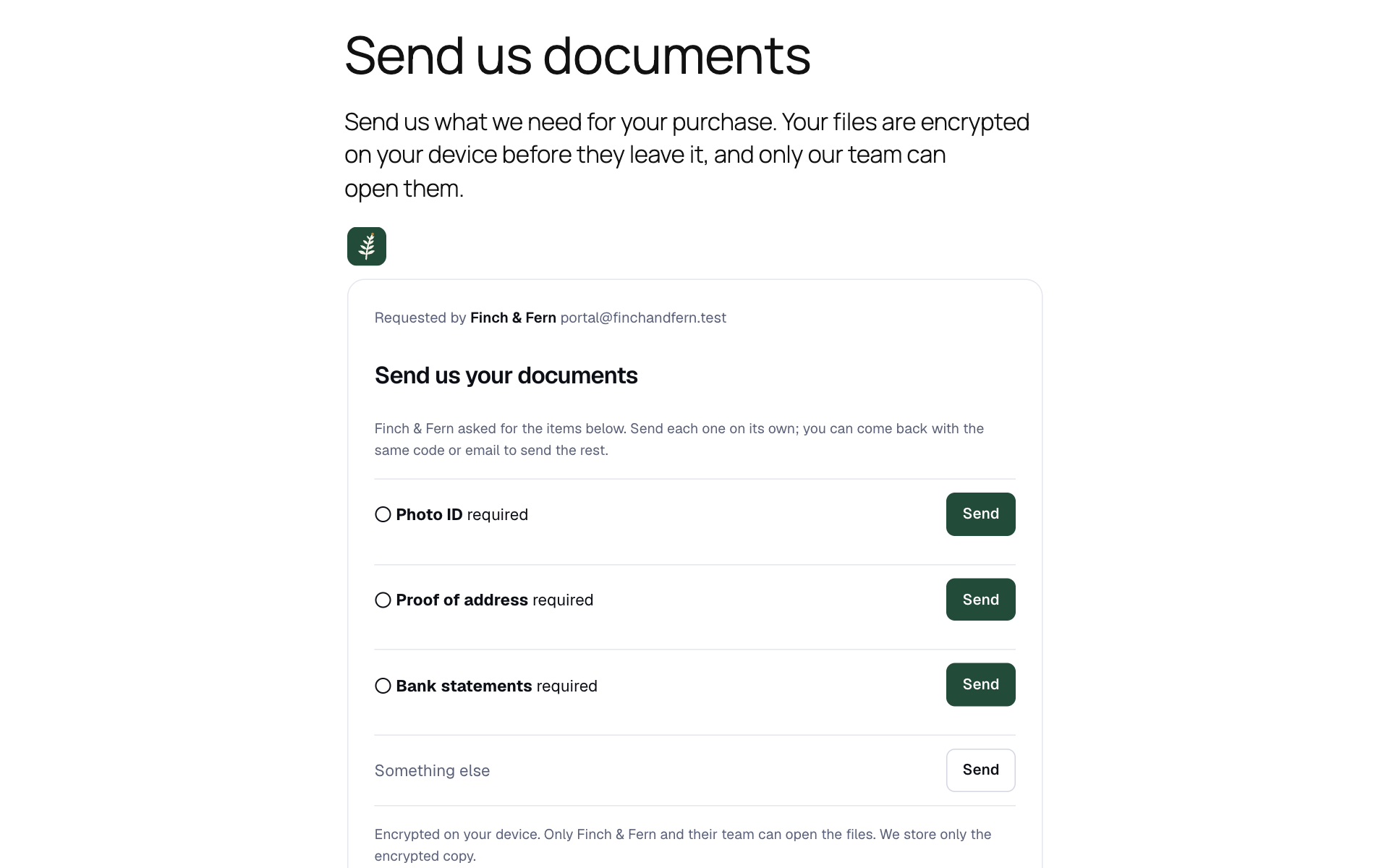
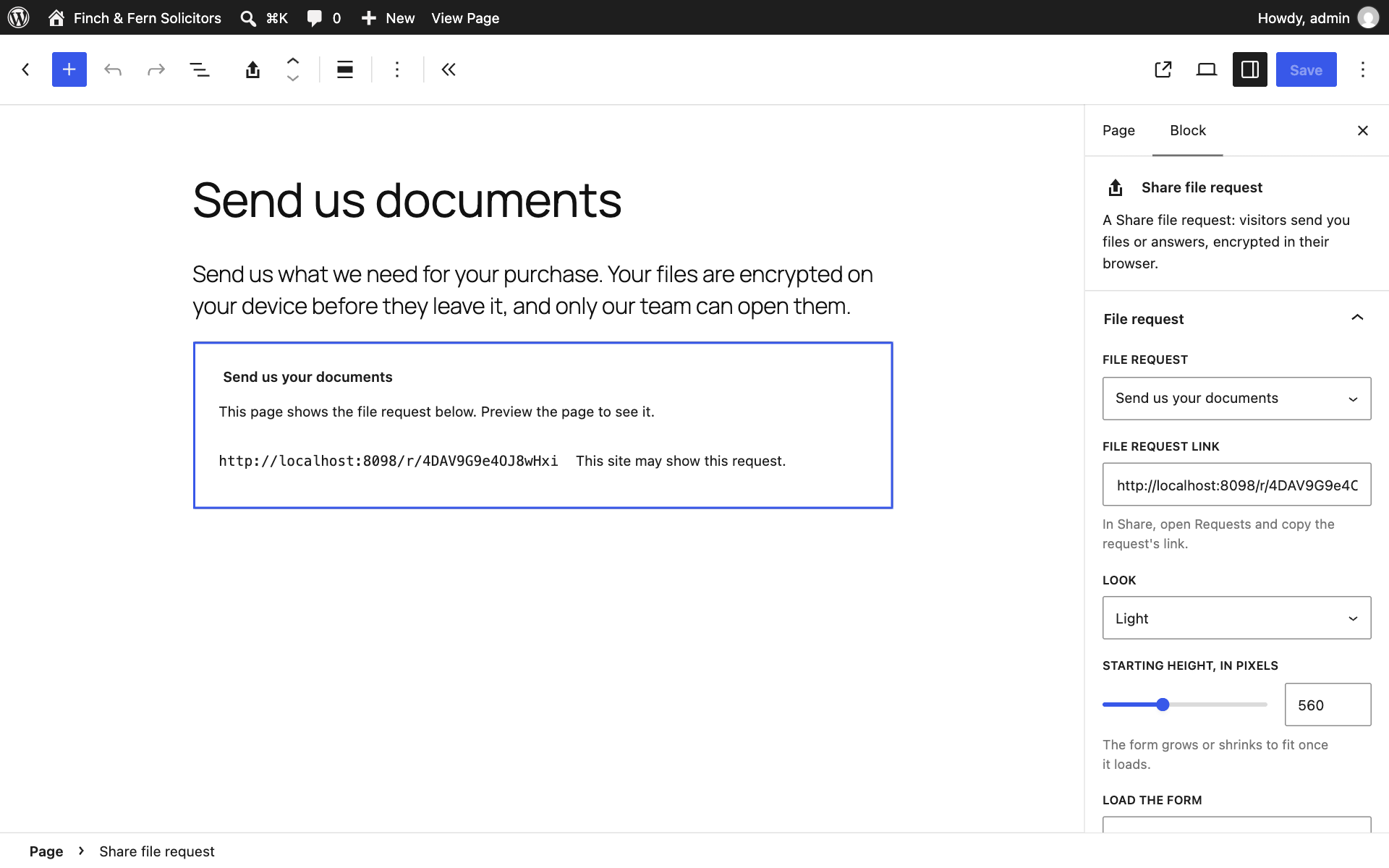
- Share file request A Share file request: visitors send you files or answers, encrypted in their browser.
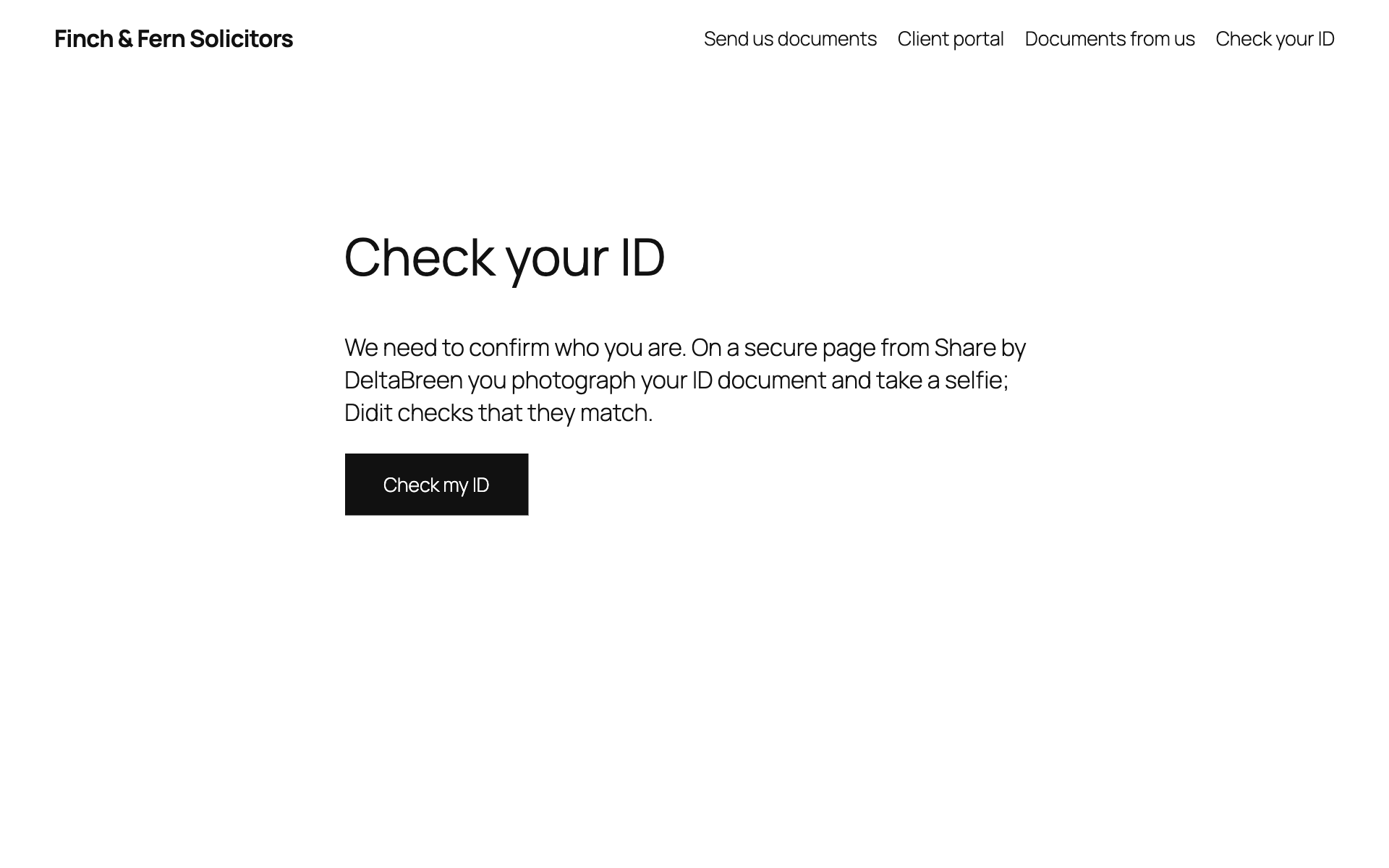
- Share ID check Clients signed in to this site start an ID check through Share by DeltaBreen and see where it stands. What the check covers is chosen in Share.
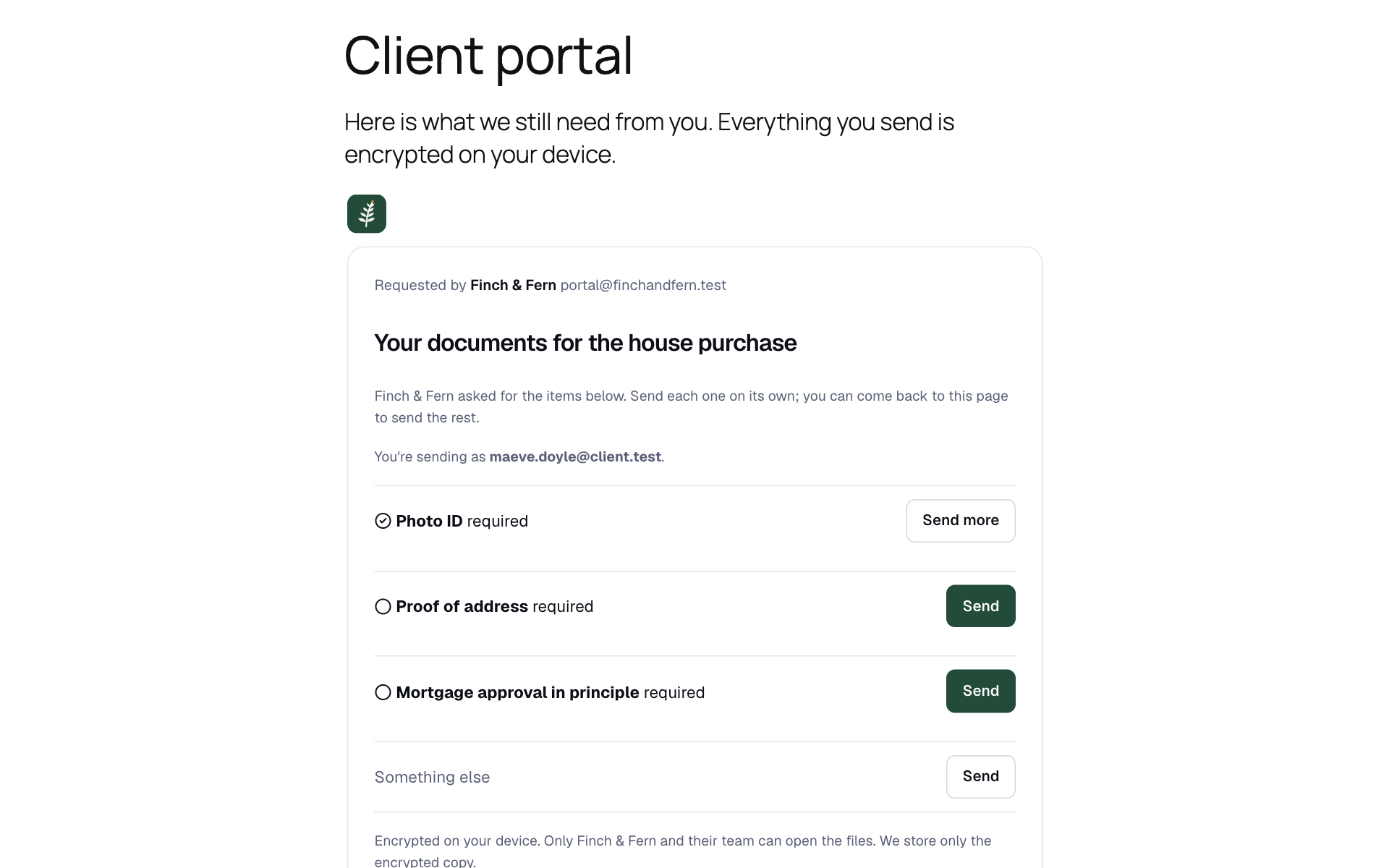
- Share client's file request Each client signed in to this site gets their own place on a Share file request, with no code to type. What they send is encrypted in their browser.
- Share documents for a client Clients signed in to this site see the files you sent them through Share by DeltaBreen, and open each after confirming their email.
Installation
- Install and activate the plugin.
- Sign in to Share at https://share.deltabreen.eu/?ref=wordpress-org (the free plan includes one file request).
- In Share, set up encryption (Settings, Encryption): choose your encryption password and save your encryption recovery code.
- Under Requests, make a file request that is open to anyone with the link, and copy its link.
- On the request, press Add to your website and add your site’s address, for example https://www.example.com.
- Edit the page where people should send files, add the Share file request block and paste the link. In the classic editor, use
[deltabreen_file_request link="…"]. - Optional: connect this site under Settings, Share, with a connection code from Share. Then the block lists your file requests by name, this site can allow itself in one click, and the dashboard counts what is waiting.
Settings, Share shows these steps with your site’s address filled in.
FAQ
-
Can my website, or its other plugins, read the files?
-
No. The form runs in a frame served by Share, which a page’s own scripts cannot read, and the files are encrypted before they leave the visitor’s device.
-
The form does not show on my page.
-
Share shows a file request only on the websites listed for it. In Share, press Add to your website on the request and add your site’s address exactly as visitors see it (with or without www). If a security plugin sets a Content-Security-Policy on your site, it must allow frames from your Share address (frame-src). Visitors whose browser still cannot show the form get a link to open it in a new tab.
-
Can I load the form only when a visitor asks for it?
-
Yes. In the block’s settings, set “Load the form” to “After the visitor clicks a button”. Nothing loads from Share until then.
-
Can each of my clients have their own place?
-
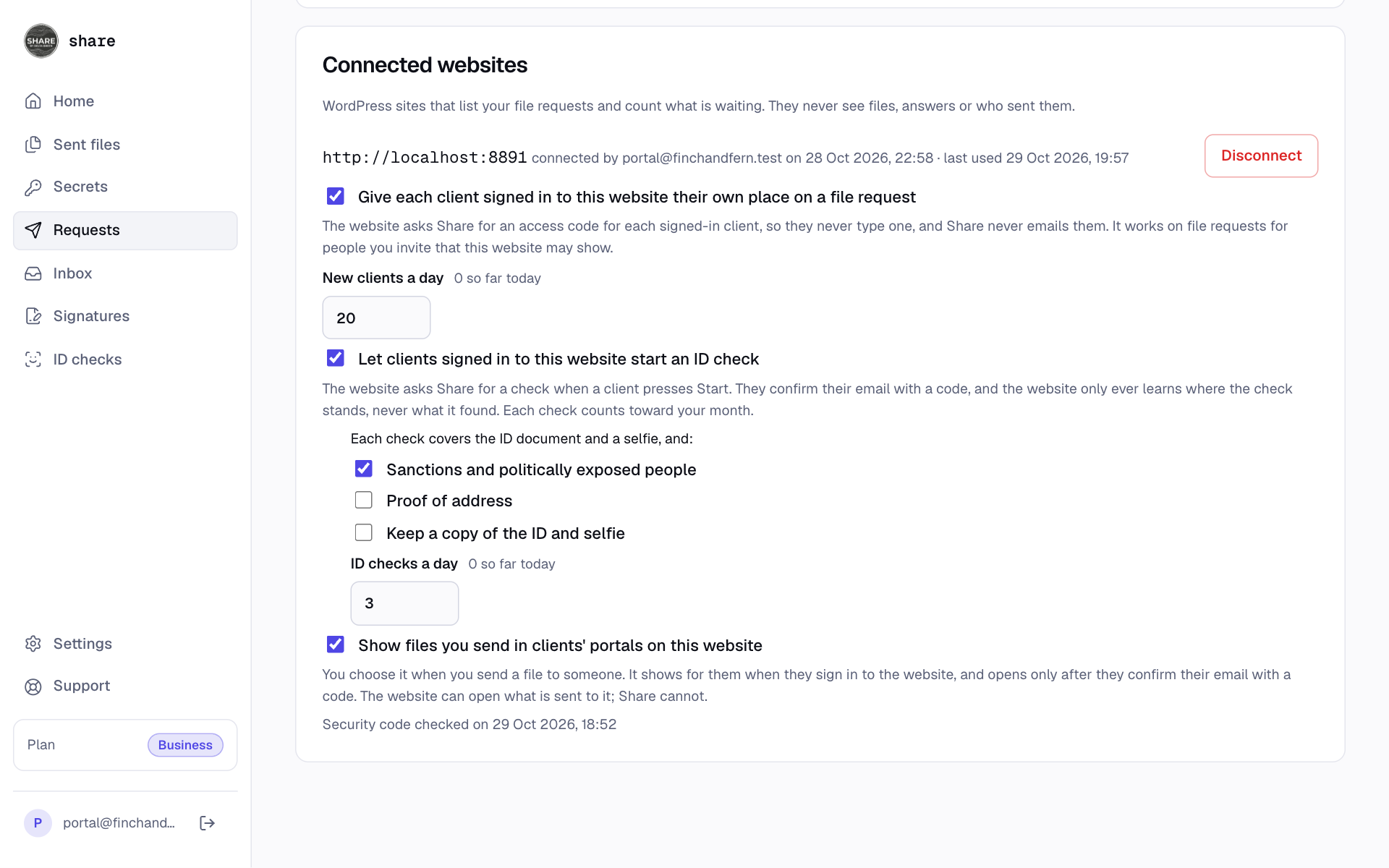
Yes, on a page they sign in to. Connect this site, make a file request for people you invite, and in Share, under Requests, tick “Give each client signed in to this website their own place on a file request” for this site. Then add the Share client’s file request block and choose the request. Each signed-in client gets their own access code without typing it, Share never emails them, and their uploads are listed under their address. Under Settings, Share, you can limit it to some roles. Share limits how many new people the site adds a day, so a site someone breaks into costs you little; it can never read what clients send.
-
Can I show each client the files I send them?
-
Yes, with the Share documents block. Connect this site, then in Share, under Requests, tick “Show files you send in clients’ portals on this website” for this site: Share shows a security code, which must match the one under Settings, Share here. Then, when you send a file in Share, choose “Show it in their portal” and name the client. The link is sealed to this site’s own key, so Share cannot read it; the client sees the file when they sign in here, and opens it after confirming their email with a code.
-
Can my clients check their ID from my site?
-
Yes, if your Share plan includes ID checks. Connect this site, and in Share, under Requests, tick “Let clients signed in to this website start an ID check” for this site and choose what each check covers (a sanctions screen, a proof of address, a copy of the pictures). Then add the Share ID check block to a page your clients sign in to. A client presses “Check my ID”, confirms their email address with a code Share sends them, and photographs their ID document and takes a selfie on Share’s page; Didit checks them. You open the result in Share. This site learns only whether the check passed, is being looked at or did not, and when. Each check counts toward your month, and Share limits how many this site may start a day.
-
Can I use the blocks without the block editor?
-
Yes. In the classic editor or a page builder such as Elementor, Beaver Builder or SiteOrigin Page Builder, paste a shortcode:
[deltabreen_file_request link="…"]for a file request,[deltabreen_client_request id="…"]for a client’s own place (Settings, Share lists each request’s shortcode once the site is connected),[deltabreen_id_check]for the ID check and[deltabreen_documents]for the documents.Blocks and shortcodes take the full width of a container that centres its items, as a Group set to Stack or Row, Elementor, Kadence Blocks and GenerateBlocks can. To make one narrower, give it a width in the builder.
-
Can visitors go to a thank-you page after sending?
-
Yes. In the block’s settings, under After sending, search for one of your pages or paste a link; with a shortcode, add
redirect="/thank-you/". The visitor sees the form’s own “Sent” for a moment first. On a checklist, they go there once everything you asked for has arrived. For analytics, the page also hears each send:document.addEventListener( 'deltabreen-share:sent', function ( e ) { /* e.detail.complete */ } );. Nothing about the files, the visitor or the key crosses to your page. -
Does it work on phones?
-
Yes. On a phone the visitor can take a photo of a document with the camera, or choose a file. If their connection drops during a large upload, the form offers to carry on where it stopped when they choose the same file again, and a visitor can cancel an upload at any time.
-
Can someone send me a virus through the form?
-
Files never reach your website or its server, so nothing sent can run there. Because they are encrypted end to end, Share cannot scan them either: open files from people you do not know with the care you would give an email attachment.
-
Does it work with caching and speed plugins?
-
Yes. The pages hold nothing about who is looking at them, so a page cache can keep them, and the plugin marks its one script so that WP Rocket, LiteSpeed Cache, SiteGround Optimizer, Autoptimize, Jetpack Boost and Cloudflare Rocket Loader leave it alone. Otherwise a client’s blocks would stay blank until they first moved the mouse.
-
It sets no tracking cookies. While an upload is under way, the visitor’s browser keeps a note of it so they can carry on after an interruption; the note goes when the upload finishes, is cancelled or is discarded. If your consent tool should hold the form back until a visitor agrees, set “Load the form” to “After the visitor clicks a button”.
-
Does it work on a multisite network?
-
Yes. Each site connects to Share on its own and keeps its own clients’ codes. Removing someone from a site stops that site’s codes for them, and deleting the plugin from the network ends every site’s connection.
-
How do I export or erase what the plugin keeps about a person?
-
With WordPress’s own tools, Tools, Export Personal Data and Erase Personal Data. The plugin keeps only the access codes it got for a signed-in client on your file requests; an export lists them without the codes, and erasing stops them in Share. What the person sent you stays in your Share workspace: delete it there if you need to.
-
How do I report a security issue?
-
Email contact@deltabreen.eu with “Security report” as the subject, as https://share.deltabreen.eu/.well-known/security.txt says, and not in the support forum.
-
Where do I read what was sent?
-
In your Share inbox, after you unlock it with your encryption password. Share emails whoever made the request when files or answers arrive.
-
Does it cost anything?
-
The plugin is free. Share’s free plan includes one file request; its paid plans are listed at https://share.deltabreen.eu/pricing?ref=wordpress-org.
Reviews
There are no reviews for this plugin.
Contributors & Developers
“DeltaBreen File Requests” is open source software. The following people have contributed to this plugin.
Contributors
Translate “DeltaBreen File Requests” into your language.
Interested in development?
Browse the code, check out the SVN repository, or subscribe to the development log by RSS.
Changelog
1.0.0
- First version: the Share file request block and the [deltabreen_file_request] shortcode.
- The Share client’s file request block: each client signed in to the site gets their own place on a file request.
- The Share ID check block: a signed-in client checks their ID through Share and sees where it stands.
- The Share documents block: a signed-in client sees the files you sent them, sealed to this site’s own key.
- A shortcode for every block, for the classic editor and page builders.
- Blocks and shortcodes keep the full width in a container that centres its items.
- A thank-you page after sending, and the deltabreen-share:sent event for analytics.
- A pasted shortcode, or a file request’s link on a line of its own, becomes the block.
- The documents block says when each file was sent and its size.
- WordPress’s personal data export and erase tools, Site Health and multisite networks.
- Speed plugins leave the blocks’ script alone, and a feed shows a link instead of the form.
- Copy buttons for the shortcodes and this site’s address under Settings, Share.