
Description
CreativeMash AI Image Studio is an AI image generator built into WordPress. Set up your look once as a style, then make matching featured images and post images in a few clicks, without writing long prompts every time.
It’s for bloggers, businesses and agencies who want every image on a site to look like it belongs together.
How it works
- Connect your OpenAI or Google account (the setup screen walks you through it).
- Pick a ready-made style, or make your own from a few example images.
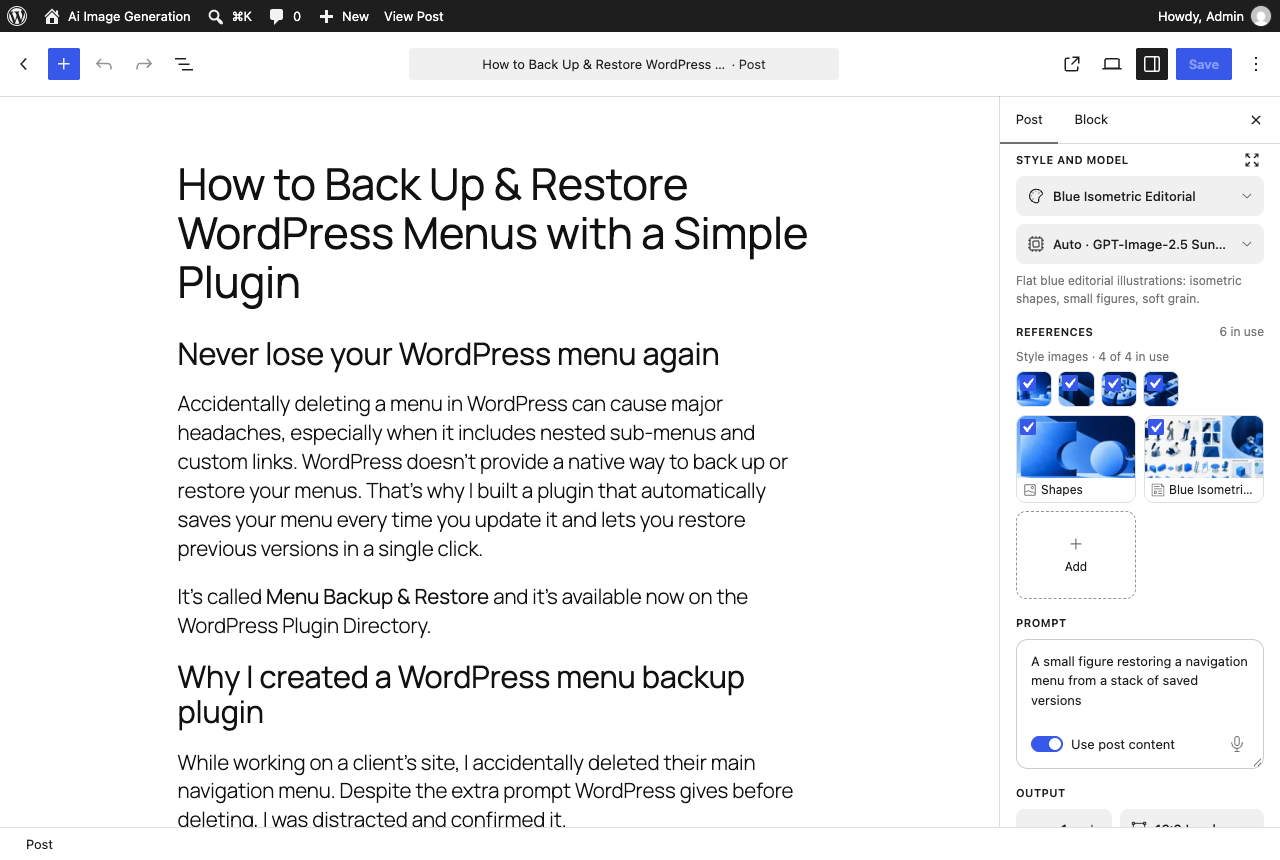
- In any post, open the AI Featured Image panel, add an optional prompt, and click Generate. Save the one you like to the Media Library or set it as the featured image.
Features
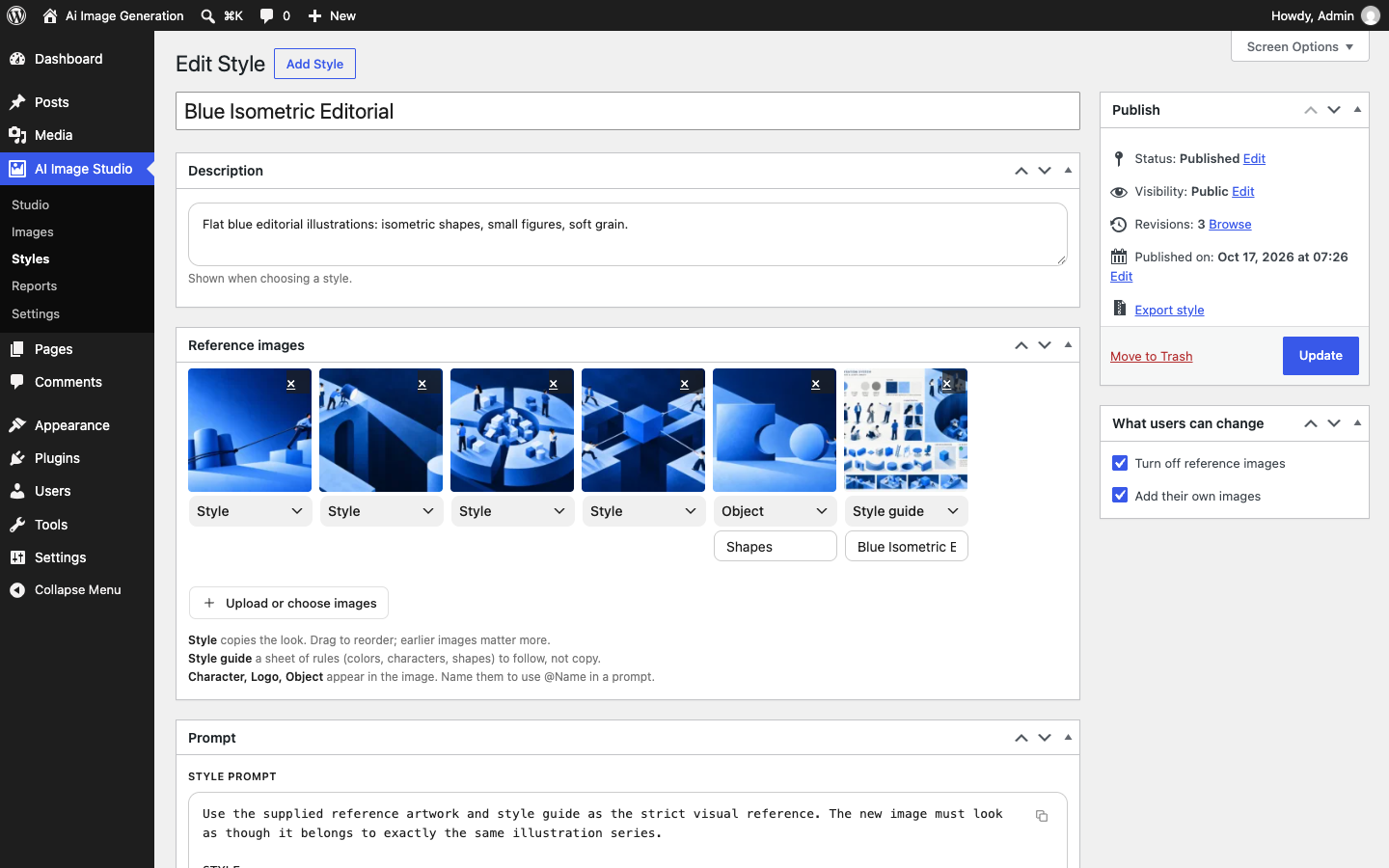
- Styles hold your look: a style prompt, things to avoid, reference images (style, style guide, characters, logos, objects) and default output settings. Three ready-made styles are included, and styles can be exported and imported as ZIP files.
- AI Featured Image panel in the block editor, and a “Generate with AI” button in the Classic Editor’s Featured Image box. Uses the current, unsaved post content plus an optional prompt.
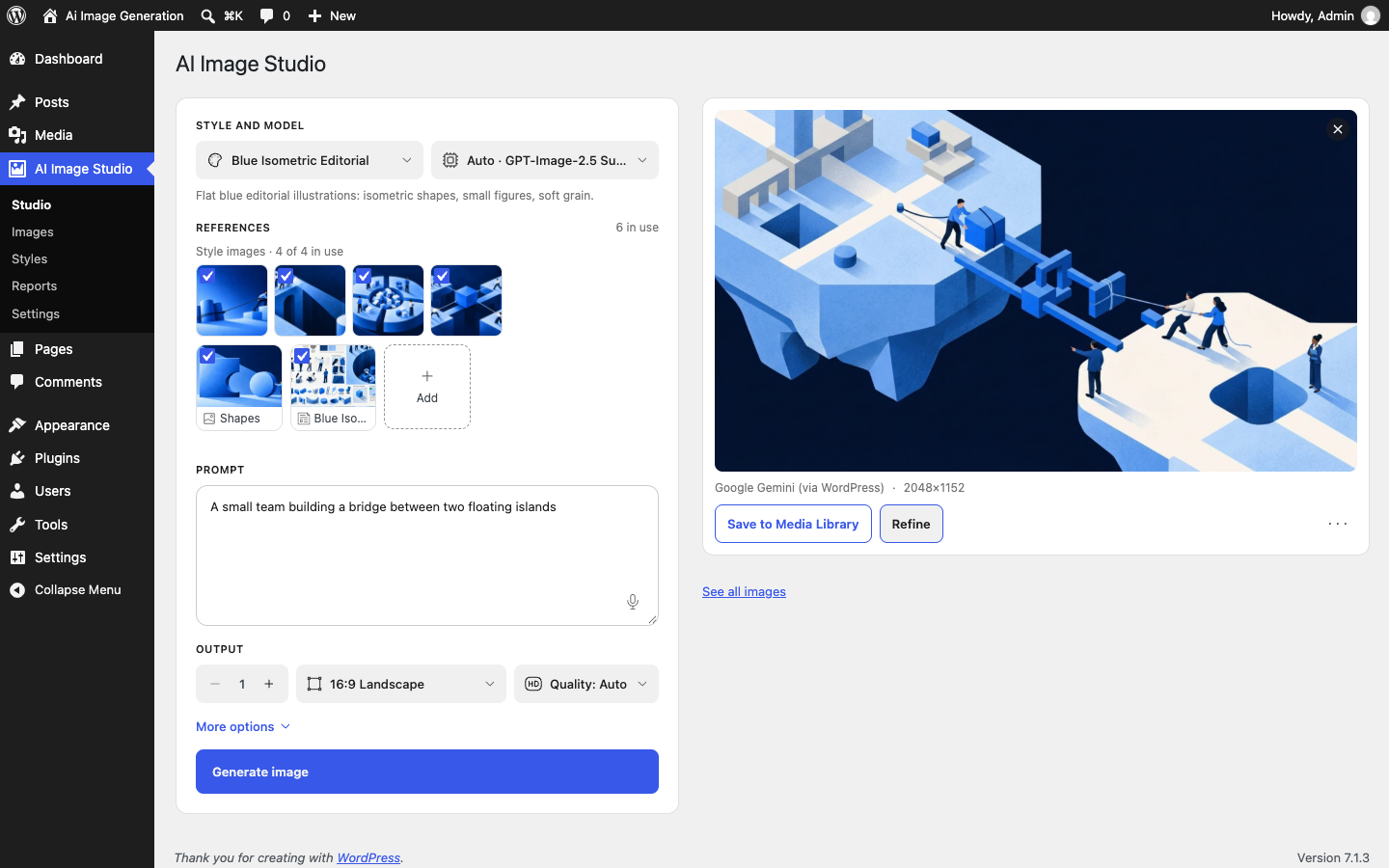
- Preview first. Nothing is added to the Media Library until you accept it. Refine, regenerate or discard freely.
- Studio page for making images without a post.
- Images page with everything made: open any image to see its prompt, copy it, or use it again in the Studio.
- OpenAI and Google Gemini, with a live model list and Auto choices. Sites using WordPress’s own AI connections (Settings > Connectors) can use those too.
- Optional extras (Settings > Features, each can be switched off): several images at once, live previews while the image is made, automatic alt text, “Draft from my reference images” on styles, extra images people add themselves, and voice input.
- Limits and reports: a daily image limit per person, activity reports, and optional estimated costs (off by default, always labelled as estimates).
- API keys stay on the server and are never sent to the browser.
You need your own API key from OpenAI or Google. Images are made, and billed, by that provider.
External services
This plugin connects to the services below. Nothing is sent until an administrator connects a service, and nothing about site visitors is ever sent.
OpenAI API
Makes images (and, if turned on, alt text and style drafts) when OpenAI is connected in Settings > AI connections.
- Sent when someone generates, refines or describes an image: the prompt and things to avoid, the style’s prompt, the post title and excerpt, the post text when “Use post content” is on, the style’s reference images and any images people add, the current image when refining, and the API key.
- Sent when connecting or refreshing the model list: the API key.
- Address: https://api.openai.com
- Terms: https://openai.com/policies/services-agreement/
- Privacy policy: https://openai.com/policies/privacy-policy/
Google Gemini API
Makes images (and, if turned on, alt text and style drafts) when Google is connected in Settings > AI connections.
- Sent: the same as for OpenAI above, to Google instead.
- Address: https://generativelanguage.googleapis.com
- Terms: https://ai.google.dev/gemini-api/terms
- Privacy policy: https://policies.google.com/privacy
WordPress AI connections
When “WordPress AI” is chosen, the same data is passed to WordPress’s own AI connections (Settings > Connectors), which send it to the provider set up there under that provider’s terms.
Privacy
Images are made by the AI provider you connect, with your own API key and under their terms. You are responsible for following those terms and for what you publish.
What people type is kept with each image so it can be copied or used again from the Images page. Turn this off in Settings > Data & privacy > Keep prompts. It is removed with the reports history, and included in WordPress’s personal data export and erase tools. Post text is only kept with unsaved previews and is deleted with them.
Voice input uses the browser’s own speech recognition: Chrome and Edge send speech to Google, Safari to Apple. The plugin never stores audio.
Saved images are tagged as AI-made in the file (the standard IPTC tag), and the site can show the EU “AI Generated” badge on AI images, on top of them or in the file; both are in Settings > Features > AI label. Images from Google also include an invisible SynthID watermark. Suggested text for your privacy policy is added to Settings > Privacy > Policy Guide.
Screenshots
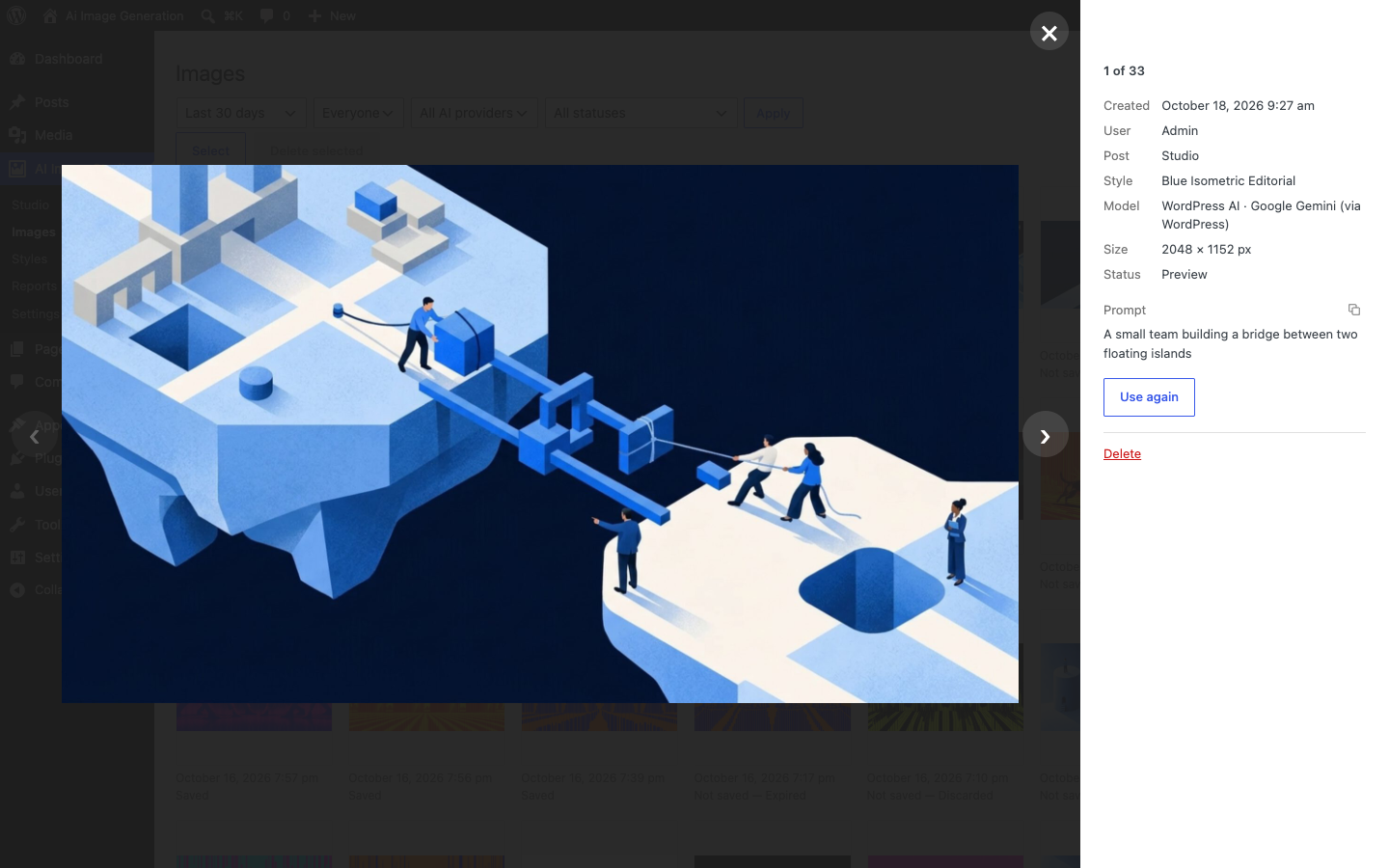
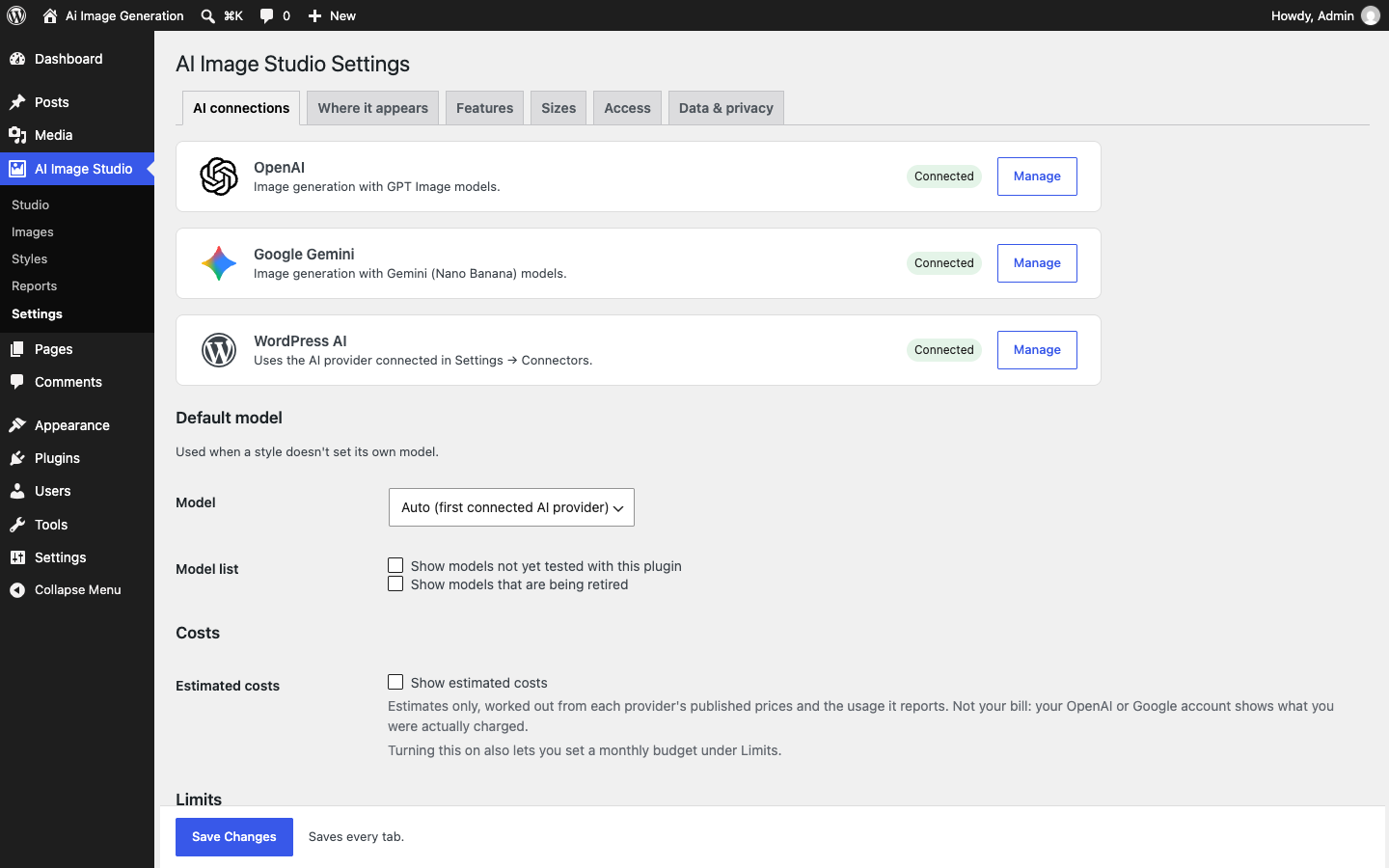
Installation
- Upload the plugin and activate it.
- Open AI Image Studio at the bottom of the admin menu. The setup screen walks you through connecting an OpenAI or Google API key, picking a starter style and making a first image. You can also define
CMAIS_OPENAI_API_KEY/CMAIS_GOOGLE_API_KEYin wp-config.php. - Open a post and use the AI Featured Image panel in the sidebar, or go to AI Image Studio > Studio.
FAQ
-
Do I need an API key?
-
Yes, from OpenAI or Google (or a provider set up in WordPress’s own AI connections). The setup screen links to where to get one. Each provider bills you directly.
-
How much does an image cost?
-
That depends on the provider, model, size and quality. Check your provider’s pricing page. You can turn on estimated costs in Settings > AI connections > Costs; they are estimates, not your bill.
-
Are images added to the Media Library straight away?
-
No. You see a preview first. Only images you accept are saved. Unsaved previews are deleted after the time set in Settings > Data & privacy.
-
Can I control who can generate images?
-
Yes. Settings > Access sets what each role can do, and Settings > AI connections > Limits sets a daily image limit per person.
-
Is anything sent about my visitors?
-
No. The plugin only runs in the admin area.
Reviews
There are no reviews for this plugin.
Contributors & Developers
“CreativeMash AI Image Studio” is open source software. The following people have contributed to this plugin.
Contributors
Translate “CreativeMash AI Image Studio” into your language.
Interested in development?
Browse the code, check out the SVN repository, or subscribe to the development log by RSS.
Changelog
1.0.0
- First public release.
- Styles: a look you set up once (prompt, things to avoid, reference images, image settings), with three ready-made styles. Export and import styles as ZIP files.
- AI Featured Image panel in the block editor, a “Generate with AI” button in the Classic Editor, and a Studio page for images without a post.
- Preview first: nothing is added to the Media Library until you save it. Refine, make more options or discard.
- OpenAI, Google Gemini, and WordPress’s own AI connections.
- Images page: everything made, with each image’s prompt to copy or use again.
- Setup screen, roles and limits, activity reports, optional estimated costs, automatic alt text, voice input, and an AI label on saved images.