Description
CodeCaste Media and Safe SVG File Upload Rules lets you decide which files can be uploaded to your site and how big they can be. You set the rules once, and they are applied everywhere files can come in.
What you can do
- Set one size limit for all files. For example, nothing larger than 5 MB.
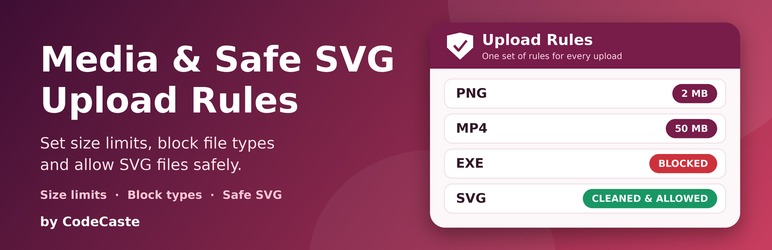
- Give a file type its own limit. For example, 2 MB for PNG, 50 MB for MP4 and 10 MB for PDF.
- Block a file type completely. Any file with that extension is refused, whatever its size.
- Allow SVG files safely. WordPress blocks SVG by default because SVG files can hide harmful code. Turn SVG on and the plugin cleans every SVG before it is saved.
- Clear error messages. When a file is refused, the person uploading sees the reason, such as the file being too large or its type being blocked.
Where the rules apply
The same rules are used for:
- The Media Library and the “Add Media” button
- The WordPress REST API (
/wp/v2/media) - Files added by importers and other code
- File manager plugins such as WP File Manager
- Other plugins that accept uploads in their own way, such as form builders and page builders
This means a file cannot slip past your limits just because it was uploaded through a different plugin. If you prefer not to check other plugins, you can turn that part off in the settings.
Why you might want this
- Stop very large files from filling up your hosting space.
- Stop team members or visitors from uploading file types you do not want.
- Use SVG logos and icons without opening your site to attacks.
- Keep all upload rules in one place instead of one setting per plugin.
Light and simple
No extra database tables and no background tasks. Settings are stored in the normal WordPress options.
Getting started
Set the default limit
Open Media upload restrictions, go to the General tab, choose a maximum file size and click Save settings. This limit applies to every file type that has no rule of its own.
Add a rule for one file type
- Open the Extension rules tab.
- Under Add extension rule, pick the file type (for example
pdf). - Enter its maximum size, or switch on Block this extension to refuse it completely.
- Click Add rule.
You can edit, switch off or delete a rule at any time from the Configured rules list.
Allow SVG files
On the Extension rules tab, switch on Allow SVG uploads and choose a maximum SVG size. Every SVG is cleaned before it is saved. SVG stays off until you turn it on.
For developers
Other plugins and themes can use the same rules.
Functions
gupc_evaluate_upload( array $file, string $route = 'custom_adapter' )checks a file and returns a result object with the reason and message.gupc_is_upload_allowed( array $file, string $route = 'custom_adapter' )returnstrueorfalse.gupc_get_effective_limit( string $extension )returns the size limit in bytes for a file type (0 means blocked).
Always check that the function exists first, for example if ( function_exists( 'gupc_is_upload_allowed' ) ).
Hooks
gupc_pre_evaluate_decision(filter): replace a decision before the rules run.gupc_upload_evaluated(action): runs after every decision, for logging.gupc_register_adapters(action): register your own upload adapter that implementsGlobalUploadPolicyController\Adapters\Upload_Adapter_Interface.gupc_skip_request_guard(filter): skip the check for a request from another plugin.gupc_request_guard_skip_fields(filter): list upload field names the check should ignore.gupc_file_manager_ajax_actions(filter): add the AJAX action name of another file manager.
Screenshots


Installation
- Go to Plugins > Add New > Upload Plugin, choose the plugin zip file and click Install Now. (Or upload the
codecaste-media-and-safe-svg-file-upload-rulesfolder to/wp-content/plugins/.) - Click Activate.
- Open Media upload restrictions in the admin menu.
- Set your default size limit and click Save settings.
FAQ
-
Can this plugin raise my server’s upload limit?
-
No. Your hosting sets a hard maximum (the PHP settings
upload_max_filesizeandpost_max_size), and a plugin cannot go above it. This plugin lets you set limits that are lower than or equal to your hosting limit. Ask your host if you need the hosting limit raised. -
Why are SVG uploads off by default?
-
SVG files can contain scripts and links to outside files, which attackers can misuse. When you turn SVG on, the plugin removes scripts, unsafe attributes and other risky parts from each SVG before saving it. Files that cannot be cleaned are refused.
-
Yes. The plugin checks uploads that arrive through other plugins, so your size limits and blocked file types still apply. If one of your plugins has a problem with this, switch off Also check uploads from other plugins on the General tab.
-
Does it affect plugin or theme installs from a zip file?
-
No. Installing plugins or themes from a zip file and using WordPress importers are left alone.
-
What if a file type has no rule?
-
It uses the default size limit from the General tab.
-
Does a rule for .jpg also cover .jpeg?
-
Yes. Common alternative spellings are treated as the same type, so a
jpgrule also coversjpeg. -
A file was refused. How do I allow it?
-
Check the message shown. Either the file is larger than the limit for its type, or its type is blocked. Raise the limit or remove the block rule on the Extension rules tab.
-
Can I turn all checks off temporarily?
-
Yes. Switch off Enforce upload policies on the General tab. SVG cleaning stays active for safety.
Reviews
There are no reviews for this plugin.
Contributors & Developers
“CodeCaste Media and Safe SVG File Upload Rules” is open source software. The following people have contributed to this plugin.
Contributors
Translate “CodeCaste Media and Safe SVG File Upload Rules” into your language.
Interested in development?
Browse the code, check out the SVN repository, or subscribe to the development log by RSS.
Changelog
1.0.0
- First release.
- Default size limit for all files, plus per-file-type limits and blocking.
- Safe SVG uploads with automatic cleaning (off by default).
- Rules apply to the Media Library, REST API and sideloaded files.
- Rules apply to WP File Manager and other plugins that accept uploads in their own way, with an on/off setting.
- Clear error messages, one Save button and a developer API.