

Description
Chronition Ad Manager places Google AdSense ad units and your own image banners exactly where you want them, and decides who sees them and when. You never paste code: enter your AdSense publisher and ad unit IDs (or choose a banner image), and the plugin writes the official markup for you.
Ad types
- Google AdSense ad units: responsive, in-article or fixed size, from your publisher ID and ad unit (slot) ID.
- AdSense Auto ads: switch them on with your publisher ID.
- Image banners: any image from your media library with a link (marked
rel="sponsored", as Google asks), alternative text and “open in a new tab”.
Place ads anywhere
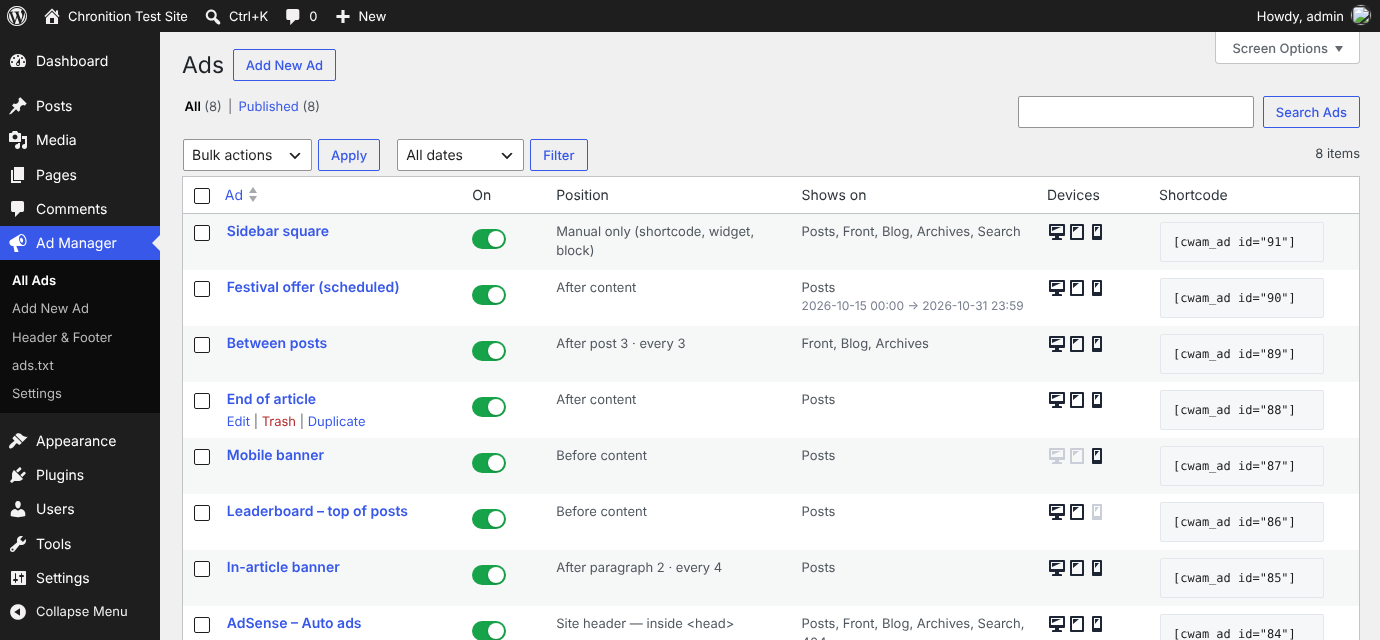
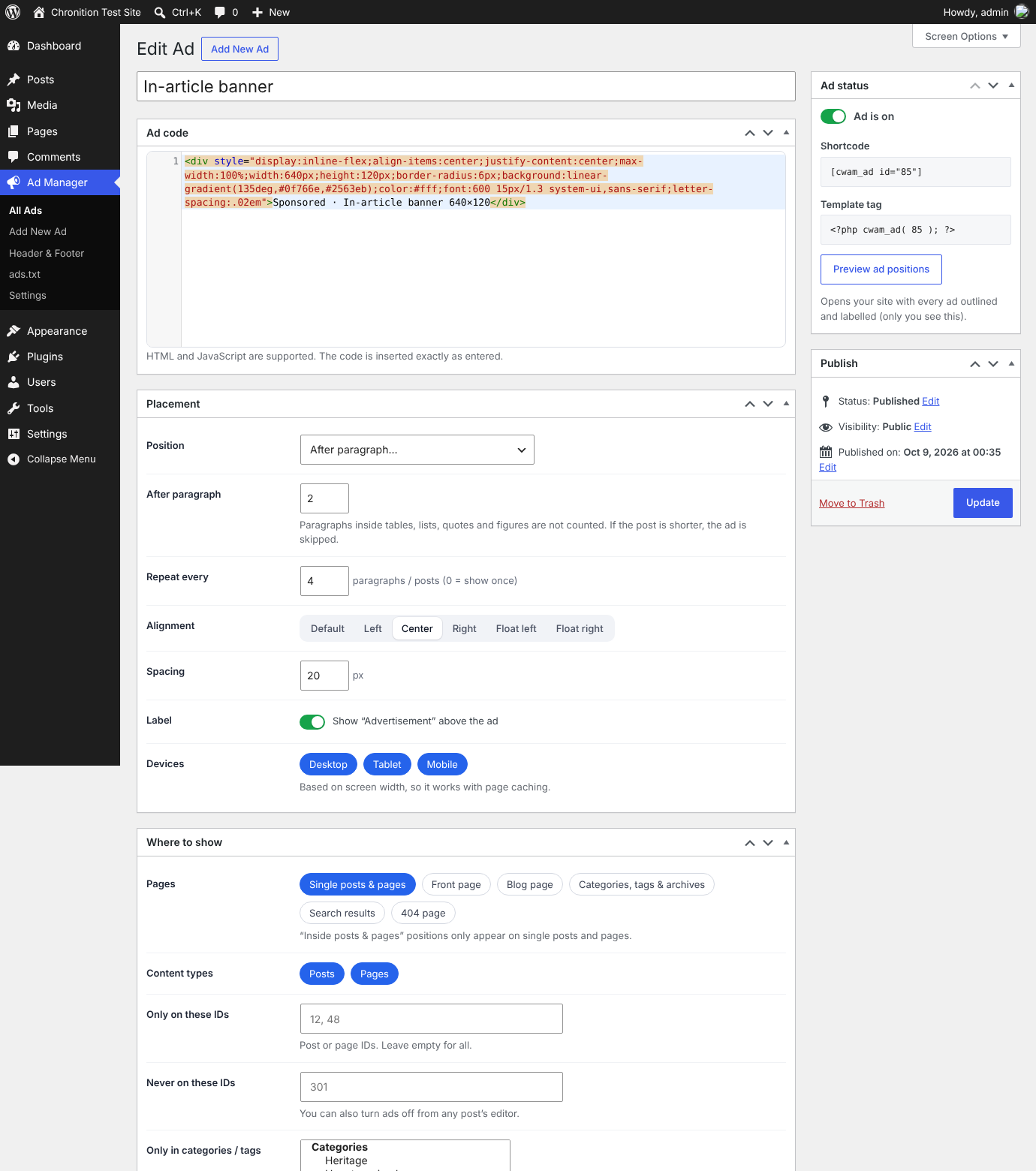
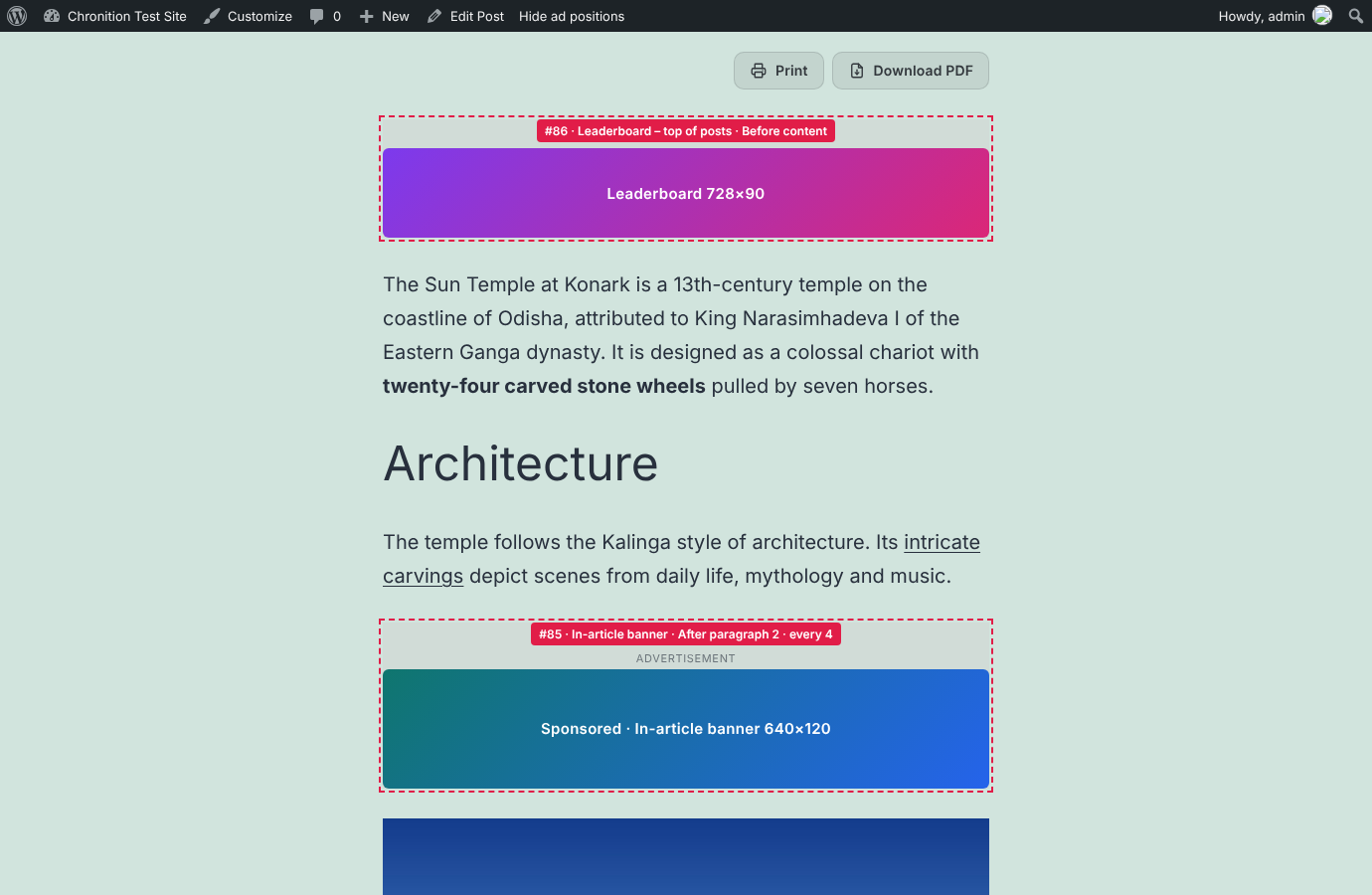
- Inside posts and pages: before the content, after any paragraph (with “repeat every N paragraphs”), in the middle, or after the content. Paragraphs inside tables, lists, quotes and figures are skipped, so ads never break your layout.
- Between posts on your blog page, categories, tags and archives. Works with classic themes and block themes (Query Loop).
- Manually with a shortcode, the “Ad” block, the “Ad” widget or a template tag.
Show each ad to the right people
- Pages: single posts and pages, front page, blog page, archives, search results, 404.
- Content types, specific post IDs, and categories or tags to include or exclude.
- URL contains / does not contain.
- Devices: desktop, tablet and mobile (based on screen width, so it works with page caching).
- Visitors: everyone, logged-out only or logged-in only. Hide ads from chosen user roles.
- Schedule: start and end date and time.
- Minimum post length.
ads.txt and app-ads.txt
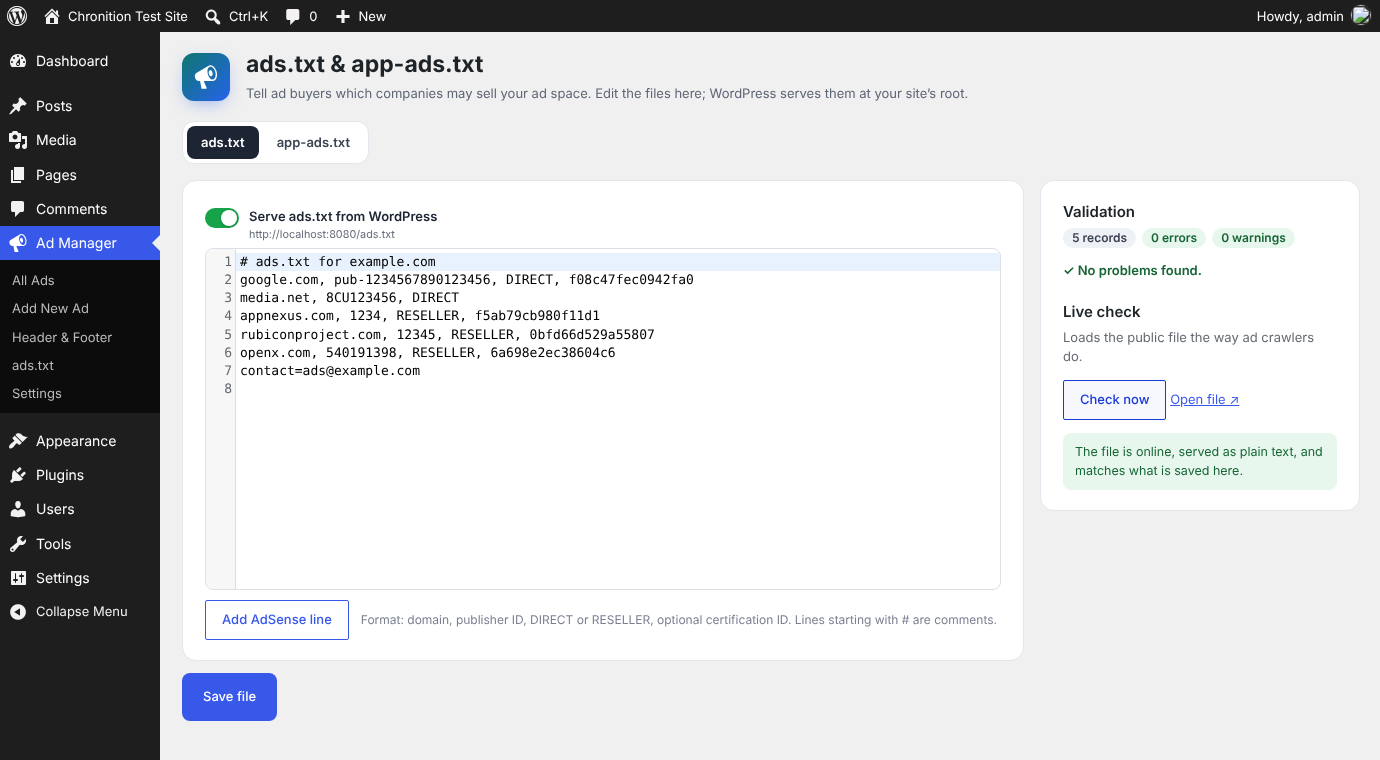
- Edit both files in WordPress. They are served at your site root, with no file uploads needed.
- Live validation that shows errors and warnings line by line (IAB ads.txt 1.1).
- An “Add AdSense line” helper.
- A live check that confirms the public file matches what you saved.
- Finds an existing ads.txt file on the server and imports it for you.
Google & tracking by ID
Enter an ID and the plugin adds the official snippet:
- Google Analytics 4 (measurement ID)
- Google Tag Manager (container ID)
- Meta Pixel (pixel ID)
- Site verification for Google Search Console, Bing and Pinterest
Your own visits as an administrator are not tracked unless you choose so.
Built for real sites
- Ads are on/off with one click from the list, and can be duplicated.
- “Preview ad positions” outlines and labels every ad on your site, visible only to you.
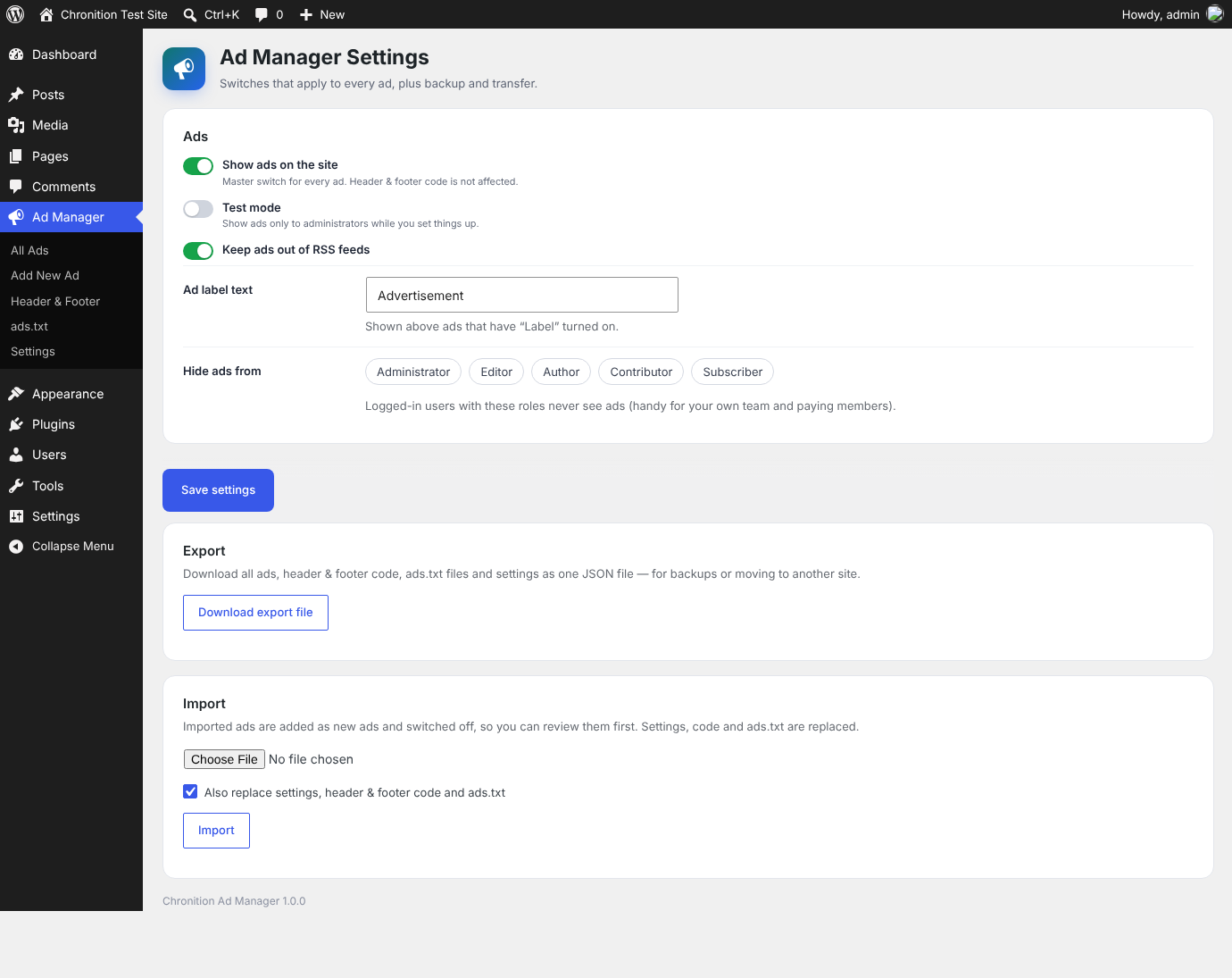
- Test mode shows ads only to administrators while you set up.
- Per-post switch to turn off all ads on a page.
- Optional “Advertisement” label, alignment, floating and spacing.
- Fast: active ads are compiled into a single cached option, so pages do not run extra database queries to find ads.
Ad Manager Pro
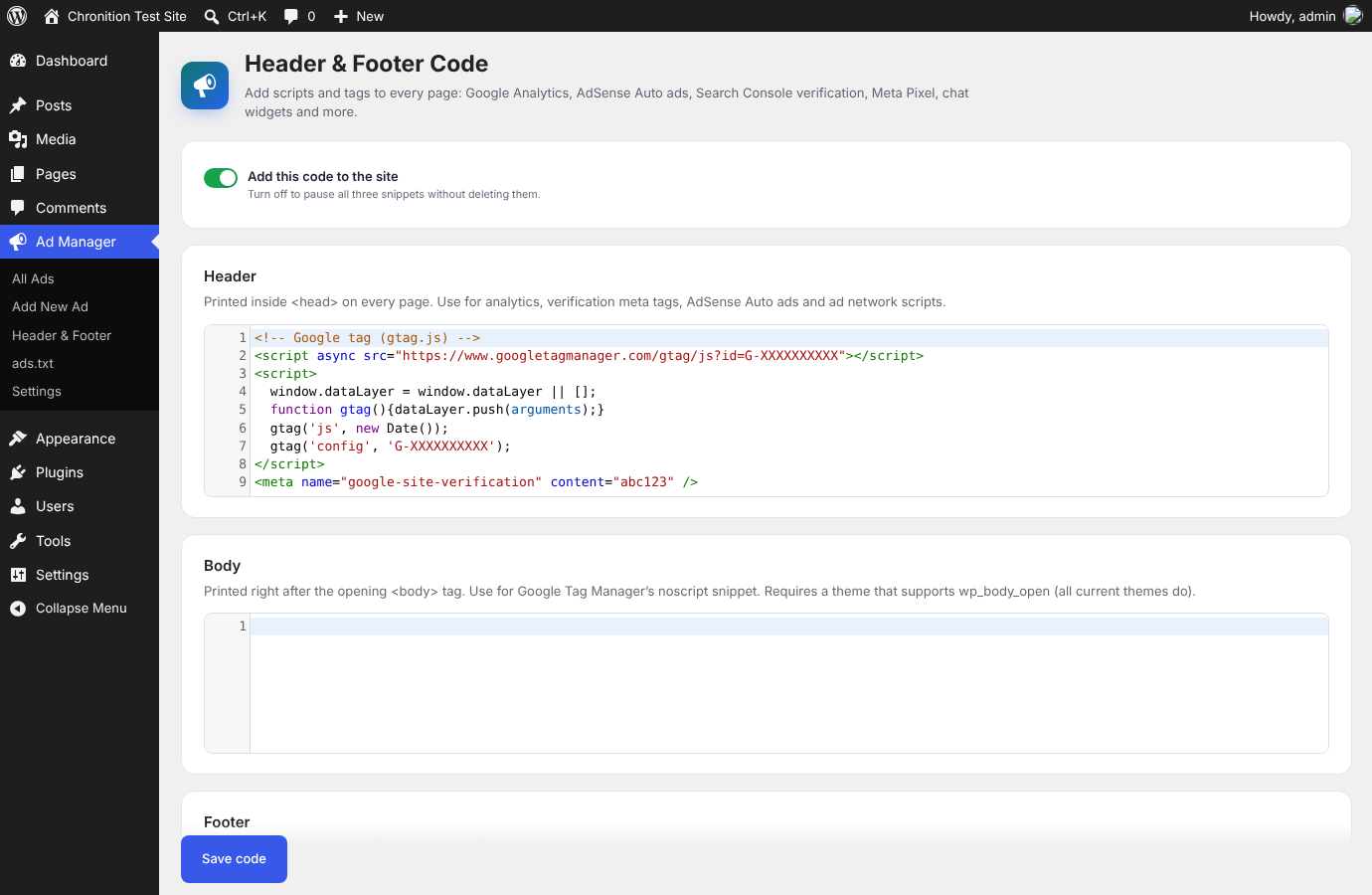
An optional paid add-on, Chronition Ad Manager Pro, adds custom code ads for any ad network, header and footer code, sticky, side-rail and pop-up ads, rotation and A/B tests, lazy loading, impression and click statistics, an ad-blocker message, consent support and import/export. This plugin is complete and fully functional without it.
External services
This plugin connects to third-party services only when you enter an ID for them. Nothing is loaded until you do.
- Google AdSense — when you create an AdSense ad or turn on Auto ads, visitors’ browsers load
https://pagead2.googlesyndication.com/pagead/js/adsbygoogle.jswith your publisher ID so Google can show ads. Google receives the visitor’s IP address, browser details and the page address, and may set cookies. Terms — Privacy — AdSense policies - Google Analytics 4 — when you enter a measurement ID, visitors’ browsers load
https://www.googletagmanager.com/gtag/jsand send page views to Google Analytics. Terms — Privacy - Google Tag Manager — when you enter a container ID, visitors’ browsers load
https://www.googletagmanager.com/gtm.js(andns.htmlwithout JavaScript), which runs the tags you set up in Tag Manager. Terms — Privacy - Meta Pixel — when you enter a pixel ID, visitors’ browsers load
https://connect.facebook.net/en_US/fbevents.jsand send page views to Meta (https://www.facebook.com/tr). Terms — Privacy - Site verification codes for Google Search Console, Bing and Pinterest are printed as meta tags; your site does not contact those services.
- ads.txt live check — the “Check now” button requests your own site’s ads.txt file from your server. No other site is contacted.
If your visitors are in a region that requires consent for advertising or analytics cookies, use a consent plugin or the consent option of Ad Manager Pro.
Screenshots
Blocks
This plugin provides 1 block.
- Ad
Installation
- In your dashboard go to Plugins Add New, search for “Chronition Ad Manager”, then install and activate it.
- Open Ad Manager Google & Tracking and enter your AdSense publisher ID.
- Open Ad Manager Add New Ad, enter the ad unit ID (or choose a banner image), choose a position and publish.
- For ads.txt, open Ad Manager ads.txt, use “Add AdSense line”, turn on “Serve ads.txt from WordPress” and save.
FAQ
-
Where do I find my AdSense IDs?
-
The publisher ID (ca-pub-…) is under AdSense Account Account information. The ad unit ID is the number in
data-ad-slotof the ad unit’s code (AdSense Ads By ad unit). -
Can I paste ad code from other networks?
-
Not in the free plugin, which only uses IDs and images so that nothing unchecked is printed on your site. Ad Manager Pro adds custom code ads for any network.
-
My ads.txt shows a 404 or an old version
-
- Make sure “Serve ads.txt from WordPress” is on and saved.
- If a real
ads.txtfile exists in your site folder, the server shows that file instead. The ads.txt screen detects it and can import and rename it. - Some server setups (usually Nginx) don’t pass requests for missing
.txtfiles to WordPress. Ask your host to send missing files toindex.php. - Clear any page or CDN cache.
The “Check now” button tells you which of these applies.
-
Does ads.txt work if WordPress is in a sub-folder or on a subdomain?
-
Ad systems read ads.txt from the root of the domain. The ads.txt screen warns you when your site is in a sub-folder or on a subdomain and explains what to do.
-
How do I hide ads on one page?
-
Tick “Turn off all ads on this page” in the “Ads” box in that page’s editor, or add its ID under “Never on these IDs” in the ad.
-
Is it compatible with caching plugins?
-
Yes. Device targeting uses CSS media queries rather than detecting the device on the server, so cached pages show the right ads on every screen size.
-
Will it slow down my site?
-
No. Active ads are read from a single cached option and the front-end stylesheet is a few hundred bytes, printed inline only when an ad is shown. Google’s AdSense script is loaded asynchronously, once per page.
Reviews
There are no reviews for this plugin.
Contributors & Developers
“Chronition Ad Manager” is open source software. The following people have contributed to this plugin.
Contributors
Translate “Chronition Ad Manager” into your language.
Interested in development?
Browse the code, check out the SVN repository, or subscribe to the development log by RSS.
Changelog
1.1.0
- Initial release on WordPress.org.