
Description
Ask customers for what your store needs: a gift message, a VAT number, a gate code, how they heard about you. Checkoutline adds a WooCommerce Checkout Fields page where you add, order and switch fields on and off. No code.
Built on WooCommerce’s own checkout fields
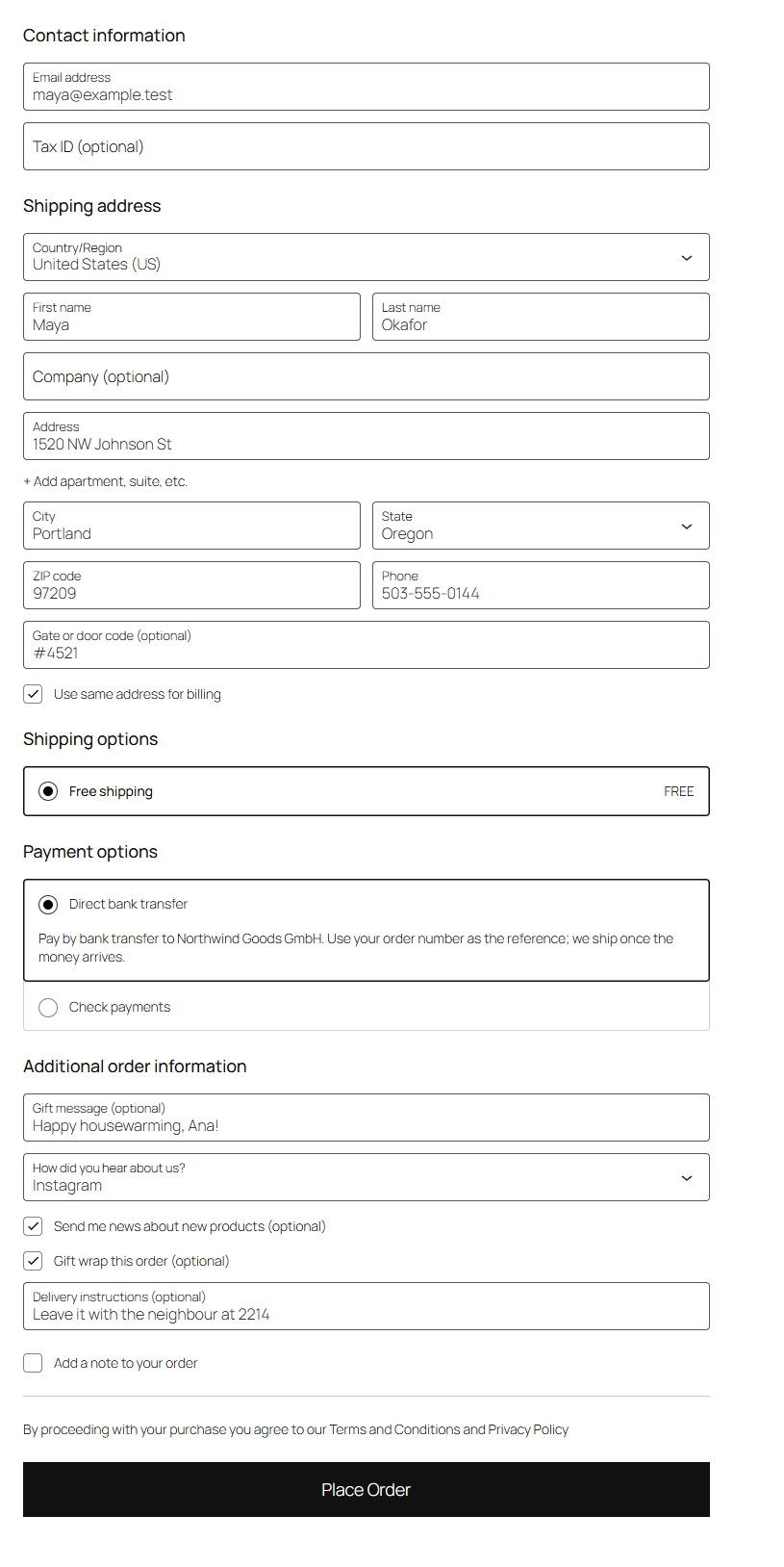
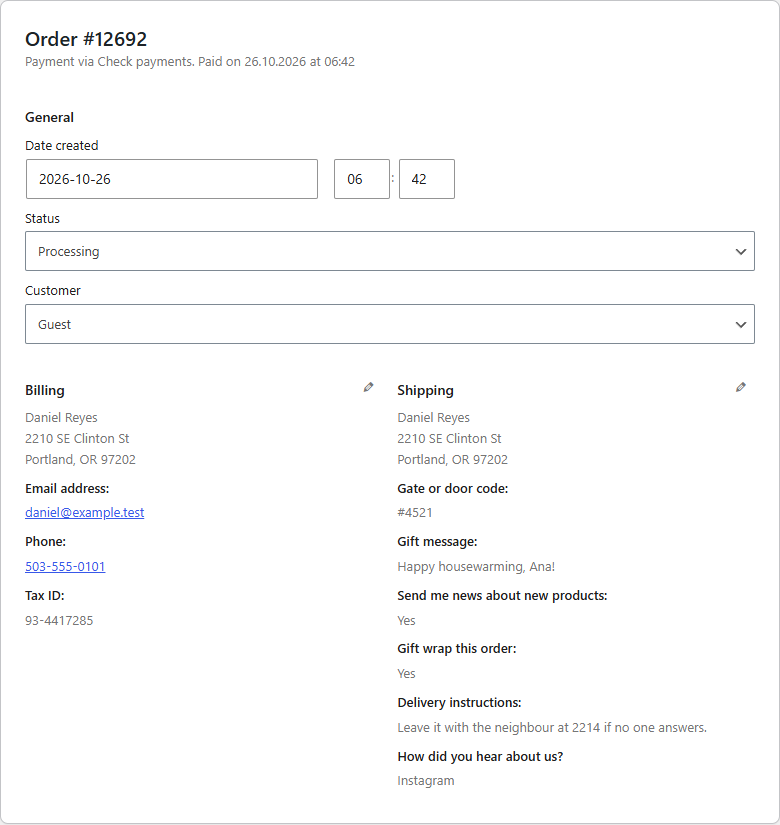
- In the Checkout block, your fields are WooCommerce’s own additional checkout fields: WooCommerce shows them, checks required ones, saves them on the order and the customer, and lists them on the order screen, the order confirmation, My Account and its emails.
- The classic checkout gets the same fields and saves them in the same place. WooCommerce itself only lists these fields on Checkout block orders, so Checkoutline lists them on classic checkout orders too: on the order screen (editable), the order confirmation, My Account and order emails. An order reads the same whichever checkout placed it.
Your fields
- Text, text area, dropdown and checkbox fields.
- In the contact information, on the addresses (billing and shipping), or with the order.
- Required or optional, enabled or switched off, in the order you drag them to.
- A placeholder and a default value: a dropdown that starts on the usual choice, a checkbox that starts ticked.
WooCommerce’s fields
- Rename the first name, last name, company, address, city, state, postcode and phone fields. Your label replaces the one WooCommerce uses for each country.
- Make any of them optional, required or hidden, in both checkouts and My Account’s address forms.
For developers
Checkoutline is built to be extended. Other plugins can register more field types (checkoutline_field_types), keep settings of their own on a field, change a field in either checkout (checkoutline_block_field, checkoutline_classic_field), check answers (checkoutline_value_problem), decide when a field shows, format answers on orders, and add settings to a field’s screen. checkoutline_loaded fires once Checkoutline has loaded. The hooks are documented in the code and on extendiment.com.
Checkoutline Pro
The separate Checkoutline Pro add-on adds radio button, date, number, email and phone fields; fields that only show when they apply (products or categories in the cart, local pickup or delivery, shipping methods, countries, or another field’s answer); and a format and maximum length the answer must match, with your own error message. Everything described above works without it. See extendiment.com/plugins/checkoutline.
Screenshots

Installation
- Install and activate Checkoutline from Plugins Add New Plugin, or upload the zip there. WooCommerce must be active.
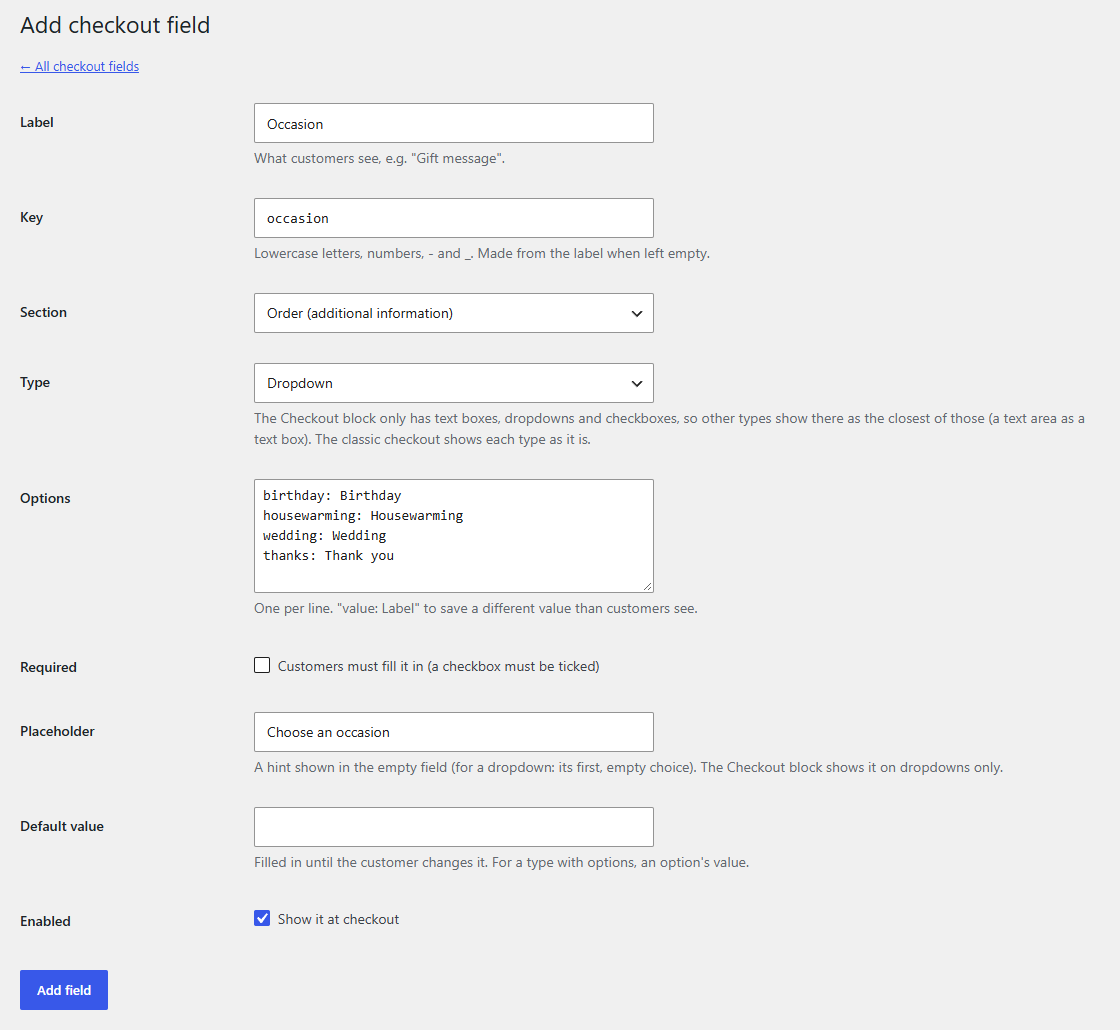
- Go to WooCommerce Checkout Fields and click Add field.
- Give it a label, choose its section and type, and click Add field. It shows at checkout straight away.
FAQ
-
Does it work with the Checkout block?
-
Yes. In the Checkout block your fields are WooCommerce’s own additional checkout fields, so they look and behave like the rest of the block. The classic (shortcode) checkout gets the same fields.
-
Where do customers’ answers show up?
-
On the order screen, the order confirmation page, My Account and WooCommerce’s order emails, as WooCommerce shows its additional checkout fields. They’re saved on the order (and on the customer, so contact and address fields are filled in next time).
-
Which field types are there?
-
Text, text area, dropdown and checkbox. The classic checkout shows each as it is; the Checkout block has no text area, so a text area shows there as a one-line text box.
-
What happens to saved answers when I delete or switch off a field?
-
Orders keep the values already saved. A field’s key can’t change once it’s added, so answers stay linked to it.
-
What happens if I deactivate Checkoutline Pro?
-
Its fields and their settings are kept, customers’ answers stay on their orders, and Checkoutline keeps working on its own. A field that needs Checkoutline Pro (a type such as a date, or conditions on when it shows) is marked “Not shown at checkout” and left out of checkout rather than asking every customer for it in the wrong shape. It shows again as soon as Checkoutline Pro is active; you can also delete it.
-
What happens to my data if I delete Checkoutline?
-
When you click Deactivate on the Plugins screen, Checkoutline asks what should happen to its data if you then delete the plugin. Keep it (the default) and your fields, your changes to WooCommerce’s fields and customers’ answers are all still there if you install Checkoutline again. Choose Delete it permanently when the plugin is deleted to have them removed when you delete it. Deactivating alone never removes anything, and your orders and customers themselves are never deleted.
-
Can I translate Checkoutline?
-
Yes, on translate.wordpress.org. The template is also included as
languages/checkoutline.potfor tools such as Poedit or Loco Translate. The labels of your own fields are what you type on the Checkout Fields screen.
Reviews
There are no reviews for this plugin.
Contributors & Developers
“Checkoutline – Checkout Field Editor for WooCommerce” is open source software. The following people have contributed to this plugin.
Contributors
Translate “Checkoutline – Checkout Field Editor for WooCommerce” into your language.
Interested in development?
Browse the code, check out the SVN repository, or subscribe to the development log by RSS.
Changelog
1.0.2
- Changed: New plugin name.
1.0.1
- Fix: on a multisite network, deleting the plugin now removes a site’s data only if that site chose to; deactivating it on one site no longer decides for the others.
1.0.0
- First release.