

Description
BMLT Minutes is a lightweight WordPress plugin for service bodies and committees to publish meeting minutes on their website. Most committees produce PDFs, Word docs, spreadsheets, or Google Doc links every month, and need a clean way to organize them by committee and date. Built for the bmlt-enabled community but useful for any organization that needs a tidy minutes archive.
Features:
- Dedicated Meeting Minutes post type with an uploaded-file or external-URL document field
- Committee taxonomy seeded with common service-committee defaults (Area, Regional, Hospitals & Institutions, Public Relations, Activities, Outreach, Literature, Policy) — fully editable
- Meeting-date field separate from publish-date, with sorting and year-grouping
- Supports PDF, DOC, DOCX, XLS, XLSX, PPT, PPTX, ODT, ODS, ODP, TXT, RTF, CSV, plus arbitrary URLs (Google Docs, Dropbox, OneDrive)
- Single
[bmlt_minutes]shortcode with grouping, filtering, and limiting - Optional password protection per post — for minutes that still contain unredacted personal details
- Dedicated Minutes Manager role — grant trusted servants access to manage minutes only, without broader site access
- Configurable per-file upload size limit (default 10 MB, scoped to the Minutes editor only)
- Block-editor compatible (custom fields exposed via the REST API)
- Works as a standalone plugin — no BMLT server required
Usage
Add the shortcode to any page or post:
[bmlt_minutes]
Filter to one committee, group by year:
[bmlt_minutes committee="hospitals-institutions" group_by="year"]
Show the 10 most recent, flat list with excerpts:
[bmlt_minutes limit="10" group_by="none" show_excerpt="true"]
Shortcode attributes:
committee— Slug or comma-separated slugs of Committee terms. Defaults to all committees.year— Restrict to a single year by Meeting Date (e.g.2026).limit— Max items to render.-1(default) = no limit.order—desc(default, newest first) orasc.group_by—committee(default),year, ornone.show_excerpt—trueorfalse(default). Shows each post’s excerpt under the link.
Screenshots
![Frontend [bmlt_minutes] shortcode output, grouped by committee. The padlock and "Protected" badge indicate a password-protected entry.](https://ps.w.org/bmlt-minutes/assets/screenshot-1.png?rev=3559243)
[bmlt_minutes] shortcode output, grouped by committee. The padlock and “Protected” badge indicate a password-protected entry.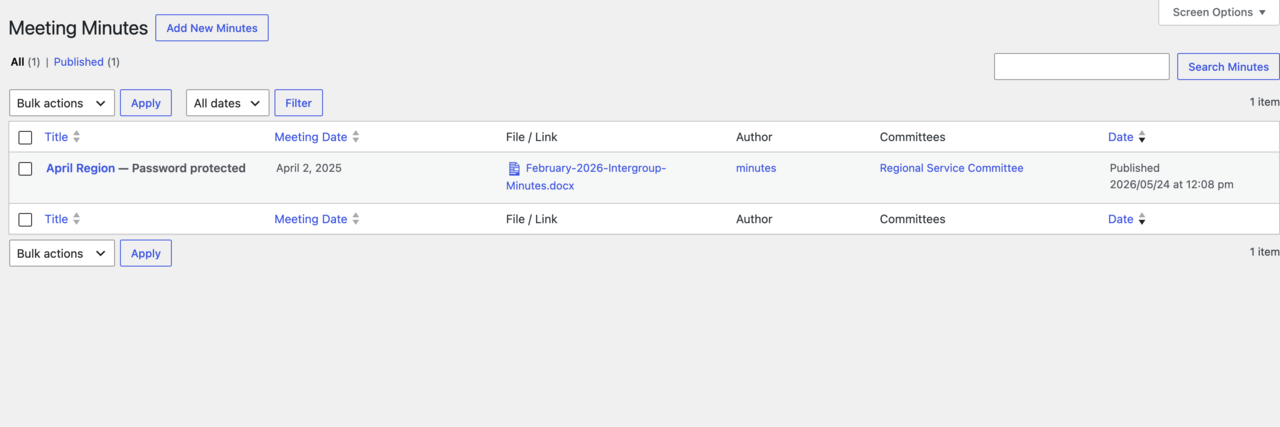
Installation
- Upload the plugin files to
/wp-content/plugins/bmlt-minutes/, or install via the Plugins screen. - Activate the plugin through the Plugins screen in WordPress.
- (Optional) Open Minutes Settings to set your default sort order and upload size cap.
- Add minutes under Minutes Add New — upload a file or paste a Google Doc / external link, choose a committee, set the meeting date, publish.
- Add
[bmlt_minutes]to any page or post.
FAQ
-
Where are the documents stored?
-
Uploaded files go into the standard WordPress Media Library. External links (Google Docs, Dropbox, OneDrive) are stored as URLs on the minutes post — nothing is copied or proxied.
-
Can I use this without BMLT?
-
Yes. The plugin works as a standalone document-list plugin — it makes no calls to any BMLT server.
-
Can I add my own committees?
-
Yes. The Committee taxonomy is hierarchical (like Categories). Go to Minutes Committees to add, rename, or nest committees. The default list is just a starting point on first activation.
-
How do I link to a Google Doc instead of uploading?
-
In the Minutes Document meta box on the editor screen, leave the file field empty and paste your Google Doc / Drive URL into the External Link field.
-
Can I password-protect minutes that contain personal details?
-
Yes. Some service bodies redact PII before posting, others share unredacted minutes with members only. On the editor screen, set a value in the Password Protection field of the Minutes Document meta box (or use WordPress’s built-in Visibility Password protected option in the Publish panel). On the public
[bmlt_minutes]list, protected entries show a padlock and link to a password-prompt page rather than exposing the document URL. Members enter the shared password once per browser to unlock the document. Default behavior with no password set is fully public access. -
Can I password-protect the entire page that contains [bmlt_minutes]?
-
Yes — use WordPress’s built-in page password. Edit the page that holds your
[bmlt_minutes]shortcode, open the Publish (Block Editor: Status & visibility) panel, set Visibility Password protected, and enter a password. Visitors will see WordPress’s standard password form before the whole page (including the minutes list) is rendered. This is independent of the per-post password on individual minutes — you can combine them if you want a members-only landing page plus an extra lock on specific minutes. -
How do I let someone manage minutes without giving them full site access?
-
There are two ways:
- Minutes Manager role — activating the plugin creates this role. Assign a user that role (Users edit user Role) and they can add, edit, and publish minutes and upload documents, but nothing else in wp-admin.
- “Can manage minutes” checkbox — on any user’s profile (Users edit user) there’s a Meeting Minutes section with a “Can manage minutes” checkbox. Tick it to grant an existing user (e.g. an Author) minutes access on top of their current role, without changing that role. Untick to revoke. If the user’s role already grants minutes access, the checkbox shows as locked with a note.
Administrators and Editors keep full access automatically. Under the hood the Meeting Minutes post type uses its own capabilities (
edit_bmlt_minutes,publish_bmlt_minutes, etc.), so a role-editor plugin can also mix these into any existing role. Curating the committee list stays admin-only; Minutes Managers can assign existing committees but not create new ones. -
Will uninstalling delete my minutes?
-
Yes. The
uninstall.phpscript removes the plugin’s settings and deletes all minutes posts when you delete the plugin via the WordPress admin. Deactivate instead of uninstalling if you want to preserve them.
Reviews
There are no reviews for this plugin.
Contributors & Developers
“BMLT Minutes” is open source software. The following people have contributed to this plugin.
Contributors

Translate “BMLT Minutes” into your language.
Interested in development?
Browse the code, check out the SVN repository, or subscribe to the development log by RSS.
Changelog
1.0.3
- Renamed the
[minutes]shortcode to[bmlt_minutes]so the tag carries a plugin-specific prefix and won’t collide with other plugins.
1.0.2
- Removed the unused BMLT Server URL and Service Body ID settings.
1.0.1
- Fixed: the Default Sort Order setting now applies to the
[minutes]shortcode when noorderattribute is provided. - Fixed: published minutes with no meeting date are no longer excluded from the
[minutes]list.
1.0.0
- Initial release.