Description
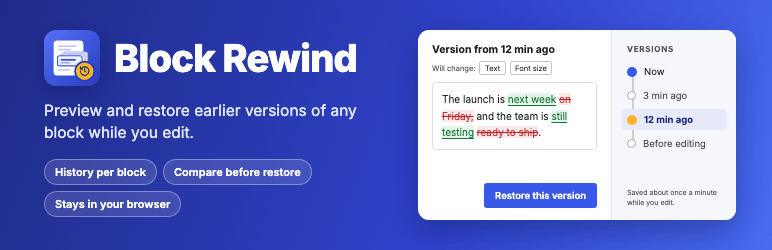
WordPress revisions save the whole post, and only when you save it. Undo works step by step, and only for the whole post. Block Rewind keeps a short history for each block, so you can bring back a paragraph you rewrote ten minutes ago without losing everything you changed since.
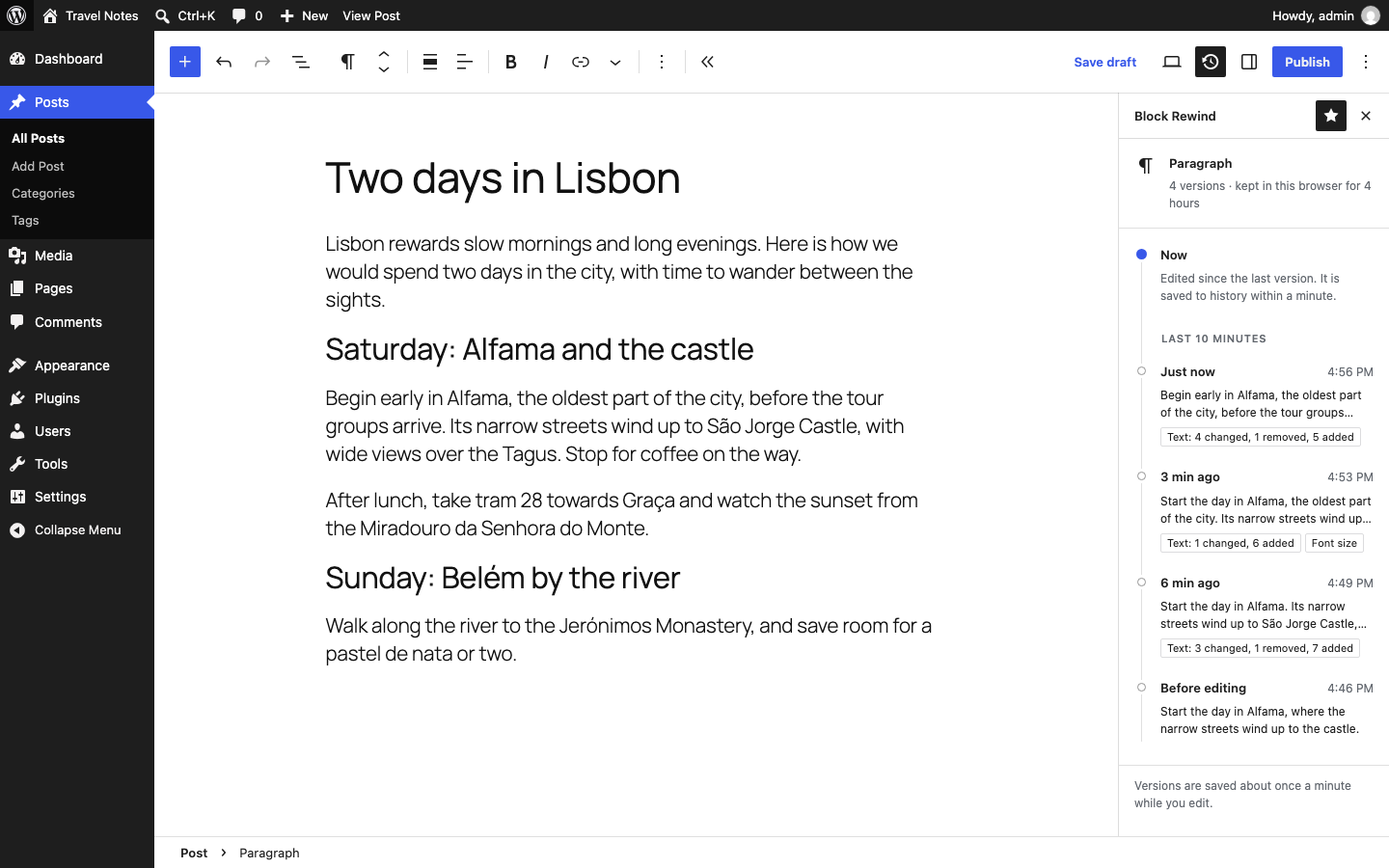
Select a block and click the Block Rewind button in the editor’s top bar to see its versions.
Features
- History per block. Each block keeps its own versions, saved about once a minute while you edit it. The version from before your first edit is kept too.
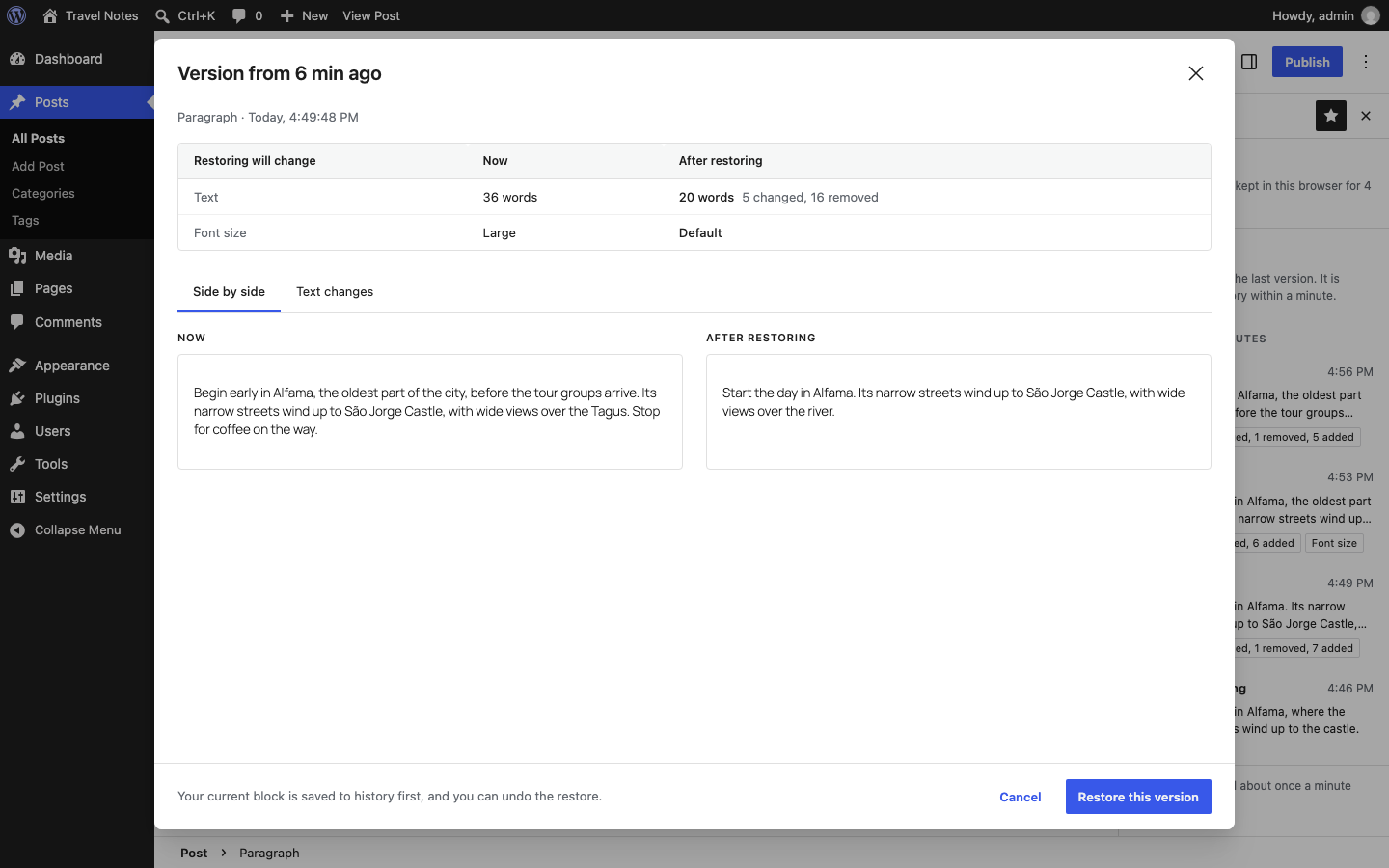
- Compare before you restore. See the version next to the block as it is now, a word-by-word view of the text changes, and a list of every setting that would change: font size, colors, spacing, layout and more.
- Safe restores. The current content is saved to history before a restore, and every restore can be undone in one step.
- Blocks inside blocks. Restore a whole Group or Columns block at once, or open the history of a single block inside it.
- Survives a reload. If the editor reloads before you save the post, the blocks get their history back.
- Private by design. History is stored in your browser only, separately for each site and each user. Nothing is sent to your server or anywhere else.
What it does not do
- History is short-lived: versions are kept for 4 hours by default, and up to 100 versions per block. Use WordPress revisions for long-term history.
- History stays in the browser it was made in. It is not shared with other devices, browsers or users.
- The Site Editor, templates, template parts and synced patterns are not supported yet. History pauses while you edit them from a post.
Source code
The plugin’s JavaScript in the build folder is compiled from the source in the src folder, which is included in the plugin. Development happens on GitHub: rajdeepgaur/block-rewind. To build the plugin yourself, clone the repository and run npm install and then npm run build.
Privacy
Block Rewind does not send any data to your server or to third parties, and it does not use cookies or tracking.
- Versions of the blocks you edit are stored in your browser’s IndexedDB storage, separately for each site and each user. They are removed after 4 hours by default, or when you clear the site’s data in your browser.
- A random ID is added to each block you edit and saved with the post. It contains no personal data.
Screenshots

Installation
- In your WordPress admin, go to Plugins Add New Plugin and search for “Block Rewind”.
- Click Install Now, then Activate.
- Edit a post or page, select a block, and click the Block Rewind button in the editor’s top bar.
FAQ
-
Where is the history stored?
-
In your browser’s IndexedDB storage, separately for each site and each user. It never leaves your browser.
-
Why did my history disappear?
-
Versions are removed after 4 hours by default. History is also not available when you edit in another browser, on another device, in a private window, or after clearing the site’s data in your browser.
-
Can other people see my history?
-
No. Each user’s history is stored in their own browser, and other users of the same site can’t see it.
-
Does it replace WordPress revisions?
-
No. Revisions keep the whole post for as long as you like. Block Rewind keeps a short, detailed history of each block while you work. They work well together.
-
Does the plugin change my content?
-
When you first edit a block, Block Rewind adds a short random ID to it (the
blockRewindIdattribute), so the block can find its history again. The ID is saved with the post when you save it. It holds no personal data and does not change how the block looks. -
What happens if I deactivate the plugin?
-
Your content is not affected. WordPress ignores the block IDs, and they are removed the next time you save a post. History already stored in your browser is no longer shown and is removed when you clear the site’s data in your browser.
-
Does it work in the Site Editor, or with templates and patterns?
-
Not yet. Block Rewind works in the post and page editor, for posts, pages and custom post types. While you edit a template or synced pattern from a post, history pauses and resumes when you return to the post.
-
Can I change how long history is kept?
-
Yes, with two filters. For example, to keep history for 8 hours and up to 200 versions per block:
add_filter( 'block_rewind_snapshot_ttl', function () { return 8 * HOUR_IN_SECONDS; } );

add_filter( 'block_rewind_max_snapshots_per_block', function () { return 200; } );
Retention is at least 5 minutes, and at least 5 versions are kept per block.
-
What happens when the browser’s storage is full?
-
The sidebar tells you that new versions can’t be saved. Existing versions stay available, and your post is not affected. Saving starts again once the browser has space.
Reviews
There are no reviews for this plugin.
Contributors & Developers
“Block Rewind – Version History for Blocks” is open source software. The following people have contributed to this plugin.
Contributors
Translate “Block Rewind – Version History for Blocks” into your language.
Interested in development?
Browse the code, check out the SVN repository, or subscribe to the development log by RSS.
Changelog
1.0.0
- Initial release.