

Description
Watch the 2-minute introduction:
Media Fields for Contact Form 7 adds media field types to Contact Form 7 that the core plugin does not ship: [video], [audio], [3d_models], [gallery] and [pdf_flipbook], with more on the way. Place a media player or an interactive 3D model anywhere inside a form: an explainer above the fields, a product demo next to a quote request, a podcast episode in a feedback form, a welcome message in a registration form, and so on.
Step-by-step getting started tutorial (open a form, build your first media field, put the form on a page, set your defaults):
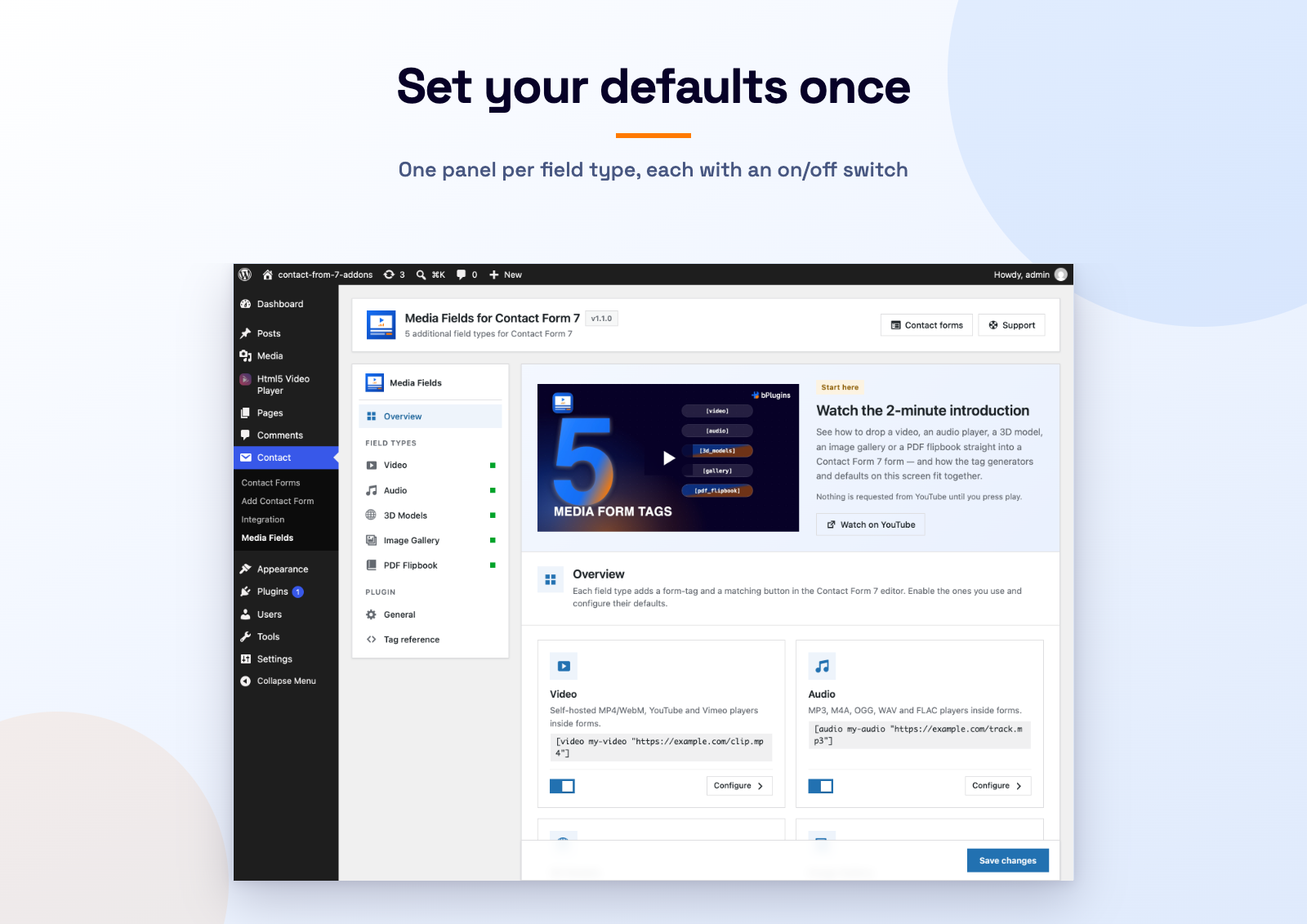
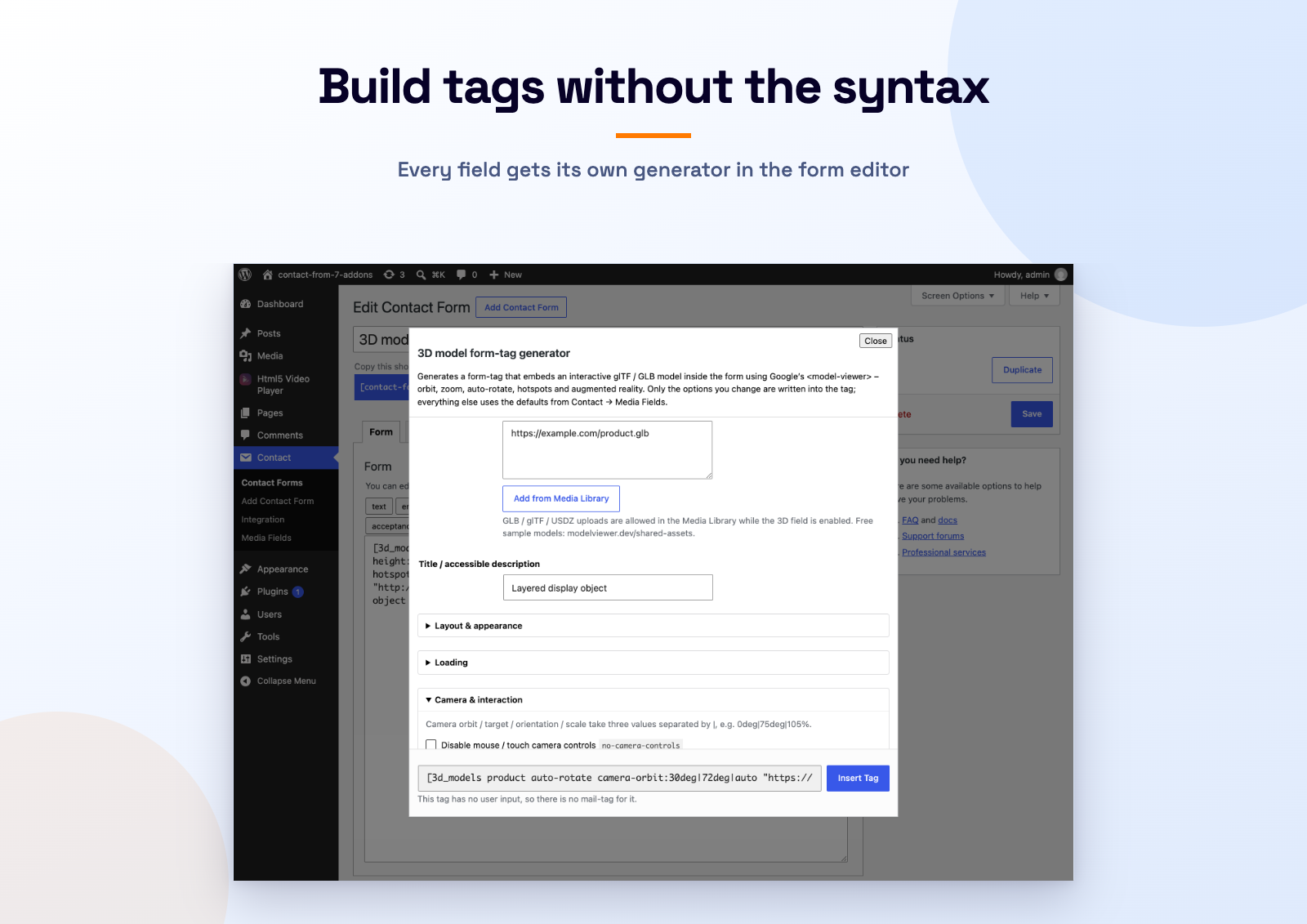
Media is played with Plyr, a lightweight, accessible and fully customisable player, and 3D models are rendered with Google’s <model-viewer>. Every option of both libraries is exposed as a form-tag option, and visual tag generators (video, audio, 3D model) in the form editor let you build the tag without remembering any syntax. A modern settings screen (Contact Media Fields) holds per-field-type defaults and lets you enable or disable each field type.
Coming next: a signature field and an image-choice field.
Supported media
- Self-hosted HTML5 video (MP4, WebM, Ogg) with multiple sources and quality switching
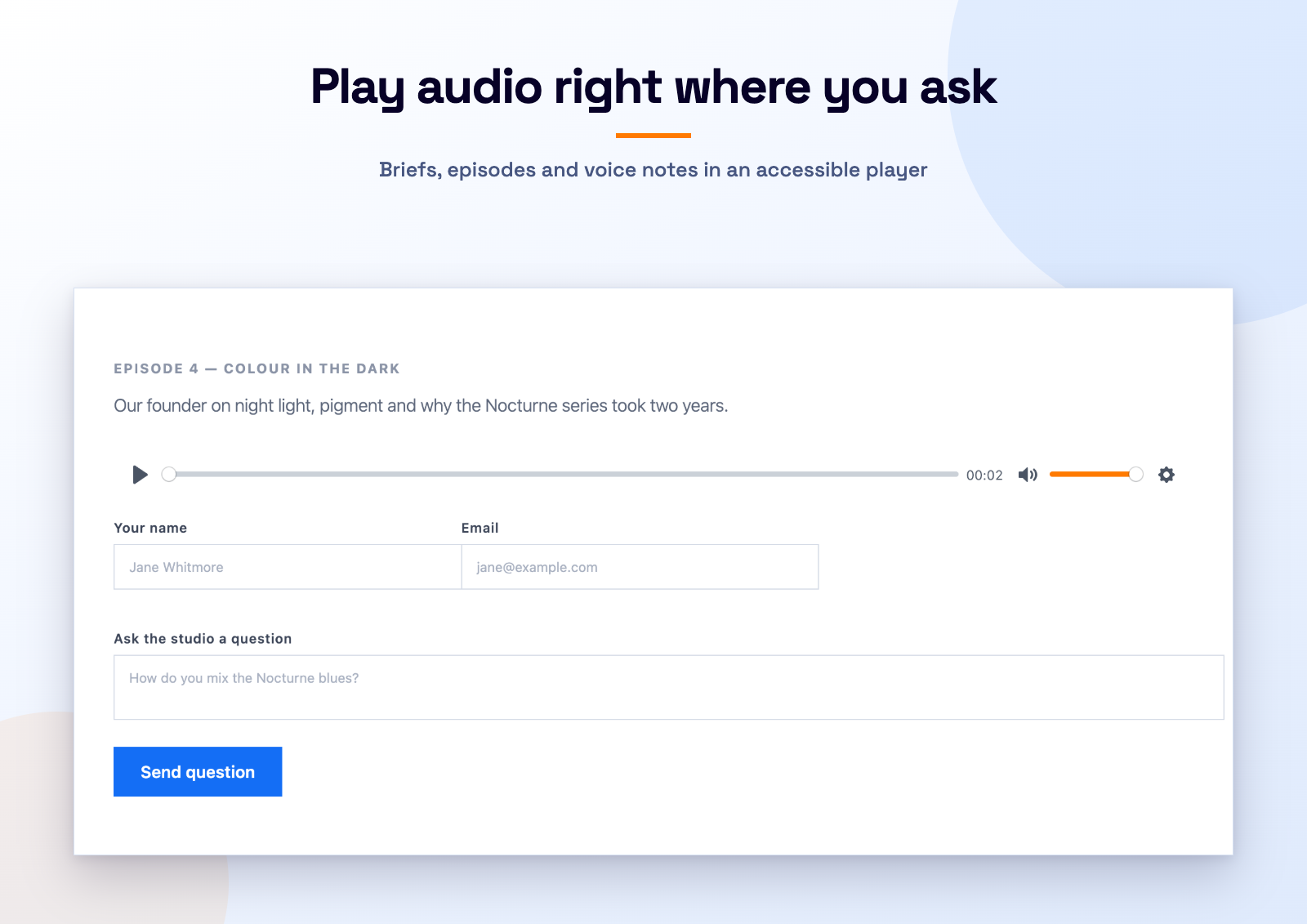
- Self-hosted HTML5 audio (MP3, M4A, OGG, WAV, FLAC)
- YouTube (including privacy-enhanced youtube-nocookie.com)
- Vimeo (including unlisted videos with a hash)
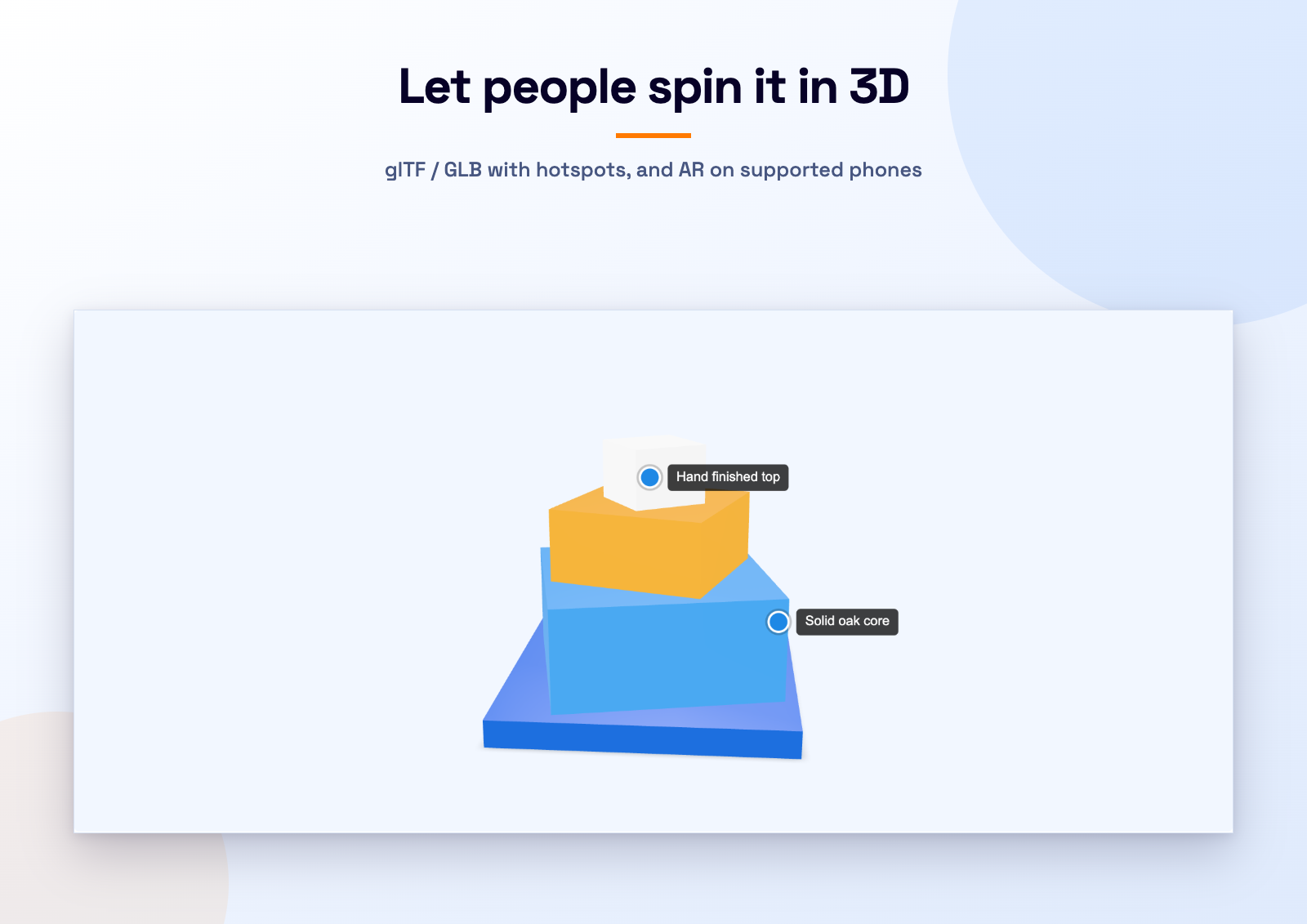
- 3D models – glTF / GLB with USDZ for iOS Quick Look, rendered by <model-viewer>
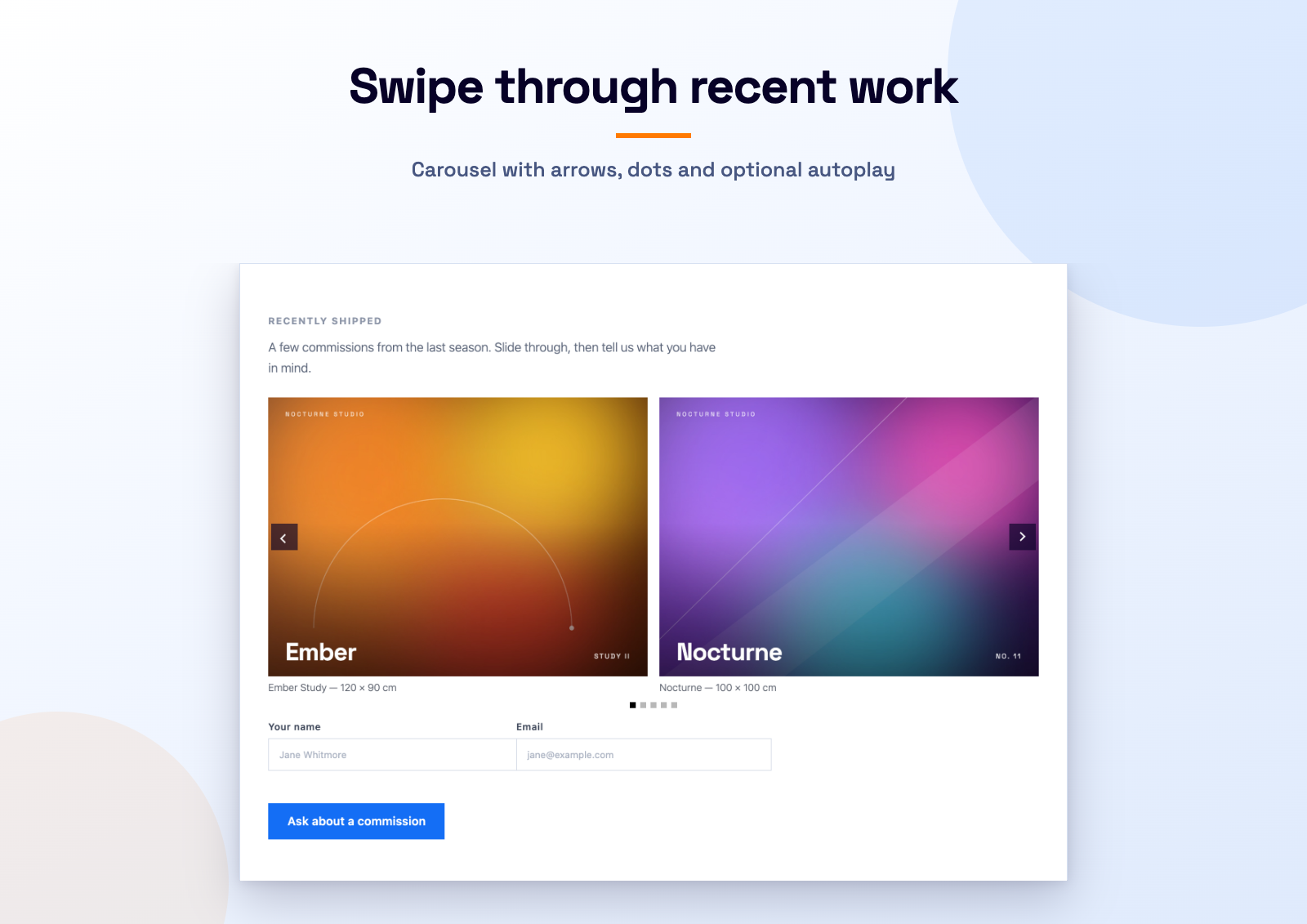
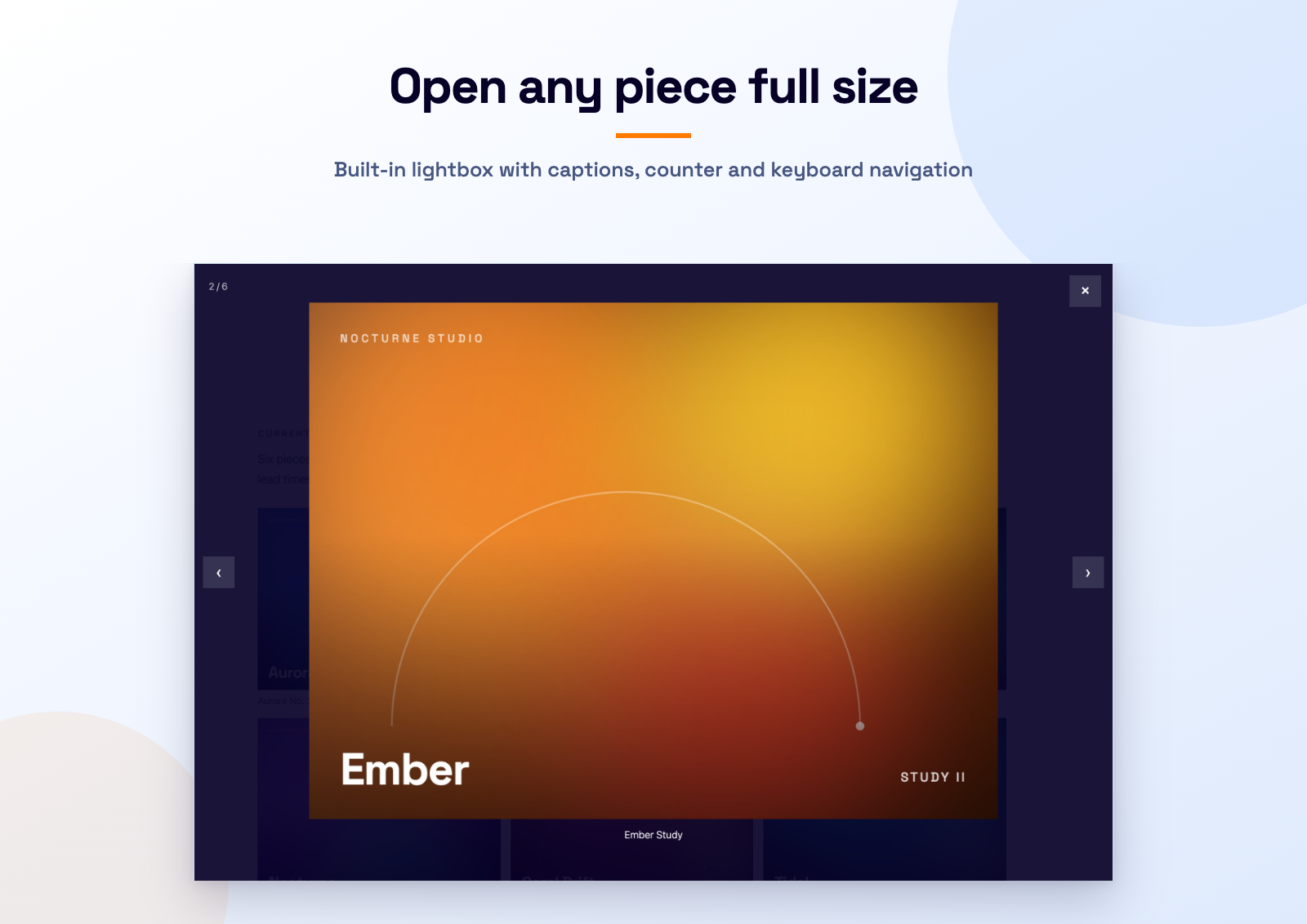
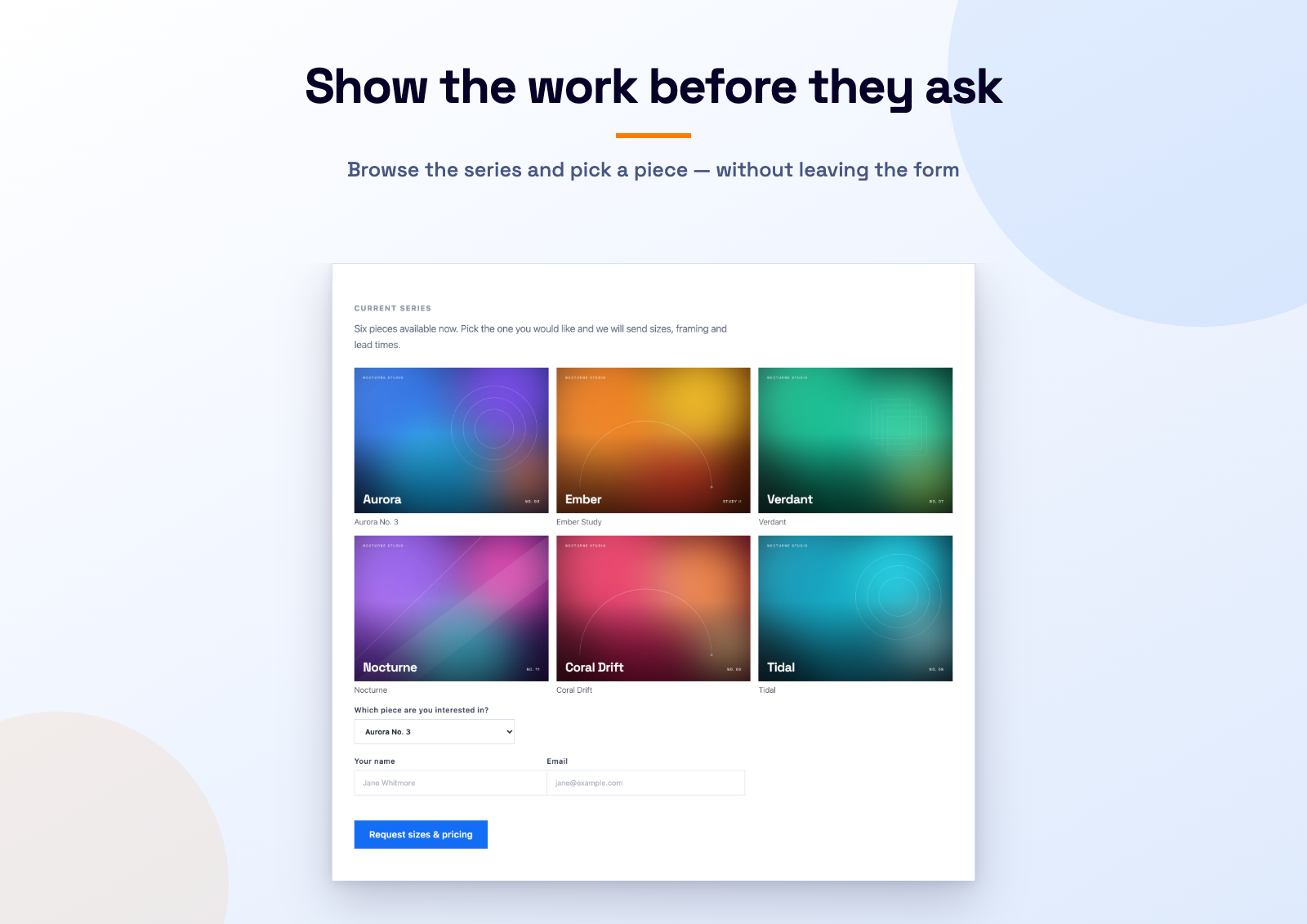
- Image galleries – grid, masonry, justified rows or carousel, with a built-in lightbox
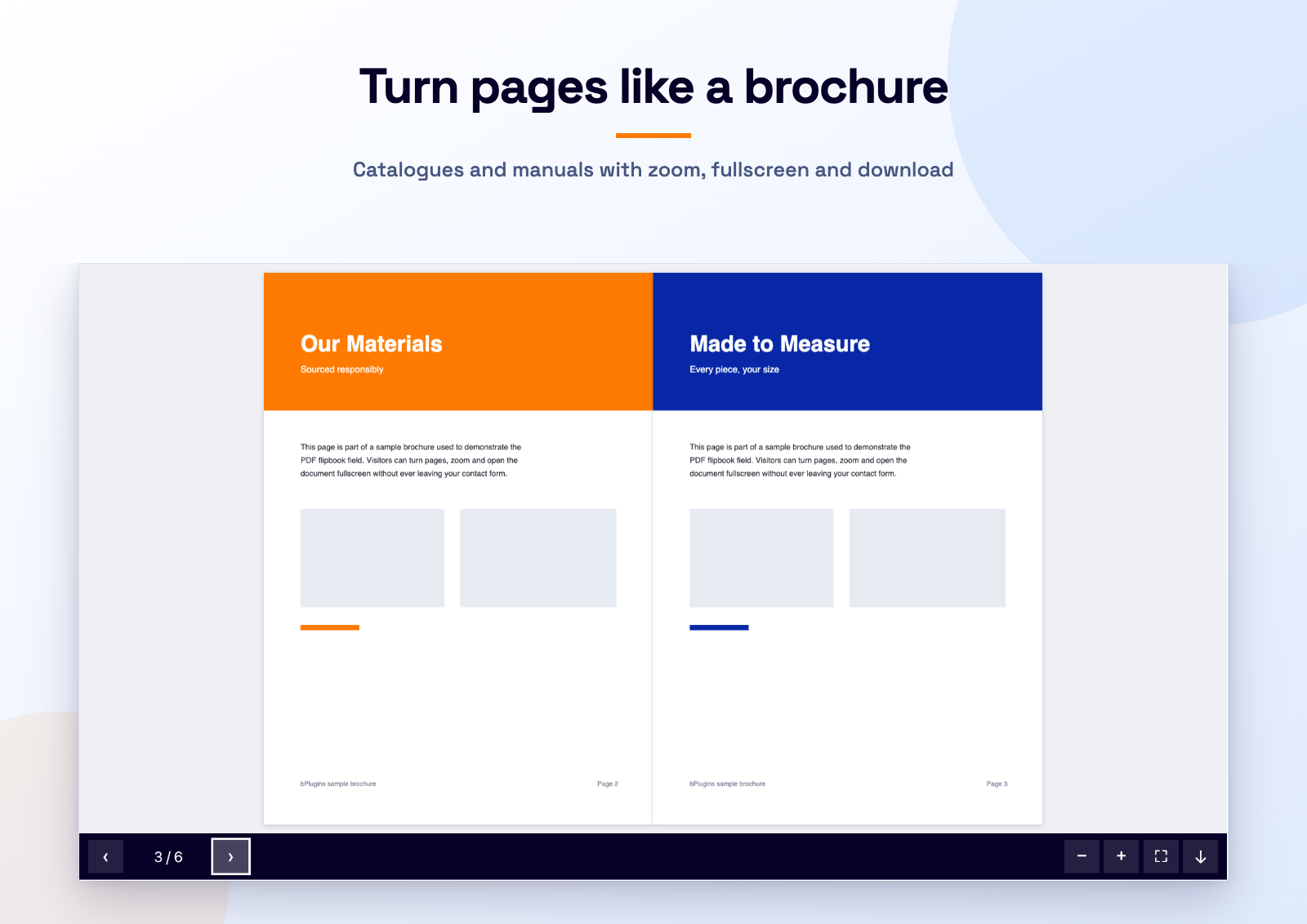
- PDF flipbooks – page-turning or scrolling PDF viewer with zoom and fullscreen
Every Plyr option
Layout & appearance – aspect ratio, max width, alignment, accent colour, poster image.
Playback – autoplay, muted, loop, reset on end, inline playback, autopause, volume, seek time, custom duration.
Controls – pick exactly which controls appear (play, progress, time, mute, volume, captions, settings, PiP, AirPlay, download, fullscreen, restart, rewind, fast-forward) and which items are in the settings menu.
Interface – click-to-play, auto-hide controls, context menu, duration display, inverted time, tooltips, keyboard shortcuts (focused/global), fullscreen options incl. iOS native, browser storage.
Captions – any number of WebVTT tracks, default language, captions on by default.
Speed & quality – default speed, speed options, default quality, quality options.
Media metadata – title, artist, album, artwork (Media Session / lock screen).
Markers & preview thumbnails – chapter markers on the timeline, WebVTT preview thumbnails.
YouTube – nocookie, related videos, annotations, native controls, start/end time, interface language.
Vimeo – byline, portrait, title, speed, transparent, native controls, premium, referrer policy.
Advanced – ads (VAST), debug, CORS, disable Plyr.
Image gallery options
Layout – grid, masonry, justified rows or carousel, columns, gap, thumbnail ratio, row height, max width, alignment, fit instead of crop.
Captions & lightbox – per-image captions, built-in lightbox with keyboard navigation and an image counter, or open the file in a new tab instead.
Carousel – autoplay with interval, arrows, pagination dots.
PDF flipbook options
Layout – height, max width, alignment, background colour.
Viewer – flipbook (page turn) or scroll mode, opening page, single-page mode, page turn duration, page shadow, lazy or eager loading.
Toolbar – page navigation with a counter, zoom in/out, fullscreen and an optional download button.
Every <model-viewer> option (3D models)
Layout – height, max width, alignment, background, poster colour, progress bar colour/height/hide.
Loading – poster image, loading strategy, reveal, with-credentials, generate-schema (JSON-LD).
Camera & interaction – camera controls, auto-rotate (delay, speed), camera orbit/target, field of view, min/max orbit & FoV, disable zoom/pan/tap, touch-action, orbit/zoom/pan sensitivity, interaction prompt (style, threshold), interpolation decay.
Augmented reality – ar, ar-modes (WebXR, Scene Viewer, Quick Look), ar-scale, ar-placement, ios-src (USDZ), USDZ max texture size, xr-environment, custom AR button label.
Lighting & environment – environment-image (neutral / legacy / HDR URL), skybox-image, skybox-height, exposure, tone-mapping, shadow-intensity, shadow-softness.
Animation & scene – animation-name, autoplay, crossfade duration, variant-name, orientation, scale, bounds.
Hotspots – any number of annotations (position, label, optional normal) plus hotspot opacity.
GLB / glTF / USDZ / HDR uploads are allowed in the Media Library while the 3D field is enabled.
Quick examples
[video intro "https://example.com/intro.mp4"]

[video intro quality:720 poster:https://example.com/poster.jpg "https://example.com/intro-1080.mp4|1080" "https://example.com/intro-720.mp4|720"]

[video promo provider:youtube yt-nocookie ratio:16:9 "https://www.youtube.com/watch?v=bTqVqk7FSmY"]

[video promo provider:vimeo autoplay muted loop "76979871"]

[audio podcast artist:Jane_Doe "https://example.com/ep1.mp3"] Episode 1 [/audio]

[3d_models chair auto-rotate ar camera-orbit:45deg|60deg|2m hotspot:0|0.5|0.2|Handle "https://example.com/chair.glb" "https://example.com/chair.usdz"] Red armchair [/3d_models]

[gallery work columns:3 ratio:4:3 captions "https://example.com/a.jpg|Before" "https://example.com/b.jpg|After"]

[pdf_flipbook brochure height:600 download "https://example.com/brochure.pdf"]
Global defaults (accent colour, default controls, Plyr build, asset loading) live under Contact Media Fields.
Source code & contributing
Development happens on GitHub: github.com/bPlugins/b-media-fields-for-cf7. Bug reports and pull requests are welcome.
Developer hooks
bmfcf7_option_fields– filter the registry of form-tag options.bmfcf7_player_config– filter the Plyr config of a single player.bmfcf7_frontend_data– filter global data handed to the front-end script.bmfcf7_model_option_fields/bmfcf7_model_viewer_atts– filter the 3D model options and rendered attributes.bmfcf7_settings_schema– add settings sections for new field types.- JavaScript event
bmfcf7:ready(detail.player is the Plyr instance) andwindow.bmfcf7.players.
Trademark notice
This plugin is an independent add-on developed by bPlugins. It is not affiliated with, endorsed by or sponsored by Contact Form 7 or its author, Takayuki Miyoshi. “Contact Form 7” is used only to describe compatibility.
Privacy
The videos on the plugin’s settings screen (the getting started tutorial and the introduction) are not loaded until you press play — the poster images are bundled with the plugin, and only then is an embed requested from youtube-nocookie.com.
Self-hosted media and 3D models never contact third parties. When you embed YouTube or Vimeo media, the visitor’s browser loads the player from YouTube/Vimeo and is subject to their privacy policies. Plyr and <model-viewer> are bundled with the plugin; no assets are loaded from a CDN. The AR “Scene Viewer” / “Quick Look” modes hand the model file to the device’s native AR app.
Third-party libraries
This plugin bundles:
- Plyr v3.8.4, © Sam Potts, MIT license. Unminified sources are included in
assets/vendor/plyr/. - <model-viewer> v4.3.1, © Google LLC, Apache License 2.0. The minified UMD build is included in
assets/vendor/model-viewer/; the unminified source is available at https://cdn.jsdelivr.net/npm/@google/model-viewer@4.3.1/dist/model-viewer-umd.js and in the repository linked above. - PDF.js v3.11.174, © Mozilla, Apache License 2.0. Included in
assets/vendor/pdfjs/; unminified source at https://cdn.jsdelivr.net/npm/pdfjs-dist@3.11.174/build/pdf.js - StPageFlip v2.0.7, © Nodlik, MIT license. Unminified build included in
assets/vendor/page-flip/.
Screenshots
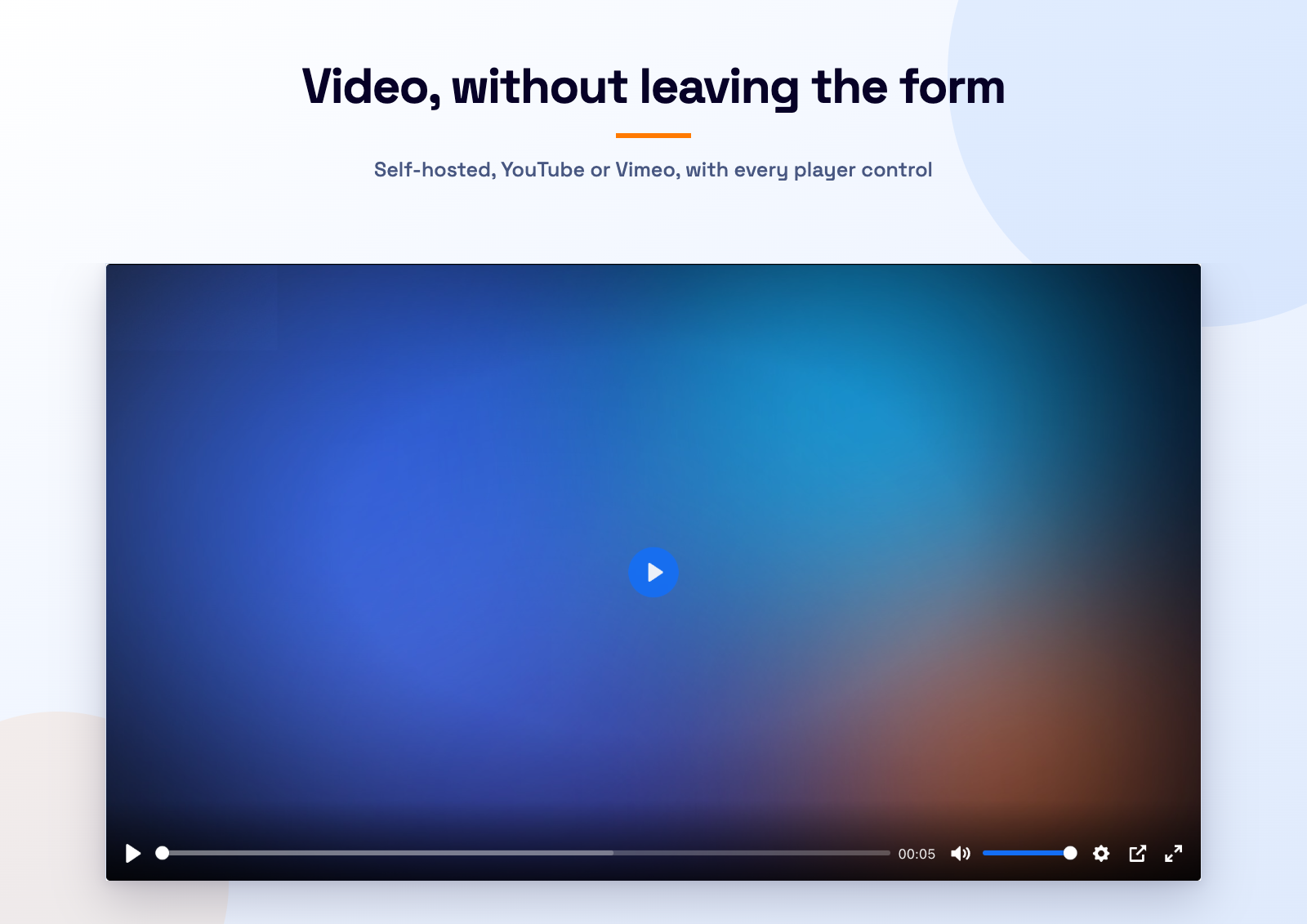
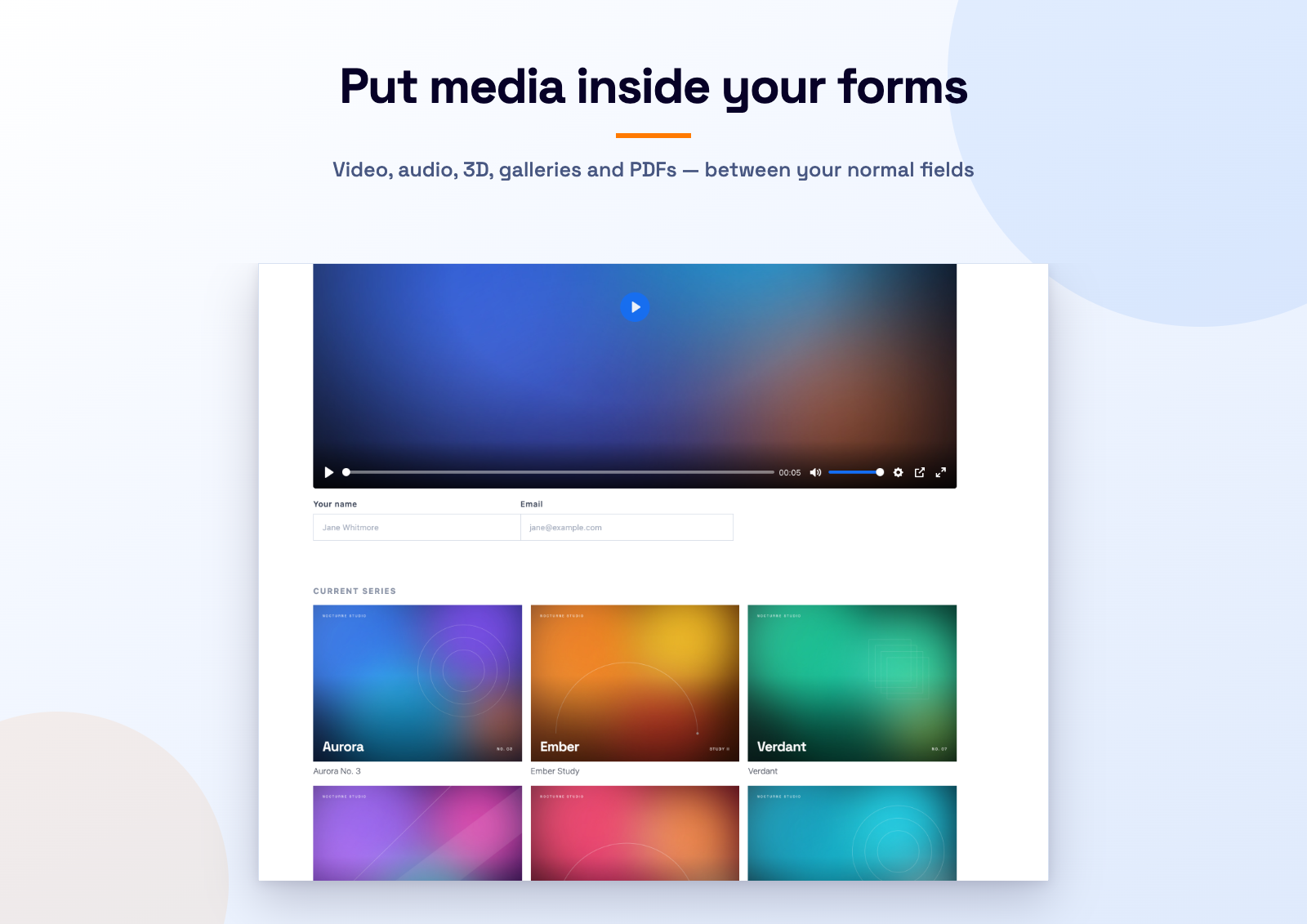
Installation
- Install and activate Contact Form 7 (version 6.0 or later).
- Upload the plugin to
/wp-content/plugins/or install it from the Plugins screen, then activate it. - Edit a contact form and click the video, audio or 3D model button above the form editor to generate a tag, or type one by hand.
- Optionally set global defaults under Contact Media Fields.
FAQ
-
Is the video sent with the form submission?
-
No. The tag only displays media; it is not an input field and has no mail-tag.
-
Autoplay does not work
-
Browsers only allow autoplay when the media is muted. Add the
mutedoption together withautoplay. -
What is the tag syntax?
-
[video name option:value flag “source URL”] Optional title [/video] – the name comes first, then options, and the quoted media URL(s) always come last (this is Contact Form 7’s standard form-tag order). The tag generator takes care of this for you.
-
My option value contains a space or comma
-
Contact Form 7 does not allow spaces or commas inside form-tag options. Use
_for spaces (e.g.artist:Jane_Doe) and|to separate list items (e.g.speed-options:0.5|1|2). Media URLs go inside quotes and may contain anything except quotes. -
The PDF does not load
-
The browser reads the PDF directly, so it must be on the same domain as the page or served with cross-origin (CORS) headers. Uploading the PDF to your own Media Library always works.
-
Captions do not show
-
WebVTT caption files must be served from the same domain as the page, or from a server that sends CORS headers – in that case add the
crossoriginoption. -
Can I use it with page builders or popups that load forms later?
-
Yes. Enable “Load player assets on every front-end page” under Contact Video Addon; the script watches the page and initialises players that are added later.
Reviews
There are no reviews for this plugin.
Contributors & Developers
“Media Fields for Contact Form 7 – Video, Audio, 3D, Gallery and PDF Fields” is open source software. The following people have contributed to this plugin.
Contributors

Interested in development?
Browse the code, check out the SVN repository, or subscribe to the development log by RSS.
Changelog
1.1.3
- Fixed the tutorial videos failing with “Error 153” on sites that send a strict Referrer-Policy. The embed now tells YouTube which site it is on, the way YouTube’s own embed code does.
1.1.2
- The two tutorial videos now sit side by side in one row on the settings screen, as equal cards.
- Added a Hide videos / Show videos control. The choice is remembered per user, so the panel stays closed after a reload.
1.1.1
- Added the step-by-step getting started tutorial video to the settings screen (featured first) and to this readme; the 2-minute introduction stays available below it.
- Fixed stale references to the old settings menu name.
1.1.0
- Added an introduction video to the settings screen (click to play — nothing is requested from YouTube until then) and a one-time redirect to that screen after activation.
- New
[gallery]field: responsive image gallery with grid, masonry, justified and carousel layouts, captions and a built-in lightbox. - New
[pdf_flipbook]field: PDF viewer with page-turn or scroll mode, zoom, fullscreen and optional download, powered by PDF.js and StPageFlip. - Both field types have their own tag generator and settings panel with defaults.
1.0.0
- Initial release: [video], [audio] and [3d_models] form-tags with tag generators and a settings screen.