
Description
AI Provider Connectors extends the WordPress AI Client and the core Connectors screen (Settings Connectors) with four features:
- 11 ready-to-use AI providers. Connector cards for OpenRouter, Mistral AI, Cohere, Groq, xAI (Grok), DeepSeek, Perplexity, Together AI, Fireworks AI, Hugging Face and Replicate. Paste an API key, save it, and every feature that uses the WordPress AI Client (such as the AI plugin’s excerpt and summary tools) can route through that provider — exactly like the built-in Anthropic, OpenAI and Google providers.
- Test Connection button. A “Test Connection” button next to the “Connected” badge — and inside the expanded edit panel — for every supported provider. Clicking it re-validates the stored API key against the provider’s live API and shows the result in a tooltip.
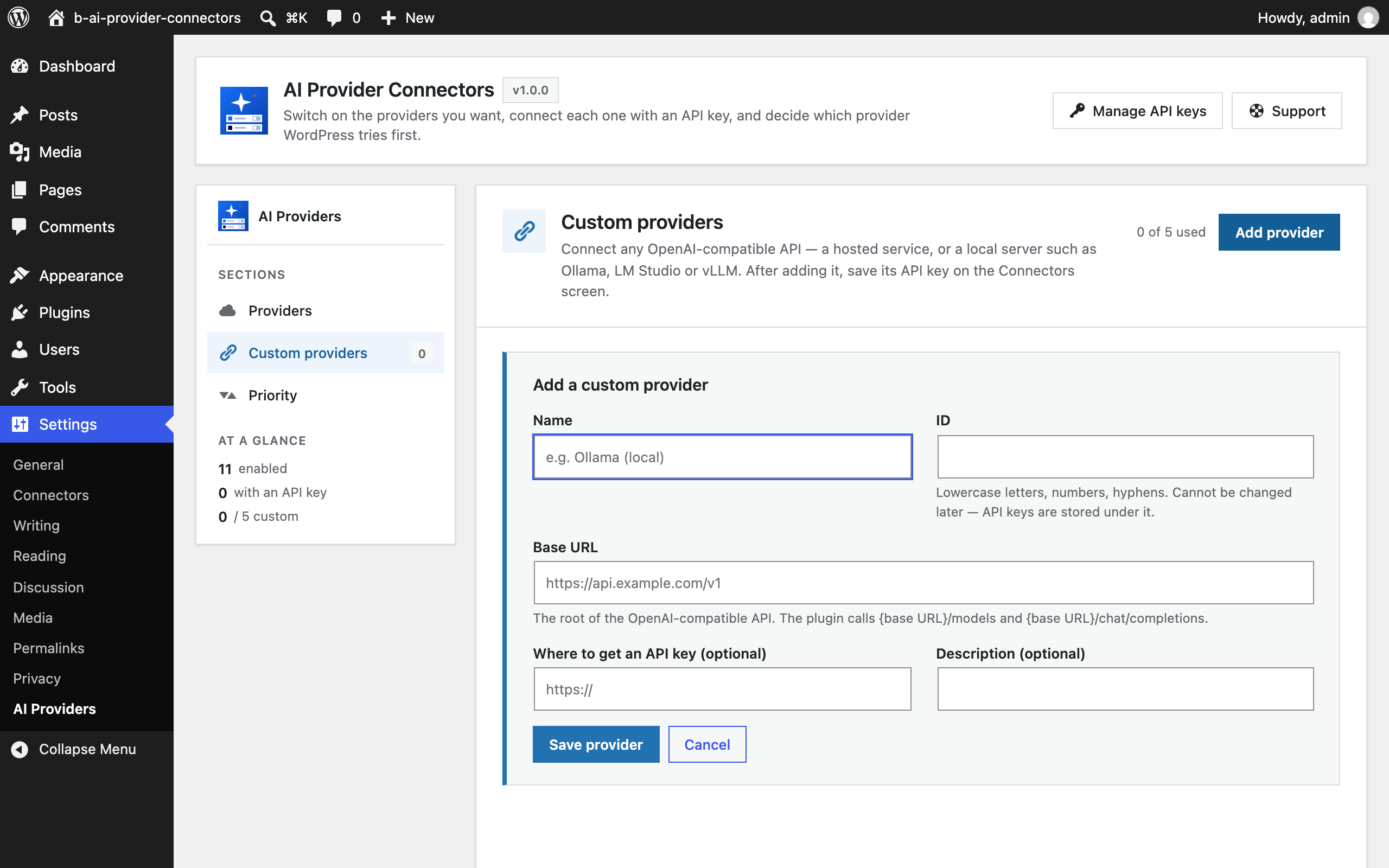
- Custom providers. Add up to five OpenAI-compatible endpoints of your own — a hosted API that is not bundled, or a local model server such as Ollama, LM Studio or vLLM — and they behave exactly like the bundled ones.
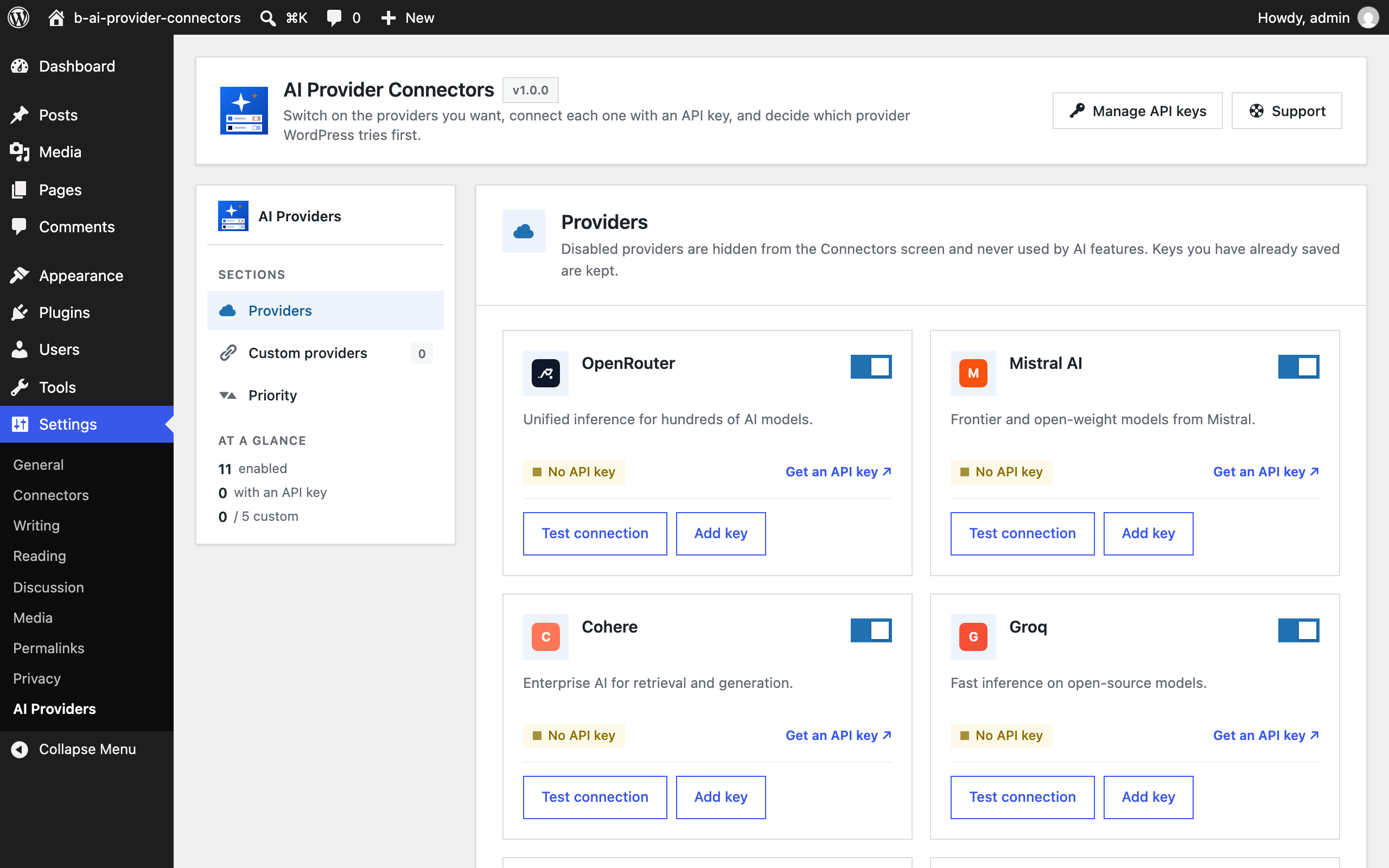
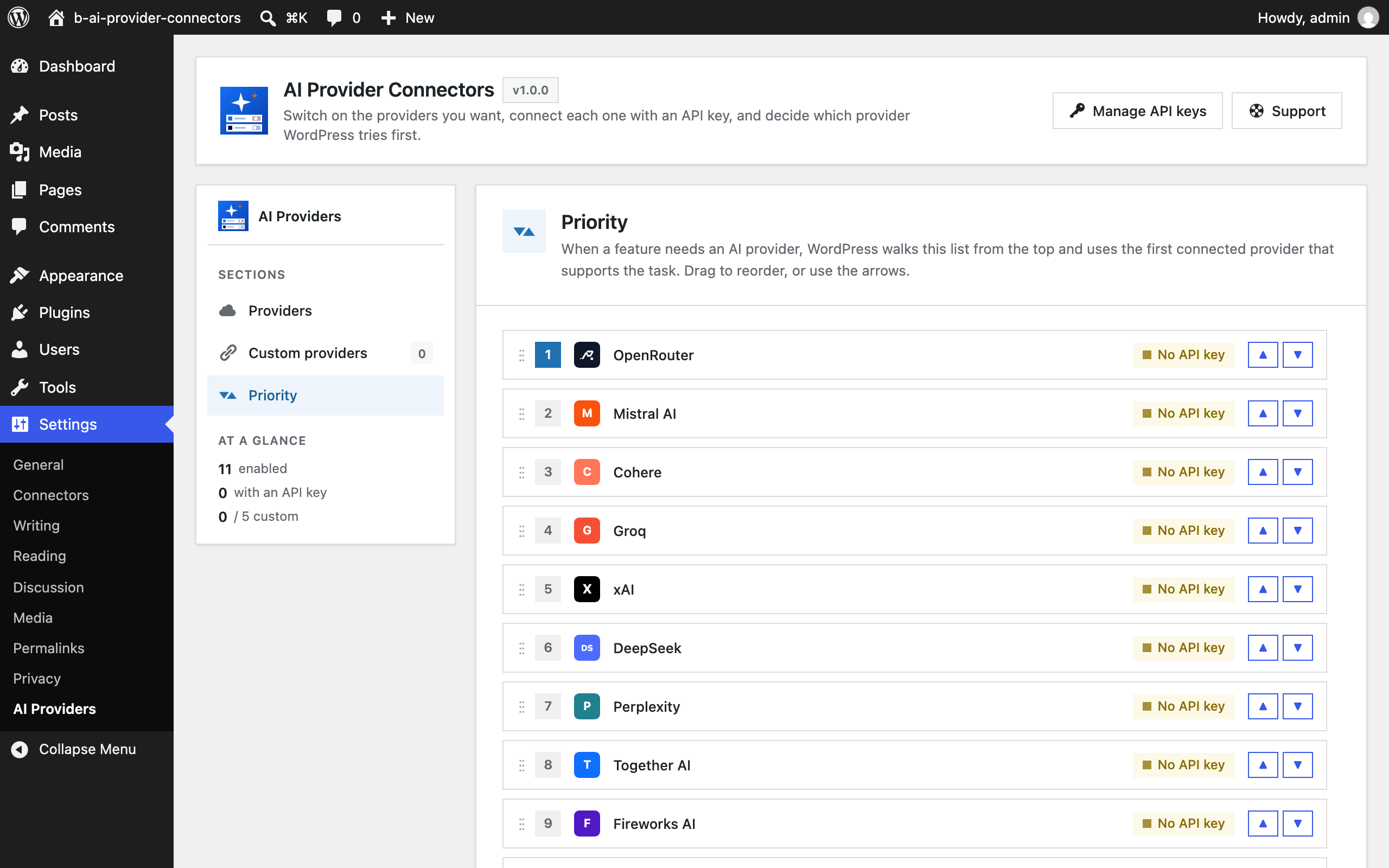
- AI Providers dashboard. A Settings AI Providers screen where you switch providers on or off, see at a glance which ones are connected, run connection tests, manage custom providers, and drag providers into the order the AI Client should try them. When a feature needs an AI provider, the first connected provider in your list that supports the task is used.
Bundled providers
- OpenRouter
- Mistral AI
- Cohere
- Groq
- xAI (Grok)
- DeepSeek
- Perplexity
- Together AI
- Fireworks AI
- Hugging Face
- Replicate
Already supported by Test Connection
- Anthropic, OpenAI, Google — when their respective AI Provider plugins are active.
Non-AI connectors (such as Akismet) are not live-tested because they require provider-specific verification flows.
Security and best practices
- All connection tests run server-side; API keys are never sent to the browser.
- Tests and the priority page are gated by the
manage_optionscapability, the standard REST nonce, and admin nonces. - Keys can be supplied via the Connectors screen, via a PHP constant, or via an environment variable — checked in that order. The names follow the WordPress convention
{PROVIDER_ID}_API_KEY, for exampleOPENROUTER_API_KEY,HUGGINGFACE_API_KEYorREPLICATE_API_KEY; custom providers use their own ID the same way. - Connectors and API keys are managed entirely by WordPress core; this plugin only registers providers with the AI Client, just like the official AI Provider plugins.
Source code
The full source code is developed in the open on GitHub: https://github.com/ah-polash/b-ai-provider-connectors
External services
When you click Test connection, open the AI Providers screen (which checks providers that have a key), or when the WordPress AI Client sends a prompt through one of the bundled providers, this plugin sends requests to that provider’s API using the API key you stored. Only providers you enabled and configured are contacted. Custom providers contact whatever endpoint you entered. Each provider’s terms and privacy policy apply:
- OpenRouter — https://openrouter.ai/terms, https://openrouter.ai/privacy
- Mistral AI — https://legal.mistral.ai/terms/get-started/, https://legal.mistral.ai/terms/privacy-policy/
- Cohere — https://cohere.com/terms-of-use, https://cohere.com/privacy
- Groq — https://groq.com/terms-of-use, https://groq.com/privacy-policy
- xAI — https://x.ai/legal/terms-of-service, https://x.ai/legal/privacy-policy
- DeepSeek — https://platform.deepseek.com/downloads/DeepSeek%20Terms%20of%20Use.html, https://platform.deepseek.com/downloads/DeepSeek%20Privacy%20Policy.html
- Perplexity — https://www.perplexity.ai/hub/legal/terms-of-service, https://www.perplexity.ai/hub/legal/privacy-policy
- Together AI — https://www.together.ai/terms-of-service, https://www.together.ai/privacy
- Fireworks AI — https://fireworks.ai/terms-of-service, https://fireworks.ai/privacy-policy
- Hugging Face — https://huggingface.co/terms-of-service, https://huggingface.co/privacy
- Replicate — https://replicate.com/terms, https://replicate.com/privacy
The AI Providers settings screen shows a short video. Its preview thumbnail is loaded from YouTube’s image server (i.ytimg.com), and the player itself is only embedded from youtube-nocookie.com after you press play. YouTube terms: https://www.youtube.com/t/terms — Google privacy policy: https://policies.google.com/privacy
Screenshots
Installation
- Upload the
b-ai-provider-connectorsfolder to the/wp-content/plugins/directory, or install it from the Plugins screen. - Activate the plugin through the Plugins screen.
- Visit Settings Connectors. The 11 bundled providers appear in the list alongside any AI Provider plugins you already have installed. Paste an API key into any of them, save, then click Test Connection to verify.
- Visit Settings AI Providers to switch providers on or off, add custom OpenAI-compatible providers, and choose which provider is tried first.
FAQ
-
Which WordPress version do I need?
-
WordPress 7.0 or newer — the plugin builds on the Connectors API and the AI Client that ship with core since 7.0.
-
Who can run the test or change the priority?
-
Only users with the
manage_optionscapability. -
Does the test send my API key anywhere new?
-
No. Each test re-uses the API key already stored for the connector (or supplied via an environment variable / PHP constant) and calls the same provider endpoint a normal client would use.
-
How does the test know if the key is valid?
-
Each provider exposes a lightweight endpoint that returns 200 for a valid key and 401/403 for an invalid one (Replicate uses
Authorization: Token, all others useAuthorization: Bearer). Perplexity has no public/modelsendpoint, so the test sends an intentionally-malformedchat/completionsrequest and treats 400/422 (auth passed, payload invalid) as a valid key, 401 as invalid. -
How do I hide a bundled provider I do not use?
-
Switch it off on Settings AI Providers. Disabled providers disappear from the Connectors screen and are never used by AI features; any key you saved is kept in case you switch it back on.
-
Can I use a local model server?
-
Yes. Add a custom provider with the server’s OpenAI-compatible base URL (for example
http://localhost:11434/v1for Ollama). If the server does not need a key, enter any placeholder on the Connectors screen. -
Why do OpenRouter and Hugging Face verify keys differently?
-
Both publish their model list without authentication, so the AI Client’s standard “list models” check would accept any key. This plugin verifies those two against an authenticated endpoint instead.
Reviews
There are no reviews for this plugin.
Contributors & Developers
“AI Provider Connectors” is open source software. The following people have contributed to this plugin.
Contributors

Translate “AI Provider Connectors” into your language.
Interested in development?
Browse the code, check out the SVN repository, or subscribe to the development log by RSS.
Changelog
1.0.0
- Initial release: 11 bundled AI providers, custom OpenAI-compatible providers, Test connection button on the Connectors screen, and the AI Providers settings screen with enable/disable and priority.