

Description
You have a beautiful website. Your content is well written and your SEO is done right. But you are still not ranking #1 on Google. Why?
Because your website is slow.
Visitors who have to wait leave – and they do not come back. You need loading times so short that nobody notices any loading at all. Can you get there without hiring a developer or buying a premium suite? Yes. AWP brings a cloud-powered optimization engine to your site and does the work for you.
🔥 Enterprise Power for free
When you install AWP, you get all of our enterprise cloud features for free, for up to 100 pages of your choice.
- Perfect for smaller sites: for most small businesses, portfolios and personal blogs, 100 pages cover the entire website – forever.
- Risk-free for big sites: running a large WooCommerce shop or a news portal? Spend your 100 free pages on your best-converting landing pages and top products, and see the difference before you ever consider more.
- You stay in control: a minimalist dashboard lets you hand-pick exactly which pages get the treatment.
⚙️ Zero configuration
Stop wasting time on confusing cache settings, endless checkboxes, and tutorials. AWP is built on a “Zero Configuration” philosophy. Simply install the plugin, connect with one click, click Run Optimization, and the defaults do the rest. No guesswork and no broken layouts – any page can be put back the way it was with one click, and deactivating the plugin restores the whole site instantly.
🧠 How it works
Instead of guessing what a page needs, AWP measures it.
We use a lightweight connector that safely links your site to our powerful AWP Exchange Server. It opens each of your pages in a real browser and measures what actually matters: which picture a visitor sees first, how large every image is really shown, and which part of the styling is needed for the first screen. The heavy analysis happens on our servers, not yours. What comes back is a precise, signed plan that your own site carries out: it creates the right-sized pictures, stores the optimized styling, and serves both to your visitors from your own server. None of your images or media files is ever uploaded – only measurements, addresses and your plugin settings travel (the one exception, font subsetting, is described under External services).
⚡ What you get, free for your 100 pages
- Real-browser LCP priority: AWP detects the true Largest Contentful Paint element the way your visitors see it – separately for phone and desktop – and tells the browser to fetch it first, for better Core Web Vitals.
- Right-sized AVIF pictures: no more oversized images. AWP measures the size at which each picture is actually displayed on a phone and on a desktop, and serves a right-sized next-generation AVIF copy made on your own server (where a copy that already fits exists, it is reused instead).
- Critical CSS, measured not guessed: the styling needed for the first screen is delivered inline, the rest follows a moment later – on mobile and desktop alike.
- Pages, not URL variations: your allowance counts pages. A product page reached with filters or sorting parameters (for example ?sort=price) is still one page, so shop navigation never eats into your 100.
🤝 Plays well with others
AWP is applied to the page as it is served, so it does not depend on which editor or page builder made it, and it is built for WooCommerce shops – product galleries and zoom images are converted too. It works alongside the popular page-cache plugins: with LiteSpeed Cache, WP Rocket, W3 Total Cache, WP Super Cache or WP Fastest Cache it clears the cache for you after each optimization and warns you if the cache is set to keep one copy for phones and desktops.
Stop losing customers to slow loading times. Install AWP today, claim your 100 free pages, and experience enterprise speed with zero manual setup.
Requirements
PHP 8.1 or newer; a site served over https:// (AWP Exchange Server must be able to reach it); and, for the picture part, an image engine that can produce AVIF (GD or Imagick) – the Accelerate screen checks all of this for you and says what to ask your host for. If your server cannot make AVIF, pictures are left alone and the styling optimization still runs and still reduces what the browser must load before the first paint.
AWP adds no database tables of its own. A small background task applies queued optimizations and copies Google fonts to your server. Everything AWP creates lives in the standard WordPress places, and the built-in Reset removes all of it.
The admin stylesheet (assets/css/main.css) is generated with Tailwind CSS; its build source ships with the plugin at build/css/input.css, with the exact rebuild command documented inside that file.
The front-end delivery loader (modules/awp-asset-delivery/assets/js/awp-delivery-loader.min.js) is minified with terser 5 from awp-delivery-loader.js, which ships beside it: local names are shortened and whitespace is removed, with no other transform.
External services
This plugin can connect to AWP Exchange Server (an optional service operated by Web Evolution at awp.exchange) to run a personalized optimization tailored exclusively to your site. The connection is OFF until you explicitly click Connect on the AWP Accelerate screen; if you never connect, the plugin sends nothing to the AWP Exchange Server. (The Google Fonts feature, described below, is separate and has its own traffic.)
What is sent to the AWP Exchange Server, and when:
- When you click Connect: your site URL, the site administrator email address, a one-time verification code, and the address on your site the service should call back. The service makes that one call – carrying only the verification code – to confirm you control the site, and provisions your account. It is the only time the service calls any address this plugin adds.
- When you run an optimization: the address of the page being optimized, together with its WordPress post ID and type (the service loads and renders that public page); your optimization choices for that page (the mode, zoom handling and whether pictures are sized by CSS pixels only), the cookie-consent selectors you saved (the button and the element that holds the banner, if any), a fixed set of rendering parameters (screen sizes and timing) and a short list of yes/no flags naming the picture techniques this plugin version is able to apply – they describe the plugin, not your site; the text you typed into that page’s own safelist box in the editor, if any; image measurements for the images the service found on that page – width, height, format and the addresses of the size variants that already exist; and the plugin’s CSS configuration – every option it stores whose name begins with
awpp_css_, such as your breakpoints, fold heights, safelists, blocklists and the plugin’s own font-hosting records. Nothing is described about the rest of your media library, and no image or media file is ever uploaded – only measurements and addresses. The result comes back as a signed instruction set that the plugin carries out on your own server. - Font subsetting: on optimized pages that use locally hosted Google Fonts (see below), the plugin sends each of those font files – files downloaded from Google and stored on your server, never files you uploaded – together with the list of characters your pages actually use, to the service. The service returns a smaller copy of the font containing only those characters, which is then stored and served from your own server. This is the one case where a file is transmitted to the service.
- After an optimization: once your site has carried out the instructions, it sends the service one short note about that page: the address of the page, how many icon fonts it was unable to shrink, and a set of plain numbers describing what the page weighs – for phone and desktop separately, the total size and the number of files for pictures, styling and the page’s own HTML, before and after. Numbers only: no file names, no page content, no visitor data. The failure count lets the service’s activity log show that a page finished with a problem you would otherwise never see, because a font that cannot be shrunk still leaves the page working; the weight numbers are added up across every optimized address so the service can show how much AWP saves. To measure the “after” side, your site fetches two copies of that page from itself – the normal one, and the same address with optimization switched off – which are requests to your own server and go nowhere else.
- Optimization queue: each requested page address is registered with the service, together with its WordPress post ID, and takes a place in a queue; while you have the Accelerate screen open, the plugin periodically asks the service for the queue state and your account status – requests that carry nothing beyond your site’s access key. If an optimization fails on your site, the plugin reports that failure to the service with a short description of the error, so the queue can move on. When the page’s turn comes, the service sends a wake-up request – carrying no data – to your site’s standard WordPress
wp-cron.phpfile, so the optimization can run even if you have closed the browser. Your site performs all of the work itself.
Data is sent only to the AWP Exchange Server endpoint configured for your account. Privacy Policy: https://awp.exchange/privacy-policy/ – Terms of Service: https://awp.exchange/terms-of-service/
Google Fonts (fonts.googleapis.com / fonts.gstatic.com): when you enable the “Host Google Fonts Locally” option (off by default) and your theme already loads Google Fonts, the plugin downloads those stylesheets and font files from Google’s servers to your own uploads folder, in a background task running on your server, and refreshes that copy about once a week. It also downloads one font file per family a second time to measure it, so a matching substitute font can be shown while yours load. Once the local copy is ready, your visitors’ browsers no longer connect to Google at all – the fonts are served from your site. No visitor data is ever sent to Google by this plugin; the server-side downloads carry only your server’s request. Google terms: https://developers.google.com/fonts/terms – Privacy: https://policies.google.com/privacy
Stylesheets you list yourself: one optional CSS setting (moving listed stylesheets to the footer and combining them into one file – both switches are off by default) makes your server download the stylesheets that match your list, including third-party ones if any match, so the combined copy can be served from your site.
Screenshots


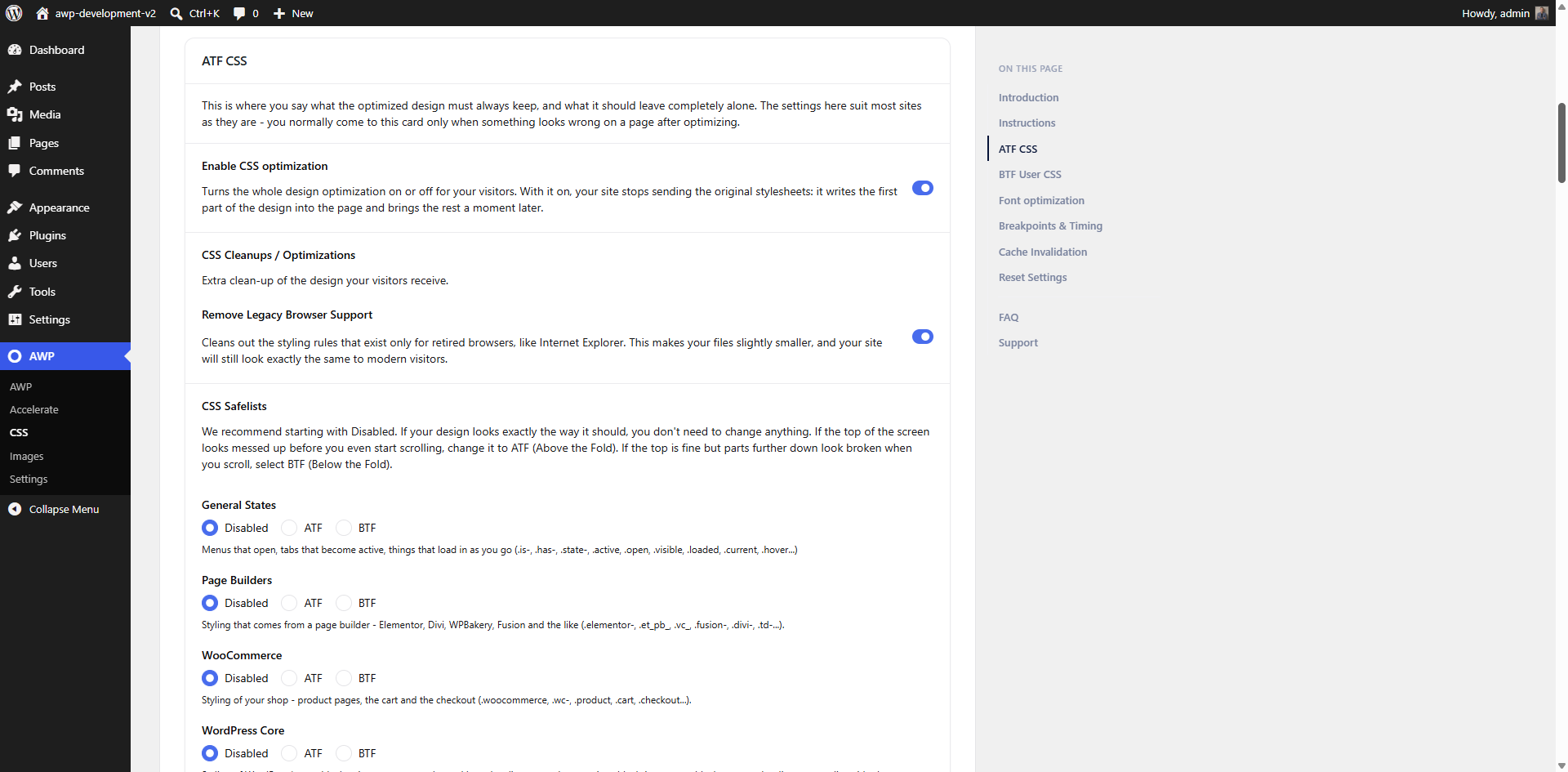
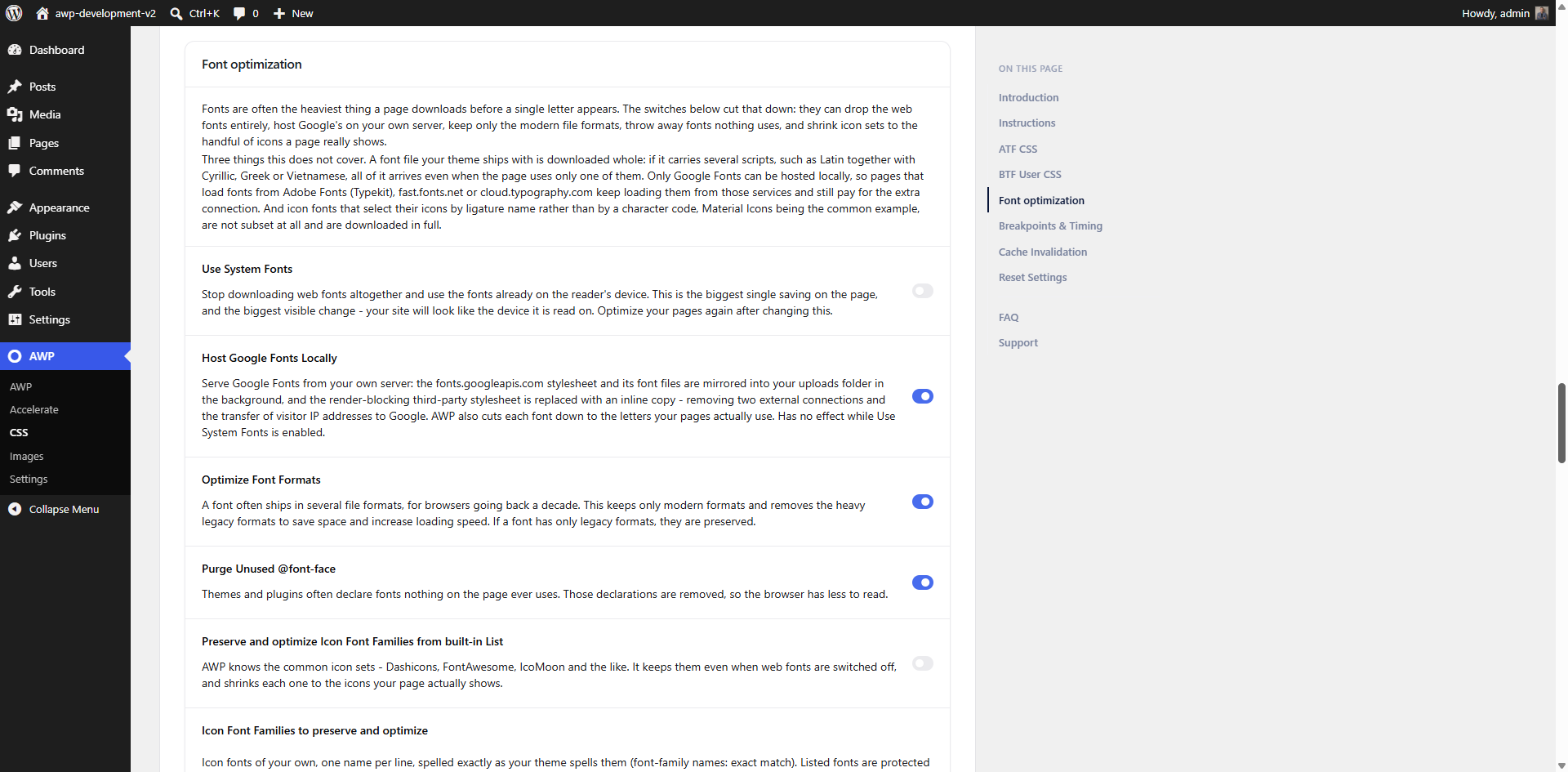
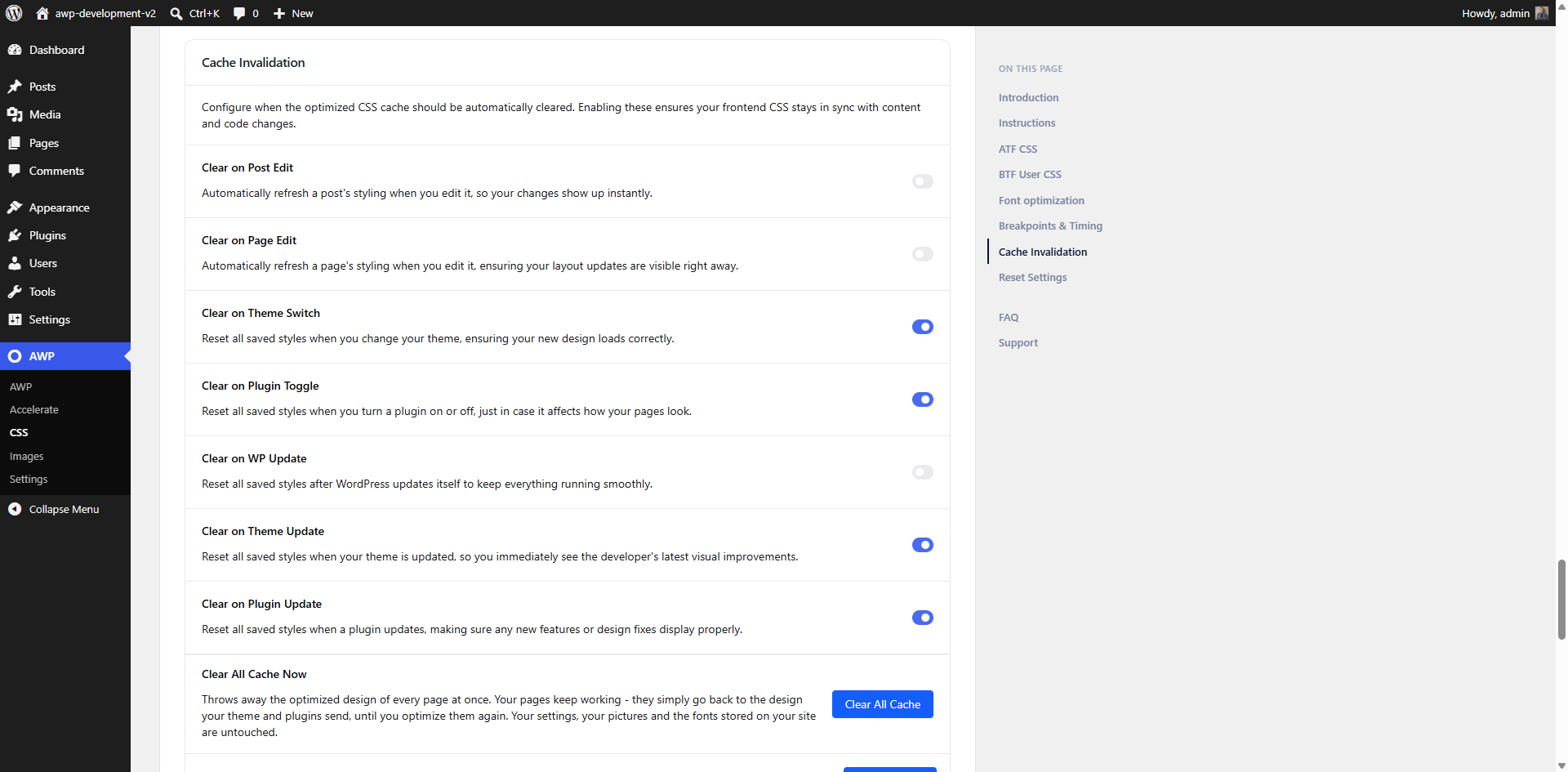
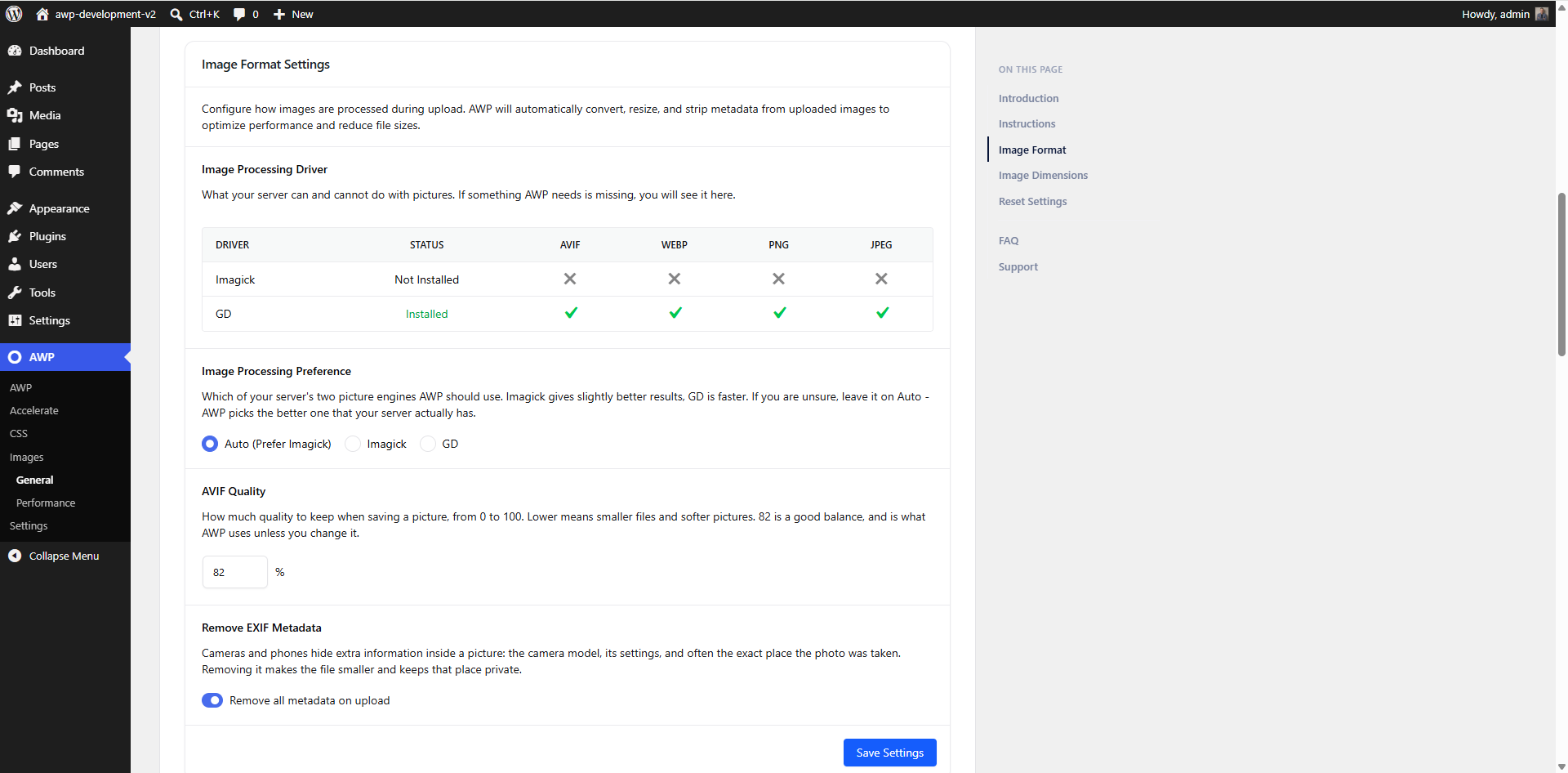


Installation
- Upload the plugin to
/wp-content/plugins/awp-speed-optimization/or install through the WordPress plugins screen. - Activate the plugin.
- Open AWP Accelerate and run your first optimization.
FAQ
-
Does it modify my theme?
-
No. The optimized version of a page is produced at the moment it is served; your theme files and your posts are never edited. The built-in Reset puts everything back the way it was.
-
What happens if my server cannot make AVIF?
-
Your pictures are left exactly as they are, and the styling optimization still runs and still reduces what the browser must load before the first paint. The Accelerate screen tells you what to ask your hosting provider for to get the pictures as well.
Reviews
There are no reviews for this plugin.
Contributors & Developers
“AWP Speed Optimization – Accelerate Website Pages” is open source software. The following people have contributed to this plugin.
Contributors
Translate “AWP Speed Optimization – Accelerate Website Pages” into your language.
Interested in development?
Browse the code, check out the SVN repository, or subscribe to the development log by RSS.
Changelog
2.3.1
This one is about fonts: every optimized page carries less of them and downloads fewer, while its first screen keeps the right lettering from the first moment.
- Improved font loading, so visitors download much less font data on every page.
- Improved the size of each optimized page, so its first screen arrives sooner.
- Improved the lettering of the first screen while the rest of the page loads.
2.3.0
This one is about the first screen of every optimized page: it appears sooner, holds still while the rest of the page arrives, and takes your server less time to build.
- Improved how quickly the first screen of your pages appears, on phones most of all.
- Improved the steadiness of the first screen, so its text keeps its place while the page finishes loading.
- Improved font loading, so visitors download less before they see your page.
- Improved the pictures sent to phones, so most of them get a lighter picture that still looks sharp on their screen.
- Improved the time your server needs to build an optimized page.
- Improved compatibility with caching, CDN and other optimization plugins.
2.2.14
This one reaches past your media library: the photos your theme or a plugin brings along are optimized too, and everything AWP makes is checked before anything uses it.
- Improved the reach of the optimization, so it no longer stops at the photos in your media library and now makes the ones that come with your theme or a plugin smaller for your pages as well.
- Improved what visitors with sharper screens receive for those photos, so each one arrives at the size and the pixel density that screen actually asks for.
- Improved the checks made on every picture AWP writes, so the making of it is only treated as finished when it truly is.
- Improved the optimization of a photo that two things happen to work on at the very same moment, so each of them finishes its own work.
- Improved background work on more kinds of hosting.
- Improved the Server Requirements card, which now takes one look at your hosting and tells you, in a single line, what it can do for your visitors. Nothing to open, nothing to guess.
2.2.13
This one is about the bulk optimization screen and the undo button: clearer messages, and nothing lost when you change your mind while a page is being worked on.
- Improved the message you get when your sign-in expires during a run, so it names the button that is really on the screen afterwards.
- Improved what Undo tells you when the page is already being optimized, so you know the work will finish and what to do once it has.
- Improved the handling of a page you undo while it is being optimized, so the page keeps its optimized design when that work lands.
- Improved the Resume button, so a run whose list is already done simply finishes instead of sending the same pages a second time.
- Improved the way Pause and Stop are respected, so a run you paused stays paused even if the site fails to answer at that moment.
2.2.12
Thanks to everyone who wrote in. This update puts the on/off control in one place and takes better care of photos you replace or remove.
- Improved the on and off control by bringing photos and design together under one switch on the Settings screen, with your current choice carried over for you.
- Improved what you see while signed in, so an editor now always gets the site exactly as the theme builds it.
- Improved the handling of a photo you replace or remove in the media library, so the pages that used it are brought up to date.
- Improved the reach of the optimization, so pictures used as decoration around your content are now covered as well.
- Improved the handling of feeds and embedded previews, which are now left exactly as WordPress writes them.
2.2.11
Thanks to all users for the quality feedback. In this update, we focused on speeding up the loading of photos that are LCP on the page.
- Improved early loading of the main background picture.
- Improved early loading of background pictures in layered and indirectly styled elements.
- Improved main picture priority on pages with many similar pictures.
2.2.10
- Improved loading of the main background picture when it is an LCP file the browser fetches first.
- Improved reading of background styles written directly on page elements.
- Improved background layers recognition and optimization of photos within them.
- Improved disk use of the optimized styling.
2.2.9
- Improved background photo handling.
- Improved reading of background positions written as two values.
- Improved picture addresses on sites whose uploads folder has no month subfolders.
- Improved the savings figure in the editor.
- Improved reporting: your site now tells the service what each optimized page weighs by content type, before and after optimization.
2.2.8
Thanks to all users for the quality feedback. Below are the improvements implemented according to your requests.
- Improved background image optimization when the same photo is used in several places on one page.
- Improved background image optimization on pages that use a smaller copy of a photo.
- Improved Largest Contentful Paint (LCP) hint, so it always points at the picture the page actually paints.
- Improved sharpness on high-resolution screens for pictures shown at their natural size.
- Improved handling of pictures AWP deliberately leaves as they are.
- Improved use of your server during an optimization run.
2.2.7
Thanks to all users for the quality feedback. Below are the improvements implemented according to your requests.
- Improved reliability of picture optimization on pages that use framework attributes (such as Vue’s @click) or a non-Latin alphabet (e.g. Cyrillic).
- Improved picture optimization on pages that use the
<picture>element for responsive images. - Improved Largest Contentful Paint (LCP) hint for background images.
- Improved optimization run when a single page fails to queue.
2.2.6
- Improved decisions about when a page is automatically sent for re-optimization.
- Improved handling of GIF and SVG pictures.
- Improved removal of AWP-generated pictures when the original is deleted.
- A simpler screen with one less thing to do: the “Pictures still waiting” card and its “Make them now” button have been removed. AWP already spots a picture that has no smaller copy while a visitor is on the page, and sends that page for optimization on its own, so there is nothing left for you to watch or click.
2.2.5
- Improved background image optimization.
2.2.4
- Improved image optimization for WooCommerce
- Improved image optimization for Landing pages
- Improved LCP optimization
2.2.3
- Improved image optimization for high-resolution screens.
2.2.2
- Improved icon font optimization.
- Improved reporting of optimization results.
2.2.1
- Improved accuracy of image measurements.
- Improved optimization of cropped images.
2.2.0
Thanks to all users for their feedback, we have implemented significant improvements.
- Improved optimization of cropped images.
- Improved optimization of images that are already in AVIF format.
- Improved handling of upscaled images.
- Improved application of the conversion quality setting.
- Improved speed of re-optimizing already optimized pages.
- Improved image optimization for high-resolution screens.
- Improved re-optimization of pages with dynamic content.
- Improved optimization of background images.
- Improved plugin reset and uninstall.
- Improved optimization settings.
2.1.28
- Pages that greet visitors with a cookie banner can now be optimized properly: a new Cookie banner box on Images – Performance tells the service which Accept button to press before it measures your page. The press happens only inside the service’s own browser – your visitors see nothing different.
- The Optimization Queue no longer leaves out a page that did not get optimized. It goes to the top of the list, marked in red, with the reason in plain words underneath.
- Those reasons are ones you can act on – a cookie banner that stayed on the screen, or a page the service could not open because a firewall, a login wall or maintenance mode was in the way.
- If an optimization does not finish, your page is left exactly as it was and none of your addresses is used up – and now the queue tells you so, instead of the page quietly disappearing from the list.
- A new Reconnect button on the connection card refreshes your site’s access keys in one click, leaving your addresses and your existing optimizations untouched.
2.1.27
- Fixed: the styling for the first screen (the part of your design that has to arrive before anything else) was prepared and stored on your site, but pages optimized with the previous two versions were not sending it inline to visitors. The update alone restores it – no re-optimization needed.
- Until your site is connected, Run Optimization and Re-optimize all addresses are switched off and the screen points you to the Connect button – instead of starting a run that could only end in an error.
2.1.26
- Simpler Accelerate screen: you only choose which pages to work on and click Run Optimization – the defaults take care of the rest. The Batch Size field is gone.
- One place for the finer choices: how pictures are made, the extra speed options and cache busting now live on Images – Performance, in a Content Optimization Settings card with its own Save Settings button. Set them once; every optimization uses them.
- A run covers everything you selected in one go, stays within the addresses you have available, and tells you right away if some pages had to wait for more room.
- A run is easier to manage: pause, resume or reload the page and it carries on exactly where it stopped, and a page you unpublish in the meantime is simply skipped.
- Your Optimization Mode choice now applies to every page you optimize. With the default “Reuse closest existing variant”, your site reuses pictures it already has and makes new copies only when none of them fits – less work for your server and less disk space.
- “Pictures still waiting” has its own card below the Optimization Queue, so it is easier to find.
2.1.25
- Initial release on WordPress.org.