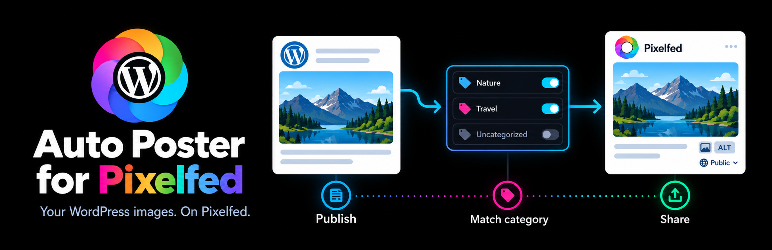

Description
Connect with OAuth.
More information: Auto Poster for Pixelfed.
- Enable selected category rules.
- Use content images, with featured-image fallback.
- Set captions with {{title}}, {{permalink}}, {{excerpt}}, {{category}} and {{date}}.
- Use alt templates or existing image alt text.
- Choose public/private visibility per rule.
- Use duplicate prevention, Post now or Force repost.
- Check the account and optionally store API responses/errors.
Automatic posting follows saving a published post without a password and its categories. The first enabled matching category rule wins, from top to bottom. Duplicate prevention skips a stored Pixelfed status ID.
Local attempt records reduce overlapping posts. Uncertain results block automatic posting, Post now and Force repost until review by an authorized post editor. Exactly-once delivery is not guaranteed; no server-side idempotency support is assumed. Posting requires confirmed autocommit storage on a supported connection. Active host transactions or unknown connections block posting; the plugin does not commit host transactions.
Up to 20 images per attempt, each at most 10 MiB: JPEG, PNG, GIF, WebP or AVIF when core/PHP recognizes the file. Native WordPress AVIF media support needs WordPress 6.5 and a suitable host. Instance limits apply; no added compression.
Not affiliated with or endorsed by Pixelfed.
External services
Use an account on a compatible, publicly reachable HTTPS Pixelfed instance. Your instance provides authorization, image hosting and publication.
Installation and activation do not contact Pixelfed. Authorize with Pixelfed registers an application on the saved instance with the app name, site URL, callback URL and read/write scopes. Your browser opens its consent screen. The returned code is exchanged for a token using the app credentials.
The read scope checks the account; write uploads images and creates posts. Account verification returns the account name/profile URL and may run for an unverified connection in settings or via Check connected account. Posting sends files, filenames, media types, alt text, captions, visibility and media IDs. Protected requests use the access token. The instance receives server IP/connection metadata; your browser connects there for authorization.
External public HTTPS image hosts receive the requested URL and your server’s connection metadata. Images are downloaded to temporary files, uploaded to Pixelfed and locally cleaned up after the attempt. API and image requests do not follow redirects; use direct URLs.
No analytics/tracking is sent to the developer.
Instances are independently operated. Review your chosen instance’s terms and privacy policy before authorizing. The default is pixelfed.social:
- Pixelfed documentation
- pixelfed.social terms of use
- pixelfed.social privacy policy
- pixelfed.social community guidelines
These policies apply to pixelfed.social, not automatically to other instances. Review the instance’s rules for automated posting and use content you are entitled to publish. pixelfed.social removes excessive advertising and uncurated third-party news bots from its public timeline. Shared content may be distributed to other Fediverse servers according to its visibility and federation behavior.
Privacy and stored data
st_pixelfed_settings stores settings, client ID/secret, token, account name/profile URL and category rules; callback state, administrator ID and session hash verify OAuth. Credentials are not encrypted by the plugin; protect your database/backups.
Posts store the Pixelfed status ID/URL in metadata for the editor and duplicate prevention. st_pixelfed_attempt_<post-id> options store attempt ID, phase/reason, start/expiry times, original instance/account, content/payload/legacy/review hashes and status ID/URL. No raw tokens or post content are stored in these records.
Debug is off by default. It stores the latest attempt time, API response/error in post metadata, keeping only the last media response. JSON above 64 KiB is shortened. Known credential keys and stored token/secret values are redacted; account, media, caption and other personal data may remain. Review before sharing. The plugin does not write to wp-content/debug.log.
Debug off preserves old data. Disconnect locally clears client ID/secret, token, authorization state and account; rules/preferences remain. Instance changes clear credentials; canceling OAuth keeps the existing connection. Local disconnect does not revoke remote permissions: remove the app in your instance’s authorized-app settings.
Deactivation/deletion retains settings, attempt records and post metadata. Records have no scheduled erasure; pre-status failures may clear their record; other records persist until a later attempt replaces them or manual erasure. Administrators can remove st_pixelfed_settings, st_pixelfed_attempt_ options and _st_pixelfed_ post metadata using database/WordPress tools. Pause posting and check unresolved outcomes before erasing records. Local deletion does not delete remote posts.
Source code
The package includes the maintained, human-readable PHP, JavaScript and CSS sources and a translation template (POT). Translated PO/MO catalogs are not bundled; WordPress manages language packs separately. JavaScript and CSS are used directly; no compilation, minification, transpilation or external build service is required.
Installation
If a copy is installed under another folder name, deactivate it before installing this package. Keep only one copy active.
When upgrading from 1.3.1 or an earlier package with st-pixelfed-auto-poster.php, pause posting rules and publishing/scheduled saves, stop manual attempts and wait for existing workers to finish. Deactivate the old plugin, replace its folder with this package without using Delete, then activate Auto Poster for Pixelfed again. The main file is now auto-poster-for-pixelfed.php; automatic reactivation across that filename change is not guaranteed. Settings, attempt/history data and the OAuth callback URL are preserved. Check the account and rules before resuming posting.
- Upload
auto-poster-for-pixelfed.zipusing Plugins > Add New > Upload Plugin, or place theauto-poster-for-pixelfedfolder inwp-content/plugins/. - Activate Auto Poster for Pixelfed.
- Open Settings > Auto Poster for Pixelfed, enter your instance’s HTTPS URL and click Save connection settings before authorizing.
- Review the instance terms/privacy, click Authorize with Pixelfed and approve its permissions.
- Confirm the account; select a category, enable its rule, set visibility/templates and click Save Rules.
- Save the post, category and images first. Post now uses saved content/categories. Check status in the editor’s Pixelfed box.
Keep rules disabled during setup; enable them after checking the account, visibility and templates.
FAQ
-
How are translations provided?
-
The interface source is English. Translations are managed through translate.wordpress.org and loaded from WordPress language packs when available: your profile language in admin, site language for public text. Without a matching language pack, the interface uses English. No separate selector. Posts, captions, templates and technical identifiers are not translated.
-
Can I post a draft, private or password-protected WordPress post?
-
No. Manual and automatic posting require a published WordPress post without a password. Remote private visibility is separate from WordPress post status.
-
What happens when I edit a published post?
-
Saving checks posting again. Duplicate prevention defaults on and skips a saved status ID. Turning it off or using Force repost can create another post; uncertain attempts still block these actions. Existing remote posts are not edited or deleted.
-
Which image and alt text are used?
-
Content images take priority over the featured image. An alt template overrides attachment alt text or an image element’s alt attribute. External image extraction requires PHP’s DOM extension; without it, only WordPress attachment references are read. Instance limits apply.
-
Where can I find posting errors?
-
Enable Debug and open the post editor’s Pixelfed box; reload after a failed manual attempt. Only the latest attempt is kept; personal data can remain. Review before sharing.
-
Does disconnecting remove my Pixelfed posts?
-
No. It clears local OAuth credentials/account only. Revoke the app or delete remote posts on your instance. Attempt records remain.
-
How do I resolve an uncertain attempt?
-
Use Review posting outcome if allowed to publish/edit this post. Check the original instance/account and confirm the earlier attempt stopped. Choose I checked: no status was created to allow a later attempt, or Register an existing Pixelfed status with its ID and optional URL from that instance. Click Save reviewed outcome, then Reload posting status. Recovery is local; it does not verify the server. Pending/unknown never unlock just because 30 minutes passed.
-
Where can I get support?
-
Contact WPfeeder for plugin support.
Reviews
There are no reviews for this plugin.
Contributors & Developers
“Auto Poster for Pixelfed” is open source software. The following people have contributed to this plugin.
Contributors
“Auto Poster for Pixelfed” has been translated into 1 locale. Thank you to the translators for their contributions.
Translate “Auto Poster for Pixelfed” into your language.
Interested in development?
Browse the code, check out the SVN repository, or subscribe to the development log by RSS.
Changelog
0.9
- Initial WordPress.org release, based on the reviewed and locally tested sources.