

Description
[cite_start]Auto Download Buttons is a feature-rich and highly customizable WordPress plugin that allows you to easily embed stylish download buttons with a crucial feature: a delayed auto-download timer[cite: 2]. [cite_start]This is the perfect solution for protecting content, ensuring users view necessary information before accessing a file, and providing a clean, polished user experience for digital downloads[cite: 3].
Key Features:
- [cite_start]Deep Styling Controls: Customize button background colors for Ready, Hover, and Waiting states, along with text color and border radius[cite: 4].
- [cite_start]Custom Countdown Logic: Set a mandatory countdown and define the exact waiting message (using the
{seconds}placeholder)[cite: 5]. - [cite_start]File Information Flashcard: Dynamic element automatically detects the file extension (e.g., XLSX, PDF) and displays it with a custom background and text color[cite: 6].
- [cite_start]Shortcode Integration: Simple shortcode
[auto-download-button]that can be embedded anywhere[cite: 7]. - [cite_start]Download Filename Customization: Use the
download_nameattribute to override the original server filename[cite: 8]. - [cite_start]Global Settings: Easy-to-use Admin Settings panel for setting defaults which can be overridden by shortcode attributes[cite: 9].
- NEW: Media Library Integration: Easily find and copy your direct button download URLs directly from the WordPress Media Library.
- NEW: Button Layout Control: Select the number of buttons to display or configure layout options directly from the plugin dashboard.
Screenshots

[cite_start]Screenshot-1: Customize button colors for the Ready, Hover, and Waiting states, along with border radius and default button text[cite: 23]. 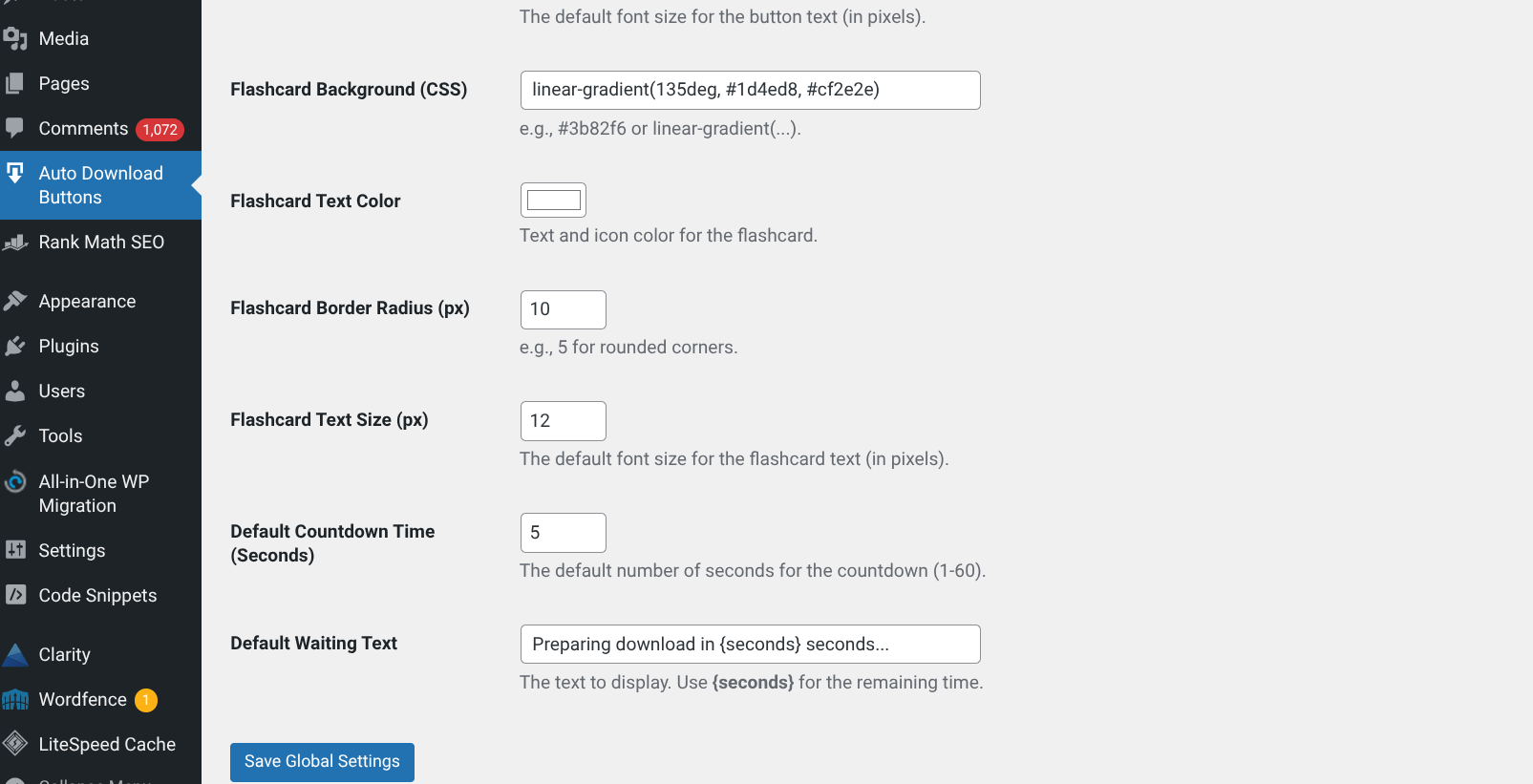
[cite_start]Screnshot-2: Configure the file flashcard’s background, text color, radius, and set the default countdown time and waiting message[cite: 24]. 
[cite_start]Screenshot-3: Example of the highly stylized Auto Download Buttons showing the dynamic file extension flashcard (XLSX)[cite: 25]. 
Screenshot-4: New Dashboard options to set the number of buttons and manage layout settings.
Installation
1. Simple Installation
- [cite_start]Go to your WordPress Dashboard, navigate to Plugins -> Add New[cite: 10].
- [cite_start]Search for “Auto Download Buttons”[cite: 11].
- [cite_start]Click Install Now and then Activate[cite: 11].
2. Usage
- [cite_start]Configure your default style, behavior settings, and the number of buttons under Auto Download Buttons in your WordPress admin menu[cite: 12].
- Visit the Media Library to find the specific Download URL section for your files.
- [cite_start]Use the shortcode in any post, page, or widget where you want to display the button[cite: 13]:
[cite_start][auto-download-button url="[Your File URL]" time="10" download_name="My-Custom-File.xlsx"] [cite: 13]
Shortcode Attributes
Attribute
Description
Required?
Example
url
[cite_start]The direct link to your downloadable file[cite: 14, 15].
Yes
url="https://domain.com/files/sheet.xlsx"
time
The countdown delay in seconds. [cite_start]Overrides the global setting[cite: 15, 16].
No
time="5"
download_name
[cite_start]The custom name the downloaded file will have on the user’s computer[cite: 17].
No
download_name="Budget-Template.xlsx"
FAQ
-
[cite_start]A: All global defaults, including styling and countdown messages, can be customized under the dedicated Auto Download Buttons menu in your WordPress admin dashboard[cite: 18]. (See Screenshots 1 & 2) [cite_start][cite: 19].
-
Q: Where do I find the file URL?
-
A: You can now find the specific Download URL in the Media Library details section for each uploaded file.
-
Q: What is the “Flashcard”?
-
[cite_start]A: The Flashcard is the small, stylized element above the button text (like the XLSX badge you see in Screenshot 3)[cite: 19, 20]. [cite_start]You can customize its color, text size, and border radius in the plugin settings[cite: 20].
-
Q: How do I make the countdown work?
-
[cite_start]A: Set the Default Countdown Time (Seconds) and Default Waiting Text in the settings[cite: 21, 22]. [cite_start]Ensure your waiting text includes the
{seconds}placeholder to display the live countdown[cite: 22].
Reviews
There are no reviews for this plugin.
Contributors & Developers
“Auto Download Buttons” is open source software. The following people have contributed to this plugin.
Contributors
Translate “Auto Download Buttons” into your language.
Interested in development?
Browse the code, check out the SVN repository, or subscribe to the development log by RSS.
Changelog
1.0.2
- Added “Number of Buttons” option to the plugin dashboard.
- Integrated Download URL section into the Media Library for easier link management.
- General performance improvements and code optimization.
1.0.1
- [cite_start]Initial release of the Auto Download Buttons plugin[cite: 26].
- [cite_start]Added shortcode functionality:
[auto-download-button][cite: 26]. - [cite_start]Implemented delayed download timer logic[cite: 27].
- [cite_start]Included comprehensive style controls for button states, radius, and colors[cite: 27].
- [cite_start]Added dynamic file information flashcard with styling options[cite: 28].